battery KIA SOUL EV 2018 Manual PDF
[x] Cancel search | Manufacturer: KIA, Model Year: 2018, Model line: SOUL EV, Model: KIA SOUL EV 2018Pages: 496, PDF Size: 15.13 MB
Page 254 of 496
4123
Features of your vehicle
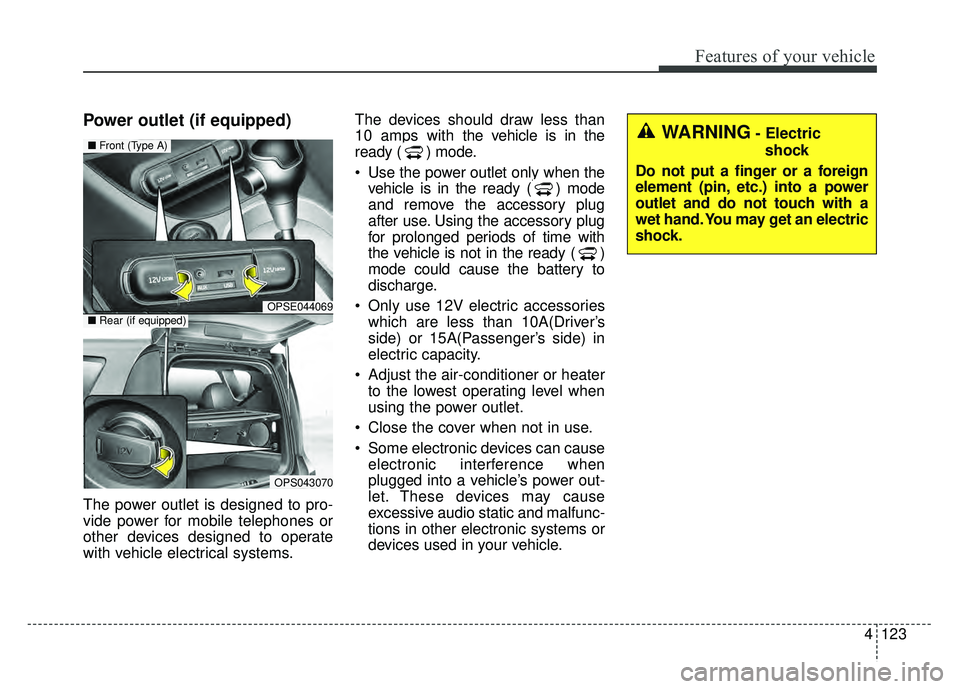
Power outlet (if equipped)
The power outlet is designed to pro-
vide power for mobile telephones or
other devices designed to operate
with vehicle electrical systems.The devices should draw less than
10 amps with the vehicle is in the
ready ( ) mode.
Use the power outlet only when the
vehicle is in the ready ( ) mode
and remove the accessory plug
after use. Using the accessory plug
for prolonged periods of time with
the vehicle is not in the ready ( )
mode could cause the battery to
discharge.
Only use 12V electric accessories which are less than 10A(Driver’s
side) or 15A(Passenger’s side) in
electric capacity.
Adjust the air-conditioner or heater to the lowest operating level when
using the power outlet.
Close the cover when not in use.
Some electronic devices can cause electronic interference when
plugged into a vehicle’s power out-
let. These devices may cause
excessive audio static and malfunc-
tions in other electronic systems or
devices used in your vehicle.
OPSE044069
OPS043070
■ Front (Type A)
■Rear (if equipped)
WARNING- Electric
shock
Do not put a finger or a foreign
element (pin, etc.) into a power
outlet and do not touch with a
wet hand. You may get an electric
shock.
Page 261 of 496
Features of your vehicle
130
4
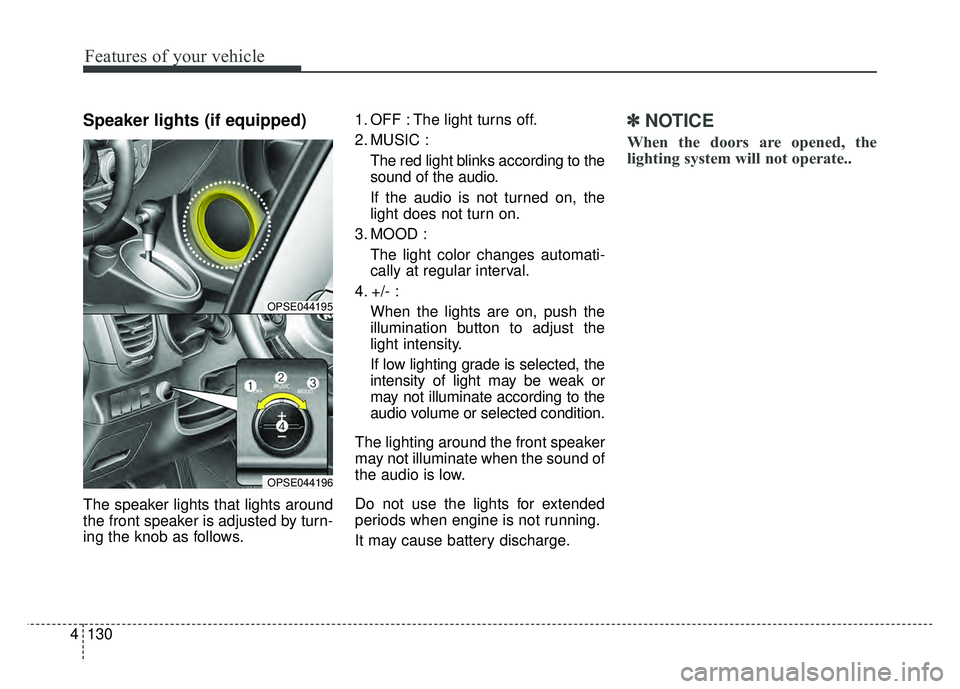
Speaker lights (if equipped)
The speaker lights that lights around
the front speaker is adjusted by turn-
ing the knob as follows. 1. OFF : The light turns off.
2. MUSIC :
The red light blinks according to the
sound of the audio.
If the audio is not turned on, the
light does not turn on.
3. MOOD : The light color changes automati-
cally at regular interval.
4. +/- : When the lights are on, push the
illumination button to adjust the
light intensity.
If low lighting grade is selected, the
intensity of light may be weak or
may not illuminate according to the
audio volume or selected condition.
The lighting around the front speaker
may not illuminate when the sound of
the audio is low.
Do not use the lights for extended
periods when engine is not running.
It may cause battery discharge.
✽ ✽ NOTICE
When the doors are opened, the
lighting system will not operate..
OPSE044195
OPSE044196
Page 265 of 496
Features of your vehicle
134
4
Adjust the volume to levels that
allow the driver to hear sounds from
outside of the vehicle. Driving in a
state where external sounds cannot
be heard may lead to accidents. Pay attention to the volume setting
when turning the device on. A sud-
den output of extreme volume
upon turning the device on could
lead to hearing impairment. (Adjust
the volume to a suitable levels
before turning off the device.)
Turn on the car ignition before using the audio system. Do not
operate the audio system for long
periods of time with the ignition
turned off as such operations may
lead to battery discharge.
In case of product malfunction, please contact your place of pur-
chase or After Service center.
Placing the audio system within an electromagnetic environment may
result in noise interference.
CAUTION- LCD Monitor
Do not subject the device tosevere shock or impact. Directpressure onto the front side ofthe monitor may cause damageto the LCD or touch screen.
CAUTION
When cleaning the device, make sure to turn off theaudio system and use a dryand smooth cloth.
Never use tough materials, chemical cloths, or solvents(alcohol, benzene, thinners,etc.) as such materials maydamage the device panel orcause color/quality deteriora-tion.
Prevent caustic solutions such as perfume and cosmetic oilfrom contacting the dashboardbecause they may cause dam-age or discoloration.
WARNING- Distracted
Driving
Driving while distracted can
result in a loss of vehicle control
that may lead to an accident,
severe personal injury, and
death. The driver’s primary
responsibility is in the safe and
legal operation of a vehicle, and
use of any handheld devices,
other equipment, or vehicle sys-
tems which take the driver’s
eyes, attention and focus away
from the safe operation of a vehi-
cle or which are not permissible
by law should never be used dur-
ing operation of the vehicle.
Page 267 of 496
Features of your vehicle
136
4
USING iPod®DEVICE
iPhone®is a registered grademark of
Apple inc.
Some iPod
®models may not sup-
port communication protocol and
files may not properly play.
Supported iPod
®models:
- iPhone
®3GS/4
- iPod
®touch 1st~4th generation
- iPod
®nano 1st~6th generation
- iPod
®classic
The order of search or playback of songs in the iPod
®can be different
from the order searched in the
audio system.
If the iPod
®is disabled due to its
own malfunction, reset the iPod®.
(Reset: Refer to iPod®manual)
An iPod
®may not operate normally
on low battery.
(Continued)
(Continued)
Some USB flash memory read-
ers (such as CF, SD, micro SD,
etc.) or external-HDD type
devices can be unrecognizable.
Music files protected by DRM (DIGITAL RIGHTS MANAGE-
MENT) are not recognizable.
The data in the USB memory may be lost while using this
audio. Always back up important
data on a personal storage
device.
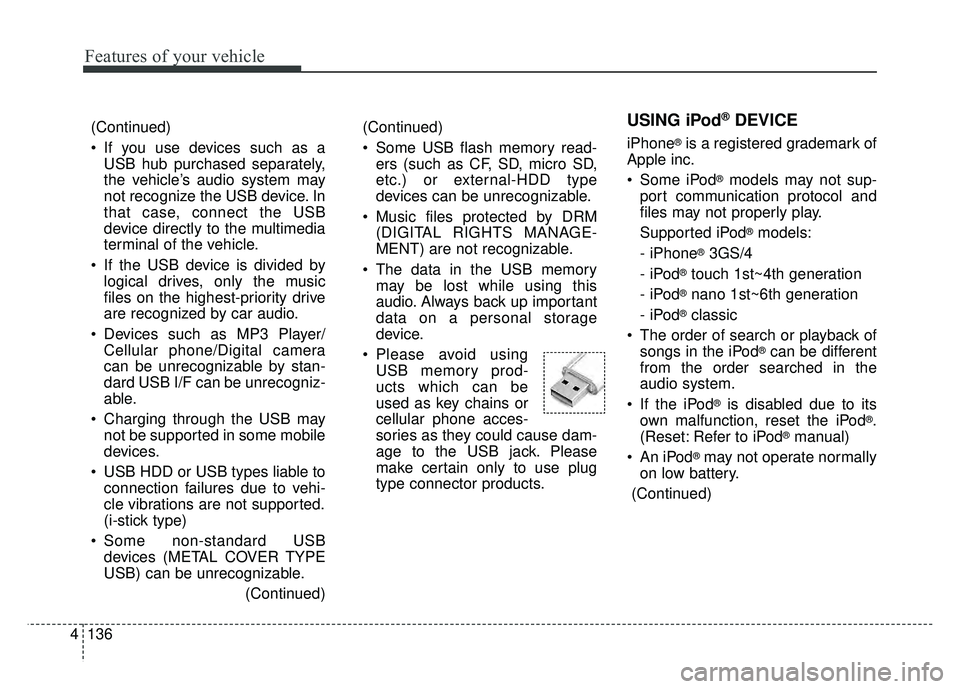
Please avoid using USB memory prod-
ucts which can be
used as key chains or
cellular phone acces-
sories as they could cause dam-
age to the USB jack. Please
make certain only to use plug
type connector products.
(Continued)
If you use devices such as aUSB hub purchased separately,
the vehicle’s audio system may
not recognize the USB device. In
that case, connect the USB
device directly to the multimedia
terminal of the vehicle.
If the USB device is divided by logical drives, only the music
files on the highest-priority drive
are recognized by car audio.
Devices such as MP3 Player/ Cellular phone/Digital camera
can be unrecognizable by stan-
dard USB I/F can be unrecogniz-
able.
Charging through the USB may not be supported in some mobile
devices.
USB HDD or USB types liable to connection failures due to vehi-
cle vibrations are not supported.
(i-stick type)
Some non-standard USB devices (METAL COVER TYPE
USB) can be unrecognizable.
(Continued)
Page 277 of 496
146
4
Features of your vehicle
✽
✽
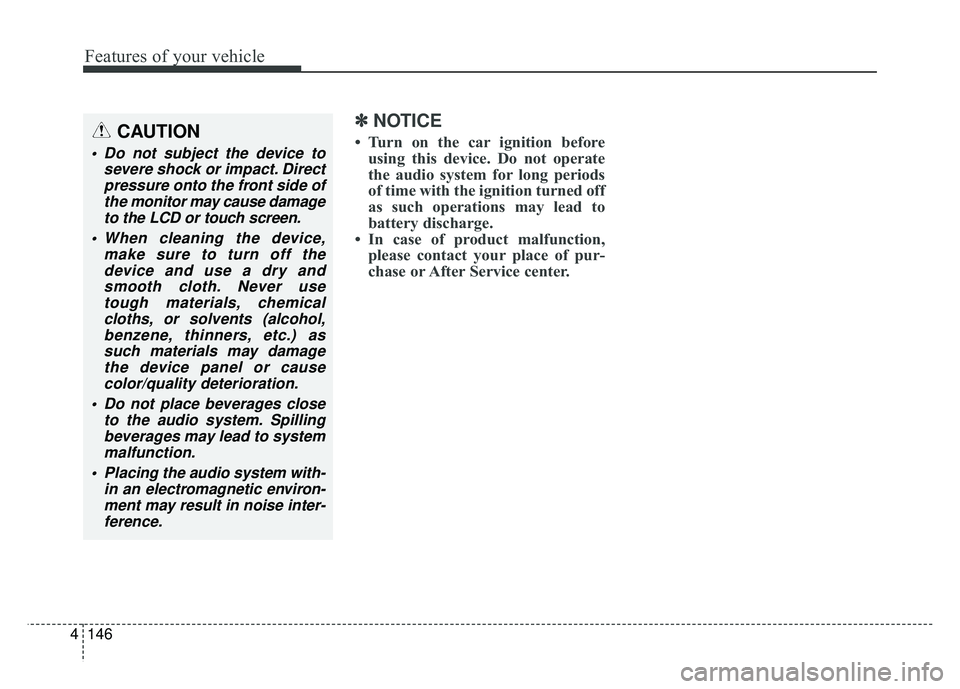
NOTICE
• Turn on the car ignition before
using this device. Do not operate
the audio system for long periods
of time with the ignition turned off
as such operations may lead to
battery discharge.
• In case of product malfunction, please contact your place of pur-
chase or After Service center.CAUTION
Do not subject the device to
severe shock or impact. Directpressure onto the front side ofthe monitor may cause damageto the LCD or touch screen.
When cleaning the device, make sure to turn off thedevice and use a dry andsmooth cloth. Never usetough materials, chemicalcloths, or solvents (alcohol,benzene, thinners, etc.) assuch materials may damagethe device panel or causecolor/quality deterioration.
Do not place beverages close to the audio system. Spillingbeverages may lead to systemmalfunction.
Placing the audio system with- in an electromagnetic environ-ment may result in noise inter-ference.
Page 278 of 496
4147
Features of your vehicle
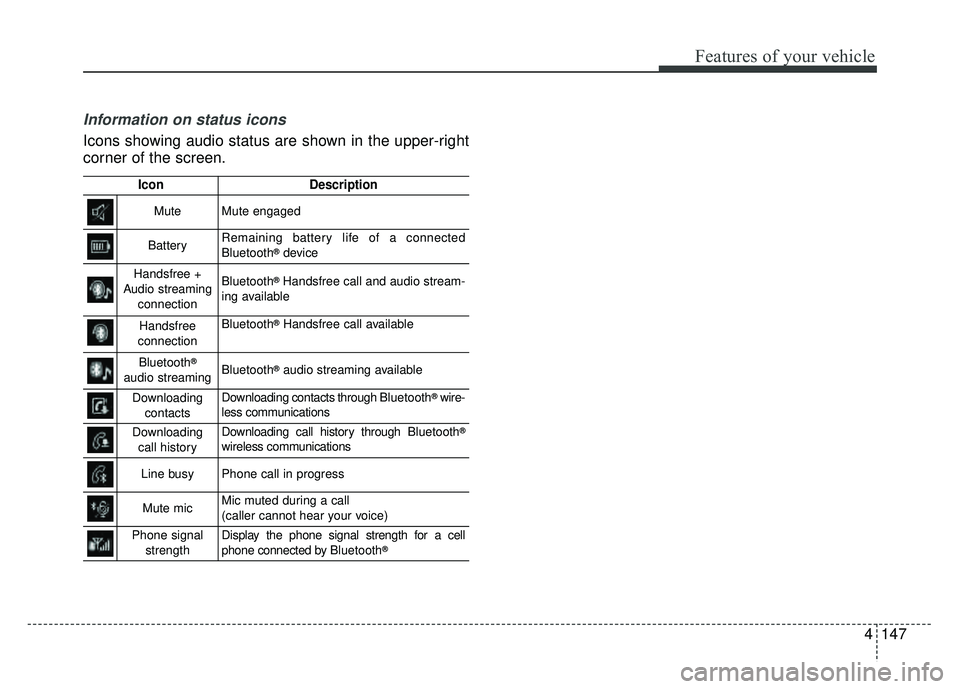
Information on status icons
Icons showing audio status are shown in the upper-right
corner of the screen.
IconDescription
MuteMute engaged
BatteryRemaining battery life of a connected
Bluetooth®device
Handsfree +
Audio streaming connectionBluetooth®Handsfree call and audio stream-
ing available
Handsfree
connectionBluetooth®Handsfree call available
Bluetooth®
audio streamingBluetooth®audio streaming available
Downloading contactsDownloading contacts through Bluetooth®wire-
less communications
Downloading call historyDownloading call history through Bluetooth®
wireless communications
Line busyPhone call in progress
Mute micMic muted during a call
(caller cannot hear your voice)
Phone signal strengthDisplay the phone signal strength for a cell
phone connected by Bluetooth®
Page 289 of 496
158
4
Features of your vehicle
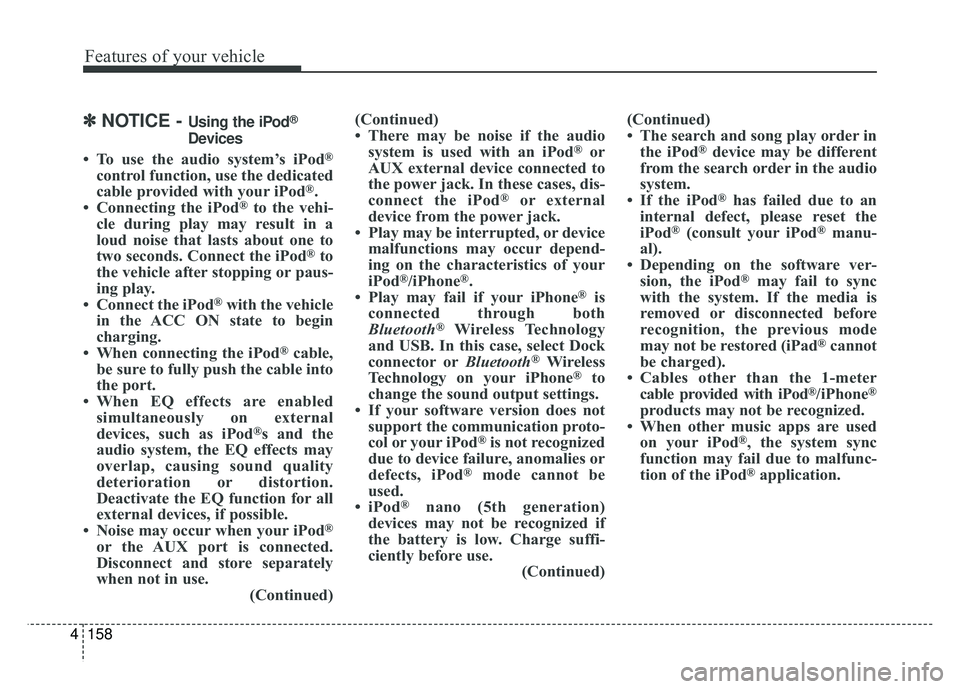
✽
✽
NOTICE - Using the iPod®
Devices
• To use the audio system’s iPod®
control function, use the dedicated
cable provided with your iPod®.
• Connecting the iPod®to the vehi-
cle during play may result in a
loud noise that lasts about one to
two seconds. Connect the iPod
®to
the vehicle after stopping or paus-
ing play.
• Connect the iPod
®with the vehicle
in the ACC ON state to begin
charging.
• When connecting the iPod
®cable,
be sure to fully push the cable into
the port.
• When EQ effects are enabled simultaneously on external
devices, such as iPod
®s and the
audio system, the EQ effects may
overlap, causing sound quality
deterioration or distortion.
Deactivate the EQ function for all
external devices, if possible.
• Noise may occur when your iPod
®
or the AUX port is connected.
Disconnect and store separately
when not in use. (Continued)(Continued)
• There may be noise if the audio
system is used with an iPod
®or
AUX external device connected to
the power jack. In these cases, dis-
connect the iPod
®or external
device from the power jack.
• Play may be interrupted, or device malfunctions may occur depend-
ing on the characteristics of your
iPod
®/iPhone®.
• Play may fail if your iPhone®is
connected through both
Bluetooth
®Wireless Technology
and USB. In this case, select Dock
connector or Bluetooth
®Wireless
Technology on your iPhone®to
change the sound output settings.
• If your software version does not support the communication proto-
col or your iPod
®is not recognized
due to device failure, anomalies or
defects, iPod
®mode cannot be
used.
• iPod
®nano (5th generation)
devices may not be recognized if
the battery is low. Charge suffi-
ciently before use. (Continued)(Continued)
• The search and song play order in
the iPod
®device may be different
from the search order in the audio
system.
• If the iPod
®has failed due to an
internal defect, please reset the
iPod
®(consult your iPod®manu-
al).
• Depending on the software ver- sion, the iPod
®may fail to sync
with the system. If the media is
removed or disconnected before
recognition, the previous mode
may not be restored (iPad
®cannot
be charged).
• Cables other than the 1-meter cable provided with iPod
®/iPhone®
products may not be recognized.
• When other music apps are used on your iPod
®, the system sync
function may fail due to malfunc-
tion of the iPod
®application.
Page 300 of 496
4169
Features of your vehicle
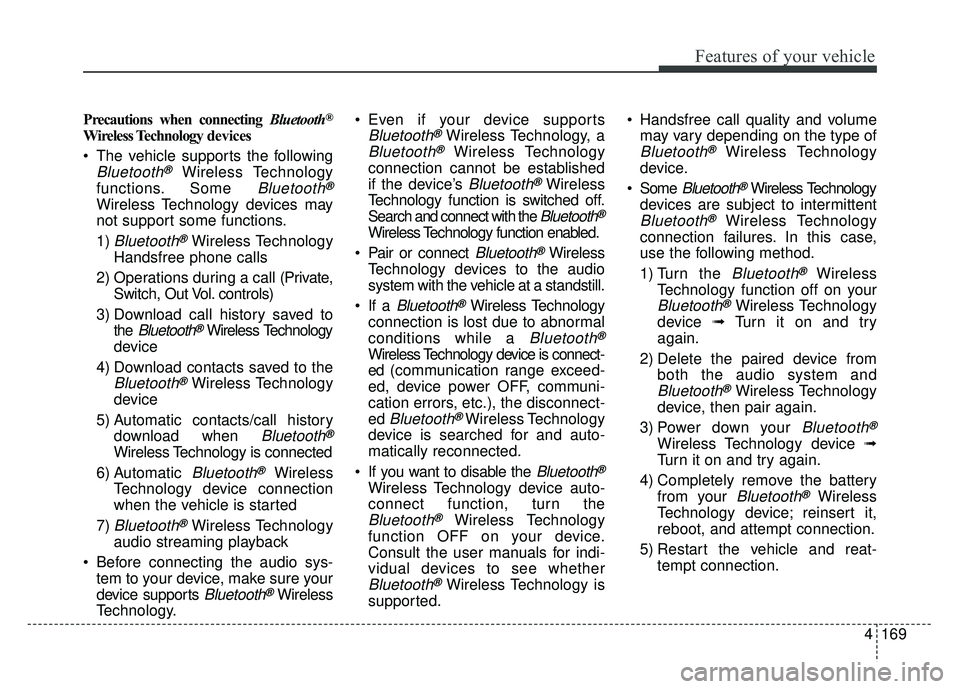
Precautions when connecting Bluetooth®
Wireless Technologydevices
The vehicle supports the following
Bluetooth®Wireless Technology
functions. Some
Bluetooth®
Wireless Technology devices may
not support some functions.
1)
Bluetooth®Wireless Technology
Handsfree phone calls
2) Operations during a call (Private, Switch, Out Vol. controls)
3) Download call history saved to the
Bluetooth®Wireless Technology
device
4) Download contacts saved to the
Bluetooth®Wireless Technology
device
5) Automatic contacts/call history download when
Bluetooth®
Wireless Technology is connected
6) Automatic
Bluetooth®Wireless
Technology device connection
when the vehicle is started
7)
Bluetooth®Wireless Technology
audio streaming playback
Before connecting the audio sys- tem to your device, make sure your
device supports
Bluetooth®Wireless
Technology. Even if your device supports
Bluetooth®Wireless Technology, a
Bluetooth®Wireless Technology
connection cannot be established
if the device’s
Bluetooth®Wireless
Technology function is switched off.
Search and connect with the
Bluetooth®
Wireless Technology function enabled.
Pair or connect
Bluetooth®Wireless
Technology devices to the audio
system with the vehicle at a standstill.
If a
Bluetooth®Wireless Technology
connection is lost due to abnormal
conditions while a
Bluetooth®
Wireless Technology device is connect-
ed (communication range exceed-
ed, device power OFF, communi-
cation errors, etc.), the disconnect-
ed
Bluetooth®Wireless Technology
device is searched for and auto-
matically reconnected.
If you want to disable the
Bluetooth®
Wireless Technology device auto-
connect function, turn the
Bluetooth®Wireless Technology
function OFF on your device.
Consult the user manuals for indi-
vidual devices to see whether
Bluetooth®Wireless Technology is
supported. Handsfree call quality and volume
may vary depending on the type of
Bluetooth®Wireless Technology
device.
Some
Bluetooth®Wireless Technology
devices are subject to intermittent
Bluetooth®Wireless Technology
connection failures. In this case,
use the following method.
1) Turn the
Bluetooth®Wireless
Technology function off on your
Bluetooth®Wireless Technology
device ➟Turn it on and try
again.
2) Delete the paired device from both the audio system and
Bluetooth®Wireless Technology
device, then pair again.
3) Power down your
Bluetooth®
Wireless Technology device ➟
Turn it on and try again.
4) Completely remove the battery from your
Bluetooth®Wireless
Technology device; reinsert it,
reboot, and attempt connection.
5) Restart the vehicle and reat- tempt connection.
Page 317 of 496
55
Driving your vehicle
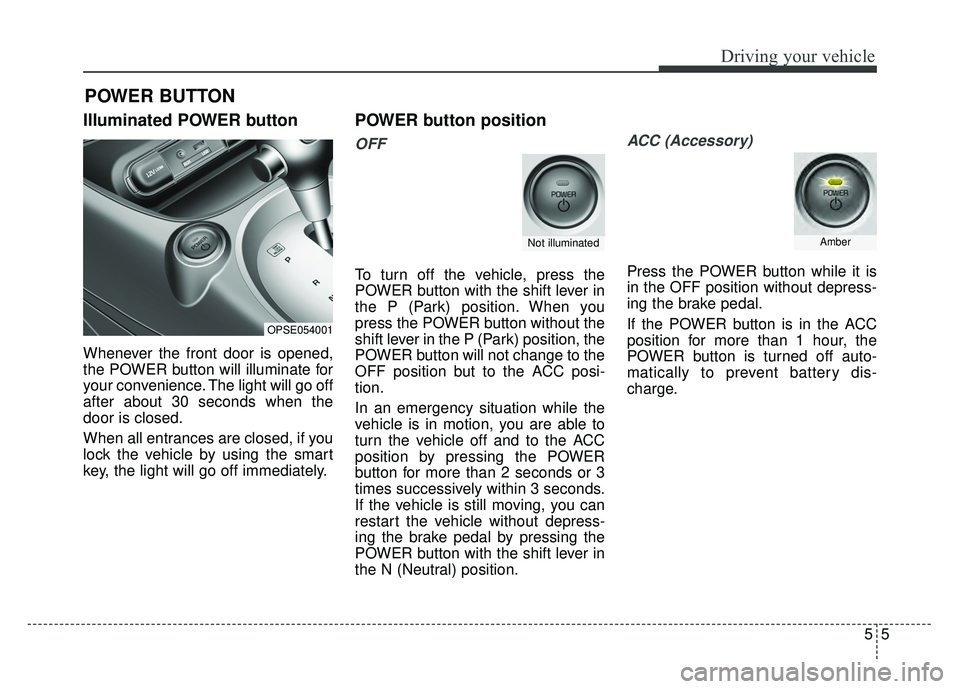
Illuminated POWER button
Whenever the front door is opened,
the POWER button will illuminate for
your convenience. The light will go off
after about 30 seconds when the
door is closed.
When all entrances are closed, if you
lock the vehicle by using the smart
key, the light will go off immediately.
POWER button position
OFF
To turn off the vehicle, press the
POWER button with the shift lever in
the P (Park) position. When you
press the POWER button without the
shift lever in the P (Park) position, the
POWER button will not change to the
OFF position but to the ACC posi-
tion.
In an emergency situation while the
vehicle is in motion, you are able to
turn the vehicle off and to the ACC
position by pressing the POWER
button for more than 2 seconds or 3
times successively within 3 seconds.
If the vehicle is still moving, you can
restart the vehicle without depress-
ing the brake pedal by pressing the
POWER button with the shift lever in
the N (Neutral) position.
ACC (Accessory)
Press the POWER button while it is
in the OFF position without depress-
ing the brake pedal.
If the POWER button is in the ACC
position for more than 1 hour, the
POWER button is turned off auto-
matically to prevent battery dis-
charge.
POWER BUTTON
OPSE054001
Not illuminatedAmber
Page 318 of 496
Driving your vehicle
65
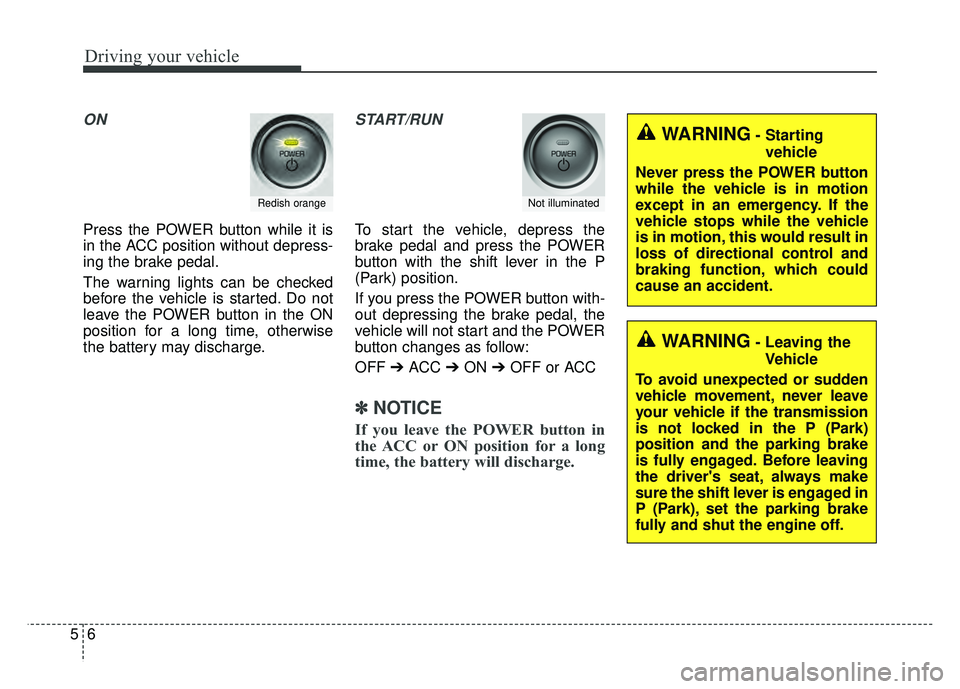
ON
Press the POWER button while it is
in the ACC position without depress-
ing the brake pedal.
The warning lights can be checked
before the vehicle is started. Do not
leave the POWER button in the ON
position for a long time, otherwise
the battery may discharge.
START/RUN
To start the vehicle, depress the
brake pedal and press the POWER
button with the shift lever in the P
(Park) position.
If you press the POWER button with-
out depressing the brake pedal, the
vehicle will not start and the POWER
button changes as follow:
OFF ➔ACC ➔ON ➔OFF or ACC
✽ ✽
NOTICE
If you leave the POWER button in
the ACC or ON position for a long
time, the battery will discharge.
Redish orangeNot illuminated
WARNING- Starting
vehicle
Never press the POWER button
while the vehicle is in motion
except in an emergency. If the
vehicle stops while the vehicle
is in motion, this would result in
loss of directional control and
braking function, which could
cause an accident.
WARNING- Leaving the Vehicle
To avoid unexpected or sudden
vehicle movement, never leave
your vehicle if the transmission
is not locked in the P (Park)
position and the parking brake
is fully engaged. Before leaving
the driver's seat, always make
sure the shift lever is engaged in
P (Park), set the parking brake
fully and shut the engine off.