key KIA Sportage 2010 SL / 3.G Owner's Guide
[x] Cancel search | Manufacturer: KIA, Model Year: 2010, Model line: Sportage, Model: KIA Sportage 2010 SL / 3.GPages: 371, PDF Size: 5.23 MB
Page 71 of 371
Knowing your vehicle
62
3
1
2
3
4
5
6
7
8
9
Main components of occupant
classification system
A detection device located within
the front passenger seat track.
Electronic system to determine whether passenger air bag sys-
tems (both front and side) should
be activated or deactivated.
A warning light located on the instrument panel which illuminates
the words PASSENGER AIR BAG
“OFF” indicating the front passen-
ger air bag system is deactivated.
The instrument panel air bag warn- ing light is interconnected with the
occupant classification system. Always be sure that you and all vehi-
cle occupants are seated and
restrained properly (sitting upright
with the seat in an upright position,
centered on the seat cushion, with
the person’s legs comfortably
extended, feet on the floor, and wear-
ing the safety belt properly) for the
most effective protection by the air
bag and the safety belt.
The OCS (Occupant Classification
System) may not function properly
if the passenger takes actions
which can defeat the detection sys-
tem. These include:
(1) Failing to sit in an upright posi- tion.
(2) Leaning against the door or cen- ter console.
(3) Sitting towards the sides or the front of the seat.
(4) Putting legs on the dashboard or resting them on other locations
which reduce the passenger
weight on the front seat.
(5) Improperly wearing the safety
belt.
(6) Reclining the seat back. The PASSENGER AIR BAG “OFF”
indicator illuminates after the igni-
tion key is turned to the “ON” posi-
tion or after the engine is started. If
the front passenger’s seat is occu-
pied by very small person, the
PASSENGER AIR BAG “OFF” indi-
cator will remain illuminated. If the
front passenger’s seat is occupied
by a person of adult size, the PAS-
SENGER AIR BAG “OFF” indicator
will turn off after 4 seconds.
If the front passenger's seat is unoccupied, the PASSENGER AIR
BAG “OFF” indicator will turn on,
and the front passenger's airbag
will not deploy in frontal crashes.
If the PASSENGER AIR BAG “OFF” indicator illuminates, the
front passenger’s airbag will not
deploy in frontal crashes.
If the front passenger’s seat is occupied by a person of adult size,
the PASSENGER AIR BAG “OFF”
indicator is not illuminated and the
front passenger’s airbag will deploy
in frontal crashes.
Page 73 of 371
Knowing your vehicle
64
3
1
2
3
4
5
6
7
8
9
CAUTION
If the occupant classification
system is not working properly,the airbag warning light ( ) onthe instrument panel will illumi-nate because the passenger’sairbag is connected with theoccupant classification system.If there is a malfunction of theoccupant classification system,the PASSENGER AIR BAG“OFF” indicator will illuminateand the front passenger'sairbag will not deploy in frontalcrashes even if there is adultoccupant in the front passen-ger's seat.
(Continued)
(Continued)Have an authorized Kia dealerinspect the occupant classifica-tion system with the SRS airbagsystem as soon as possible ifany of following occur;
The SRS airbag warning light does not illuminate when theignition key is turned to "ON"position.
The SRS airbag warning light remains illuminated after illu-minating for approximately 6seconds.
The SRS airbag warning light illuminates while the vehicle isbeing driven.
WARNING
The occupant classification system can function only
when the ignition key is in the
"ON" position.
For very small person, the occupant classification sys-
tem may or may not turn off
the right front passenger's
frontal airbag, depending
upon the person's seating
posture and body build.
Everyone in your vehicle
should wear a safety belt
properly -- whether or not
there is an air bag for that per-
son.
(Continued)
WARNING
If the front passenger seat
should be modified for persons
with disabilities that may affect
the operation of the occupant
classification system, contact
an authorized Kia dealer.
Page 109 of 371
Knowing your vehicle
100
3
1
2
3
4
5
6
7
8
9
Resetting the sunroof
Whenever the vehicle battery is dis-
connected or discharged, you have
to reset your sunroof system as fol-
lows:
1. Turn the ignition key to the ON
position.
2. According to the position of the sunroof, do as follows.
1) in case that the sunroof hasclosed completely or been tilt-
ed :
Press the TILT UP button until
the sunroof has tilted upward
completely.
2) in case that the sunroof has slide-opened:
Press and hold the CLOSE
button for more than 5 seconds
until the sunroof has closed
completely. Press the TILT UP
button until the sunroof has tilt-
ed upward completely. 3. Release the TILT UP button.
4. Press and hold the TILT UP button
once again until the sunroof has
returned to the original position of
TILT UP after it is raised a little
higher than the maximum TILT UP
position.
When this is complete, the sunroof
system is reset.
Page 119 of 371
Knowing your vehicle
110
3
1
2
3
4
5
6
7
8
9
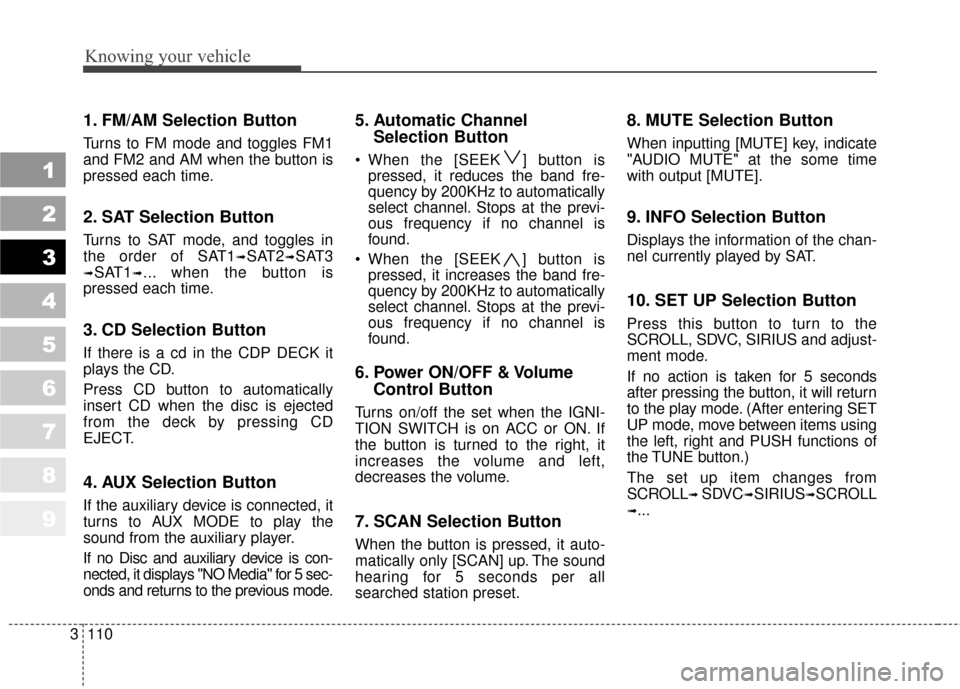
1. FM/AM Selection Button
Turns to FM mode and toggles FM1
and FM2 and AM when the button is
pressed each time.
2. SAT Selection Button
Turns to SAT mode, and toggles in
the order of SAT1
➟SAT2➟SAT3
➟SAT1➟... when the button is
pressed each time.
3. CD Selection Button
If there is a cd in the CDP DECK it
plays the CD.
Press CD button to automatically
insert CD when the disc is ejected
from the deck by pressing CD
EJECT.
4. AUX Selection Button
If the auxiliary device is connected, it
turns to AUX MODE to play the
sound from the auxiliary player.
If no Disc and auxiliary device is con-
nected, it displays "NO Media" for 5 sec-
onds and returns to the previous mode.
5. Automatic Channel Selection Button
When the [SEEK ] button is
pressed, it reduces the band fre-
quency by 200KHz to automatically
select channel. Stops at the previ-
ous frequency if no channel is
found.
When the [SEEK ] button is pressed, it increases the band fre-
quency by 200KHz to automatically
select channel. Stops at the previ-
ous frequency if no channel is
found.
6. Power ON/OFF & Volume Control Button
Turns on/off the set when the IGNI-
TION SWITCH is on ACC or ON. If
the button is turned to the right, it
increases the volume and left,
decreases the volume.
7. SCAN Selection Button
When the button is pressed, it auto-
matically only [SCAN] up. The sound
hearing for 5 seconds per all
searched station preset.
8. MUTE Selection Button
When inputting [MUTE] key, indicate
"AUDIO MUTE" at the some time
with output [MUTE].
9. INFO Selection Button
Displays the information of the chan-
nel currently played by SAT.
10. SET UP Selection Button
Press this button to turn to the
SCROLL, SDVC, SIRIUS and adjust-
ment mode.
If no action is taken for 5 seconds
after pressing the button, it will return
to the play mode. (After entering SET
UP mode, move between items using
the left, right and PUSH functions of
the TUNE button.)
The set up item changes from
SCROLL
➟ SDVC➟SIRIUS➟SCROLL
➟...
Page 123 of 371
Knowing your vehicle
114
3
1
2
3
4
5
6
7
8
9
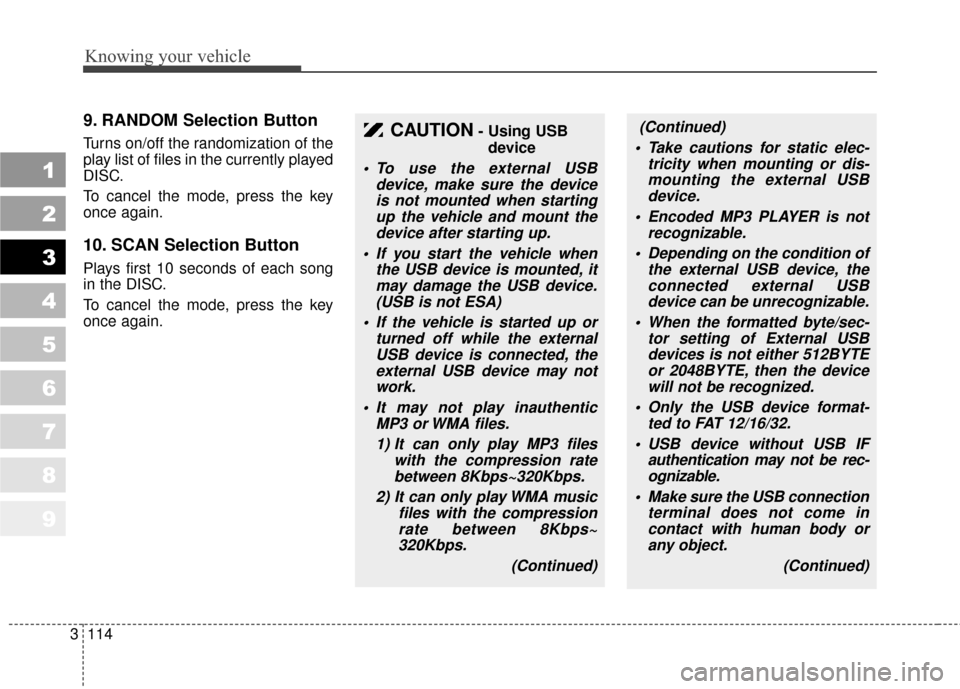
9. RANDOM Selection Button
Turns on/off the randomization of the
play list of files in the currently played
DISC.
To cancel the mode, press the key
once again.
10. SCAN Selection Button
Plays first 10 seconds of each song
in the DISC.
To cancel the mode, press the key
once again.
CAUTION- Using USB
device
• To use the external USB device, make sure the deviceis not mounted when startingup the vehicle and mount thedevice after starting up.
If you start the vehicle when the USB device is mounted, itmay damage the USB device.(USB is not ESA)
If the vehicle is started up or turned off while the externalUSB device is connected, theexternal USB device may notwork.
It may not play inauthentic MP3 or WMA files.
1) It can only play MP3 files with the compression ratebetween 8Kbps~320Kbps.
2) It can only play WMA music files with the compressionrate between 8Kbps~320Kbps.
(Continued)
(Continued)
Take cautions for static elec- tricity when mounting or dis-mounting the external USBdevice.
Encoded MP3 PLAYER is not recognizable.
Depending on the condition of the external USB device, theconnected external USBdevice can be unrecognizable.
When the formatted byte/sec- tor setting of External USBdevices is not either 512BYTEor 2048BYTE, then the devicewill not be recognized.
Only the USB device format- ted to FAT 12/16/32.
USB device without USB IF authentication may not be rec-ognizable.
Make sure the USB connection terminal does not come incontact with human body orany object.
(Continued)
Page 126 of 371
3117
Knowing your vehicle
1
2
3
4
5
6
7
8
9
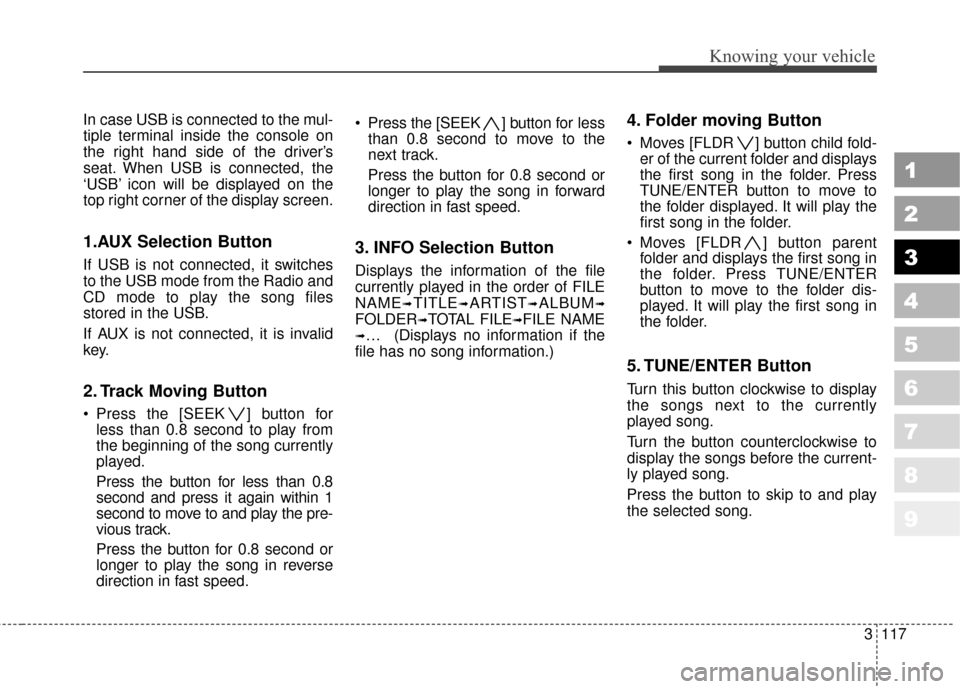
In case USB is connected to the mul-
tiple terminal inside the console on
the right hand side of the driver’s
seat. When USB is connected, the
‘USB’ icon will be displayed on the
top right corner of the display screen.
1.AUX Selection Button
If USB is not connected, it switches
to the USB mode from the Radio and
CD mode to play the song files
stored in the USB.
If AUX is not connected, it is invalid
key.
2. Track Moving Button
Press the [SEEK ] button forless than 0.8 second to play from
the beginning of the song currently
played.
Press the button for less than 0.8
second and press it again within 1
second to move to and play the pre-
vious track.
Press the button for 0.8 second or
longer to play the song in reverse
direction in fast speed. Press the [SEEK ] button for
less
than 0.8 second to move to the
next track.
Press the button for 0.8 second or
longer to play the song in forward
direction in fast speed.
3. INFO Selection Button
Displays the information of the file
currently played in the order of FILE
NAME
➟TITLE➟ARTIST➟ALBUM➟
FOLDER➟TOTAL FILE➟FILE NAME
➟… (Displays no information if the
file has no song information.)
4. Folder moving Button
Moves [FLDR ] button child fold- er of the current folder and displays
the first song in the folder. Press
TUNE/ENTER button to move to
the folder displayed. It will play the
first song in the folder.
Moves [FLDR ] button parent folder and displays the first song in
the folder. Press TUNE/ENTER
button to move to the folder dis-
played. It will play the first song in
the folder.
5. TUNE/ENTER Button
Turn this button clockwise to display
the songs next to the currently
played song.
Turn the button counterclockwise to
display the songs before the current-
ly played song.
Press the button to skip to and play
the selected song.
Page 129 of 371
Knowing your vehicle
120
3
1
2
3
4
5
6
7
8
9
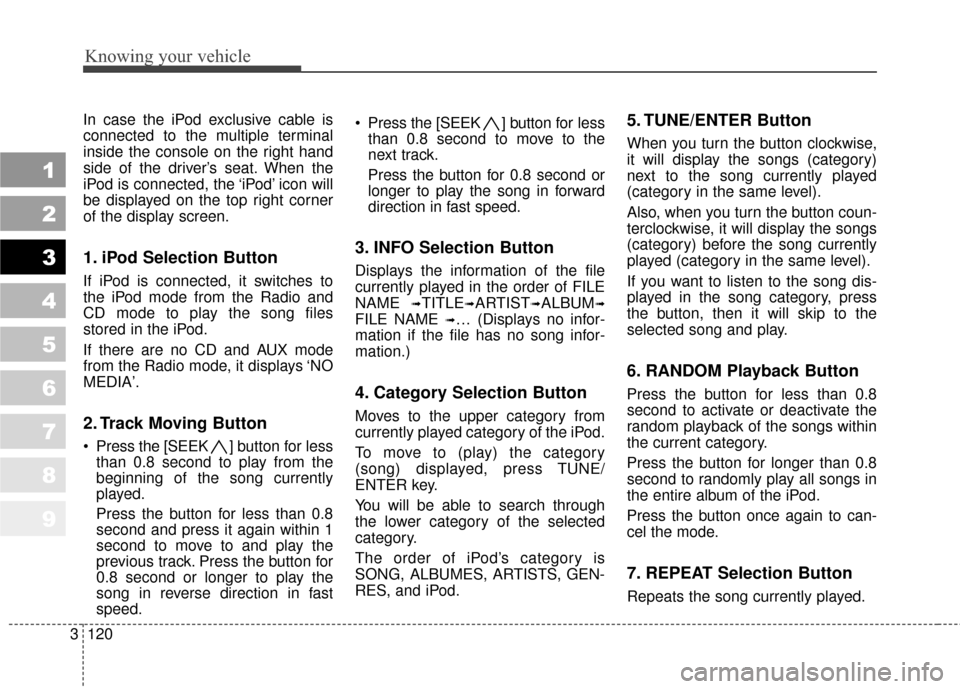
In case the iPod exclusive cable is
connected to the multiple terminal
inside the console on the right hand
side of the driver’s seat. When the
iPod is connected, the ‘iPod’ icon will
be displayed on the top right corner
of the display screen.
1. iPod Selection Button
If iPod is connected, it switches to
the iPod mode from the Radio and
CD mode to play the song files
stored in the iPod.
If there are no CD and AUX mode
from the Radio mode, it displays ‘NO
MEDIA’.
2. Track Moving Button
Press the [SEEK ] b utton for less
than 0.8 second to play from the
beginning of the song currently
played.
Press the button for less than 0.8
second and press it again within 1
second to move to and play the
previous track. Press the button for
0.8 second or longer to play the
song in reverse direction in fast
speed. Press the [SEEK ] button for
less
than 0.8 second to move to the
next track.
Press the button for 0.8 second or
longer to play the song in forward
direction in fast speed.
3. INFO Selection Button
Displays the information of the file
currently played in the order of FILE
NAME
➟TITLE➟ARTIST➟ALBUM➟
FILE NAME ➟… (Displays no infor-
mation if the file has no song infor-
mation.)
4. Category Selection Button
Moves to the upper category from
currently played category of the iPod.
To move to (play) the category
(song) displayed, press TUNE/
ENTER key.
You will be able to search through
the lower category of the selected
category.
The order of iPod’s category is
SONG, ALBUMES, ARTISTS, GEN-
RES, and iPod.
5. TUNE/ENTER Button
When you turn the button clockwise,
it will display the songs (category)
next to the song currently played
(category in the same level).
Also, when you turn the button coun-
terclockwise, it will display the songs
(category) before the song currently
played (category in the same level).
If you want to listen to the song dis-
played in the song category, press
the button, then it will skip to the
selected song and play.
6. RANDOM Playback Button
Press the button for less than 0.8
second to activate or deactivate the
random playback of the songs within
the current category.
Press the button for longer than 0.8
second to randomly play all songs in
the entire album of the iPod.
Press the button once again to can-
cel the mode.
7. REPEAT Selection Button
Repeats the song currently played.
Page 132 of 371
3123
Knowing your vehicle
1
2
3
4
5
6
7
8
9
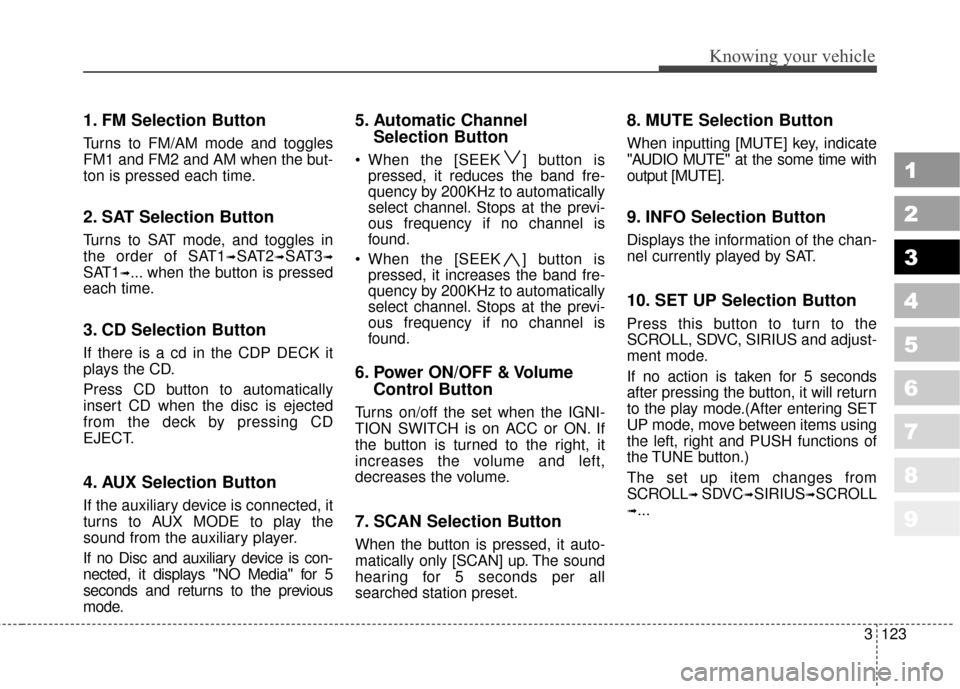
1. FM Selection Button
Turns to FM/AM mode and toggles
FM1 and FM2 and AM when the but-
ton is pressed each time.
2. SAT Selection Button
Turns to SAT mode, and toggles in
the order of SAT1
➟SAT2➟SAT3➟
SAT1➟... when the button is pressed
each time.
3. CD Selection Button
If there is a cd in the CDP DECK it
plays the CD.
Press CD button to automatically
insert CD when the disc is ejected
from the deck by pressing CD
EJECT.
4. AUX Selection Button
If the auxiliary device is connected, it
turns to AUX MODE to play the
sound from the auxiliary player.
If no Disc and auxiliary device is con-
nected, it displays "NO Media" for 5
seconds and returns to the previous
mode.
5. Automatic Channel Selection Button
When the [SEEK ] button is
pressed, it reduces the band fre-
quency by 200KHz to automatically
select channel. Stops at the previ-
ous frequency if no channel is
found.
When the [SEEK ] button is pressed, it increases the band fre-
quency by 200KHz to automatically
select channel. Stops at the previ-
ous frequency if no channel is
found.
6. Power ON/OFF & Volume Control Button
Turns on/off the set when the IGNI-
TION SWITCH is on ACC or ON. If
the button is turned to the right, it
increases the volume and left,
decreases the volume.
7. SCAN Selection Button
When the button is pressed, it auto-
matically only [SCAN] up. The sound
hearing for 5 seconds per all
searched station preset.
8. MUTE Selection Button
When inputting [MUTE] key, indicate
"AUDIO MUTE" at the some time with
output [MUTE].
9. INFO Selection Button
Displays the information of the chan-
nel currently played by SAT.
10. SET UP Selection Button
Press this button to turn to the
SCROLL, SDVC, SIRIUS and adjust-
ment mode.
If no action is taken for 5 seconds
after pressing the button, it will return
to the play mode.(After entering SET
UP mode, move between items using
the left, right and PUSH functions of
the TUNE button.)
The set up item changes from
SCROLL
➟ SDVC➟SIRIUS➟SCROLL
➟...
Page 136 of 371
3127
Knowing your vehicle
1
2
3
4
5
6
7
8
9
8. TUNE/ENTER Button
Turn this button clockwise to display
songs after current song.
Also, turn this button counterclock-
wise to display songs before current
song.
To listen to the displayed song, press
the button to skip to the song and
play.
9. REPEAT Selection Button
Repeats current song when the but-
ton is pressed for less than 0.8 sec-
ond.
Repeats the entire DISC when the
button is pressed for 0.8 second or
longer.
10. RANDOM Selection Button
Turns on/off the randomization of the
play list of files in the currently played
DISC.
To cancel the mode, press the key
once again.
11. DISC Selection Button
[DISC ] Change Button Changes disc to the previous disc.
[DISC ] Change Button Changes disc to the next disc.
12. SCAN Selection Button
Plays first 10 seconds of each song
in the DISC.
To cancel the mode, press the key
once again.
CAUTION- Using USB
device
To use the external USB device, make sure the deviceis not mounted when startingup the vehicle and mount thedevice after starting up.
If you start the vehicle when the USB device is mounted, itmay damage the USB device.(USB is not ESA)
If the vehicle is started up or turned off while the externalUSB device is connected, theexternal USB device may notwork.
It may not play inauthentic MP3 or WMA files.
1) It can only play MP3 files with the compression ratebetween 8Kbps~320Kbps.
2) It can only play WMA music files with the compressionrate between 8Kbps~320Kbps.
(Continued)
Page 139 of 371
Knowing your vehicle
130
3
1
2
3
4
5
6
7
8
9
In case USB is connected to the mul-
tiple terminal inside the console on
the right hand side of the driver’s
seat. When USB is connected, the
‘USB’ icon will be displayed on the
top right corner of the display screen.
1. AUX Selection Button
If USB is not connected, it switches
to the USB mode from the Radio and
CD mode to play the song files
stored in the USB.
If AUX is not connected, it is invalid
key.
2. Track Moving Button
Press the [SEEK ] button for
less than 0.8 second to play from
the beginning of the song currently
played.
Press the button for less than 0.8
second and press it again within 1
second to move to and play the pre-
vious track.
Press the button for 0.8 second or
longer to play the song in reverse
direction in fast speed. Press the [SEEK ] button for
less
than 0.8 second to move to the
next track.
Press the button for 0.8 second or
longer to play the song in forward
direction in fast speed.
3. INFO Selection Button
Displays the information of the file
currently played in the order of FILE
NAME
➟TITLE➟ARTIST➟ALBUM➟
FOLDER➟TOTAL FILE➟FILE NAME
➟… (Displays no information if the
file has no song information.)
4. Folder moving Button
Moves [FLDR ] button child fold- er of the current folder and displays
the first song in the folder. Press
TUNE/ENTER button to move to
the folder displayed. It will play the
first song in the folder.
Moves [FLDR ] button parent folder and displays the first song in
the folder. Press TUNE/ENTER
button to move to the folder dis-
played. It will play the first song in
the folder.
5. TUNE/ENTER Button
Turn this button clockwise to display
the songs next to the currently
played song.
Turn the button counterclockwise to
display the songs before the current-
ly played song.
Press the button to skip to and play
the selected song.
6. RANDOM Playback Button
Press the button for less than 0.8
second to start or stop the random
playback of the songs in the current
folder.
Press the button for more than 0.8
second to randomly play the entire
songs in the USB device.
Press the button again to cancel the
mode.