ECO KIA SPORTAGE 2018 Owners Manual
[x] Cancel search | Manufacturer: KIA, Model Year: 2018, Model line: SPORTAGE, Model: KIA SPORTAGE 2018Pages: 605, PDF Size: 13.79 MB
Page 266 of 605
Audio system
45
AUX, USB port
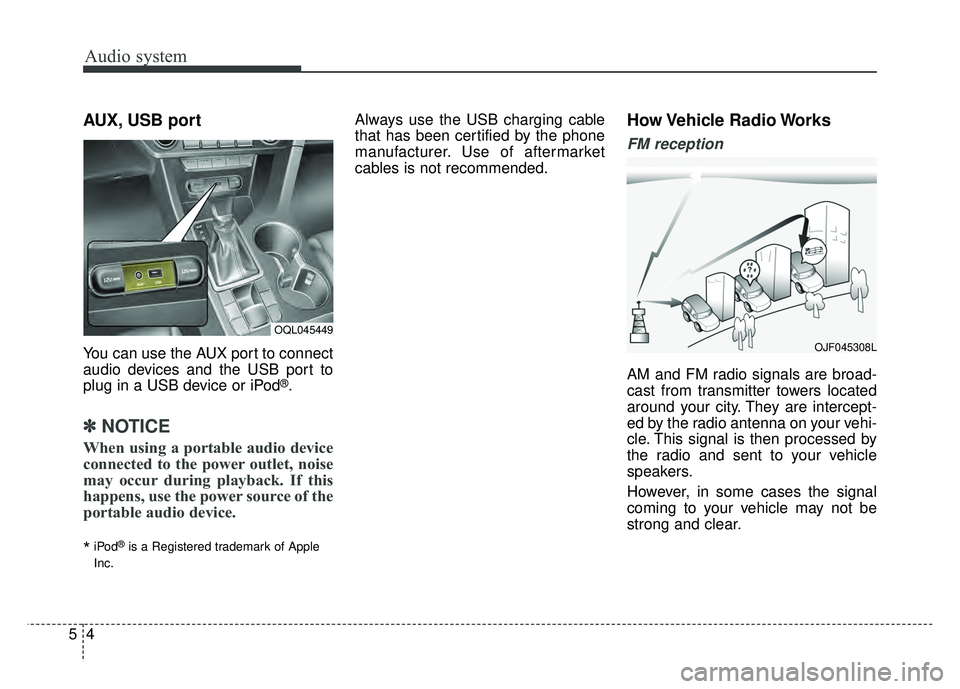
You can use the AUX port to connect
audio devices and the USB port to
plug in a USB device or iPod
®.
✽ ✽NOTICE
When using a portable audio device
connected to the power outlet, noise
may occur during playback. If this
happens, use the power source of the
portable audio device.
*iPod®is a Registered trademark of Apple
Inc.
Always use the USB charging cable
that has been certified by the phone
manufacturer. Use of aftermarket
cables is not recommended.How Vehicle Radio Works
FM reception
AM and FM radio signals are broad-
cast from transmitter towers located
around your city. They are intercept-
ed by the radio antenna on your vehi-
cle. This signal is then processed by
the radio and sent to your vehicle
speakers.
However, in some cases the signal
coming to your vehicle may not be
strong and clear.
OQL045449
OJF045308L
Page 271 of 605
Audio system
59
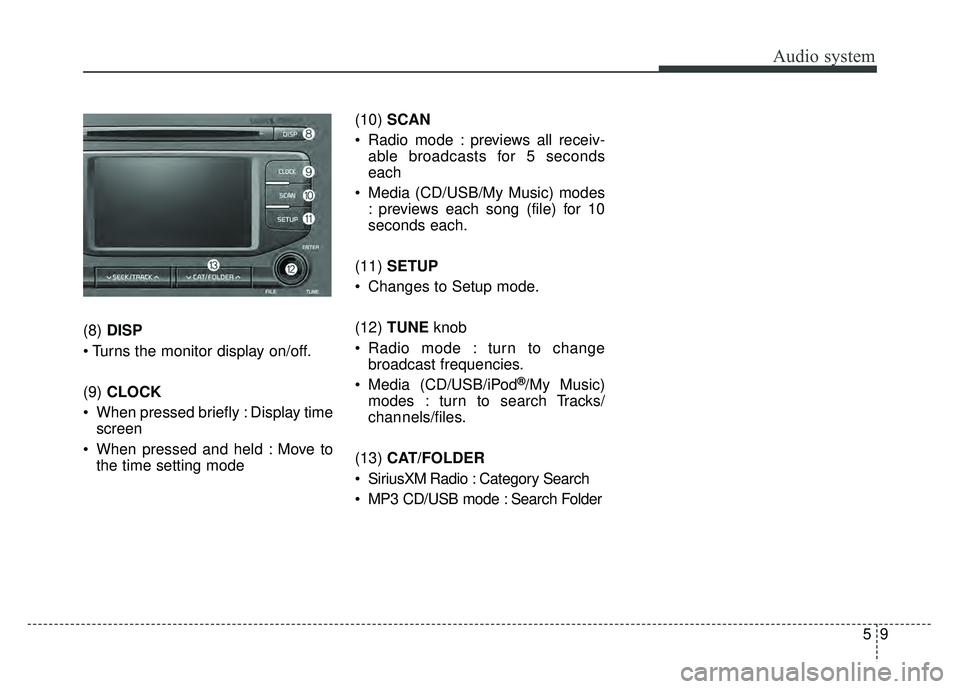
(8) DISP
(9) CLOCK
When pressed briefly : Display time screen
When pressed and held : Move to the time setting mode (10)
SCAN
Radio mode : previews all receiv- able broadcasts for 5 seconds
each
Media (CD/USB/My Music) modes : previews each song (file) for 10
seconds each.
(11) SETUP
Changes to Setup mode.
(12) TUNE knob
Radio mode : turn to change broadcast frequencies.
Media (CD/USB/iPod
®/My Music)
modes : turn to search Tracks/
chan nels/files.
(13) CAT/FOLDER
SiriusXM Radio : Category Search
MP3 CD/USB mode : Search Folder
Page 272 of 605
Audio system
10
5
✽
✽
NOTICE - Using Compact
Discs
• This device has been manufactured to be com-
patible with software
bearing the following logo marks.
• Do not clean discs with chemical solutions, such as record sprays,
antistatic sprays, antistatic liq-
uids, benzene, or thinners.
• After using a disc, put the disc back in its original case to prevent
disc scratches.
• Hold discs by their edges or within the center hole to prevent damage
to disc surfaces.
• Do not introduce foreign sub- stances into the disc insert/eject
slot. Introducing foreign sub-
stances could damage the device
interior.
• Do not insert two discs simultane- ously.
• When using CD-R/CD-RW discs, differences in disc reading and
playing times may occur depend-
ing on the disc manufacturer, pro-
duction method and the recording
method used. (Continued)(Continued)
• Clean fingerprints and dust off the
disc surface (coated side) with a
soft cloth.
• The use of CD-R/CD-RW discs attached with labels may result in
disc slot jams or difficulties in disc
removal. Such discs may also
result in noise while playing.
• Some CD-R/CD-RW discs may not properly operate depending on
the disc manufacturer, production
method and the recording method
used. If problems persist, trying
using a different CD as continued
use may result in malfunctions.
• The performance of this product may differ depending on the CD-
RW Drive Software.
• Copy-protected CDs such as S- type CDs may not function in the
device. DATA discs cannot be
played. (However, such discs may
still operate but will do so abnor-
mally.) (Continued)(Continued)
• Do not use abnormally shaped
discs (8cm, heart-shaped, octagon-
shaped) as such discs could lead to
malfunctions.
• If the disc is straddled on the disc slot without removal for 10 sec-
onds, the disc will automatically
be re-inserted into the disc player.
• Only genuine audio CDs are sup- ported. Other discs may result in
recognition failure. (e.g. copy CD-
R, CDs with labels)
Page 273 of 605
Audio system
511
✽
✽NOTICE - Using the USB
Devices
• Connect the USB device after turning on the engine. The USB
device may become damaged if it
is already connected when the
ignition is turned on. The USB
device may not operate properly if
the car ignition is turned on or off
with the USB device connected.
• Be careful for static electricity when connecting/disconnecting
USB devices.
• Encoded MP3 Players will not be recognized when connected as an
external device.
• When connecting an external USB device, the vehicle's audio system
may not recognize the USB
depending on what firmware is
used by USB device or what files
are on the USB.
• Only products formatted with byte/sectors under 64Kbyte will be
recognized.
• This device recognizes USB devices formatted in FAT 12/16/32
file formats. This device does not
recognize files in NTFS file for-
mat. (Continued)(Continued)
• Some USB devices may not be sup-
ported due to compatibility issues.
• Avoid contact between the USB connector and bodily parts or for-
eign objects.
• Repeated connecting/disconnect- ing of USB devices within short
periods of time may result in prod-
uct malfunction.
• A strange noise may occur when disconnecting the USB.
• Make sure to connect/disconnect external USB devices with the
audio power turned off.
• The amount of time required to recognize the USB device may dif-
fer depending on the type, size or
file formats stored on the USB.
Such differences in time are not
indications of malfunctions.
• The vehicle audio system only sup- ports USB devices designed to
play music files
• USB images and videos are not supported. (Continued)(Continued)
• Do not use the USB I/F to charge
batteries or USB accessories that
generate heat. Doing so may lead
to worsened performance or dam-
age to the audio system.
• The audio system may not recog- nize the USB device if separately
purchased USB hubs and exten-
sion cables are being used.
Connect the USB device directly
with the USB port of the vehicle.
• When using mass storage USB devices with separate logical
drives, only files saved to the root
drive can be played.
• Files may not properly operate if application programs are installed
on the USBs.
• The audio system may not operate normally if MP3 Players, cellular
phones, digital cameras, or other
electronic devices (USB devices
not recognized as portable disk
drives) are connected with the
audio system. (Continued)
Page 275 of 605
Audio system
513
✽
✽NOTICE - Using an iPod®
• iPod®is a registered trademark of
Apple Inc.
• In order to use the iPod
®with
your vehicle's audio system, you
must use a dedicated iPod
®cable.
(the cable that is supplied when
purchasing iPod
®/iPhone®prod-
ucts)
• If the iPod
®is connected to the
vehicle while it is playing, a high
pitch sound could occur for
approximately 1-2 seconds imme-
diately after connecting. If possi-
ble, connect the iPod
®to the vehi-
cle with the iPod®stopped/paused.
• When the vehicle ignition is set to ACC or ON, connecting the iPod
®
through the iPod®cable will
charge the iPod®through the car
audio system.
• When connecting with the iPod
®
cable, make sure to fully insert the
jack to prevent communication
interference. (Continued)(Continued)
• When the EQ features of an exter-
nal device, such as the iPod
®, and
the audio system are both active,
EQ effects could overlap and
cause sound deterioration and dis-
tortion. Whenever possible, turn
off the EQ feature within the
external device when it is connect-
ed to the audio system.
• Noise may occur when an iPod
®or
AUX device is connected. When
such devices are not being used,
disconnect the device for storage.
• When the iPod
®or AUX device
power is connected to the power
jack, playing the external device
may result in noise. In such cases,
disconnect the power connection
before use.
• Skipping or improper operation may occur depending on the char-
acteristics of your iPod
®/iPhone®
device. (Continued)(Continued)
• If your iPhone
®is connected to
both the Bluetooth®Wireless
Technology and USB, the sound
may not be properly played. In
your iPhone
®, select the Dock con-
nector or Bluetooth®Wireless
Technology to change the sound
output (source).
• iPod
®mode cannot be operated
when the iPod®cannot be recog-
nized due to versions that do not
support communication protocols.
• For fifth generation iPod
®Nano
devices, the iPod®may not be rec-
ognized when the battery level is
low. Please charge the iPod
®for
use.
• The search/play orders shown within the iPod
®device may differ
from the orders shown within the
audio system.
• If the iPod
®malfunctions due to
an iPod®device defect, reset the
iPod®and try again. (To learn
more, refer to your iPod®manual)
(Continued)
Page 276 of 605
Audio system
14
5
(Continued)
• Some iPod®products may not
sync with the System depending
on the version. If the Media is
removed before the Media is rec-
ognized, then the system may not
properly restore the previously
operated mode. (iPad
®charging is
not supported.)
• Use an iPod
®cable shorter than 1
meter in length such as the one
originally supplied with a new
iPod
®, longer cables may lead to
the audio system not recognizing
the iPod
®.
✽ ✽ NOTICE - Using the
Bluetooth®Wireless Technology
Audio Mode
• Bluetooth®Wireless Technology
Audio Mode can be used only
when a Bluetooth
®Wireless
Technology phone has been con-
nected.
• Bluetooth
®Wireless Technology
Audio Mode will not be available
when connecting mobile phones
that do not support this feature.
• If a Bluetooth
®Wireless
Technology Phone is being used to
play music and receives an incom-
ing or outgoing phone call, then
the music will stop.
• Moving the Track up/down while playing Bluetooth
®Wireless
Technology audio mode may
result in pop noises with some
mobile phones.
• Bluetooth
®Wireless Technology
streaming audio may not be sup-
ported in some mobile phones. (Continued)(Continued)
• When returning to Bluetooth
®
Wireless Technology Audio mode
after ending a call, the mode may
not automatically restart in some
mobile phones.
• Receiving an incoming call or making an outgoing call while
playing Bluetooth
®Wireless
Technology Audio may result in
audio interference.
Page 278 of 605
Audio system
16
5
(Continued)
• You will not be able to use the
hands-free feature when your
phone (in the car) is outside of the
cellular service area. (e.g. in a tun-
nel, in an underground area, in a
mountainous area, etc.)
• If the cellular phone signal is poor or the vehicles interior noise is too
loud, it may be difficult to hear the
other person’s voice during a call.
• Do not place the phone near or inside metallic objects, otherwise
communications with Bluetooth
®
Wireless Technology system or cel-
lular service stations can be dis-
turbed.
• Placing the audio system within an electromagnetic environment may
result in noise interference.
• Some cellular phones or other devices may cause interference
noise or malfunction to the audio
system. In this case, storing the
device in a different location may
resolve the condition. (Continued)(Continued)
• While a phone is connected
through Bluetooth
®Wireless
Technology your phone may dis-
charge quicker than usual for
additional Bluetooth
®Wireless
Technology-related operations.
• If Priority is set upon vehicle igni- tion (IGN/ACC ON), the
Bluetooth
®Wireless Technology
phone will be automatically con-
nected. Even if you are outside, the
Bluetooth
®Wireless Technology
phone will be automatically con-
nected once you are in the vicinity
of the vehicle. If you do not want
to automatically connect your
Bluetooth
®Wireless Technology
phone, try the following.
1) Turn off the Bluetooth
®Wireless
Technology feature in your
mobile phone.
2) Turn off the Bluetooth
®Wireless
Technology feature in your car
audio system. (Continued)(Continued)
- To turn off the Bluetooth
®
Wireless Technology feature in
your car audio system, go to
[SETUP] > [Phone] and [turn
off] the Bluetooth
®Wireless
Technology feature.
• Bluetooth
®Wireless Technology
connection may become intermit-
tently disconnected in some
mobile phones. Follow these steps
to try again.
1) Turn the Bluetooth
®Wireless
Technology function within the
mobile phone off/on and try
again.
2) Turn the mobile phone power Off/On and try again.
3) Completely remove the mobile phone battery, reboot, and then
try again.
4) Reboot the audio system and try again.
5) Delete all paired devices, pair and try again.
• It is possible to pair up to five Bluetooth
®Wireless Technology
devices to the car system. (Continued)
Page 279 of 605
Audio system
517
(Continued)
• Phone contact names should besaved in English or they may not
be displayed correctly.
• The Handsfree call volume and quality may differ depending on
the mobile phone.
• Only one Bluetooth
®Wireless
Technology device can be connect-
ed at a time.
• In some mobile phones, starting the ignition while talking through
Bluetooth
®Wireless Technology
enabled handsfree call will result
in the call becoming disconnected.
(Switch the call back to your
mobile phone when starting the
ignition.)
• If the mobile phone is not paired or connected, it is not possible to
enter Phone mode. Once a phone
is paired or connected, the guid-
ance screen will be displayed.
• Bluetooth
®Handsfree may not be
supported in some mobile phones.
To learn more about mobile device
compatibility, visit http://www.
kia.com/us/en/content/owners/blu
etooth.
✽ ✽ NOTICE
•Bluetooth®Wireless Technology
Handsfree is a feature that enables
drivers to practice safe driving.
Connecting the car audio system
with a Bluetooth
®Wireless
Technology phone allows the user
to conveniently make calls, receive
calls, and manage the phone book.
Before using the Bluetooth
®
Wireless Technology, carefully
read the contents of this user’s
manual.
WARNING
Excessive use or operations
while driving may lead to neg-
ligent driving practices and be
the cause of accidents.
Do not operate the device excessively while driving.
Viewing the screen for pro- longed periods of time while
driving is dangerous and may
lead to accidents.
Page 280 of 605
Audio system
18
5
✽
✽
NOTICE - Using Voice
Recognition
• When using the voice recognition
feature, only commands listed
within the user’s manual are sup-
ported.
• Be aware that during the opera- tion of the voice recognition sys-
tem, pressing any button other
than the button will terminate
voice recognition mode.
• For optimal voice recognition per- formance, position your head
below the microphone above the
driver’s seat and maintain proper
position when speaking voice com-
mands.
• Within the following situations, voice recognition may not function
properly due to external sound.
- When the windows and sunroofare open
- When the blower AC/heater is set to high
- When entering and passing through tunnels
- When driving on rugged and uneven roads
- During severe rain (heavy rains, windstorms) (Continued)(Continued)
• Phone related voice commands can
be used only when a Bluetooth®
Wireless Technology device is con-
nected.
• When making calls by stating a name, the corresponding contact
must be downloaded and stored
within the audio system.
• After downloading the Bluetooth
®
Wireless Technology phone book,
it takes some time to convert the
phone book data into voice infor-
mation. During this time, voice
recognition may not properly
operate.
• Pronounce the voice commands naturally and clearly as if in a nor-
mal conversation.
Page 282 of 605
![KIA SPORTAGE 2018 Owners Manual Audio system
20
5 Seek
Press the [SEEK TRACK]
button to
play the previous/next frequency.
Tu n e
Turn the TUNE knob to select the
desired frequency.
Selecting Presets/Saving Presets
Press the [Preset]](/img/2/54576/w960_54576-281.png "KIA SPORTAGE 2018 Owners Manual Audio system
20
5 Seek
Press the [SEEK TRACK]
button to
play the previous/next frequency.
Tu n e
Turn the TUNE knob to select the
desired frequency.
Selecting Presets/Saving Presets
Press the [Preset]")
Audio system
20
5 Seek
Press the [SEEK TRACK]
button to
play the previous/next frequency.
Tu n e
Turn the TUNE knob to select the
desired frequency.
Selecting Presets/Saving Presets
Press the [Preset] button to display
the broadcast information for the fre-
quency saved to each button.
Press the [1] ~ [6] buttons to play the
desired preset.
While listening to a frequency you
want to save as a preset, press and
hold one of the [1] ~ [6] preset but-
tons to save the current frequency to
the selected preset.A.Store(Auto Store)
Press the [A.Store] button to auto-
matically save receivable frequen-
cies to Preset buttons.
Scan
Press the [SCAN]
button to preview
frequencies with superior reception
for 5 seconds each.
Press and hold the [SCAN] button to
preview presets for 5 seconds each.
Once scan is complete, the previous
frequency will be restored. While
Scan is operating, pressing the
[SCAN] button will cancel the scan-
ning.