display KIA SPORTAGE 2019 Owner's Manual
[x] Cancel search | Manufacturer: KIA, Model Year: 2019, Model line: SPORTAGE, Model: KIA SPORTAGE 2019Pages: 607, PDF Size: 16.97 MB
Page 204 of 607
4117
Features of your vehicle
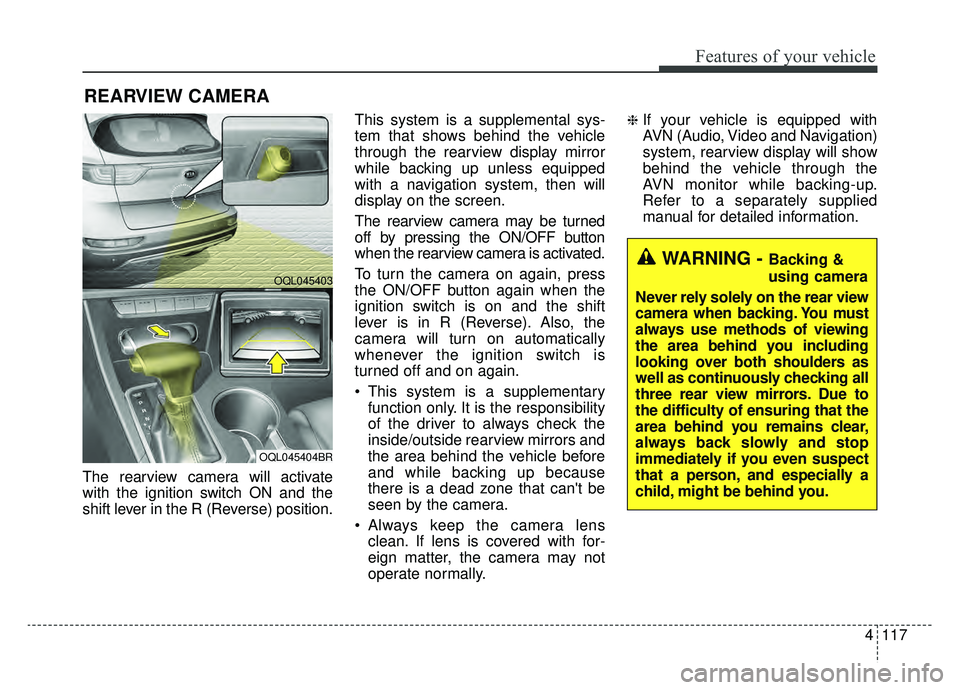
The rearview camera will activate
with the ignition switch ON and the
shift lever in the R (Reverse) position.This system is a supplemental sys-
tem that shows behind the vehicle
through the rearview display mirror
while backing up unless equipped
with a navigation system, then will
display on the screen.
The rearview camera may be turned
off by pressing the ON/OFF button
when the rearview camera is activated.
To turn the camera on again, press
the ON/OFF button again when the
ignition switch is on and the shift
lever is in R (Reverse). Also, the
camera will turn on automatically
whenever the ignition switch is
turned off and on again.
This system is a supplementary
function only. It is the responsibility
of the driver to always check the
inside/outside rearview mirrors and
the area behind the vehicle before
and while backing up because
there is a dead zone that can't be
seen by the camera.
Always keep the camera lens clean. If lens is covered with for-
eign matter, the camera may not
operate normally.
❈If your vehicle is equipped with
AVN (Audio, Video and Navigation)
system, rearview display will show
behind the vehicle through the
AVN monitor while backing-up.
Refer to a separately supplied
manual for detailed information.
REARVIEW CAMERA
WARNING - Backing &
using camera
Never rely solely on the rear view
camera when backing. You must
always use methods of viewing
the area behind you including
looking over both shoulders as
well as continuously checking all
three rear view mirrors. Due to
the difficulty of ensuring that the
area behind you remains clear,
always back slowly and stop
immediately if you even suspect
that a person, and especially a
child, might be behind you.
OQL045403
OQL045404BR
Page 211 of 607
Features of your vehicle
124
4
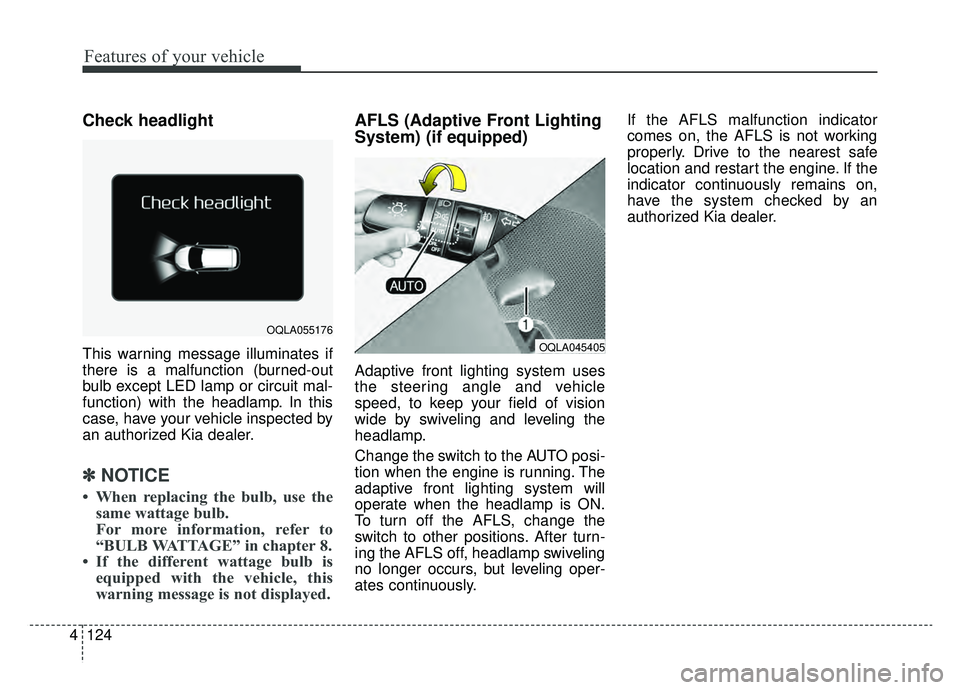
Check headlight
This warning message illuminates if
there is a malfunction (burned-out
bulb except LED lamp or circuit mal-
function) with the headlamp. In this
case, have your vehicle inspected by
an authorized Kia dealer.
✽ ✽
NOTICE
• When replacing the bulb, use the
same wattage bulb.
For more information, refer to
“BULB WATTAGE” in chapter 8.
• If the different wattage bulb is equipped with the vehicle, this
warning message is not displayed.
AFLS (Adaptive Front Lighting
System) (if equipped)
Adaptive front lighting system uses
the steering angle and vehicle
speed, to keep your field of vision
wide by swiveling and leveling the
headlamp.
Change the switch to the AUTO posi-
tion when the engine is running. The
adaptive front lighting system will
operate when the headlamp is ON.
To turn off the AFLS, change the
switch to other positions. After turn-
ing the AFLS off, headlamp swiveling
no longer occurs, but leveling oper-
ates continuously. If the AFLS malfunction indicator
comes on, the AFLS is not working
properly. Drive to the nearest safe
location and restart the engine. If the
indicator continuously remains on,
have the system checked by an
authorized Kia dealer.
OQLA045405
OQLA055176
Page 231 of 607
Features of your vehicle
144
4
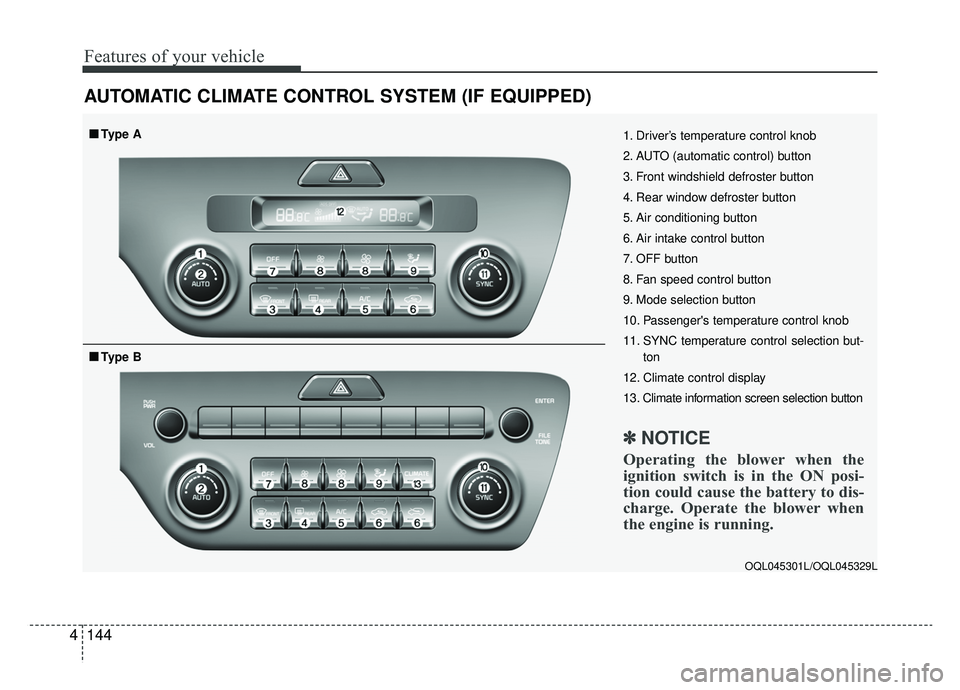
AUTOMATIC CLIMATE CONTROL SYSTEM (IF EQUIPPED)
OQL045301L/OQL045329L
1. Driver’s temperature control knob
2. AUTO (automatic control) button
3. Front windshield defroster button
4. Rear window defroster button
5. Air conditioning button
6. Air intake control button
7. OFF button
8. Fan speed control button
9. Mode selection button
10. Passenger's temperature control knob
11. SYNC temperature control selection but-
ton
12. Climate control display
13. Climate information screen selection button
✽ ✽ NOTICE
Operating the blower when the
ignition switch is in the ON posi-
tion could cause the battery to dis-
charge. Operate the blower when
the engine is running.
■ ■Type B
■ ■Type A
Page 232 of 607
4145
Features of your vehicle
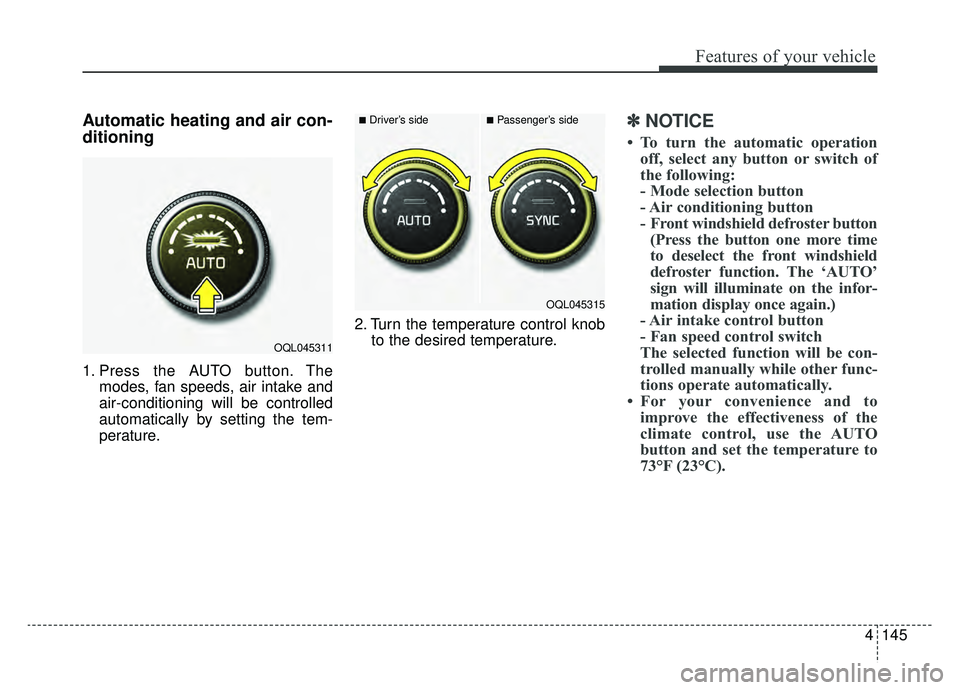
Automatic heating and air con-
ditioning
1. Press the AUTO button. Themodes, fan speeds, air intake and
air-conditioning will be controlled
automatically by setting the tem-
perature. 2. Turn the temperature control knob
to the desired temperature.
✽ ✽NOTICE
• To turn the automatic operation
off, select any button or switch of
the following:
- Mode selection button
- Air conditioning button
- Front windshield defroster button(Press the button one more time
to deselect the front windshield
defroster function. The ‘AUTO’
sign will illuminate on the infor-
mation display once again.)
- Air intake control button
- Fan speed control switch
The selected function will be con-
trolled manually while other func-
tions operate automatically.
• For your convenience and to improve the effectiveness of the
climate control, use the AUTO
button and set the temperature to
73°F (23°C).
OQL045311
■Driver’s side■Passenger’s side
OQL045315
Page 235 of 607
Features of your vehicle
148
4
Temperature control
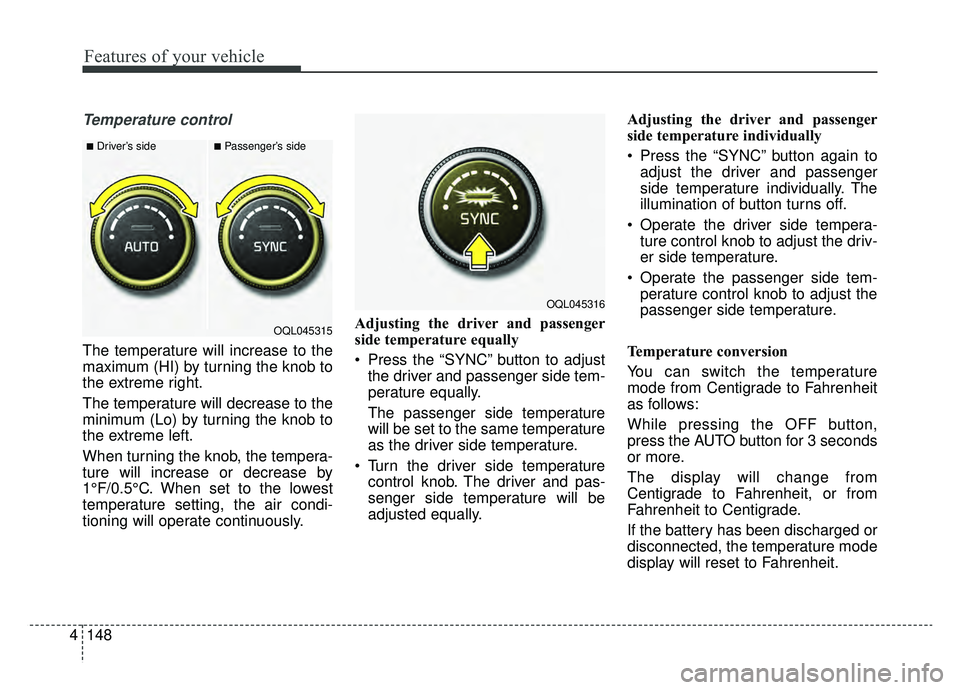
The temperature will increase to the
maximum (HI) by turning the knob to
the extreme right.
The temperature will decrease to the
minimum (Lo) by turning the knob to
the extreme left.
When turning the knob, the tempera-
ture will increase or decrease by
1°F/0.5°C. When set to the lowest
temperature setting, the air condi-
tioning will operate continuously. Adjusting the driver and passenger
side temperature equally
Press the “SYNC” button to adjust
the driver and passenger side tem-
perature equally.
The passenger side temperature
will be set to the same temperature
as the driver side temperature.
Turn the driver side temperature control knob. The driver and pas-
senger side temperature will be
adjusted equally. Adjusting the driver and passenger
side temperature individually
Press the “SYNC” button again to
adjust the driver and passenger
side temperature individually. The
illumination of button turns off.
Operate the driver side tempera- ture control knob to adjust the driv-
er side temperature.
Operate the passenger side tem- perature control knob to adjust the
passenger side temperature.
Temperature conversion
You can switch the temperature
mode from Centigrade to Fahrenheit
as follows:
While pressing the OFF button,
press the AUTO button for 3 seconds
or more.
The display will change from
Centigrade to Fahrenheit, or from
Fahrenheit to Centigrade.
If the battery has been discharged or
disconnected, the temperature mode
display will reset to Fahrenheit.
■Driver’s side■Passenger’s side
OQL045315
OQL045316
Page 238 of 607
4151
Features of your vehicle
OFF mode
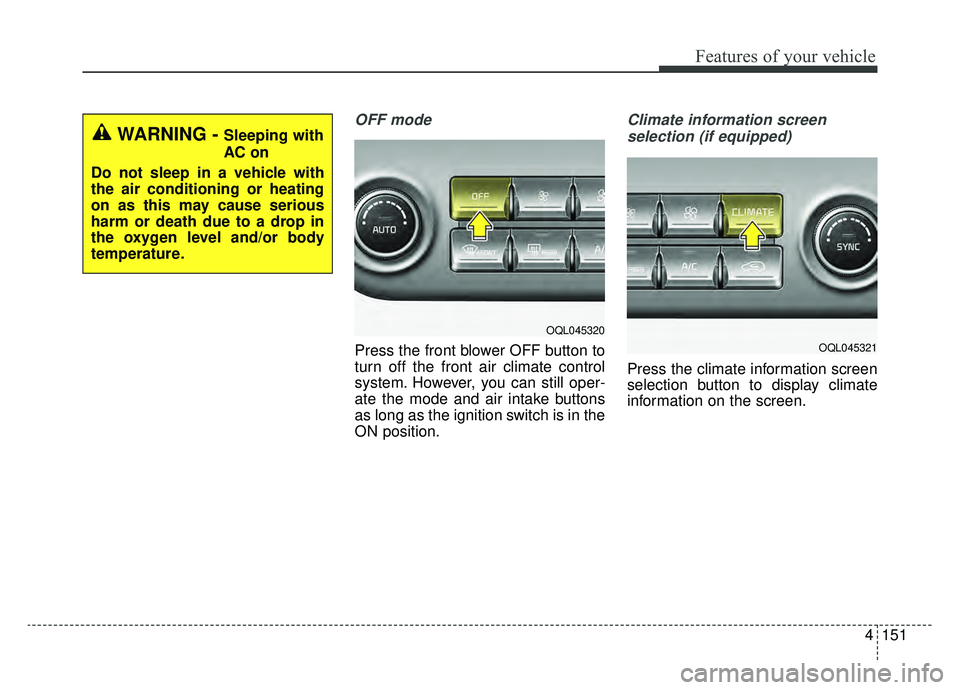
Press the front blower OFF button to
turn off the front air climate control
system. However, you can still oper-
ate the mode and air intake buttons
as long as the ignition switch is in the
ON position.
Climate information screen selection (if equipped)
Press the climate information screen
selection button to display climate
information on the screen.
WARNING - Sleeping with
AC on
Do not sleep in a vehicle with
the air conditioning or heating
on as this may cause serious
harm or death due to a drop in
the oxygen level and/or body
temperature.
OQL045320
OQL045321
Page 258 of 607
4171
Features of your vehicle
✽ ✽NOTICE
• When the interior temperature of
the wireless charging system rises
above a set temperature, the wire-
less charging will cease to func-
tion. After the interior tempera-
ture drops below the threshold,
the wireless charging function will
resume.
• The wireless charging may not function properly when there is a
heavy accessory cover on the
smart phone.
• The wireless charging will stop when using the wireless smart key
search function to prevent radio
wave disruption.
• The wireless charging will stop when the smart key is moved out
of the vehicle with the ignition in
ON.
• The wireless charging will stop when any of the doors is opened
(applicable for vehicles equipped
with smart keys).
• The wireless charging will stop when the vehicle is turned OFF.
(Continued)(Continued)
• The wireless charging will stop
when the smart phone is not in
complete contact with the wireless
charging pad.
• Items equipped with magnetic components such as credit card,
telephone card, bankbook, any
transportation ticket and such
may become damaged during
wireless charging.
• Place the smart phone on the cen- ter of the charge pad for best
results. The smart phone may not
charge when placed near the rim
of the charging pad. When the
smart phone does get charged, it
may heat up excessively.
• For smart phones without built-in wireless charging system, an
appropriate accessory has to be
equipped.
• Smart phones of some manufac- turers may display messages on
weak current. This is due to the
particular characteristic of the
smart phone and does not imply a
malfunction on wireless charging
function. (Continued)(Continued)
• The indicator light of some manu-
facturers’ smart phones may still
be orange after the smart phone is
fully charged. This is due to the
particular characteristic of the
smart phone and not a malfunc-
tion of the wireless charging.
• When any smart phone without a wireless charging function or a
metallic object is placed on the
charging pad, a small noise may
sound. This small sound is due to
the vehicle discerning compatibili-
ty of the object placed on the
charging pad. It does not affect
your vehicle or the smart phone in
any way.
Page 271 of 607
Audio system
85
Features of Your Audio
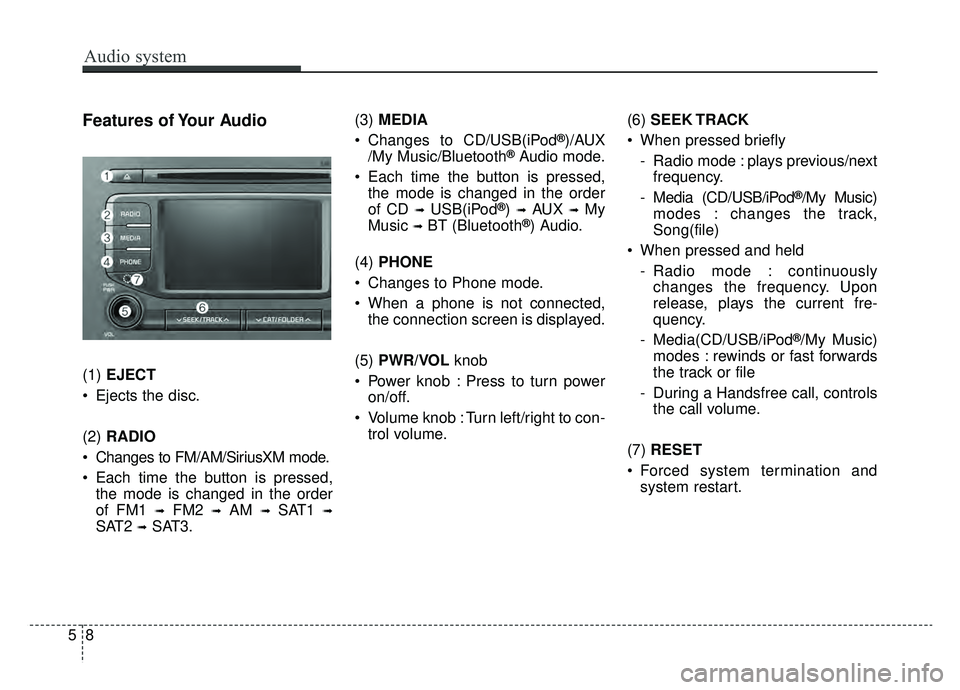
(1) EJECT
Ejects the disc.
(2) RADIO
Changes to FM/AM/SiriusXM mode.
Each time the button is pressed, the mode is changed in the order
of FM1
➟FM2 ➟AM ➟SAT1 ➟
SAT2 ➟SAT3. (3)
MEDIA
Changes to CD/USB(iPod
®)/AUX
/My Music/Bluetooth®Audio mode.
Each time the button is pressed, the mode is changed in the order
of CD
➟USB(iPod®) ➟AUX ➟My
Music
➟BT (Bluetooth®) Audio.
(4) PHONE
Changes to Phone mode.
When a phone is not connected, the connection screen is displayed.
(5) PWR/VOL knob
Power knob : Press to turn power on/off.
Volume knob : Turn left/right to con- trol volume. (6)
SEEK TRACK
When pressed briefly - Radio mode : plays previous/nextfrequency.
- Media (CD/USB/iPod
®/My Music)
modes : changes the track,
Song(file)
When pressed and held - Radio mode : continuouslychanges the frequency. Upon
release, plays the current fre-
quency.
- Media(CD/USB/iPod
®/My Music)
modes : rewinds or fast forwards
the track or file
- During a Handsfree call, controls the call volume.
(7) RESET
Forced system termination and system restart.
Page 272 of 607
Audio system
59
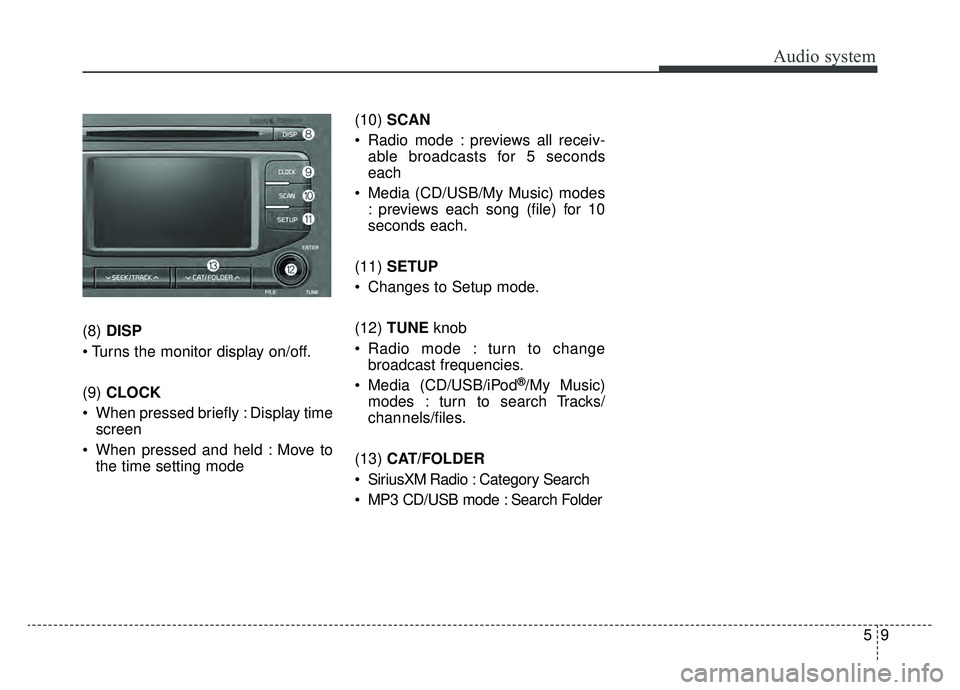
(8) DISP
(9) CLOCK
When pressed briefly : Display time screen
When pressed and held : Move to the time setting mode (10)
SCAN
Radio mode : previews all receiv- able broadcasts for 5 seconds
each
Media (CD/USB/My Music) modes : previews each song (file) for 10
seconds each.
(11) SETUP
Changes to Setup mode.
(12) TUNE knob
Radio mode : turn to change broadcast frequencies.
Media (CD/USB/iPod
®/My Music)
modes : turn to search Tracks/
chan nels/files.
(13) CAT/FOLDER
SiriusXM Radio : Category Search
MP3 CD/USB mode : Search Folder
Page 280 of 607
Audio system
517
(Continued)
• Phone contact names should besaved in English or they may not
be displayed correctly.
• The Handsfree call volume and quality may differ depending on
the mobile phone.
• Only one Bluetooth
®Wireless
Technology device can be connect-
ed at a time.
• In some mobile phones, starting the ignition while talking through
Bluetooth
®Wireless Technology
enabled handsfree call will result
in the call becoming disconnected.
(Switch the call back to your
mobile phone when starting the
ignition.)
• If the mobile phone is not paired or connected, it is not possible to
enter Phone mode. Once a phone
is paired or connected, the guid-
ance screen will be displayed.
• Bluetooth
®Handsfree may not be
supported in some mobile phones.
To learn more about mobile device
compatibility, visit http://www.
kia.com/us/en/content/owners/blu
etooth.
✽ ✽ NOTICE
•Bluetooth®Wireless Technology
Handsfree is a feature that enables
drivers to practice safe driving.
Connecting the car audio system
with a Bluetooth
®Wireless
Technology phone allows the user
to conveniently make calls, receive
calls, and manage the phone book.
Before using the Bluetooth
®
Wireless Technology, carefully
read the contents of this user’s
manual.
WARNING
Excessive use or operations
while driving may lead to neg-
ligent driving practices and be
the cause of accidents.
Do not operate the device excessively while driving.
Viewing the screen for pro- longed periods of time while
driving is dangerous and may
lead to accidents.