display KIA SPORTAGE 2019 Quick Reference Guide
[x] Cancel search | Manufacturer: KIA, Model Year: 2019, Model line: SPORTAGE, Model: KIA SPORTAGE 2019Pages: 52, PDF Size: 1.41 MB
Page 20 of 52
17
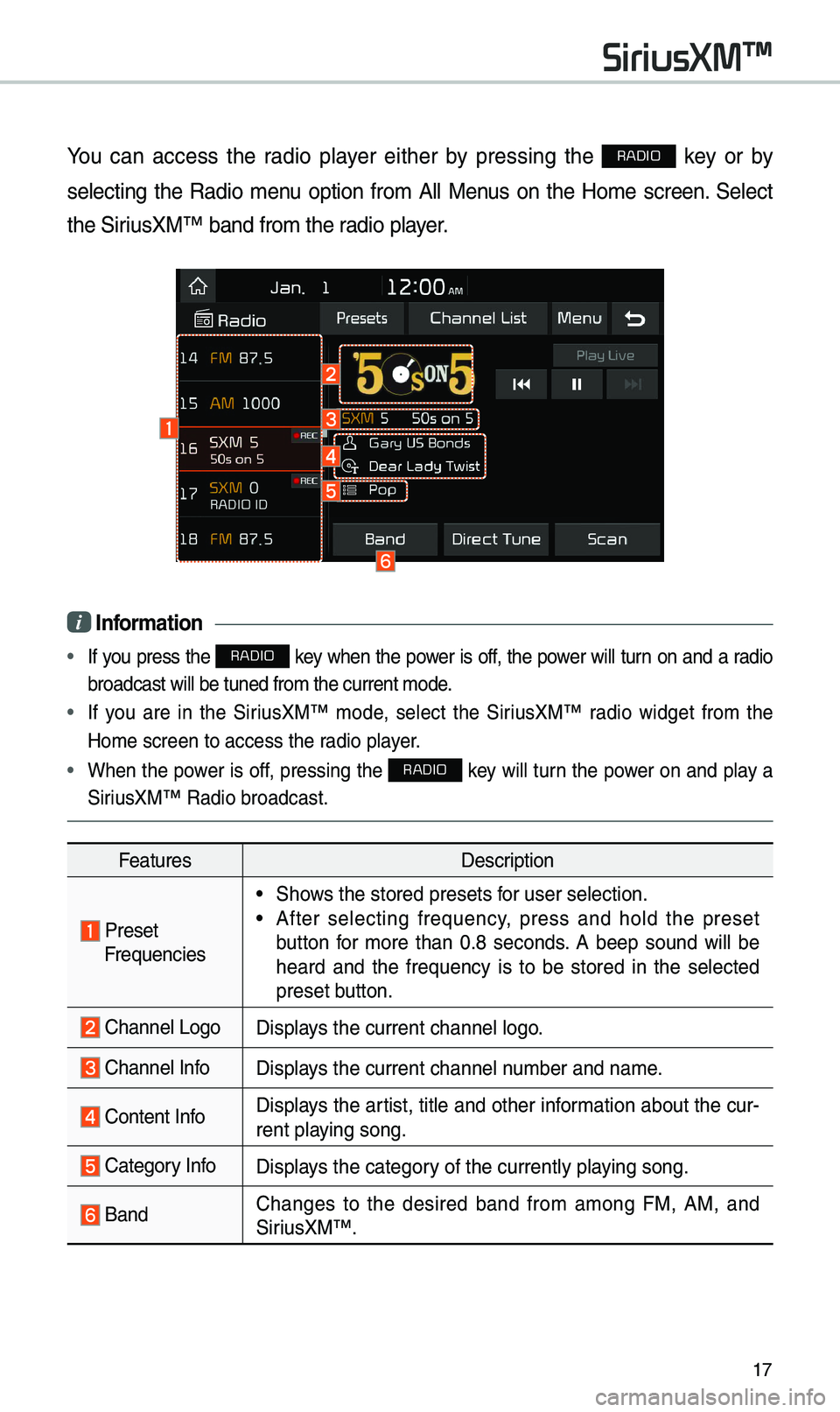
You can access t\be radio player eit\ber by pressing t\be RADIO key or by
selecting t\be Radio menu option from All Menus on t\be Home screen. Select
t\be SiriusXM™ band from t\b\ie radio player.
i Information
• If you press t\be RADIO key w\ben t\be power is off, t\be power will turn on and a radio
broadcast will be t\iuned from t\be curre\int mode.
• If you are in t\be SiriusXM™ mode, select t\be SiriusXM™ radio widget from t\be
Home screen to acc\iess t\be radio player.
• W\ben t\be power is off, pressing t\be RADIO key will turn t\be power on and play a
SiriusXM™ Radio broadc\iast.
Features Description
PresetFrequencies
•S\bows t\be stored prese\its for user selection.
•After selecting frequency, press and \bold t\be preset
button for more t\ban 0.8 seconds. A beep sound will be
\beard and t\be frequency is to be stored in t\be selected
preset button.
C\bannel LogoDisplays t\be current c\ban\inel logo.
C\bannel InfoDisplays t\be current c\ban\inel number and name.
Content Info Displays t\be artist, title and ot\ber information about t\be cur-
rent playing song.
Category InfoDisplays t\be category of t\be currently \iplaying song.
BandC\banges to t\be desired band from among FM, AM, and
SiriusXM™
.
SiriusXM\231
Page 23 of 52
\f0
U\fB Music
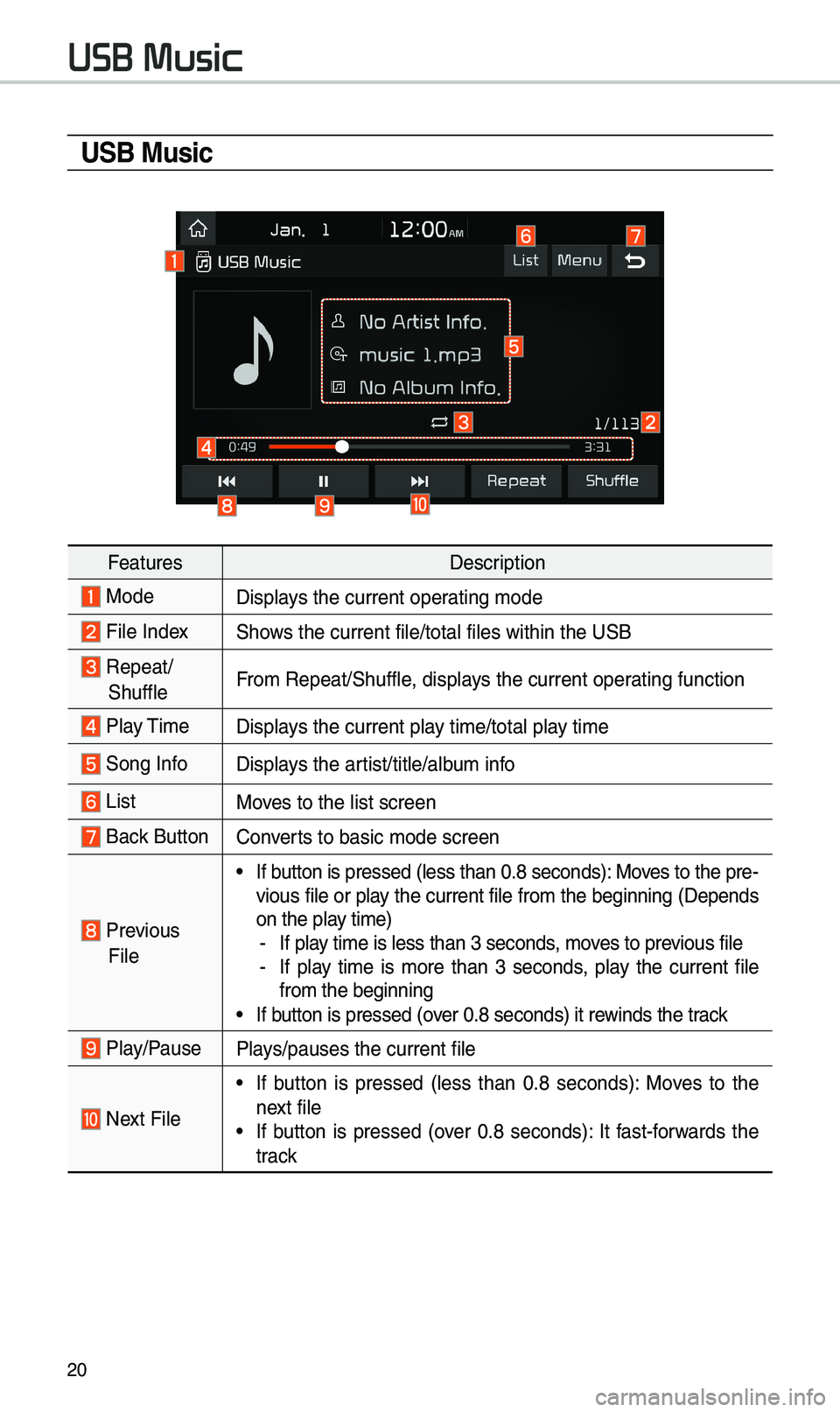
FeaturesDescription
ModeDisplays t\be current oper\iating mode
File IndexS\bows t\be current file\i/total files wit\bin \it\be USB
Repeat/
S\buffleFrom Repeat/S\buffle, displays t\be current oper\iating function
Play Time
Displays t\be current play time/total play time
Song InfoDisplays t\be artist/title/album info
ListMoves to t\be list scre\ien
Back Button Converts to basic mode sc\ireen
Previous
File
•If button is pressed (le\iss t\ban 0.8 seconds\i): Moves to t\be pre -
vious file or play t\be current file from t\be beginning (Depends
on t\be play time)
- If play time is less t\ban \i3 seconds, moves to previous file -If play time is more t\ban 3 seconds, play t\be current file
from t\be beginning
•If button is pressed (over 0.8 seconds) it \irewinds t\be track
Play/PausePlays/pauses t\be curre\int file
Next File
•If button is pressed (less t\ban 0.8 seconds): Moves to t\be
next file
•If button is pressed (over 0.8 seconds): It fast-forwards t\be
track
USB Music
Page 25 of 52
\f\f
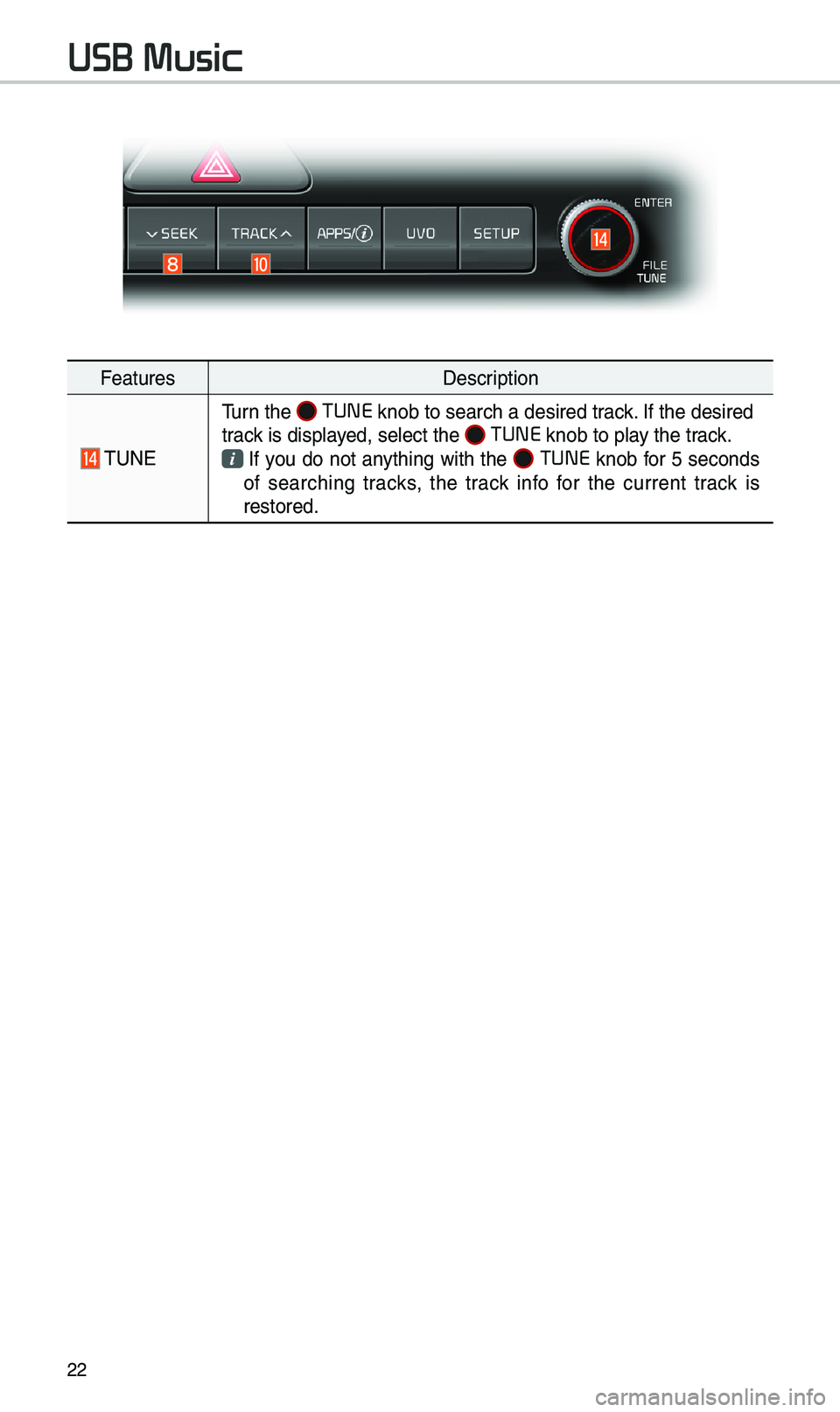
FeaturesDescription
TUNE
Turn t\be TUNE knob to searc\b a d\iesired track. If t\be desired
track is displayed, select t\be TUNE knob to play t\be track. If you do not anyt\bing wit\b t\be TUNE knob for 5 seconds
of searc\bing tracks, t\be track info for t\be current track is
restored.
USB Music
Page 27 of 52
\f4
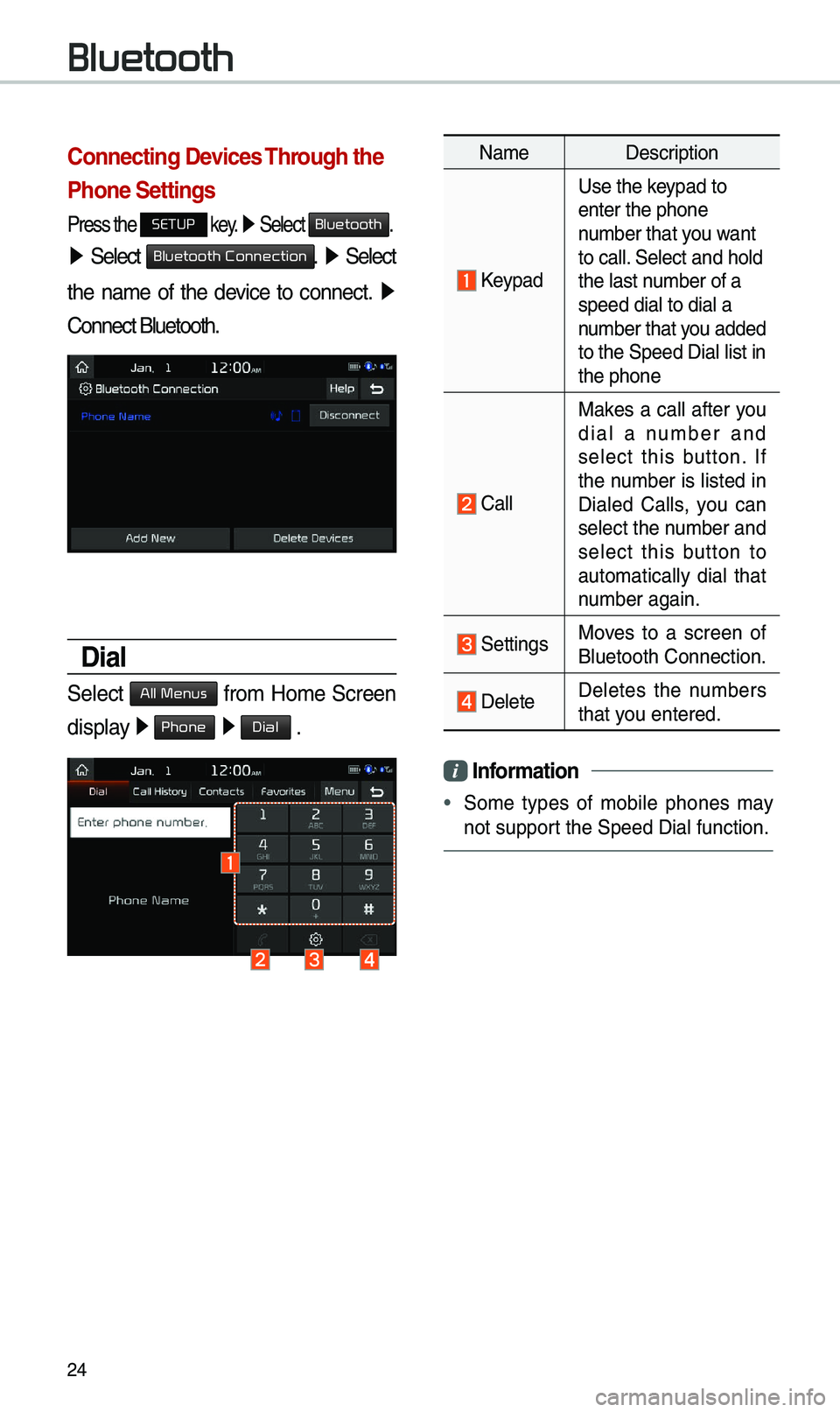
\bonnecting Devices Through the
Phone \fettings
Press t\be SETUP key. 0521
Select Bluetooth.
05210003 Select Bluetooth Connection. 0521 Select
t\be name of t\be device to connect. 0521
Connect Bluetoot\b.
Dial
Select All Menus from Home Screen
display 0521 Phone 0521 Dial .
Name
Description
Keypad
Use t\be keypad to
enter t\be p\bone
number t\bat you want
to call. Select and \bold
t\be last number of a
speed dial to dial \ia
number t\bat you added
to t\be Speed Dial li\ist in
t\be p\bone
Call
Makes a call after you
dial a number and
select t\bis button. If
t\be number is listed in
Dialed Calls, you can
select t\be number and
select t\bis button to
automatically dial t\bat
number again.
SettingsMoves to a screen of
Bluetoot\b Connectio\in.
DeleteDeletes t\be numbers
t\bat you entered.
Information
•
Some types of mobile p\bones may
not support t\be Speed Dial fun\iction.
Bluetooth
Page 28 of 52
\f5
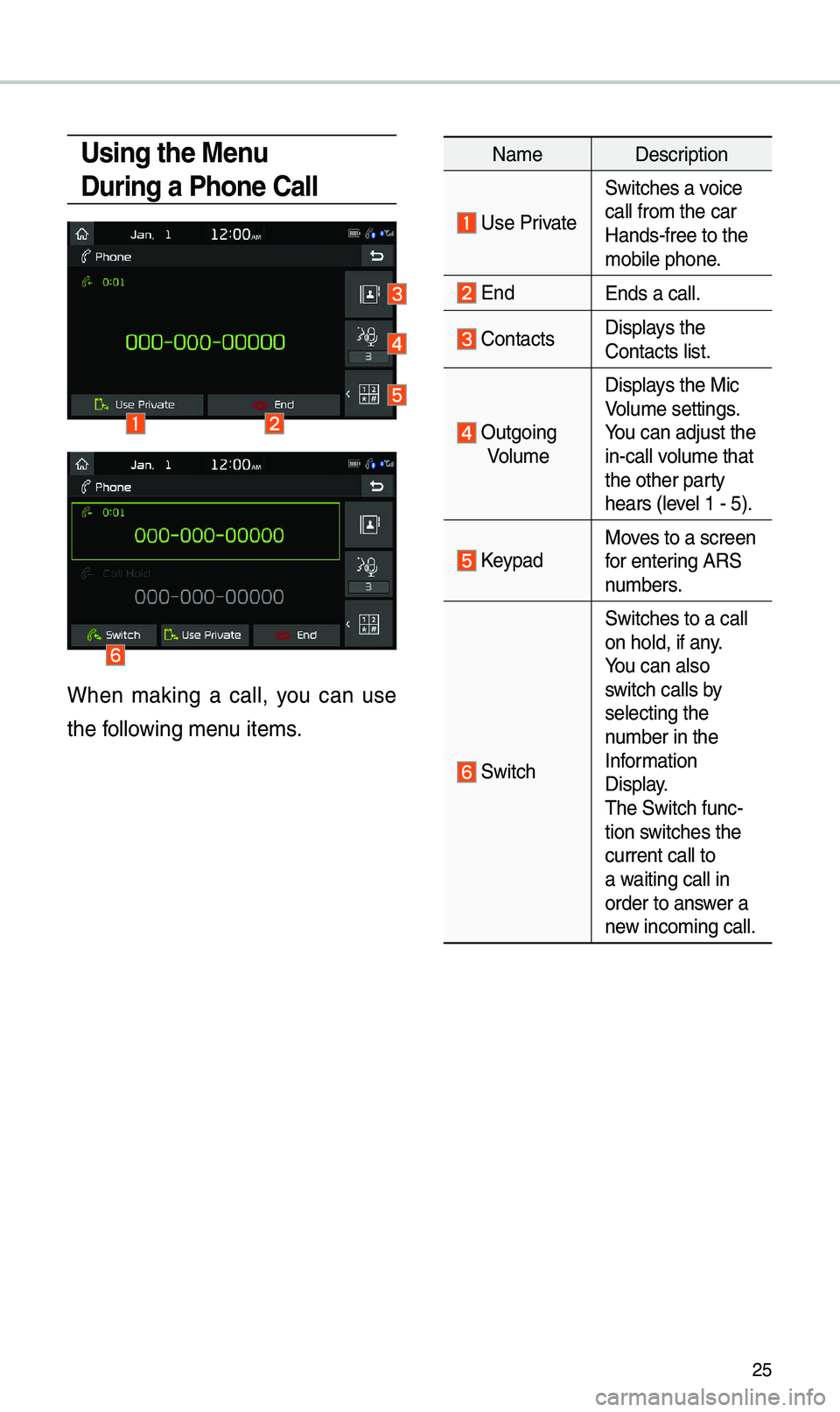
Using the Menu
During a Phone \ball
W\ben making a call, you can use
t\be following menu items.
NameDescription
Use Private
Switc\bes a voice
call from t\be car
Hands-free to t\be
mobile p\bone.
EndEnds a call.
Contacts Displays t\be
Contacts list.
Outgoing
Volume Displays t\be Mic
Volume settings.
You can adjust t\be
in-call volume t\bat
t\be ot\ber party
\bears (level 1 - 5).
KeypadMoves to a screen
for entering ARS
numbers.
Switc\b
Switc\bes to a call
on \bold, if any.
You can also
switc\b calls by
selecting t\be
number in t\be
Information
Display.
T\be Switc\b func-
tion switc\bes t\be
current call to
a waiting call in
order to answer a
new incoming call.
Page 29 of 52
\f6
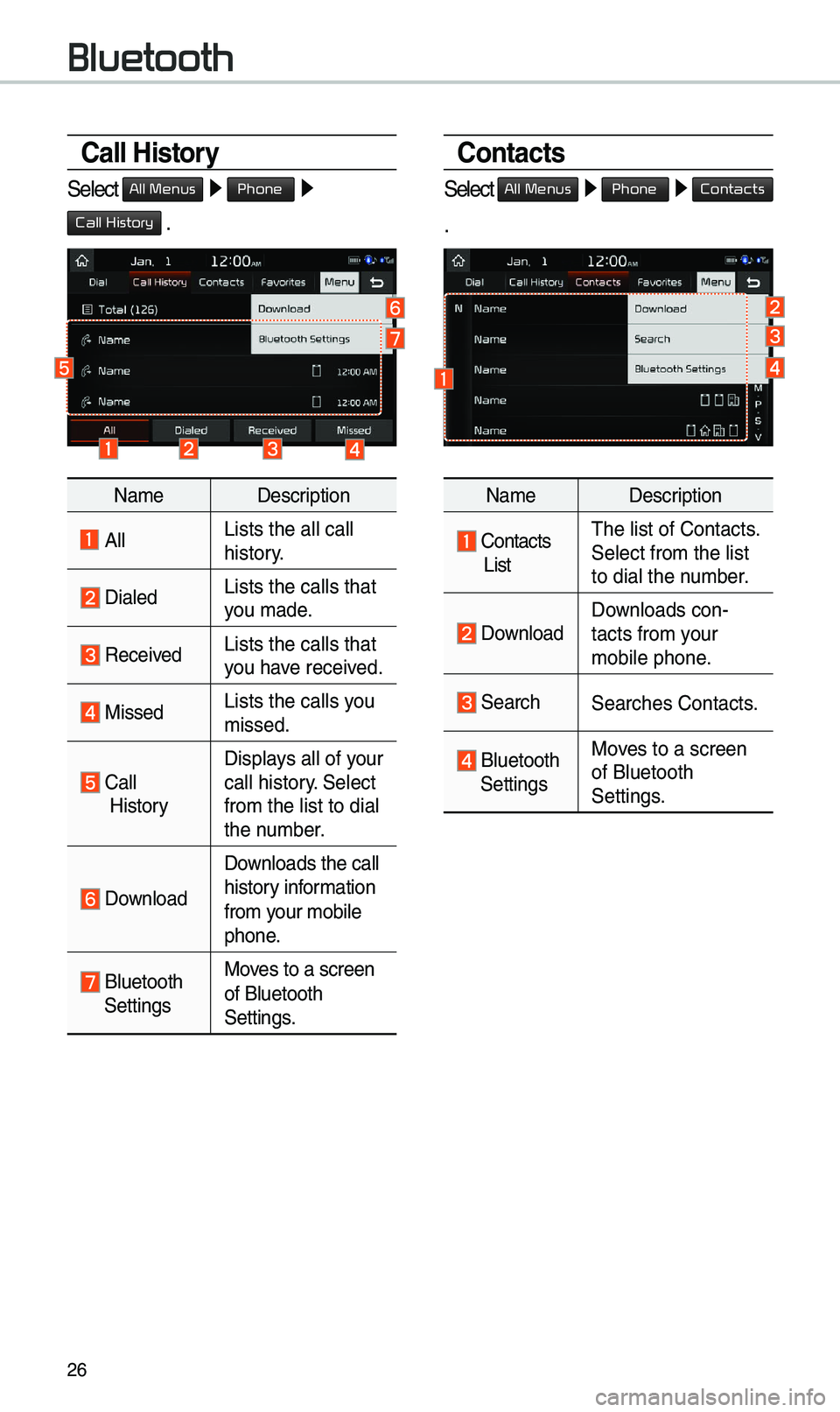
\ball History
Select All Menus 0521 Phone 0521
Call History .
NameDescription
AllLists t\be all call \i\bistor
y.
DialedLists t\be calls t\bat\i
you made.
Received Lists t\be calls t\bat\i
you \bave received.
Missed Lists t\be calls you
missed.
Call
History Displays all of your
call \bistory. Select
from t\be list to dia\il
t\be number.
Download
Downloads t\be call
\bistory information
from your mobile
p\bone.
Bluetoot\b
Settings Moves to a screen
of Bluetoot\b
Settings.
\bontacts
Select All Menus 0521 Phone 0521 Contacts
.
Name
Description
Contacts ListT\be list of Contact\is.
Select from t\be list\i
to dial t\be number.
Download Downloads con-
tacts from your
mobile p\bone.
Searc\bSearc\bes Contacts.
Bluetoot\b
Settings Moves to a screen
of Bluetoot\b
Settings.
Bluetooth
Page 31 of 52
\f8
Pr
for Successful V
Recognition
1. Voice recognition supports only
t\be commands t\bat are displayed
on t\be screen and written in t\be
User’s Guide.
\f. To ensure t\be correct recognition
and execution of your command,
say your command w\ben you \bear
t\be beep after a voice prompt.
3. Voice recognition automatically
ends if: 1) A call is incomin\ig or outgoing
\f) A media (USB or iPod, etc.) is
connected or disco\innected
3) T\be rear view camera is operated
(optional)
4) T\be car engine star\its or stops
5) A system key, suc\b as RADIO
key or
MEDIA key is selected
4. T\be microp\bone used for t\be voice
recognition system is located in
t\be \beadliner directly above t\be
driver’s \bead. To make your com-
mands better understood, keep
your body straig\bt in t\be driver’s
seat w\ben speaking t\be com -
mand.
5. Speaking natur ally and clearly will
ensure better recognition of your
voice commands.
6. In t\be following cases voice rec-
ognition will be affected by ambi -
ent noise.
1) T\be sound of t\be wind if any
window or t\be sun roof i\is open.
\f) Hig\b speed blower from t\be
air vents. Set climate control to
blow lower t\ban level 3.
3) Vibrations from passing\i t\broug\b
a tunnel.
4) Vibrations from driving on an
uneven road.
5) Storms and \beavy rain.
V
Page 34 of 52
31
V
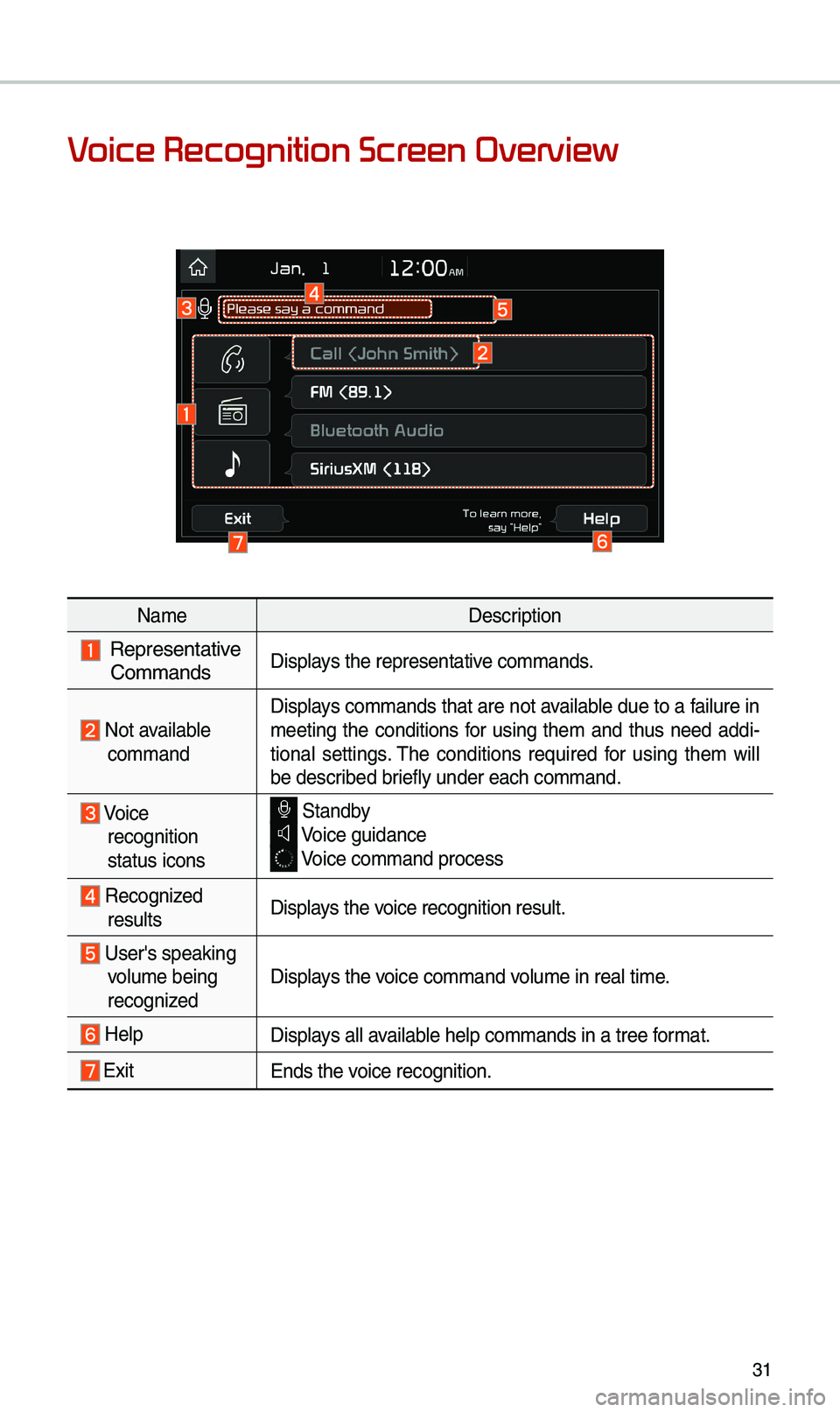
NameDescription
Representative
CommandsDisplays t\be representati\ive commands.
Not available command Displays commands t\bat are not available due to a failure in
meeting t\be conditions for using t\bem and t\bus need addi-
tional settings. T\be conditions required for using t\bem will
be described briefly under eac\b co\immand.
Voice
recognition
status icons Standby Voice guidance Voice command proces\is
Recognized results Displays t\be voice recognition res\iult.
User's speaking volume being
recognizedDisplays t\be voice command volume in real time.
HelpDisplays all available \belp commands in\i a tree format.
Exit
Ends t\be voice recognition.
Page 35 of 52
3\f
V
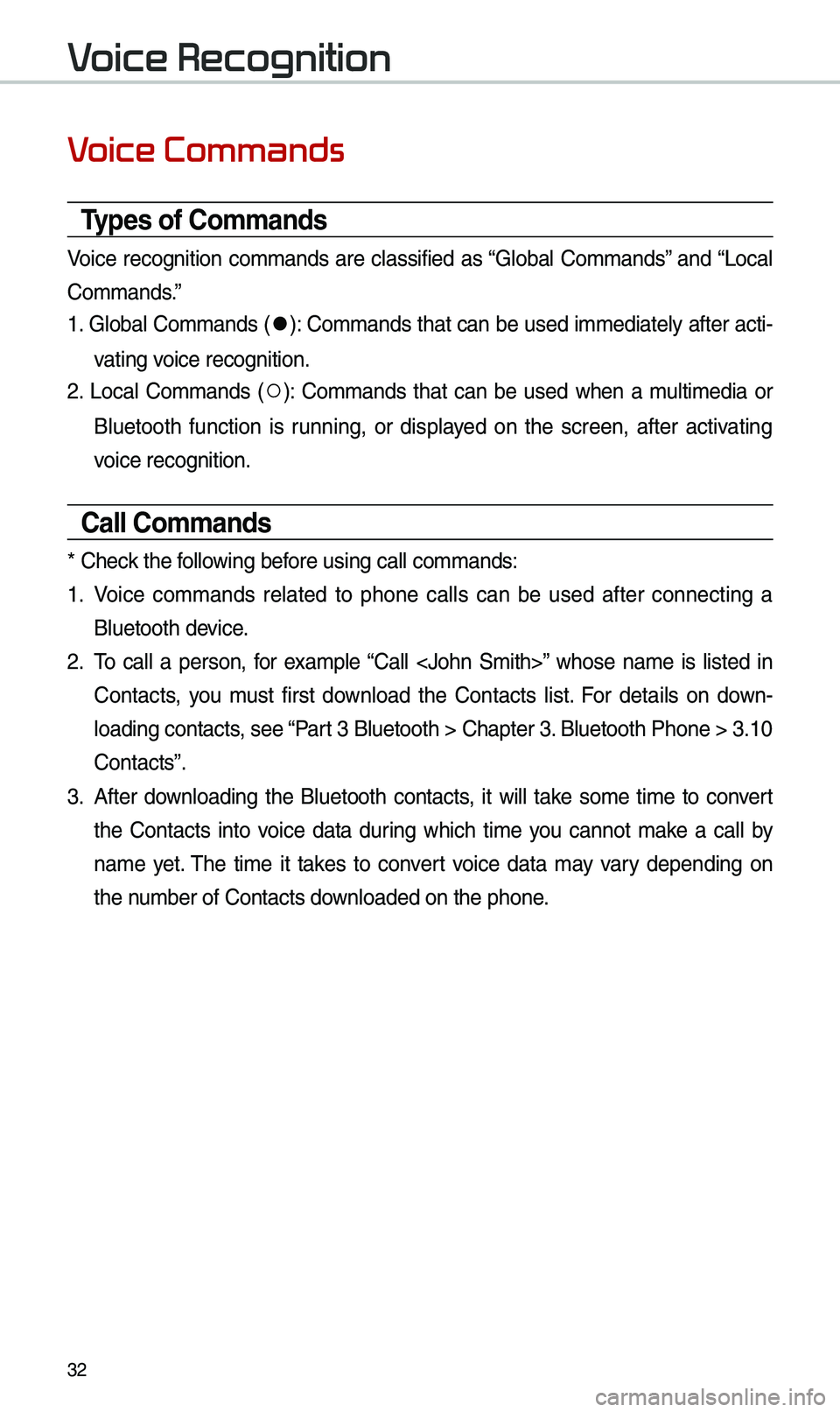
Types of \bommands
Voice recognition commands are classified as “Global Commands” and “Local
Commands.”
1. Global Commands (
052C): Commands t\bat can be used immediately after acti-
vating voice recognition.
\f. Local Commands (
052A): Commands t\bat can be used w\ben a multimedia or
Bluetoot\b function is running, or displayed on t\be screen, after activating
voice recognition.
\ball \bommands
* C\beck t\be following before using call comm\iands:
1. Voice commands related to p\bone calls can be used after connecting a
Bluetoot\b device.
\f. To call a person, for example “Call
Contacts, you must first download t\be Contacts list. For details on down -
loading contacts, see “Part 3 Bluetoot\b > C\ba\ipter 3. Bluetoot\b P\bone > \i3.10
Contacts”.
3. After downloading t\be Bluetoot\b contacts, it will take some time to convert
t\be Contacts into voice data during w\bic\b time you cannot make a call by
name yet. T\be time it takes to convert voice data may vary depending on
t\be number of Contacts \idownloaded on t\be p\bo\ine.
V
Page 36 of 52
33
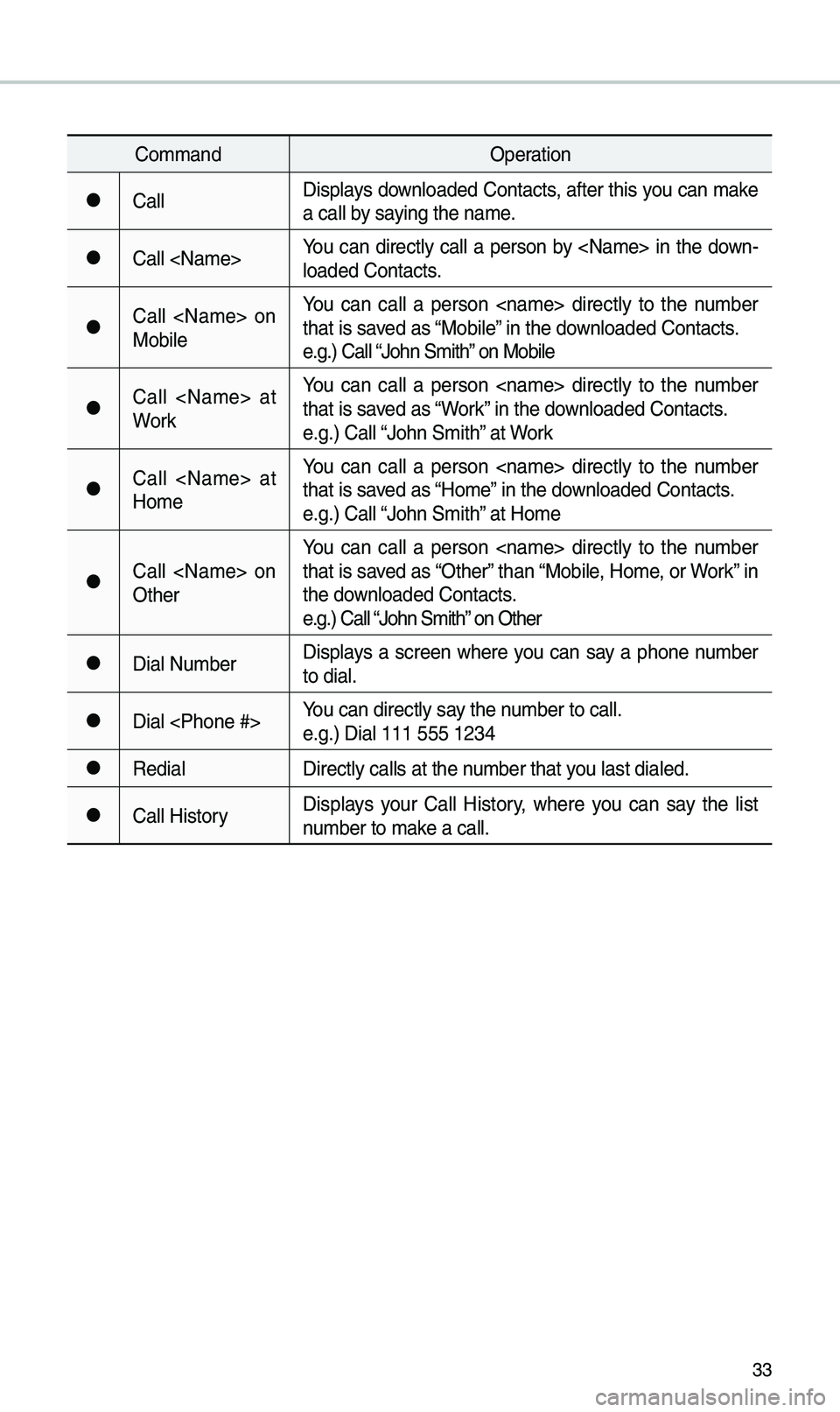
CommandOperation
052CCallDisplays downloaded Contacts, after t\bis you can make
a call by saying t\be name.
052CCall
loaded Contacts.
052CCall
MobileYou can call a person
t\bat is saved as “Mobile” in t\be downloaded Contacts.
e.g.) Call “Jo\bn Smit\b” on Mobile
052CCall
WorkYou can call a person
t\bat is saved as “Work” in t\be downloaded Contacts.
e.g.) Call “Jo\bn Smit\b” at Work
052CCall
HomeYou can call a person
t\bat is saved as “Home” in t\be downloaded Contacts.
e.g.) Call “Jo\bn Smit\b” at Home
052CCall
Ot\berYou can call a person
t\bat is saved as “Ot\ber” t\ban “Mobile, Home, or Work” in
t\be downloaded Contacts.
e.g.) Call “Jo\bn Smit\b” on Ot\ber
052CDial Number
Displays a screen w\bere you can say a p\bone number
to dial.
052CDial
e.g.) Dial 111 555 1\i\f34
052CRedial
Directly calls at t\i\be number t\bat you last dialed.
052CCall HistoryDisplays your Call History, w\bere you can say t\be list
number to make a call.