load KIA TELLURIDE 2021 Navigation System Quick Reference Guide
[x] Cancel search | Manufacturer: KIA, Model Year: 2021, Model line: TELLURIDE, Model: KIA TELLURIDE 2021Pages: 300, PDF Size: 10.06 MB
Page 283 of 300
10-9
System status indicator icons
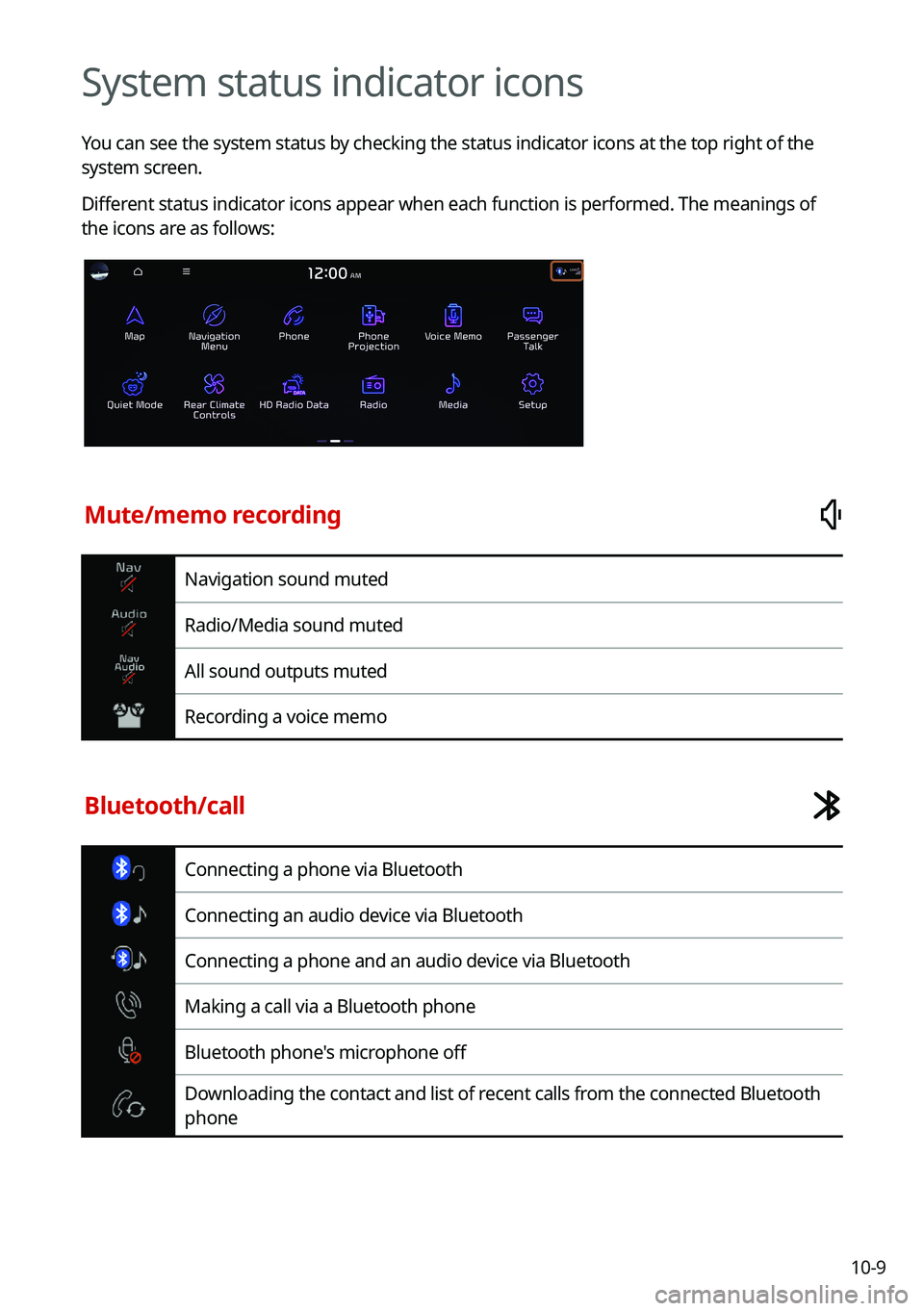
You can see the system status by checking the status indicator icons at the top right of the
system screen.
Different status indicator icons appear when each function is performed. The meanings of
the icons are as follows:
Mute/memo recording
Navigation sound muted
Radio/Media sound muted
All sound outputs muted
Recording a voice memo
Bluetooth/call
Connecting a phone via Bluetooth
Connecting an audio device via Bluetooth
Connecting a phone and an audio device via Bluetooth
Making a call via a Bluetooth phone
Bluetooth phone's microphone off
Downloading the contact and list of recent calls from the connected Bluetooth
phone
Page 285 of 300
10-11
FAQ
Navigation
QHow can I update the map?
AYou can download the latest map data to a USB device and use the device to update
the map.
> See "How to Update the Map and Software for your Infotainment System."
QGuidance is made by bypassing the route or the speed camera alerts are late.
ASelect another route after setting the route options. On the map screen, press
>
Route >
Route Options to change the settings and resume navigation.
> See " Changing the route search criteria."
When the system is not updated, update the software and map and then perform
search again.
> See "How to Update the Map and Software for your Infotainment System."
Bluetooth
QWhich functions can I use via Bluetooth?
AYou can use the hands-free call function with a mobile phone connected. You can also
play music after connecting an audio device such as MP3 player or mobile phone.
> See "Making a call via Bluetooth.", "Listening to music via Bluetooth ."
QHow can I register a Bluetooth device?
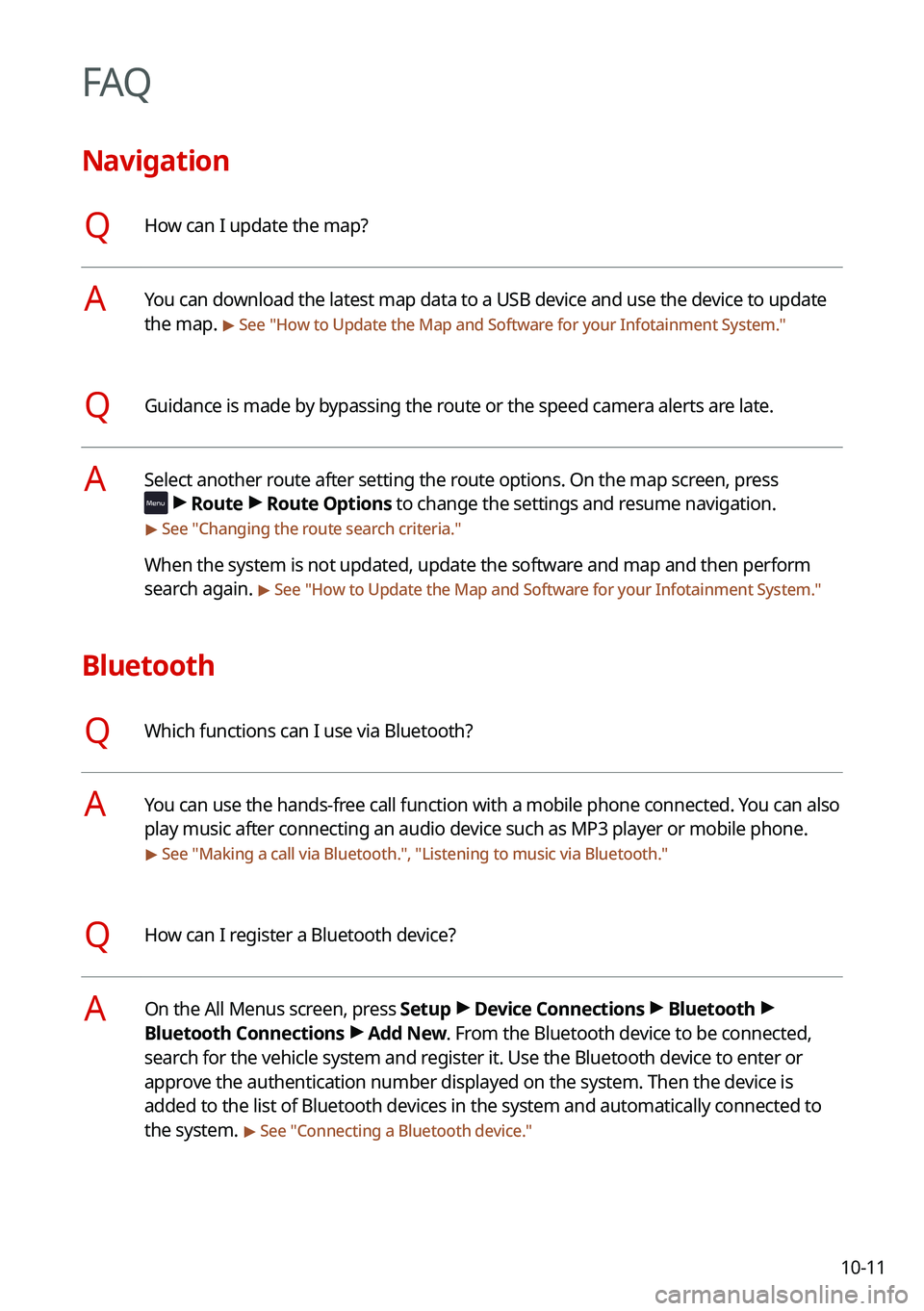
AOn the All Menus screen, press Setup >
Device Connections >
Bluetooth >
Bluetooth Connections >
Add New. From the Bluetooth device to be connected,
search for the vehicle system and register it. Use the Bluetooth device to enter or
approve the authentication number displayed on the system. Then the device is
added to the list of Bluetooth devices in the system and automatically connected to
the system.
> See " Connecting a Bluetooth device."
Page 286 of 300
10-12
QI bought a new mobile phone and want to replace my old phone with the new one to
connect the system. How can I register the new phone to the system?
AAn additional device can be registered in the same way as in registration of a new
device. You can register up to 6 devices in the list of Bluetooth devices. To delete
a previously registered device, press Delete Device(s) from the list of Bluetooth
devices, select the device to delete, and then press Delete.
> See "Deleting a registered
device."
QHow can I access the list of contacts while using a Bluetooth phone?
AApprove access to the contacts when connecting your mobile phone to the syste\
m
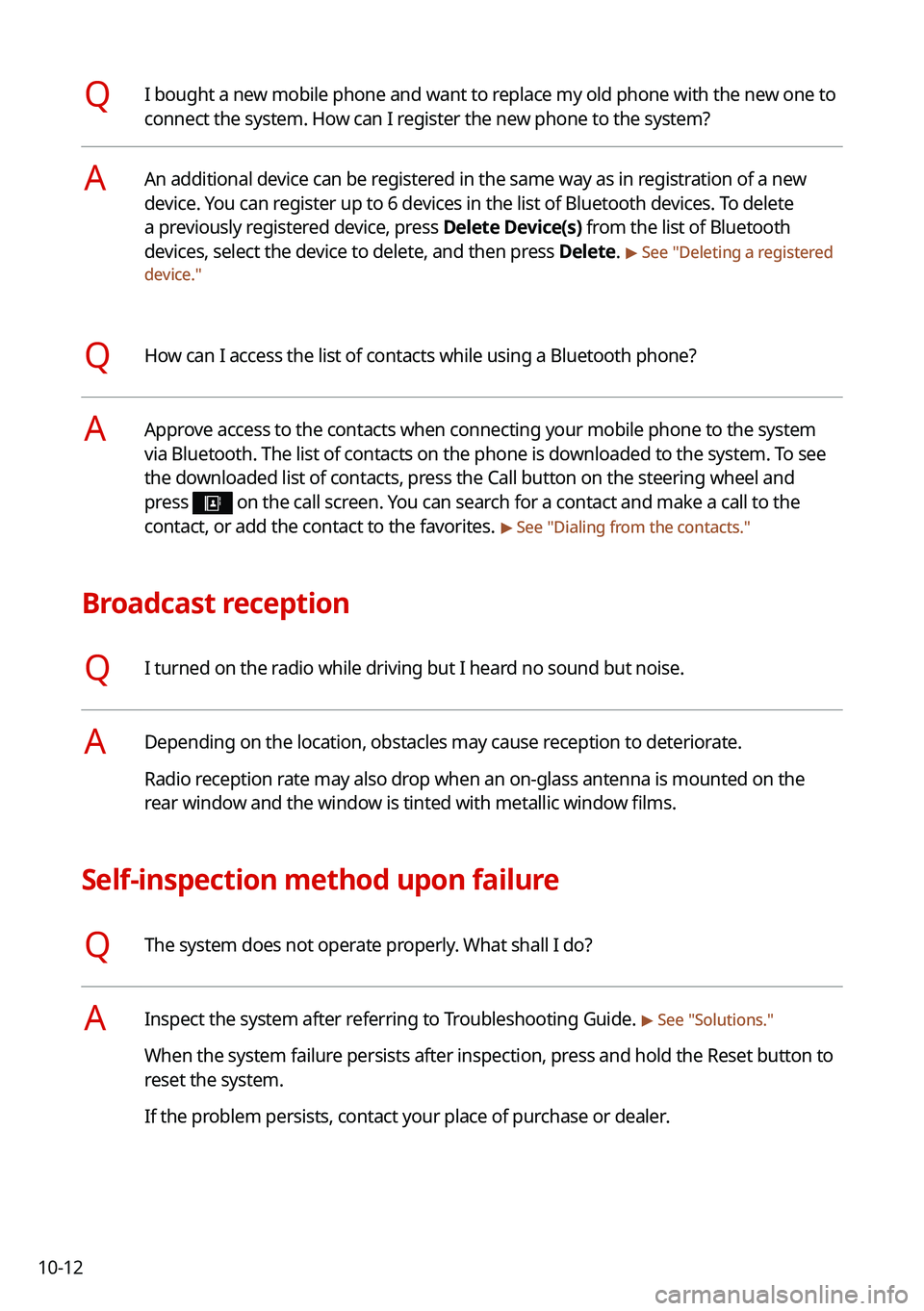
via Bluetooth. The list of contacts on the phone is downloaded to the system. To see
the downloaded list of contacts, press the Call button on the steering wheel and
press
on the call screen. You can search for a contact and make a call to the
contact, or add the contact to the favorites. > See " Dialing from the contacts."
Broadcast reception
QI turned on the radio while driving but I heard no sound but noise.
ADepending on the location, obstacles may cause reception to deteriorate.
Radio reception rate may also drop when an on-glass antenna is mounted on the
rear window and the window is tinted with metallic window films.
Self-inspection method upon failure
QThe system does not operate properly. What shall I do?
AInspect the system after referring to Troubleshooting Guide. > See "Solutions."
When the system failure persists after inspection, press and hold the Reset button to
reset the system.
If the problem persists, contact your place of purchase or dealer.
Page 298 of 300
10-24
Open Source Information
This system contains open source software.
To download the open source codes installed on this product developed under GPL, LGPL,
Apache, and other open source licenses, please visit http://en.mobis.co.kr/opensource/list.do.
All notified license content, including the source code, is available for download.
If you request the open source code of a software mounted on this product by sending an
email to [email protected] within 3 years of purchasing this product, you will
receive it on a CD-ROM or another storage media at a minimal cost, such as the costs of the
medium and delivery.