low KIA TELLURIDE 2021 Navigation System Quick Reference Guide
[x] Cancel search | Manufacturer: KIA, Model Year: 2021, Model line: TELLURIDE, Model: KIA TELLURIDE 2021Pages: 300, PDF Size: 10.06 MB
Page 3 of 300
1
Reading the manual on web with the QR code
You can access the online user's manual of the system by scanning the QR code with your
smartphone.
\335Warning
Park the vehicle at a safe place and scan the QR code. To ensure your safety, the system does
not provide QR codes while driving.
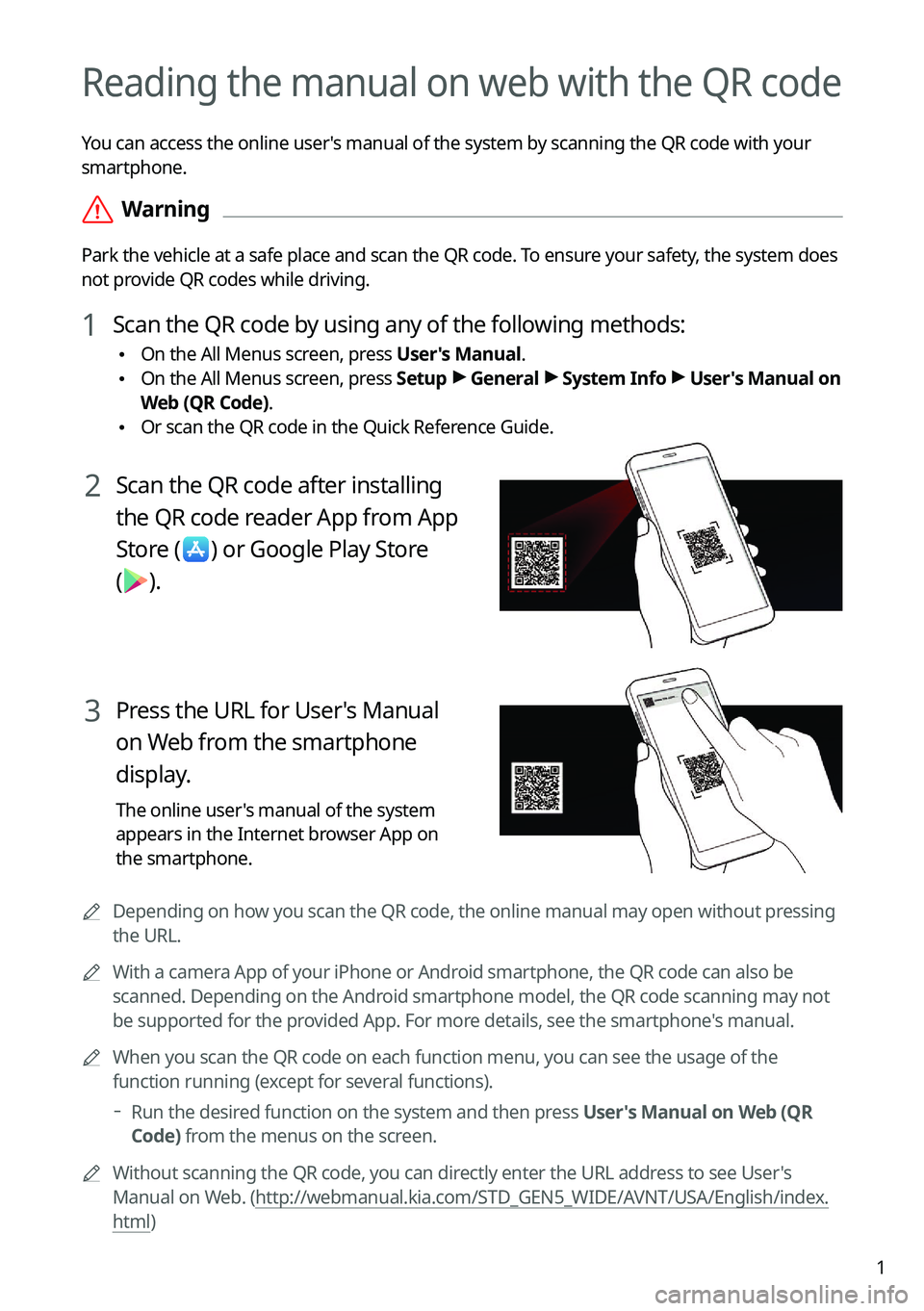
1 Scan the QR code by using any of the following methods:
\225On the All Menus screen, press User's Manual.
\225On the All Menus screen, press Setup >
General >
System Info >
User's Manual on
Web (QR Code).
\225 Or scan the QR code in the Quick Reference Guide.
2 Scan the QR code after installing
the QR code reader App from App
Store
(
) or Google Play Store
(
).
3 Press the URL for User's Manual
on Web from the smartphone
display.
The online user's manual of the system
appears in the Internet browser App on
the smartphone.
0000
A
Depending on how you scan the QR code, the online manual may open without pressing
the URL.
0000
A
With a camera App of your iPhone or Android smartphone, the QR code can also be
scanned. Depending on the Android smartphone model, the QR code scanning may not
be supported for the provided App. For more details, see the smartphone's manual.
0000
A
When you scan the QR code on each function menu, you can see the usage o\
f the
function running (except for several functions).
000DRun the desired function on the system and then press User's Manual on Web (QR
Code) from the menus on the screen.
0000
A
Without scanning the QR code, you can directly enter the URL address to see User's
Manual on Web. (http://webmanual.kia.com/STD_GEN5_WIDE/AVNT/USA/English/index.
html)
Page 4 of 300
2
Safety Warnings
Be sure to keep the following instructions. Otherwise, it may cause serious injury or accident.
\335Driving
Obey all traffic laws while driving.
\225
Relying solely on the navigation system may cause violation of traffic rules and regulations, resulting in an
accident.
In order to check the vehicle speed, see the speedometer first, not the speed on the
navigation system.
\225The speed on the navigation system may differ from actual vehicle speed.
While driving, refrain from watching the screen.
\225An accident may occur by negligence in keeping your eyes forward.
\225To manipulate the screen or buttons requiring multiple steps, be sure to stop your vehicle.
To use your mobile phone, first stop your vehicle.
\225When you use your mobile phone while driving, it may disperse your atten\
tion, resulting in an accident.
\225When making a call while driving, use the Bluetooth Hands-free function and if possible, minimise the call
time.
Make sure that the volume of the phone is sufficiently low so that the external sound is
audible.
\225When you drive with no external sound present may cause a traffic accident.
\225When you drive for a long time with a loud audio volume, it may affect your hearing.
For emergency services (e.g. hospital, fire station), do not rely solely on the navigation
system.
\225Some emergency services may not be included in the navigation map. Check relevant information in advance
to stay prepared for an emergency.
\335System handling
Do NOT arbitrarily disassemble or modify the system.
\225It may cause an accident, fire, or electric shock.
Exercise caution to make sure that no liquid or foreign materials enter the system.
\225It may cause smoke generation, fire ignition, or system failure.
When the screen is not displayed, the volume is muted, or other system failures occur,
immediately stop using the system.
\225Otherwise, it may cause fire, electric shock, or fatal system failure.
0000
A
If you experience any problems with the system, contact your place of purchase or dealer.
Page 5 of 300
3
Safety Precautions
Be sure to keep the following instructions. Otherwise, it may cause minor injury or system
damage.
\334\334Operation
Use the system with the vehicle started.
\225
When you use the system for a long time with the vehicle stopped, it may\
cause battery discharge.
Do NOT arbitrarily install an unauthorised aftermarket product in your vehicle.
\225Using unapproved products may cause an error while using the system.
\225System errors caused by installing unapproved products are not covered under the warranty.
\334\334System handling
Do NOT apply excessive force to the system.
\225When you apply excessive pressure to the screen, the LCD panel or touch panel may get damaged.
To clean the screen or button panel, first turn off the vehicle and then use a dry, soft
cloth to wipe it.
\225Do not wipe using a rough or hard cloth, chemical fibre, organic solvent (e.g. alcohol, benzene, thinner), or air
freshener. The panel surface may become scratched or damaged due to a chemical reaction.
When you install an air freshener on the air conditioner vent, the surface may be
deformed due to leakage.
0000
A
If you experience any problems with the system, contact your place of purchase or dealer.
Page 12 of 300

10
FCC Certification
This equipment has been tested and found to comply with the limits for a\
Class B digital
device, pursuant to part 15 of the FCC Rules. These limits are designed to provide reasonable
protection against harmful interference in a residential installation.
This equipment generates, uses and can radiate radio frequency energy and, if not
installed and used in accordance with the instructions, may cause harmful interference
to radio communications. However, there is no guarantee that interference will not occur
in a particular installation. If this equipment does cause harmful inter\
ference to radio or
television reception, which can be determined by turning the equipment off and on, the user
is encouraged to try to correct the interference by one or more of the following measures:
\225Reorient or relocate the receiving antenna.
\225Increase the separation between the equipment and receiver.
\225Connect the equipment into an outlet on a circuit different from that to which the receiver
is connected.
\225Consult the dealer or an experienced radio/TV technician for help.
Caution: Any changes or modifications to this device not explicitly approved by manufacturer
could void your authority to operate this equipment.
This device complies with part 15 of the FCC Rules. Operation is subject to the following
two conditions: (1) This device may not cause harmful interference, and (2) this device must
accept any interference received, including interference that may cause undesired operation.
This equipment complies with FCC radiation exposure limits set forth for an uncontrolled
environment.
This equipment should be installed and operated with minimum 20 cm between the radiator
and your body. This transmitter must not be co-located or operating in conjunction with any
other antenna or transmitter unless authorized to do so by the FCC.
Page 15 of 300
3
Symbols in this User’s Manual
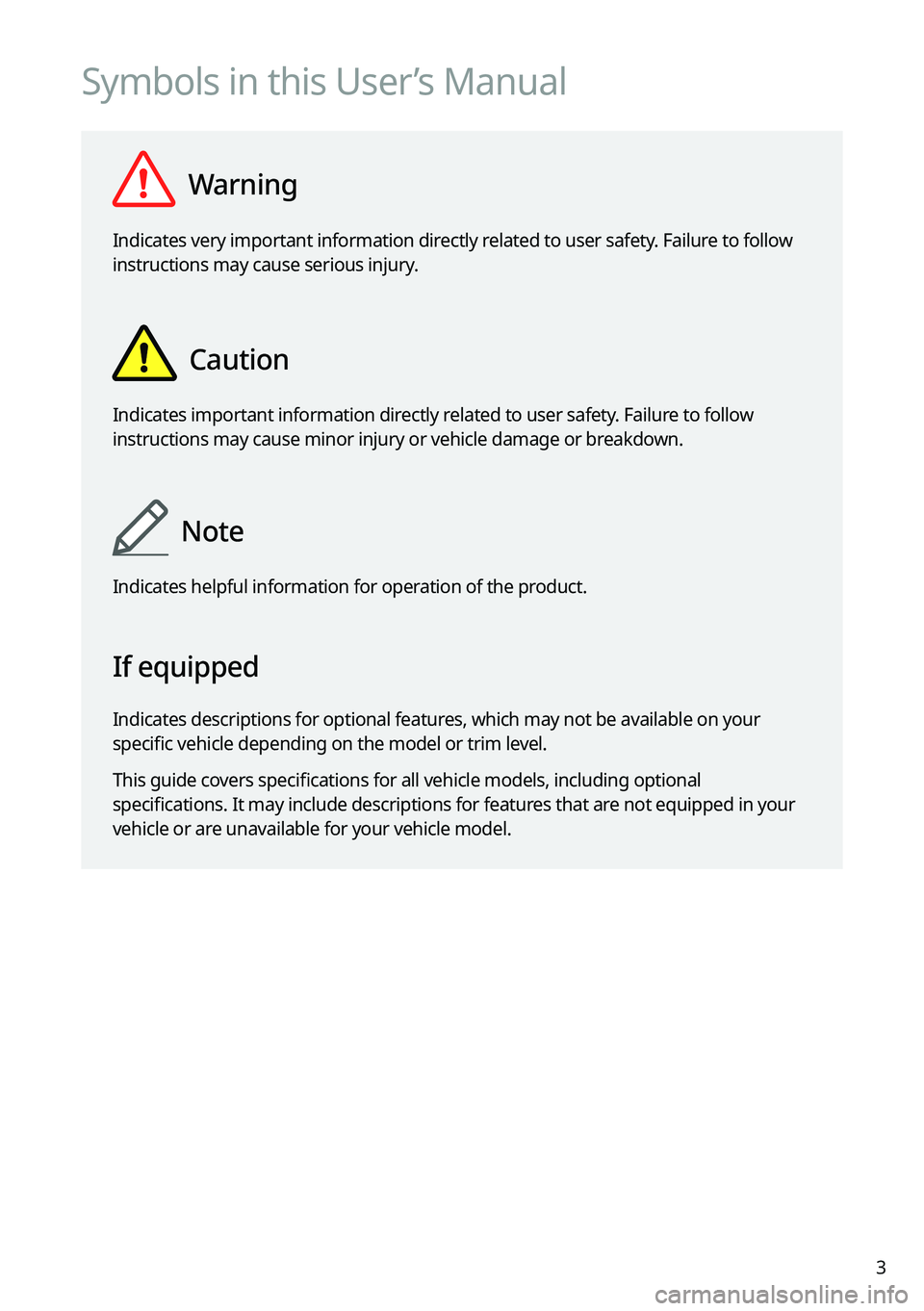
Warning
Indicates very important information directly related to user safety. Failure to follow
instructions may cause serious injury.
Caution
Indicates important information directly related to user safety. Failure to follow
instructions may cause minor injury or vehicle damage or breakdown.
Note
Indicates helpful information for operation of the product.
If equipped
Indicates descriptions for optional features, which may not be available on your
specific vehicle depending on the model or trim level.
This guide covers specifications for all vehicle models, including optional
specifications. It may include descriptions for features that are not equipped in your
vehicle or are unavailable for your vehicle model.
Page 17 of 300
5
Be sure to keep the following instructions. Otherwise, it may cause serious injury or accident.
\335Driving
Obey all traffic laws while driving.
\225 Relying solely on the navigation system may cause violation of traffic rules and regulations, resulting in an
accident.
In order to check the vehicle speed, see the speedometer first, not the speed on the
navigation system.
\225The speed on the navigation system may differ from actual vehicle speed.
While driving, refrain from watching the screen.
\225An accident may occur by negligence in keeping your eyes forward.
\225To manipulate the screen or buttons requiring multiple steps, be sure to stop your vehicle.
To use your mobile phone, first stop your vehicle.
\225When you use your mobile phone while driving, it may disperse your atten\
tion, resulting in an accident.
\225If necessary, use handsfree (Bluetooth) calling when driving and minimize the call time.
Make sure that the volume of the phone is sufficiently low so that the external sound is
audible.
\225When you drive with no external sound present may cause a traffic accident.
\225When you drive for a long time with a loud audio volume, it may affect your hearing.
For emergency services (e.g. hospital, fire station), do not rely solely on the navigation
system.
\225Some emergency services may not be included in the navigation map. Check relevant information in advance
to stay prepared for an emergency.
\335System handling
Do NOT arbitrarily disassemble or modify the system.
\225 It may cause an accident, fire, or electric shock.
Exercise caution to make sure that no liquid or foreign materials enter the system.
\225It may cause smoke generation, fire ignition, or system failure.
When the screen is not displayed, the volume is muted, or other system failures occur,
immediately stop using the system.
\225Otherwise, it may cause fire, electric shock, or fatal system failure.
0000
A
If you experience any problems with the system, contact your place of purchase or dealer.
Safety Warnings
Page 18 of 300
6
Safety Precautions
Be sure to keep the following instructions. Otherwise, it may cause minor injury or system
damage.
\334\334Operation
Use the system with the vehicle started.
\225 When you use the system for a long time with the vehicle stopped, it may\
cause battery discharge.
Do NOT arbitrarily install an unauthorized aftermarket product in your vehicle.
\225Using unapproved products may cause an error while using the system.
\225System errors caused by installing unapproved products are not covered under the warranty.
\334\334System handling
Do NOT apply excessive force to the system.
\225 When you apply excessive pressure to the screen, the LCD panel or touch panel may get damaged.
To clean the screen or button panel, first turn off the vehicle and then use a dry, soft
cloth to wipe it.
\225Do not wipe using a rough or hard cloth, chemical fiber, organic solvent (e.g. alcohol, benzene, thinner), or air
freshener. The panel surface may become scratched or damaged due to a chemical reaction.
When you install an air freshener on the air conditioner vent, the surface may be
deformed due to leakage.
0000
A
If you experience any problems with the system, contact your place of purchase or dealer.
Page 24 of 300

1-2
Component names and functions
The following describes the part names and controls on the control panel and steering wheel.
Control panel
0000
A
The shape may differ depending on the vehicle model and specifications. For more
information, see "Quick Reference Guide" that is separately provided.
POWER button
(POWER/PWR)/
VOLUME knob
(VOLUME/VOL) \225 Press the button to turn on or off the Radio/Media.
\225Press and hold the button to turn off the screen and
sound.
\225Turn the knob to adjust the system volume (except for
navigation sound).
MAP button
\225 Returns to the current location on the map.
\225While in guidance on the navigation screen, press to
repeat the voice guidance.
NAV button
\225 Moves to the navigation/route screen.
\225Press and hold the button to display the Places screen.
> See "
Searching by keyword."
RADIO button \225 Turns on the radio.
\225When the radio is on, press the button repeatedly to
toggle between FM, AM and SiriusXM modes.
\225Press and hold the button to display the media selection
window.
MEDIA button
\225 Runs the media.
\225Press and hold the button to display the media selection
window.
Page 27 of 300
1-5
Turning the system on or off
The following explains how to turn on or off the system. Before using the system, be sure to
read the user's manual for safe and convenient manipulation.
Turning on the system
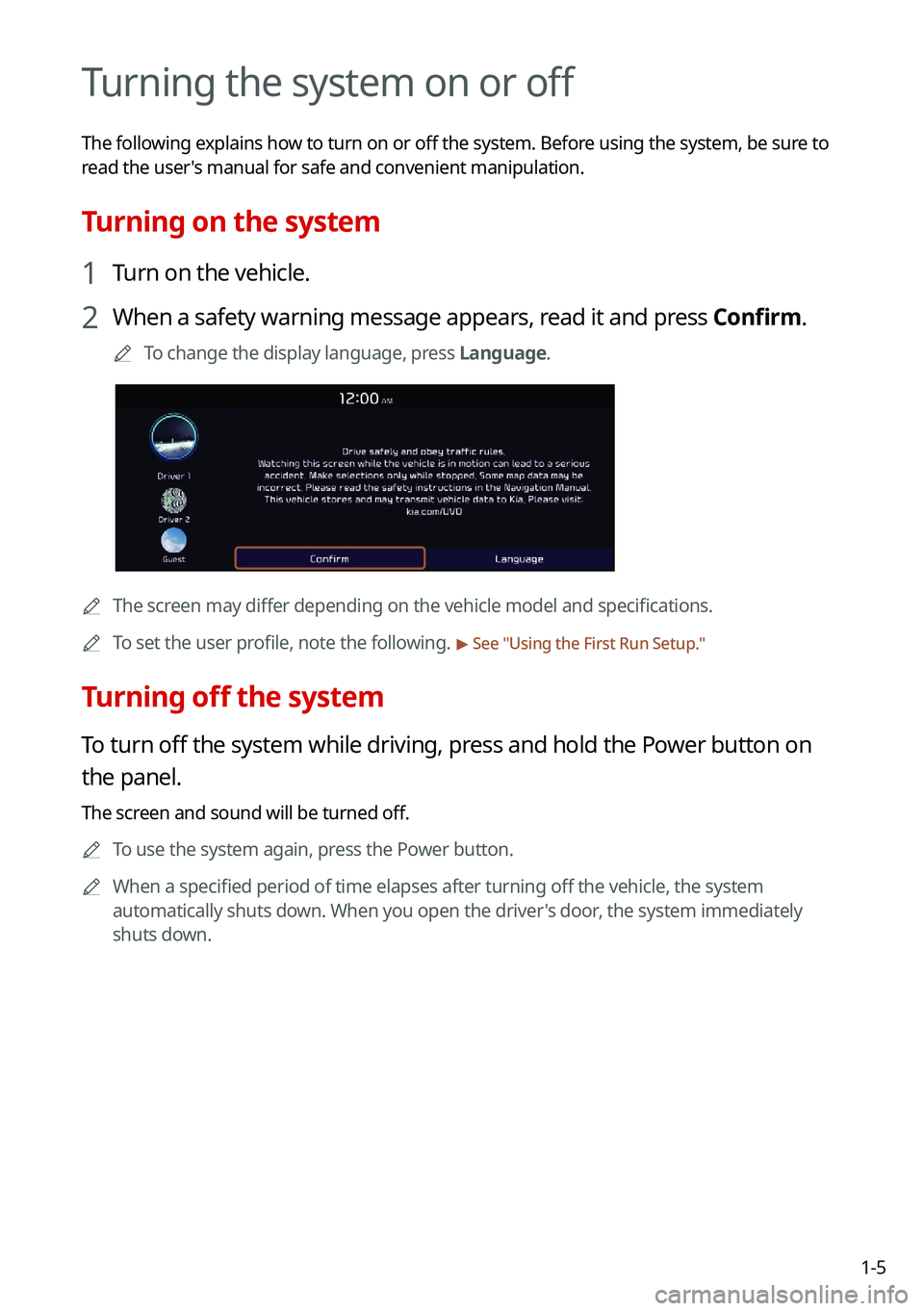
1 Turn on the vehicle.
2 When a safety warning message appears, read it and press Confirm.
0000
A
To change the display language, press Language.
0000AThe screen may differ depending on the vehicle model and specifications.
0000
A
To set the user profile, note the following.
> See "Using the First Run Setup."
Turning off the system
To turn off the system while driving, press and hold the Power button on
the panel.
The screen and sound will be turned off.
0000
A
To use the system again, press the Power button.
0000
A
When a specified period of time elapses after turning off the vehicle, the system
automatically shuts down. When you open the driver's door, the system immediately
shuts down.
Page 32 of 300
1-10
Using the Home screen
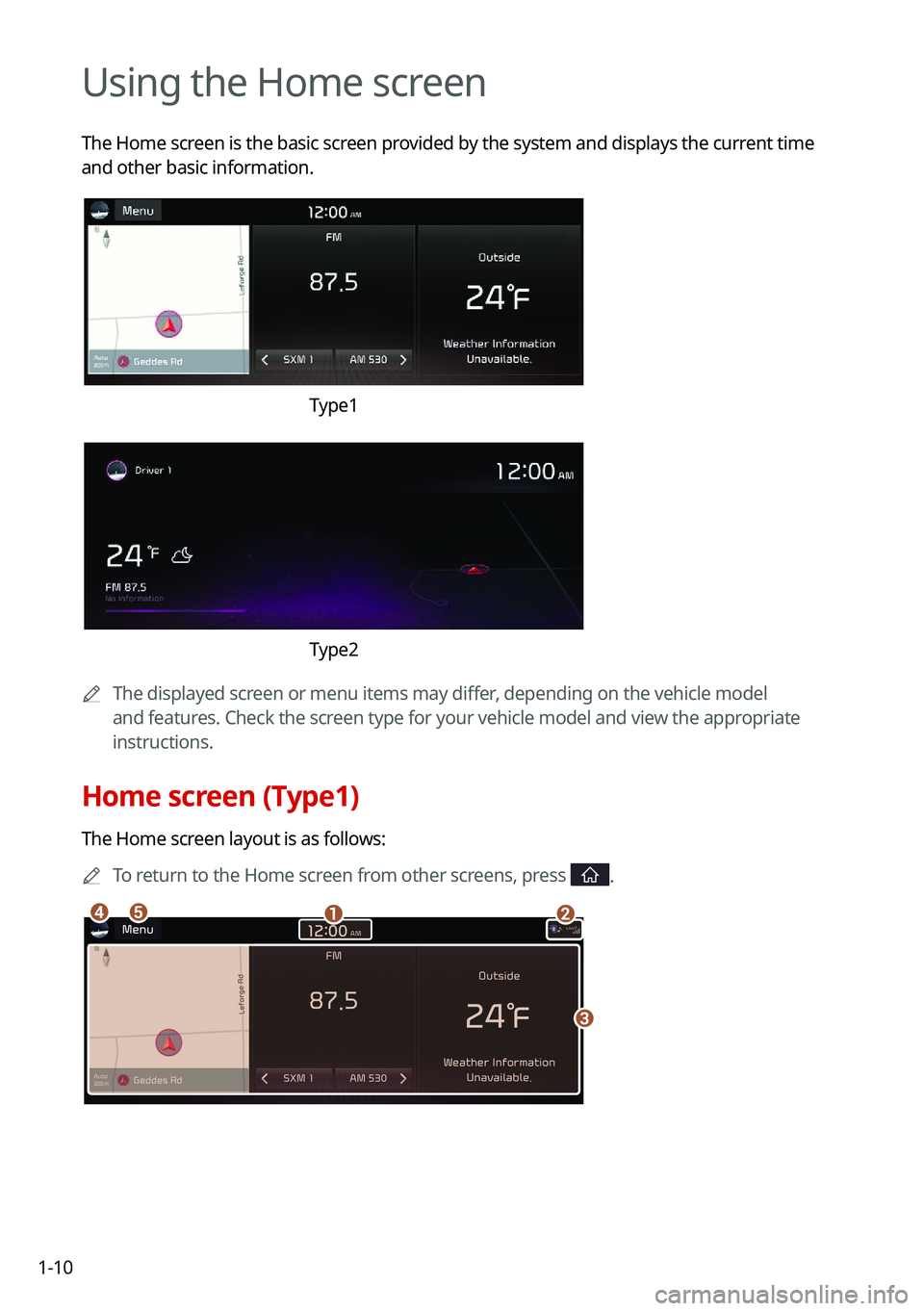
The Home screen is the basic screen provided by the system and displays the current time
and other basic information.
Type1
Type2
0000
A
The displayed screen or menu items may differ, depending on the vehicle model
and features. Check the screen type for your vehicle model and view the appropriate
instructions.
Home screen (Type1)
The Home screen layout is as follows:
0000
A
To return to the Home screen from other screens, press
.
\037\036
\035
\034\033