sat KIA TELLURIDE 2022 Navigation System Quick Reference Guide
[x] Cancel search | Manufacturer: KIA, Model Year: 2022, Model line: TELLURIDE, Model: KIA TELLURIDE 2022Pages: 316, PDF Size: 10.53 MB
Page 241 of 316
9-53
Speed Dependent Volume Control (if equipped)
Automatically adjusts Audio volume according to vehicle speed.
Dynamic Speed Compensation (if equipped)
Provides a stable listening environment by adjusting the audio volume depending on the
vehicle speed.
Start-up Volume Limit
You can set to automatically decrease the audio volume to an adequate level when turning
on the vehicle.
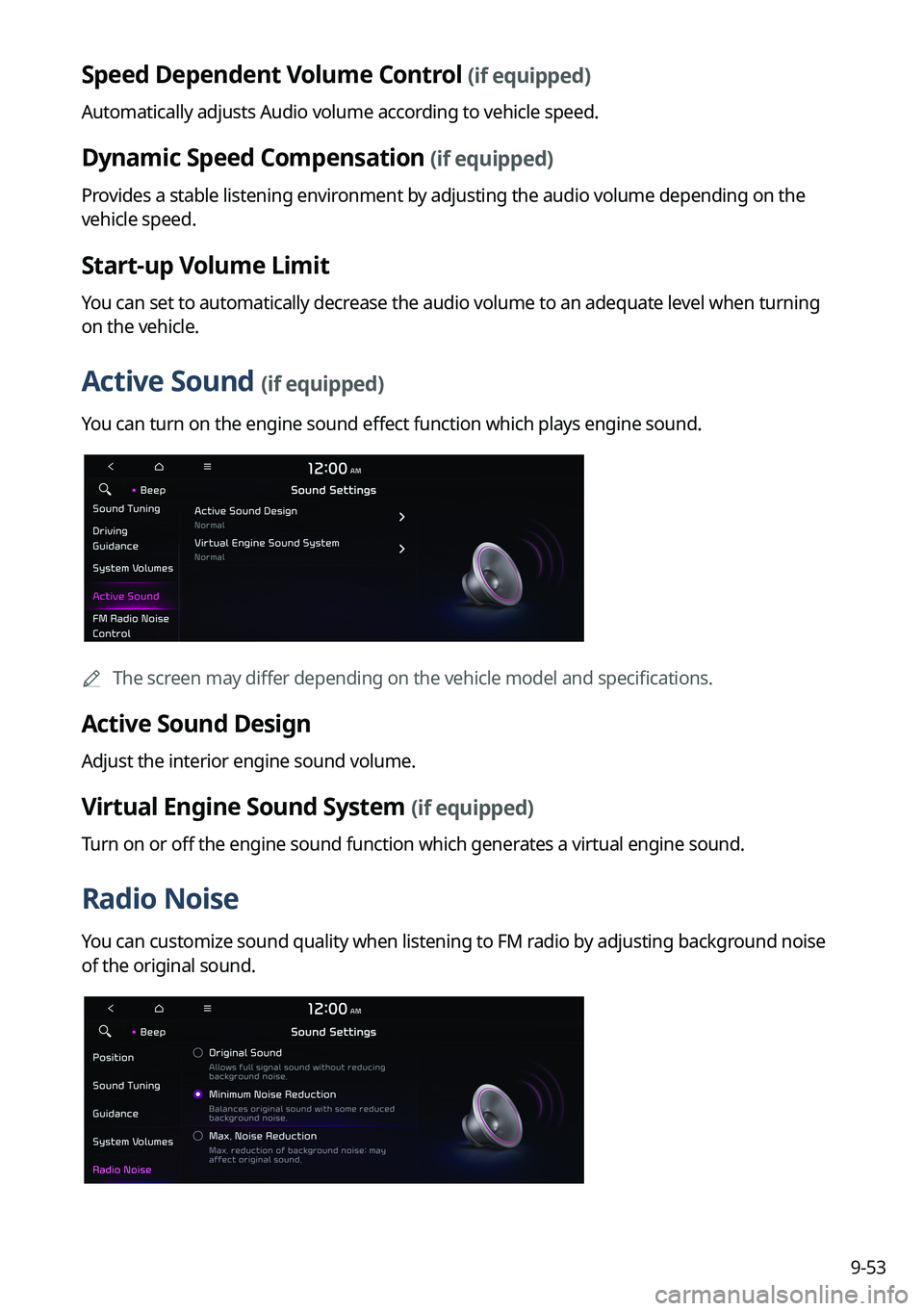
Active Sound (if equipped)
You can turn on the engine sound effect function which plays engine sound.
0000
A
The screen may differ depending on the vehicle model and specifications.
Active Sound Design
Adjust the interior engine sound volume.
Virtual Engine Sound System (if equipped)
Turn on or off the engine sound function which generates a virtual engine sound.
Radio Noise
You can customize sound quality when listening to FM radio by adjusting background noise
of the original sound.
Page 249 of 316
9-61
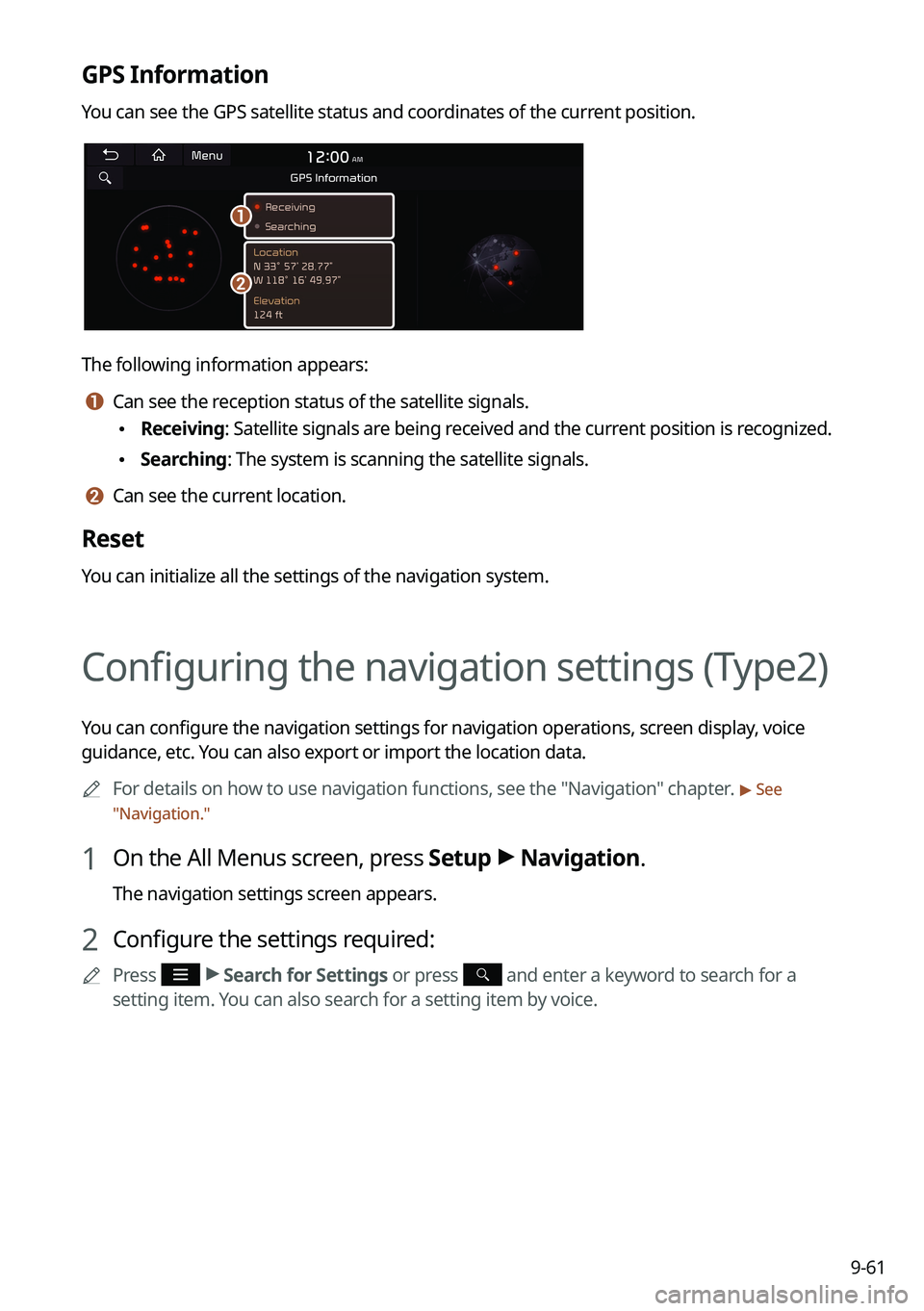
GPS Information
You can see the GPS satellite status and coordinates of the current position.
\037
\036
The following information appears:
a a Can see the reception status of the satellite signals.
\225Receiving: Satellite signals are being received and the current position is recognized.
\225Searching: The system is scanning the satellite signals.
b b Can see the current location.
Reset
You can initialize all the settings of the navigation system.
Configuring the navigation settings (Type2)
You can configure the navigation settings for navigation operations, screen display, voice
guidance, etc. You can also export or import the location data.
0000
A
For details on how to use navigation functions, see the "Navigation" chapter.
> See
" Navigation."
1 On the All Menus screen, press Setup >
Navigation.
The navigation settings screen appears.
2 Configure the settings required:
0000
A
Press >
Search for Settings or press and enter a keyword to search for a
setting item. You can also search for a setting item by voice.
Page 255 of 316
9-67
User Data
You can import location data from a USB device to the system, or export the data on the
system to a USB device.0000
A
When importing or exporting the location data, you can uses only the USB device
formatted in exFAT, FAT16/32, or NTFS.
\225Import Address Book/Previous Destinations from USB: You can import registered
location and destination information, saved on your USB storage device, to the system.
0000
A
Previous information saved on the system will be deleted.
0000
A
While importing from a navigation system that uses a different coordinate system,
the locations may appear differently.
\225Export Address Book/Previous Destinations to USB: You can export registered location
and destination information, saved on the system, to your USB storage device.
0000
A
Previous information saved on the USB storage device will be deleted.
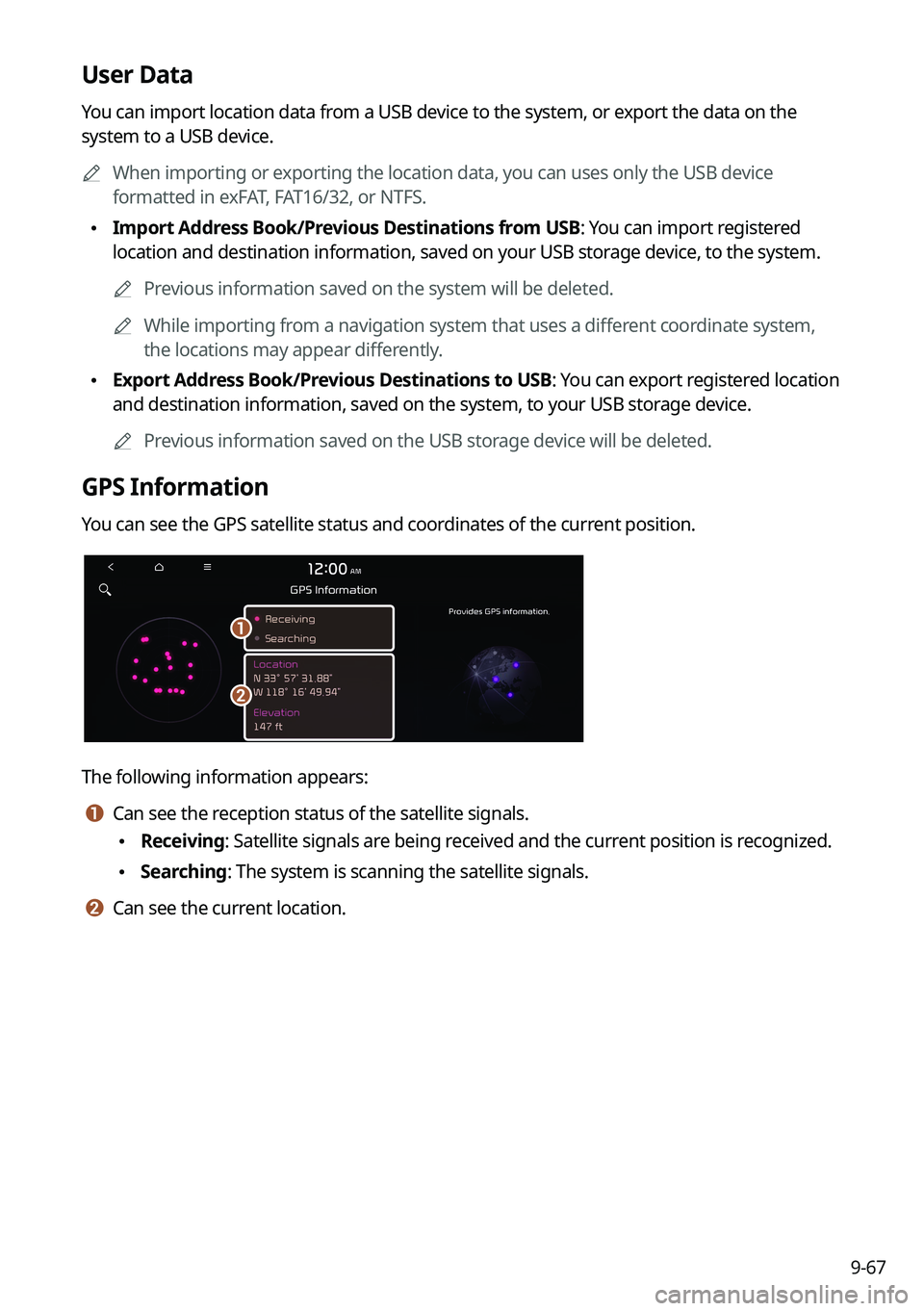
GPS Information
You can see the GPS satellite status and coordinates of the current position.
\037
\036
The following information appears:
a a Can see the reception status of the satellite signals.
\225Receiving: Satellite signals are being received and the current position is recognized.
\225Searching: The system is scanning the satellite signals.
b b Can see the current location.
Page 298 of 316

10-10
UVO
Talking with a UVO phone
UVO phone's microphone off
UVO network's signal strength
911 Connect activated
System update
Scheduling the update
Updating
Available functions in the rear seat (if equipped)
Rear-seat remote control locked
Rear-seat sleep mode On
Front-seat driver is having a conversation with a rear-seat occupant
Wireless charging
Wireless charging in progress
Wireless charging complete
Wireless charging failure
0000
A
Some icons may not appear depending on the vehicle model and specifications.