sat KIA TELLURIDE 2022 Navigation System Quick Reference Guide
[x] Cancel search | Manufacturer: KIA, Model Year: 2022, Model line: TELLURIDE, Model: KIA TELLURIDE 2022Pages: 316, PDF Size: 10.53 MB
Page 11 of 316

9
Disclaimers
000EDriving while distracted is dangerous and should be avoided. Drivers should remain
attentive to driving and always exercise caution when using the steering-wheelmounted
controls while driving.
000EDriving while distracted can result in a loss of vehicle control that may lead to an accident,
severe personal injury and death. The driver's primary responsibility is in the safe and
legal operation of a vehicle, and use of any handheld devices, other equipment or vehicle
systems which take the driver's eyes, attention and focus away from the safe operation of
a vehicle or that are not permissible by law should never be used during operation of the
vehicle.
000ESiriusXM®: SiriusXM Satellite Radio, SiriusXM Traffic and SiriusXM Travel Link each require
a subscription sold separately, or as a package, by SiriusXM Radio Inc. If you decide
to continue your service at the end of your trial subscription, the plan\
you choose will
automatically renew and bill at then-current rates until you call 1-866-635-2349 to cancel.
See SiriusXM Customer Agreement for complete terms at www.siriusxm.com. Other fees
and taxes will apply. All fees and programming are subject to change. Not all vehicles
or devices are capable of receiving all services offered by SiriusXM. Data displays and
individual product availability vary by vehicle hardware. Current information and features
may not be available in all locations, or on all receivers. Weather Forecast, Current
Conditions may not be available in all locations. Images above are for representative
purposes only and are not real products. For actual features and images of real
products, consult the vehicle manufacturer. SiriusXM is not responsible for any errors
or inaccuracies in the data services or their use in the vehicle. Travel Link Stocks displays
current price and daily delta of around 7,000 actively reported securities traded on the
NYSE
®, NASDAQ® and AMEX®. The service is delayed approximately 20 minutes. SiriusXM
satellite service is available only to those at least 18 years of age in\
the 48 contiguous
USA, DC, and Puerto Rico (with coverage limitations). SiriusXM Internet Radio service is
available throughout our satellite service area and in AK and HI. ©2020 SiriusXM Radio
Inc.
000E Android Auto: Vehicle user interface is a product of Google and its terms and privacy
statements apply. Requires the Android Auto app on Google Play and an Android
compatible smartphone running Android™ 5.0 Lollipop or higher. Data plan rates apply.
000ENavigation: Distracted driving can result in a loss of vehicle control. When operating
a vehicle, never use a vehicle system that takes your focus away from safe vehicle
operation. Navigation is for information purposes only, and Kia does not make any
warranties about the accuracy of the information.
Page 55 of 316

2-17
Using the Passenger Talk mode in the rear
seat
(if equipped)
When the driver's voice cannot be delivered well to the rear seat, you can use the microphone
of the driver's seat for smooth communication.
1 On the All Menus screen, press Passenger Talk.
The passenger talk icon appears at the top right of the system screen to display its status.
2 Make conversation through the microphone of the driver's seat.
0000
A
To end the Passenger Talk mode, press End.
0000
A
When you move to another screen without pressing End, shortly press the End Call
button on the steering wheel to end the passenger talk function.
0000
A
When the Passenger Talk mode is active, the Radio/Media functions are unavailable.
0000
A
To access the online user's manual on the Passenger Talk screen, press
>
User's
Manual on Web (QR Code) and then scan the displayed QR code.
Page 78 of 316
3-12
Listening to SiriusXM™ radio
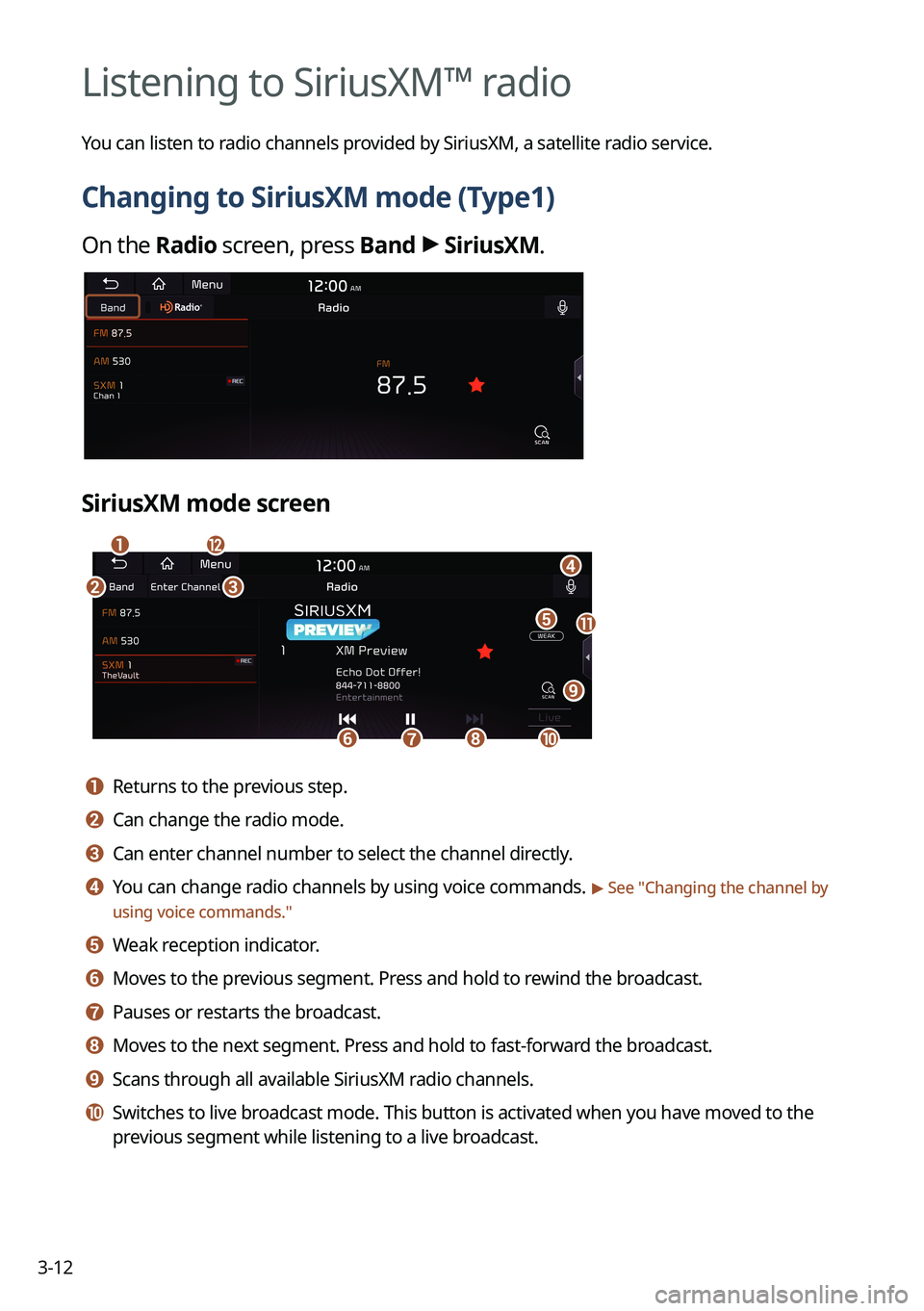
You can listen to radio channels provided by SiriusXM, a satellite radio service.
Changing to SiriusXM mode (Type1)
On the Radio screen, press Band >
SiriusXM.
SiriusXM mode screen
\037
\036
\035
\034\033
\032\031
\030
\027
\026\025
\024
a a Returns to the previous step.
b b Can change the radio mode.
c c Can enter channel number to select the channel directly.
d d You can change radio channels by using voice commands. > See " Changing the channel by
using voice commands."
e e Weak reception indicator.
f f Moves to the previous segment. Press and hold to rewind the broadcast.
g g Pauses or restarts the broadcast.
h h Moves to the next segment. Press and hold to fast-forward the broadcast.
i i Scans through all available SiriusXM radio channels.
j j Switches to live broadcast mode. This button is activated when you have moved to the
previous segment while listening to a live broadcast.
Page 154 of 316

7-2
Voice recognition
With the voice recognition function, you can access various functions of the infotainmen\
t
system without manipulating the screen or buttons. This function prevents driver distraction
and dangerous situations.
Use voice commands to access various functions easily.0000
A
The system can recognize the specified voice commands.
> See "Available voice commands"
or "Seeing the voice recognition help."
0000
A
Note the following for accurate delivery of command when saying it.
000DPronounce a command accurately and naturally like a conversation.
000DKeep the correct posture and say commands toward the direction of the microphone.
0000
A
Voice recognition is automatically ended when:
000DYou make or receive a call.
000DThe front or rear cameras operate (if equipped).
000DThe
[RADIO] or [MEDIA] button is pressed to perform another function.
000DRerouting or other unexpected action is made due to deviation from the route during
guidance.
0000
A
Voice recognition may not work properly when:
000DThe sunroof or windows are open so the wind is strong.
000DThe fan speed of the air conditioner or heater is high (level 3 or below is
recommended).
000DThe vehicle is passing through a tunnel.
000DThe vehicle is driving on an unpaved road and its noise and vibration are loud.
000DNoise is loud due to a heavy rain or storm.
Using the voice recognition
1 On the steering wheel, press the Voice Recognition button.
Voice recognition starts along with voice guidance.
0000
A
To skip the voice guidance, press the Voice Recognition button on the steering wheel.
Page 169 of 316
7-17
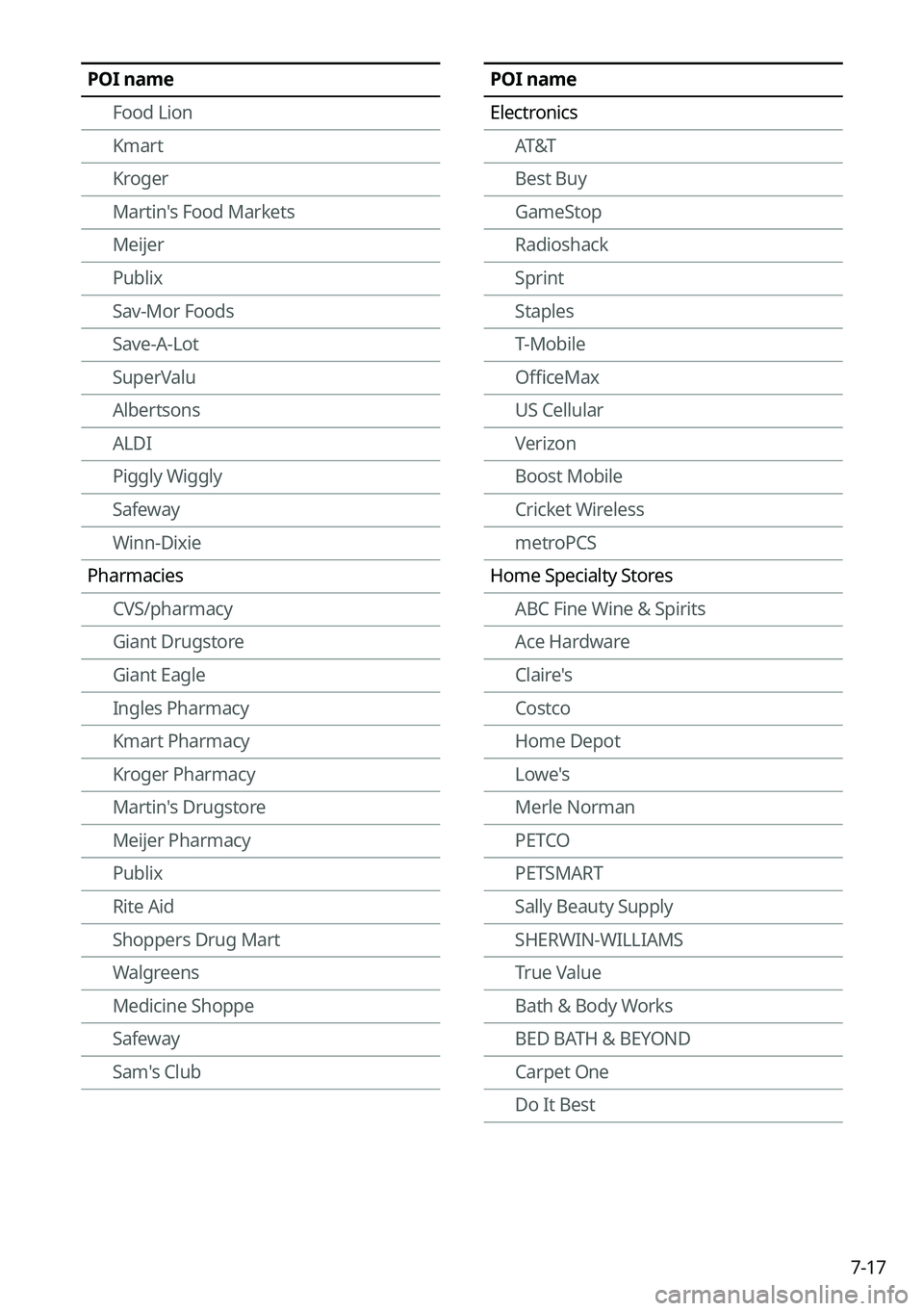
POI name
ElectronicsAT&T
Best Buy
GameStop
Radioshack
Sprint
Staples
T-Mobile
OfficeMax
US Cellular
Verizon
Boost Mobile
Cricket Wireless
metroPCS
Home Specialty Stores ABC Fine Wine & Spirits
Ace Hardware
Claire's
Costco
Home Depot
Lowe's
Merle Norman
PETCO
PETSMART
Sally Beauty Supply
SHERWIN-WILLIAMS
True Value
Bath & Body Works
BED BATH & BEYOND
Carpet One
Do It BestPOI name
Food Lion
Kmart
Kroger
Martin's Food Markets
Meijer
Publix
Sav-Mor Foods
Save-A-Lot
SuperValu
Albertsons
ALDI
Piggly Wiggly
Safeway
Winn-Dixie
Pharmacies CVS/pharmacy
Giant Drugstore
Giant Eagle
Ingles Pharmacy
Kmart Pharmacy
Kroger Pharmacy
Martin's Drugstore
Meijer Pharmacy
Publix
Rite Aid
Shoppers Drug Mart
Walgreens
Medicine Shoppe
Safeway
Sam's Club
Page 198 of 316
9-10
Automatic Ventilation (if equipped)
You can set to prevent condensation inside and keep inside air pleasant using this feature.
\225Auto Dehumidify: Once the inside air circulation mode has been used for a long time, it
is switched to the outside air inflow mode to prevent condensation.
Defog/Defrost Options (if equipped)
You can set to enable the defogger to secure driver visibility.
\225Auto Defog: When the sensor detects fog on the windshield, the automatic ventilati\
on is
run for defogging.
Climate Features (if equipped)
You can set or change the settings for the climate system.
\225Rear Climate Controls: Used to move to the climate control screen for the rear seat. You
can check or set the climate status for the rear seat.
0000
A
For more information about controlling the rear-seat climate control system:
> see "Using the rear-seat climate control system (if equipped)"
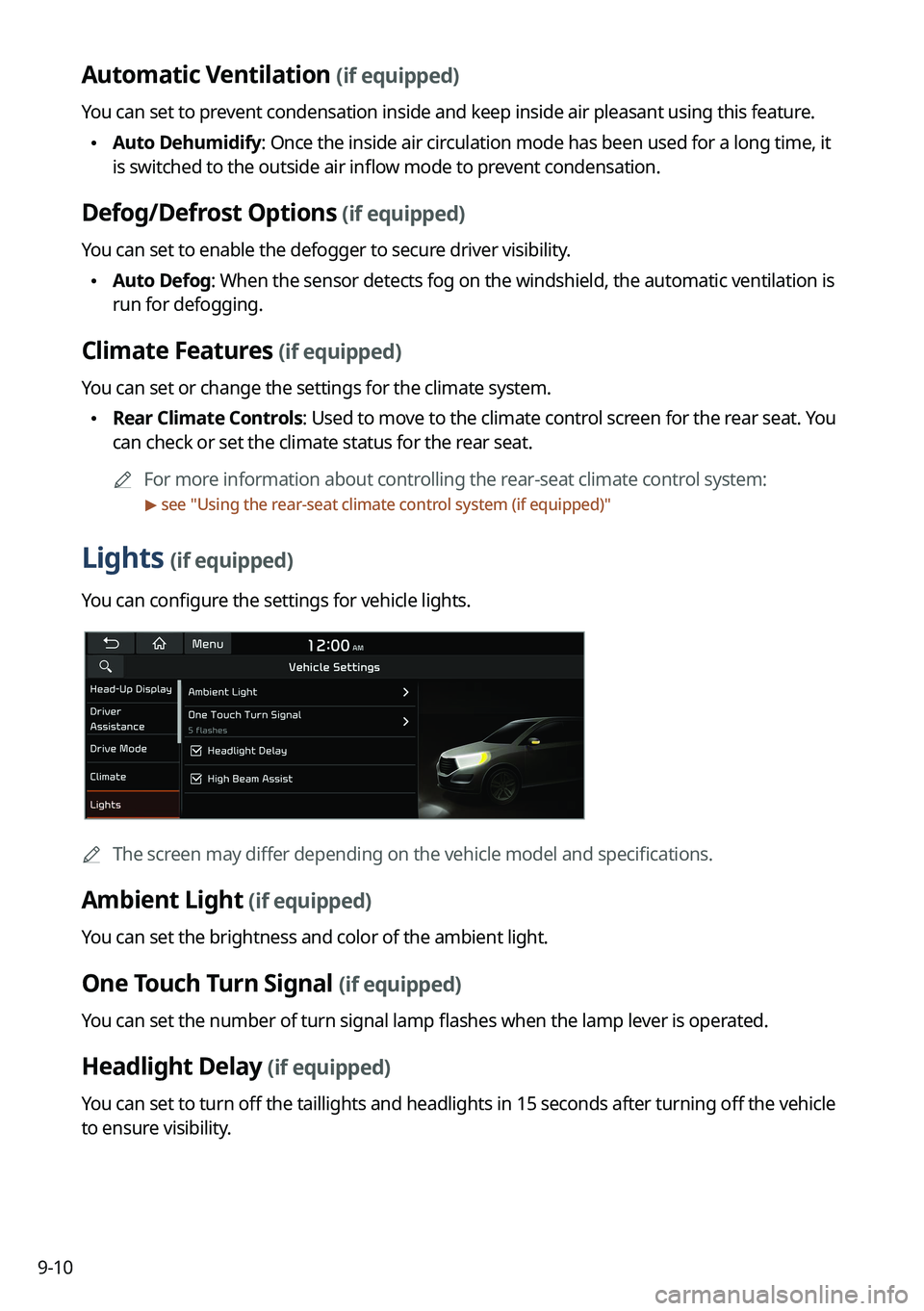
Lights (if equipped)
You can configure the settings for vehicle lights.
0000
A
The screen may differ depending on the vehicle model and specifications.
Ambient Light (if equipped)
You can set the brightness and color of the ambient light.
One Touch Turn Signal (if equipped)
You can set the number of turn signal lamp flashes when the lamp lever is operated.
Headlight Delay (if equipped)
You can set to turn off the taillights and headlights in 15 seconds after turning off the vehicle
to ensure visibility.
Page 214 of 316
9-26
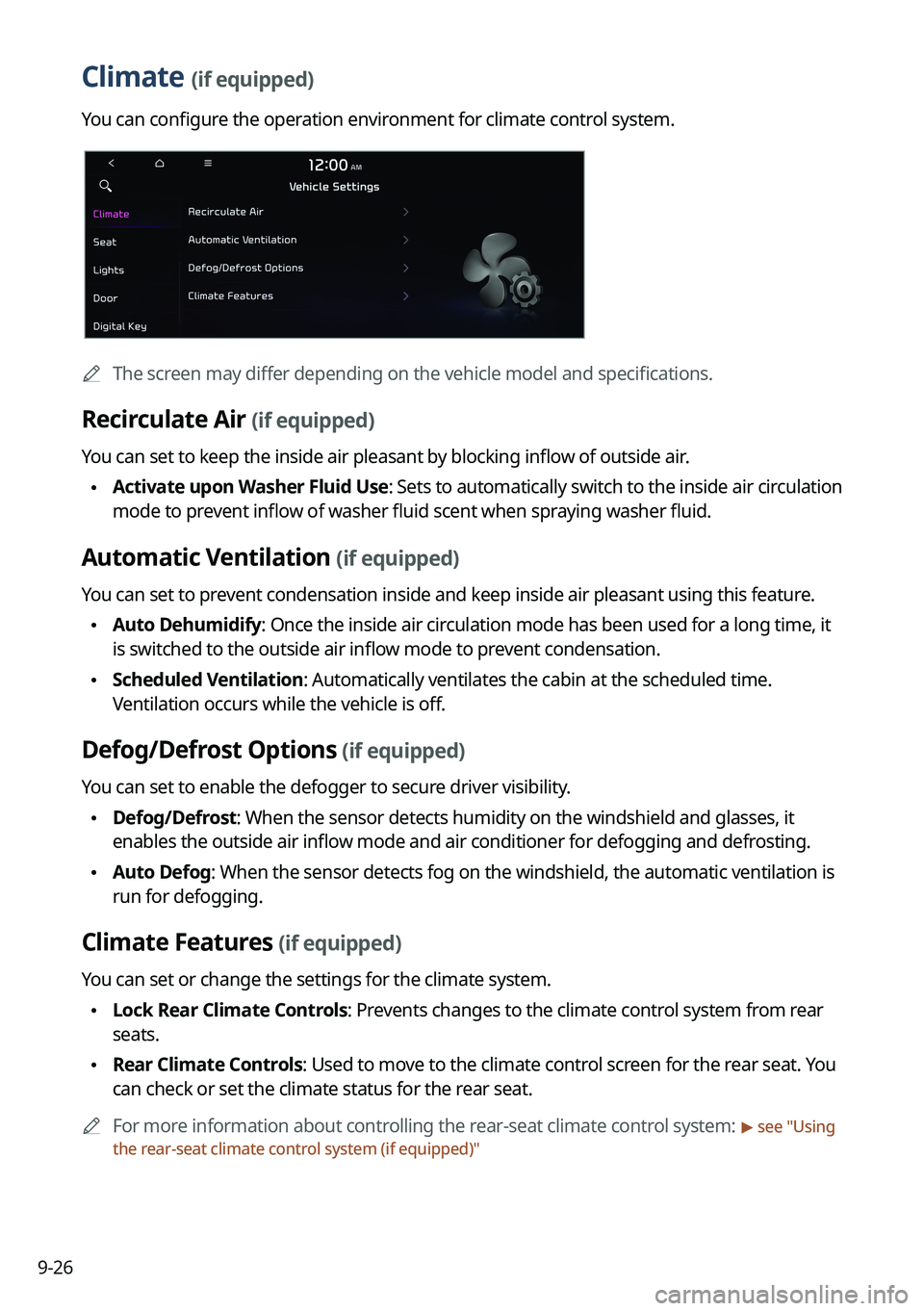
Climate (if equipped)
You can configure the operation environment for climate control system.
0000
A
The screen may differ depending on the vehicle model and specifications.
Recirculate Air (if equipped)
You can set to keep the inside air pleasant by blocking inflow of outside air.
\225Activate upon Washer Fluid Use
: Sets to automatically switch to the inside air circulation
mode to prevent inflow of washer fluid scent when spraying washer fluid.
Automatic Ventilation (if equipped)
You can set to prevent condensation inside and keep inside air pleasant using this feature.
\225 Auto Dehumidify: Once the inside air circulation mode has been used for a long time, it
is switched to the outside air inflow mode to prevent condensation.
\225Scheduled Ventilation: Automatically ventilates the cabin at the scheduled time.
Ventilation occurs while the vehicle is off.
Defog/Defrost Options (if equipped)
You can set to enable the defogger to secure driver visibility.
\225Defog/Defrost: When the sensor detects humidity on the windshield and glasses, it
enables the outside air inflow mode and air conditioner for defogging and defrosting.
\225Auto Defog: When the sensor detects fog on the windshield, the automatic ventilati\
on is
run for defogging.
Climate Features (if equipped)
You can set or change the settings for the climate system.
\225Lock Rear Climate Controls: Prevents changes to the climate control system from rear
seats.
\225Rear Climate Controls: Used to move to the climate control screen for the rear seat. You
can check or set the climate status for the rear seat.
0000
A
For more information about controlling the rear-seat climate control system:
> see "Using
the rear-seat climate control system (if equipped)"
Page 234 of 316
9-46
Configuring the sound settings (Type1)
You can change the sound settings such as speaker volume and sound effects.0000
A
Available settings may differ depending on the vehicle model and specifications.
0000
A
Some functions may not be available depending on the infotainment system\
and
amplifier specifications on the vehicle.
1 On the All Menus screen, press Setup >
Sound.
The sound settings screen appears.
2 Configure the settings required:
0000
A
Press Menu >
Search for Settings or press and enter a keyword to search for a
setting item. You can also search for a setting item by voice.
Premium Sound (if equipped)
You can change the system sound settings and apply various sound effects.
0000
A
Available sound effects may differ depending on the specifications of the amplifier.
Live Dynamic (if equipped)
Provides natural and vivid sound like real performance.
Bass Boost (if equipped)
Provides magnificent and dynamic sound by amplifying the bass.
Quantum Logic Surround (if equipped)
Provides the surround sound that can give spatial depth of field as on an actual stage.
Centerpoint® Surround Technology (if equipped)
Provides rich surround sound after converting the sound sources such as digital files and
satellite radio to stereophonic sound.
Page 236 of 316

9-48
System Volumes
You can adjust the volume for each system function including phone projection.
Subsystem Volumes
You can adjust the volume for each system function and initialize all volume settings.0000
A
To initialize all system sound settings, press Reset.
Connected Device Volumes
You can adjust the volume of the phone projection and initialize all volume settings.
\225Android Auto: Vary the volume of your Android smartphone, connected to the system,
depending on the function.
\225Apple CarPlay: Vary the volume of your iPhone, connected to the system, depending on
the function.
0000
A
To initialize all system sound settings of the phone projection, press Reset.
Speed Dependent Volume Control (if equipped)
Automatically adjusts Audio volume according to vehicle speed.
Start-up Volume Limit
You can set to automatically decrease the audio volume to an adequate level when turning
on the vehicle.
Dynamic Speed Compensation (if equipped)
Provides a stable listening environment by adjusting the audio volume depending on the
vehicle speed.
Page 238 of 316
9-50
Configuring the sound settings (Type2)
You can change the sound settings such as speaker volume and sound effects.0000
A
Available settings may differ depending on the vehicle model and specifications.
0000
A
Some functions may not be available depending on the infotainment system\
and
amplifier specifications on the vehicle.
1 On the All Menus screen, press Setup >
Sound.
The sound settings screen appears.
2 Configure the settings required:
0000
A
Press >
Search for Settings or press and enter a keyword to search for a
setting item. You can also search for a setting item by voice.
Premium Sound (if equipped)
You can change the system sound settings and apply various sound effects.
0000
A
Available sound effects may differ depending on the specifications of the amplifier.
Live Dynamic (if equipped)
Provides natural and vivid sound like real performance.
Bass Boost (if equipped)
Provides magnificent and dynamic sound by amplifying the bass.
Quantum Logic Surround (if equipped)
Provides the surround sound that can give spatial depth of field as on an actual stage.
Centerpoint® Surround Technology (if equipped)
Provides rich surround sound after converting the sound sources such as digital files and
satellite radio to stereophonic sound.