phone Lexus ES300h 2014 Navigation Manual
[x] Cancel search | Manufacturer: LEXUS, Model Year: 2014, Model line: ES300h, Model: Lexus ES300h 2014Pages: 424, PDF Size: 16.46 MB
Page 45 of 424

44
1. BASIC INFORMATION BEFORE OPERATION
ES350/300h_Navi_OM33A66U_(U)13.07.11 10:10
■DESTINATION INFORMATION
1Select “Info”.
2Information such as the name, address,
position and phone number are dis-
played.
zTo delete a destination, select “Delete”.
■XM NavTraffic® TEXT INFORMA-
TION
1Select “Info”.
2Traffic information will be displayed on
the screen.
zTo display detailed traffic event information,
select “Detail”.
When the cursor is set on a destination
icon, the name and “Info” are displayed
on the top of the screen.
z If is selected, the registered
phone number can be called.
When the XM NavTraffic® icon on the
map screen is selected, the XM
NavTraffic
® information bar will appear
on the upper part of the screen.
Page 62 of 424

61
2. SETUP
ES350/300h_Navi_OM33A66U_(U)13.07.11 10:10
2
BASIC FUNCTION
1Press the “MENU” button on the
Remote Touch, then select “Setup”.
2Select “General” on the “Setup” screen.
3Select “Delete Personal Data” .
4Select “Delete” .
5Select “Yes”.
zThe following personal data can be deleted
or returned to their default settings:
• Maintenance conditions
• Maintenance information off setting
• Address book
•Areas to avoid
•Previous points
•Route guidance
• Route trace
• Phonebook data
•Call history data
• Speed dial data
•Bluetooth
® phone data
• Phone sound settings
• Phone display settings
• Message settings
•Audio setting
•Bluetooth
® audio setting
• Startup image data
•Screen off image data
• Downloaded Apps
DELETING PERSONAL DATA
INFORMATION
●
This function is not available while driving.
Page 74 of 424

73
1. DESTINATION SEARCH
3
NAVIGATION SYSTEM
ES350/300h_Navi_OM33A66U_(U)13.07.11 10:10
1Press the “MENU” button on the
Remote Touch. (See “Remote Touch”
on page 10.)
2Select “Destination” on the “Menu”
screen.
3Select “Point of Interest” on the “Desti-
nation” screen.
4Select the desired search method.
1Press the “MENU” button on the
Remote Touch, then select
“Destination” .
2Select “Point of Interest” on the “Desti-
nation” screen.
3Select “Name” on the “Point of Interest”
screen.
4Input the name of the POI.
5Select the screen button of the desired
destination.
z When the desired dest ination is selected,
the “Confirm Destination” screen may be
displayed. If “Go” is selected on the “Con-
firm Destination” screen, the navigation
system performs a search for the route.
(See “STARTING ROUTE GUIDANCE”
on page 87.)
z When inputting the name of a specific POI,
and there are 2 or more sites with the same
name, the list screen is displayed.
INFORMATION
●
A street name can be searched using
only the body part of its name.
●For example: S WESTERN AVE
• A search can be performed by inputting “S WESTERN AVE”, “WESTERN AVE”
or “WESTERN”.
DESTINATION SEARCH BY
“Point of Interest”
There are 4 methods to search a desti-
nation by Points of Interest:
(a) Search by name
(b) Search by category
(c) Search by phone #
(d) Search by eDestination
SEARCH BY “Name”
Page 80 of 424

79
1. DESTINATION SEARCH
3
NAVIGATION SYSTEM
ES350/300h_Navi_OM33A66U_(U)13.07.11 10:10
1Press the “MENU” button on the
Remote Touch, then select
“Destination” .
2Select “Point of Interest” on the “Desti-
nation” screen.
3Select “Phone #” on the “Point of Inter-
est” screen.
4Input a phone number.
5After inputting a phone number, select
“OK” .
zWhen a phone number is input, the “Con-
firm Destination” screen may be displayed.
If “Go” is selected on the “Confirm Desti-
nation” screen, the navigation system per-
forms a search for the route. (See
“STARTING ROUTE GUIDANCE” on
page 87.)
z If there is more than 1 site with the same
number, the following screen will be dis-
played.
1Press the “MENU” button on the
Remote Touch, then select
“Destination” .
2Select “Point of Interest” on the “Desti-
nation” screen.
3Select “eDestination” on the “Point of
Interest” screen.
z With the eDestination feature, you can go
online, via the Lexus.com owner’s Web site,
to select and organize destinations of your
choice and then wirelessly send them to
your vehicle’s navigation system. Up to
200 locations can be stored online and
accessed or updated at any time. Locations
can be organized into up to 20 folders.
(See “eDestination” on page 367.)
SEARCH BY “Phone #”zTo set an address book entry as a desti-
nation using the phone number, the num-
ber must already be registered with the
address book entry. (See page 118.)
INFORMATION
●
If there is no match for the phone number
input, a list of identical numbers with dif-
ferent area codes will be displayed.
SEARCH BY “eDestination”
Page 88 of 424
87
1. DESTINATION SEARCH
ES350/300h_Navi_OM33A66U_(U)13.07.11 10:10
3
NAVIGATION SYSTEM
2. STARTING ROUTE GUIDANCE
1Scroll the map to the desired point.
“A d j u s t L o c a t i o n ” : Select to adjust the posi-
tion in smaller increments.
z When an arrow facing the desired point is
selected, the map scrolls in that direction.
z The scroll stops when the selection of the
arrow is released.
2Select “Go to ” .
zThe system starts route search and displays
recommended routes.
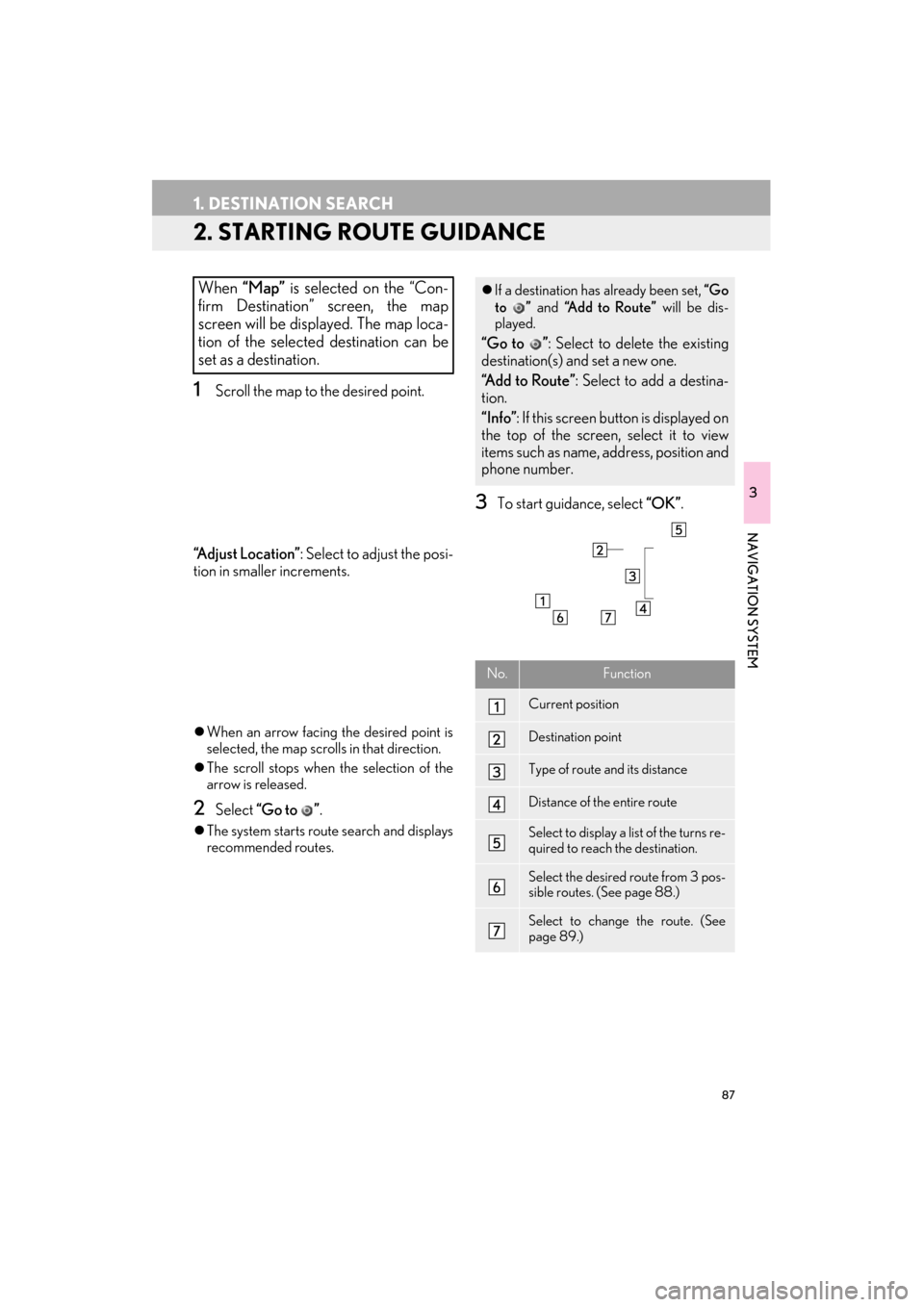
3To start guidance, select “OK”.
When “Map” is selected on the “Con-
firm Destination” screen, the map
screen will be displayed. The map loca-
tion of the selected destination can be
set as a destination.z If a destination has already been set, “Go
to ” and “A d d t o R o u t e ” will be dis-
played.
“Go to ” : Select to delete the existing
destination(s) and set a new one.
“Add to Route” : Select to add a destina-
tion.
“Info” : If this screen button is displayed on
the top of the screen, select it to view
items such as name, address, position and
phone number.
No.Function
Current position
Destination point
Type of route and its distance
Distance of the entire route
Select to display a list of the turns re-
quired to reach the destination.
Select the desired route from 3 pos-
sible routes. (See page 88.)
Select to change the route. (See
page 89.)
Page 111 of 424
110
3. ADDRESS BOOK
ES350/300h_Navi_OM33A66U_(U)13.07.11 10:10
5Select the desired screen button and
enter the location in the same way as for
a destination search. (See “DESTINA-
TION SEARCH” on page 68.)
zWhen registration of home is completed,
the “Edit Home” screen will be displayed.
6Select “OK”.
1Press the “MENU” button on the
Remote Touch, then select “Setup”.
2Select “Navigation” on the “Setup”
screen.
3Select “Home” on the “Navigation Set-
tings” screen.
4Select “Edit”.
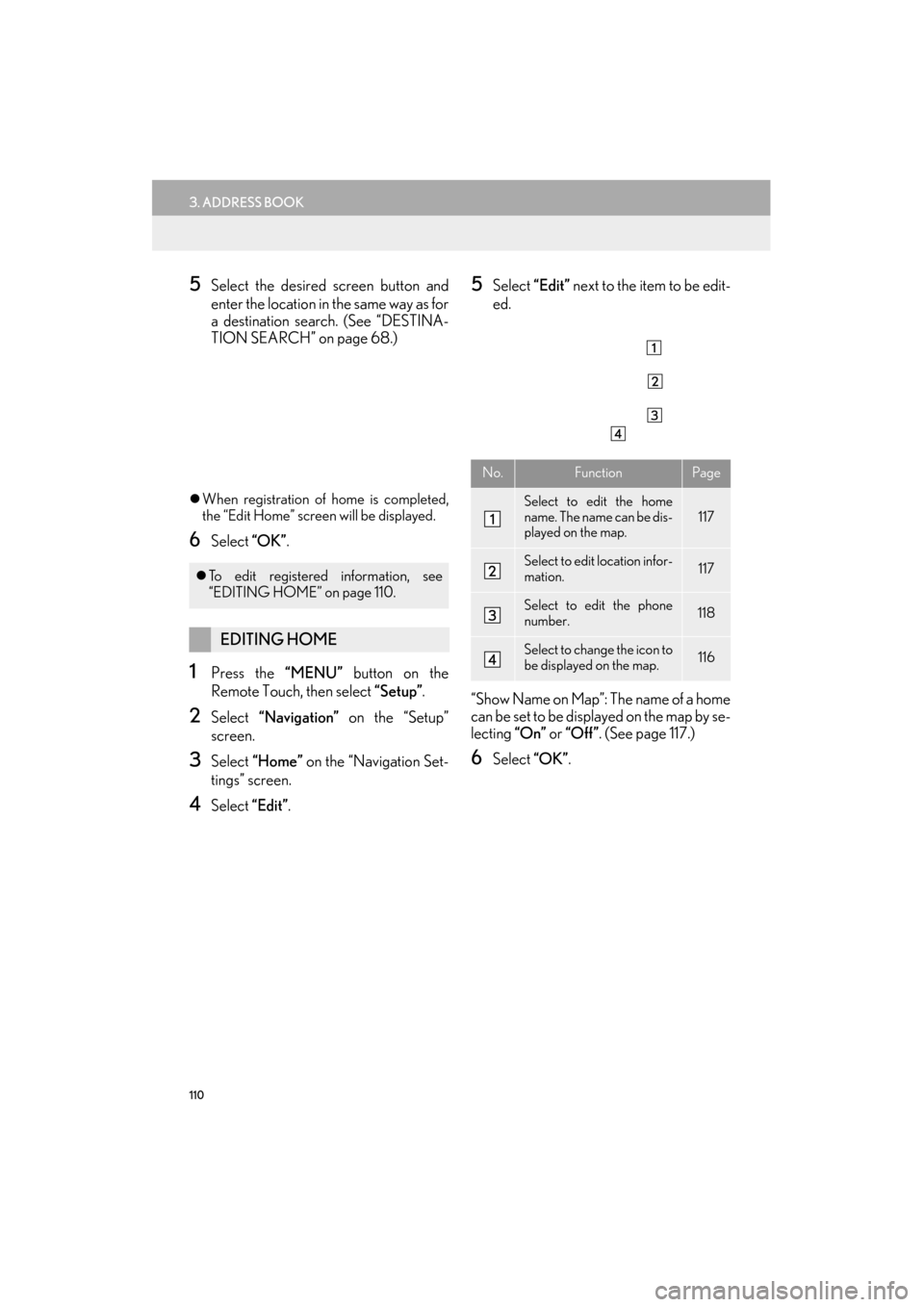
5Select “Edit” next to the item to be edit-
ed.
“Show Name on Map”: The name of a home
can be set to be disp layed on the map by se-
lecting “On” or “Off ” . (See page 117.)
6Select “OK”.
zTo edit registered information, see
“EDITING HOME” on page 110.
EDITING HOME
No.FunctionPage
Select to edit the home
name. The name can be dis-
played on the map.
117
Select to edit location infor-
mation.117
Select to edit the phone
number.118
Select to change the icon to
be displayed on the map.116
Page 114 of 424
113
3. ADDRESS BOOK
ES350/300h_Navi_OM33A66U_(U)13.07.11 10:10
3
NAVIGATION SYSTEM
1Press the “MENU” button on the
Remote Touch, then select “Setup”.
2Select “Navigation” on the “Setup”
screen.
3Select “Preset Destinations” on the
“Navigation Settings” screen.
4Select “Edit”.
5Select the screen button of the desired
preset destination.
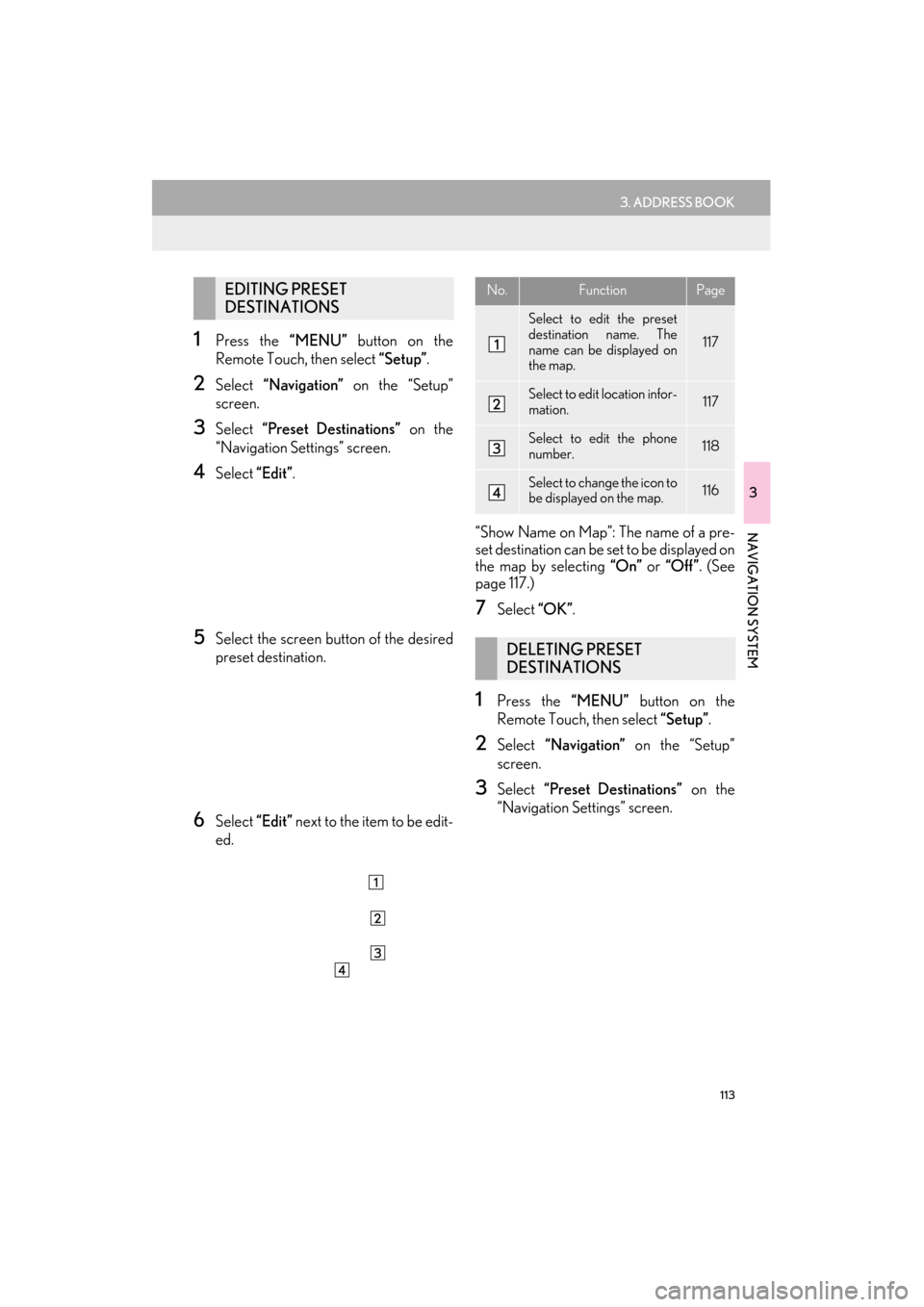
6Select “Edit” next to the item to be edit-
ed. “Show Name on Map”: The name of a pre-
set destination can be set to be displayed on
the map by selecting
“On” or “Off ” . (See
page 117.)
7Select “OK”.
1Press the “MENU” button on the
Remote Touch, then select “Setup”.
2Select “Navigation” on the “Setup”
screen.
3Select “Preset Destinations” on the
“Navigation Settings” screen.
EDITING PRESET
DESTINATIONSNo.FunctionPage
Select to edit the preset
destination name. The
name can be displayed on
the map.
117
Select to edit location infor-
mation.117
Select to edit the phone
number.118
Select to change the icon to
be displayed on the map.116
DELETING PRESET
DESTINATIONS
Page 116 of 424
115
3. ADDRESS BOOK
ES350/300h_Navi_OM33A66U_(U)13.07.11 10:10
3
NAVIGATION SYSTEM
1Press the “MENU” button on the
Remote Touch, then select “Setup”.
2Select “Navigation” on the “Setup”
screen.
3Select “Address Book” on the “Naviga-
tion Settings” screen.
4Select “New”.
5Select the desired screen button and
enter the location in the same way as for
a destination search. (See “DESTINA-
TION SEARCH” on page 68.)
zAfter the address book entry has been reg-
istered, the “Edit Address Book Entry”
screen will be displayed.
6Select “OK”.
1Press the “MENU” button on the
Remote Touch, then select “Setup”.
2Select “Navigation” on the “Setup”
screen.
3Select “Address Book” on the “Naviga-
tion Settings” screen.
4Select “Edit”.
5Select the screen button of the desired
address book entry.
REGISTERING ADDRESS
BOOK ENTRIES
zTo edit registered information, see
“EDITING ADDRESS BOOK
ENTRIES” on page 115.
INFORMATION
●
Up to 100 address book entries can be
registered.
EDITING ADDRESS BOOK
ENTRIES
The icon, name, location and/or phone
number of a registered address book
entry can be edited.
Page 117 of 424
116
3. ADDRESS BOOK
ES350/300h_Navi_OM33A66U_(U)13.07.11 10:10
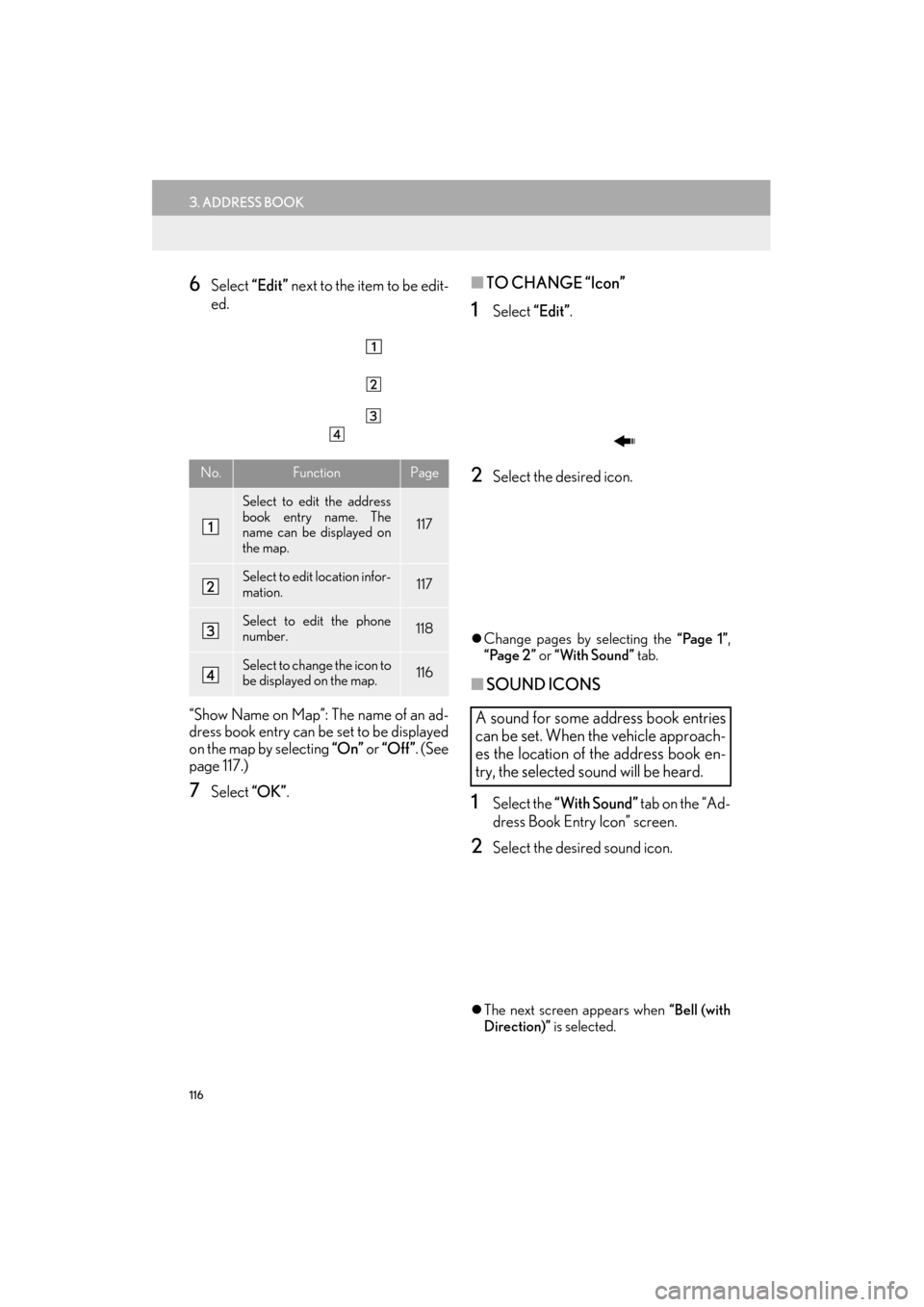
6Select “Edit” next to the item to be edit-
ed.
“Show Name on Map”: The name of an ad-
dress book entry can be set to be displayed
on the map by selecting “On” or “Off” . (See
page 117.)
7Select “OK”.
■TO CHANGE “Icon”
1Select “Edit”.
2Select the desired icon.
zChange pages by selecting the “Page 1”,
“Page 2” or “With Sound” tab.
■SOUND ICONS
1Select the “With Sound” tab on the “Ad-
dress Book Entry Icon” screen.
2Select the desired sound icon.
z The next screen appears when “Bell (with
Direction)” is selected.
No.FunctionPage
Select to edit the address
book entry name. The
name can be displayed on
the map.
117
Select to edit location infor-
mation.117
Select to edit the phone
number.118
Select to change the icon to
be displayed on the map.116
A sound for some ad dress book entries
can be set. When the vehicle approach-
es the location of the address book en-
try, the selected sound will be heard.
Page 119 of 424

118
3. ADDRESS BOOK
ES350/300h_Navi_OM33A66U_(U)13.07.11 10:10
■TO CHANGE “Phone #”
(PHONE NUMBER)
1Select “Edit”.
2Enter the number using the number
keys.
3Select “OK”.
zThe previous screen will be displayed.
1Press the “MENU” button on the
Remote Touch, then select “Setup”.
2Select “Navigation” on the “Setup”
screen.
3Select “Address Book” on the “Naviga-
tion Settings” screen.
4Select “Delete” .
5Select the address to be deleted.
6Select “Delete” .
7Select “Yes” to delete the address book
entries and select “No” to cancel the de-
letion.
DELETING ADDRESS BOOK
ENTRIES
Screen buttonFunction
“Select All”Select all registered ad-
dresses.
“Unselect All”Select to cancel the
“Select All” function.