interior Lexus ES300h 2014 Owners Manual
[x] Cancel search | Manufacturer: LEXUS, Model Year: 2014, Model line: ES300h, Model: Lexus ES300h 2014Pages: 918, PDF Size: 25.26 MB
Page 486 of 918
ES350_300h_OM_OM33A60U_(U)
4855-3. Using the Lexus Display Audio system
5
Interior features
■Deleting the phonebook data in a different wayDisplay the “Phone” screen. ( →P. 4 5 9 )
Select “Contacts” on the “Phone” screen.
Choose the desired data from the list.
Select “Options” on the “Contact” screen.
Select “Delete” on the “Contact” screen.
A confirmation message will be displayed. If everything is correct, select “Yes”.
If your phone supports PBAP service, “Automatically Download Contacts” setting
needs to be set to “Off”. ( →P. 4 8 2 )
When you delete a Bluetooth
® phone, the phonebook data will be deleted at the
same time.
1
2
3
4
5
6
Page 488 of 918
ES350_300h_OM_OM33A60U_(U)
4875-3. Using the Lexus Display Audio system
5
Interior features
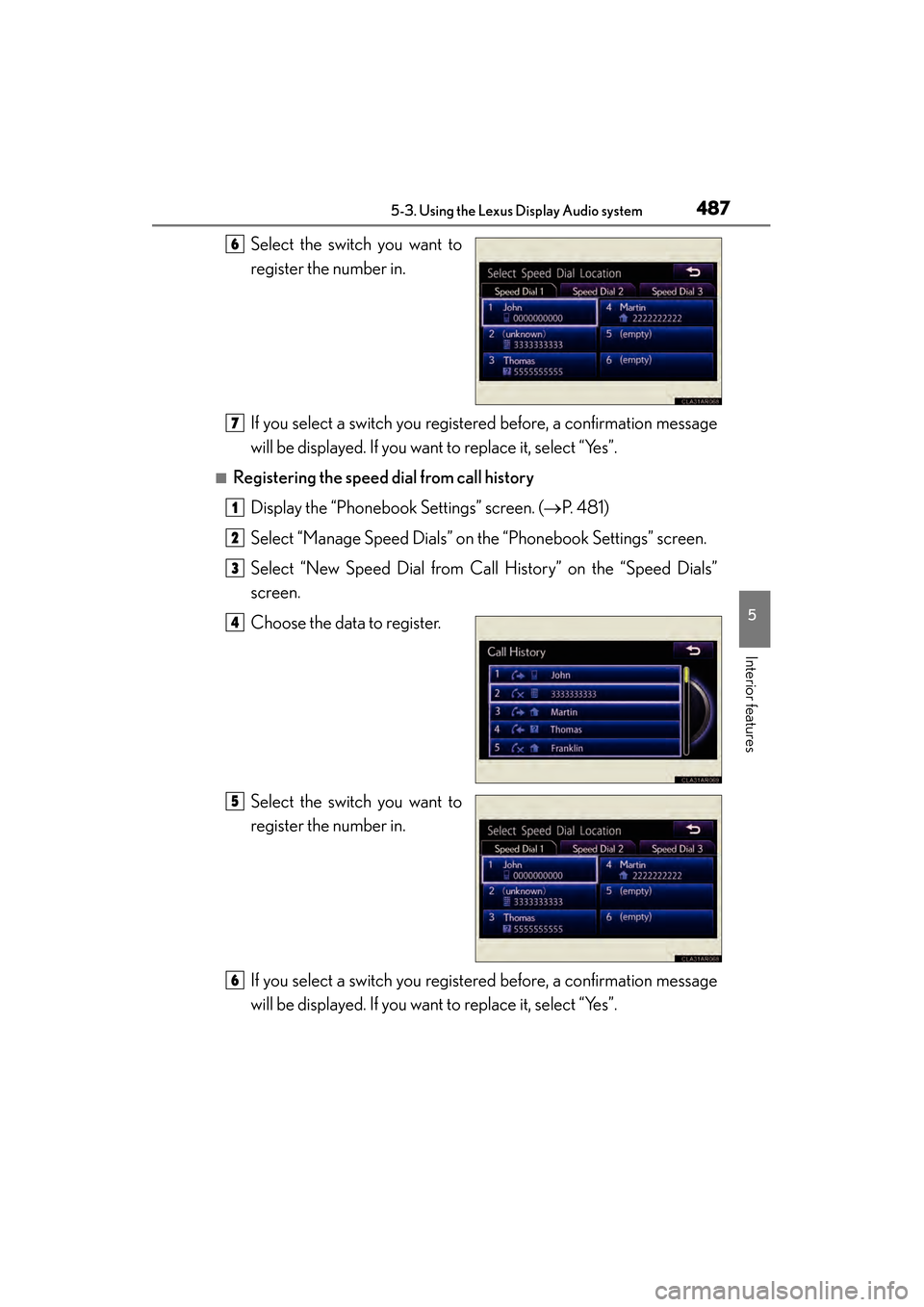
Select the switch you want to
register the number in.
If you select a switch you registered before, a confirmation message
will be displayed. If you want to replace it, select “Yes”.
■Registering the speed dial from call historyDisplay the “Phonebook Settings” screen. ( →P. 4 8 1 )
Select “Manage Speed Dials” on the “Phonebook Settings” screen.
Select “New Speed Dial from Call History” on the “Speed Dials”
screen.
Choose the data to register.
Select the switch you want to
register the number in.
If you select a switch you registered before, a confirmation message
will be displayed. If you want to replace it, select “Yes”.
6
7
1
2
3
4
5
6
Page 490 of 918
ES350_300h_OM_OM33A60U_(U)
4895-3. Using the Lexus Display Audio system
5
Interior features
■Registering the speed dial in a different way (From “Speed Dial” screen)Display the “Phone” screen. ( →P. 4 5 9 )
Select “Speed Dials” on the “Phone” screen.
Select “(add new)” on the “Speed Dial” screen.
Select “Contacts” or “History” to set new speed dial.
Select “Cancel” to cancel it.
Choose the desired data from the list.
Select the desired phone number.
■Registering the speed dial in a different way (From “Contact” screen) Display the “Phone” screen. ( →P. 4 5 9 )
Select “Contacts” on the “Phone” screen.
Choose the desired data from the list.
Select “Options” on the “Contact” screen.
Select “Set Speed Dial” on the “Contact” screen.
Select the desired telephone number.
Follow the steps “Registering the speed dial from contacts” from
( → P. 4 8 6 ) .
■Registering the speed dial in a different way (From “Call History” screen)
Display the “Phone” screen. ( →P. 4 5 9 )
Select “Call History” on the “Phone” screen.
Choose the desired data from the list.
Select “Add Speed Dial” on the “Call History” screen.
Follow the steps “Registering the speed dial from call history” from .
( → P. 4 8 7 )
1
2
3
4
5
6
1
2
3
4
5
6
76
1
2
3
4
55
Page 492 of 918
491
ES350_300h_OM_OM33A60U_(U)
5-3. Using the Lexus Display Audio system
5
Interior features
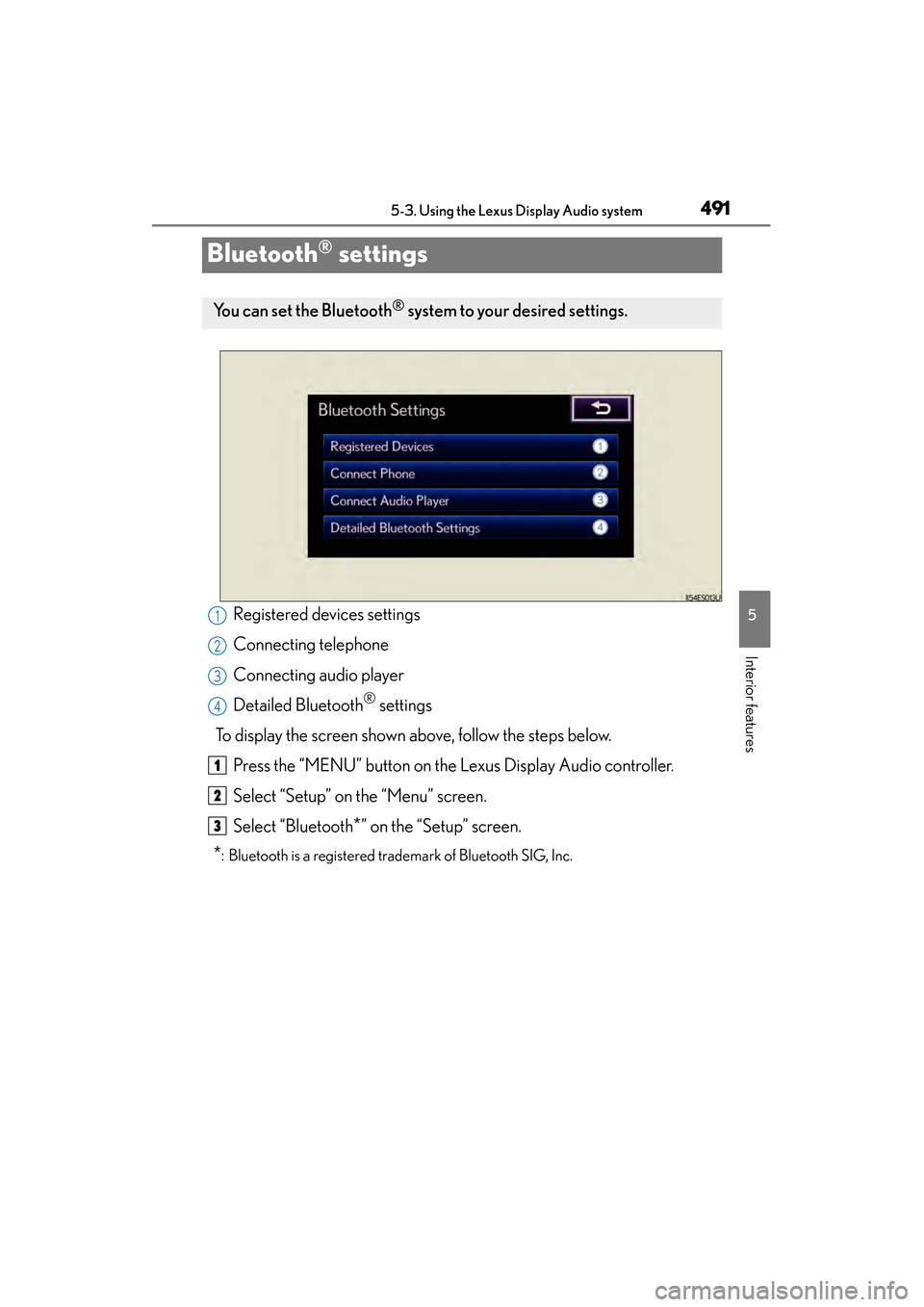
Bluetooth® settings
Registered devices settings
Connecting telephone
Connecting audio player
Detailed Bluetooth
® settings
To display the screen shown above, follow the steps below. Press the “MENU” button on the Lexus Display Audio controller.
Select “Setup” on the “Menu” screen.
Select “Bluetooth
*” on the “Setup” screen.
*: Bluetooth is a registered trademark of Bluetooth SIG, Inc.
You can set the Bluetooth® system to your desired settings.
1
2
3
4
1
2
3
Page 494 of 918
ES350_300h_OM_OM33A60U_(U)
4935-3. Using the Lexus Display Audio system
5
Interior features
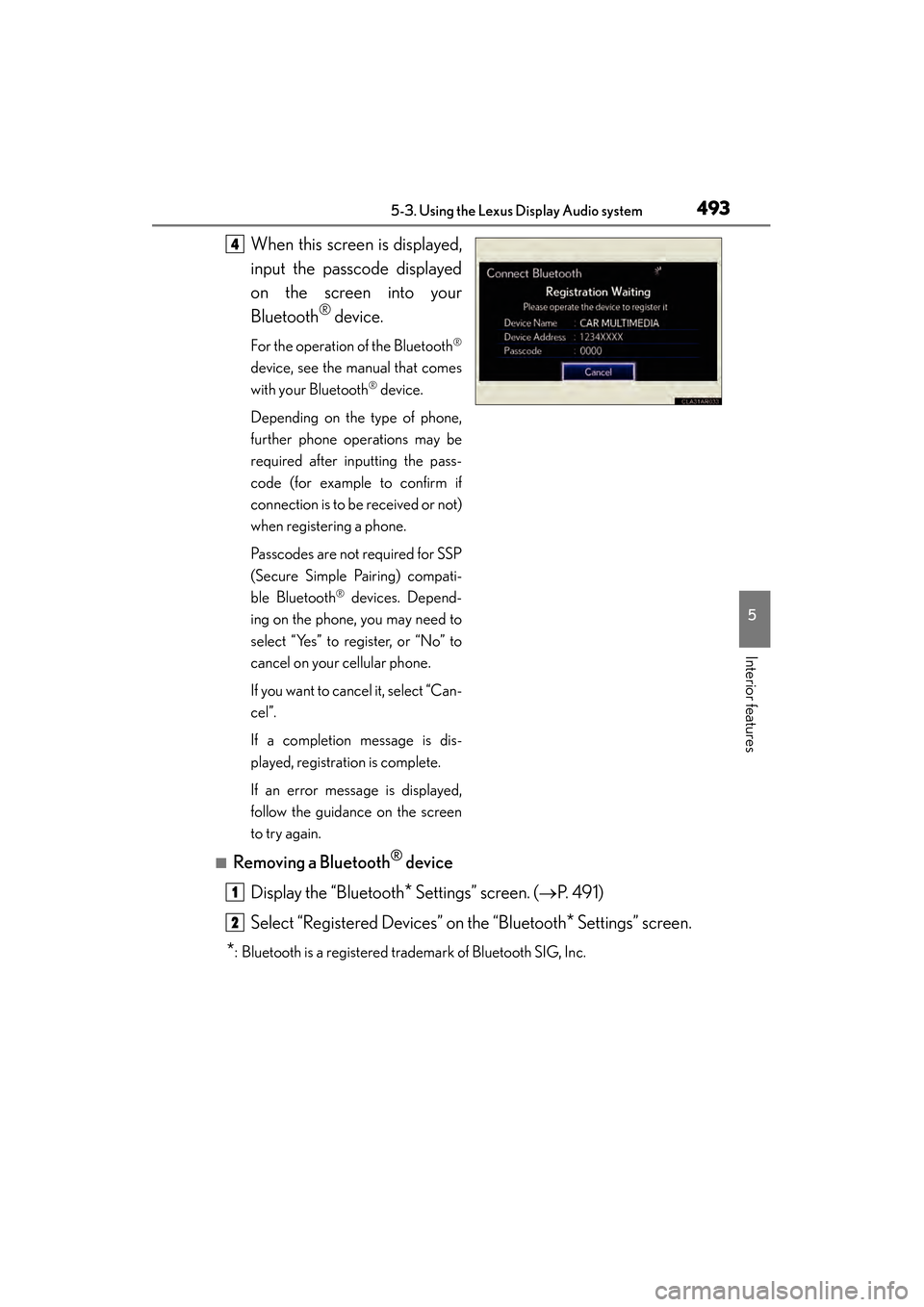
When this screen is displayed,
input the passcode displayed
on the screen into your
Bluetooth
® device.
For the operation of the Bluetooth®
device, see the manual that comes
with your Bluetooth
® device.
Depending on the type of phone,
further phone operations may be
required after inputting the pass-
code (for example to confirm if
connection is to be received or not)
when registering a phone.
Passcodes are not required for SSP
(Secure Simple Pairing) compati-
ble Bluetooth
® devices. Depend-
ing on the phone, you may need to
select “Yes” to register, or “No” to
cancel on your cellular phone.
If you want to cancel it, select “Can-
cel”.
If a completion message is dis-
played, registration is complete.
If an error message is displayed,
follow the guidance on the screen
to try again.
■Removing a Bluetooth® device
Display the “Bluetooth
* Settings” screen. ( →P. 4 9 1 )
Select “Registered Devices” on the “Bluetooth
* Settings” screen.
*: Bluetooth is a registered trademark of Bluetooth SIG, Inc.
4
1
2
Page 496 of 918
ES350_300h_OM_OM33A60U_(U)
4955-3. Using the Lexus Display Audio system
5
Interior features
Select the device.
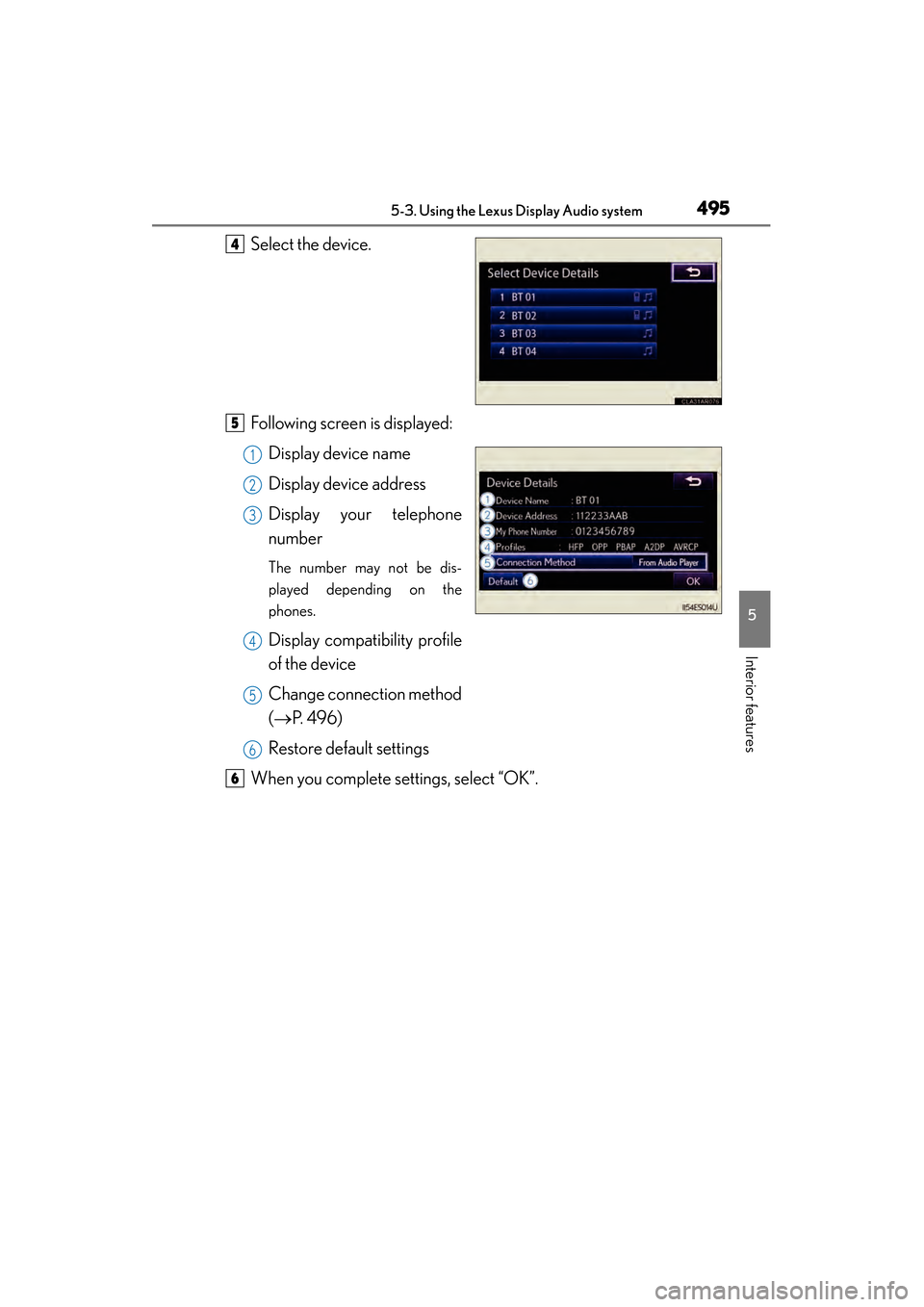
Following screen is displayed:Display device name
Display device address
Display your telephone
number
The number may not be dis-
played depending on the
phones.
Display compatibility profile
of the device
Change connection method
(→ P. 496)
Restore default settings
When you complete settings, select “OK”.
4
5
1
2
3
4
5
6
6
Page 498 of 918
ES350_300h_OM_OM33A60U_(U)
4975-3. Using the Lexus Display Audio system
5
Interior features
If multiple Bluetooth® devices are registered, follow the procedure below
to select the Bluetooth
® device to be used. You may only use one device
at a time.
Display the “Bluetooth
* Settings” screen. ( →P. 4 9 1 )
Select “Connect Audio Player” on the “Bluetooth
* Settings” screen.
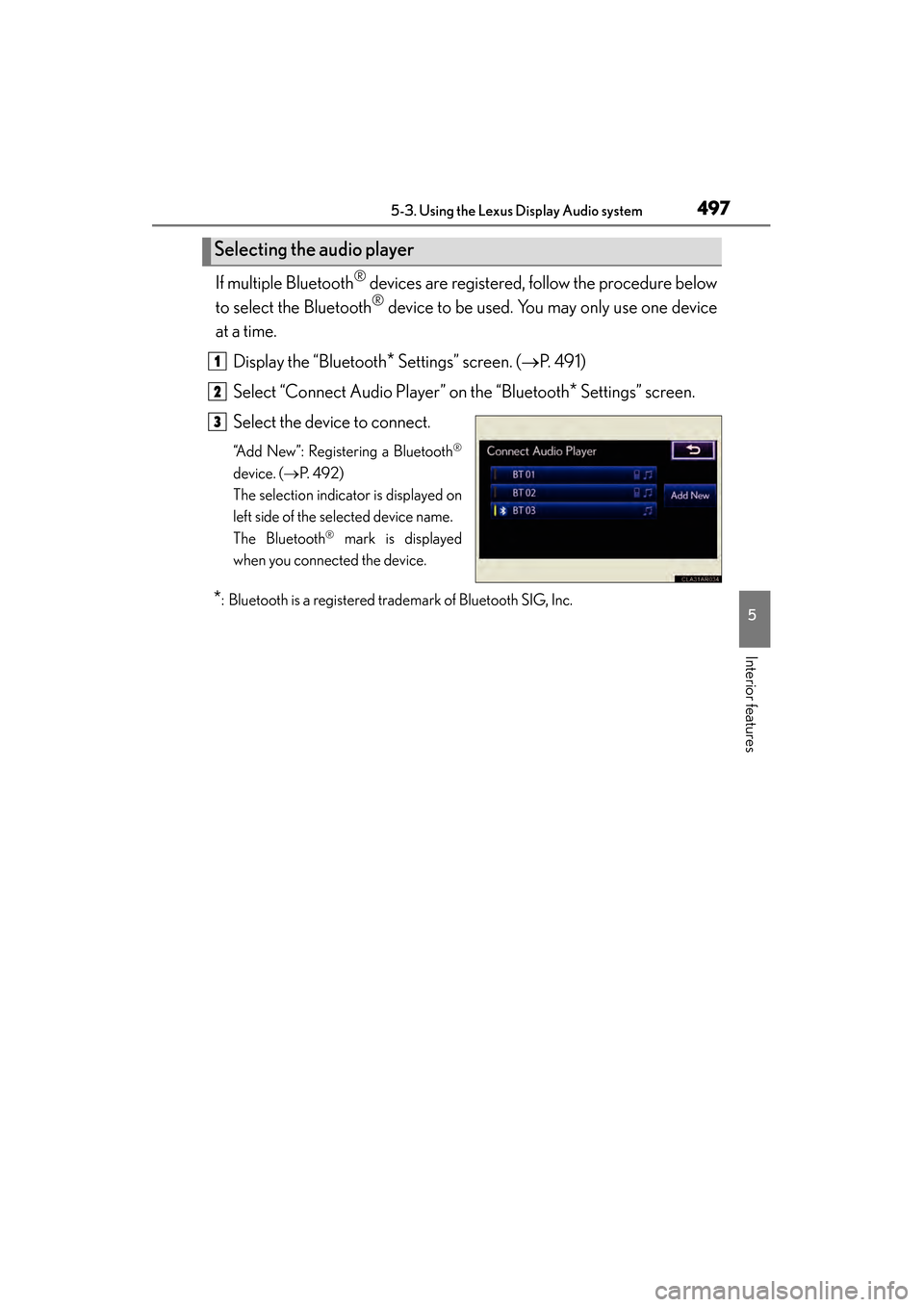
Select the device to connect.
“Add New”: Registering a Bluetooth®
device. ( →P. 4 9 2 )
The selection indicator is displayed on
left side of the selected device name.
The Bluetooth
® mark is displayed
when you connected the device.
*: Bluetooth is a registered trademark of Bluetooth SIG, Inc.
Selecting the audio player
1
2
3
Page 500 of 918
ES350_300h_OM_OM33A60U_(U)
4995-3. Using the Lexus Display Audio system
5
Interior features
■Editing the passcode
You can change the passcode that you use to register your Bluetooth
®
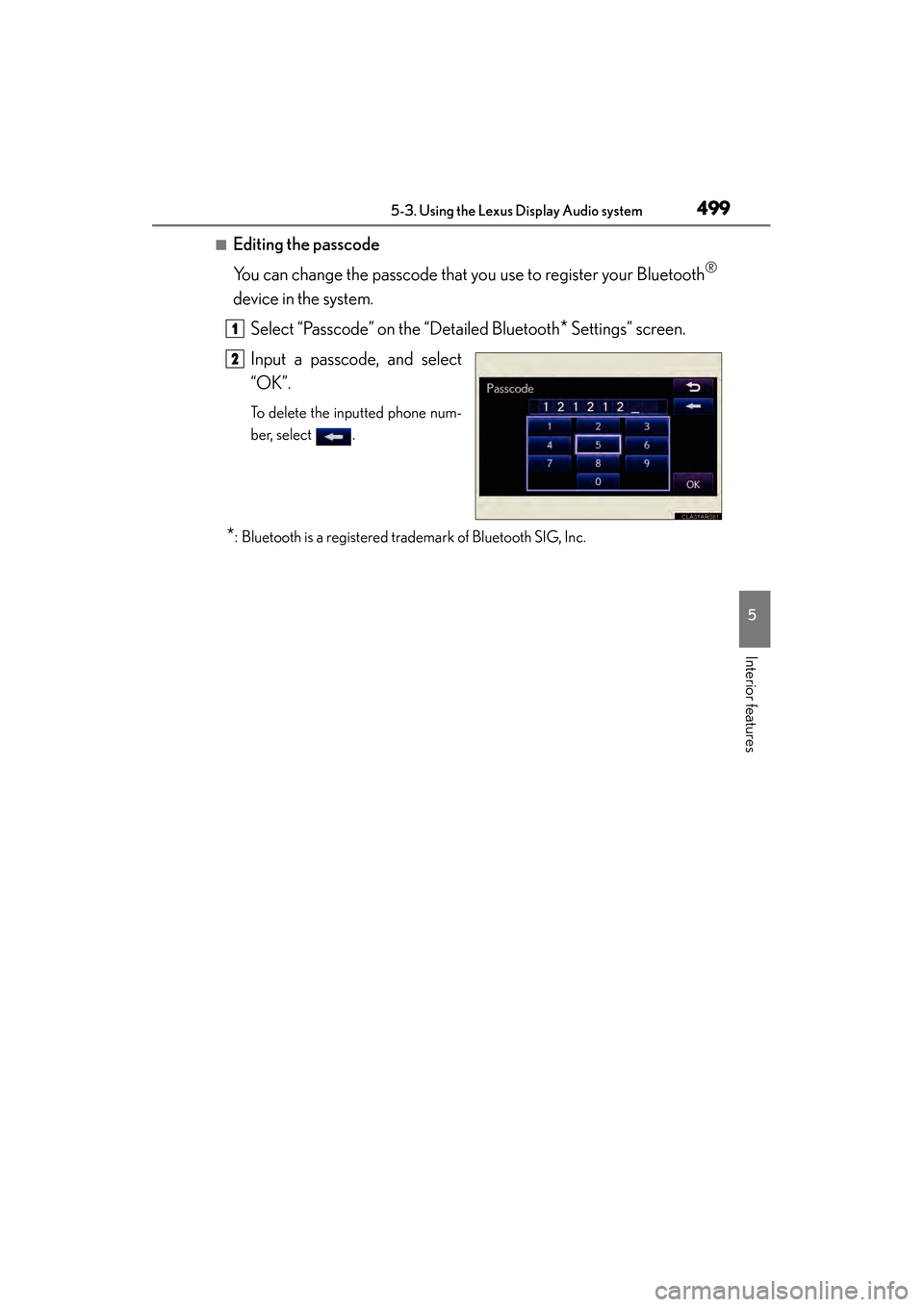
device in the system.Select “Passcode” on the “Detailed Bluetooth
* Settings” screen.
Input a passcode, and select
“OK”.
To delete the inputted phone num-
ber, select .
*: Bluetooth is a registered trademark of Bluetooth SIG, Inc.
1
2
Page 502 of 918
ES350_300h_OM_OM33A60U_(U)
5015-4. Using the audio system
5
Interior features
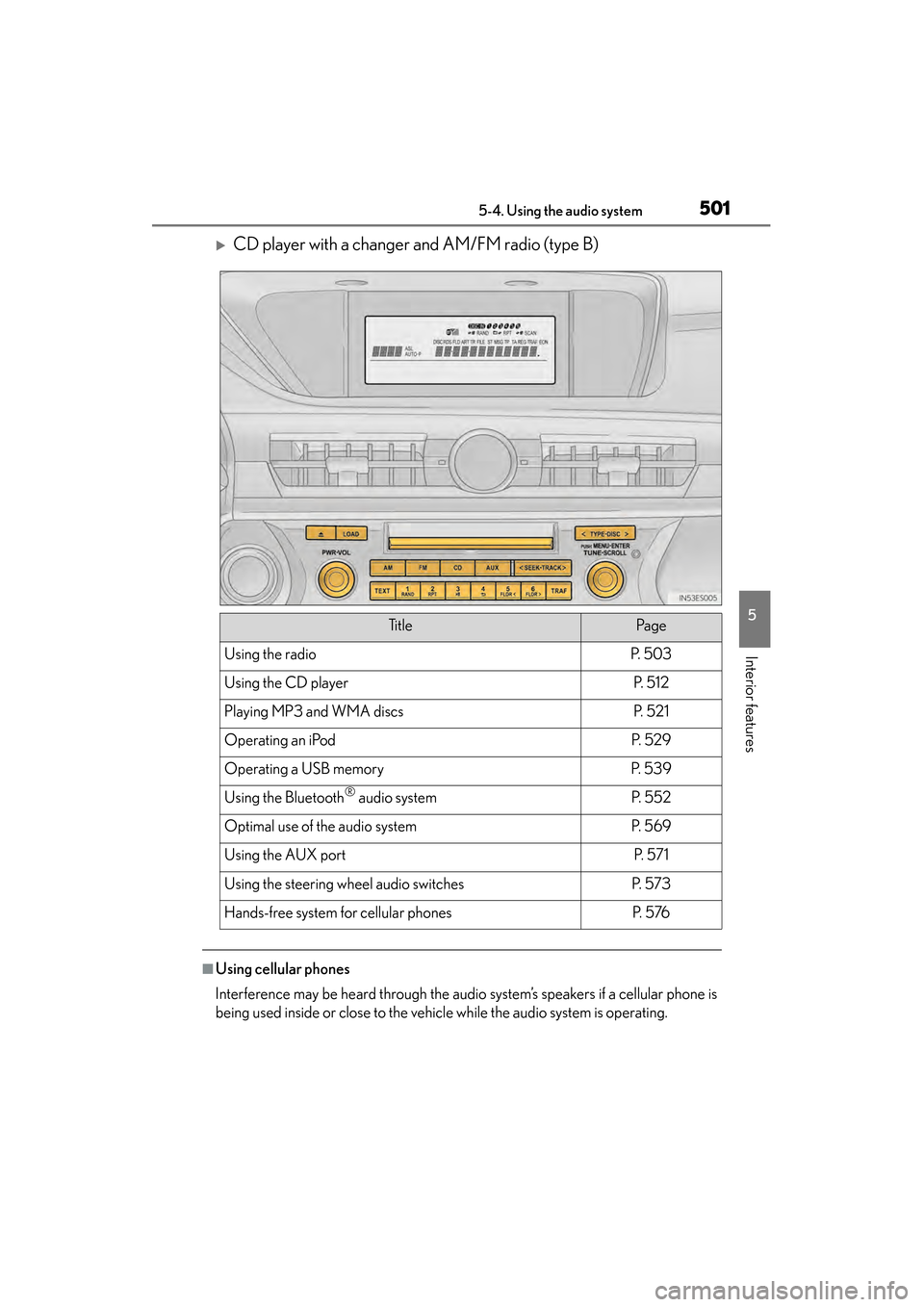
XCD player with a changer and AM/FM radio (type B)
■Using cellular phones
Interference may be heard through the audio system’s speakers if a cellular phone is
being used inside or close to the vehicle while the audio system is operating.
Ti t l ePa g e
Using the radioP. 5 0 3
Using the CD playerP. 5 1 2
Playing MP3 and WMA discsP. 5 2 1
Operating an iPodP. 5 2 9
Operating a USB memoryP. 5 3 9
Using the Bluetooth® audio systemP. 5 5 2
Optimal use of the audio systemP. 5 6 9
Using the AUX portP. 5 7 1
Using the steering wheel audio switchesP. 5 7 3
Hands-free system for cellular phonesP. 5 76
Page 504 of 918
503
ES350_300h_OM_OM33A60U_(U)
5-4. Using the audio system
5
Interior features
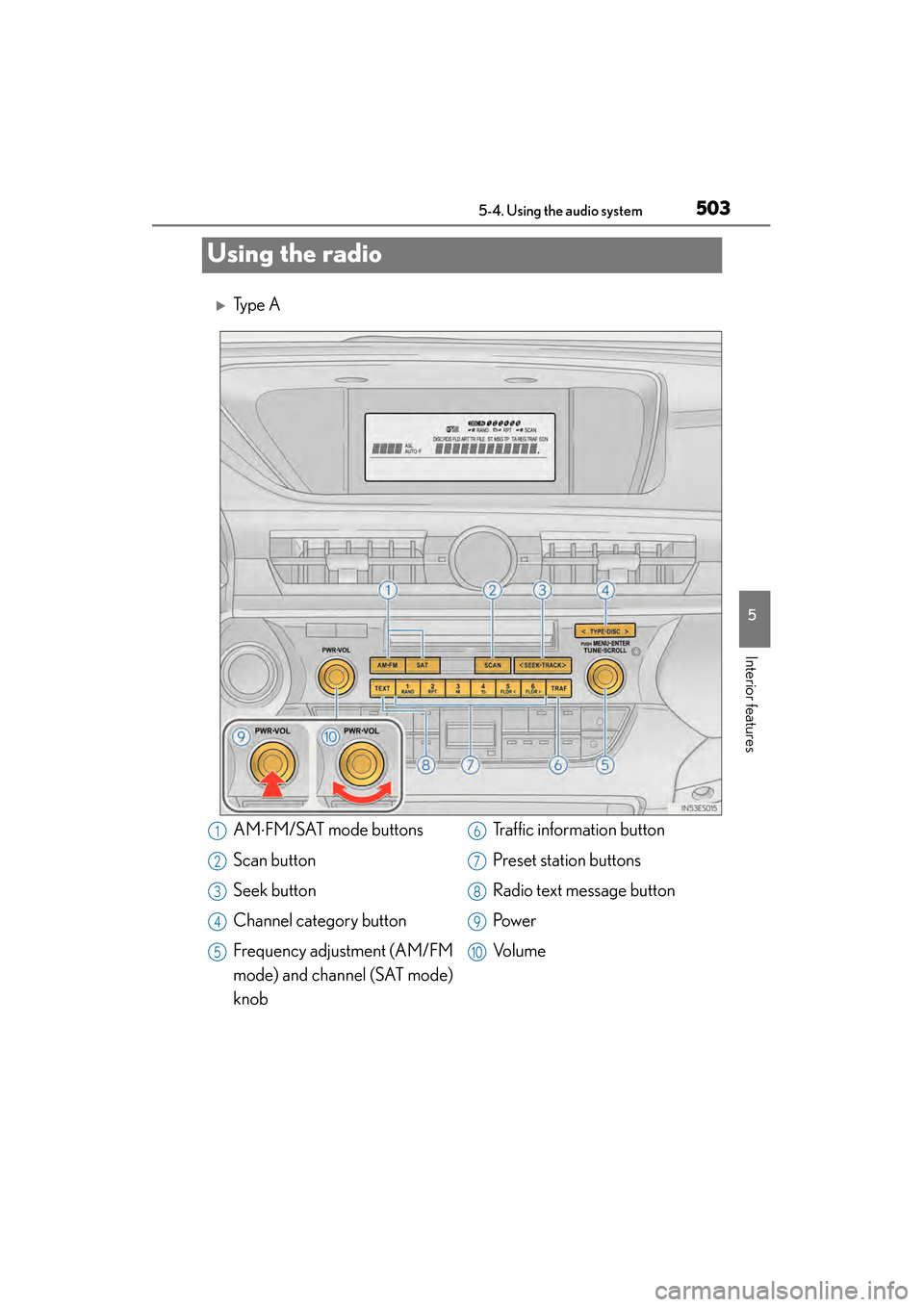
Using the radio
XTy p e A
AM⋅FM/SAT mode buttons
Scan button
Seek button
Channel category button
Frequency adjustment (AM/FM
mode) and channel (SAT mode)
knob Traffic information button
Preset station buttons
Radio text message button
Pow e r
Vo l u m e1
2
3
4
5
6
7
8
9
10