ad blue Lexus ES300h 2014 Warranty and Services Guide / (OM33A60U) Service Manual
[x] Cancel search | Manufacturer: LEXUS, Model Year: 2014, Model line: ES300h, Model: Lexus ES300h 2014Pages: 917, PDF Size: 11.11 MB
Page 468 of 917
468
ES350_300h_OM_OM33A60U_(U)
5-3. Using the Lexus Display Audio system
●When the phonebook is empty
You can transfer the phone numbers in your Bluetooth
® phone to the
system.
Operation methods differ between PBAP compatible and PBAP
incompatible Bluetooth
® phones. If your cellu lar phone does not sup-
port either PBAP or OPP service, you cannot transfer contacts.
Select “Contacts” on the “Phone” screen.
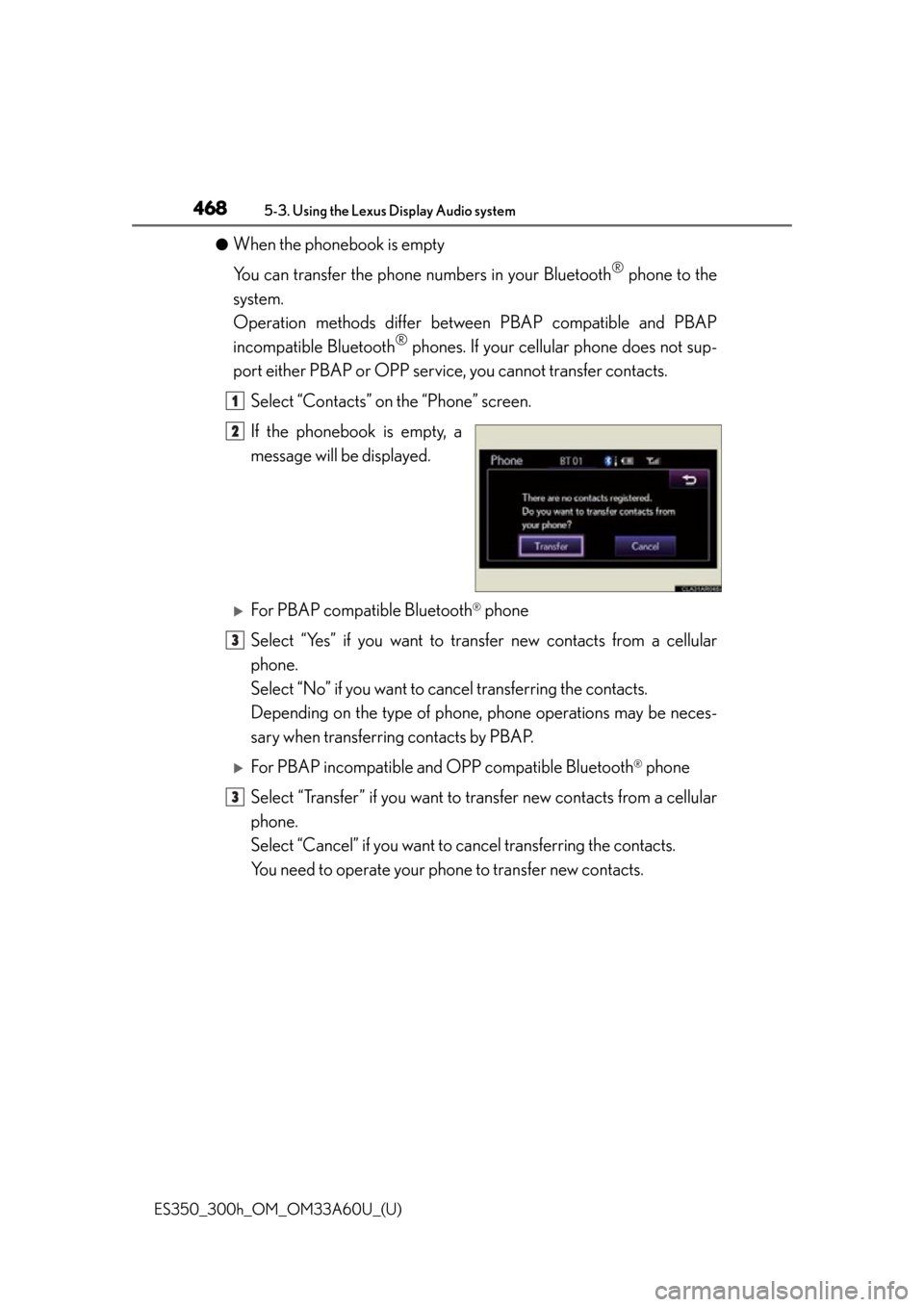
If the phonebook is empty, a
message will be displayed.
For PBAP compatible Bluetooth® phone
Select “Yes” if you want to tran sfer new contacts from a cellular
phone.
Select “No” if you want to cancel transferring the contacts.
Depending on the type of phone, phone operations may be neces-
sary when transferring contacts by PBAP.
For PBAP incompatible and OPP compatible Bluetooth® phone
Select “Transfer” if you want to tr ansfer new contacts from a cellular
phone.
Select “Cancel” if you want to cancel transferring the contacts.
You need to operate your phone to transfer new contacts.
1
2
3
3
Page 482 of 917
482
ES350_300h_OM_OM33A60U_(U)
5-3. Using the Lexus Display Audio system
■Managing the contacts
●Transferring a phone number
You can transfer the phone numbers in your Bluetooth
® phone to the
system. Operation methods differ between PBAP compatible and
PBAP incompatible Bluetooth
® phones. If your cellular phone does
not support either PBAP or OPP se rvices, you cannot transfer con-
tacts.
Display the “Phonebook Settings” screen. ( P. 4 8 1 )
Select “Manage Contacts” on th e “Phonebook Settings” screen.
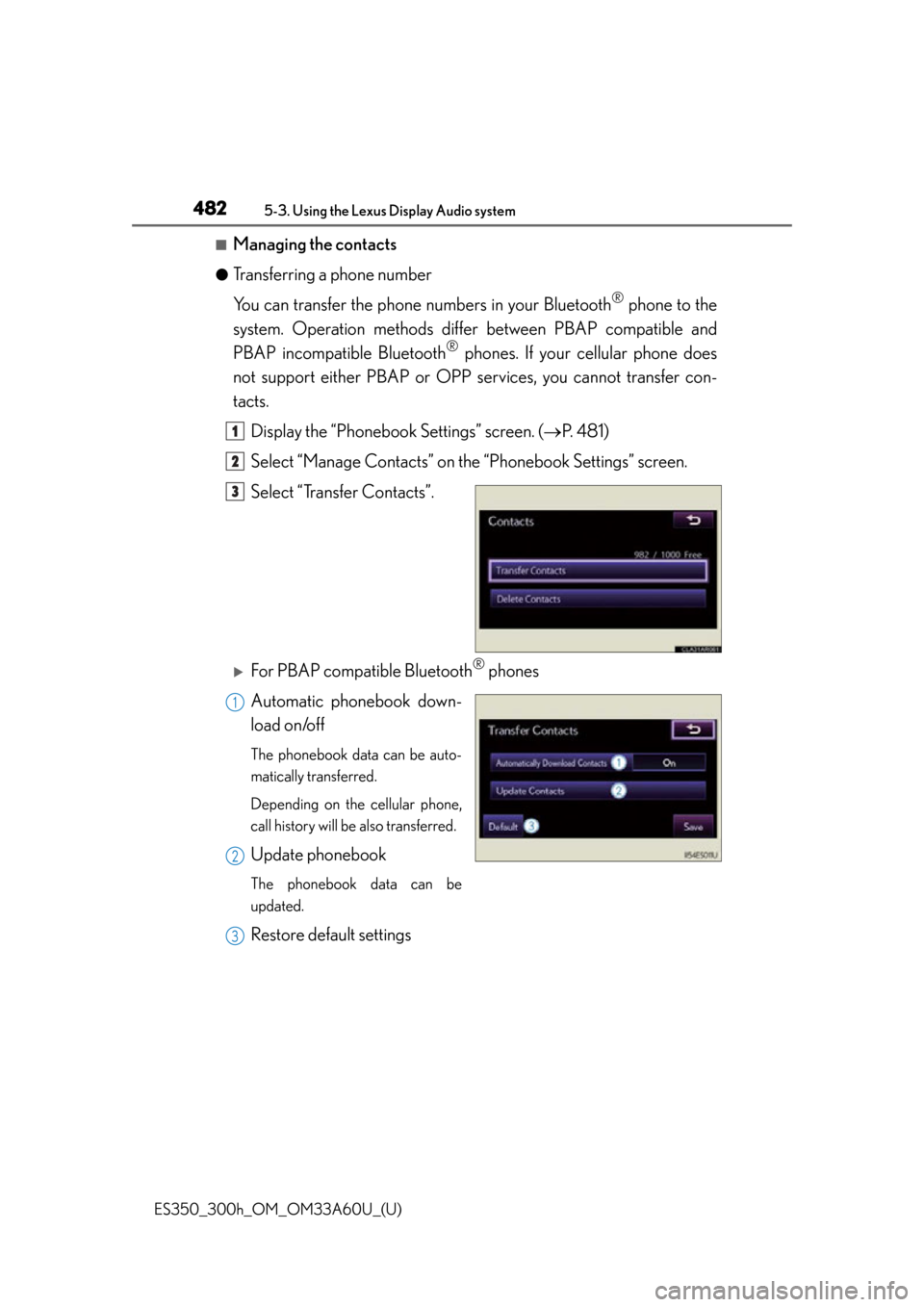
Select “Transfer Contacts”.
For PBAP compatible Bluetooth® phones
Automatic phonebook down-
load on/off
The phonebook data can be auto-
matically transferred.
Depending on the cellular phone,
call history will be also transferred.
Update phonebook
The phonebook data can be
updated.
Restore default settings
1
2
3
1
2
3
Page 483 of 917
ES350_300h_OM_OM33A60U_(U)
4835-3. Using the Lexus Display Audio system
5
Interior features
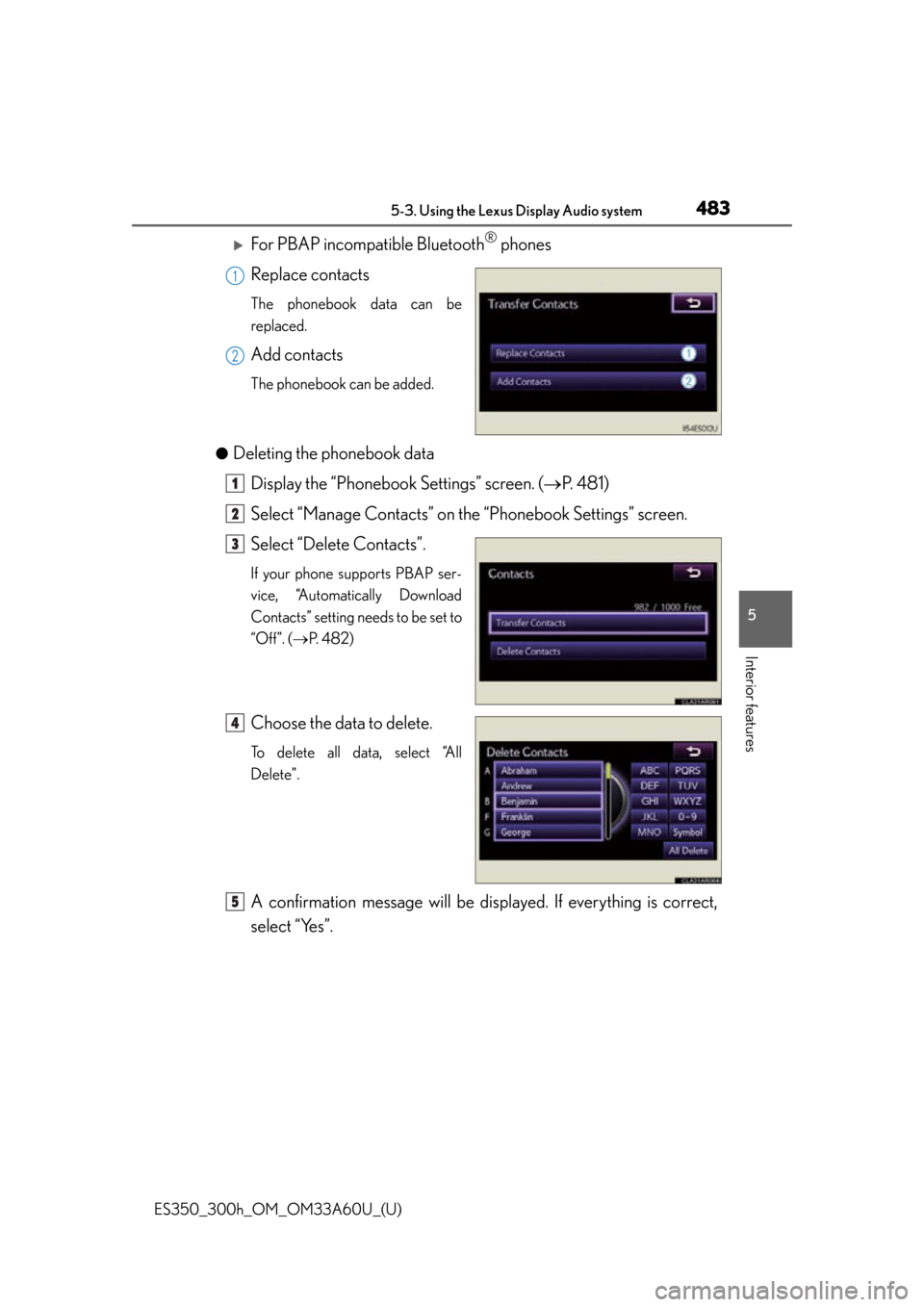
For PBAP incompatible Bluetooth® phones
Replace contacts
The phonebook data can be
replaced.
Add contacts
The phonebook can be added.
●
Deleting the phonebook data Display the “Phonebook Settings” screen. ( P. 4 8 1 )
Select “Manage Contacts” on th e “Phonebook Settings” screen.
Select “Delete Contacts”.
If your phone supports PBAP ser-
vice, “Automatically Download
Contacts” setting needs to be set to
“Off”. ( P. 4 8 2 )
Choose the data to delete.
To delete all data, select “All
Delete”.
A confirmation message will be displa yed. If everything is correct,
select “Yes”.
1
2
1
2
3
4
5
Page 484 of 917

484
ES350_300h_OM_OM33A60U_(U)
5-3. Using the Lexus Display Audio system
■Phonebook data
Phonebook data is managed for every registered phone. When another phone is
connecting, you cannot read the registered data.
■Setting the phonebook in a different way (To display the “Contacts” screen)Display the “Phone” screen. ( P. 4 5 9 )
Select “Contacts” on the “Phone” screen.
Select “Options” on the “Contacts” screen.
Select “Manage Contacts” on the “Contacts” screen.
■When transferring a phone number
Transfer the phone number while engine is running
If your cellular phone is OPP or PBAP compatible, you may need to input “1234” by
your cellular phone for OBEX certification.
■When you have selected “Update Contacts” to transfer the phone number
●If your cellular phone does not support PB AP service, you cannot use this function.
●If your phone supports PBAP service, you can transfer the phonebook data with-
out operating your phone.
■When you have selected “Replace Contacts” or “Add Contacts” to transfer the
phone number
If your cellular phone does not support OP P service, you cannot use these functions.
You can transfer the phonebook data only by operating your phone.
■Transferring the phone number in a different way (To display the “Transfer Con-
tacts” screen)
Display the “Phone” screen. ( P. 4 5 9 )
Select “Contacts” on the “Phone” screen.
Select “Transfer” on the “Contacts” screen.
■Transferring the phone number while Bluetooth® audio is playing
Bluetooth
® audio will disconnect. It will reconnect automatically when data transfer
finishes. It will not be reconnected depending on the phone you are using.
1
2
3
4
1
2
3
Page 485 of 917

ES350_300h_OM_OM33A60U_(U)
4855-3. Using the Lexus Display Audio system
5
Interior features
■Deleting the phonebook data in a different wayDisplay the “Phone” screen. ( P. 4 5 9 )
Select “Contacts” on the “Phone” screen.
Choose the desired data from the list.
Select “Options” on the “Contact” screen.
Select “Delete” on the “Contact” screen.
A confirmation message will be displayed. If everything is correct, select “Yes”.
If your phone supports PBAP service, “Automatically Download Contacts” setting
needs to be set to “Off”. ( P. 4 8 2 )
When you delete a Bluetooth
® phone, the phonebook data will be deleted at the
same time.
1
2
3
4
5
6
Page 491 of 917

491
ES350_300h_OM_OM33A60U_(U)
5-3. Using the Lexus Display Audio system
5
Interior features
Bluetooth® settings
Registered devices settings
Connecting telephone
Connecting audio player
Detailed Bluetooth
® settings
To display the screen shown above, follow the steps below. Press the “MENU” button on the Lexus Display Audio controller.
Select “Setup” on the “Menu” screen.
Select “Bluetooth
*” on the “Setup” screen.
*: Bluetooth is a registered trademark of Bluetooth SIG, Inc.
You can set the Bluetooth® system to your desired settings.
1
2
3
4
1
2
3
Page 492 of 917

492
ES350_300h_OM_OM33A60U_(U)
5-3. Using the Lexus Display Audio system
■Registering a Bluetooth® device
Bluetooth
® devices compatible with phon es (HFP) and portable audio
players (AVP) can be registered si multaneously. You can register up to
5 Bluetooth
® devices.
Display the “Bluetooth
* Settings” screen. ( P. 4 9 1 )
Select “Registered Devices” on the “Bluetooth
* Settings” screen.
Select “Add New”.
*: Bluetooth is a registered trademark of Bluetooth SIG, Inc.
Registered devices settings
1
2
3
Page 493 of 917

ES350_300h_OM_OM33A60U_(U)
4935-3. Using the Lexus Display Audio system
5
Interior features
When this screen is displayed,
input the passcode displayed
on the screen into your
Bluetooth
® device.
For the operation of the Bluetooth®
device, see the manual that comes
with your Bluetooth
® device.
Depending on the type of phone,
further phone operations may be
required after inputting the pass-
code (for example to confirm if
connection is to be received or not)
when registering a phone.
Passcodes are not required for SSP
(Secure Simple Pairing) compati-
ble Bluetooth
® devices. Depend-
ing on the phone, you may need to
select “Yes” to register, or “No” to
cancel on your cellular phone.
If you want to cancel it, select “Can-
cel”.
If a completion message is dis-
played, registration is complete.
If an error message is displayed,
follow the guidance on the screen
to try again.
■Removing a Bluetooth® device
Display the “Bluetooth
* Settings” screen. ( P. 4 9 1 )
Select “Registered Devices” on the “Bluetooth
* Settings” screen.
*: Bluetooth is a registered trademark of Bluetooth SIG, Inc.
4
1
2
Page 494 of 917

494
ES350_300h_OM_OM33A60U_(U)
5-3. Using the Lexus Display Audio system
Select “Remove”.
Select the device to remove.
A confirmation message will be displayed, select “Yes” to remove the
device.
■Displaying a Bluetooth® device details
You can confirm and change the device details. Display the “Bluetooth
* Settings” screen. ( P. 4 9 1 )
Select “Registered Devices” on the “Bluetooth
* Settings” screen.
Select “Details”.
*: Bluetooth is a registered trademark of Bluetooth SIG, Inc.
3
4
5
1
2
3
Page 496 of 917

496
ES350_300h_OM_OM33A60U_(U)
5-3. Using the Lexus Display Audio system
●Changing connection methodSelect “Connection Method” on the “Device Details” screen.
Select “From Vehicle” or
“From Audio Player”.
“From Vehicle”: Connect the audio
system to the portable audio player.
“From Audio Player”: Connect the
portable audio player to the audio
system.
If multiple Bluetooth® devices are registered, follow the procedure below
to select the Bluetooth
® device to be used. You may only use one device
at a time.
Display the “Bluetooth
* Settings” screen. ( P. 4 9 1 )
Select “Connect Phone” on the “Bluetooth
* Settings” screen.
Select the device to connect.
“Add New”: Registering a Bluetooth®
device. ( P. 4 9 2 )
The selection indicator is displayed on
left side of the selected device name.
The Bluetooth
® mark is displayed
when you connected the device.
*: Bluetooth is a registered trademark of Bluetooth SIG, Inc.
1
2
Selecting the Bluetooth® phone
1
2
3