display Lexus ES300h 2016 (OM33B71U) Owners Manual
[x] Cancel search | Manufacturer: LEXUS, Model Year: 2016, Model line: ES300h, Model: Lexus ES300h 2016Pages: 600, PDF Size: 8.59 MB
Page 294 of 600
294
ES300h_OM_OM33B71U_(U)5-1. Basic Operations
USB/AUX ports
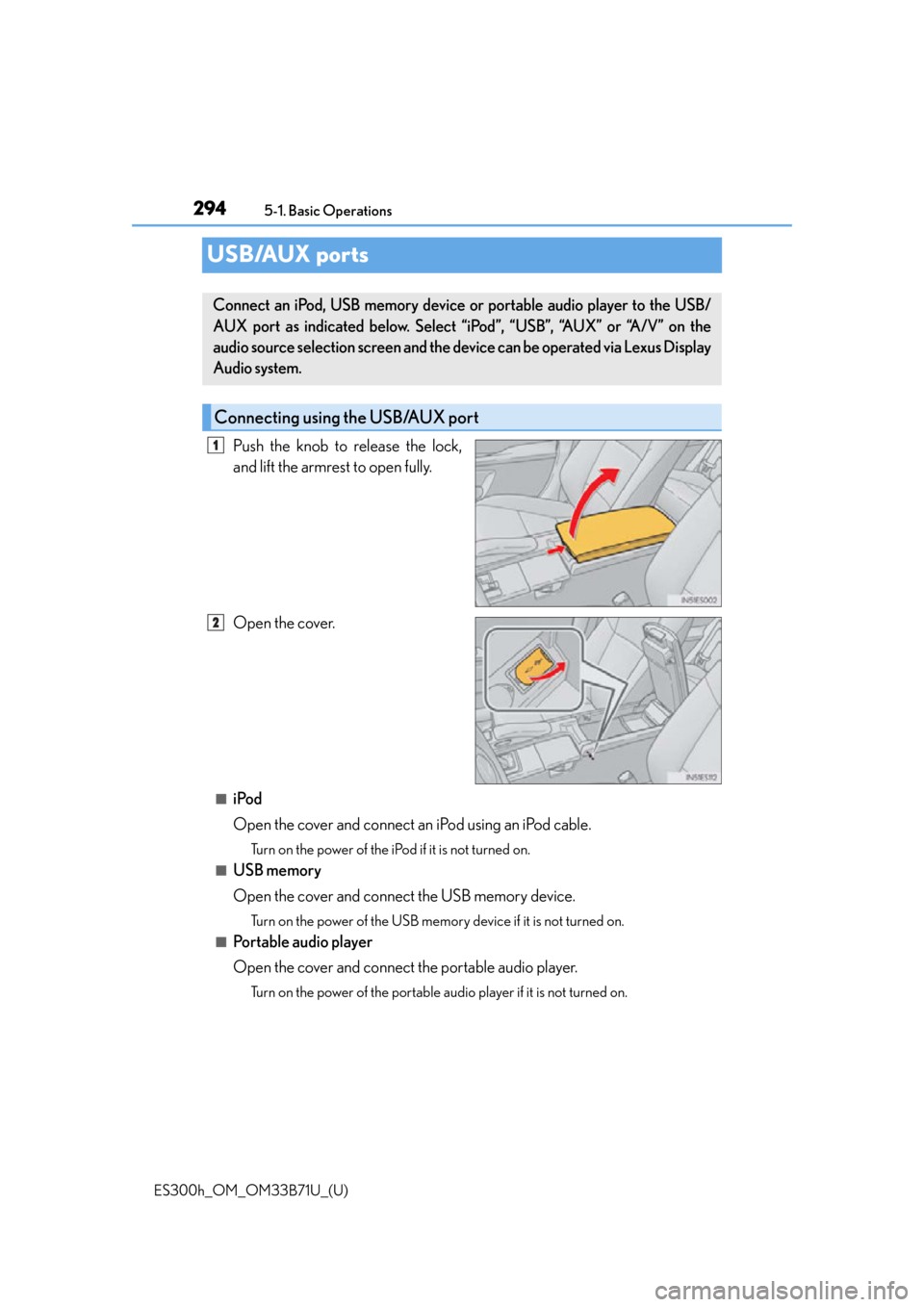
Push the knob to release the lock,
and lift the armrest to open fully.
Open the cover.
■iPod
Open the cover and connect an
iPod using an iPod cable.
Turn on the power of the iPod if it is not turned on.
■USB memory
Open the cover and connect the USB memory device.
Turn on the power of the USB memory device if it is not turned on.
■Portable audio player
Open the cover and connect the portable audio player.
Turn on the power of the portable audio player if it is not turned on.
Connect an iPod, USB memory device or portable audio player to the USB/
AUX port as indicated below. Select “iPod”, “USB”, “AUX” or “A/V” on the
audio source selection screen and the device can be operated via Lexus Display
Audio system.
Connecting using the USB/AUX port
1
2
Page 295 of 600
ES300h_OM_OM33B71U_(U)
2955-1. Basic Operations
5
Lexus Display Audio system
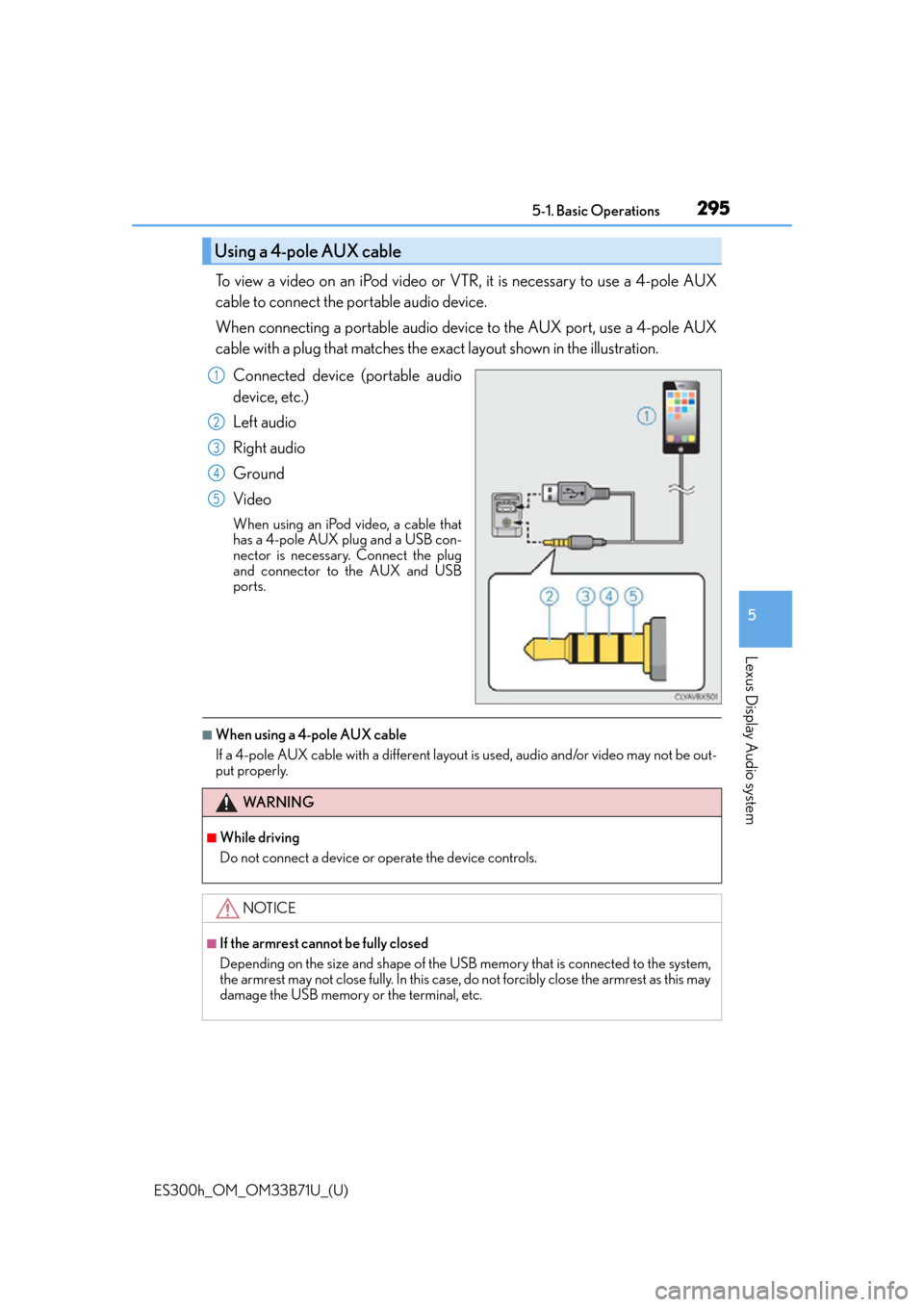
To view a video on an iPod video or VTR, it is necessary to use a 4-pole AUX
cable to connect the portable audio device.
When connecting a portable audio device to the AUX port, use a 4-pole AUX
cable with a plug that matches the exact layout shown in the illustration.Connected device (portable audio
device, etc.)
Left audio
Right audio
Ground
Video
When using an iPod video, a cable that
has a 4-pole AUX plug and a USB con-
nector is necessar y. Connect the plug
and connector to the AUX and USB
ports.
■When using a 4-pole AUX cable
If a 4-pole AUX cable with a different layout is used, audio and/or video may not be out-
put properly.
Using a 4-pole AUX cable
1
2
3
4
5
WA R N I N G
■While driving
Do not connect a device or operate the device controls.
NOTICE
■If the armrest cannot be fully closed
Depending on the size and shape of the USB memory that is connected to the system,
the armrest may not close fully. In this case, do not forcibly close the armrest as this may
damage the USB memory or the terminal, etc.
Page 296 of 600
296
ES300h_OM_OM33B71U_(U)5-2. Setup
Setup menu
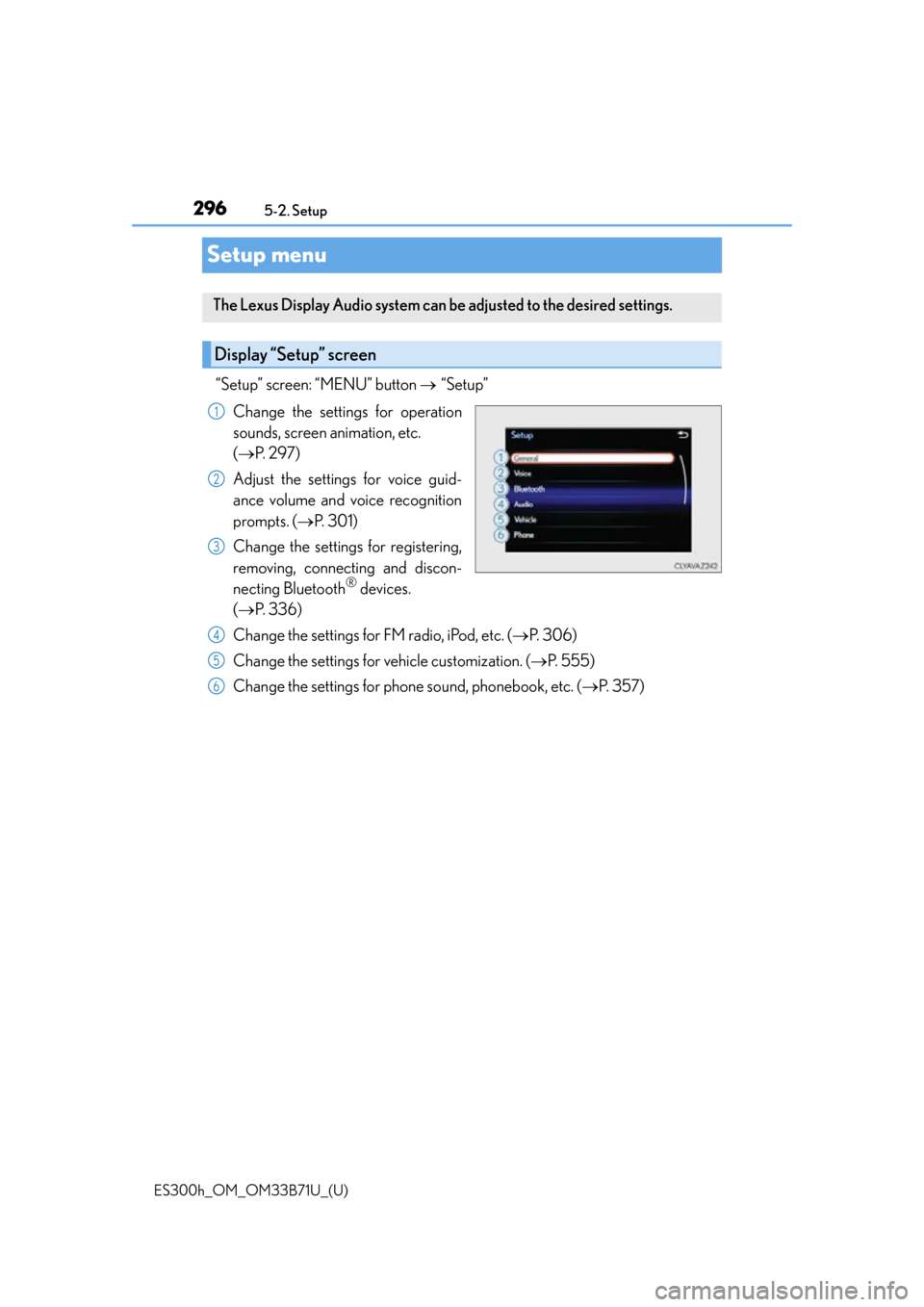
“Setup” screen: “MENU” button
“Setup”
Change the settings for operation
sounds, screen animation, etc.
( P. 2 9 7 )
Adjust the settings for voice guid-
ance volume and voice recognition
prompts. ( P. 3 0 1 )
Change the settings for registering,
removing, connecting and discon-
necting Bluetooth
® devices.
( P. 3 3 6 )
Change the settings for FM radio, iPod, etc. ( P. 3 0 6 )
Change the settings for vehicle customization. ( P. 5 5 5 )
Change the settings for phone sound, phonebook, etc. ( P. 3 5 7 )
The Lexus Display Audio system can be adjusted to the desired settings.
Display “Setup” screen
1
2
3
4
5
6
Page 297 of 600
297
ES300h_OM_OM33B71U_(U)5-2. Setup
5
Lexus Display Audio system
General settings
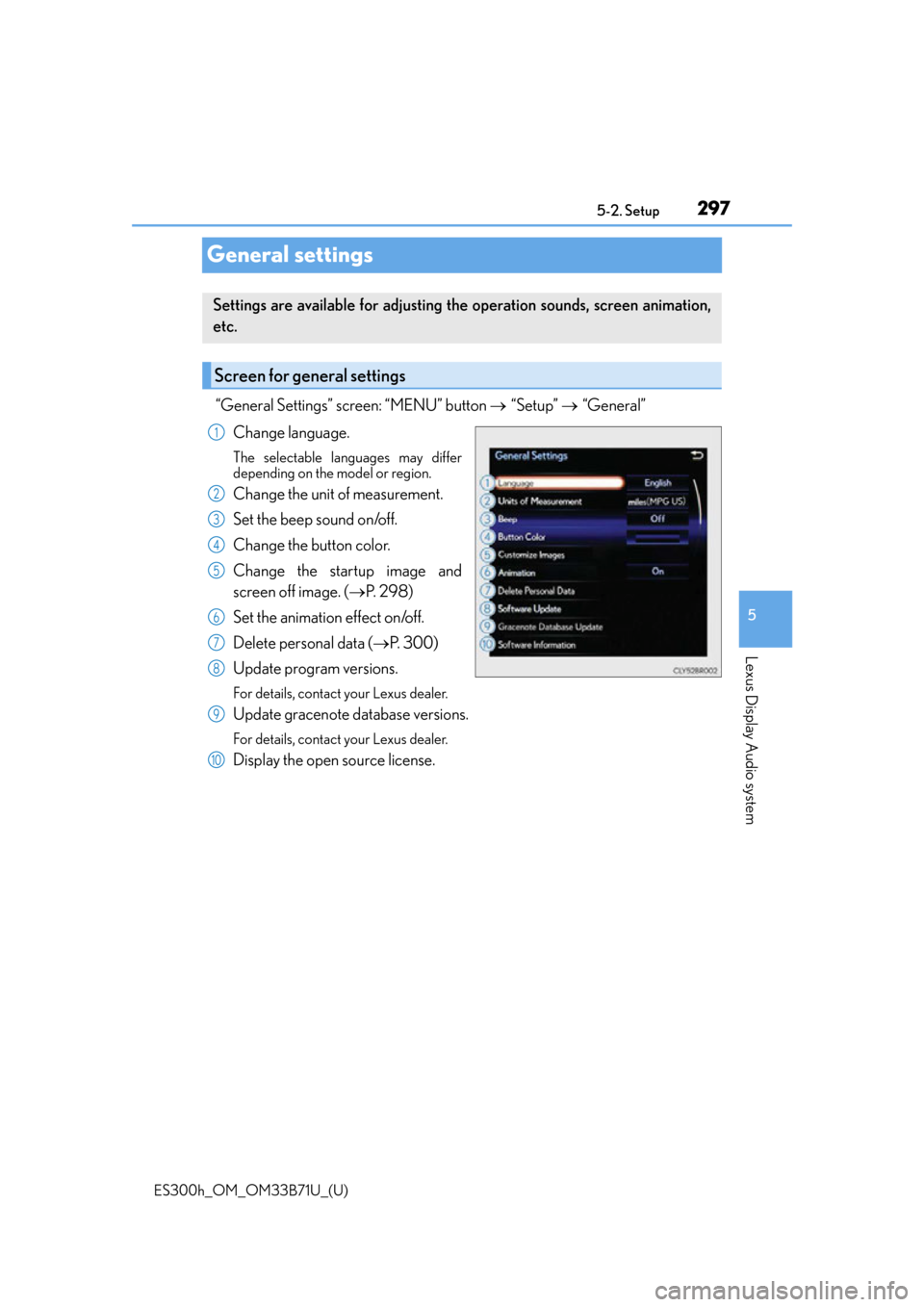
“General Settings” screen: “MENU” button
“Setup” “General”
Change language.
The selectable languages may differ
depending on the model or region.
Change the unit of measurement.
Set the beep sound on/off.
Change the button color.
Change the startup image and
screen off image. ( P. 2 9 8 )
Set the animation effect on/off.
Delete personal data ( P. 3 0 0 )
Update program versions.
For details, contact your Lexus dealer.
Update gracenote database versions.
For details, contact your Lexus dealer.
Display the open source license.
Settings are available for adjusting the operation sounds, screen animation,
etc.
Screen for general settings
1
2
3
4
5
6
7
8
9
10
Page 299 of 600
ES300h_OM_OM33B71U_(U)
2995-2. Setup
5
Lexus Display Audio system
■USB memory
When saving the images to a USB memory device, name the folder that the images are
saved to “Image”.
●Compatible device formats
The following device format can be used: • USB communication format: USB2.0 FS (480 Mbps)
• File system format: FAT16/32 (Windows)
• Correspondence class: Mass storage class
The following types of files can be used:
• The image’s file format must be JPEG.
• The file name may only contain ASCII characters.
●JPEG file compatibility
Compatible image size: Maximum 5MB
NOTICE
■To prevent damage to the USB memory device or its terminals
P. 3 3 3
Page 301 of 600
301
ES300h_OM_OM33B71U_(U)5-2. Setup
5
Lexus Display Audio system
Voice settings
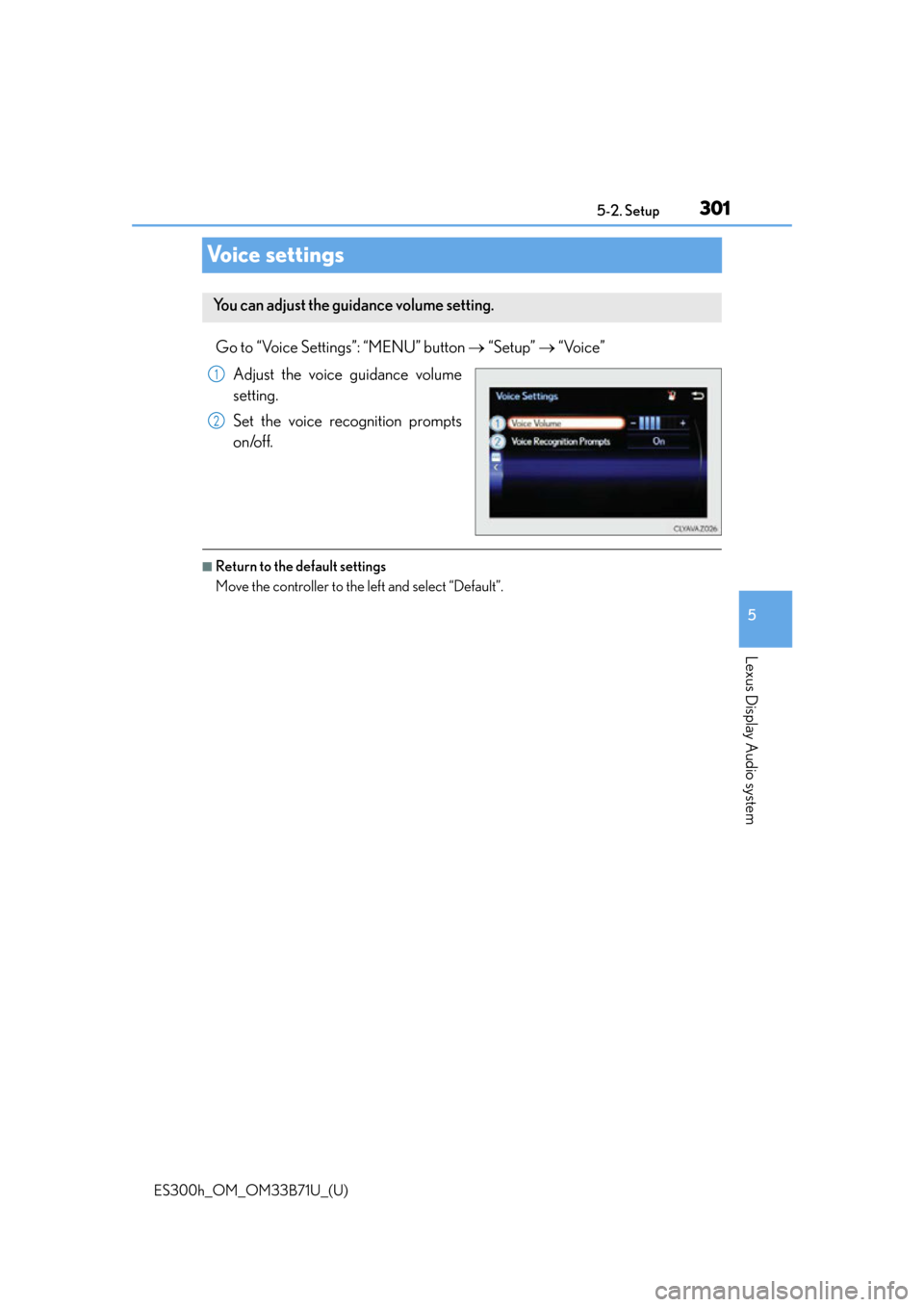
Go to “Voice Settings”: “MENU” button
“Setup” “Voice”
Adjust the voice guidance volume
setting.
Set the voice recognition prompts
on/off.
■Return to the default settings
Move the controller to the left and select “Default”.
You can adjust the guidance volume setting.
1
2
Page 302 of 600
302
ES300h_OM_OM33B71U_(U)5-2. Setup
Display settings
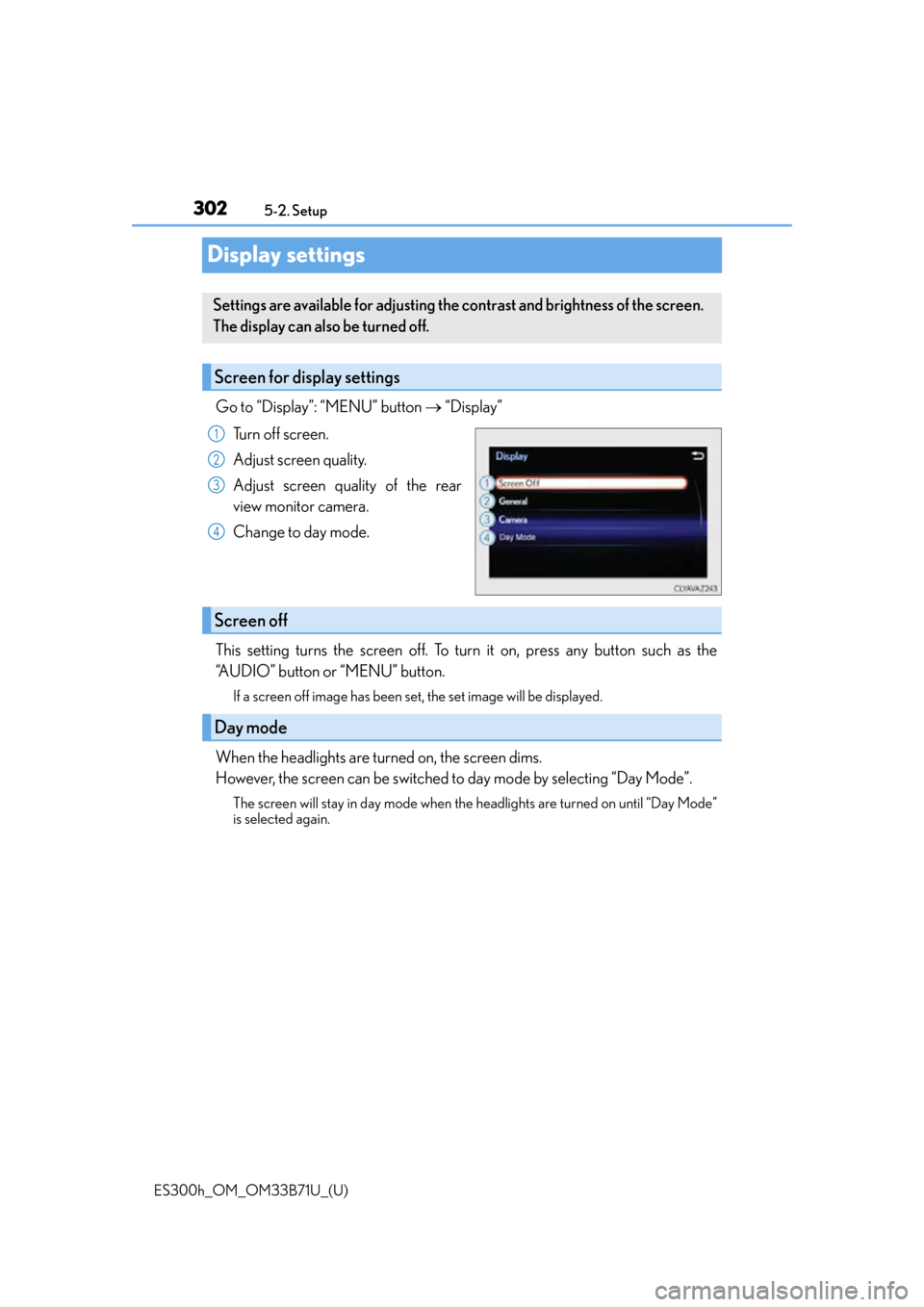
Go to “Display”: “MENU” button
“Display”
Turn off screen.
Adjust screen quality.
Adjust screen quality of the rear
view monitor camera.
Change to day mode.
This setting turns the screen off. To turn it on, press any button such as the
“AUDIO” button or “MENU” button.
If a screen off image has been set, the set image will be displayed.
When the headlights are turned on, the screen dims.
However, the screen can be switched to day mode by selecting “Day Mode”.
The screen will stay in day mode when the headlights are turned on until “Day Mode”
is selected again.
Settings are available for adjusting the contrast and brightness of the screen.
The display can also be turned off.
Screen for display settings
1
2
3
4
Screen off
Day mode
Page 303 of 600

ES300h_OM_OM33B71U_(U)
3035-2. Setup
5
Lexus Display Audio system
Select “General” or “Camera” on the “Display” screen or select “Display” on
each audio menu screen. (P. 3 0 9 )
Adjust the display as desired by turning the controller clockwise (+) or coun-
terclockwise (-).
To select “Contrast”, “Brightness”, “Color” or “Tone”, move the controller to the left.
(“Colour” and “Tone” are available when “D isplay” on the audio settings screen for
each audio source is selected.)
■Changing the sample image (when “General” is selected)
Move the controller to the right and select the desired sample image.
Adjusting the screen quality
1
2
Page 304 of 600
304
ES300h_OM_OM33B71U_(U)5-3. Using the audio system
Selecting the audio source
Press the “AUDIO” button to display the “Source” screen.
If the “Source” screen is not displayed, press the button again.
Select the desired audio source.
The audio source can be selected by pressing the “RADIO” or “MEDIA” button.
Press the “MODE” switch when the audio
system is turned on. The audio source
changes each time the “MODE” switch is pressed.
■Rearranging the list
The listing order of the sour ce list can be rearranged.
Move the controller to the left while on the “Source” screen.
Select “Audio Source Select”.
Select an item you wish to move and th en select where to move the item to.
Switching between audio sources such as radio and CD are explained in this
section.
Changing audio source
Using the steering wheel switches to change audio sources
1
2
1
2
3
Page 305 of 600
305
ES300h_OM_OM33B71U_(U)5-3. Using the audio system
5
Lexus Display Audio system
Optimal use of the audio system
Audio menu screen. (
P. 3 0 9 )
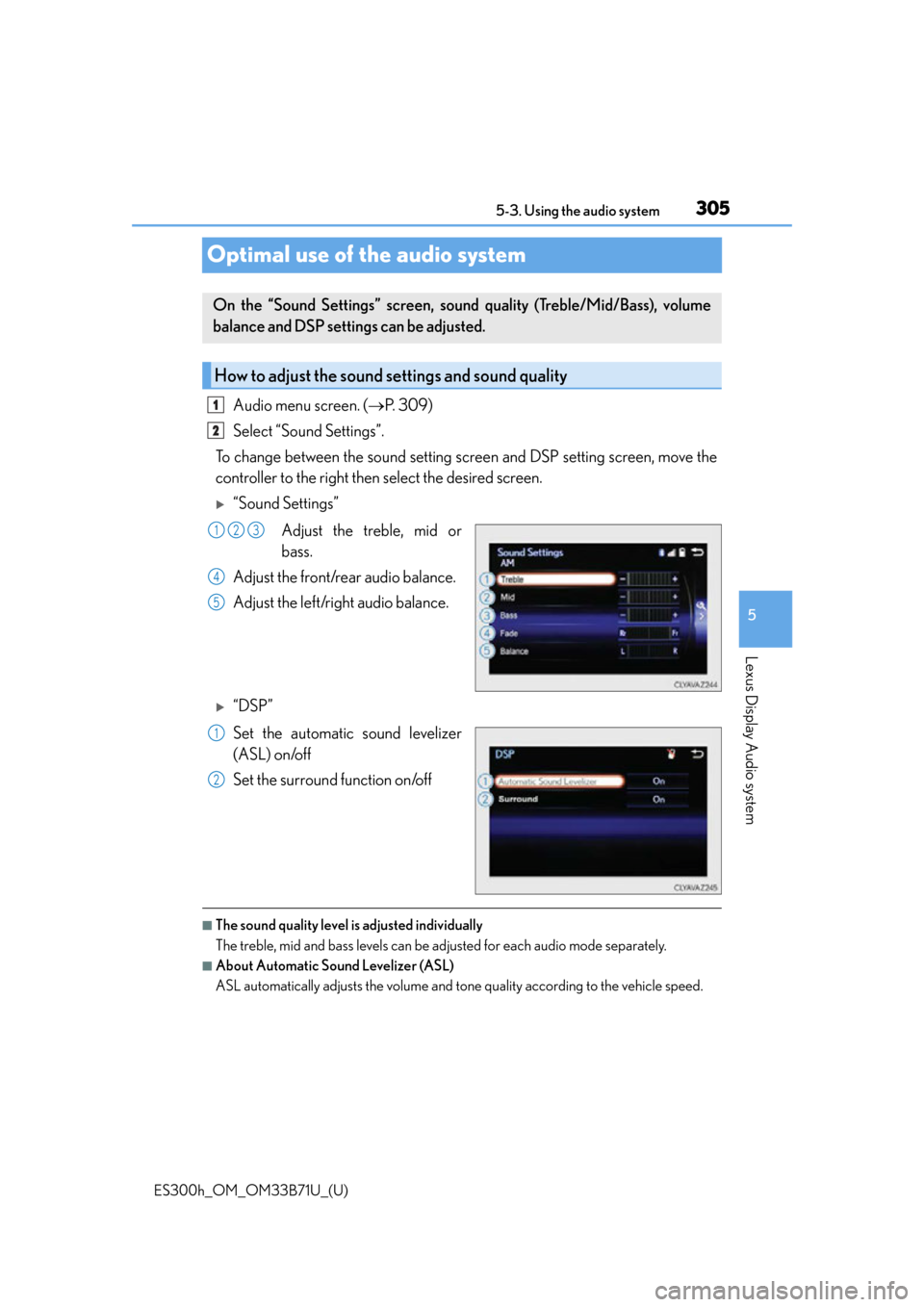
Select “Sound Settings”.
To change between the sound setting screen and DSP setting screen, move the
controller to the right then select the desired screen.
“Sound Settings”
Adjust the treble, mid or
bass.
Adjust the front/rear audio balance.
Adjust the left/right audio balance.
“DSP”
Set the automatic sound levelizer
(ASL) on/off
Set the surround function on/off
■The sound quality level is adjusted individually
The treble, mid and bass levels can be ad justed for each audio mode separately.
■About Automatic Sound Levelizer (ASL)
ASL automatically adjusts the volume and tone quality according to the vehicle speed.
On the “Sound Settings” screen, sound quality (Treble/Mid/Bass), volume
balance and DSP settings can be adjusted.
How to adjust the sound settings and sound quality
1
2
123
4
5
1
2