eco Lexus ES350 2012 Repair Manual
[x] Cancel search | Manufacturer: LEXUS, Model Year: 2012, Model line: ES350, Model: Lexus ES350 2012Pages: 554, PDF Size: 6.43 MB
Page 214 of 554

213
3-1. Using the air conditioning system and defogger
3
Interior features
ES350_U
Rear window and outside rear view mirror defoggers
CAUTION
■When the outside rear view mirror defoggers are on
Do not touch the outside surface of the rear view mirror, as it can become very hot
and burn you.
These features are used to defog the rear window, and to remove rain-
drops, dew and frost from the outside rear view mirrors.
Without navigation system ON/OFF
The defoggers will automatically
turn off after 15 to 60 minutes.
The operation time changes
according to the ambient tem-
perature and vehicle speed.
With navigation systemON/OFF
The defoggers will automatically
turn off after 15 to 60 minutes.
The operation time changes
according to the ambient tem-
perature and vehicle speed.
Page 218 of 554
217
3-2. Using the audio system
3
Interior features
ES350_U
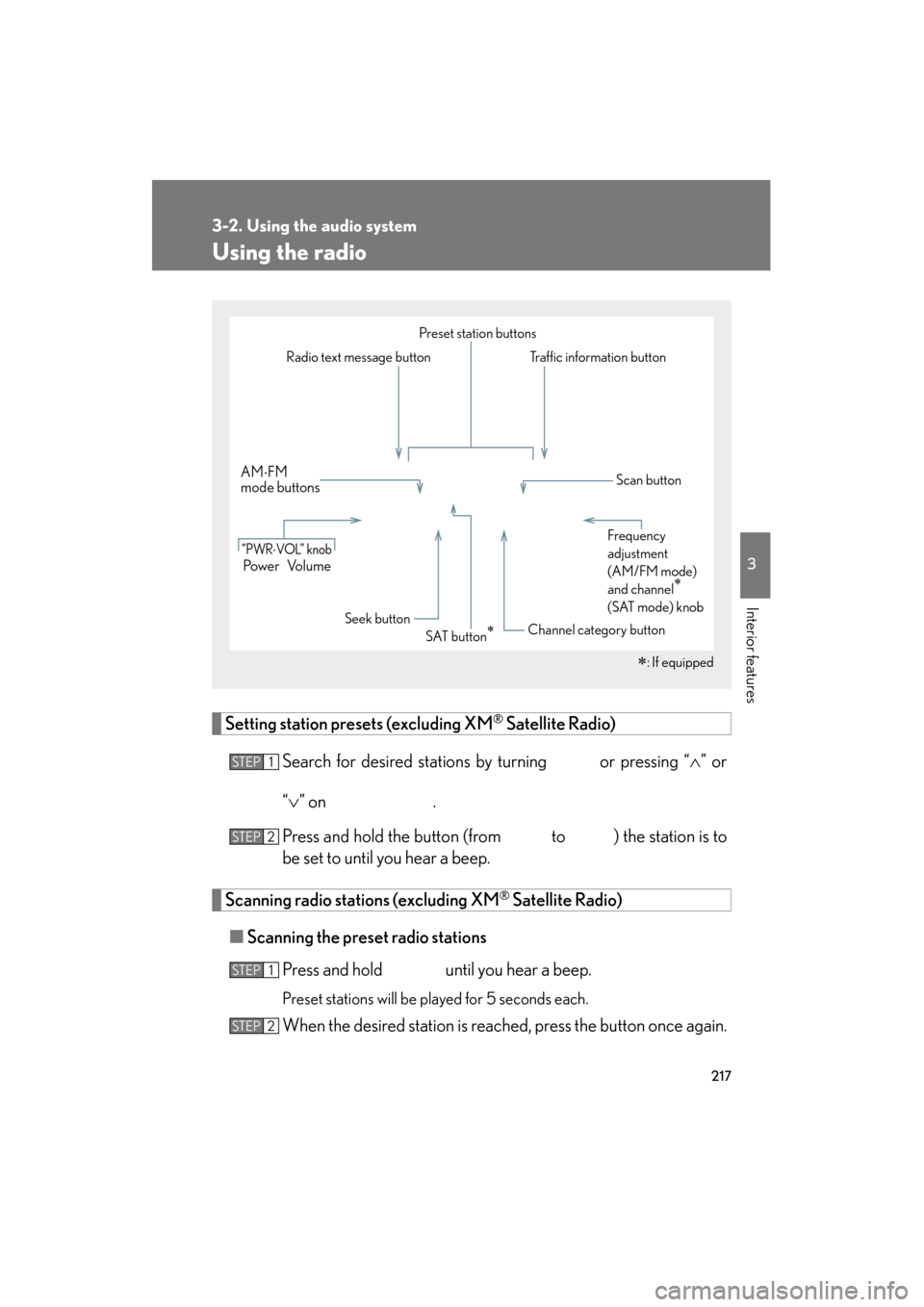
Using the radio
Setting station presets (excluding XM® Satellite Radio)
Search for desired stations by turning
or pressing “ ∧” or
“ ∨ ” on
.
Press and hold the button (from
to ) the station is to
be set to until you hear a beep.
Scanning radio stations (excluding XM® Satellite Radio)
■ Scanning the preset radio stations
Press and hold
until you hear a beep.
Preset stations will be played for 5 seconds each.
When the desired station is reached, press the button once again.
∗: If equipped
Po w e r Vo l u m e
AM
⋅FM
mode buttons
Preset station buttons
Channel category button
“PWR⋅VOL” knob
Scan button
Seek button
Radio text message button Traffic information button
Frequency
adjustment
(AM/FM mode)
and channel
∗
(SAT mode) knob
SAT button∗
STEP1
STEP2
STEP1
STEP2
Page 219 of 554

218
3-2. Using the audio system
ES350_U■
Scanning all radio stations within range
Press
.
All stations with reception will be played for 5 seconds each.
When the desired station is reached, press the button once again.
RDS (Radio Data System)
This feature allows your radio to receive station identification information
and program information (classical, jazz, etc.) from radio stations which
broadcast this information.
■ Receiving RDS broadcasts
Press “ ∧” or “ ∨” on during FM reception.
The type of program changes each time the button is pressed.
● “ROCK”
● “EASY LIS” (Easy listening)
● “CLS/JAZZ” (Classical music and Jazz)
● “R & B” (Rhythm and Blues)
● “INFORM” (Information)
● “RELIGION”
● “MISC” (Miscellaneous)
● “ALERT” (Emergency messages)
If the system receives no RDS stations, “NO PTY” appears on the dis-
play.
Press , or “ ∧” or “ ∨” on .
The radio seeks or scans the stations by the relevant program type.
■ Displaying radio station names
Press .
STEP1
STEP2
STEP1
STEP2
Page 223 of 554

222
3-2. Using the audio system
ES350_U
■If the satellite radio does not operate normally
If a problem occurs with the XM
® tuner, a message will appear on the display. Refer
to the table below to identify the problem, and take the suggested corrective action.
“A N T E N N A”
The XM® antenna is not connected. Check whether
the XM® antenna cable is attached securely.
There is a short-circuit in the antenna or the surround-
ing antenna cable. See a Lexus certified dealer.
“UNAUTH”
You have not subscribed to the XM® Satellite Radio.
The radio is being updated with the latest encryption
code. Contact the XM
® Satellite Radio for subscrip-
tion information. When a contract is canceled, you can
choose the “CH000” and all free-to-air channels.
The premium channel you selected is not authorized.
Wait for about 2 seconds until the radio returns to the
previous channel or “CH001”. If it does not change
automatically, select another channel. If you want to lis-
ten to the premium channel, contact the XM
® Satellite
Radio.
“NO SIGNAL”
The XM® signal is too weak at the current location.
Wait until your vehicle reaches a location with a stron-
ger signal.
“LOADING”The unit is acquiring audio or program information.
Wait until the unit has received the information.
“OFF AIR”The channel you selected is not broadcasting any pro-
gramming. Select another channel.
“-----”
There is no song/program title or artist name/feature
associated with the channel at that time. No action
needed.
Page 224 of 554
223
3-2. Using the audio system
3
Interior features
ES350_U
Contact the XM® Listener Care Center at 1-877-515-3987.
■Certifications for the radio tuner
This equipment has been tested and found to comply with the limits for a class B
digital device, pursuant to Part 15 of the FCC Rules. These limits are designed to
provide reasonable protection against harmful interference in a residential installa-
tion. This equipment generates, uses and can radiate radio frequency energy and, if
not installed and used in accordance with the instructions, may cause harmful inter-
ference to radio communications. However, there is no guarantee that interference
will not occur in a particular installation.
If this equipment does cause harmful interference to radio or television reception,
which can be determined by turning the equipment off and on, the user is encour-
aged to try to correct the interference by trying one or more of the following:
●Reorienting or relocate the receiving antenna.
●Increasing the separation between the equipment and receiver.
●Connecting the equipment into an outlet on a circuit different from that to which
the receiver is connected.
●Consulting the dealer or an experienced radio/TV technician for help.
“CH UNAVL”
The channel you selected is no longer available. Wait
for about 2 seconds until the radio returns to the previ-
ous channel or “CH001”. If it does not change auto-
matically, select another channel.
Page 226 of 554

225
3-2. Using the audio system
3
Interior features
ES350_UWhen the indicator on the slot turns from amber to green, insert
the next CD.
Repeat the procedure for the remaining CDs.
To cancel the operation, press . If you do not insert a disc within
15 seconds, loading will be canceled automatically.
Ejecting CDs
■ Ejecting a CD
To select the CD to be ejected,
press “∧” or “ ∨” on .
The selected disc number is shown
on the display.
Press and remove the CD.
■ Ejecting all the CDs
Press and hold until you hear a beep, and then remove the CDs.
Selecting, fast-forwarding, rewi nding, and scanning tracks
■ Selecting a track
Press “ ∧” to move up and “ ∨” to move down using until
the desired track number is displayed.
■ Fast-forwarding and reversing tracks
To fast-forward or reverse, press and hold “ ∧” or “∨ ” on
until you hear a beep.
STEP3
STEP1
STEP2
Page 227 of 554
226
3-2. Using the audio system
ES350_U■
Scanning tracks
Press .
To cancel, press again.
Press the button again when the desired track is reached.
Selecting a CD
■ To select a CD to play
To select the desired CD, press “ ∧” or “ ∨” on .
■ Scanning loaded CDs
Press and hold until you hear a beep.
The first ten seconds of the first track on each CD will be played.
To cancel, press again.
Press the button again when the desired CD is reached.
Playing and pausing tracks
To play or pause a track, press ( ).
STEP1
STEP2
STEP1
STEP2
Page 229 of 554
228
3-2. Using the audio system
ES350_U
■CD player protection feature
To protect the internal components, playback is automatically stopped when a
problem is detected.
■Display
Up to 12 characters can be displayed at a time.
If there are 13 or more characters, pressing and holding until you hear a beep
enables to display the remaining characters.
A maximum of 24 characters can be displayed.
If is pressed until you hear a beep again or has not been operated for more
than 6 seconds, the display will return to the first 12 characters.
Depending on the contents recorded, the characters may not be displayed prop-
erly or may not be displayed at all.
■When “ERROR” or “WAIT” is shown on the display
“ERROR”: This indicates is a trouble either in the CD or inside the player. The CDmay be dirty, damaged, or inserted up-side down.
“WAIT”: Operation is stopped due to a high temperature inside the player. Wait
for a while and then press . Contact your Lexus dealer if the
CD still cannot be played back.
■Discs that can be used
Discs with the marks shown below can be used.
Playback may not be possible depending on recording format or disc features, or
due to scratches, dirt or deterioration.
CDs with copy-protect features may not be used.
■Lens cleaners
Do not use lens cleaners. Doing so may damage the CD player.
■If discs are left inside the CD player or in the ejected position for extended peri-
ods
CDs may be damaged and may not play properly.
Page 230 of 554
229
3-2. Using the audio system
3
Interior features
ES350_U
NOTICE
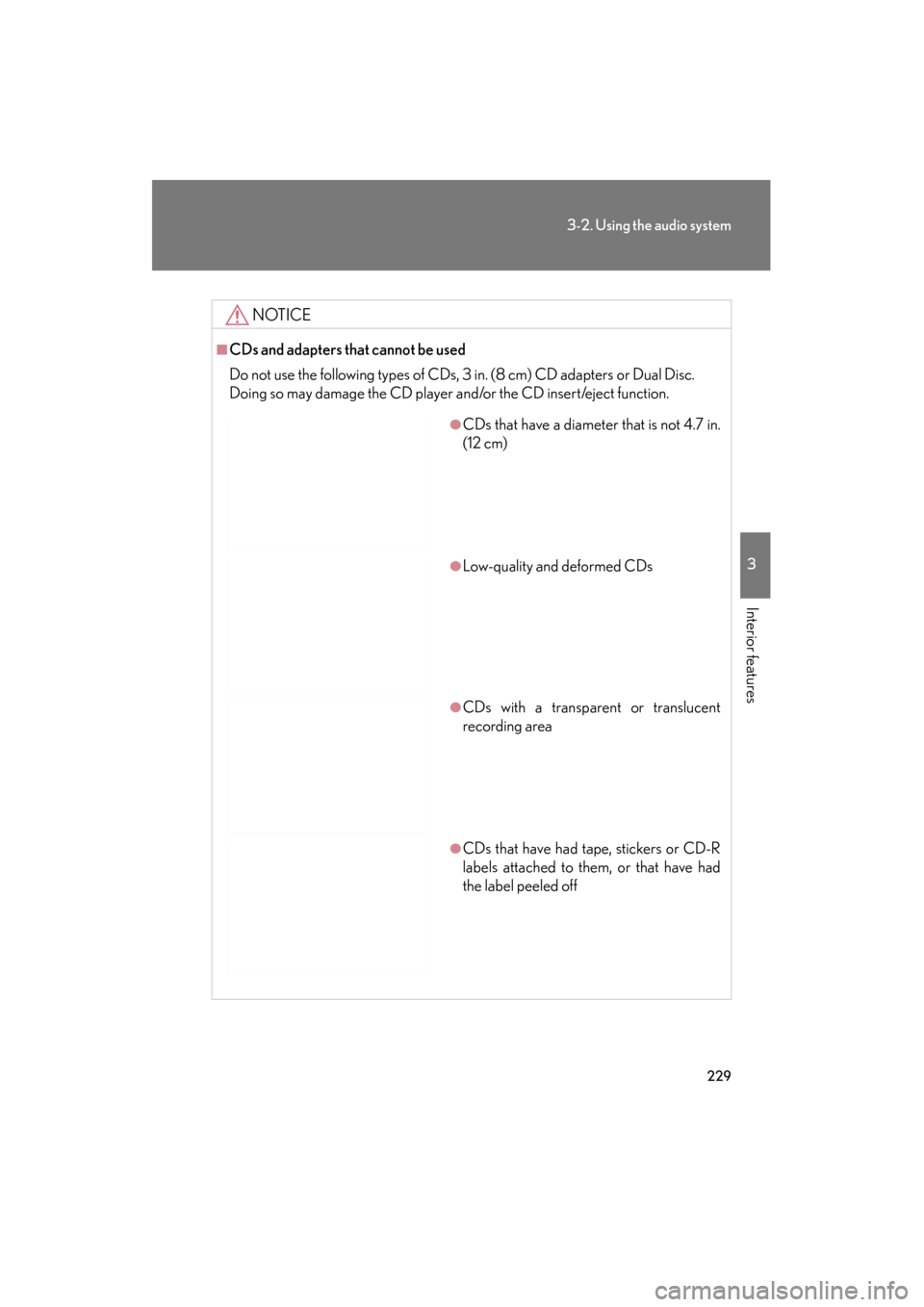
■CDs and adapters that cannot be used
Do not use the following types of CDs, 3 in. (8 cm) CD adapters or Dual Disc.
Doing so may damage the CD player and/or the CD insert/eject function.
●CDs that have a diameter that is not 4.7 in.
(12 cm)
●Low-quality and deformed CDs
●CDs with a transparent or translucent
recording area
●CDs that have had tape, stickers or CD-R
labels attached to them, or that have had
the label peeled off
Page 233 of 554
232
3-2. Using the audio system
ES350_U
Selecting and scanning a folder■ Selecting folders one at a time
Press ( ∧) or (∨ ) to select the desired folder.
■ Returning to the first folder
Press and hold
(∨ ) until you hear a beep.
■ Scanning the first file of all the folders
Press and hold until you hear a beep.
The first ten seconds of the first file in each folder will be played.
When the desired folder is reached, press again.
Fast-forwarding and reversing files
To fast-forward or reverse, press and hold “
∧” or “∨ ” on
until you hear a beep.
Selecting and scanning files
■ Selecting a file
Turn or press “ ∧” or “∨ ” on to select the desired
file.
■ Scanning the files in a folder
Press .
The first ten seconds of each file will be played.
To cancel, press again.
When the desired file is reached, press again.
STEP1
STEP2