phone Lexus ES350 2016 Quick Guide /
[x] Cancel search | Manufacturer: LEXUS, Model Year: 2016, Model line: ES350, Model: Lexus ES350 2016Pages: 112, PDF Size: 2.11 MB
Page 72 of 112
71
ES350_QG_OM33B82U_(U)
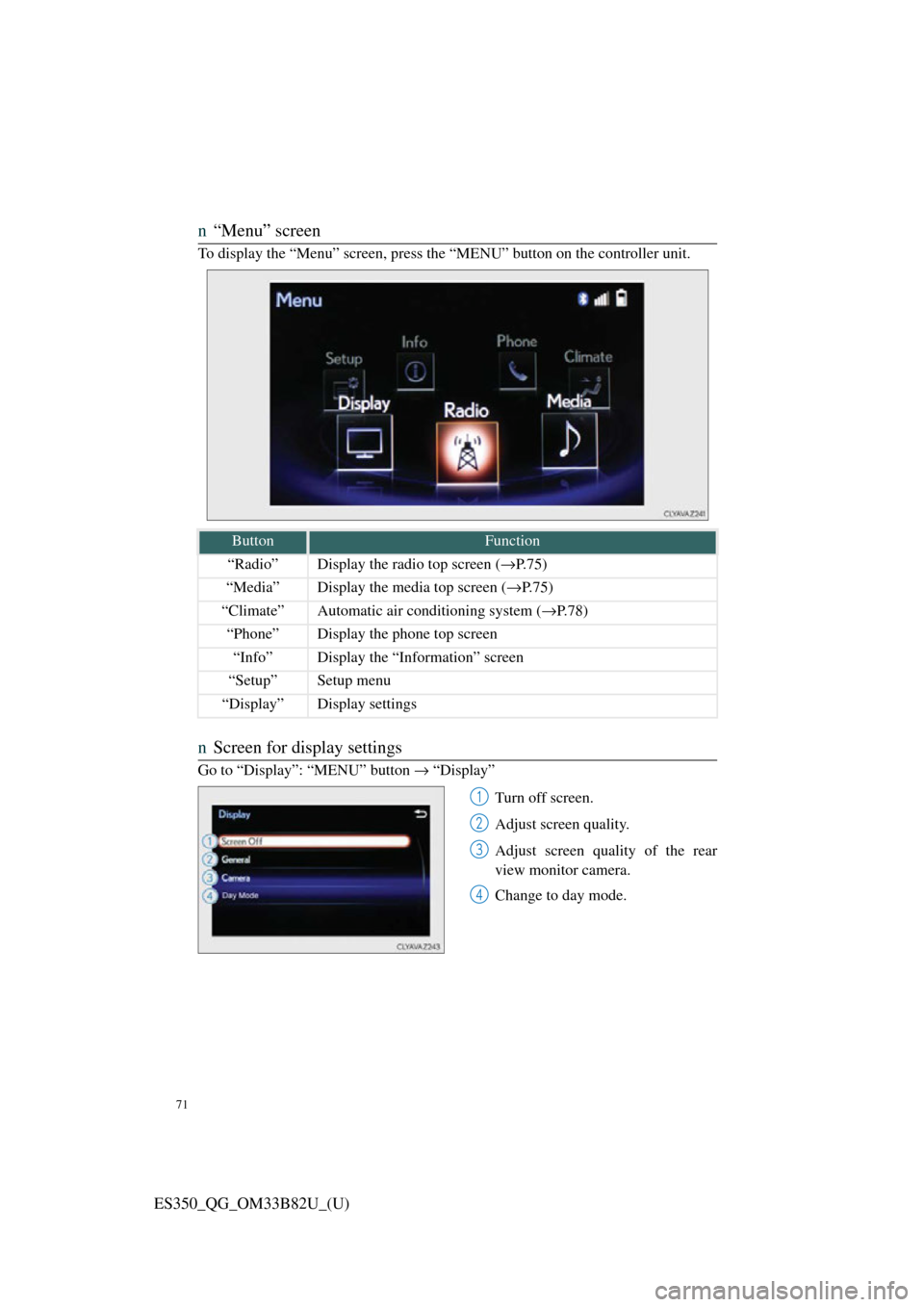
n“Menu” screen
To display the “Menu” screen, press th e “MENU” button on the controller unit.
nScreen for display settings
Go to “Display”: “MENU” button → “Display”
Turn off screen.
Adjust screen quality.
Adjust screen quality of the rear
view monitor camera.
Change to day mode.
ButtonFunction
“Radio”Display the radio top screen ( →P.75)
“Media”Display the media top screen ( →P.75)
“Climate”Automatic air conditioning system ( →P.78)
“Phone”Display the phone top screen
“Info”Display the “Information” screen
“Setup”Setup menu
“Display”Display settings
1
2
3
4
Page 73 of 112

72
ES350_QG_OM33B82U_(U)
Hands-free System For Cellular Phone
(with Lexus Display Audio System)
n How to register a Bluetooth® phone
Compatible Bluetooth®-equipped phones can be connected to the vehicle, enabling
hands-free operation. Please refer to the cellular phone manufacture’s user guide for
pairing procedures, or go to “www.lexus.com/MobileLink
” (for U.S.A) for phone
information.
Turn the Bluetooth® connection setting of your device set to on.
Go to “Bluetooth* Setup”: “MENU” button → “Setup” → “Bluetooth*”
Move the controller to the left and then select “Add Device”
When this screen is displayed, input
the passcode displayed on the
screen into your Bluetooth
® phone.
Register the Bluetooth
® phone
using your Bluetooth
® phone.
*: Bluetooth is a registered trad emark of Bluetooth SIG, Inc.
nRegistering favorites
You can register the desired contact from the phonebook. Up to 15 contacts per
phone can be registered.
Go to “Add Favorite”: “MENU” button → “Setup” → “Phone” → “Contact/
Call History Settings” → “Add Favorite”
Choose the contact to register.
n Dialing
Go to “Dial Pad”: “MENU” button → “Phone” → “Dial Pad”
Input a phone number.
Press the off-hook switch on th e steering wheel or select .
nDialing from the phonebook
Go to “Contacts”: “MENU” button → “Phone” → “Contacts”
Choose the desired contact to call from the list.
Choose the number and then press the of f-hook switch on the steering wheel or
press the controller.
1
2
3
4
5
1
2
1
2
3
1
2
3
Page 74 of 112
73
ES350_QG_OM33B82U_(U)
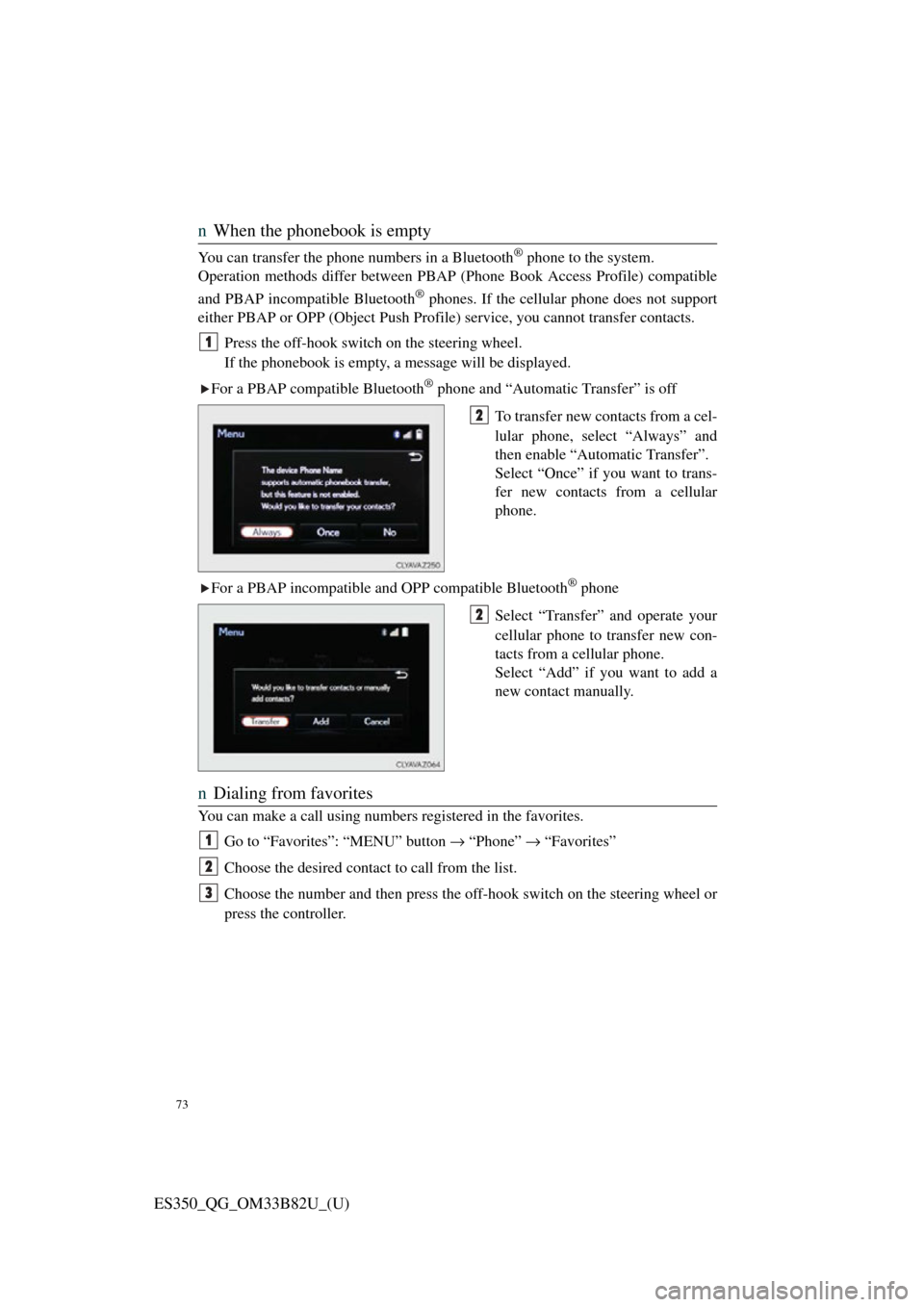
nWhen the phonebook is empty
You can transfer the phone numbers in a Bluetooth® phone to the system.
Operation methods differ between PBAP (Phone Book Access Profile) compatible
and PBAP incompatible Bluetooth
® phones. If the cellular phone does not support
either PBAP or OPP (Object Push Profile) service, you cannot transfer contacts.
Press the off-hook switch on the steering wheel.
If the phonebook is empty, a message will be displayed.
For a PBAP compatible Bluetooth
® phone and “Automatic Transfer” is off
To transfer new contacts from a cel-
lular phone, select “Always” and
then enable “Automatic Transfer”.
Select “Once” if you want to trans-
fer new contacts from a cellular
phone.
For a PBAP incompatible and OPP compatible Bluetooth
® phone
Select “Transfer” and operate your
cellular phone to transfer new con-
tacts from a cellular phone.
Select “Add” if you want to add a
new contact manually.
n Dialing from favorites
You can make a call using numbers registered in the favorites.
Go to “Favorites”: “MENU” button → “Phone” → “Favorites”
Choose the desired contact to call from the list.
Choose the number and then press the off-hook switch on the steering wheel or
press the controller.
1
2
2
1
2
3
Page 75 of 112
74
ES350_QG_OM33B82U_(U)
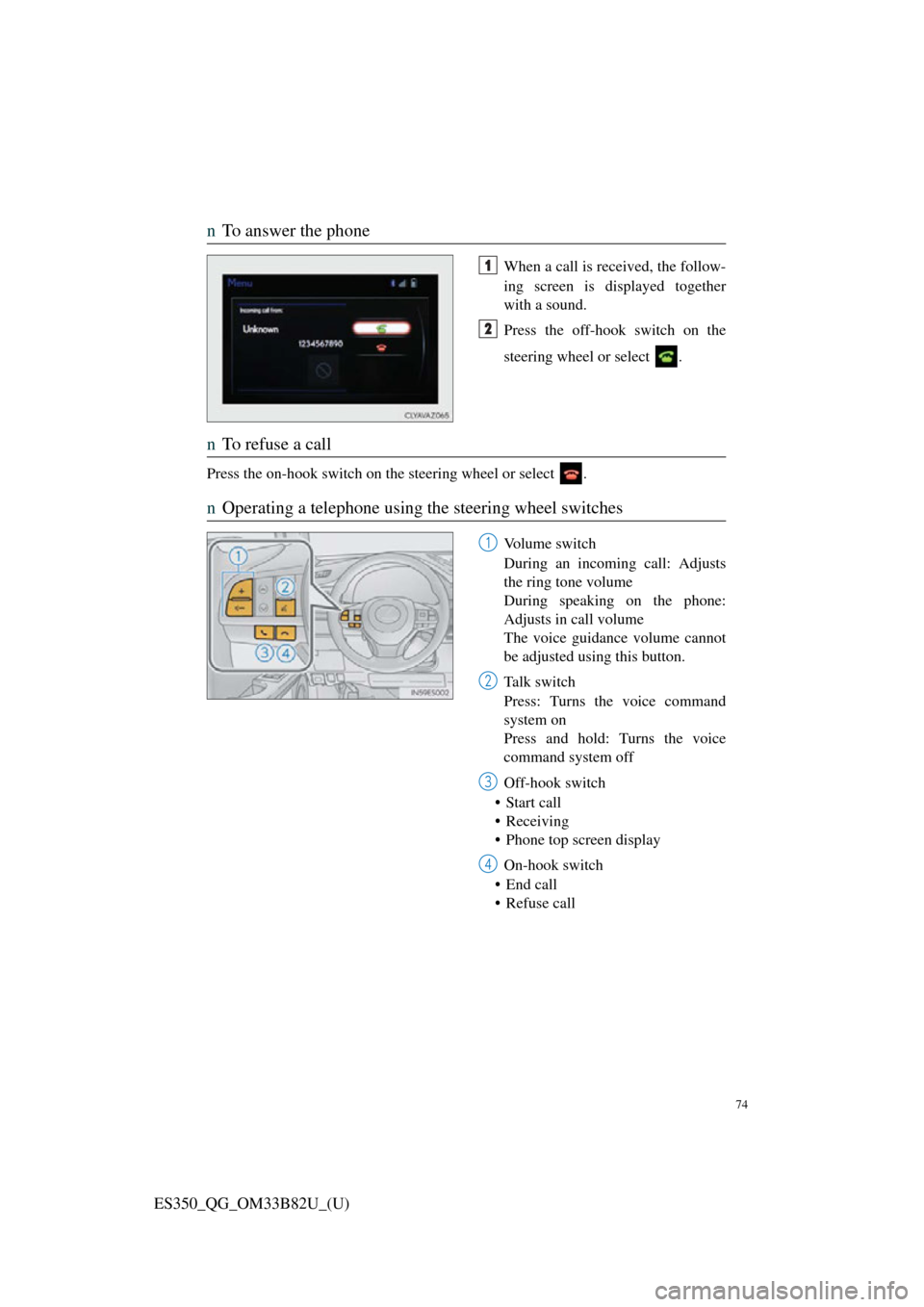
nTo answer the phone
When a call is received, the follow-
ing screen is displayed together
with a sound.
Press the off-hook switch on the
steering wheel or select .
nTo refuse a call
Press the on-hook switch on the steering wheel or select .
nOperating a telephone using the steering wheel switches
Volume switch
During an incoming call: Adjusts
the ring tone volume
During speaking on the phone:
Adjusts in call volume
The voice guidance volume cannot
be adjusted using this button.
Ta l k s w i t c h
Press: Turns the voice command
system on
Press and hold: Turns the voice
command system off
Off-hook switch
• Start call
• Receiving
• Phone top screen display
On-hook switch
• End call
• Refuse call
1
2
1
2
3
4
Page 84 of 112

83
ES350_QG_OM33B82U_(U)
Voice Command System
nBasic operation
Press the talk switch.
To cancel the voice command sys-
tem, press and hold the talk switch.
After a beep sounds, say the desired
command.
On the list screen, you can select
the desired command.
Continue on to pages 83-86 for a detailed list of Voice Commands for the following
categories: Basic . . . . . . . . . . . . . . . . . . . . . . . . . . . . . . . . . . . . . . P.83
Apps . . . . . . . . . . . . . . . . . . . . . . . . . . . . . . . . . . . . . . P.83
Navi . . . . . . . . . . . . . . . . . . . . . . . . . . . . . . . . . . . . . . . P.83
Phone. . . . . . . . . . . . . . . . . . . . . . . . . . . . . . . . . . . . . . P.84
Audio. . . . . . . . . . . . . . . . . . . . . . . . . . . . . . . . . . . . . . P.85
Info . . . . . . . . . . . . . . . . . . . . . . . . . . . . . . . . . . . . . . . P.85
Other. . . . . . . . . . . . . . . . . . . . . . . . . . . . . . . . . . . . . . P.86
1
2
n Important voice comman ds information and tips
• Voice commands can be used while driving.
• You must wait until after the beep to say a command.
• In vehicles with navigation system, a large (TALK icon) will appear on
the navigation screen to prompt you to say a command.
• If you know what command to use, you can press at any time to inter-
rupt the voice guidance.
NOTE: When inputting voice commands you must wait until after the beep to
Page 86 of 112

85
ES350_QG_OM33B82U_(U)
PhoneRadio (vehicles with navigation system)
Audio (vehicles with Lexus Display Audio System)
CommandAction
“Redial”Places a call to the phone number of the latest
outgoing call
“Call Back”Places a call to the phone number of latest
incoming call
“Show Recent Calls”Displays the call history screen
“Dial
“Call
from the phone book
CommandAction
“Tune to
quency
“Tune to
“Play
fied genre
“Tune to FM
HD
tion
“Tune to preset
station
“Tune to
with the specified name
“Tune to channel
channel number
“Play
tion”Changes the radio to a satellite radio channel of
the specified genre
CommandAction
“Play Playlist
“Play Artist
“Play Song
“Play Album
“Turn Music On/Off”Turns the audio system on/off
Audio source nameSelects audio source
Page 94 of 112
93
ES350_QG_OM33B82U_(U)
LEXUS Enform Safety Connect
(for U.S.A., if equipped)
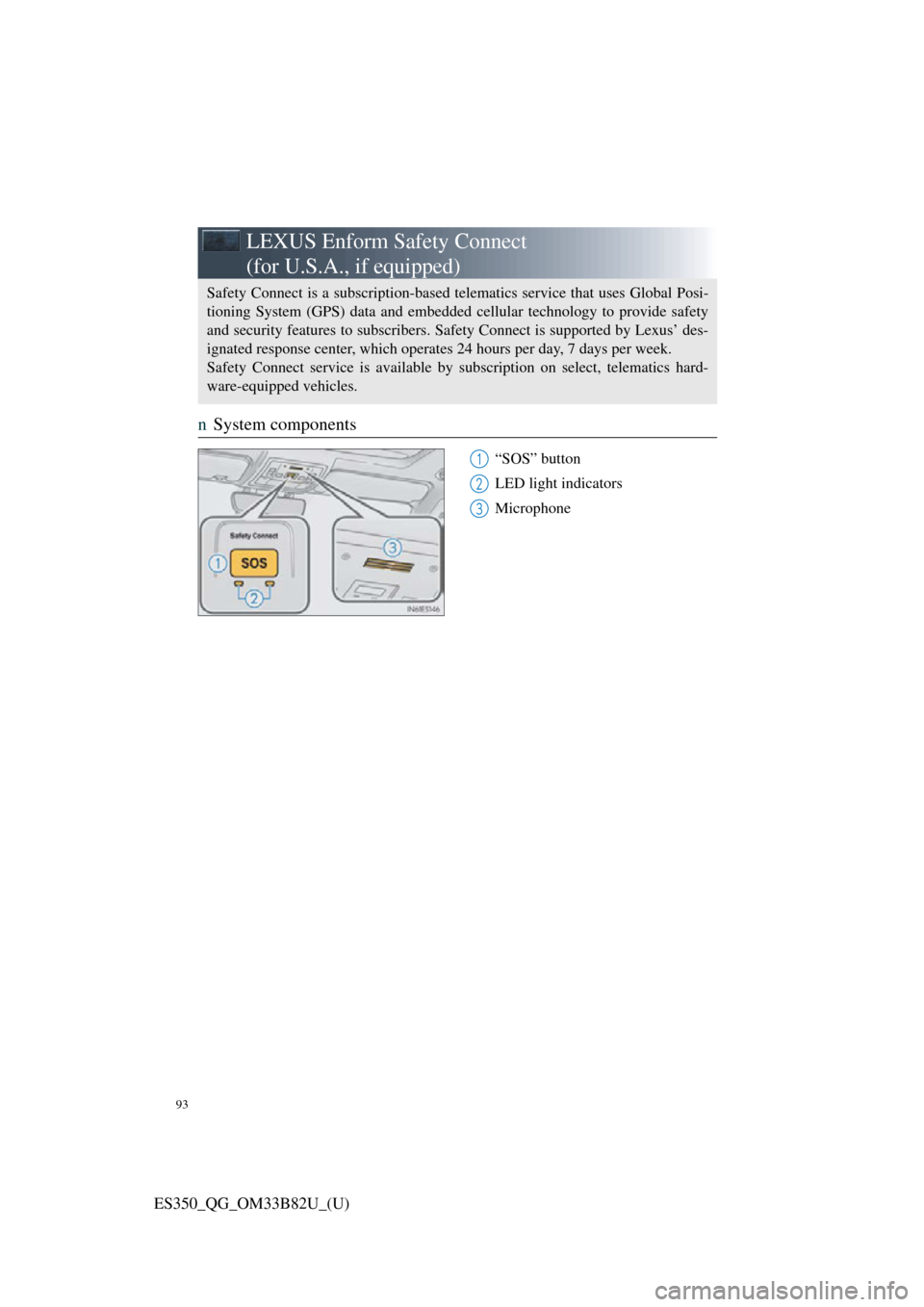
nSystem components
“SOS” button
LED light indicators
Microphone
Safety Connect is a subscription-based te lematics service that uses Global Posi-
tioning System (GPS) data and embedded cellular technology to provide safety
and security features to s ubscribers. Safety Connect is supported by Lexus’ des-
ignated response center, which operates 24 hours per day, 7 days per week.
Safety Connect service is available by subscription on select, telematics hard-
ware-equipped vehicles.
1
2
3
Page 96 of 112
95
ES350_QG_OM33B82U_(U)
LEXUS Enform (for U.S.A., if equipped)
nFunction achieved by using a cellular phone (with navigation system)
n
Services
Of the functions included with Lexus Enform, only LEXUS App Suite can be
achieved by using a cellular phone.
LEXUS App Suite is a service that enables the usable contents of a cellular phone to
be displayed on and operated from the navigation screen. Before LEXUS App Suite
can be used, a few settings need to be performed.
l LEXUS App Suite
When LEXUS App Suite is activated, an application may need to update. By
updating, an application can be kept the latest version. To updating the applica-
tion, it is necessary to download the updated data and install it.
nSubscription
LEXUS App Suite will be available on a trial period included upon purchase of a
new vehicle. User registration is required to start using the service.
When a trial period has elapsed after purchasing a new vehicle, a fee will be
charged to renew the contract. Services re quiring a separate contract can also be
used. For details, refer to http://www.lexus.com/enform/
or call 1-800-255-3987.
n Function achieved by using DCM and the navigation system
(with navigation system)
n
Services
Of the functions included with Lexu s Enform, LEXUS Enform Destinations
(Destination Assist, eDestination), and Le xus Insider can be achieved by making
DCM cooperate with the navigation system.
These are subscription-based telematics se rvices that use Global Positioning System
(GPS) data, embedded cellular technology to provide safety and security as well as
convenience features to subs cribers. The services are supported by Lexus’ desig-
nated response center, which operates 24 hours a day, 7 days a week.
The services are available by subscription on select, telematics hardware-equipped
vehicles.
Lexus Enform is a service that includes Safety Connect, Remote, Destinations,
Insider and App Suite.
For details, refer to the “OWNER’S MANUAL” and “NAVIGATION SYSTEM
OWNER’S MANUAL”.
Page 98 of 112
97
ES350_QG_OM33B82U_(U)
nLEXUS Enform Remote
n
Services
Lexus Enform Remote is a cellular phone application that lets you view and
remotely control certain aspects of your vehicle.
For details about the functions and services of this application, refer to
http://www.lexus.com/enform/
. For further details, contact your Lexus dealer.
Function of the Lexus Enform Remote is achieved by using an embedded cellu-
lar device in the vehicle (DCM: Data Communication Module).
nSubscription
→ P. 9 5
XM Satellite Radio
nSubscription
For XM Services requiring a subscription (such as XM Radio), the following para-
graph shall be included.
Required XM Radio monthly subscription s sold separately after trial period.
Subscription fee is consumer only. All f ees and programming subject to change.
Subscriptions are subject to the Customer Agreement available at
www.siriusxm.com.
(U.S.A.) or www.xmradio.ca (Canada) XM service only
available in the 48 contiguous United States and 10 Canadian provinces.
For more information, program schedules, and to subscribe or extend subscription
after complimentary trial period; more information is available at:
U.S.A. Customers:
Visit www.siriusxm.com
or call 1-877-515-3987
Canadian Customers:
Visit www.xmradio.ca
or call 1-877-438-9677
An XM Satellite Radio is a tuner designe d exclusively to receive broadcasts pro-
vided under a separate subscription.
For details, refer to the “OWNER’S MANUAL” and “NAVIGATION SYSTEM
OWNER’S MANUAL”.