warning LEXUS ES350 2021 Service Manual
[x] Cancel search | Manufacturer: LEXUS, Model Year: 2021, Model line: ES350, Model: LEXUS ES350 2021Pages: 464, PDF Size: 9.61 MB
Page 76 of 464
762-1. Instrument cluster
■Display items
Odometer
Displays the total distance the vehicle has
been driven.
Trip meter A/trip meter B
Displays the distance the vehicle has been
driven since the meter was last reset. Trip
meters A and B can be used to record and
display different distances independently.
Distance until next engine oil change
Displays the distance the vehicle can be
driven until an oil change is necessary.
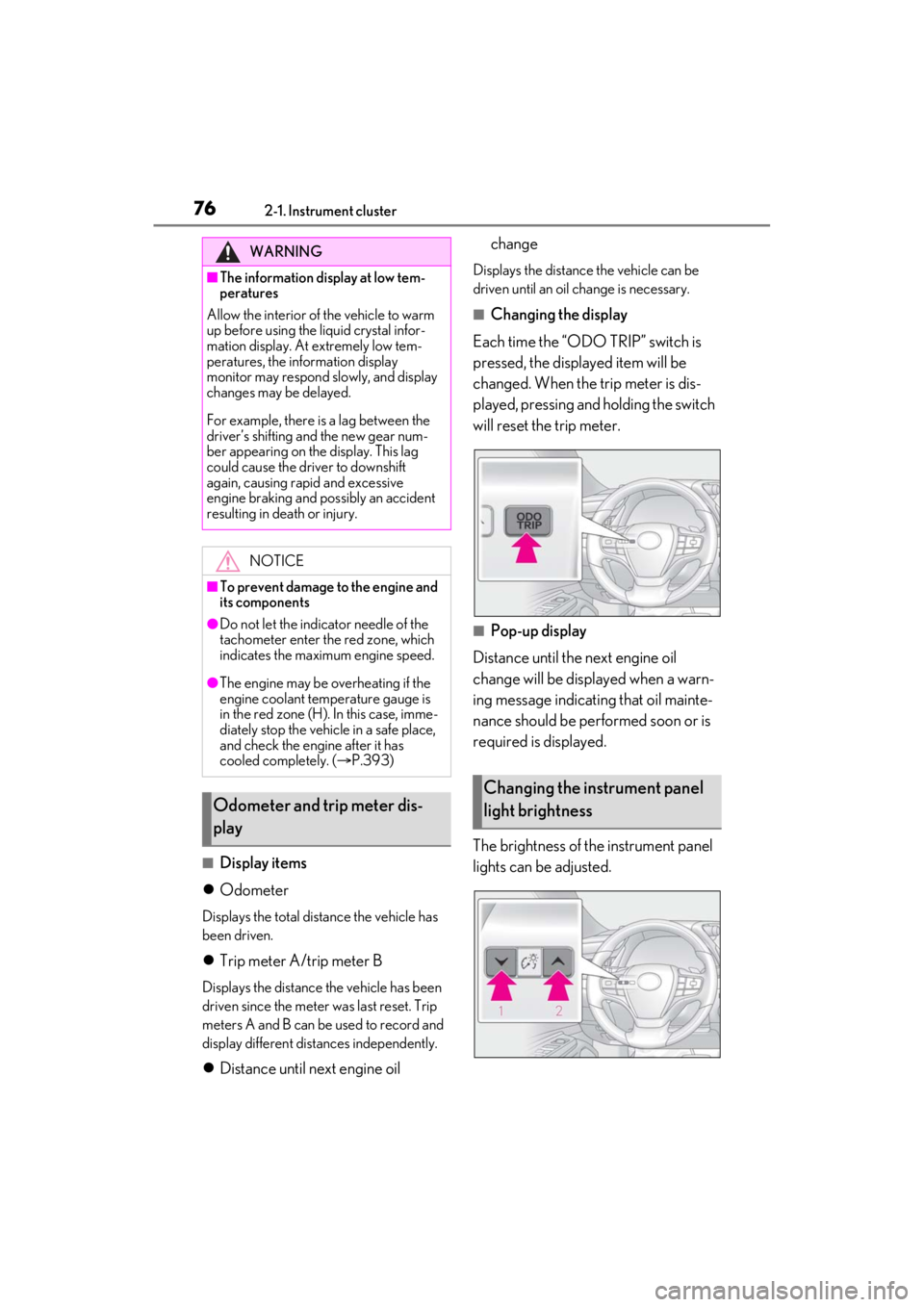
■Changing the display
Each time the “ODO TRIP” switch is
pressed, the displayed item will be
changed. When the trip meter is dis-
played, pressing and holding the switch
will reset the trip meter.
■Pop-up display
Distance until the next engine oil
change will be displayed when a warn-
ing message indicating that oil mainte-
nance should be performed soon or is
required is displayed.
The brightness of the instrument panel
lights can be adjusted.
WARNING
■The information display at low tem-
peratures
Allow the interior of the vehicle to warm
up before using the liquid crystal infor-
mation display. At extremely low tem-
peratures, the in formation display
monitor may respond slowly, and display
changes may be delayed.
For example, there is a lag between the
driver’s shifting and the new gear num-
ber appearing on the display. This lag
could cause the driver to downshift
again, causing rapid and excessive
engine braking and possibly an accident
resulting in death or injury.
NOTICE
■To prevent damage to the engine and
its components
●Do not let the indicator needle of the
tachometer enter the red zone, which
indicates the maximum engine speed.
●The engine may be overheating if the
engine coolant temperature gauge is
in the red zone (H). In this case, imme-
diately stop the vehicle in a safe place,
and check the engine after it has
cooled completely. ( P.393)
Odometer and trip meter dis-
play
Changing the instrument panel
light brightness
Page 77 of 464
772-1. Instrument cluster
2
Vehicle status information and indicators
1Darker
2 Brighter
■Brightness of the mete r lights (day mode
and night mode)
The brightness of the meter lights can be
adjusted individually.
In the following situations, the meters
changes between day mode and night
mode.
●Day mode: When the tail lights are off or
when the tail lights are on but the sur-
rounding area is bright
●Night mode: When the tail lights are on
and the surrounding area is dark
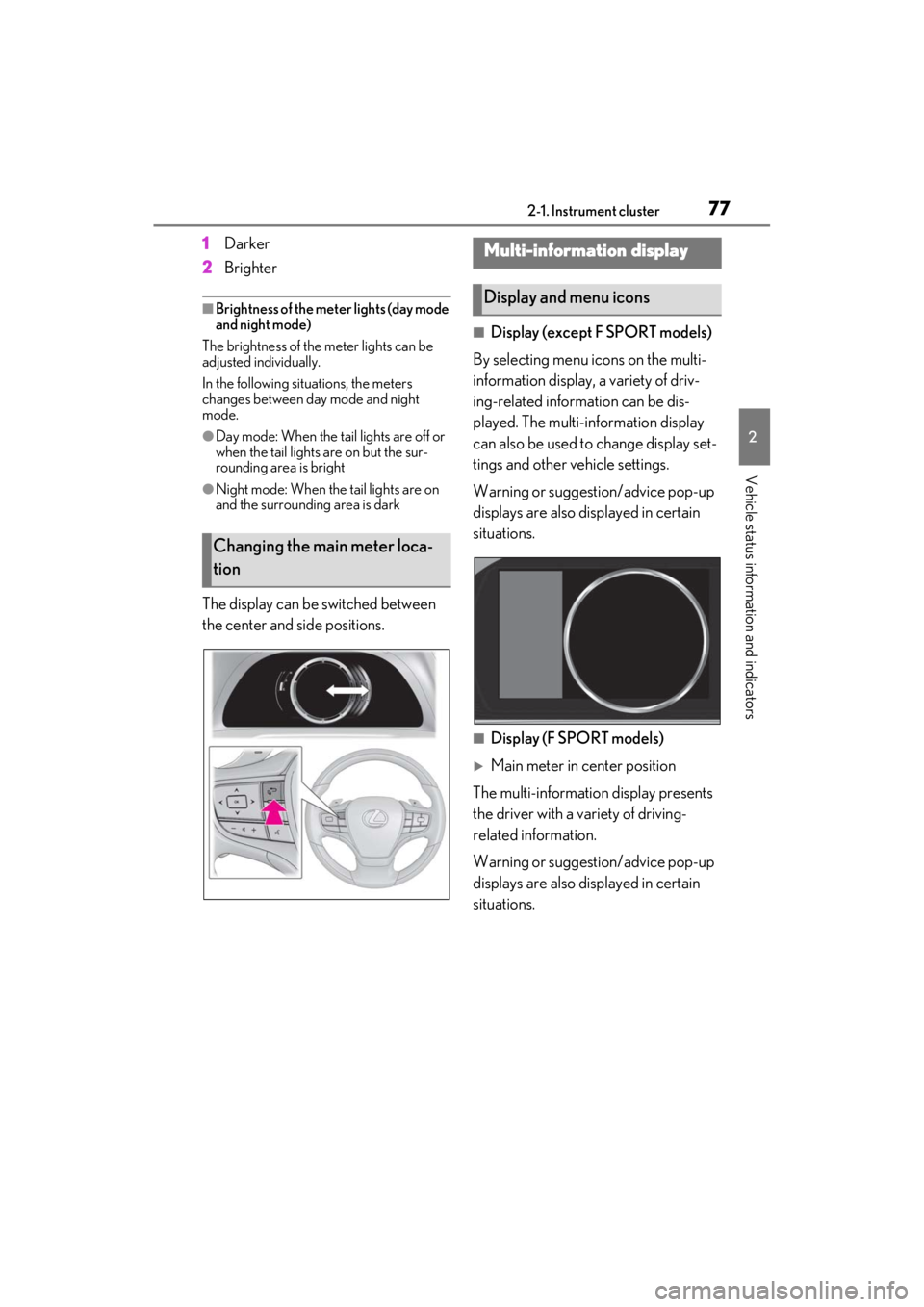
The display can be switched between
the center and side positions.
■Display (except F SPORT models)
By selecting menu icons on the multi-
information display, a variety of driv-
ing-related information can be dis-
played. The multi-information display
can also be used to change display set-
tings and other vehicle settings.
Warning or suggestion/advice pop-up
displays are also displayed in certain
situations.
■Display (F SPORT models)
Main meter in center position
The multi-informatio n display presents
the driver with a variety of driving-
related information.
Warning or suggestion/advice pop-up
displays are also displayed in certain
situations.
Changing the main meter loca-
tion
Multi-information display
Display and menu icons
Page 78 of 464
782-1. Instrument cluster
Main meter moved to the right
By selecting menu icons on the multi-
information display, a variety of driv-
ing-related information can be dis-
played. The multi-information display
can also be used to change display set-
tings and other vehicle settings.
Warning or suggestion/advice pop-up
displays are also displayed in certain
situations.
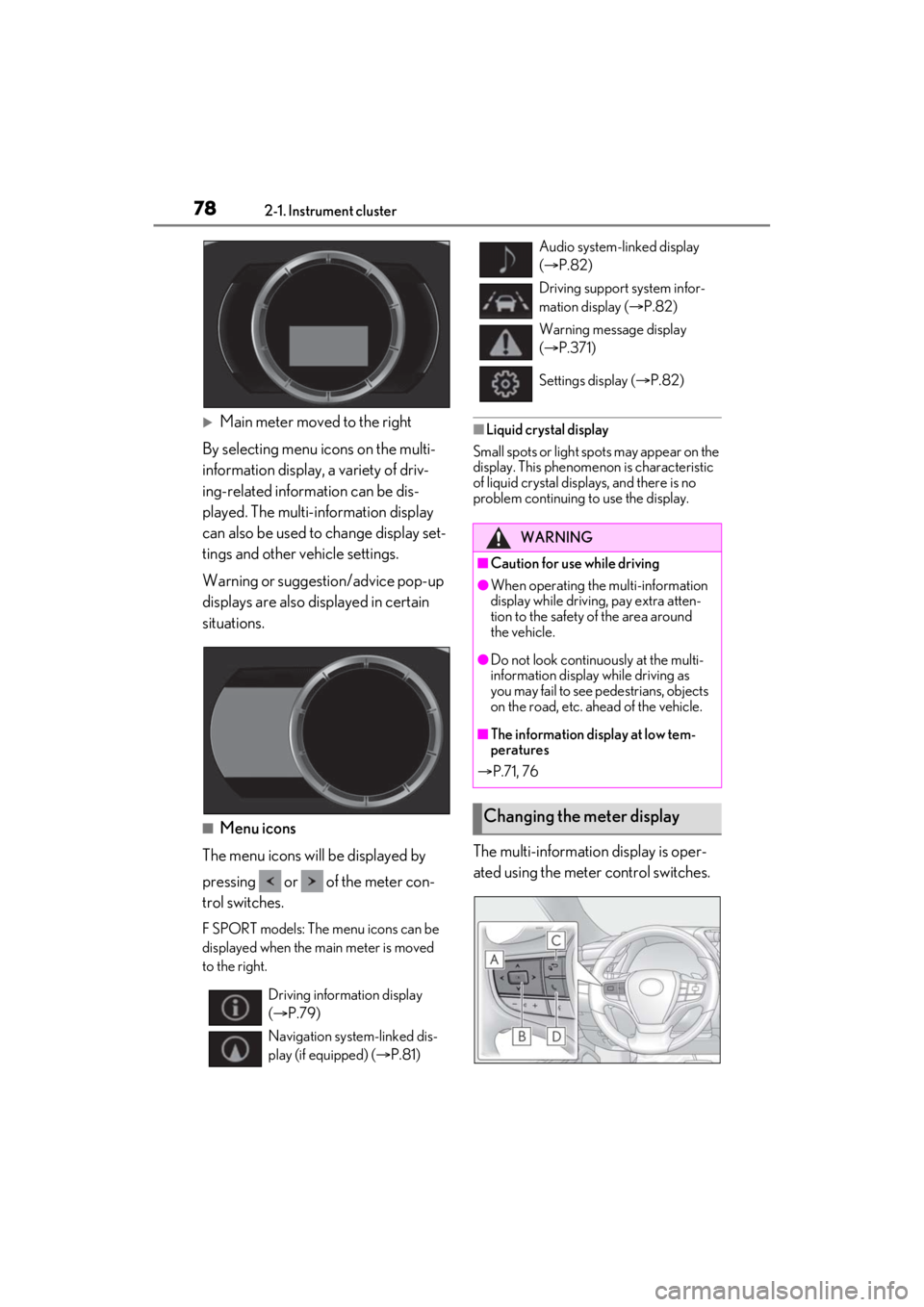
■Menu icons
The menu icons will be displayed by
pressing or of the meter con-
trol switches.
F SPORT models: The menu icons can be
displayed when the ma in meter is moved
to the right.
■Liquid crystal display
Small spots or light sp ots may appear on the
display. This phenomenon is characteristic
of liquid crystal disp lays, and there is no
problem continuing to use the display.
The multi-information display is oper-
ated using the meter control switches.
Driving information display
( P.79)
Navigation system-linked dis-
play (if equipped) ( P.81)
Audio system-linked display
( P.82)
Driving support system infor-
mation display ( P.82)
Warning message display
( P.371)
Settings display ( P.82)
WARNING
■Caution for use while driving
●When operating the multi-information
display while drivin g, pay extra atten-
tion to the safety of the area around
the vehicle.
●Do not look continuously at the multi-
information display while driving as
you may fail to see pedestrians, objects
on the road, etc. ahead of the vehicle.
■The information display at low tem-
peratures
P.71, 76
Changing the meter display
Page 82 of 464
822-1. Instrument cluster
Select to enable selection of an audio
source or track on the meter using the
meter control switches.
Select to display the operational status
of the following systems:
LTA (Lane Tracing Assist)
( P.184)
Dynamic radar cruise control with
full-speed range ( P.195)
RSA (Road Sign Assist) (if
equipped) ( P.193)
■Meter display settings that can be
changed
Language
Select to change th e language displayed.
Units
Select to change the units of measure dis-
played.
Speedometer display (except F
SPORT models)
Select to set the display of the speedome-
ter to digital or analog.
Drive information 1/Drive informa-
tion 2
Select to select up to 2 items ( P.79) that
will be displayed on ea ch Drive information
screen (Drive information 1 screen and
Drive information 2 sc reen) respectively.
Clock
Select to switch between 12-hour display
and 24-hour display.
Pop-up display
Select to enable/disab le some pop-up dis-
plays for each relevant system.
Accent color
Select to change the accent color on the
screen, such as the cursor color.
Rev indicator (F SPORT models)
• Select to enable/disable the rev indica-
tor.
• Select to set the engine speed at which the rev indicator (amber) will begin to be
displayed.
Rev peak (F SPORT models)
Select to enable/disable the rev peak.
Eco Driving Indicator Light
Select to enable/disable the Eco Driving
Indicator Light.
Default setting
Select to reset the meter display settings to
the default setting.
■Vehicle functions and settings that
can be changed
P.419
■Suspension of the settings display
●Some settings cannot be changed while
driving. When changing settings, park
the vehicle in a safe place.
●If a warning message is displayed, opera-
tion of the settings display will be sus-
pended.
Audio system-linked display
Driving support system informa-
tion display
Settings display
Page 83 of 464
832-1. Instrument cluster
2
Vehicle status information and indicators
Displays suggestions to the driver in
the following situations. To select a
response to a displayed suggestion,
use the meter control switches.
■Suggestion to turn off the head-
lights
If the headlights are left on for a certain
amount of time with the headlight
switch in after the engine switch
has been turned off, a suggestion mes-
sage will be displayed asking if you
wish to turn the headlights off.
To turn the headlights off, select “Yes”.
If a front door is op ened after the engine
switch is turned off, this suggestion mes-
sage will not be displayed.
■Customization
Some functions can be customized.
( P.419)
WARNING
■Cautions during setting up the dis-
play
As the engine needs to be running
during setting up the display, ensure that
the vehicle is parked in a place with ade-
quate ventilation. In a closed area such as
a garage, exhaust gases including harm-
ful carbon monoxide (CO) may collect
and enter the vehicle. This may lead to
death or a serious health hazard.
NOTICE
■During setting up the display
To prevent battery discharge, ensure
that the engine is running while setting up
the display features.
Suggestion function
Page 85 of 464
852-1. Instrument cluster
2
Vehicle status information and indicators
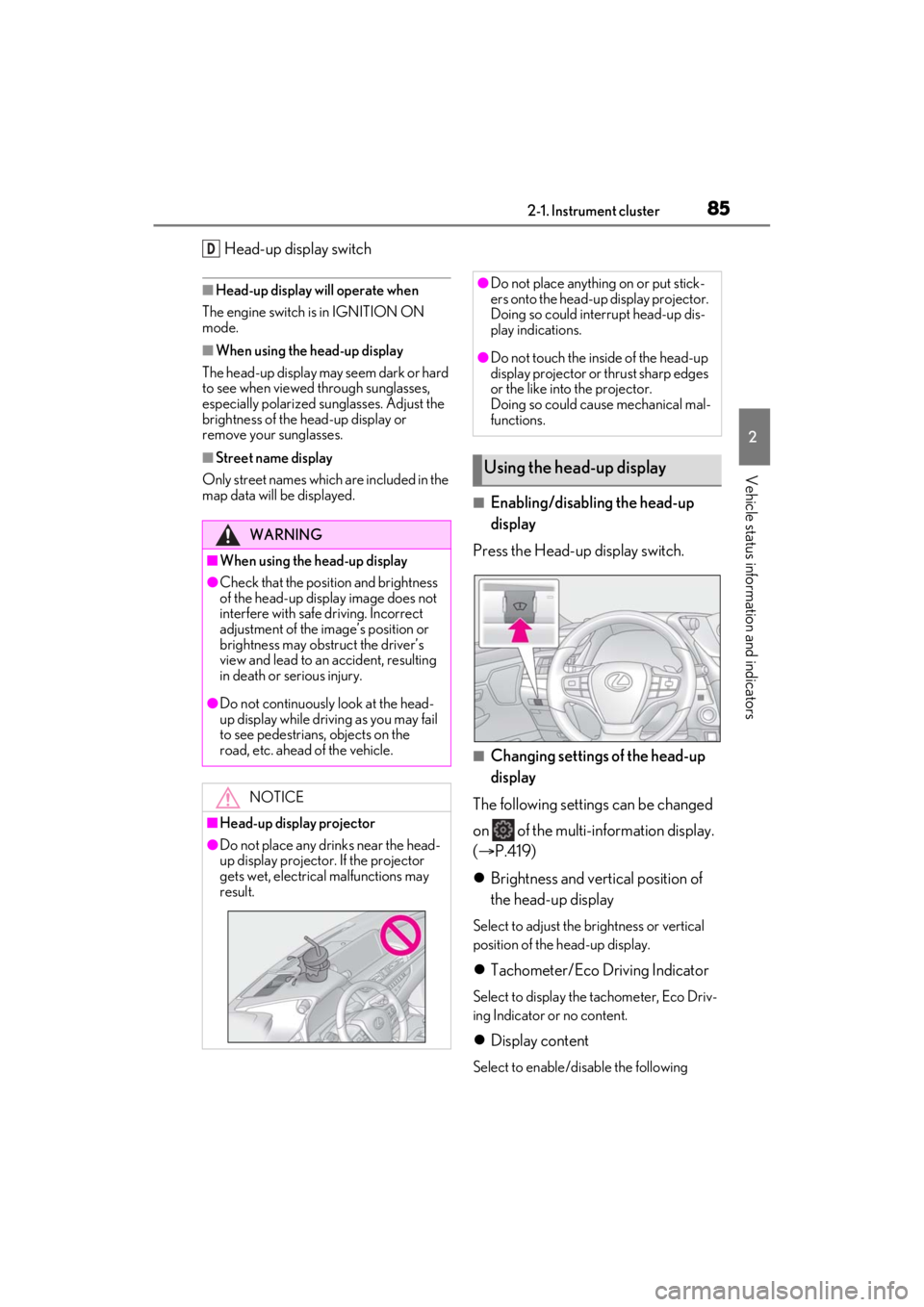
Head-up display switch
■Head-up display will operate when
The engine switch is in IGNITION ON
mode.
■When using the head-up display
The head-up display may seem dark or hard
to see when viewed through sunglasses,
especially polarized su nglasses. Adjust the
brightness of the head-up display or
remove your sunglasses.
■Street name display
Only street names whic h are included in the
map data will be displayed.
■Enabling/disabling the head-up
display
Press the Head-up display switch.
■Changing settings of the head-up
display
The following settings can be changed
on of the multi-information display.
( P.419)
Brightness and vert ical position of
the head-up display
Select to adjust the brightness or vertical
position of the head-up display.
Tachometer/Eco Driving Indicator
Select to display the tachometer, Eco Driv-
ing Indicator or no content.
Display content
Select to enable/disable the following
D
WARNING
■When using the head-up display
●Check that the position and brightness
of the head-up display image does not
interfere with safe driving. Incorrect
adjustment of the image’s position or
brightness may obstruct the driver’s
view and lead to an accident, resulting
in death or serious injury.
●Do not continuously look at the head-
up display while driving as you may fail
to see pedestrians, objects on the
road, etc. ahead of the vehicle.
NOTICE
■Head-up display projector
●Do not place any drinks near the head-
up display projector. If the projector
gets wet, electrical malfunctions may
result.
●Do not place anything on or put stick-
ers onto the head-up display projector.
Doing so could interrupt head-up dis-
play indications.
●Do not touch the inside of the head-up
display projector or thrust sharp edges
or the like into the projector.
Doing so could cause mechanical mal-
functions.
Using the head-up display
Page 86 of 464
862-1. Instrument cluster
items:
• Route guidance to destination/street
name
• Driving support system display
*
• Compass (heading-up display)
• Audio system operation status
*: Make sure to enable this display when using the driving support systems
Display angle
Select to adjust the angle of the head-up
display.
■Enabling/disabling of the head-up dis-
play
If the head-up display is disabled, it will
remain disabled when the engine switch is
turned off then back to IGNITION ON
mode.
■Display brightness
The brightness of the head-up display can
be adjusted on of the multi-information
display. Also, it is automatically adjusted
according to the ambient brightness.
■Head-up display automatic position
adjustment
If the display position is recorded into mem-
ory, the head-up display will be automati-
cally adjusted to the desired position.
( P.114)
■When the battery is disconnected
The customize settings of the head-up dis-
play will be reset.
Displays the operational status of the
following systems:
LTA (Lane Tracing Assist)
( P.184)
Dynamic radar cruise control with
full-speed range ( P.195)
Details of content displayed on the head-
up display may differ from that displayed
on the multi-inform ation display. For
details, refer to the explanation of each sys-
tem.
Pop-up displays for the following sys-
tems will be displayed when necessary.
WARNING
■Caution for changing settings of the
head-up display
As the engine needs to be running while
changing the settings of the head-up dis-
play, ensure that the vehicle is parked in a
place with adequate ventilation. In a
closed area such as a garage, exhaust
gases including harmful carbon monox-
ide (CO) may collect and enter the vehi-
cle. This may lead to death or a serious
health hazard.
NOTICE
■When changing the settings of the
head-up display
To prevent battery discharge, ensure
that the engine is running while the
changing the settings of the head-up dis-
play.
Driving support system display
area
Pop-up display
Page 87 of 464
872-1. Instrument cluster
2
Vehicle status information and indicators
■Driving support systems
Displays a warning/suggestion/advice
message or the operating state of a rel-
evant system.
PCS (Pre-Collision System)
( P.177)
Intuitive parking assist (if equipped)
( P.213)
Parking Support Brake function
(static objects) (if equipped)
( P.233)
Brake Override System ( P.134)
Drive-Start Control ( P.135)
Details of content di splayed on the head-
up display may differ from that displayed
on the multi-information display. For
details, refer to the explanation of each sys-
tem.
■/ icons
These icons are linked to the multi-
information display
: Master warning icon
Displayed when a warning message is dis-
played on the multi-information display.
( P.371)
: Information icon
Displayed when a suggestion pop-up dis-
play ( P.83) or advice pop-up display is
displayed on the multi-information display.
■Warning message
Some warning messages are displayed
when necessary, according to certain
conditions.
Details of content di splayed on the head-
up display may differ from that displayed
on the multi-information display.
■Audio system operation status
Displayed when an audio remote con-
trol switch on the steering wheel is
operated.
■Hands-free system status
Displayed when the hands-free system
is operated.
■When a pop-up display is displayed
When a pop-up display is displayed, a cur-
rent display may no long er be displayed. In
this case, the display will return after the
pop-up display disappears.
■Tachometer
Displays the engine speed in revolu-
tions per minute.
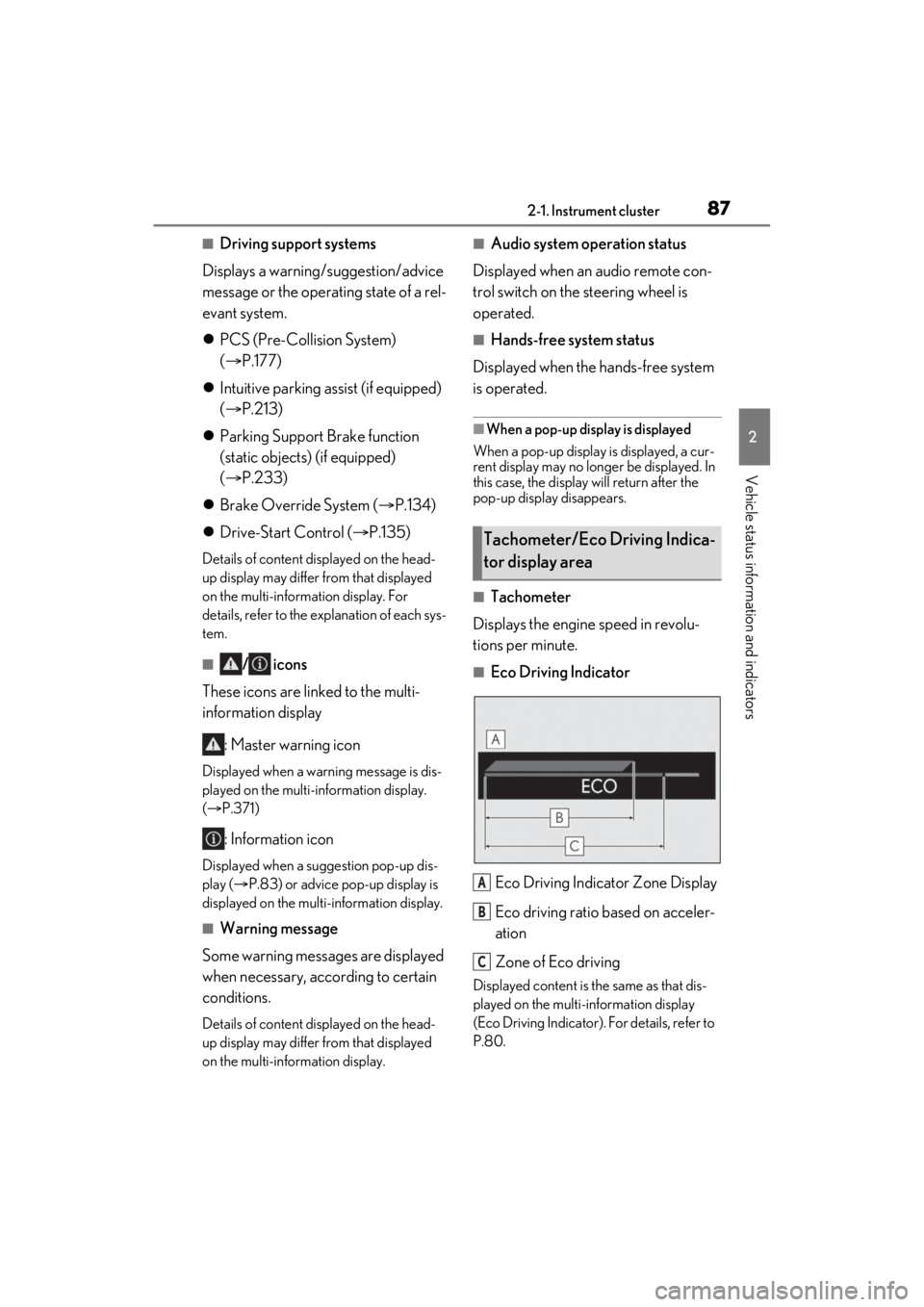
■Eco Driving Indicator
Eco Driving Indicator Zone Display
Eco driving ratio based on acceler-
ation
Zone of Eco driving
Displayed content is th e same as that dis-
played on the multi-information display
(Eco Driving Indicator). For details, refer to
P.80.
Tachometer/Eco Driving Indica-
tor display area
A
B
C
Page 96 of 464
963-2. Opening, closing and locking the doors and trunk
To prevent unintended triggering of the
alarm, unlock the doors using the wireless
remote control and open and close a door
once after the settings have been changed.
(If a door is not opened within 60 seconds
after is pressed, the doors will be
locked again and the alarm will automati-
cally be set.)
In a case that the alarm is triggered, imme-
diately stop the alarm. (P.63)
■Impact detection door lock release sys-
tem
In the event that the vehicle is subject to a
strong impact, all the doors are unlocked.
Depending on the force of the impact or the
type of accident, however, the system may
not operate.
■Operation signals
A buzzer sounds and the emergency flash-
ers flash to indicate that the doors have
been locked/unlocked. (Locked: once;
Unlocked: twice)
Windows and moon roof (if equipped) or
panoramic moon roof (if equipped): A
buzzer sounds to indicate that the windows
and moon roof or panoramic moon roof are
opening.
■Security feature
If a door is not opened within approximately
60 seconds after the vehicle is unlocked,
the security feature automatically locks the
vehicle again. (However, depending on the
location of the electronic key, the key may
be detected as being in the vehicle. In this
case, vehicle may be unlocked.)
■When the doors cannot be locked by
the lock sensor on the upper part of the
door handle
When the doors cannot be locked even if
the lock sensor on the surface of the door
handle is touched by a finger, touch the lock
sensor with the palm.
If you are wearing gloves, remove them.
■Open door warning buzzer
If an attempt to lock the doors is made when
a door is not fully closed, a buzzer sounds
continuously for 5 seconds. Fully close the
door to stop the buzzer, and lock the vehi-
cle once more.
■Setting the alarm
Locking the doors will set the alarm system.
( P.63)
■Conditions affecting the operation of
the smart access system with push-but-
ton start or wireless remote control
P.108
■If the smart access system with push-
button start or the wireless remote con-
trol does not operate properly
Use the mechanical key to lock and unlock
the doors. ( P.387)
Replace the key battery with a new one if it
is depleted. ( P.341)
■If the battery is discharged
The doors cannot be locked and unlocked
using the smart access system with push-
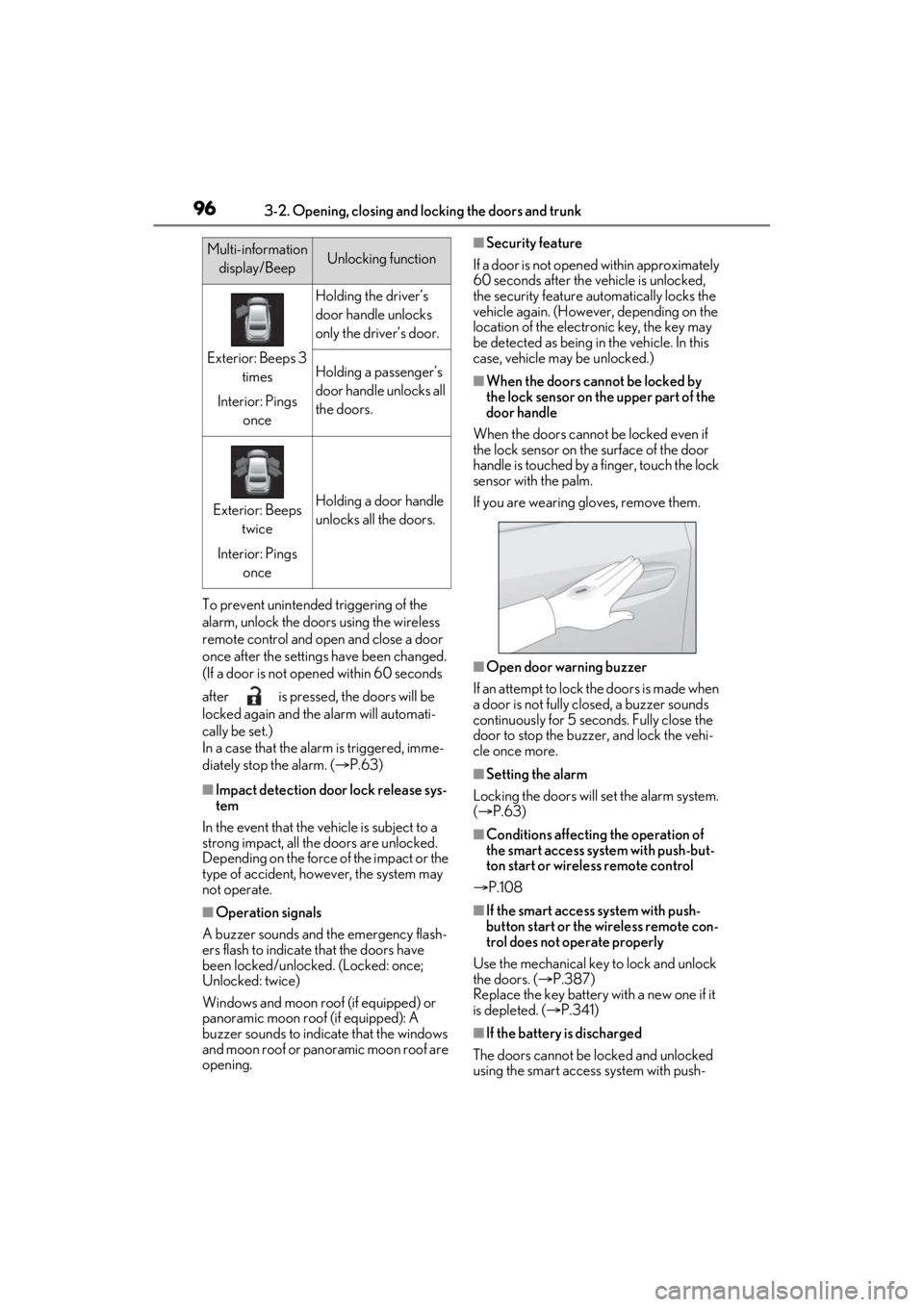
Multi-information display/BeepUnlocking function
Exterior: Beeps 3 times
Interior: Pings once
Holding the driver’s
door handle unlocks
only the driver’s door.
Holding a passenger’s
door handle unlocks all
the doors.
Exterior: Beeps twice
Interior: Pings onceHolding a door handle
unlocks all the doors.
Page 97 of 464
973-2. Opening, closing and locking the doors and trunk
3
Before driving
button start or wireless remote control.
Lock or unlock the doors using the
mechanical key. (P.387)
■Customization
Settings (e.g. unloc king function using a
key) can be changed.
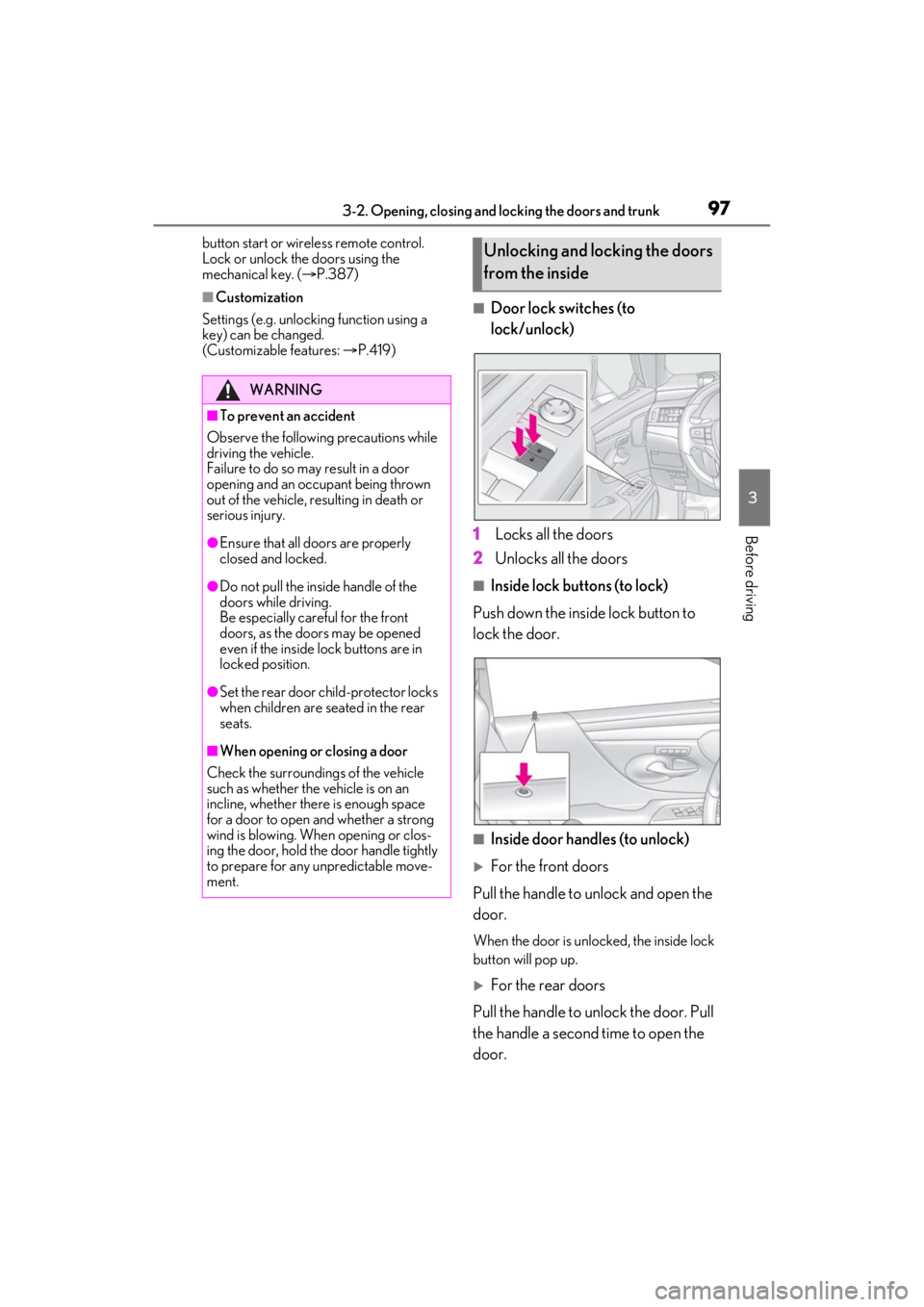
(Customizable features: P.419)■Door lock switches (to
lock/unlock)
1 Locks all the doors
2 Unlocks all the doors
■Inside lock buttons (to lock)
Push down the inside lock button to
lock the door.
■Inside door handles (to unlock)
For the front doors
Pull the handle to unlock and open the
door.
When the door is unlo cked, the inside lock
button will pop up.
For the rear doors
Pull the handle to unlock the door. Pull
the handle a second time to open the
door.
WARNING
■To prevent an accident
Observe the following precautions while
driving the vehicle.
Failure to do so may result in a door
opening and an occupant being thrown
out of the vehicle, re sulting in death or
serious injury.
●Ensure that all doors are properly
closed and locked.
●Do not pull the inside handle of the
doors while driving.
Be especially care ful for the front
doors, as the door s may be opened
even if the inside lock buttons are in
locked position.
●Set the rear door ch ild-protector locks
when children are seated in the rear
seats.
■When opening or closing a door
Check the surroundings of the vehicle
such as whether the vehicle is on an
incline, whether ther e is enough space
for a door to open and whether a strong
wind is blowing. When opening or clos-
ing the door, hold the door handle tightly
to prepare for any unpredictable move-
ment.
Unlocking and locking the doors
from the inside