Disp Lexus GS250 2012 Owners Manual
[x] Cancel search | Manufacturer: LEXUS, Model Year: 2012, Model line: GS250, Model: Lexus GS250 2012Pages: 914, PDF Size: 53.04 MB
Page 350 of 914
3434-5. Using the driving support
4
Driving
GS350/250_EE (OM30C36E)
PCS (Pre-Crash Safety system)
Pre-crash seat belts (front seat only)
If the pre-crash sensor detects that a collision is unavoidable, the
pre-crash safety system will retract the seat belt before the colli-
sion occurs.
The same will happen if the driver makes an emergency braking
or loses control of the vehicle. (P. 40)
Pre-crash brake assist
When there is a high possibility of a frontal collision, the system
applies greater braking force in relation to how strongly the
brake pedal is depressed.
Pre-crash braking
When there is a high possibility of a frontal collision, the system
warns the driver using a warning light, warning display and
buzzer. If the system determines that a collision is unavoidable,
the brakes are automatically applied to reduce the collision
speed.
: If equipped
When the radar sensor detects that a frontal collision is highly
likely or even unavoidable, safety systems such as the brakes and
seat belts are automatically engaged to lessen impact as well as
vehicle damage.
The pre-crash safety system can be turned on and off as necessary
by operating the switch. (P. 344)
Page 355 of 914

3484-5. Using the driving support
GS350/250_EE (OM30C36E)
Situations in which the pre-crash safety system does not function properly
The system may not function effectively in situations such as the following:
On roads with sharp bends or uneven surfaces
If a vehicle suddenly moves in front of your vehicle, such as at an intersec-
tion
If a vehicle suddenly cuts in front of your vehicle, such as when overtaking
In inclement weather such as heavy rain, fog, snow or sand storms
When your vehicle is skidding such as the VSC system off
When your vehicle is steeply inclined
Automatic cancelation of the pre-crash safety system
When a malfunction occurs due to sensor contamination, etc. that results in
the sensors being unable to detect obstacles, the pre-crash safety system will
be automatically disabled. In this case, the system will not activate even if
there is a collision possibility.
When there is a malfunction in the system
“PCS” warning light will flash and warning messages will be displayed.
(P. 751, 759)
Page 364 of 914

3574-5. Using the driving support
4
Driving
GS350/250_EE (OM30C36E)
Conditions under which the Blind Spot Monitor system may not function cor-
rectly
The Blind Spot Monitor system may not detect vehicles correctly in the fol-
lowing conditions:
• During bad weather such as heavy rain, fog, snow etc.
• When ice or mud etc. is attached to the rear bumper
• When driving on a road surface that is wet due to rain, standing water
etc.
• When there is a significant difference in speed between your vehicle and
the vehicle that enters the detection area
• When a vehicle is in the detection area from a stop and remains in the
detection area as your vehicle accelerates
• When driving up or down consecutive steep inclines, such as hills, a dip
in the road etc.
• When multiple vehicles approach with only a small gap between each
vehicle
• When vehicle lanes are wide, and the vehicle in the next lane is too far
away from your vehicle
• When the vehicle that enters the detection area is traveling at about the
same speed as your vehicle
• When there is a significant difference in height between your vehicle and
the vehicle that enters the detection area
• Directly after the BSM switch is set to on
• When your vehicle is towing a trailer
Instances of the Blind Spot Monitor unnecessarily detecting a vehicle and/
or object may increase under the following conditions:
• When there is only a short distance between your vehicle and a guardrail,
wall etc.
• When there is only a short distance between your vehicle and a following
vehicle
• When vehicle lanes are narrow and a vehicle driving 2 lanes across from
your vehicle enters the detection area
The outside rear view mirror indicators visibility
When under strong sunlight, the outside rear view mirror indicator may be
difficult to see.
When there is a malfunction in the system
If a system malfunction is detected due to any of the following reasons,
warning messages will be displayed: (P. 762, 768)
There is a malfunction with the sensors
The sensors have become dirty
Page 378 of 914
3685-1. Remote Touch screen
GS350/250_EE (OM30C36E)
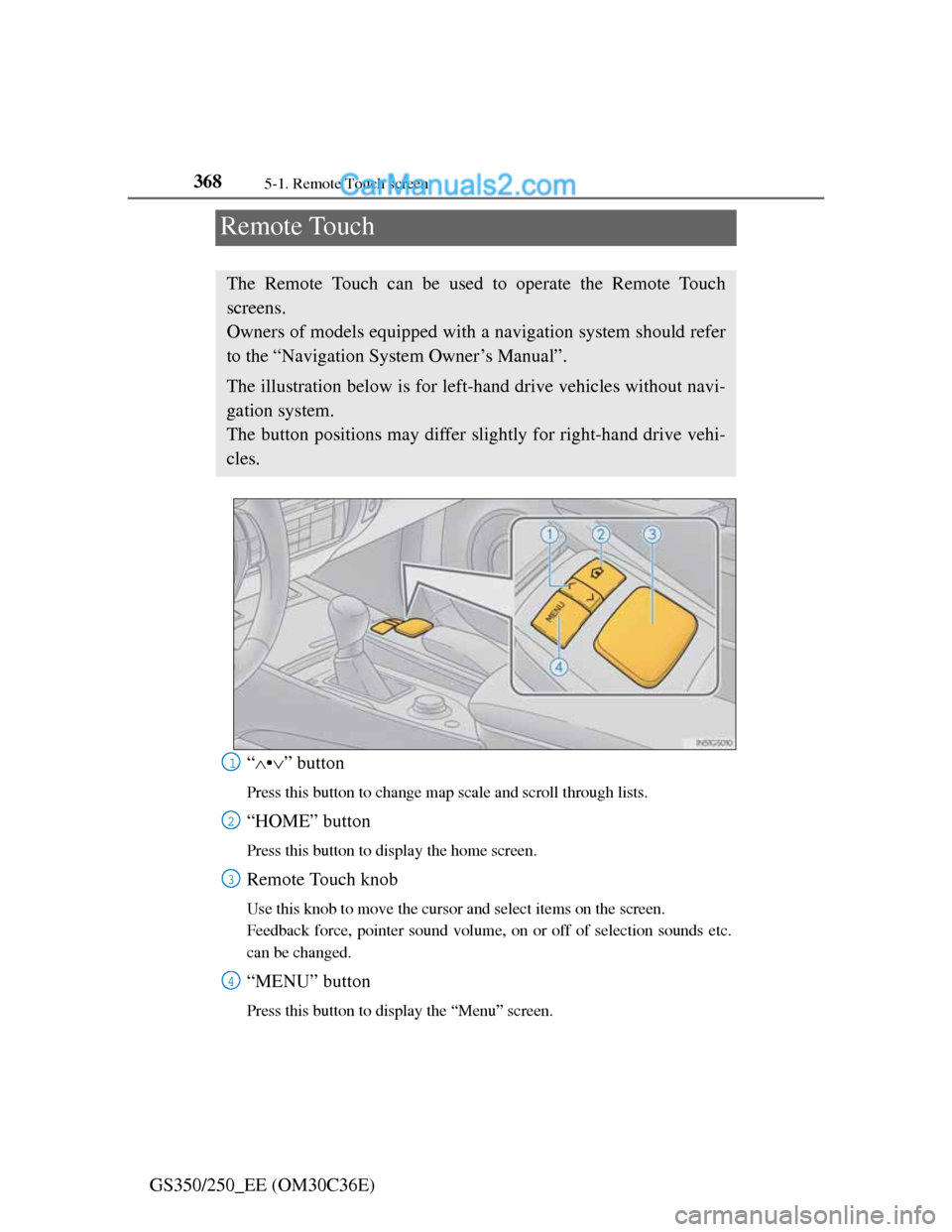
Remote Touch
“•” button
Press this button to change map scale and scroll through lists.
“HOME” button
Press this button to display the home screen.
Remote Touch knob
Use this knob to move the cursor and select items on the screen.
Feedback force, pointer sound volume, on or off of selection sounds etc.
can be changed.
“MENU” button
Press this button to display the “Menu” screen.
The Remote Touch can be used to operate the Remote Touch
screens.
Owners of models equipped with a navigation system should refer
to the “Navigation System Owner’s Manual”.
The illustration below is for left-hand drive vehicles without navi-
gation system.
The button positions may differ slightly for right-hand drive vehi-
cles.
1
2
3
4
Page 380 of 914
3705-1. Remote Touch screen
GS350/250_EE (OM30C36E)
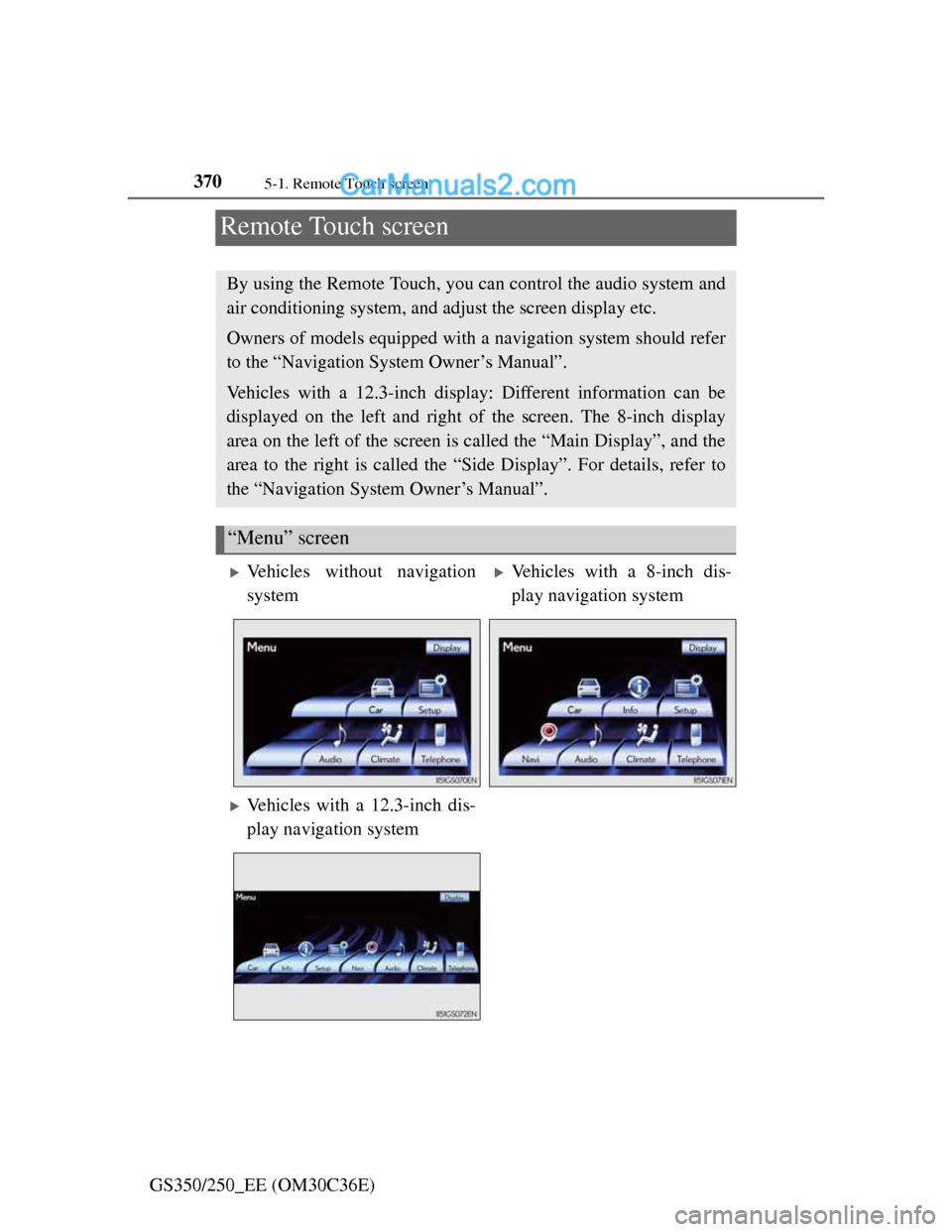
Remote Touch screen
By using the Remote Touch, you can control the audio system and
air conditioning system, and adjust the screen display etc.
Owners of models equipped with a navigation system should refer
to the “Navigation System Owner’s Manual”.
Vehicles with a 12.3-inch display: Different information can be
displayed on the left and right of the screen. The 8-inch display
area on the left of the screen is called the “Main Display”, and the
area to the right is called the “Side Display”. For details, refer to
the “Navigation System Owner’s Manual”.
“Menu” screen
Vehicles without navigation
systemVehicles with a 8-inch dis-
play navigation system
Vehicles with a 12.3-inch dis-
play navigation system
Page 381 of 914
3715-1. Remote Touch screen
5
Interior features
GS350/250_EE (OM30C36E)If the engine switch is turned to
ACCESSORY or IGNITION
ON mode, the initial screen will
be displayed for a few seconds as
the system starts up.
Images shown on the initial screen
can be changed to suit individual
preferences. (P. 389)
SwitchPage
“Car”P. 3 7 8
“Info”Navigation System Owner’s Manual
“Setup”P. 3 8 2
“Navi”Navigation System Owner’s Manual
“Audio”P. 432, 467
“Climate”P. 4 0 9
“Telephone”P. 5 4 2
“Display”P. 3 7 2
Initial screen
Page 382 of 914
3725-1. Remote Touch screen
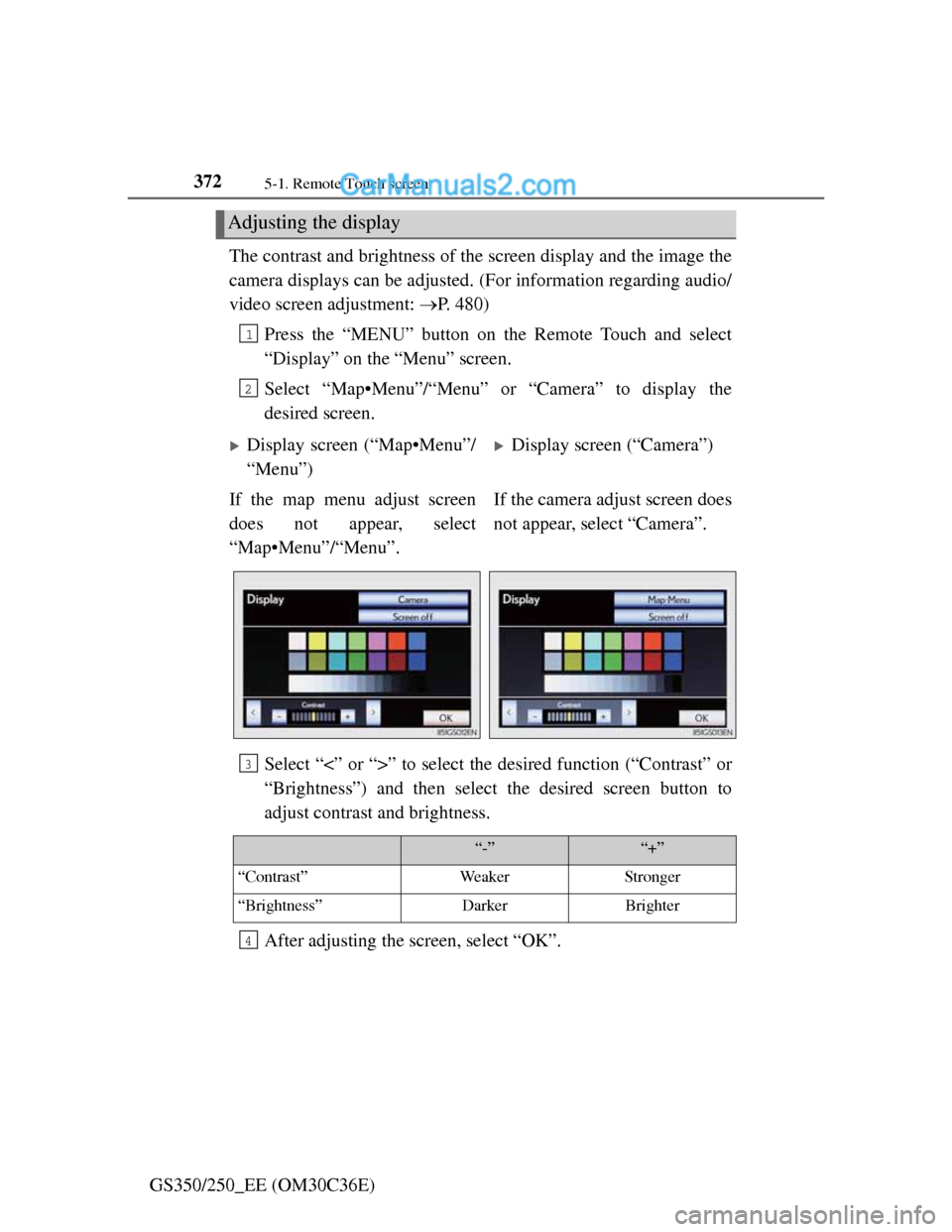
GS350/250_EE (OM30C36E)The contrast and brightness of the screen display and the image the
camera displays can be adjusted. (For information regarding audio/
video screen adjustment: P. 480)
Press the “MENU” button on the Remote Touch and select
“Display” on the “Menu” screen.
Select “Map•Menu”/“Menu” or “Camera” to display the
desired screen.
Select “<” or “>” to select the desired function (“Contrast” or
“Brightness”) and then select the desired screen button to
adjust contrast and brightness.
After adjusting the screen, select “OK”.
Adjusting the display
1
2
Display screen (“Map•Menu”/
“Menu”)Display screen (“Camera”)
If the map menu adjust screen
does not appear, select
“Map•Menu”/“Menu”.If the camera adjust screen does
not appear, select “Camera”.
3
“-”“+”
“Contrast”WeakerStronger
“Brightness”DarkerBrighter
4
Page 383 of 914
3735-1. Remote Touch screen
5
Interior features
GS350/250_EE (OM30C36E)
To avoid damaging the Remote Touch screen
Remove any dirt on the screen by wiping with a soft cloth. Do not use deter-
gent.
When using the Remote Touch screen
If the screen is cold, the display may be dark, or the system may seem to be
operating slightly slower than normal.
When the screen is viewed through polarized sunglasses, a rainbow pattern
may appear on the screen due to optical characteristics of the screen. If this
is disturbing, please operate the screen without polarized sunglasses.
Dimmed screen buttons cannot be operated.
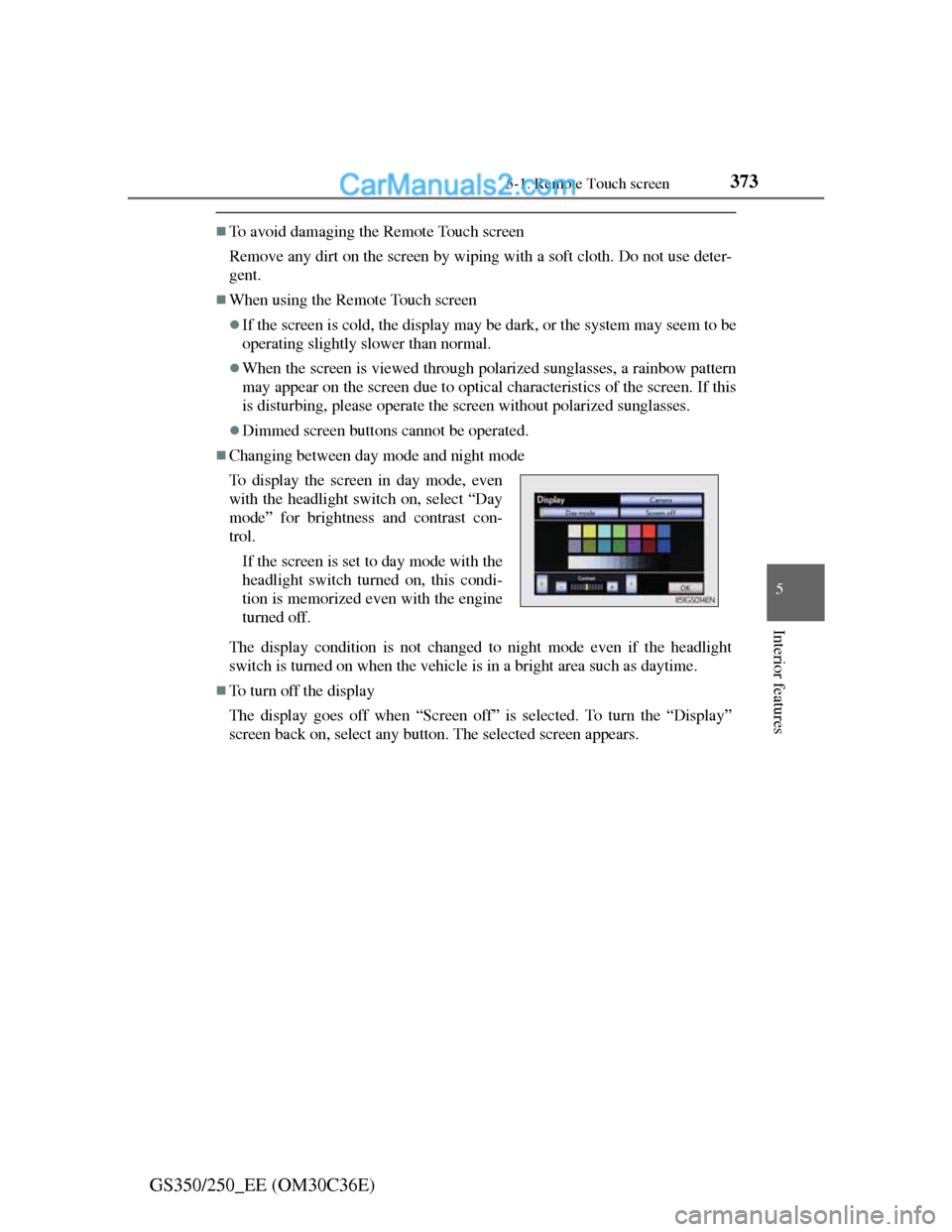
Changing between day mode and night mode
The display condition is not changed to night mode even if the headlight
switch is turned on when the vehicle is in a bright area such as daytime.
To turn off the display
The display goes off when “Screen off” is selected. To turn the “Display”
screen back on, select any button. The selected screen appears. To display the screen in day mode, even
with the headlight switch on, select “Day
mode” for brightness and contrast con-
trol.
If the screen is set to day mode with the
headlight switch turned on, this condi-
tion is memorized even with the engine
turned off.
Page 384 of 914
3745-1. Remote Touch screen
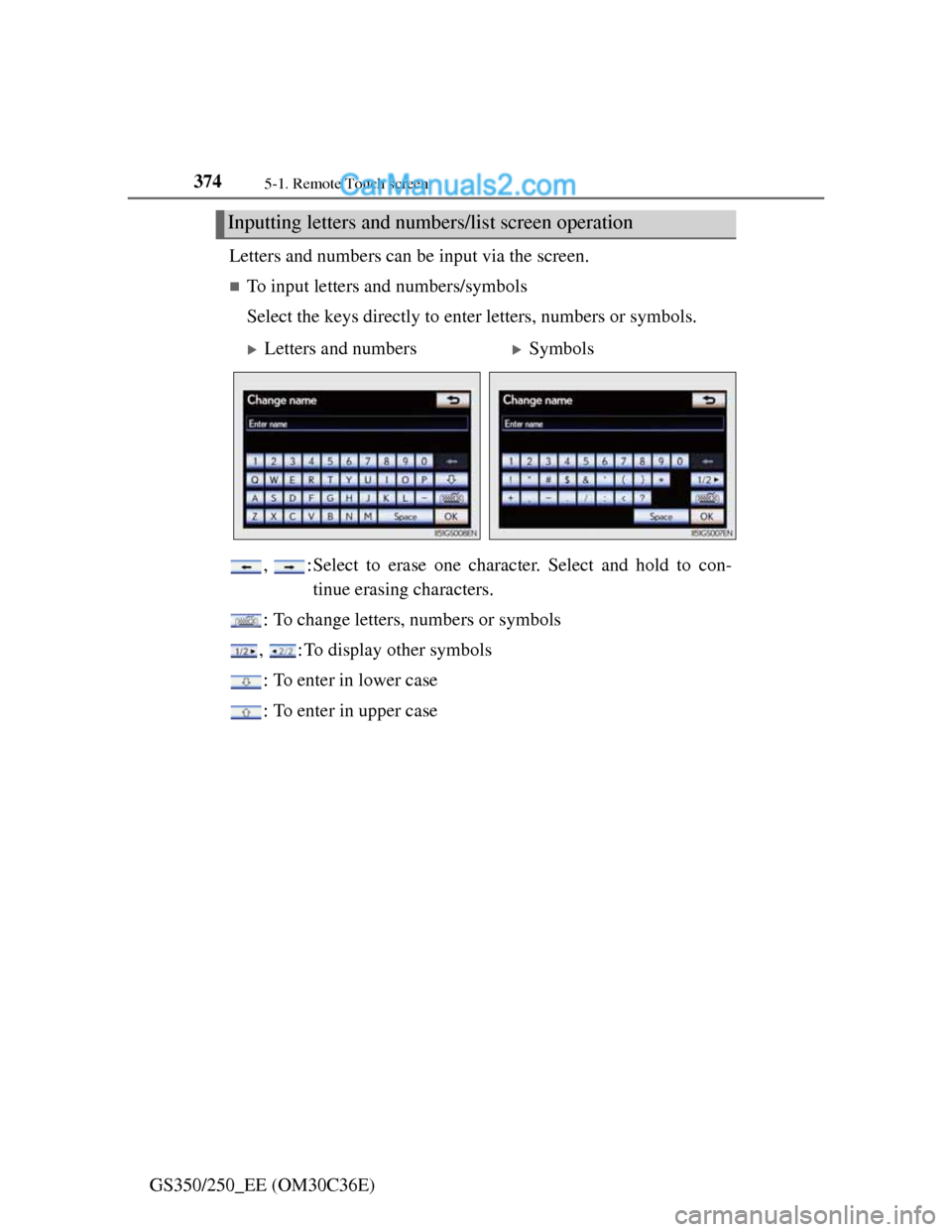
GS350/250_EE (OM30C36E)Letters and numbers can be input via the screen.
To input letters and numbers/symbols
Select the keys directly to enter letters, numbers or symbols.
, :Select to erase one character. Select and hold to con-
tinue erasing characters.
: To change letters, numbers or symbols
, : To display other symbols
: To enter in lower case
: To enter in upper case
Inputting letters and numbers/list screen operation
Letters and numbersSymbols
Page 387 of 914
3775-1. Remote Touch screen
5
Interior features
GS350/250_EE (OM30C36E)
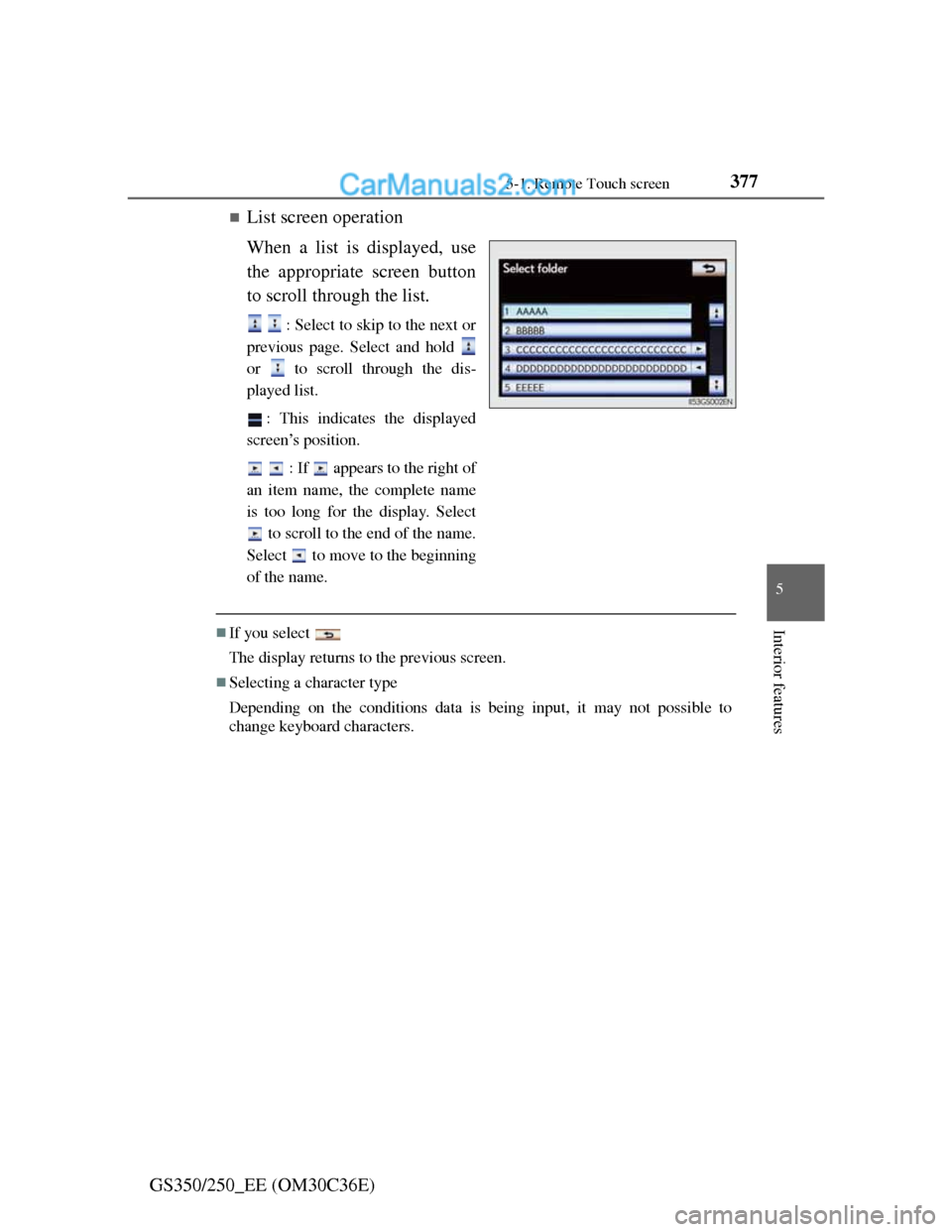
List screen operation
When a list is displayed, use
the appropriate screen button
to scroll through the list.
: Select to skip to the next or
previous page. Select and hold
or to scroll through the dis-
played list.
: This indicates the displayed
screen’s position.
: If appears to the right of
an item name, the complete name
is too long for the display. Select
to scroll to the end of the name.
Select to move to the beginning
of the name.
If you select
The display returns to the previous screen.
Selecting a character type
Depending on the conditions data is being input, it may not possible to
change keyboard characters.