Disp Lexus GS250 2012 Owner's Manual
[x] Cancel search | Manufacturer: LEXUS, Model Year: 2012, Model line: GS250, Model: Lexus GS250 2012Pages: 914, PDF Size: 53.04 MB
Page 469 of 914
4585-3. Using the audio system
GS350/250_EE (OM30C36E)
Using the radio
Press the “RADIO” button to display the radio control screen.
Select the “AM”, “FM” or “DAB” tab or press the “RADIO” but-
ton repeatedly to select the desired tab.
Page 471 of 914
4605-3. Using the audio system
GS350/250_EE (OM30C36E)
Seek tuning
Press and hold “<” or “>” on the “CH•TRACK” button.
Manual tuning
Turn the “TUNE/SCROLL” knob.
Preset stations
Select the desired preset stations (1 - 6).
Press “<” or “>” on the “CH•TRACK” button.
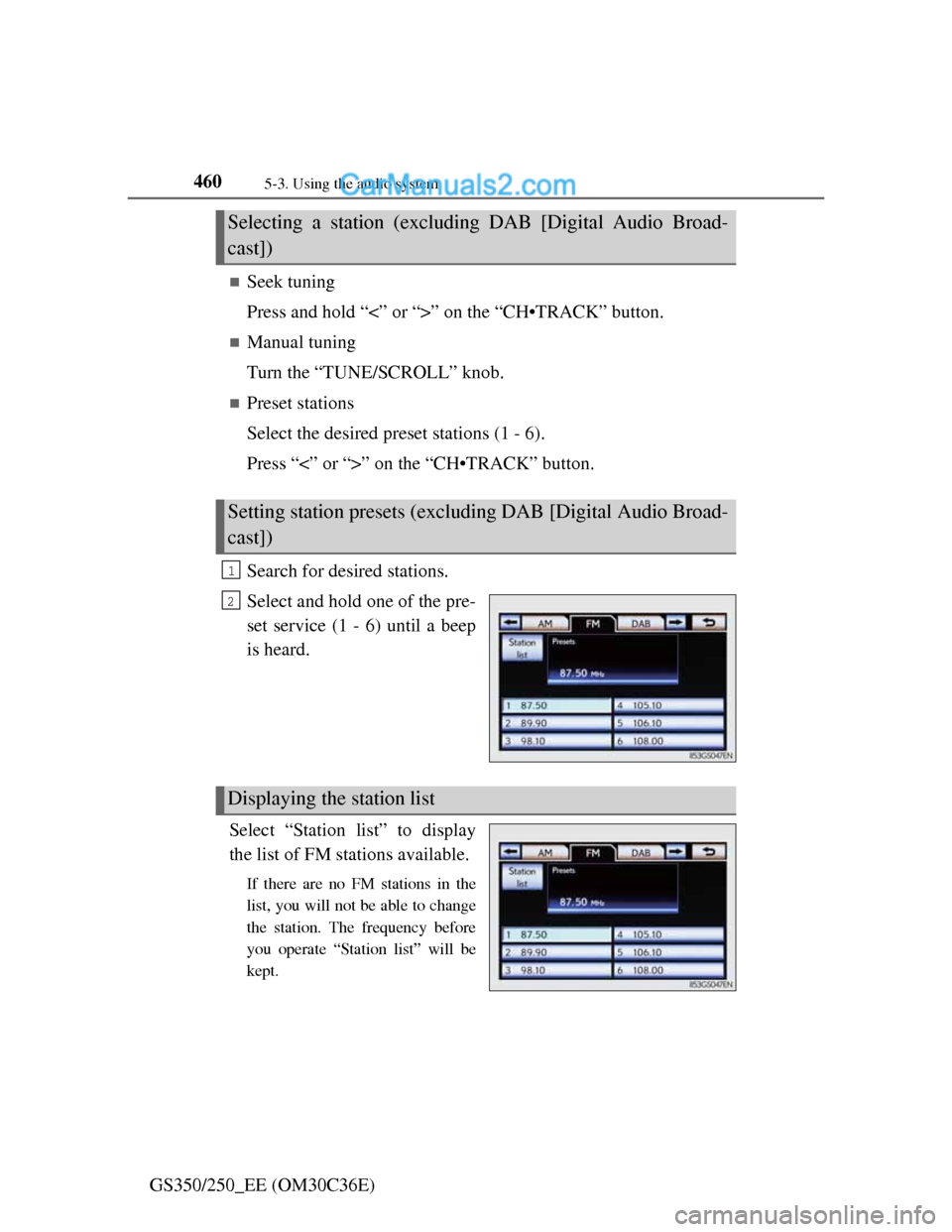
Search for desired stations.
Select and hold one of the pre-
set service (1 - 6) until a beep
is heard.
Select “Station list” to display
the list of FM stations available.
If there are no FM stations in the
list, you will not be able to change
the station. The frequency before
you operate “Station list” will be
kept.
Selecting a station (excluding DAB [Digital Audio Broad-
cast])
Setting station presets (excluding DAB [Digital Audio Broad-
cast])
1
2
Displaying the station list
Page 474 of 914
4635-3. Using the audio system
5
Interior features
GS350/250_EE (OM30C36E)
Listening to stations of the same network
FM alternative frequency:The station among those of the same
network with strong reception is
selected. FM alternative frequency on/
off (P. 461)
Regional code change: The station among those of the same net-
work with strong reception and broad-
casting the same program is selected.
Regional code change on/off (P. 461)
FM Traffic announcement
The system automatically switches to traffic information when a
broadcast with a traffic information signal is received.
“TP” (Traffic program) will appear on the screen. The station returns to
the previous one when the traffic information ends.
FM Traffic announcement on/off (P. 461)
Selecting a channel
Press “<” or “>” on “CH•TRACK” button or select or
on the screen.
Selecting a service
Manual tuning
Turn the “TUNE/SCROLL” knob.
Service list
Select one of the displayed services on the service list screen.
Preset stations
Select the desired preset stations (1 - 6).
RDS (Radio Data System)
DAB (Digital Audio Broadcast)
Page 475 of 914
4645-3. Using the audio system
GS350/250_EE (OM30C36E)
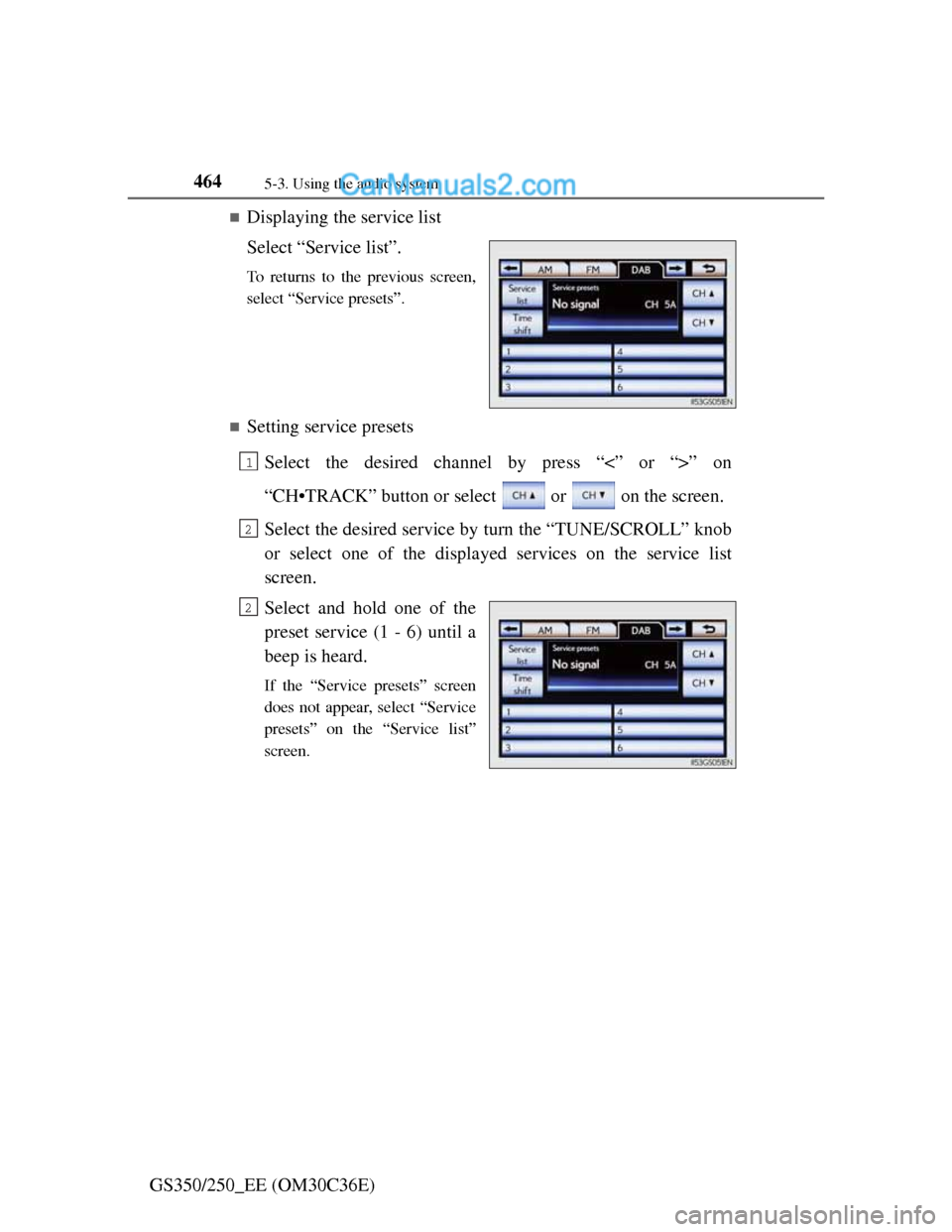
Displaying the service list
Select “Service list”.
To returns to the previous screen,
select “Service presets”.
Setting service presets
Select the desired channel by press “<” or “>” on
“CH•TRACK” button or select or on the screen.
Select the desired service by turn the “TUNE/SCROLL” knob
or select one of the displayed services on the service list
screen.
Select and hold one of the
preset service (1 - 6) until a
beep is heard.
If the “Service presets” screen
does not appear, select “Service
presets” on the “Service list”
screen.
1
2
2
Page 476 of 914
465
5 5-3. Using the audio system
Interior features
GS350/250_EE (OM30C36E)
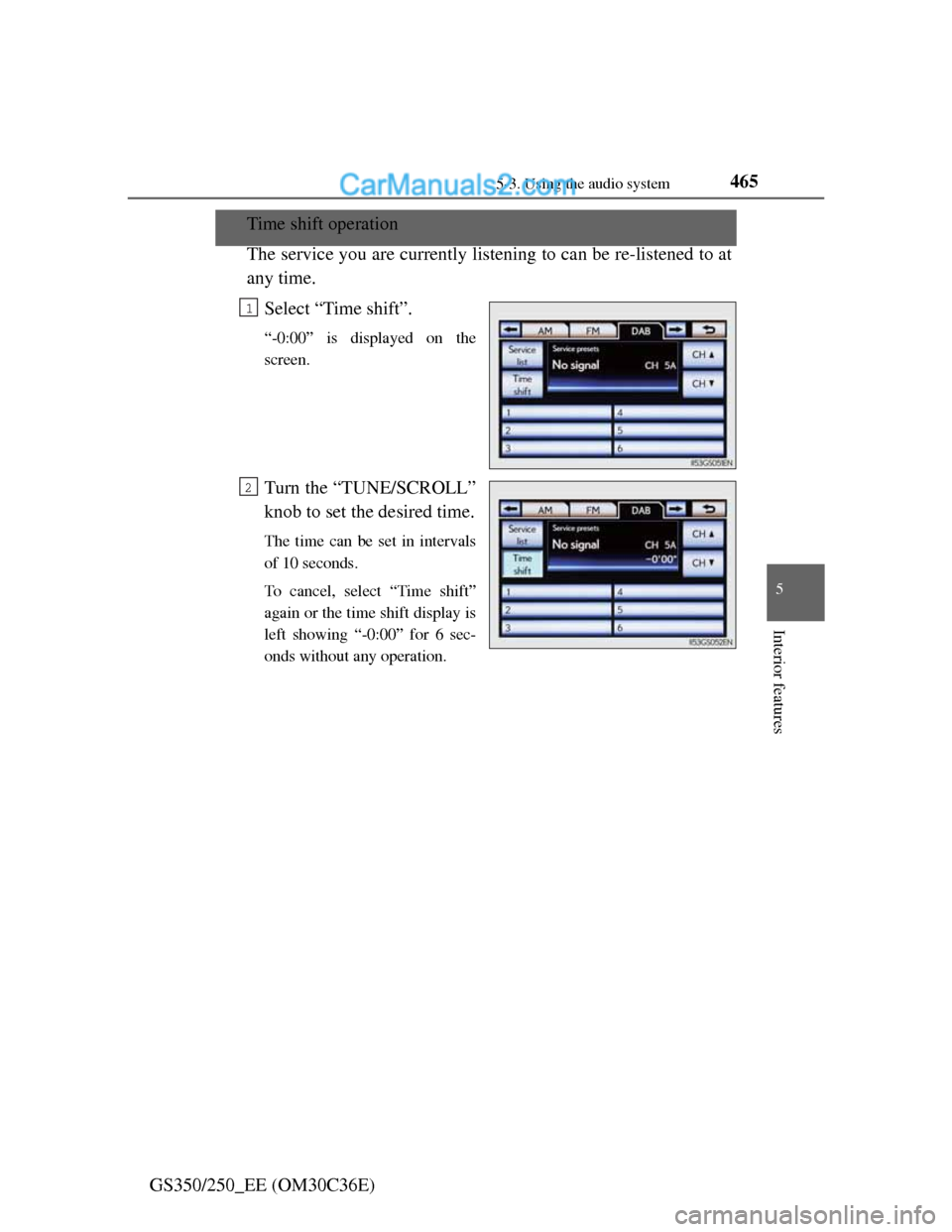
Time shift operation
The service you are currently listening to can be re-listened to at
any time.
Select “Time shift”.
“-0:00” is displayed on the
screen.
Turn the “TUNE/SCROLL”
knob to set the desired time.
The time can be set in intervals
of 10 seconds.
To cancel, select “Time shift”
again or the time shift display is
left showing “-0:00” for 6 sec-
onds without any operation.
1
2
Page 477 of 914
4665-3. Using the audio system
GS350/250_EE (OM30C36E)Press .
Press the button again to turn the system back on.
If you select
The display returns to the previous screen.
EON (Enhanced Other Network) system (for traffic announcement function)
If the RDS station (with EON data) you are listening to is not broadcasting a
traffic information program and the audio system is in the TA (Traffic
announcement) mode, the radio will be switched automatically to a station
broadcasting a traffic information program in the EON AF list when traffic
information begins.
When listening to a disc
When the traffic information program starts, the disc playback mode is inter-
rupted and the traffic information is automatically broadcasted. When the
program ends, the initial operation resumes.
When the battery is disconnected
All preset stations are erased.
Reception sensitivity
Maintaining perfect radio reception at all times is difficult due to the contin-
ually changing position of the antenna, differences in signal strength and
surrounding objects, such as trains, transmitters, etc.
The radio antenna is mounted inside the rear quarter window. To maintain
clear radio reception, do not attach metallic window tinting or other metal-
lic objects to the antenna wire mounted inside the rear quarter window.
About Time shift
The times at which playback is possible depend on the bit rate of the DAB
station to be recorded, the amount of DAB unit memory, and the time at
which reception of the broadcast began.
Silencing the sound
Page 479 of 914
4685-3. Using the audio system
GS350/250_EE (OM30C36E)Insert a disc into the disc slot.
Press and remove the disc.
To play or pause a track/file/chapter, press .
Using the display
Under extremely cold conditions, the screen may react slowly or operation
sound may become louder.
If a disc is inserted with the label facing down, it cannot be played.
Inserting a disc
Ejecting a disc
Playing and pausing a track/file/chapter
Page 481 of 914
4705-3. Using the audio system
GS350/250_EE (OM30C36E)
Selecting a track
Select “<” or “>” on the screen to select the next/previous track.
Press “<” or “>” on the “CH•TRACK” button or turn the
“TUNE/SCROLL” knob to select the desired track number.
Selecting a track from the track list
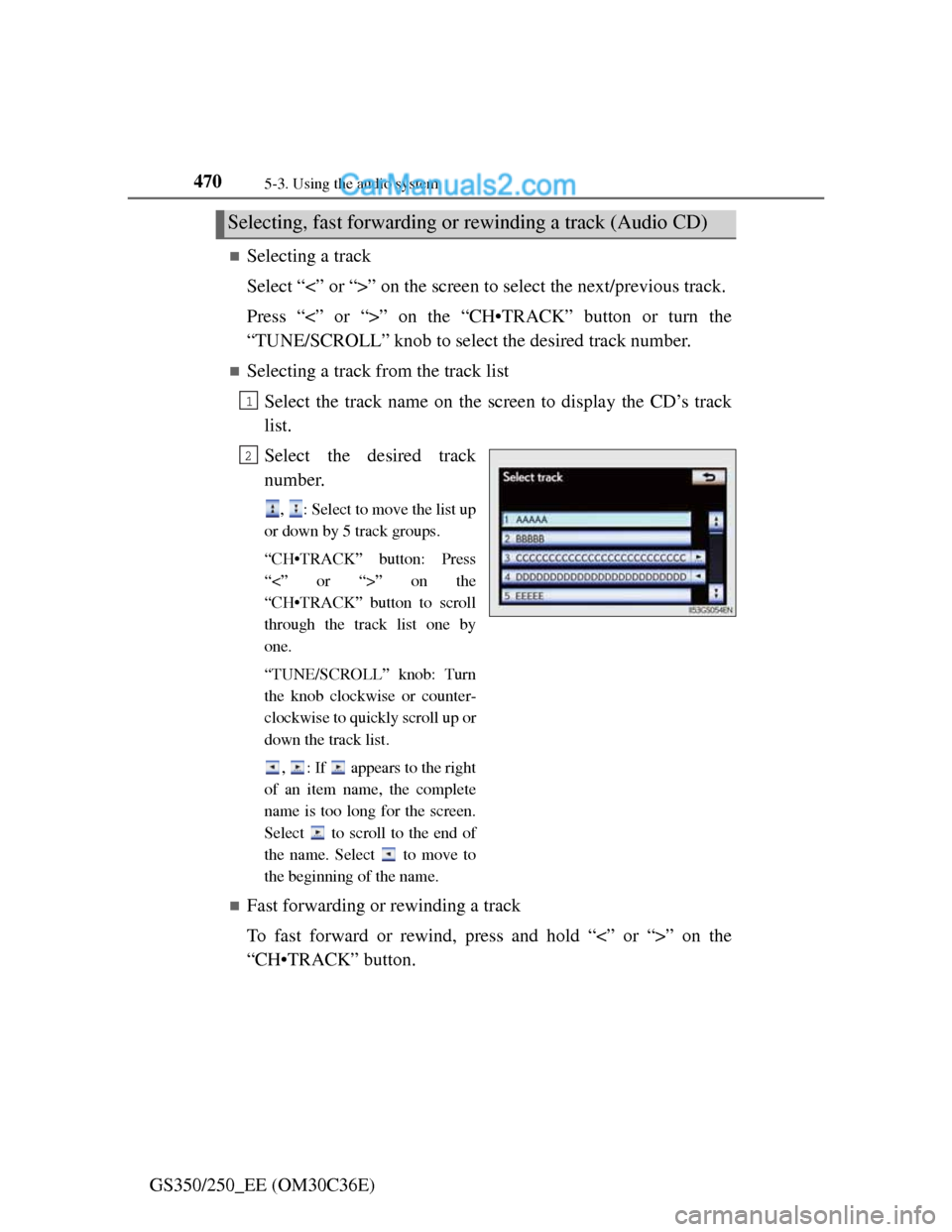
Select the track name on the screen to display the CD’s track
list.
Select the desired track
number.
, : Select to move the list up
or down by 5 track groups.
“CH•TRACK” button: Press
“<” or “>” on the
“CH•TRACK” button to scroll
through the track list one by
one.
“TUNE/SCROLL” knob: Turn
the knob clockwise or counter-
clockwise to quickly scroll up or
down the track list.
, : If appears to the right
of an item name, the complete
name is too long for the screen.
Select to scroll to the end of
the name. Select to move to
the beginning of the name.
Fast forwarding or rewinding a track
To fast forward or rewind, press and hold “<” or “>” on the
“CH•TRACK” button.
Selecting, fast forwarding or rewinding a track (Audio CD)
1
2
Page 482 of 914
4715-3. Using the audio system
5
Interior features
GS350/250_EE (OM30C36E)
Selecting a folder
Select “<” or “>” on the screen to select the next/previous folder.
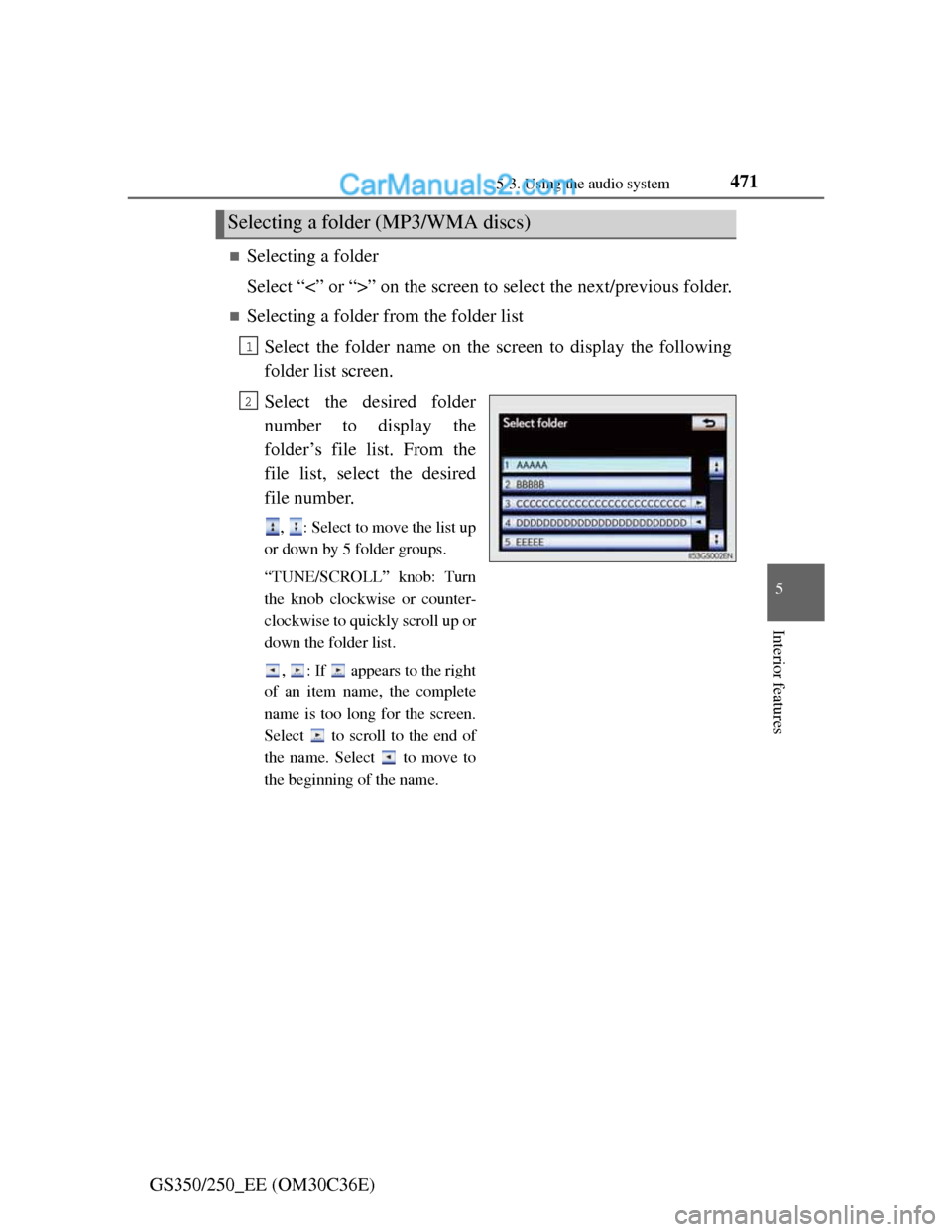
Selecting a folder from the folder list
Select the folder name on the screen to display the following
folder list screen.
Select the desired folder
number to display the
folder’s file list. From the
file list, select the desired
file number.
, : Select to move the list up
or down by 5 folder groups.
“TUNE/SCROLL” knob: Turn
the knob clockwise or counter-
clockwise to quickly scroll up or
down the folder list.
, : If appears to the right
of an item name, the complete
name is too long for the screen.
Select to scroll to the end of
the name. Select to move to
the beginning of the name.
Selecting a folder (MP3/WMA discs)
1
2
Page 483 of 914
4725-3. Using the audio system
GS350/250_EE (OM30C36E)
Selecting a file
Select “<” or “>” on the screen to select the next/previous file.
Press “<” or “>” on the “CH•TRACK” button or turn the
“TUNE/SCROLL” knob to select the desired file number.
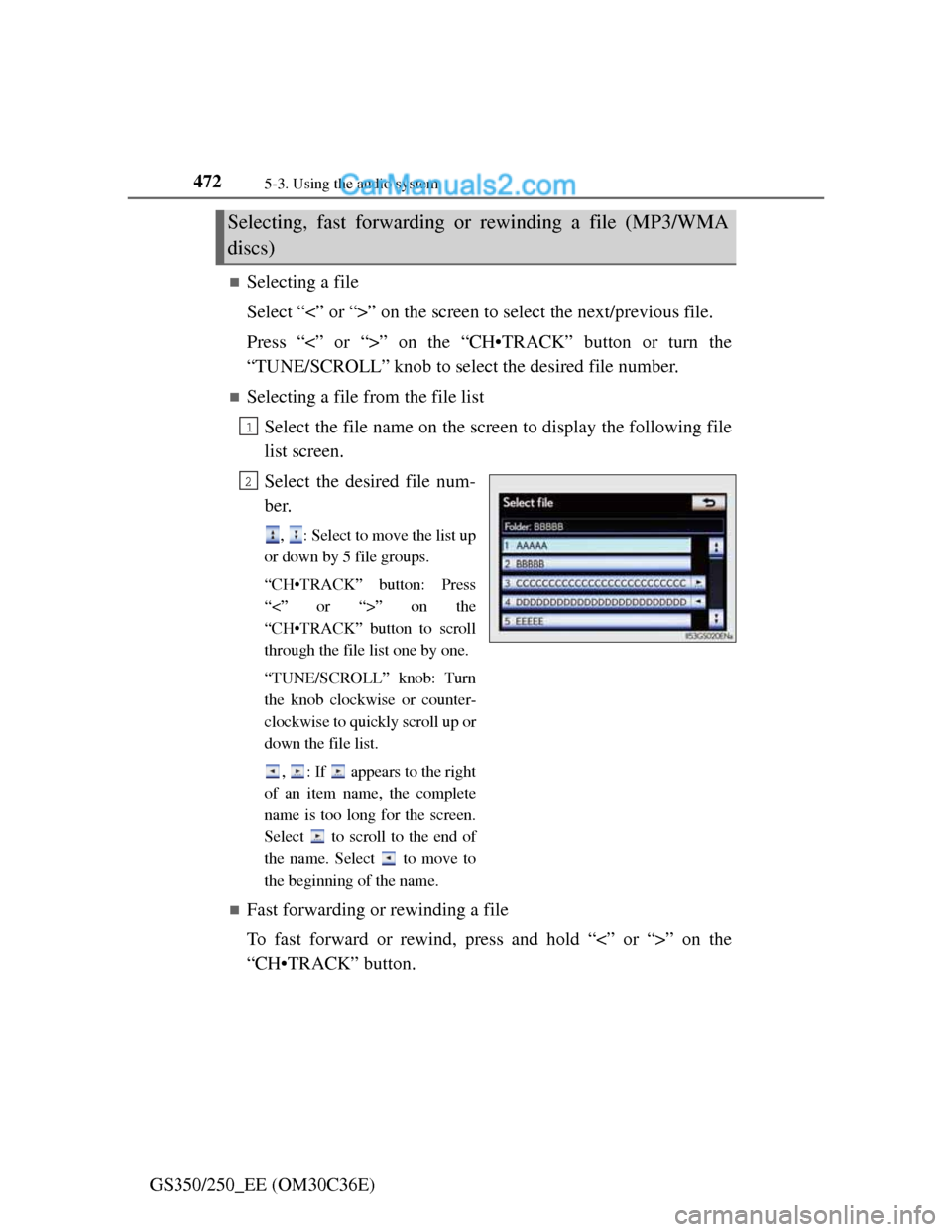
Selecting a file from the file list
Select the file name on the screen to display the following file
list screen.
Select the desired file num-
ber.
, : Select to move the list up
or down by 5 file groups.
“CH•TRACK” button: Press
“<” or “>” on the
“CH•TRACK” button to scroll
through the file list one by one.
“TUNE/SCROLL” knob: Turn
the knob clockwise or counter-
clockwise to quickly scroll up or
down the file list.
, : If appears to the right
of an item name, the complete
name is too long for the screen.
Select to scroll to the end of
the name. Select to move to
the beginning of the name.
Fast forwarding or rewinding a file
To fast forward or rewind, press and hold “<” or “>” on the
“CH•TRACK” button.
Selecting, fast forwarding or rewinding a file (MP3/WMA
discs)
1
2