ad blue Lexus GS250 2012 Owner's Guide
[x] Cancel search | Manufacturer: LEXUS, Model Year: 2012, Model line: GS250, Model: Lexus GS250 2012Pages: 914, PDF Size: 53.04 MB
Page 520 of 914
5095-3. Using the audio system
5
Interior features
GS350/250_EE (OM30C36E)
CAUTION
While driving
Do not use the portable player or connect the Bluetooth
® system.
NOTICE
When leaving the vehicle
Do not leave your portable player in the vehicle. The inside of the vehicle
may become hot, causing damage to the portable player.
Page 549 of 914
5385-3. Using the audio system
GS350/250_EE (OM30C36E)Press to turn the front audio system on.
Pressing the button again turns the system off.
Press to change the audio source. The audio source as fol-
lows each time the button is pressed. If no discs are inserted in the
player, or if the external device is not connected, that mode will be
skipped.
FM DAB DVD player iPod or USB memory
Bluetooth® audio player AUX AM
Press “” on to increase the volume and “” to decrease the
volume.
Press and hold the button to continue increasing or decreasing the volume.
Turning the power on/off
Changing the audio source
Adjusting the volume
Page 550 of 914
539
5 5-3. Using the audio system
Interior features
GS350/250_EE (OM30C36E)
Select a radio station
Press to select a frequency band.
Press “” or “” on to seek the frequency.
To scan for receivable stations, press and hold until you hear a
beep.
Select a preset station
Press to select a frequency band.
Press “” or “” on to select a preset station.
Audio CD
Press to select the DVD player.
Press “” or “” on to select a track.
Bluetooth® audio player
Press to select the Bluetooth
® audio player.
Press “” or “” on to select an folder.
Press “” or “” on to select a file.
iPod
Press to select the iPod.
Selecting a radio station
Selecting a track/folder/file
1
2
1
2
1
2
1
2
3
1
Page 554 of 914
5435-3. Using the audio system
5
Interior features
GS350/250_EE (OM30C36E)
Using the steering wheel audio switches
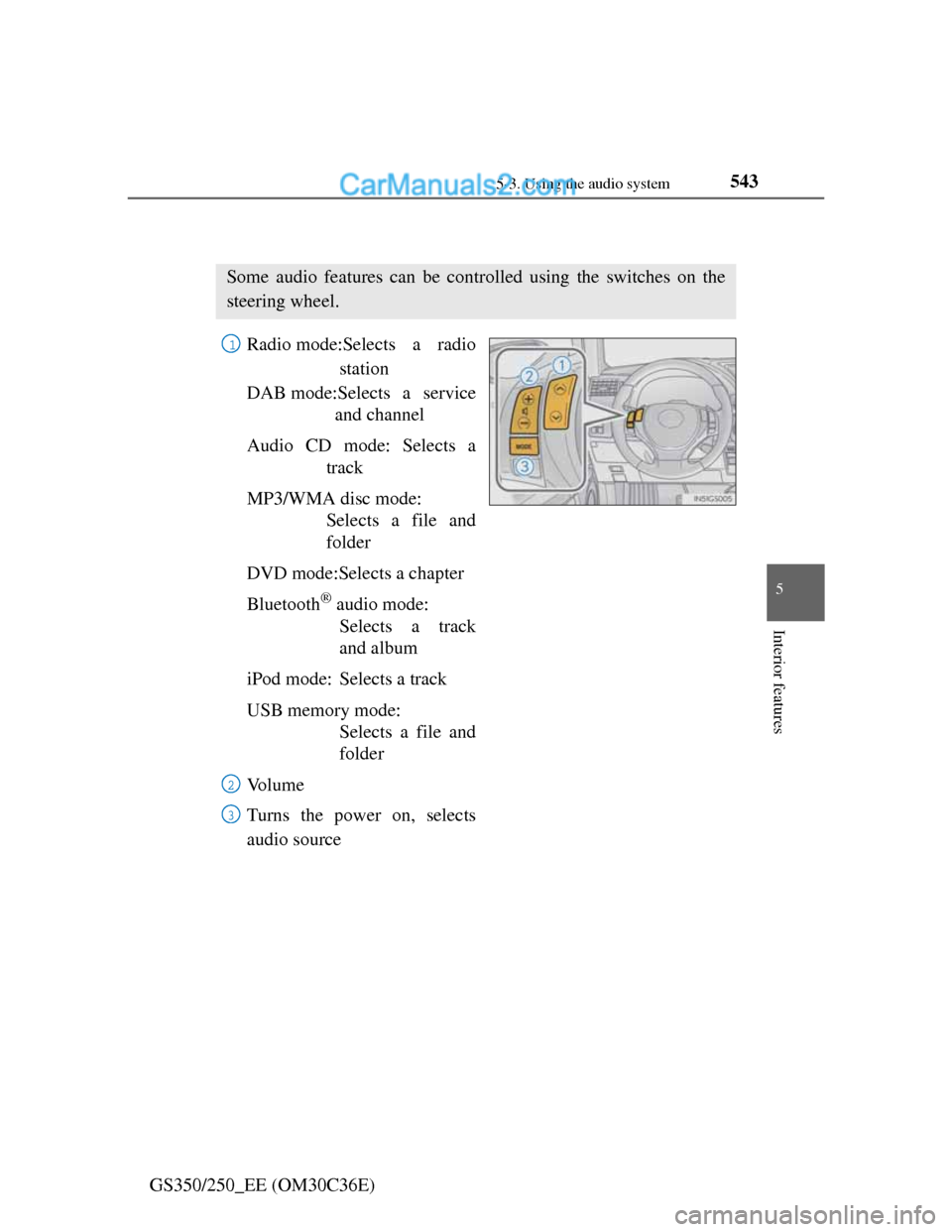
Radio mode:Selects a radio
station
DAB mode:Selects a service
and channel
Audio CD mode: Selects a
track
MP3/WMA disc mode:
Selects a file and
folder
DVD mode:Selects a chapter
Bluetooth
® audio mode:
Selects a track
and album
iPod mode: Selects a track
USB memory mode:
Selects a file and
folder
Vo l u m e
Turns the power on, selects
audio source
Some audio features can be controlled using the switches on the
steering wheel.
1
2
3
Page 556 of 914
5455-3. Using the audio system
5
Interior features
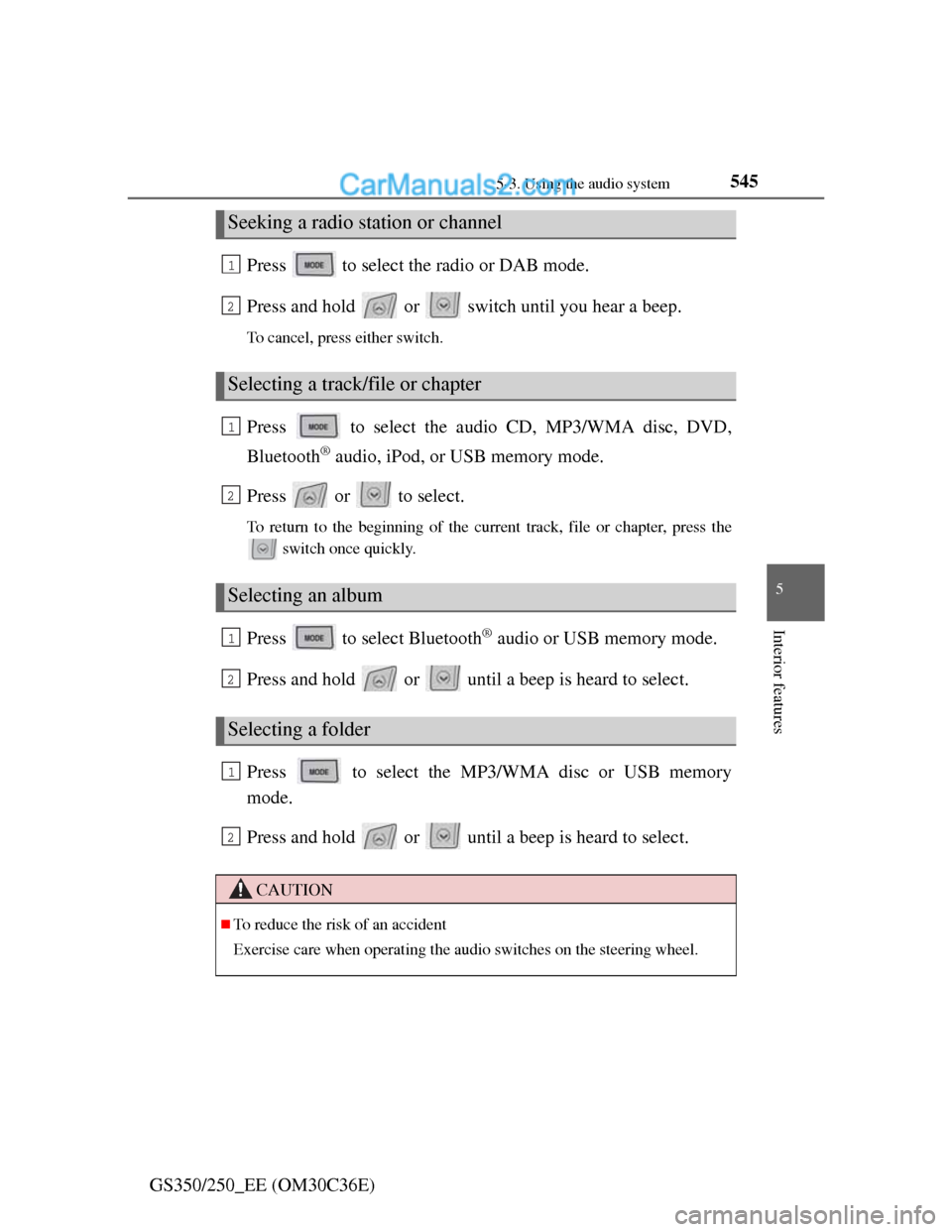
GS350/250_EE (OM30C36E)Press to select the radio or DAB mode.
Press and hold or switch until you hear a beep.
To cancel, press either switch.
Press to select the audio CD, MP3/WMA disc, DVD,
Bluetooth
® audio, iPod, or USB memory mode.
Press or to select.
To return to the beginning of the current track, file or chapter, press the
switch once quickly.
Press to select Bluetooth® audio or USB memory mode.
Press and hold or until a beep is heard to select.
Press to select the MP3/WMA disc or USB memory
mode.
Press and hold or until a beep is heard to select.
Seeking a radio station or channel
Selecting a track/file or chapter
Selecting an album
Selecting a folder
CAUTION
To reduce the risk of an accident
Exercise care when operating the audio switches on the steering wheel.
1
2
1
2
1
2
1
2
Page 557 of 914
5425-4. Using the hands-free phone system (for cellular phone)
GS350/250_EE (OM30C36E)
Hands-free system (for cellular phone)
The hands-free system is a function that allows you to use your
cellular phone without touching it.
This system supports Bluetooth
® cellular phones. Bluetooth® is a
wireless data system that allows a cellular phone to wirelessly con-
nect to the hands-free system and outgoing/incoming calls.
The illustrations of the hands-free system screens shown here may
slightly vary depending on the type of the system.
Vehicles with a 12.3-inch display: The hands-free system function
can be displayed and operated on the “Side Display”. For details,
refer to the “Navigation System Owner’s Manual”.
Page 558 of 914
5435-4. Using the hands-free phone system (for cellular phone)
5
Interior features
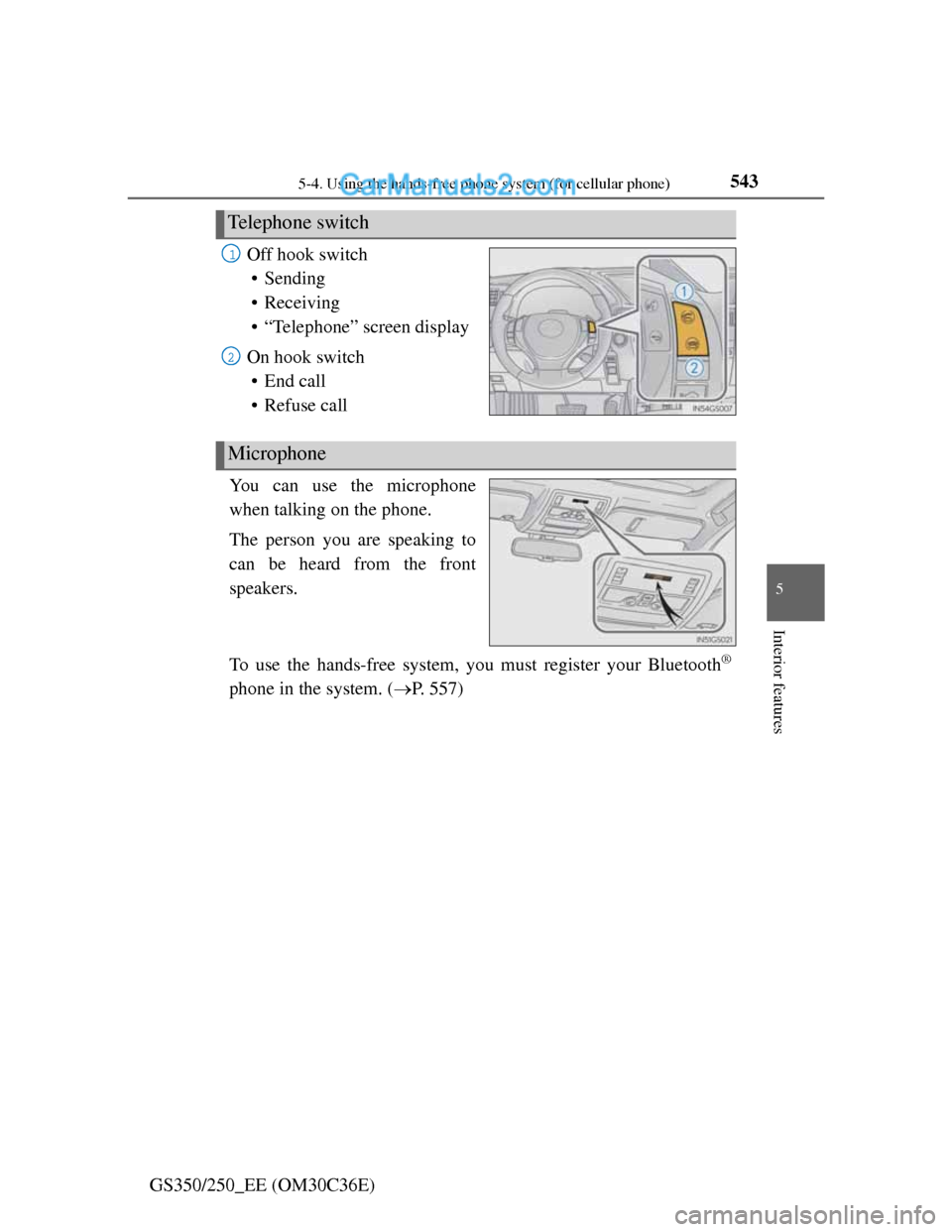
GS350/250_EE (OM30C36E)Off hook switch
• Sending
• Receiving
• “Telephone” screen display
On hook switch
• End call
• Refuse call
You can use the microphone
when talking on the phone.
The person you are speaking to
can be heard from the front
speakers.
To use the hands-free system, you must register your Bluetooth
®
phone in the system. (P. 557)
Telephone switch
1
2
Microphone
Page 561 of 914
5465-4. Using the hands-free phone system (for cellular phone)
GS350/250_EE (OM30C36E)
When using the hands-free system
The audio system is muted when making a call.
If both parties speak at the same time, it may be difficult to hear.
If the incoming call volume is overly loud, an echo may be heard.
Try to face toward the microphone as much as possible when speaking.
In the following circumstances, it may be difficult to hear the other party:
• When driving on unpaved roads
• When driving at high speeds
• If a window is open
• If the air conditioning is blowing directly on the microphone
• If the air conditioning is set to high
• There is an effect from the network of the cellular phone
Conditions under which the system will not operate
If using a cellular phone that does not support Bluetooth®
If the cellular phone is turned off
If you are outside service range
If the cellular phone is not connected
If the cellular phone’s battery is low
When the cellular phone is not connected, “No connect” is displayed.
Bluetooth® antenna
The antenna is built into the instrument panel. If the cellular phone is behind
the seat or in the console box, or touching or covered by metal objects, con-
nection status may deteriorate.
Battery charge/Signal status
This display may not correspond exactly with the cellular phone itself.
When the cellular phone is out of the service area or in a place inaccessible
by radio waves, “No service” is displayed.
When using Bluetooth® audio and hands-free system at the same time
The following problems may occur.
The Bluetooth® connection may be cut.
Noise may be heard on the Bluetooth® audio playback.
Page 562 of 914
5475-4. Using the hands-free phone system (for cellular phone)
5
Interior features
GS350/250_EE (OM30C36E)
About the phonebook in this system
The following data is stored for every registered phone. When another phone
is connecting, you cannot read the registered data.
Call history data
Speed dial data
Speed dial
Image data
Messages
Quick reply messages
All phone settings
When you delete the phone, the above-mentioned data is also deleted.
When you release your car
Be sure to initialize your data. (P. 396)
About Bluetooth®
Bluetooth is a registered trademark of
Bluetooth SIG. Inc.
Page 563 of 914
5485-4. Using the hands-free phone system (for cellular phone)
GS350/250_EE (OM30C36E)
Compatible models
This system supports the following service.
Bluetooth® Specification Ver. 1.1 or higher (Recommended: Ver. 2.1+EDR
or higher)
Profiles
• HFP (Hands Free Profile) Ver. 1.0 or higher (Recommended: Ver. 1.5 or
higher)
• OPP (Object Push Profile) Ver. 1.1 or higher
• PBAP (Phone Book Access Profile) Ver. 1.0 or higher
• MAP (Message Access Profile) Ver. 1.0 or higher
• DUN (Dial-Up Networking Profile) Ver.1.1 or higher
*
*
: This profile is necessary when using connected services. For details,
refer to the “Navigation System Owner’s Manual”
If your cellular phone does not support HFP, you cannot enter the Bluetooth
®
phone, and take OPP, PBAP, MAP or DUN service individually.
If the connected Bluetooth
® phone version is older than recommended or
incompatible, this function may not be used.