phone Lexus GS300h 2013 Manual PDF
[x] Cancel search | Manufacturer: LEXUS, Model Year: 2013, Model line: GS300h, Model: Lexus GS300h 2013Pages: 1014
Page 683 of 1014
6605-4. Using the hands-free phone system(for cellular phone)
GS450h_300h_OM_OM30D53E_(EE)
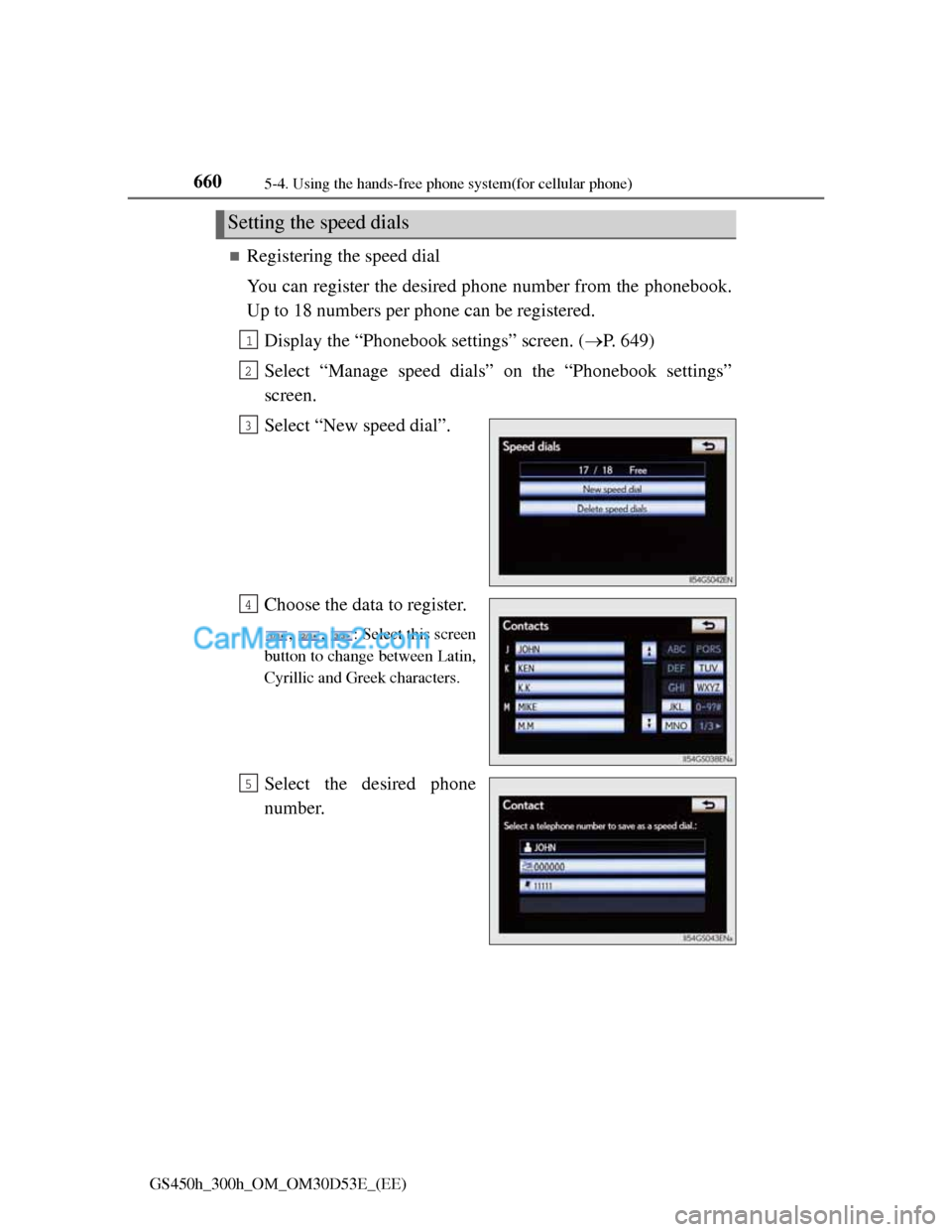
Registering the speed dial
You can register the desired phone number from the phonebook.
Up to 18 numbers per phone can be registered.
Display the “Phonebook settings” screen. (P. 649)
Select “Manage speed dials” on the “Phonebook settings”
screen.
Select “New speed dial”.
Choose the data to register.
, , : Select this screen
button to change between Latin,
Cyrillic and Greek characters.
Select the desired phone
number.
Setting the speed dials
1
2
3
4
5
Page 684 of 1014
6615-4. Using the hands-free phone system(for cellular phone)
5
Interior features
GS450h_300h_OM_OM30D53E_(EE)
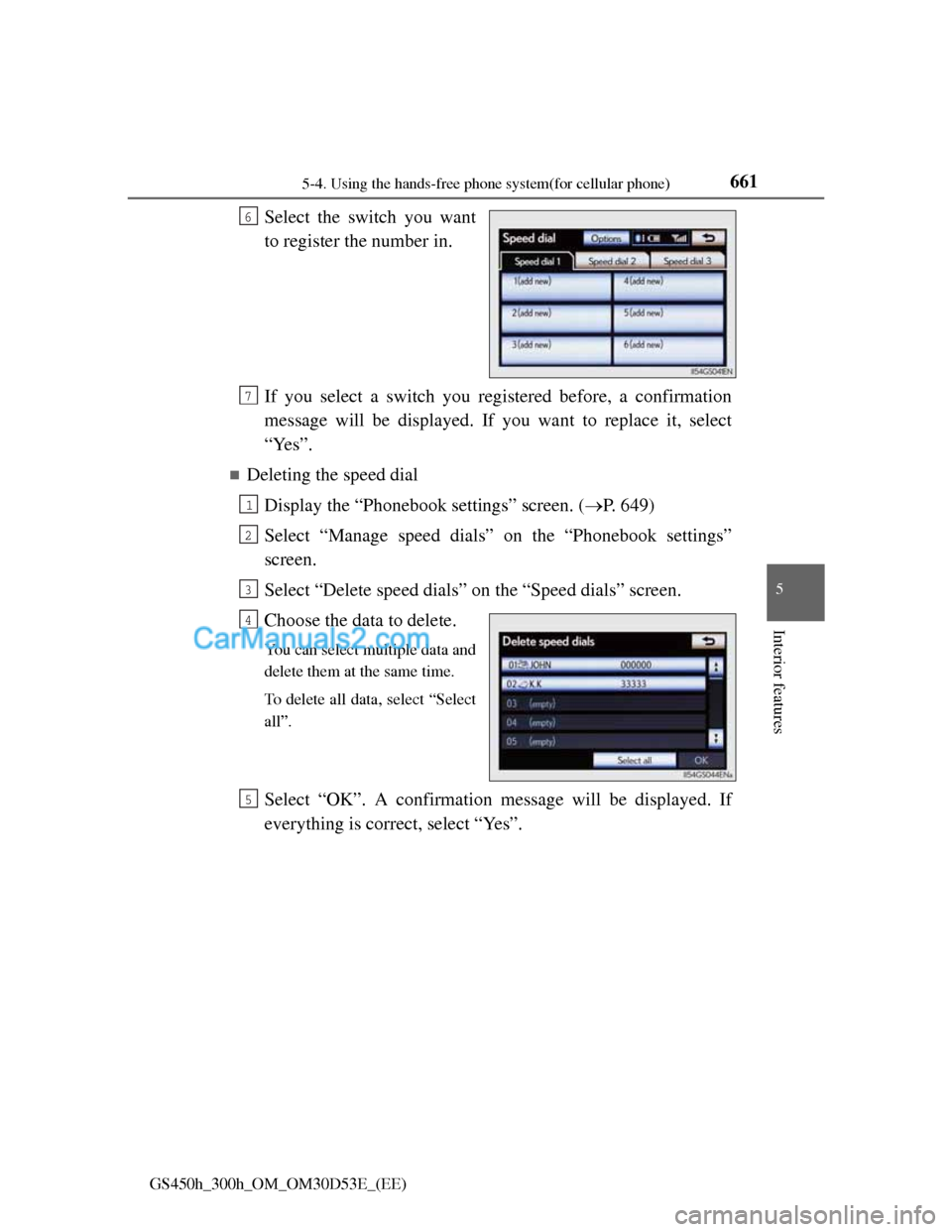
Select the switch you want
to register the number in.
If you select a switch you registered before, a confirmation
message will be displayed. If you want to replace it, select
“Yes”.
Deleting the speed dial
Display the “Phonebook settings” screen. (P. 649)
Select “Manage speed dials” on the “Phonebook settings”
screen.
Select “Delete speed dials” on the “Speed dials” screen.
Choose the data to delete.
You can select multiple data and
delete them at the same time.
To delete all data, select “Select
all”.
Select “OK”. A confirmation message will be displayed. If
everything is correct, select “Yes”.
6
7
1
2
3
4
5
Page 685 of 1014
6625-4. Using the hands-free phone system(for cellular phone)
GS450h_300h_OM_OM30D53E_(EE)
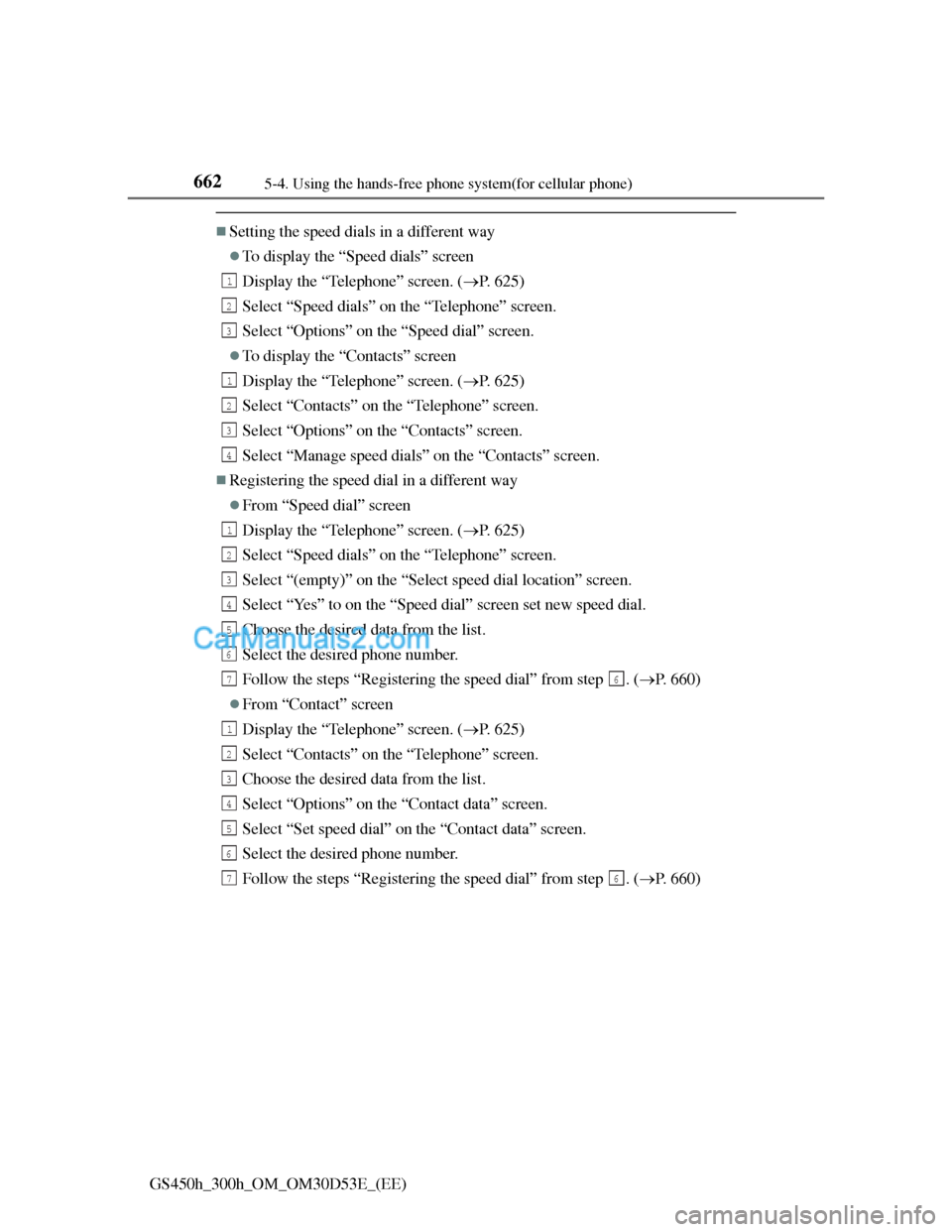
Setting the speed dials in a different way
To display the “Speed dials” screen
Display the “Telephone” screen. (P. 625)
Select “Speed dials” on the “Telephone” screen.
Select “Options” on the “Speed dial” screen.
To display the “Contacts” screen
Display the “Telephone” screen. (P. 625)
Select “Contacts” on the “Telephone” screen.
Select “Options” on the “Contacts” screen.
Select “Manage speed dials” on the “Contacts” screen.
Registering the speed dial in a different way
From “Speed dial” screen
Display the “Telephone” screen. (P. 625)
Select “Speed dials” on the “Telephone” screen.
Select “(empty)” on the “Select speed dial location” screen.
Select “Yes” to on the “Speed dial” screen set new speed dial.
Choose the desired data from the list.
Select the desired phone number.
Follow the steps “Registering the speed dial” from step . (P. 660)
From “Contact” screen
Display the “Telephone” screen. (P. 625)
Select “Contacts” on the “Telephone” screen.
Choose the desired data from the list.
Select “Options” on the “Contact data” screen.
Select “Set speed dial” on the “Contact data” screen.
Select the desired phone number.
Follow the steps “Registering the speed dial” from step . (P. 660)
1
2
3
1
2
3
4
1
2
3
4
5
6
76
1
2
3
4
5
6
76
Page 686 of 1014
6635-4. Using the hands-free phone system(for cellular phone)
5
Interior features
GS450h_300h_OM_OM30D53E_(EE)
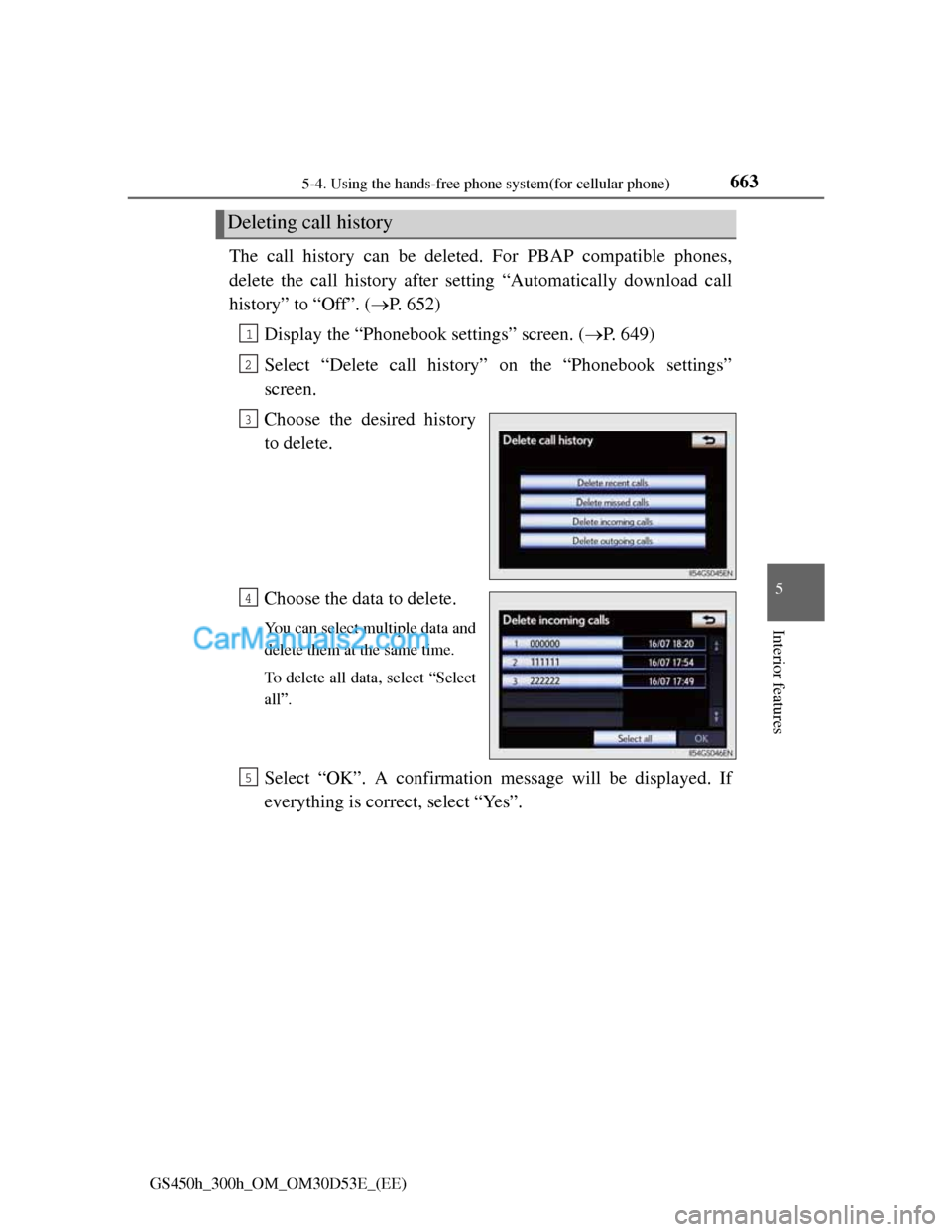
The call history can be deleted. For PBAP compatible phones,
delete the call history after setting “Automatically download call
history” to “Off”. (P. 652)
Display the “Phonebook settings” screen. (P. 649)
Select “Delete call history” on the “Phonebook settings”
screen.
Choose the desired history
to delete.
Choose the data to delete.
You can select multiple data and
delete them at the same time.
To delete all data, select “Select
all”.
Select “OK”. A confirmation message will be displayed. If
everything is correct, select “Yes”.
Deleting call history
1
2
3
4
5
Page 687 of 1014
6645-4. Using the hands-free phone system(for cellular phone)
GS450h_300h_OM_OM30D53E_(EE)
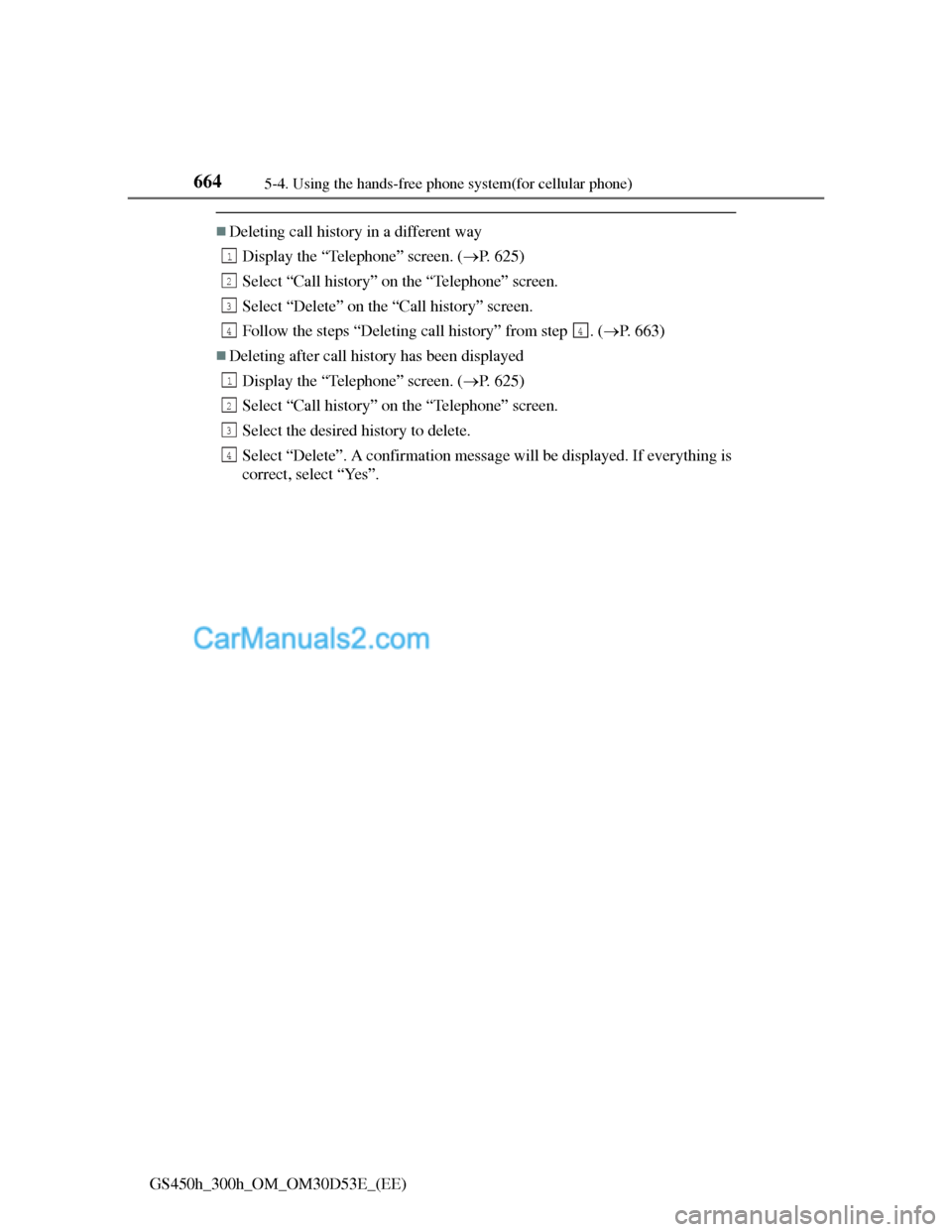
Deleting call history in a different way
Display the “Telephone” screen. (P. 625)
Select “Call history” on the “Telephone” screen.
Select “Delete” on the “Call history” screen.
Follow the steps “Deleting call history” from step . (P. 663)
Deleting after call history has been displayed
Display the “Telephone” screen. (P. 625)
Select “Call history” on the “Telephone” screen.
Select the desired history to delete.
Select “Delete”. A confirmation message will be displayed. If everything is
correct, select “Yes”.
1
2
3
44
1
2
3
4
Page 688 of 1014
6655-4. Using the hands-free phone system(for cellular phone)
5
Interior features
GS450h_300h_OM_OM30D53E_(EE)
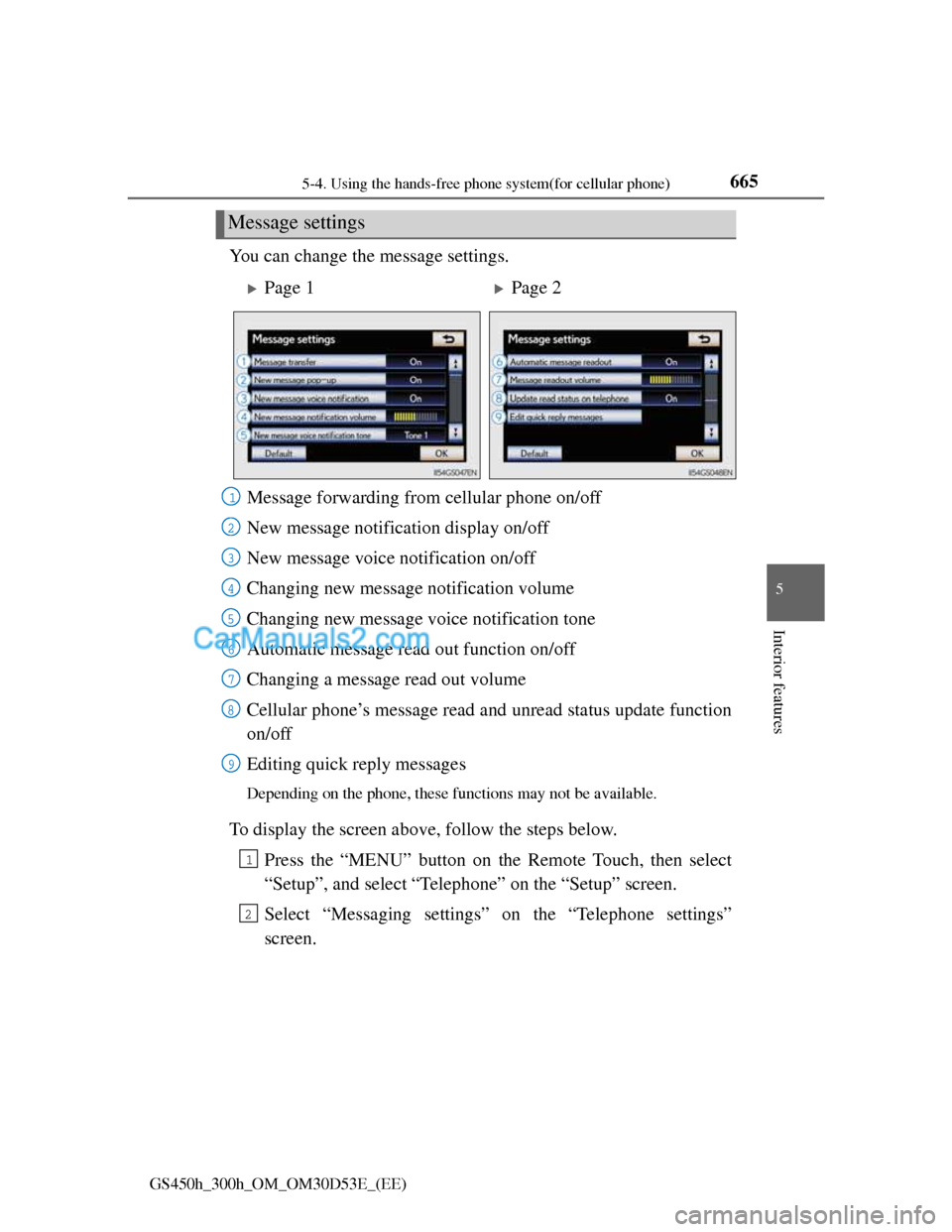
You can change the message settings.
To display the screen above, follow the steps below.
Press the “MENU” button on the Remote Touch, then select
“Setup”, and select “Telephone” on the “Setup” screen.
Select “Messaging settings” on the “Telephone settings”
screen.
Message settings
Page 1Page 2
Message forwarding from cellular phone on/off
New message notification display on/off
New message voice notification on/off
Changing new message notification volume
Changing new message voice notification tone
Automatic message read out function on/off
Changing a message read out volume
Cellular phone’s message read and unread status update function
on/off
Editing quick reply messages
Depending on the phone, these functions may not be available.
1
2
3
4
5
6
7
8
9
1
2
Page 689 of 1014
6665-4. Using the hands-free phone system(for cellular phone)
GS450h_300h_OM_OM30D53E_(EE)
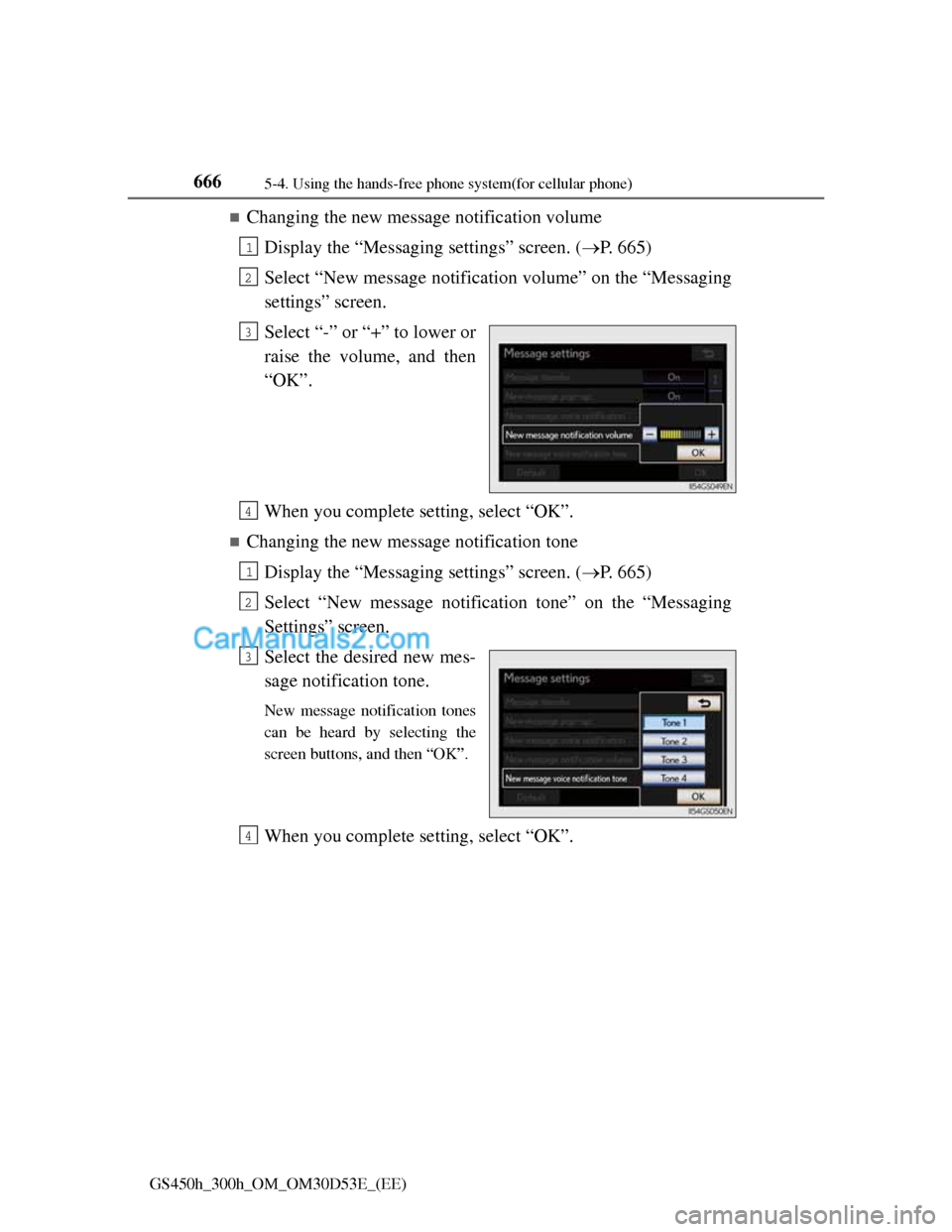
Changing the new message notification volume
Display the “Messaging settings” screen. (P. 665)
Select “New message notification volume” on the “Messaging
settings” screen.
Select “-” or “+” to lower or
raise the volume, and then
“OK”.
When you complete setting, select “OK”.
Changing the new message notification tone
Display the “Messaging settings” screen. (P. 665)
Select “New message notification tone” on the “Messaging
Settings” screen.
Select the desired new mes-
sage notification tone.
New message notification tones
can be heard by selecting the
screen buttons, and then “OK”.
When you complete setting, select “OK”.
1
2
3
4
1
2
3
4
Page 690 of 1014
6675-4. Using the hands-free phone system(for cellular phone)
5
Interior features
GS450h_300h_OM_OM30D53E_(EE)
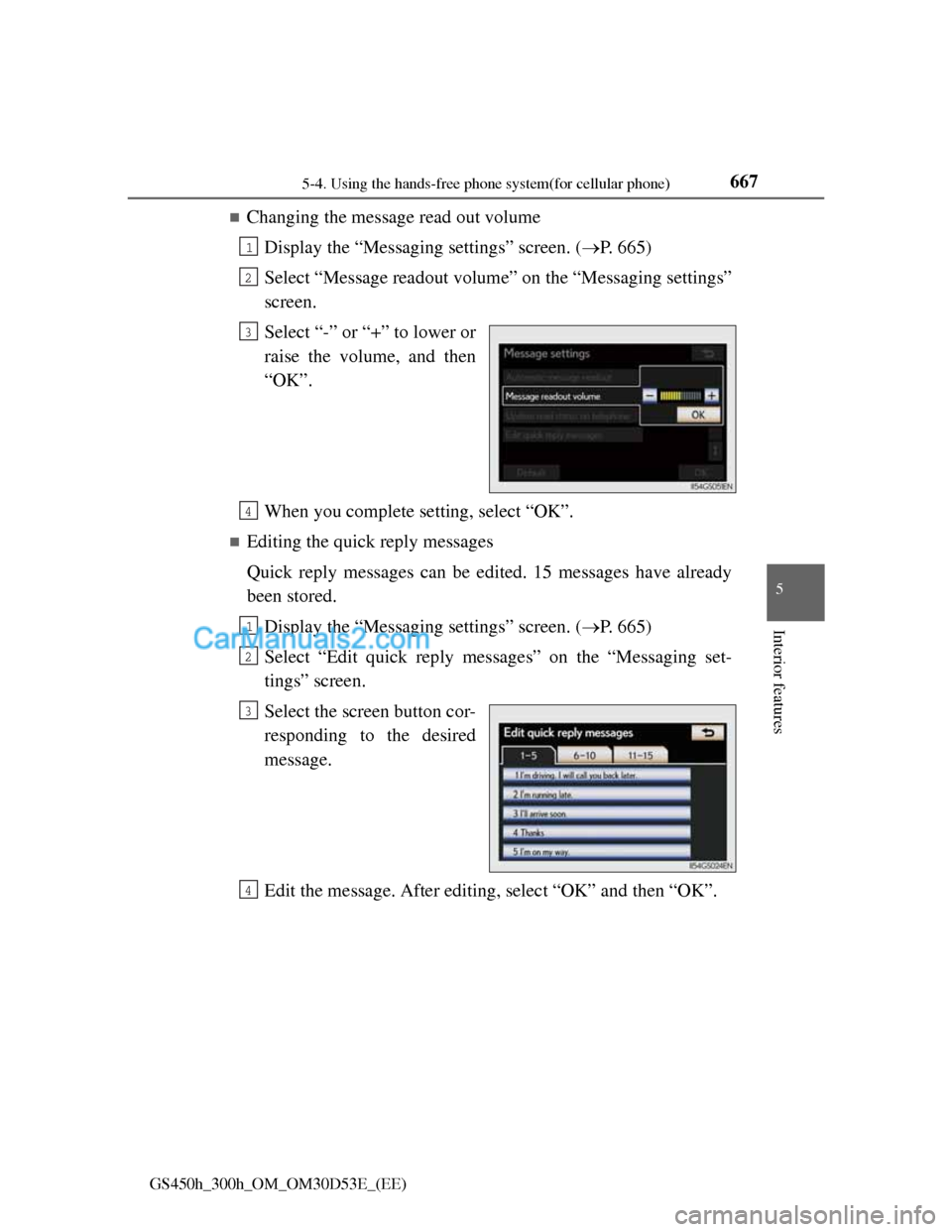
Changing the message read out volume
Display the “Messaging settings” screen. (P. 665)
Select “Message readout volume” on the “Messaging settings”
screen.
Select “-” or “+” to lower or
raise the volume, and then
“OK”.
When you complete setting, select “OK”.
Editing the quick reply messages
Quick reply messages can be edited. 15 messages have already
been stored.
Display the “Messaging settings” screen. (P. 665)
Select “Edit quick reply messages” on the “Messaging set-
tings” screen.
Select the screen button cor-
responding to the desired
message.
Edit the message. After editing, select “OK” and then “OK”.
1
2
3
4
1
2
3
4
Page 691 of 1014
6685-4. Using the hands-free phone system(for cellular phone)
GS450h_300h_OM_OM30D53E_(EE)
To display the “Message settings” screen in a different way
Display the “Telephone” screen. (P. 625)
Select “Messages” on the “Telephone” screen.
Select “Options” on the “Messages” screen.
Editing the quick reply messages in a different way
Display the desired message on “Messages” screen. (P. 644)
Select “Reply” on the desired message screen.
Select “Edit” on the “Quick reply messages”.
Select the screen button corresponding to the desired message.
When you complete editing, select “OK” and then on the “Edit Quick
Replay Message” screen.
Adaptive volume control
When traveling at 80 km/h (50 mph) or more, the system automatically raises
the volume.
To return to the default message settings
Select “Default”, and then “Yes”.
1
2
3
1
2
3
4
5
Page 692 of 1014
6695-4. Using the hands-free phone system(for cellular phone)
5
Interior features
GS450h_300h_OM_OM30D53E_(EE)
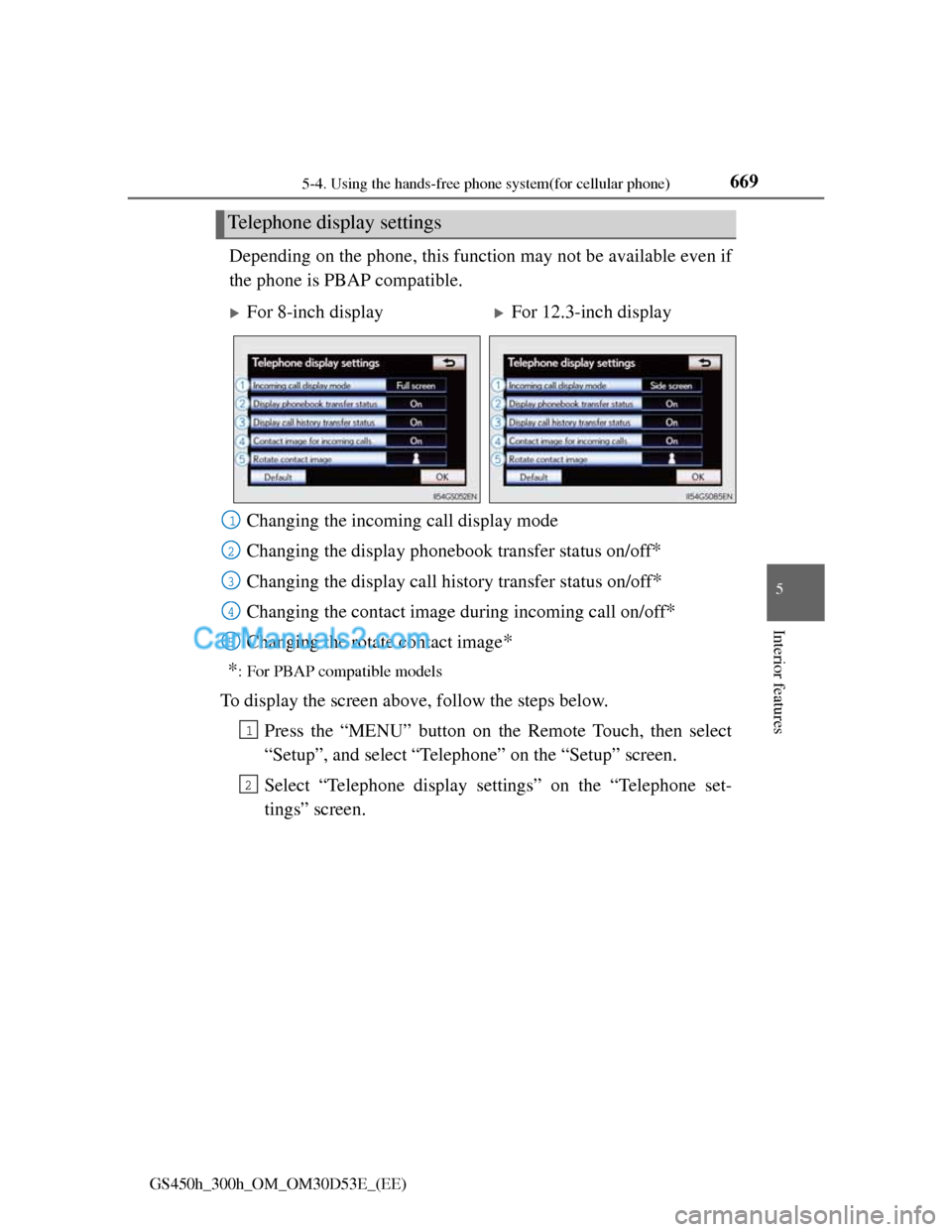
Depending on the phone, this function may not be available even if
the phone is PBAP compatible.
Changing the incoming call display mode
Changing the display phonebook transfer status on/off
*
Changing the display call history transfer status on/off*
Changing the contact image during incoming call on/off*
Changing the rotate contact image*
*
: For PBAP compatible models
To display the screen above, follow the steps below.
Press the “MENU” button on the Remote Touch, then select
“Setup”, and select “Telephone” on the “Setup” screen.
Select “Telephone display settings” on the “Telephone set-
tings” screen.
Telephone display settings
For 8-inch displayFor 12.3-inch display
1
2
3
4
15
1
2