display Lexus GS350 2008 Service Manual
[x] Cancel search | Manufacturer: LEXUS, Model Year: 2008, Model line: GS350, Model: Lexus GS350 2008Pages: 598, PDF Size: 14.03 MB
Page 215 of 598
214
3-1. Using the touch screen
GS_G_U
June 19, 2008 12:54 pm
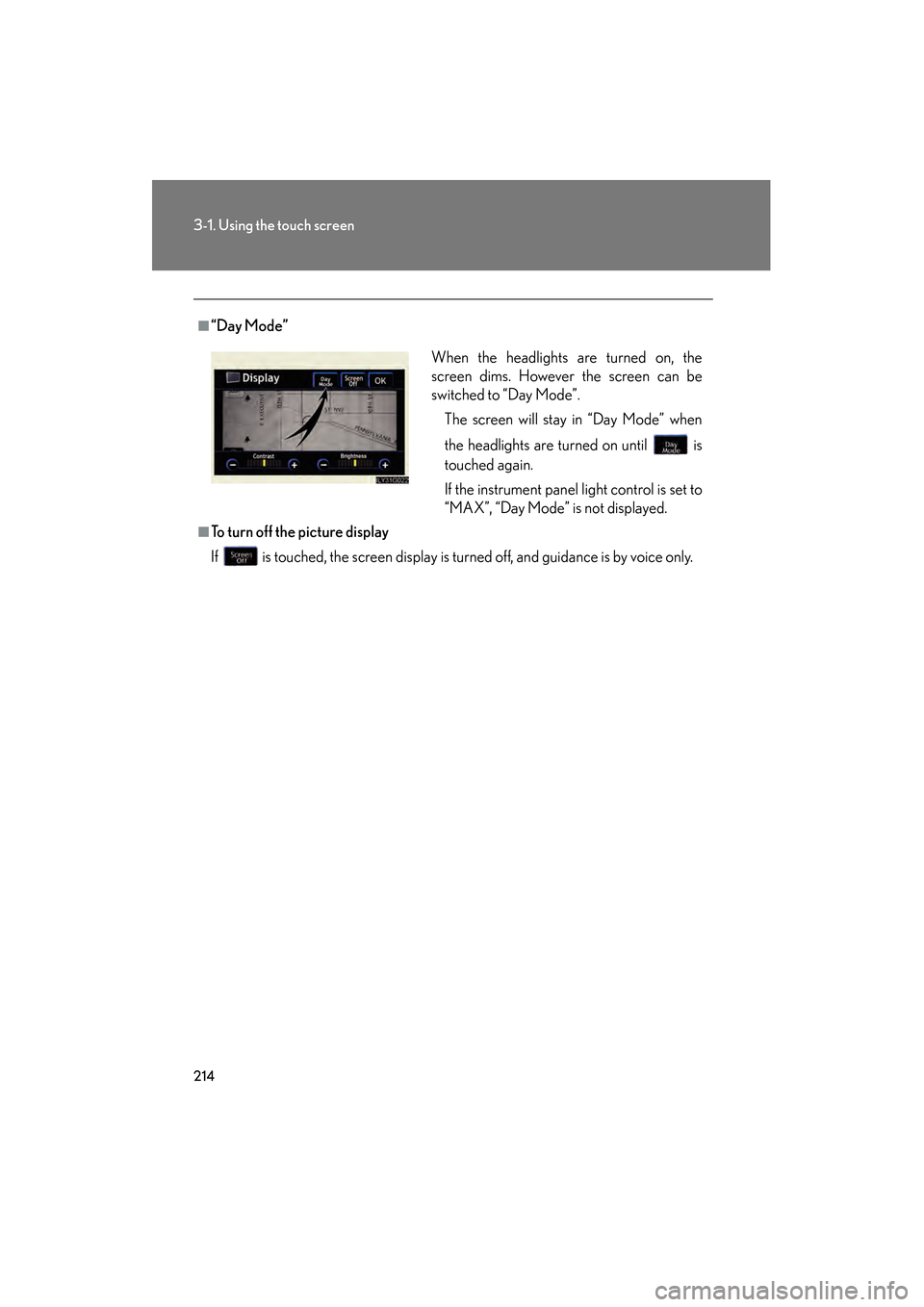
■“Day Mode”
■To turn off the picture display
If is touched, the screen display is turned off, and guidance is by voice only.When the headlights are turned on, the
screen dims. However the screen can be
switched to “Day Mode”.
The screen will stay in “Day Mode” when
the headlights are turned on until is
touched again.
If the instrument panel light control is set to
“MAX”, “Day Mode” is not displayed.
GS_U_G.book Page 214 Thursday, June 19, 2008 12:54 PM
Page 216 of 598
215
3-1. Using the touch screen
3
Interior features
GS_G_U
June 19, 2008 12:54 pm
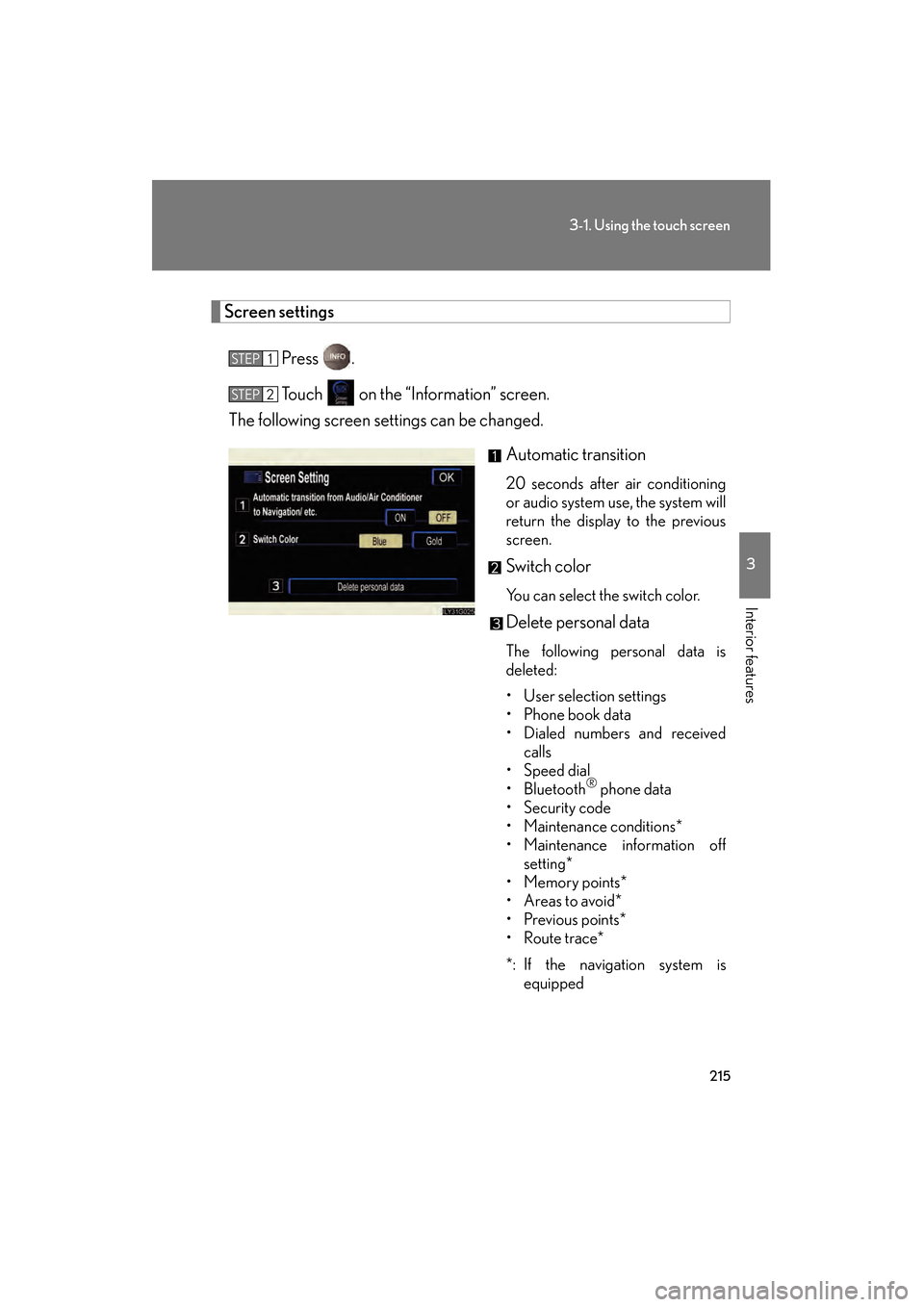
Screen settingsPress .
Touch on the “Information” screen.
The following screen settings can be changed.
Automatic transition
20 seconds after air conditioning
or audio system use, the system will
return the display to the previous
screen.
Switch color
You can select the switch color.
Delete personal data
The following personal data is
deleted:
• User selection settings
• Phone book data
• Dialed numbers and receivedcalls
• Speed dial
•Bluetooth
® phone data
• Security code
• Maintenance conditions*
• Maintenance information off setting*
•Memory points*
•Areas to avoid*
•Previous points*
•Route trace*
*: If the navigation system is equipped
STEP1
STEP2
GS_U_G.book Page 215 Thursday, June 19, 2008 12:54 PM
Page 217 of 598
216
3-1. Using the touch screen
GS_G_U
June 19, 2008 12:54 pm
■Setting automatic transition
Touch or .
Press .
■ Setting the switch color
Touch or .
Press .
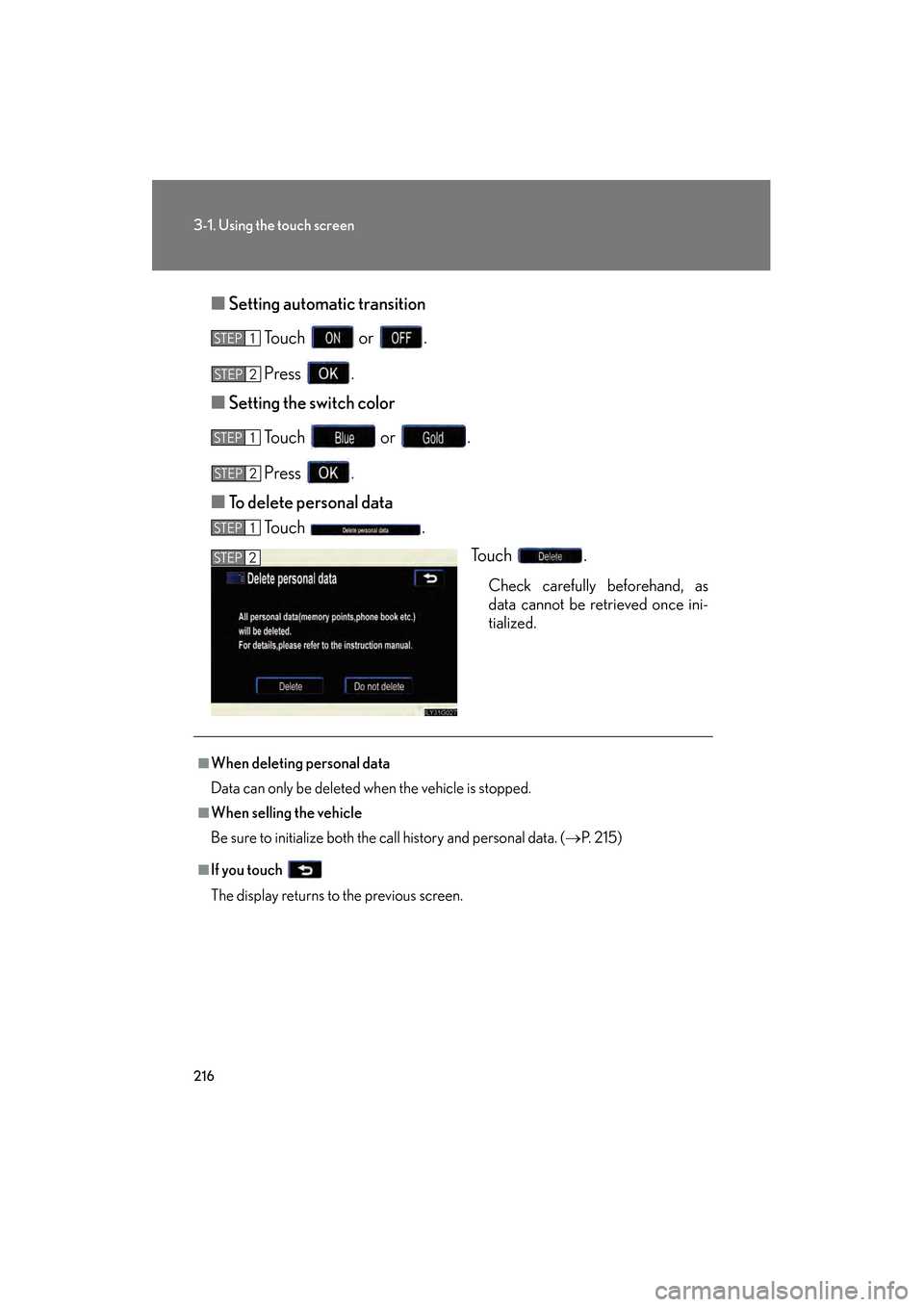
■ To delete personal data
Touch .
Touch .
Check carefully beforehand, as
data cannot be retrieved once ini-
tialized.
STEP1
STEP2
STEP1
STEP4STEP2
STEP1
STEP2
■When deleting personal data
Data can only be deleted when the vehicle is stopped.
■When selling the vehicle
Be sure to initialize both the call history and personal data. ( →P. 2 1 5 )
■If you touch
The display returns to the previous screen.
GS_U_G.book Page 216 Thursday, June 19, 2008 12:54 PM
Page 218 of 598
217
3
Interior features
GS_G_U
June 19, 2008 12:54 pm
3-2. Using the air conditioning system and defogger
Automatic air conditioning system
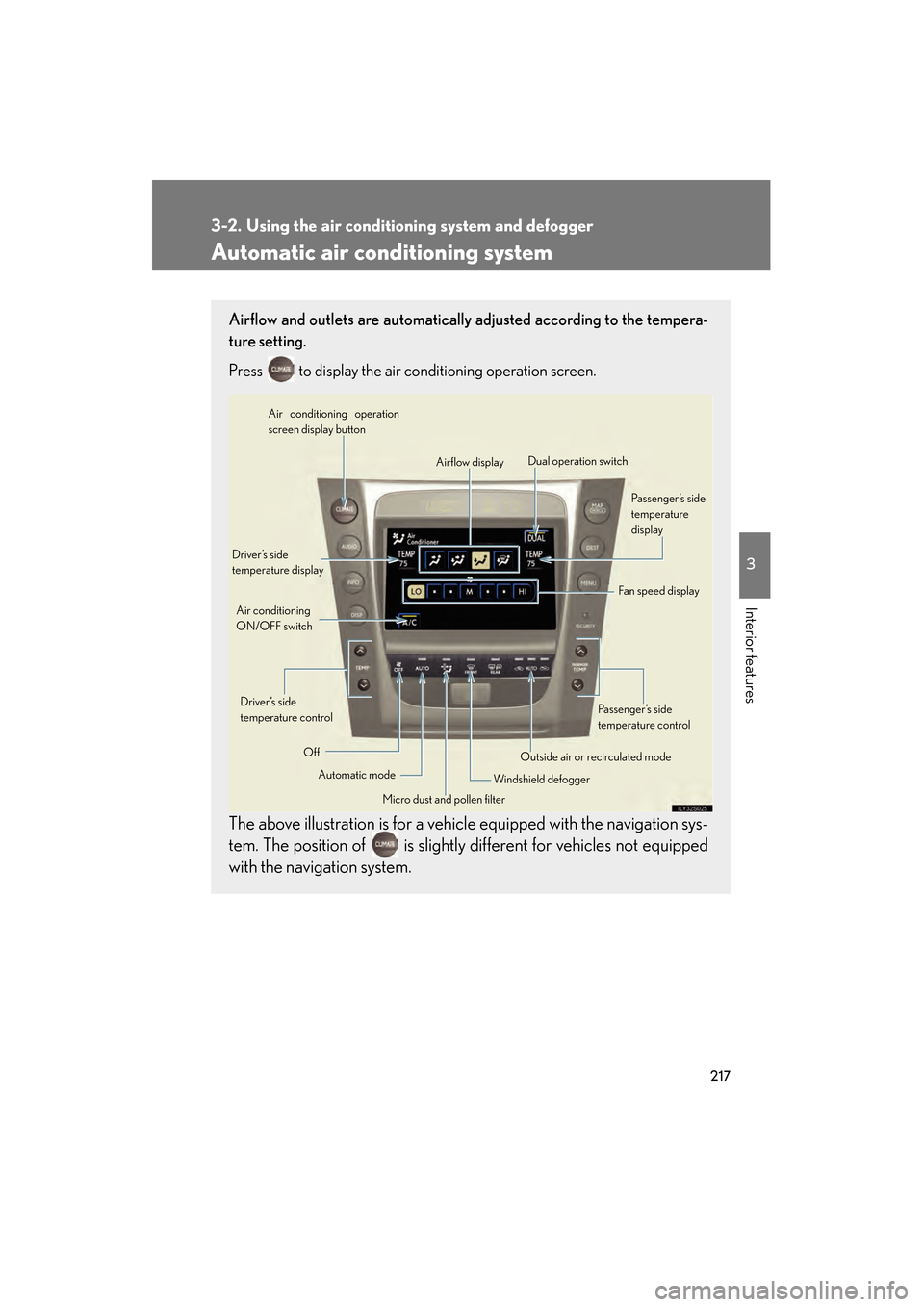
Airflow and outlets are automatically adjusted according to the tempera-
ture setting.
Press
to display the air conditioning operation screen.
The above illustration is for a vehicle equipped with the navigation sys-
tem. The position of is slightly different for vehicles not equipped
with the navigation system.
Automatic mode
Driver’s side
temperature display
Fan speed display
Off Airflow display
Air conditioning operation
screen display button
Passenger’s side
temperature
display
Micro dust and pollen filter
Driver’s side
temperature control
Air conditioning
ON/OFF switch
Outside air or recirculated mode
Windshield defogger Passenger’s side
temperature control
Dual operation switch
GS_U_G.book Page 217 Thursday, June 19, 2008 12:54 PM
Page 230 of 598
229
3-3. Using the audio system
3
Interior features
GS_G_U
June 19, 2008 12:54 pm
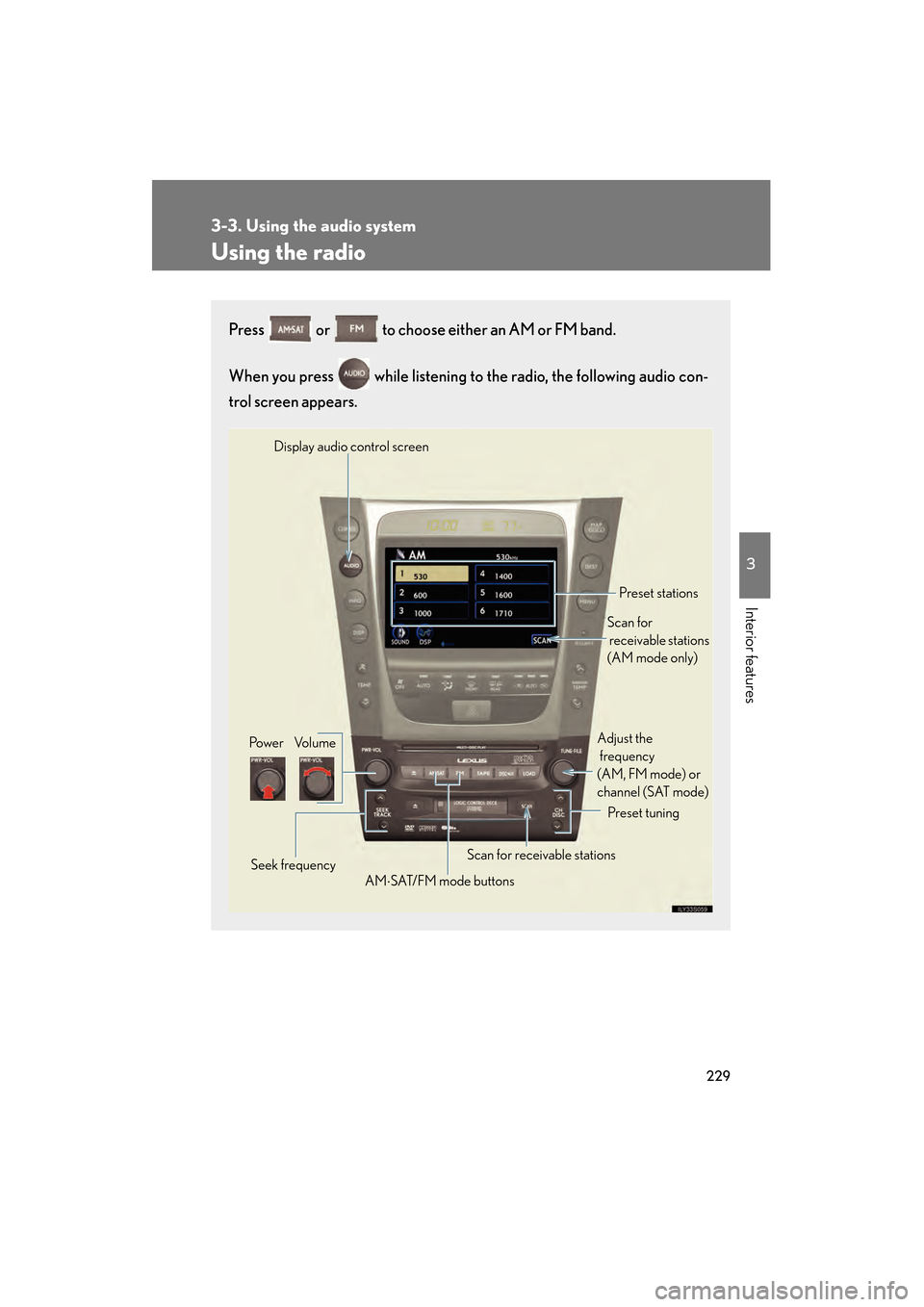
Using the radio
Press or to choose either an AM or FM band.
When you press while listening to the radio, the following audio con-
trol screen appears.
Display audio control screen
Po we r Vo l u m e Scan for receivable stations
Seek frequency Preset tuning
Adjust the
frequency
(AM, FM mode) or
channel (SAT mode)
AM ⋅SAT/FM mode buttons Preset stations
Scan for
receivable stations
(AM mode only)
GS_U_G.book Page 229 Thursday, June 19, 2008 12:54 PM
Page 233 of 598
232
3-3. Using the audio system
GS_G_U
June 19, 2008 12:54 pm
The type of program changes each time the button is pressed.
●ROCK
● EASYLIS (Easy listening)
● CLS/JAZZ (Classical music and Jazz)
● R & B (Rhythm and Blues)
● INFORM (Information)
● RELIGION
● MISC (Miscellaneous)
● ALARM (Emergency messages)
If the system receives no RDS stations, “NO PTY” appears on the display.
When a program is set, “TYPE SEEK” appears.
Touch on the screen or press ∧ or ∨ on .
The radio seeks or scans the station by the relevant program type.
If no radio station of that type is found, “NOTHING” appears on the
screen.
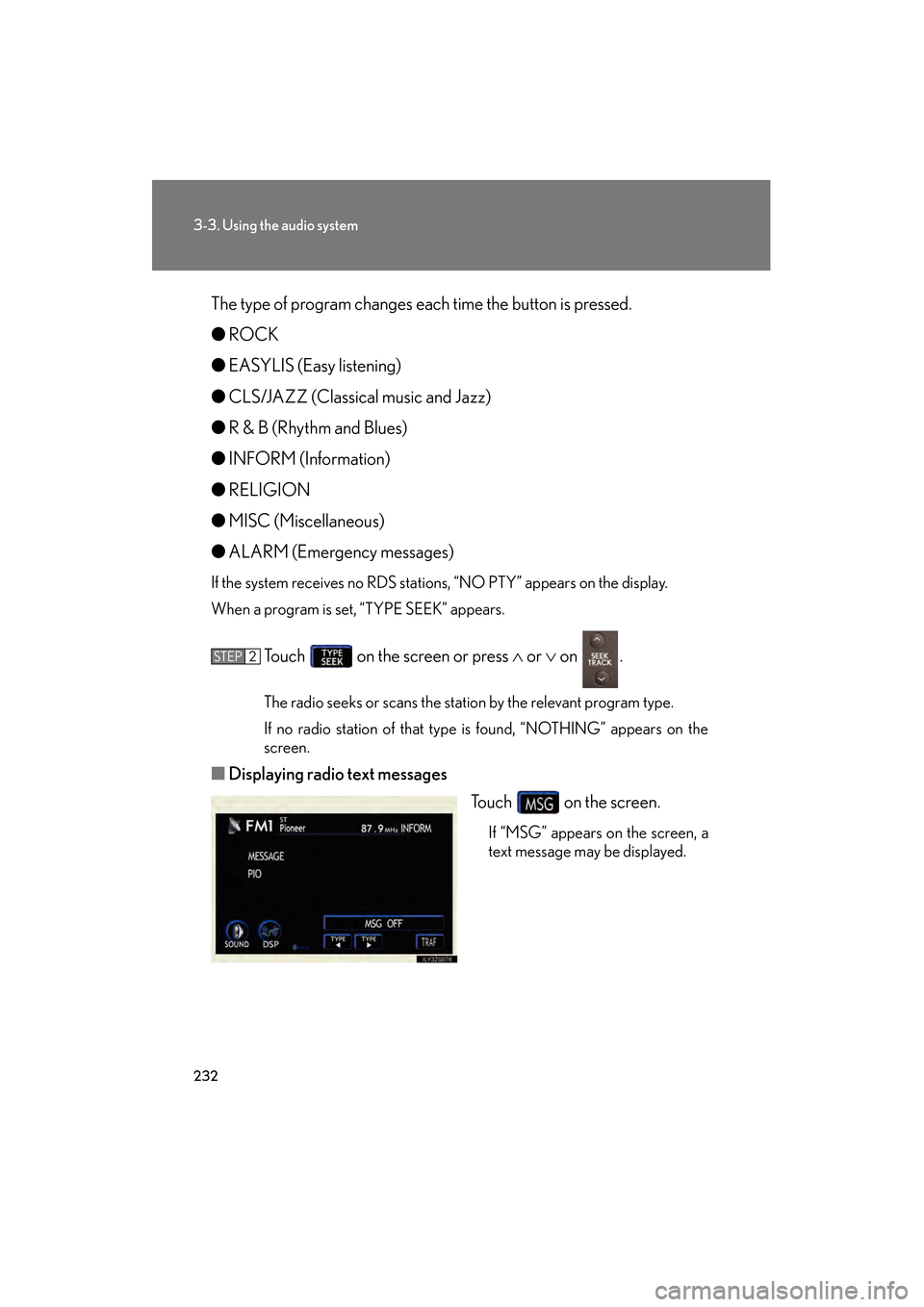
■ Displaying radio text messages
Touch on the screen.
If “MSG” appears on the screen, a
text message may be displayed.
STEP2
GS_U_G.book Page 232 Thursday, June 19, 2008 12:54 PM
Page 234 of 598
233
3-3. Using the audio system
3
Interior features
GS_G_U
June 19, 2008 12:54 pm
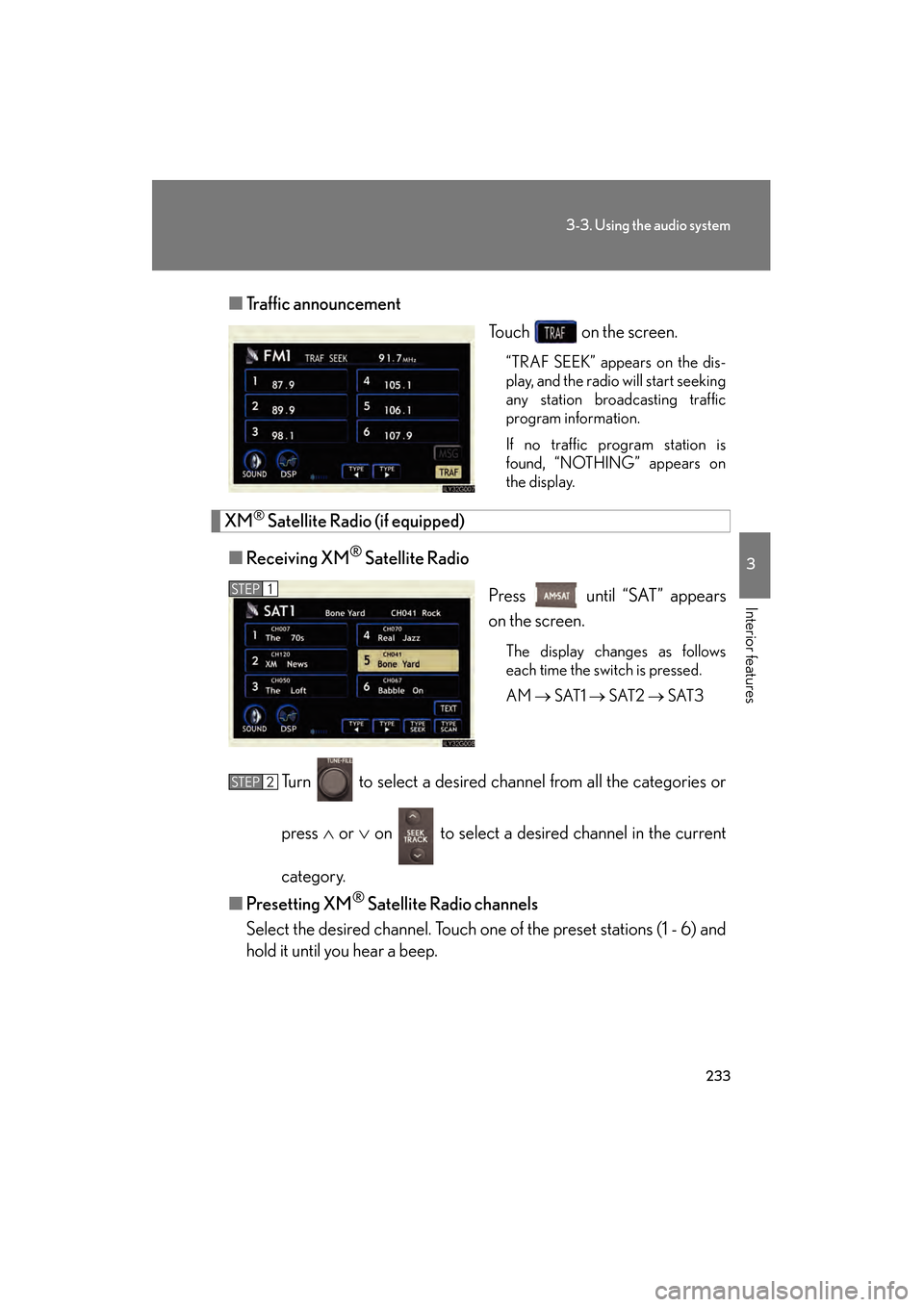
■Traffic announcement
Touch on the screen.
“TRAF SEEK” appears on the dis-
play, and the radio will start seeking
any station broadcasting traffic
program information.
If no traffic program station is
found, “NOTHING” appears on
the display.
XM® Satellite Radio (if equipped)
■ Receiving XM
® Satellite Radio
Press until “SAT” appears
on the screen.
The display changes as follows
each time the switch is pressed.
AM → SAT1 → SAT2 → SAT3
Turn to select a desired channel from all the categories or
press ∧ or ∨ on to select a desired channel in the current
category.
■ Presetting XM
® Satellite Radio channels
Select the desired channel. Touch one of the preset stations (1 - 6) and
hold it until you hear a beep.
STEP1
STEP2
GS_U_G.book Page 233 Thursday, June 19, 2008 12:54 PM
Page 235 of 598
234
3-3. Using the audio system
GS_G_U
June 19, 2008 12:54 pm
■Changing the channel category
Touch or on the screen.
■ Scanning XM
® Satellite Radio channels
● Scanning channels in the current category
Touch on the screen or press .
“SCAN” appears on the screen.
When the desired channel is reached, touch or press
the button once again.
● Scanning preset channels
Touch on the screen or press and hold it until
you hear a beep.
“P⋅SCAN” appears on the screen.
When the desired channel is reached, touch or press
the button once again.
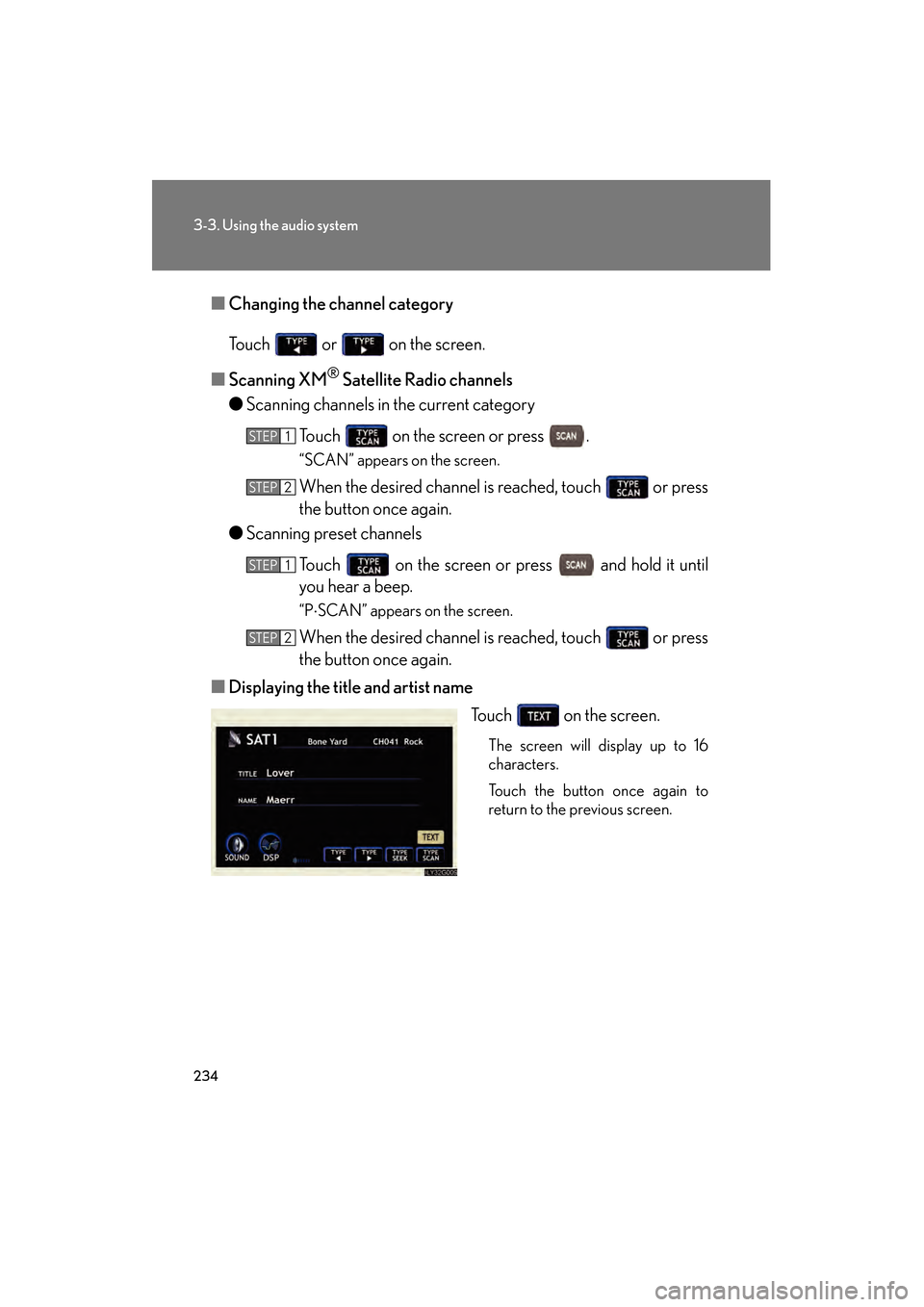
■ Displaying the title and artist name
Touch on the screen.
The screen will display up to 16
characters.
Touch the button once again to
return to the previous screen.
STEP1
STEP2
STEP1
STEP2
GS_U_G.book Page 234 Thursday, June 19, 2008 12:54 PM
Page 239 of 598
238
3-3. Using the audio system
GS_G_U
June 19, 2008 12:54 pm
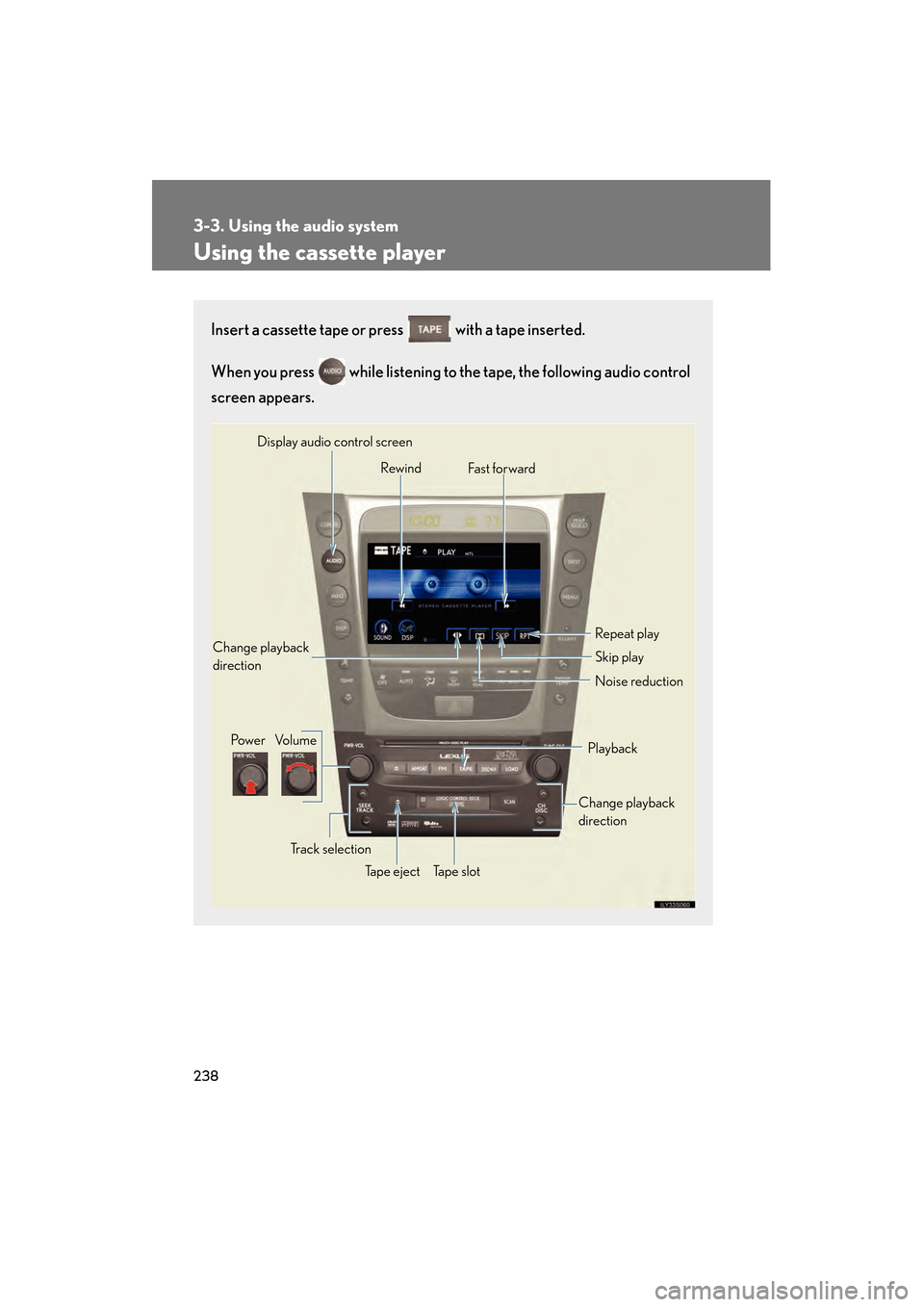
Using the cassette player
Insert a cassette tape or press with a tape inserted.
When you press while listening to the tape, the following audio control
screen appears.
Display audio control screen
Powe r Vo l u m e Change playback
direction
Tape eject Playback
Skip play
Ta p e s l o t Repeat play
Track selection
Change playback
direction
Noise reduction
Rewind
Fas t for ward
GS_U_G.book Page 238 Thursday, June 19, 2008 12:54 PM
Page 243 of 598
242
3-3. Using the audio system
GS_G_U
June 19, 2008 12:54 pm
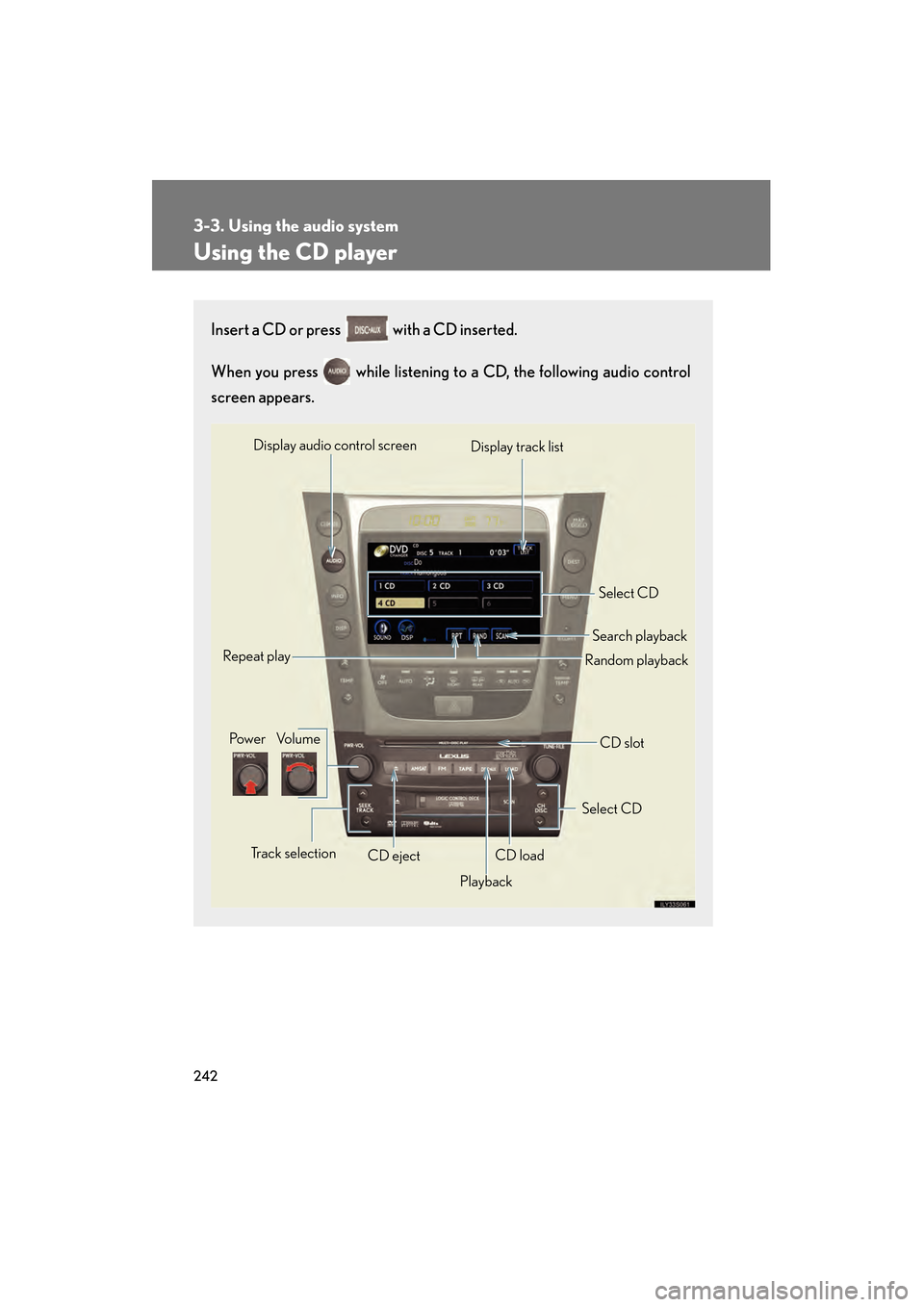
Using the CD player
Insert a CD or press with a CD inserted.
When you press while listening to a CD, the following audio control
screen appears.
Select CD
Display track list
Select CD
Search playback
CD slot
Random playback
Repeat play
Pow e r Vo l u m e
CD ejectPlayback
Track selection CD load
Display audio control screen
GS_U_G.book Page 242 Thursday, June 19, 2008 12:54 PM