radio Lexus GS350 2009 User Guide
[x] Cancel search | Manufacturer: LEXUS, Model Year: 2009, Model line: GS350, Model: Lexus GS350 2009Pages: 622, PDF Size: 17.98 MB
Page 211 of 622
210
2-4. Using other driving systems
GS_G_U (OM30B43U)
April 27, 2009 10:48 am
■CertificationFor vehicles sold in the U.S.A.
FCC ID: HYQDNMWR005
This device complies with Part 15 of the FCC Rules. Operation is subject to the fol-
lowing two conditions: (1) this device may not cause harmful interference, and (2)
this device must accept any interference received, including interference that may
cause undesired operation.
FCC WARNING
Changes or modifications not expressly approved by the party responsible for
compliance could void the user’s authority to operate the equipment.
Radio frequency radiation exposure Information:
This equipment complies with FCC radiatio n exposure limits set forth for an uncon-
trolled environment.
This equipment should be installed and op erated with minimum distance of 20 cm
between the radiator and your body.
This transmitter must not be co-located or operating in conjunction with any other
antenna or transmitter.
For vehicles sold in Canada
Operation is subject to the following two conditions: (1) this device may not cause
interference, and (2) this device must a ccept any interference, including interfer-
ence that may cause undesired operation of the device.
GS_U_G.book Page 210 Monday, April 27, 2009 10:50 AM
Page 226 of 622
Interior features3
225
GS_G_U (OM30B43U)
April 27, 2009 10:42 am
3-3. Using the audio systemAudio system type.................. 245
Using the radio........................ 248
Using the cassette player .... 257
Using the CD player .............. 261
Playing MP3 and WMA discs............................ 266
Using the DVD player........... 270
Playing DVD video/audio .... 273
Playing video CD (with DVD player) .............. 285
CD/DVD player and DVD
video disc information ...... 289
Optimal use of the audio/video system ....... 301
Using the AUX adapter ....... 306
Using the steering switches .................................. 307
3-4. Using the hands-free system (for cellular phone)
Hands-free system (for cellular phone) .............. 310
Using the Bluetooth
®
phone ....................................... 315
Setting the hands-free system .................................... 330 3-5. Using the interior lights
Interior lights list .................... 356
3-6. Using the storage features List of storage features......... 359
3-7. Other interior features Sun visors ................................. 366
Vanity mirrors .......................... 367
Clock ......................................... 368
Outside temperature display..................................... 369
Ashtrays.................................... 370
Cigarette lighter ..................... 371
Power outlet ............................ 372
Seat heaters/ventilators ...... 373
Armrest .................................... 375
Rear sunshade ......................... 376
Floor mats ................................ 378
Trunk features ......................... 379
Garage door opener ............ 382
Compass .................................. 388
Lexus Link System ................. 392
GS_U_G.book Page 225 Monday, April 27, 2009 10:50 AM
Page 246 of 622
245
3
Interior features
GS_G_U (OM30B43U)
April 27, 2009 10:48 am
3-3. Using the audio system
Audio system type
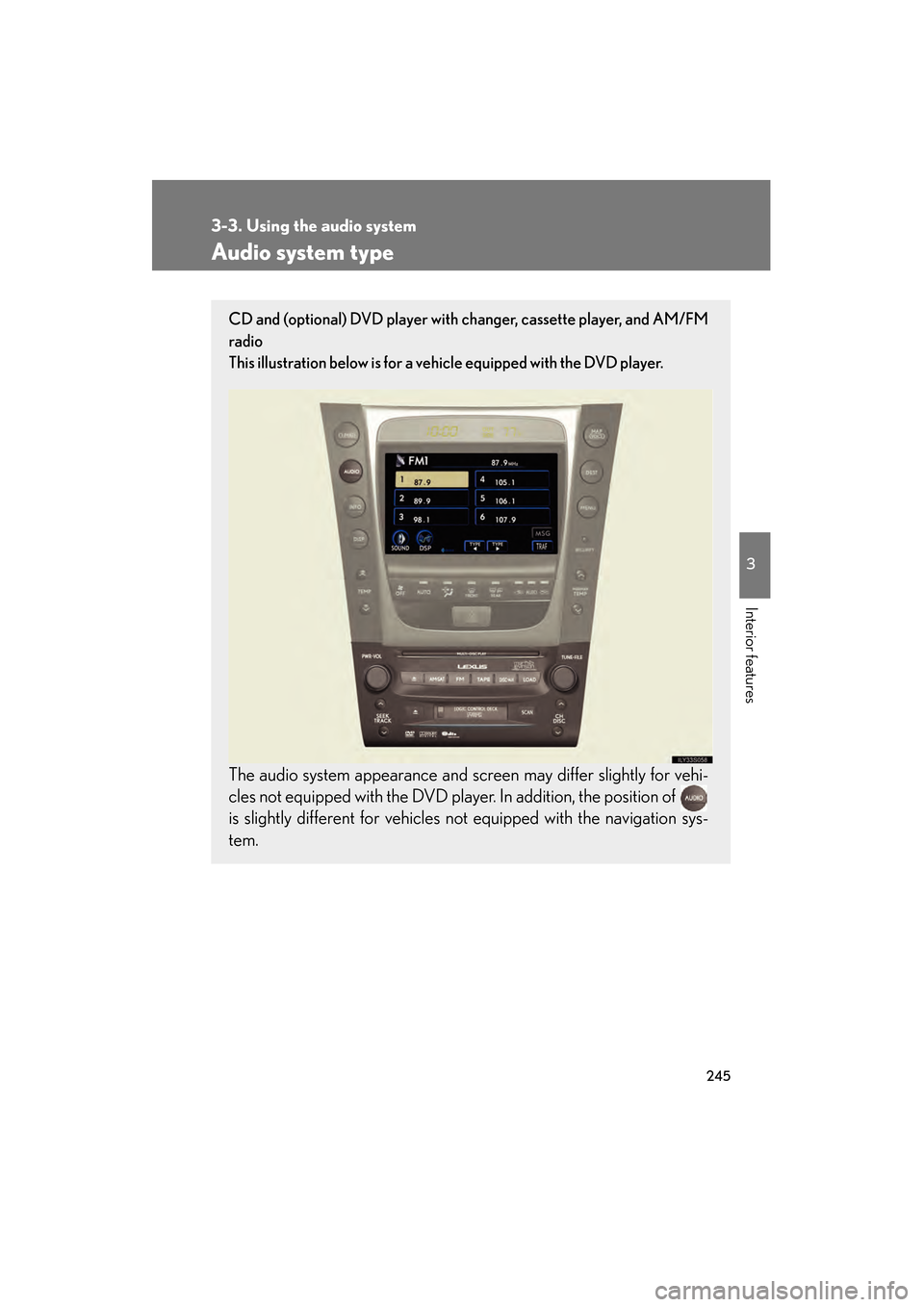
CD and (optional) DVD player with changer, cassette player, and AM/FM
radio
This illustration below is for a vehicle equipped with the DVD player.
The audio system appearance and scr een may differ slightly for vehi-
cles not equipped with the DVD play er. In addition, the position of
is slightly different for vehicles no t equipped with the navigation sys-
tem.
GS_U_G.book Page 245 Monday, April 27, 2009 10:50 AM
Page 247 of 622
246
3-3. Using the audio system
GS_G_U (OM30B43U)
April 27, 2009 10:48 am
■Using cellular phones
Interference may be heard through the audio system’s speakers if a cellular phone is
being used inside or close to the vehicle while the audio system is operating.
CD player: Plays audio CDs, CD text, MP3 discs and WMA discs.
DVD player: Plays audio CDs, CD text, video CDs, MP3 discs,
WMA discs, DVD video discs and DVD audio discs.
Ti t l ePa g e
Using the radioP. 2 4 8
Using the cassette playerP. 2 5 7
Using the CD playerP. 2 6 1
Playing MP3 and WMA discsP. 2 6 6
Using the DVD playerP. 2 7 0
Playing DVD video/audioP. 2 7 3
Playing video CDP. 2 8 5
DVD player and DVD video disc informationP. 2 8 9
Optimal use of the audio/video systemP. 3 0 1
Using the AUX adapterP. 3 0 6
Using the steering switchesP. 3 0 7
GS_U_G.book Page 246 Monday, April 27, 2009 10:50 AM
Page 249 of 622
248
3-3. Using the audio system
GS_G_U (OM30B43U)
April 27, 2009 10:48 am
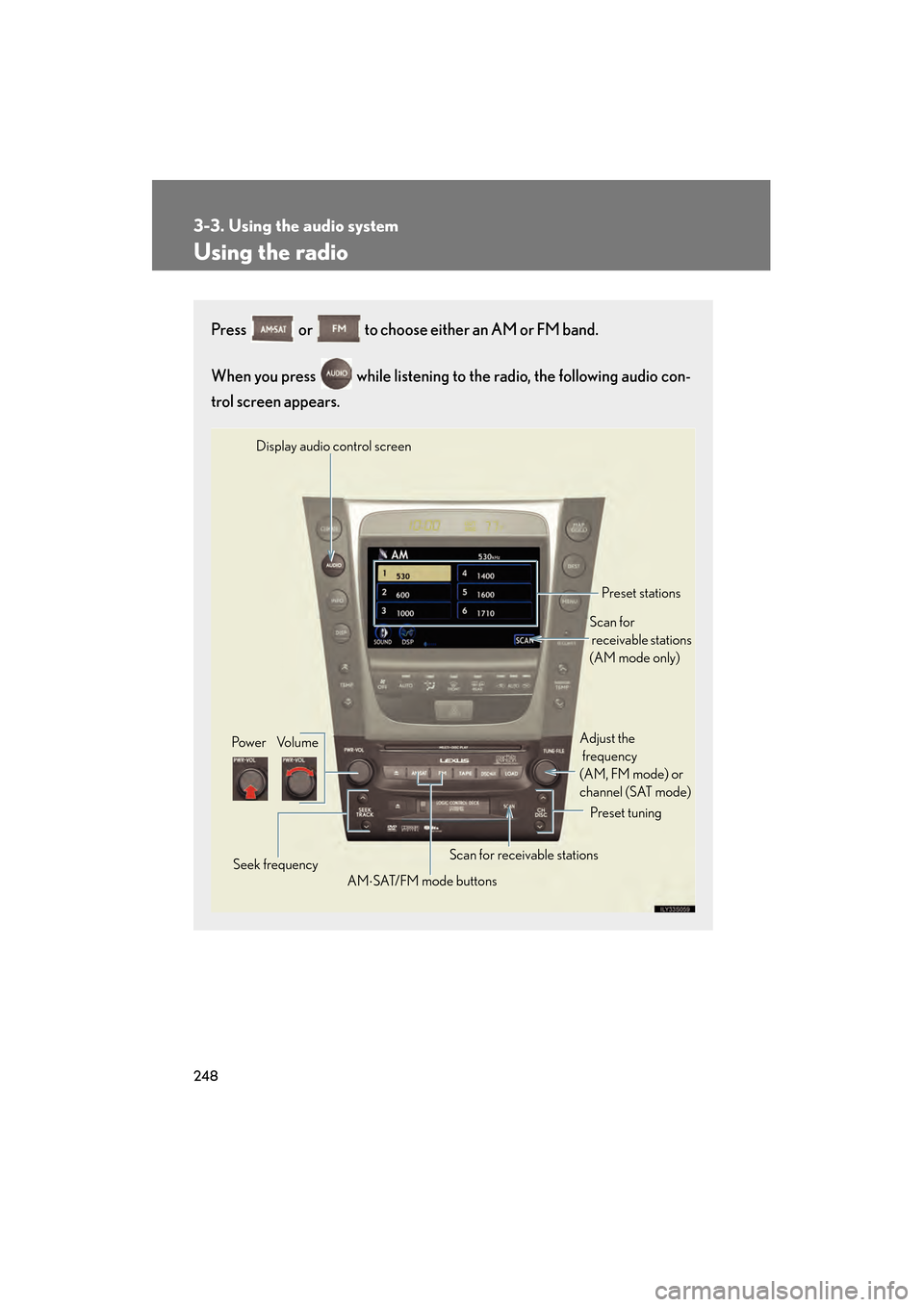
Using the radio
Press or to choose either an AM or FM band.
When you press while listening to the radio, the following audio con-
trol screen appears.
Display audio control screen
Pow e r Vo l u m e Scan for receivable stations
Seek frequency Preset tuning
Adjust the
frequency
(AM, FM mode) or
channel (SAT mode)
AM ⋅SAT/FM mode buttons Preset stations
Scan for
receivable stations
(AM mode only)
GS_U_G.book Page 248 Monday, April 27, 2009 10:50 AM
Page 250 of 622
249
3-3. Using the audio system
3
Interior features
GS_G_U (OM30B43U)
April 27, 2009 10:48 am
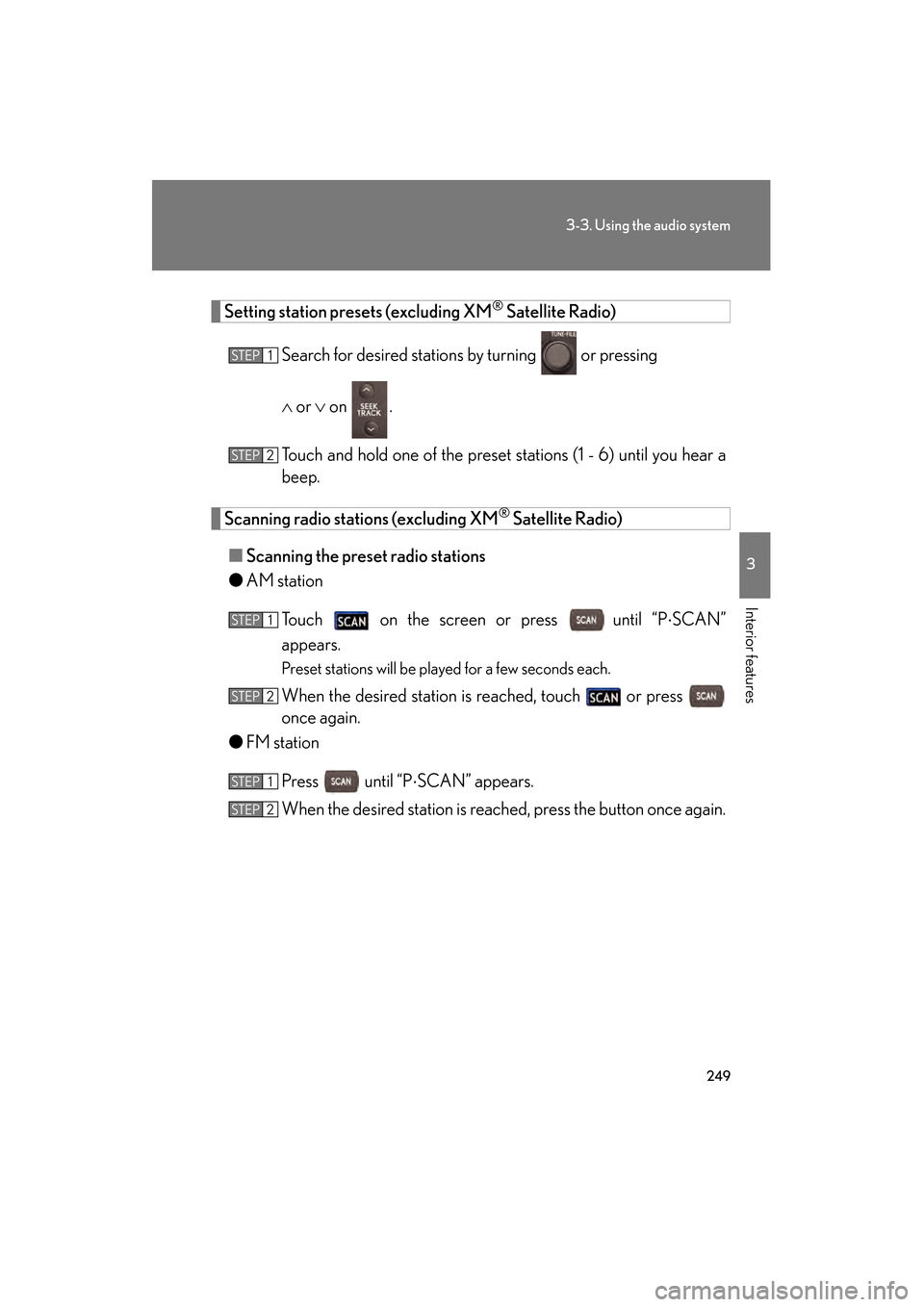
Setting station presets (excluding XM® Satellite Radio)
Search for desired stations by turning
or pressing
∧ or ∨ on .
Touch and hold one of the preset st ations (1 - 6) until you hear a
beep.
Scanning radio stations (excluding XM® Satellite Radio)
■ Scanning the preset radio stations
● AM station
Touch on the screen or press
until “P ⋅SCAN”
appears.
Preset stations will be played for a few seconds each.
When the desired station is reached, touch or press
once again.
● FM station
Press until “P ⋅SCAN” appears.
When the desired station is reach ed, press the button once again.
STEP1
STEP2
STEP1
STEP2
STEP1
STEP2
GS_U_G.book Page 249 Monday, April 27, 2009 10:50 AM
Page 251 of 622
250
3-3. Using the audio system
GS_G_U (OM30B43U)
April 27, 2009 10:48 am
■Scanning all radio stations within range
● AM station
Touch on the screen or press .
“SCAN” appears on the screen and all stations with reception will be
played for a few seconds each.
When the desired station is reached, touch or press
once again.
● FM station
Press .
“SCAN” appears on the screen and all stations with reception will be
played for a few seconds each.
When the desired station is reach ed, press the button once again.
RDS (Radio Data System)
This feature allows your radio to receive station identification information
and program information (classical, ja zz, etc.) from radio stations which
broadcast this information.
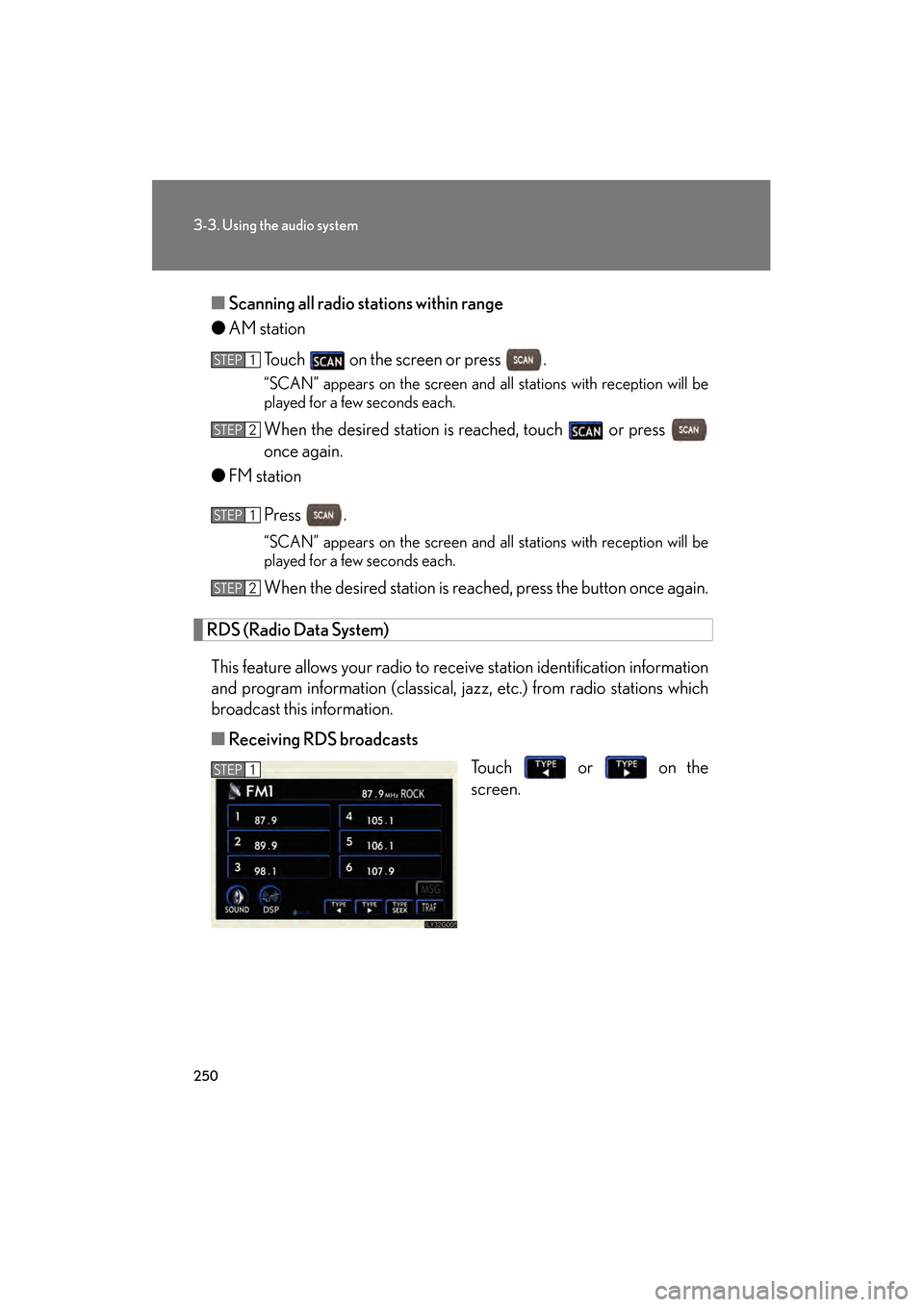
■ Receiving RDS broadcasts
Touch or on the
screen.
STEP1
STEP2
STEP1
STEP2
STEP1
GS_U_G.book Page 250 Monday, April 27, 2009 10:50 AM
Page 252 of 622
251
3-3. Using the audio system
3
Interior features
GS_G_U (OM30B43U)
April 27, 2009 10:48 am
The type of program changes each time the button is pressed.
●ROCK
● EASYLIS (Easy listening)
● CLS/JAZZ (Classical music and Jazz)
● R & B (Rhythm and Blues)
● INFORM (Information)
● RELIGION
● MISC (Miscellaneous)
● ALARM (Emergency messages)
If the system receives no RDS statio ns, “NO PTY” appears on the display.
When a program is set, “TYPE SEEK” appears.
Touch on the screen or press ∧ or ∨ on .
The radio seeks or scans the station by the relevant program type.
If no radio station of that type is found, “NOTHING” appears on the
screen.
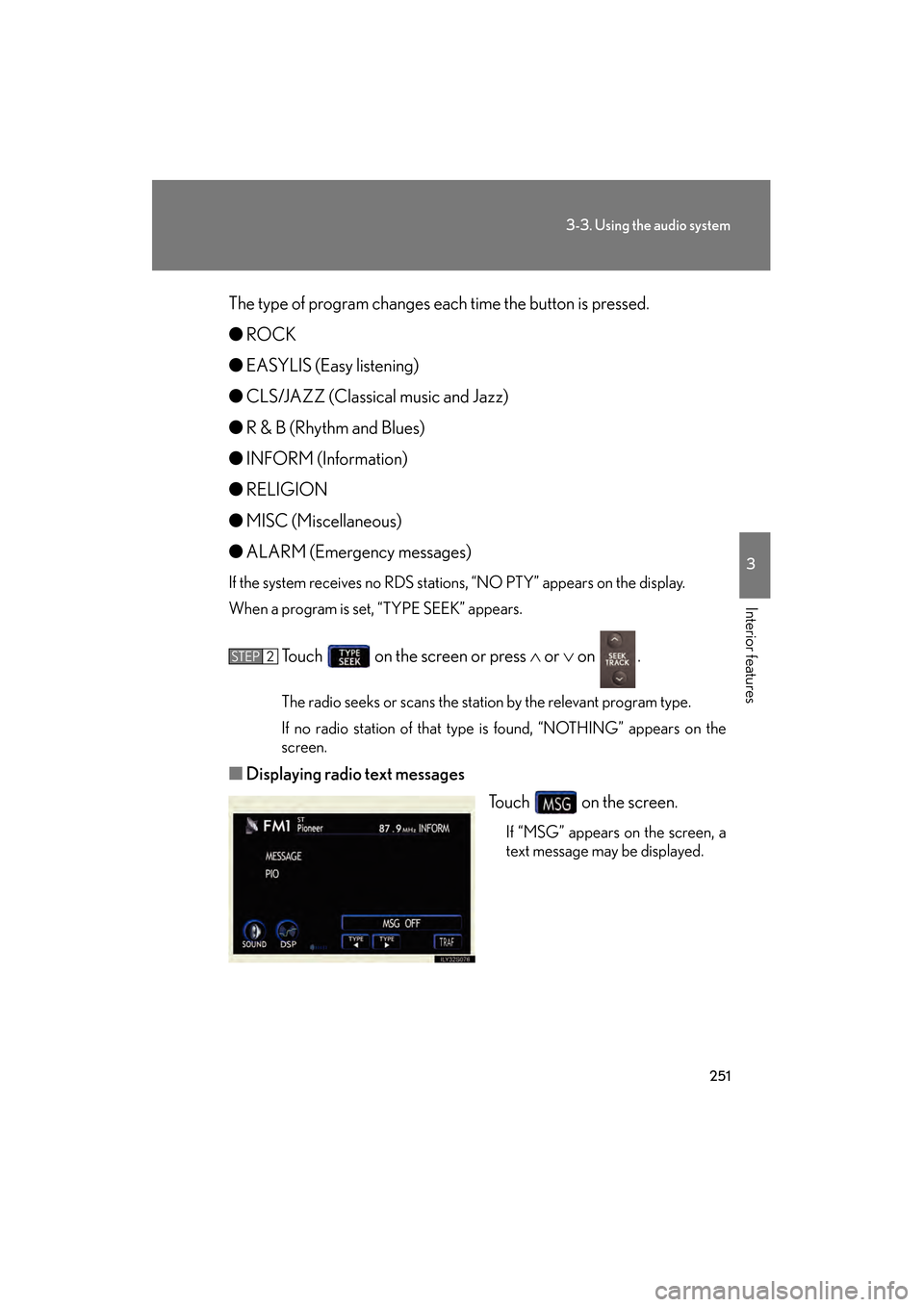
■ Displaying radio text messages
Touch on the screen.
If “MSG” appears on the screen, a
text message may be displayed.
STEP2
GS_U_G.book Page 251 Monday, April 27, 2009 10:50 AM
Page 253 of 622
252
3-3. Using the audio system
GS_G_U (OM30B43U)
April 27, 2009 10:48 am
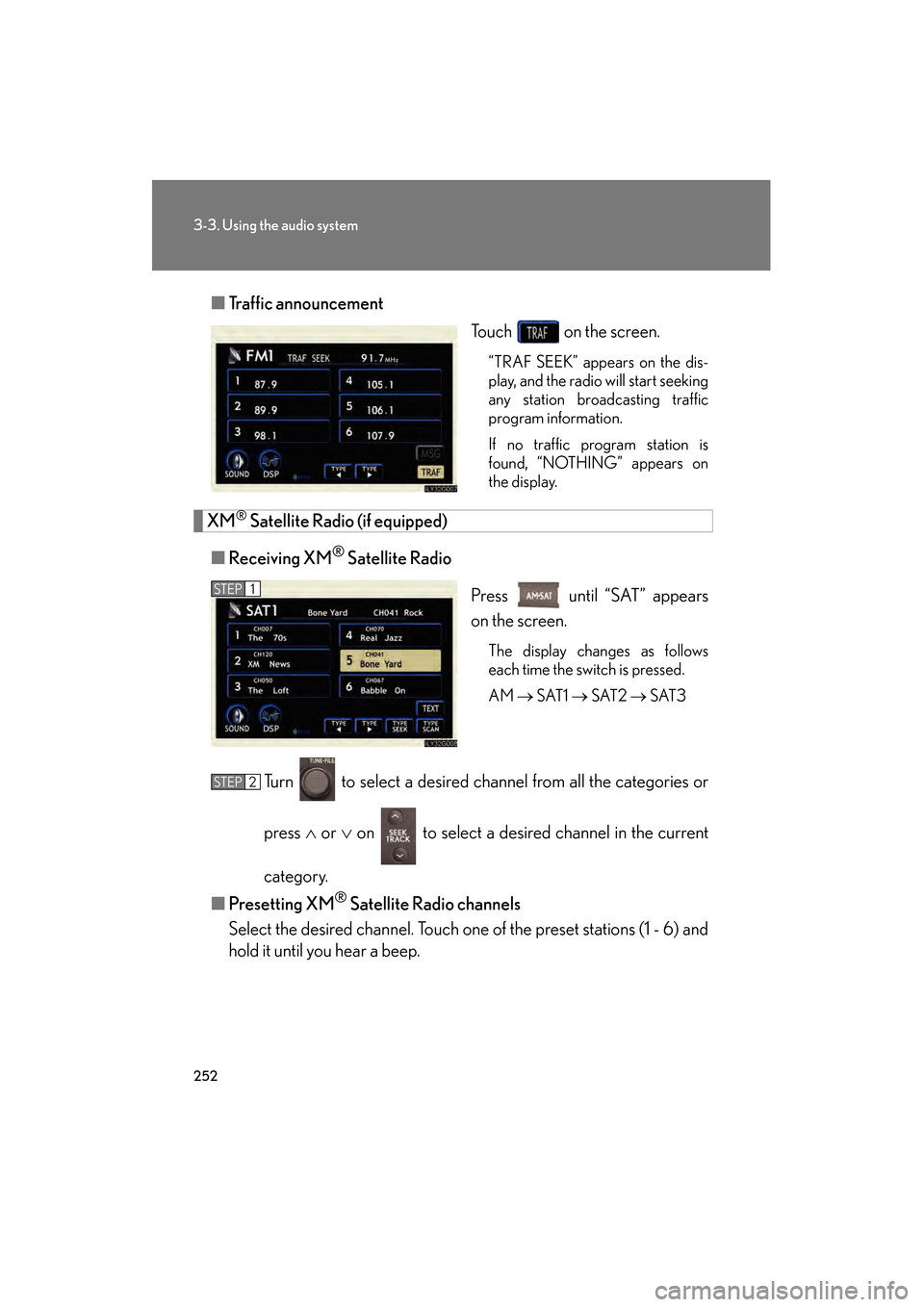
■Traffic announcement
Touch on the screen.
“TRAF SEEK” appears on the dis-
play, and the radio will start seeking
any station broadcasting traffic
program information.
If no traffic program station is
found, “NOTHING” appears on
the display.
XM® Satellite Radio (if equipped)
■ Receiving XM
® Satellite Radio
Press until “SAT” appears
on the screen.
The display changes as follows
each time the switch is pressed.
AM → SAT1 → SAT2 → SAT3
Turn to select a desired channel from all the categories or
press ∧ or ∨ on to select a desir ed channel in the current
category.
■ Presetting XM
® Satellite Radio channels
Select the desired channe l. Touch one of the preset stations (1 - 6) and
hold it until you hear a beep.
STEP1
STEP2
GS_U_G.book Page 252 Monday, April 27, 2009 10:50 AM
Page 254 of 622
253
3-3. Using the audio system
3
Interior features
GS_G_U (OM30B43U)
April 27, 2009 10:48 am
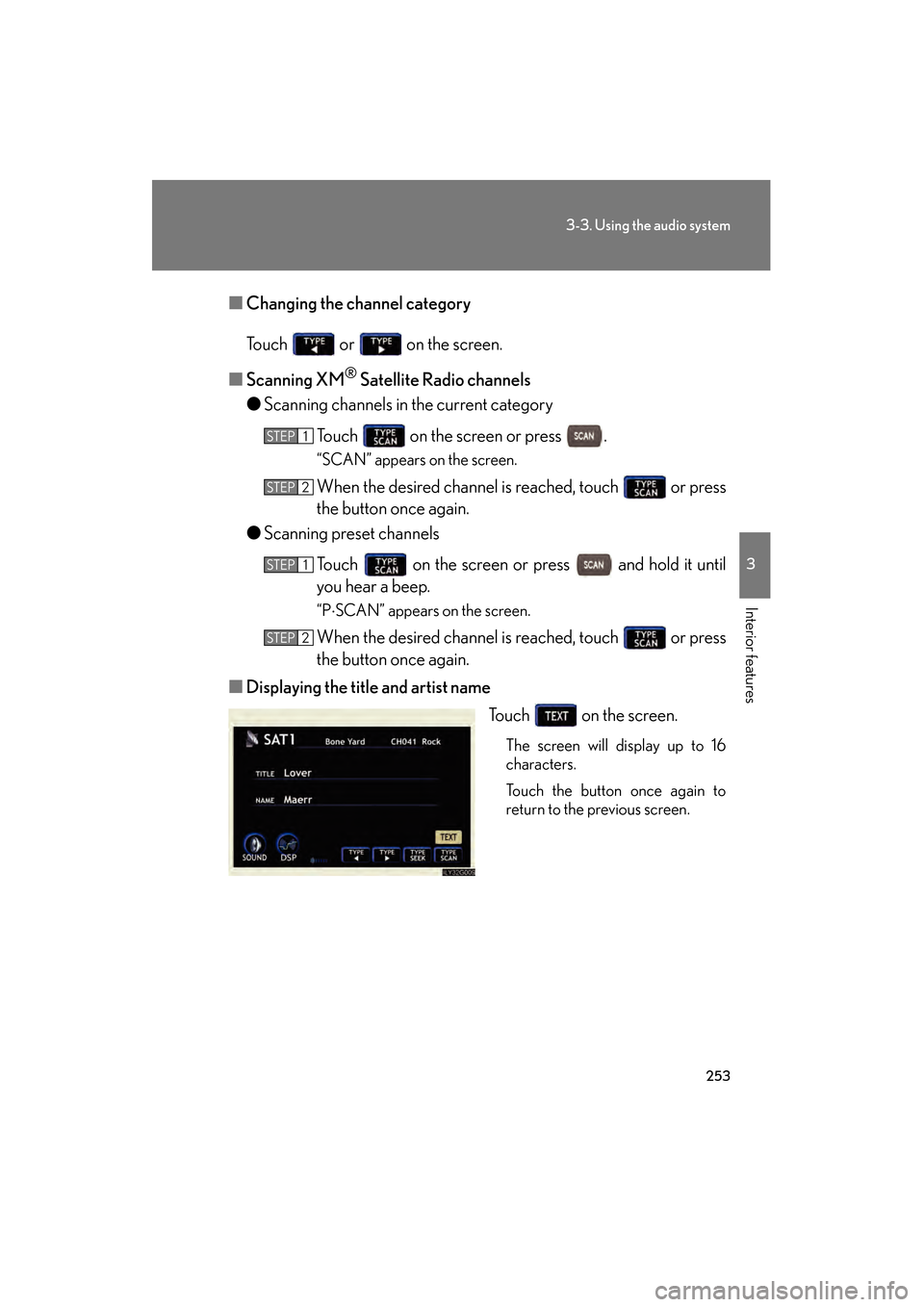
■Changing the channel category
Touch or on the screen.
■ Scanning XM
® Satellite Radio channels
● Scanning channels in the current category
Touch on the screen or press .
“SCAN” appears on the screen.
When the desired channel is reached, touch or press
the button once again.
● Scanning preset channels
Touch on the screen or press and hold it until
you hear a beep.
“P ⋅SCAN” appears on the screen.
When the desired channel is reached, touch or press
the button once again.
■ Displaying the title and artist name
Touch on the screen.
The screen will display up to 16
characters.
Touch the button once again to
return to the previous screen.
STEP1
STEP2
STEP1
STEP2
GS_U_G.book Page 253 Monday, April 27, 2009 10:50 AM