audio Lexus GS350 2009 Owner's Guide
[x] Cancel search | Manufacturer: LEXUS, Model Year: 2009, Model line: GS350, Model: Lexus GS350 2009Pages: 622, PDF Size: 17.98 MB
Page 265 of 622
264
3-3. Using the audio system
GS_G_U (OM30B43U)
April 27, 2009 10:48 am
Selecting a CD■ To select a CD to play
Touch the desired disc number (1 - 6) on the screen or press ∧ or ∨ on
.
■ To scan loaded CDs
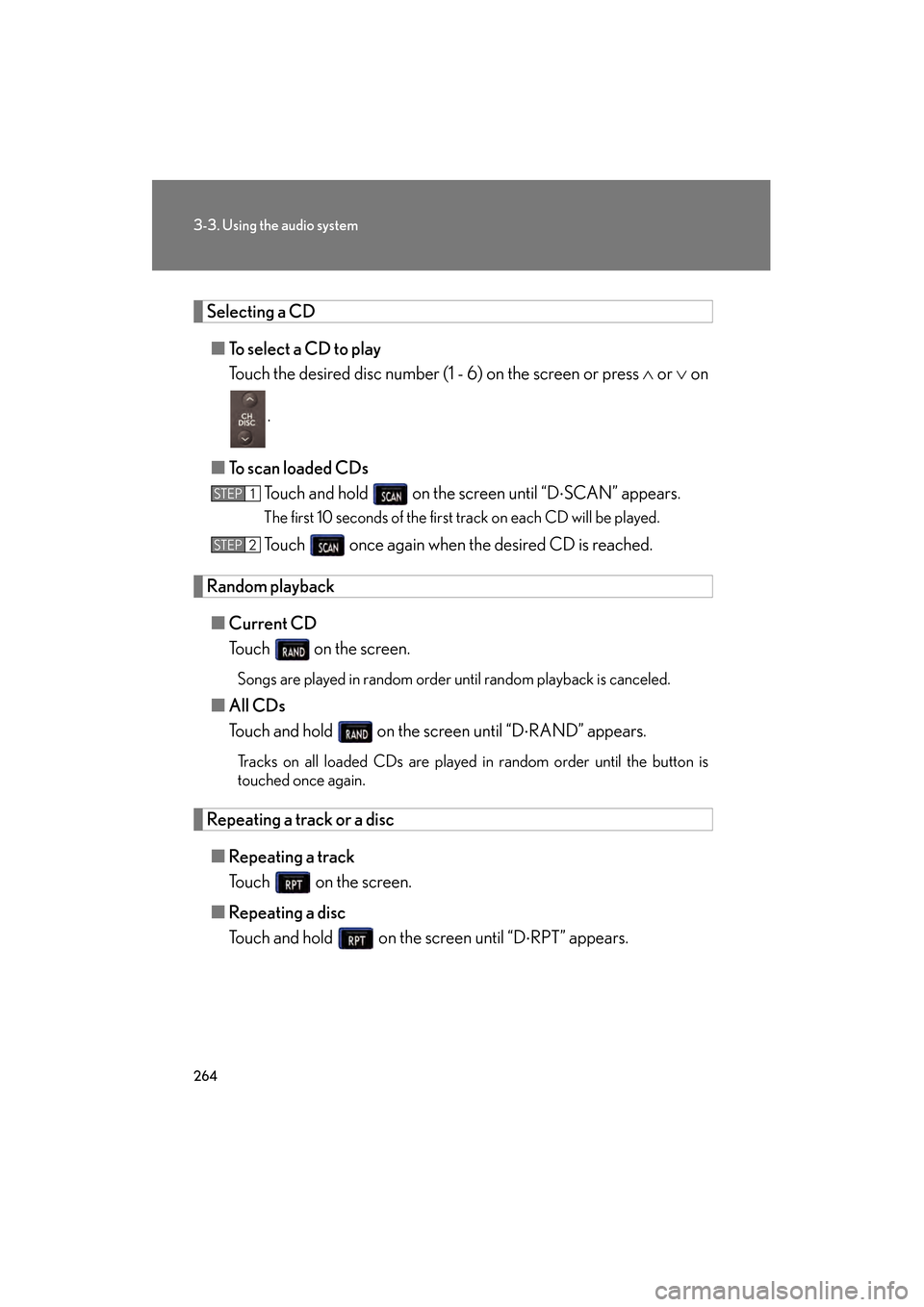
Touch and hold on the screen until “D ⋅SCAN” appears.
The first 10 seconds of the first track on each CD will be played.
Touch once again when the desired CD is reached.
Random playback
■ Current CD
Touch on the screen.
Songs are played in random order until random playback is canceled.
■All CDs
Touch and hold on the screen until “D ⋅RAND” appears.
Tracks on all loaded CDs are played in random order until the button is
touched once again.
Repeating a track or a disc
■ Repeating a track
Touch on the screen.
■ Repeating a disc
Touch and hold on the screen until “D ⋅RPT” appears.
STEP1
STEP2
GS_U_G.book Page 264 Monday, April 27, 2009 10:50 AM
Page 266 of 622
265
3-3. Using the audio system
3
Interior features
GS_G_U (OM30B43U)
April 27, 2009 10:48 am
■Canceling random, repeat and scan playback
Touch , , or on the screen once again.
■Displaying the title and artist name
If a CD-TEXT disc is inserted, the title of the disc and track will be displayed. Up to
29 letters can be displayed.
■Error messages
→P. 2 8 9
GS_U_G.book Page 265 Monday, April 27, 2009 10:50 AM
Page 267 of 622
266
3-3. Using the audio system
GS_G_U (OM30B43U)
April 27, 2009 10:48 am
Playing MP3 and WMA discs
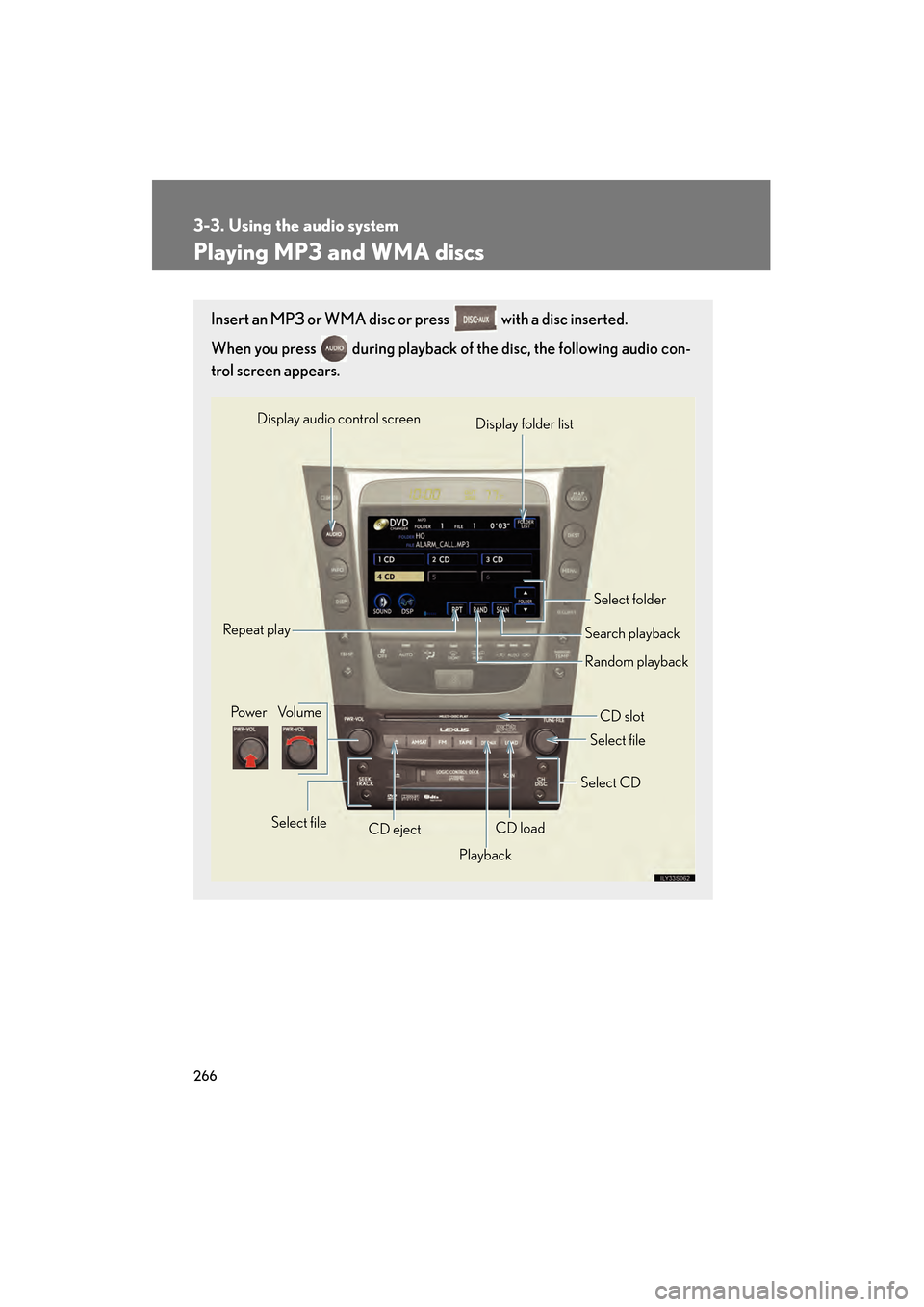
Insert an MP3 or WMA disc or press with a disc inserted.
When you press during playback of the disc, the following audio con-
trol screen appears.
Po w e r Vo l u m e
CD ejectPlayback Select folder
Search playback
CD slot
Random playback
Repeat play
Select file
CD loadSelect CD
Display audio control screen
Select file
Display folder list
GS_U_G.book Page 266 Monday, April 27, 2009 10:50 AM
Page 268 of 622
267
3-3. Using the audio system
3
Interior features
GS_G_U (OM30B43U)
April 27, 2009 10:48 am
Loading, ejecting and selecting MP3 and WMA discsRefer to the section titled “Usin g the CD player” for details. (→P. 2 6 1 )
Selecting a folder
■ Selecting a folder
Touch “FOLDER ” or “ ” on the screen to select the previ-
ous/next folder.
■ Selecting a folder from the folder list
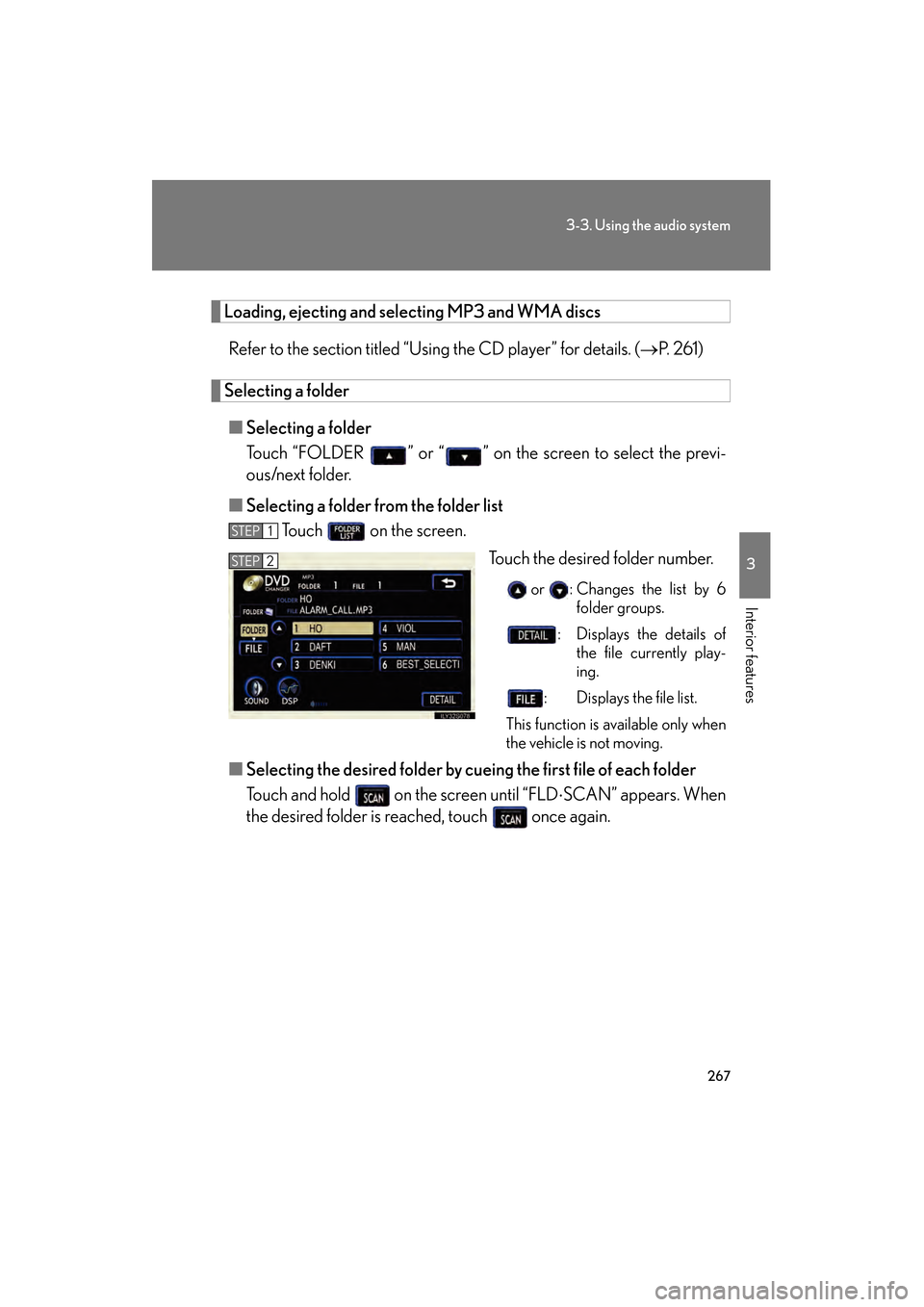
Touch on the screen.
Touch the desired folder number.
or : Changes the list by 6folder groups.
: Displays the details of the file currently play-
ing.
: Displays the file list.
This function is available only when
the vehicle is not moving.
■ Selecting the desired folder by cueing the first file of each folder
Touch and hold on the screen until “FLD ⋅SCAN” appears. When
the desired folder is reached, touch once again.
STEP1
STEP2
GS_U_G.book Page 267 Monday, April 27, 2009 10:50 AM
Page 269 of 622
268
3-3. Using the audio system
GS_G_U (OM30B43U)
April 27, 2009 10:48 am
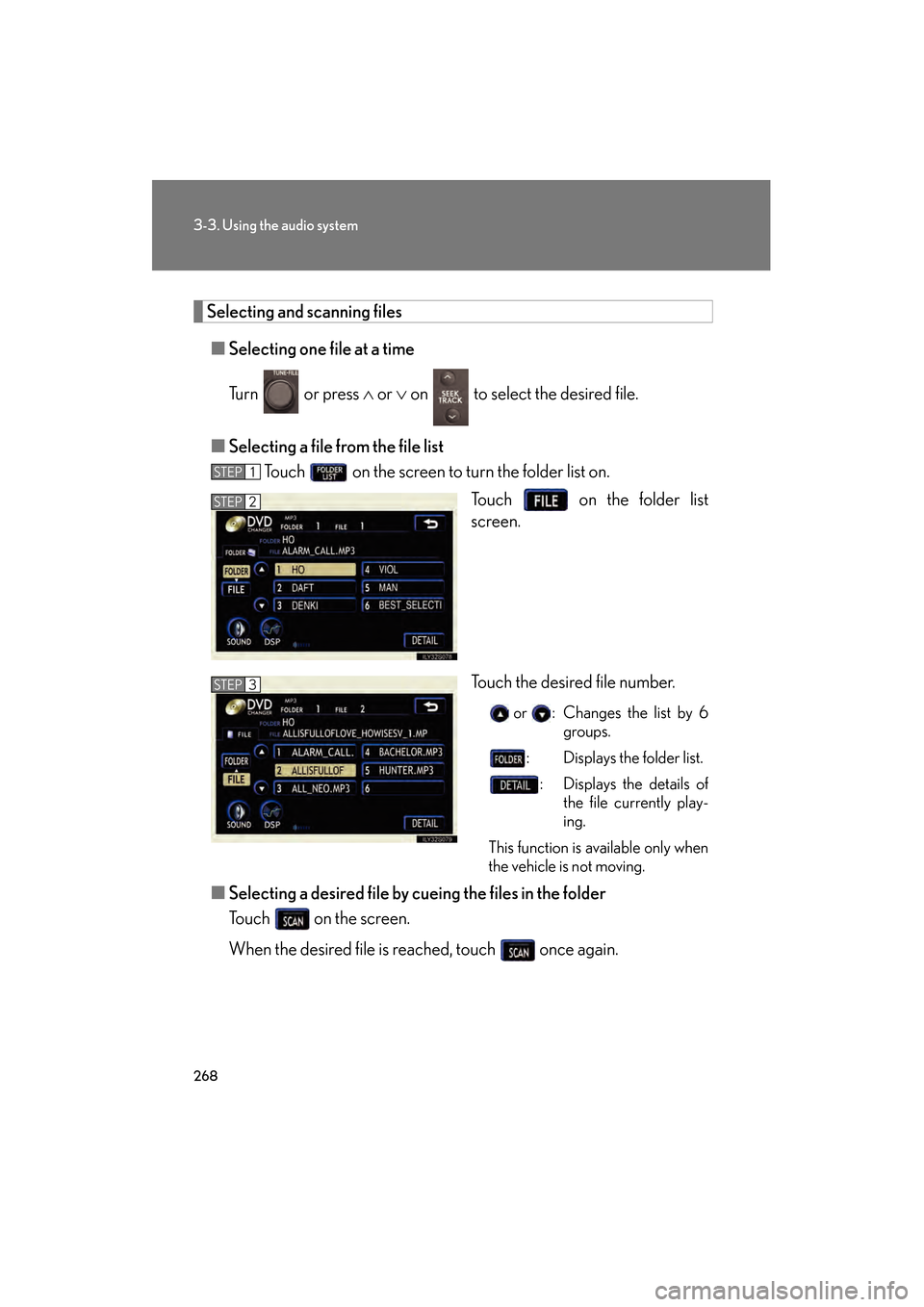
Selecting and scanning files■ Selecting one file at a time
Turn or press ∧ or ∨ on to select the desired file.
■ Selecting a file from the file list
Touch on the screen to turn the folder list on.
Touch on the folder list
screen.
Touch the desired file number.
or : Changes the list by 6groups.
: Displays the folder list. : Displays the details of the file currently play-
ing.
This function is available only when
the vehicle is not moving.
■ Selecting a desired file by cueing the files in the folder
Touch on the screen.
When the desired file is reached, touch once again.
STEP1
STEP2
STEP3
GS_U_G.book Page 268 Monday, April 27, 2009 10:50 AM
Page 270 of 622
269
3-3. Using the audio system
3
Interior features
GS_G_U (OM30B43U)
April 27, 2009 10:48 am
File repeatTouch on the screen.
Folder repeatTouch and hold on the screen until the “FLD RPT” appears.
Random playback
■ To play files from a particular folder in random order
Touch on the screen.
■ To play all the files on a disc in random order
Touch and hold on the screen until the “FLD RAND” appears.
■Canceling random, repeat and scan playback
Touch , or on the screen once again.
■Error messages
→P. 2 8 9
GS_U_G.book Page 269 Monday, April 27, 2009 10:50 AM
Page 271 of 622
270
3-3. Using the audio system
GS_G_U (OM30B43U)
April 27, 2009 10:48 am
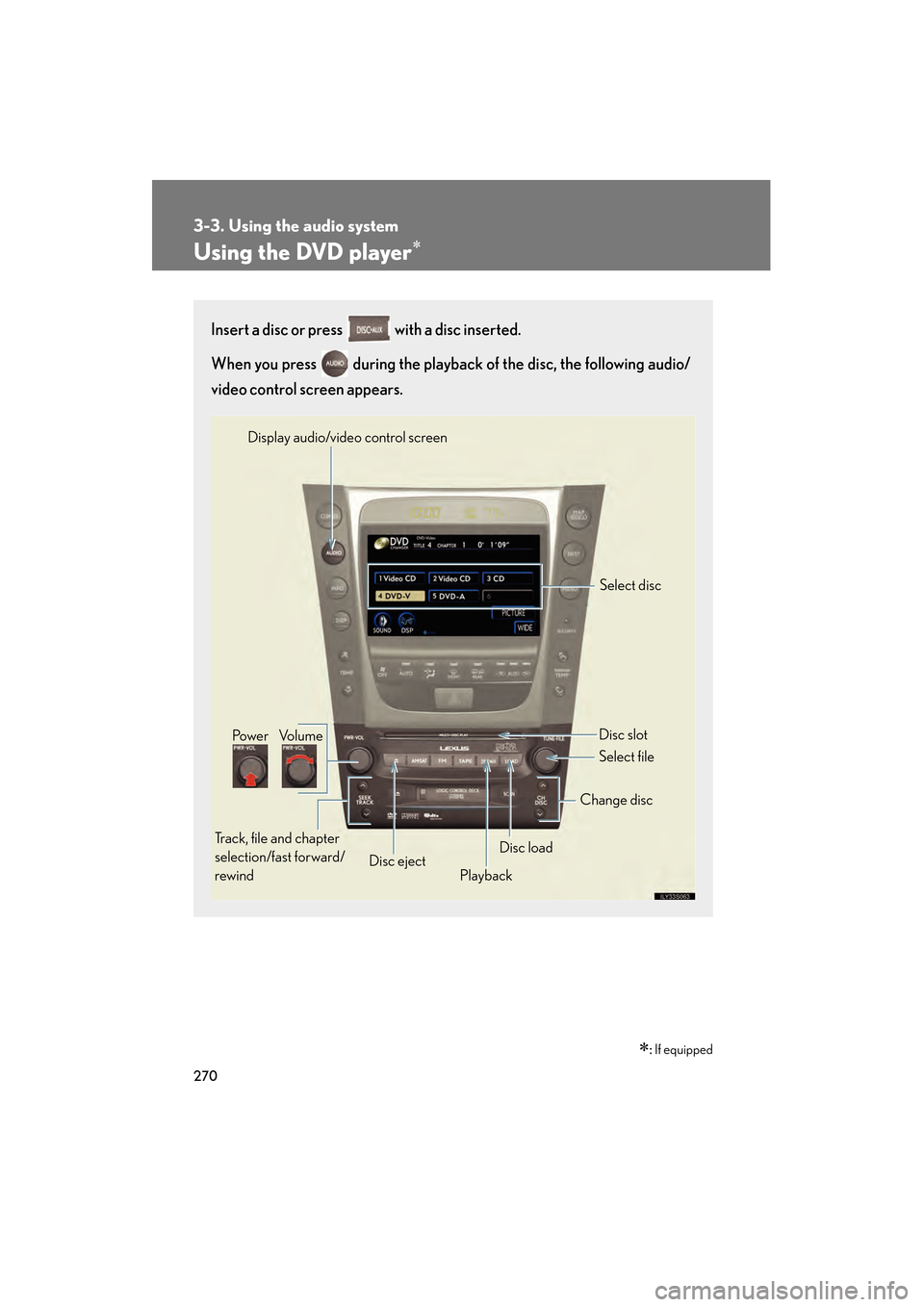
Using the DVD player∗
∗: If equipped
Insert a disc or press with a disc inserted.
When you press during the playback of the disc, the following audio/
video control screen appears.
Po w e r Vo l u m e
Track, file and chapter
selection/fast forward/
rewind Disc eject
PlaybackDisc load Change disc
Display audio/video control screen
Select disc
Disc slot
Select file
GS_U_G.book Page 270 Monday, April 27, 2009 10:50 AM
Page 272 of 622
271
3-3. Using the audio system
3
Interior features
GS_G_U (OM30B43U)
April 27, 2009 10:48 am
Loading a disc■ Loading a single disc
Push .
When the indicator changes from flashing amber to green, insert
a disc after the DVD player door opens.
■ Loading multiple discs
Press and hold until you hear a beep.
When the indicator changes from flashing amber to green, insert
a disc after the DVD player door opens.
After inserting a disc, wait until the indicator changes from flash-
ing amber to green, then insert the next disc after the DVD player
door has opened.
Repeat steps 2 and 3 until you have inserted all discs.
To cancel the operation, press the or button. If you do not
insert a disc within 15 seconds, loading will be canceled automatically.
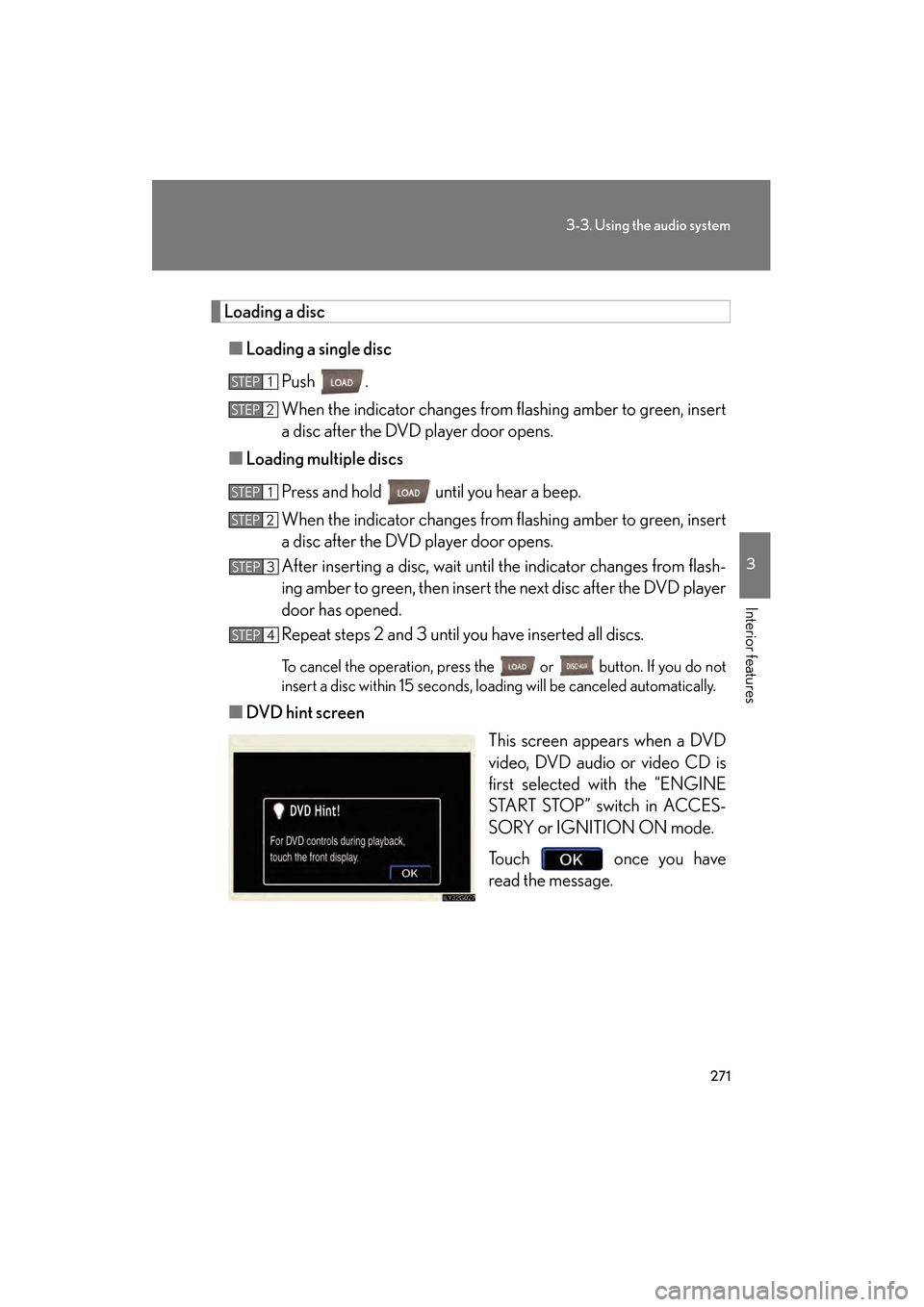
■DVD hint screen
This screen appears when a DVD
video, DVD audio or video CD is
first selected with the “ENGINE
START STOP” switch in ACCES-
SORY or IGNITION ON mode.
Touch once you have
read the message.
STEP1
STEP2
STEP1
STEP2
STEP3
STEP4
GS_U_G.book Page 271 Monday, April 27, 2009 10:50 AM
Page 273 of 622
272
3-3. Using the audio system
GS_G_U (OM30B43U)
April 27, 2009 10:48 am
Ejecting discs■ Ejecting a disc
To select the disc to be ejected , touch the desired disc on the
screen or press ∧ or ∨ on .
Press and remove the disc.
■ Ejecting all discs
Press and hold until you hear a beep, then remove the discs.
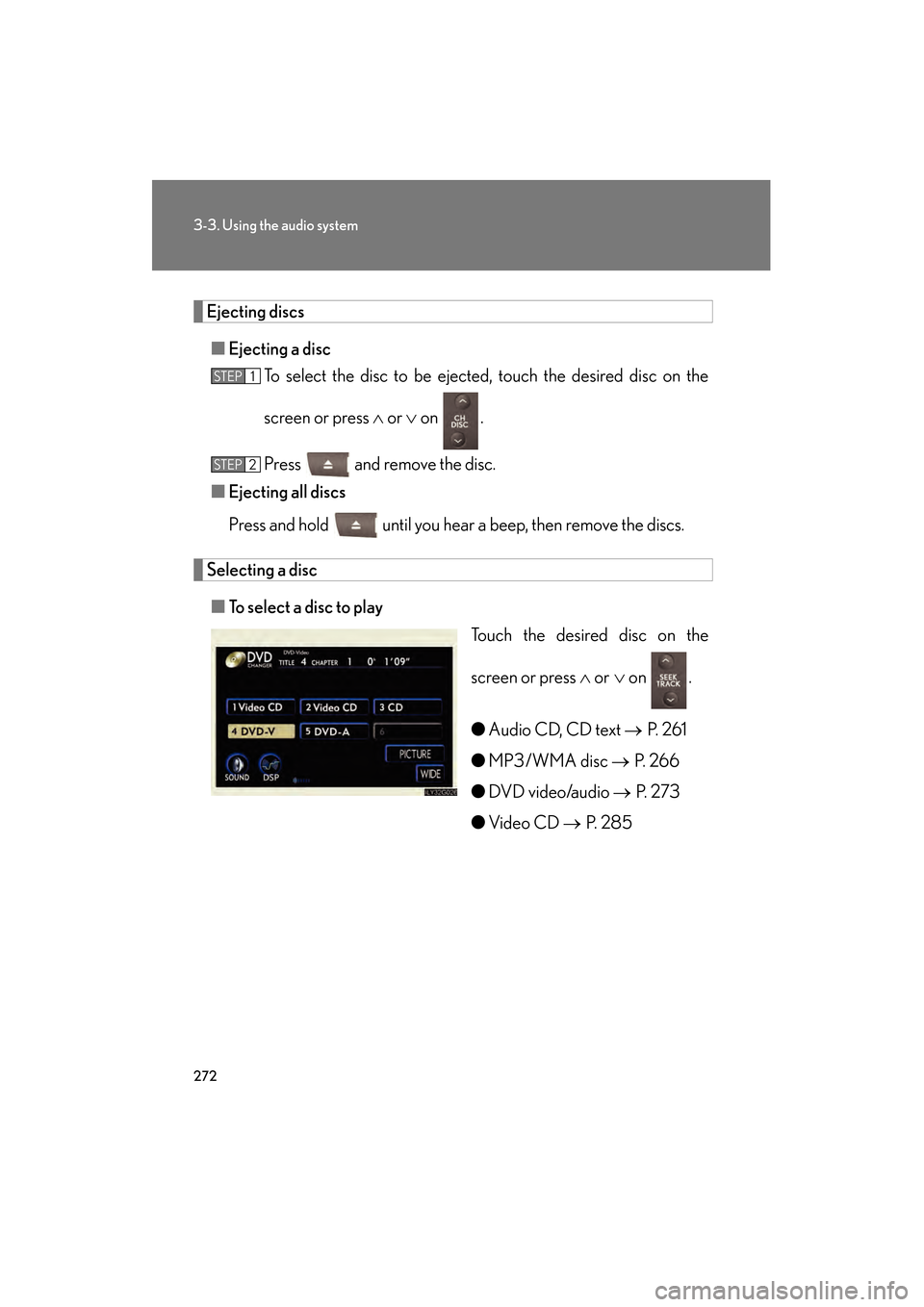
Selecting a disc
■ To select a disc to play
Touch the desired disc on the
screen or press ∧ or ∨ on .
● Audio CD, CD text → P. 2 6 1
● MP3/WMA disc → P. 2 6 6
● DVD video/audio → P. 2 7 3
● Video CD → P. 2 8 5
STEP1
STEP2
GS_U_G.book Page 272 Monday, April 27, 2009 10:50 AM
Page 274 of 622
273
3-3. Using the audio system
3
Interior features
GS_G_U (OM30B43U)
April 27, 2009 10:48 am
Playing DVD video/audio
For safety reasons, you can enjoy the visual contents of discs only when the
vehicle is completely stopped with the “ENGINE START STOP” switch in
ACCESSORY or IGNITION ON mode and the parking brake applied.
While you are driving, only audio contents may be played.
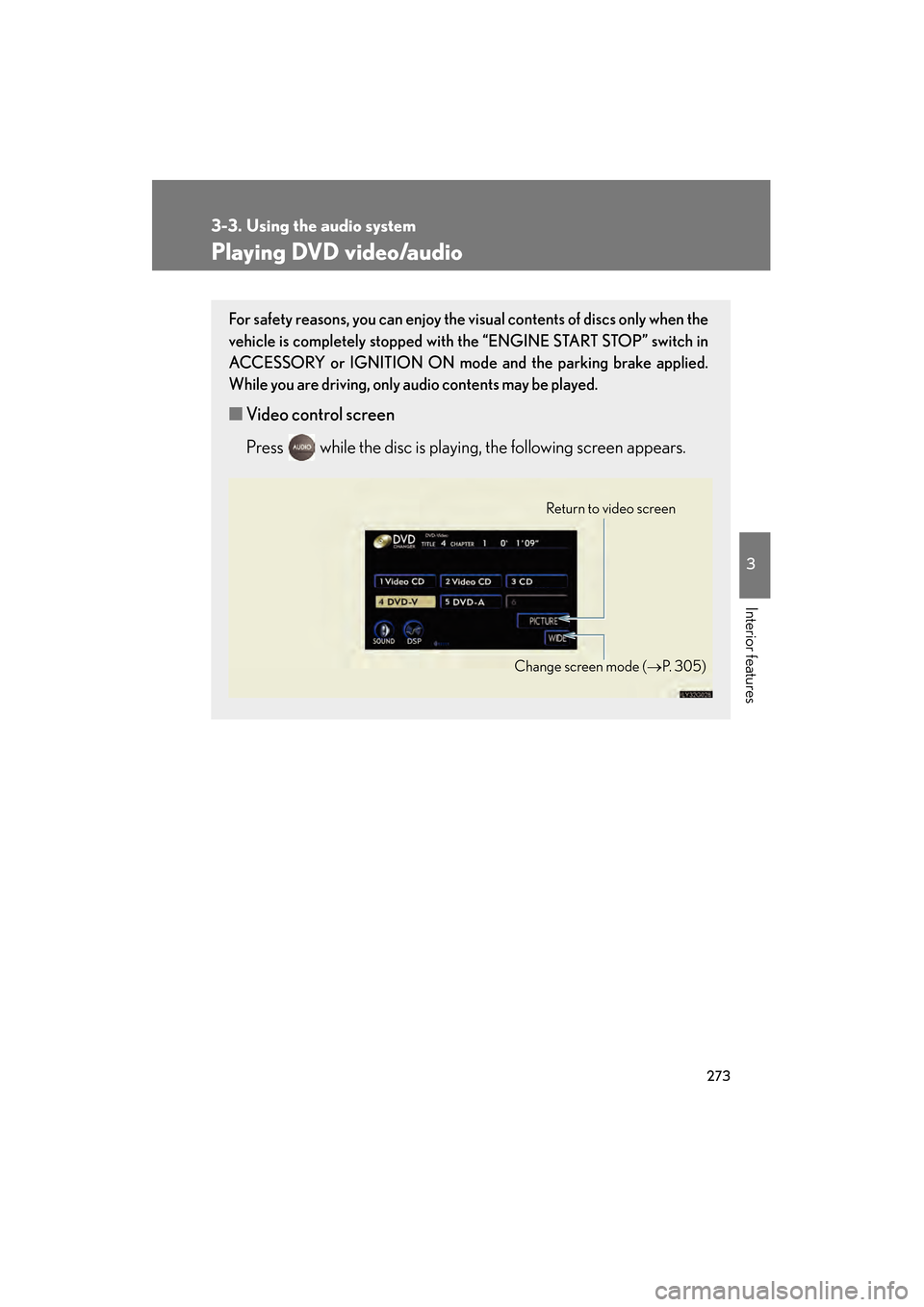
■ Video control screen
Press while the disc is playing, the following screen appears.
Return to video screen
Change screen mode ( →P. 3 0 5 )
GS_U_G.book Page 273 Monday, April 27, 2009 10:50 AM