Phone Lexus GS350 2009 Workshop Manual
[x] Cancel search | Manufacturer: LEXUS, Model Year: 2009, Model line: GS350, Model: Lexus GS350 2009Pages: 622, PDF Size: 17.98 MB
Page 353 of 622
352
3-4. Using the hands-free system (for cellular phone)
GS_G_U (OM30B43U)
April 27, 2009 10:48 am
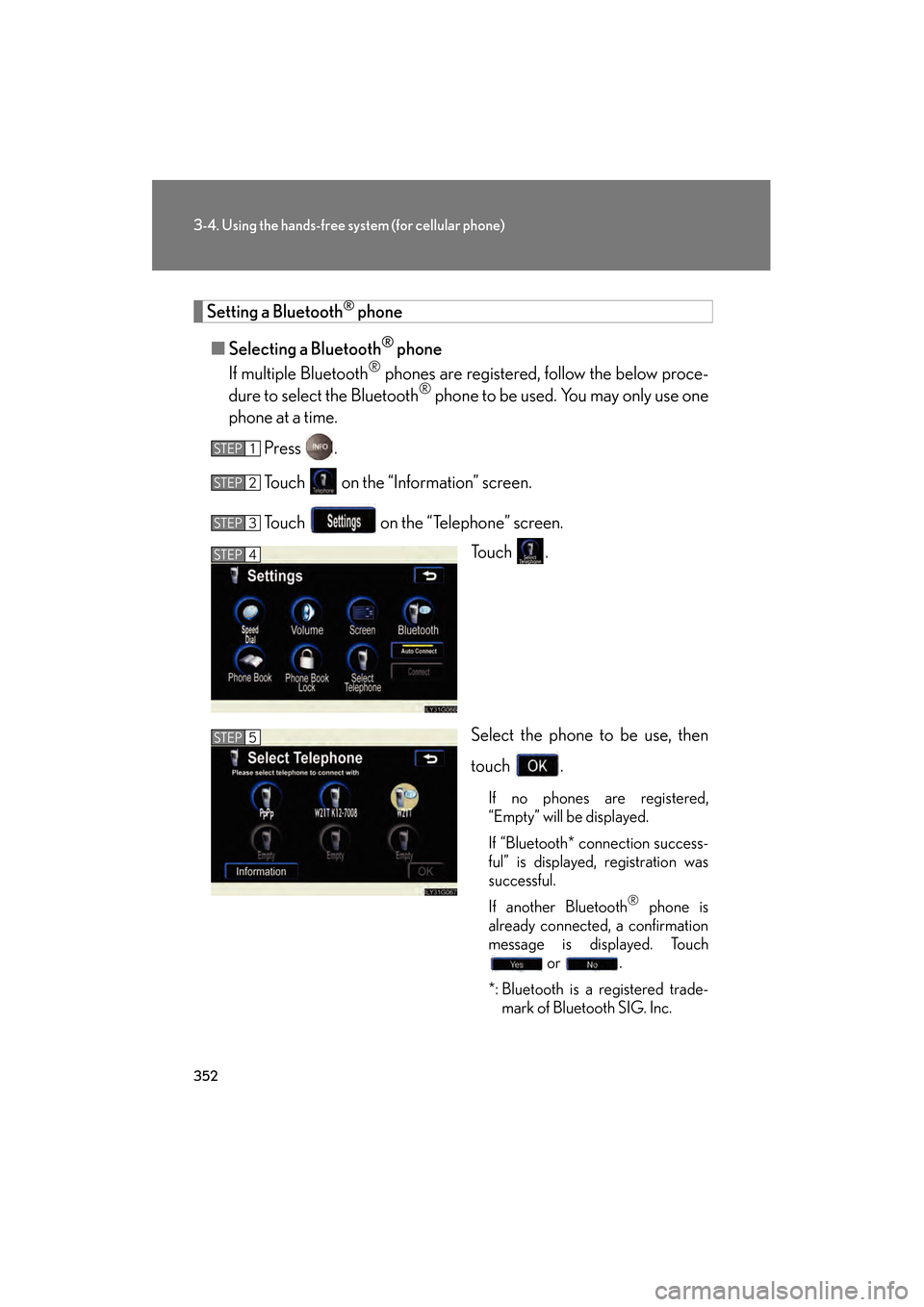
Setting a Bluetooth® phone
■ Selecting a Bluetooth
® phone
If multiple Bluetooth
® phones are registered, follow the below proce-
dure to select the Bluetooth® phone to be used. You may only use one
phone at a time.
Press .
Touch on the “Information” screen.
Touch on the “Telephone” screen. To u c h .
Select the phone to be use, then
touch .
If no phones are registered,
“Empty” will be displayed.
If “Bluetooth* connection success-
ful” is displayed, registration was
successful.
If another Bluetooth
® phone is
already connected, a confirmation
message is displayed. Touch or .
*: Bluetooth is a registered trade- mark of Bluetooth SIG. Inc.
STEP1
STEP2
STEP3
STEP4
STEP5
GS_U_G.book Page 352 Monday, April 27, 2009 10:50 AM
Page 354 of 622
353
3-4. Using the hands-free system (for cellular phone)
3
Interior features
GS_G_U (OM30B43U)
April 27, 2009 10:48 am
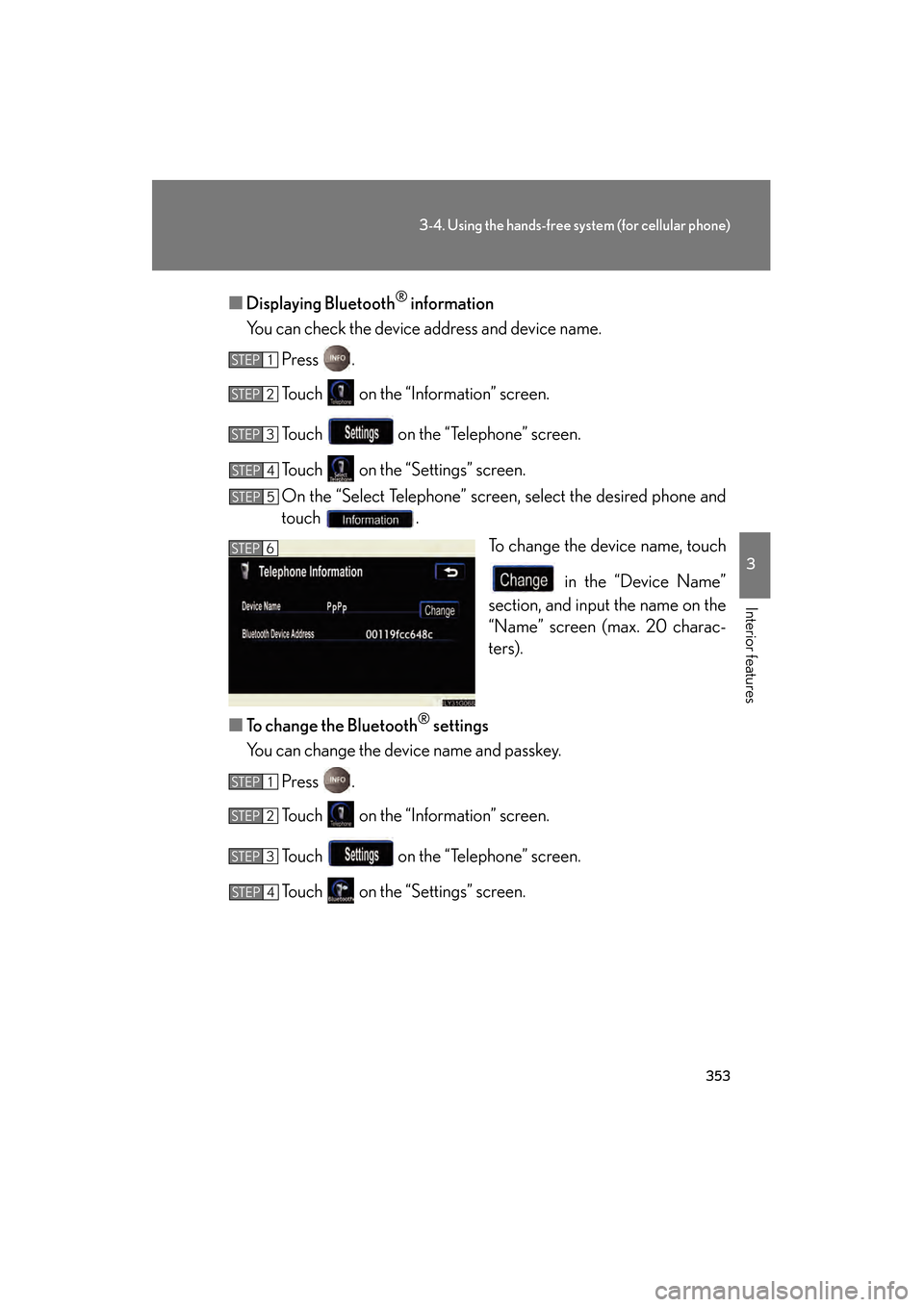
■Displaying Bluetooth® information
You can check the device address and device name.
Press .
Touch on the “Information” screen.
Touch on the “Telephone” screen.
Touch on the “S ettings” screen.
On the “Select Telephone” screen , select the desired phone and
touch .
To change the device name, touch
in the “Device Name”
section, and input the name on the
“Name” screen (max. 20 charac-
ters).
■ To change the Bluetooth
® settings
You can change the device name and passkey.
Press .
Touch on the “Information” screen.
Touch on the “Telephone” screen.
Touch on the “S ettings” screen.
STEP1
STEP2
STEP3
STEP4
STEP5
STEP6
STEP1
STEP2
STEP3
STEP4
GS_U_G.book Page 353 Monday, April 27, 2009 10:50 AM
Page 355 of 622
354
3-4. Using the hands-free system (for cellular phone)
GS_G_U (OM30B43U)
April 27, 2009 10:48 am
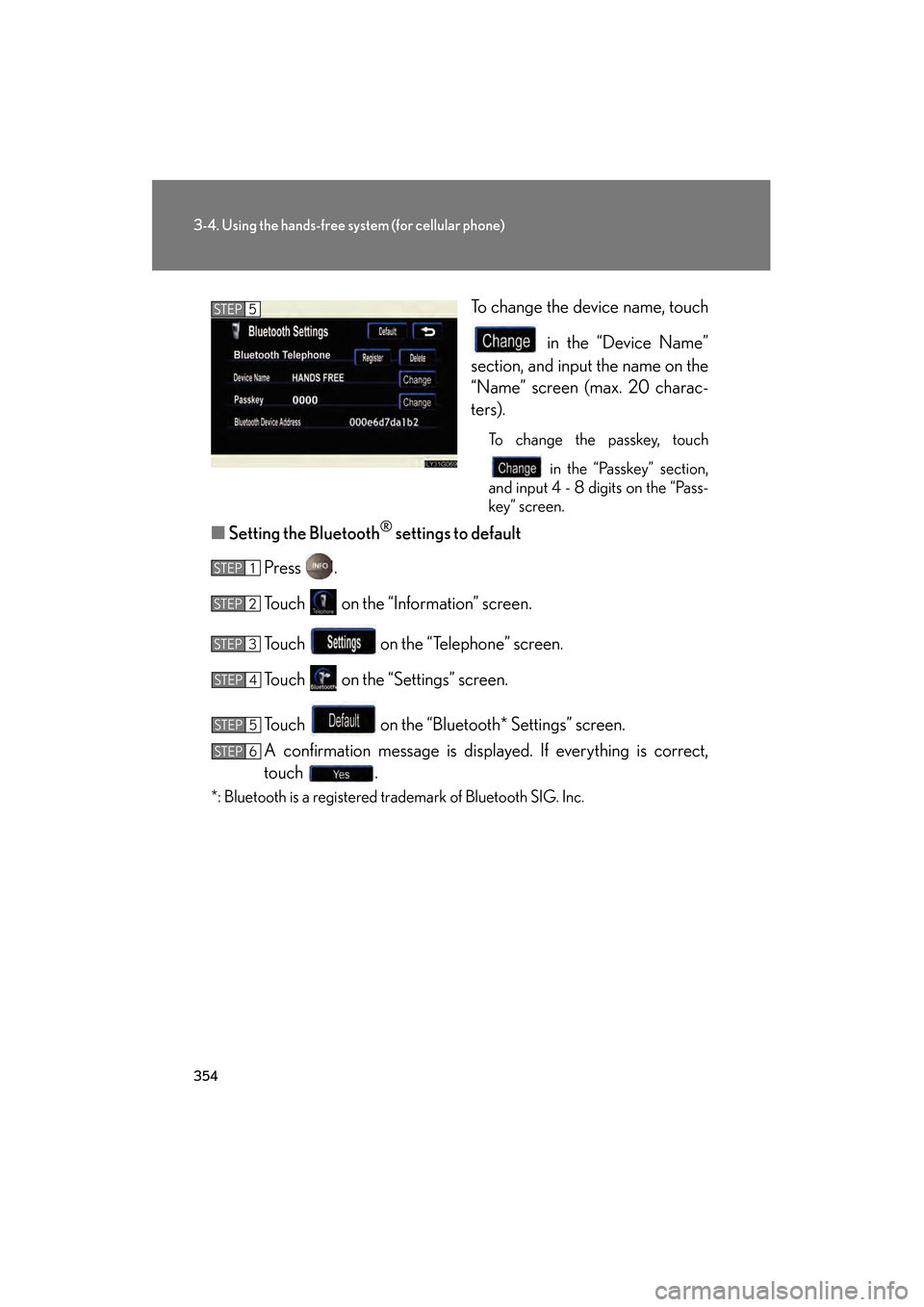
To change the device name, touch in the “Device Name”
section, and input the name on the
“Name” screen (max. 20 charac-
ters).
To change the passkey, touch
in the “Passkey” section,
and input 4 - 8 digits on the “Pass-
key” screen.
■ Setting the Bluetooth® settings to default
Press .
Touch on the “Information” screen.
Touch on the “Telephone” screen.
Touch on the “Settings” screen.
Touch on the “Bluetooth* Settings” screen.
A confirmation message is displayed. If everything is correct,
touch .
*: Bluetooth is a registered trademark of Bluetooth SIG. Inc.
STEP5
STEP1
STEP2
STEP3
STEP4
STEP5
STEP6
GS_U_G.book Page 354 Monday, April 27, 2009 10:50 AM
Page 356 of 622
355
3-4. Using the hands-free system (for cellular phone)
3
Interior features
GS_G_U (OM30B43U)
April 27, 2009 10:48 am
■To delete the Bluetooth® settings
Press .
Touch on the “Information” screen.
Touch on the “Telephone” screen.
Touch on the “S ettings” screen.
Touch in the “Bluetooth* Telephone” section of the
“Bluetooth* Settings” screen.
On the “Delete Telephone” screen, select the phone to delete.
To check the device address, touch .
If you touch , a confirmation message is displayed. If every-
thing is correct, touch .
*: Bluetooth is a registered trademark of Bluetooth SIG. Inc.
STEP1
STEP2
STEP3
STEP4
STEP5
STEP6
STEP7
GS_U_G.book Page 355 Monday, April 27, 2009 10:50 AM
Page 393 of 622
392
3-7. Other interior features
GS_G_U (OM30B43U)
April 27, 2009 10:48 am
Lexus Link System∗
∗: If equipped
The Lexus Link System is a communication service that uses Global Posi-
tioning System (GPS) data and cellular service to provide you with safety,
security and convenience. This system is only operational in GPS and cellu-
lar coverage areas. Button operation and voice commands are used to
operate the system. To operate the system, follow the voice guidance
instructions. For details about service and subscription, call the Lexus Link
Call Center at 1-800-25-LEXUS (1-800-255-3987) (toll-free).
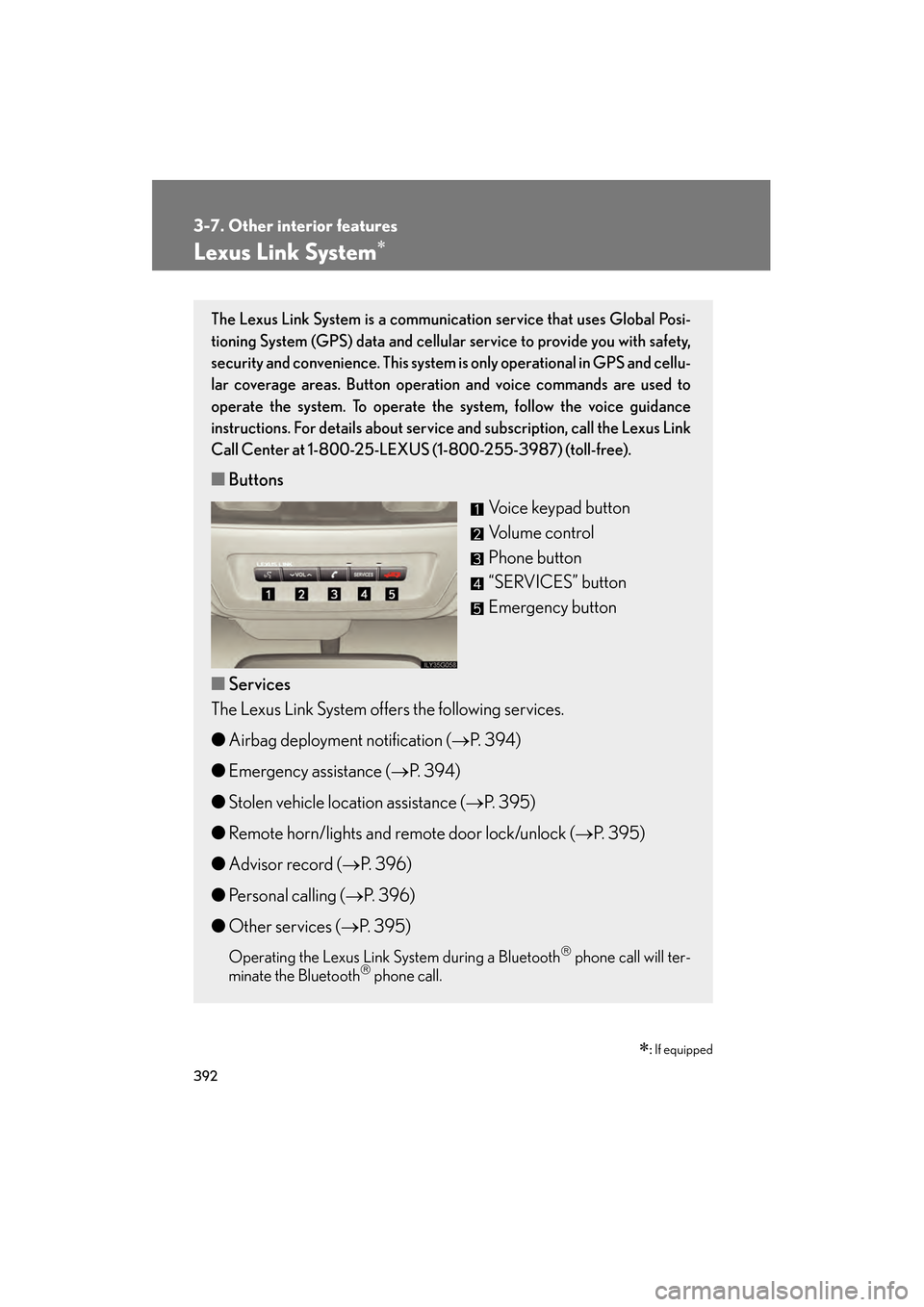
■ Buttons
Voice keypad button
Volume control
Phone button
“SERVICES” button
Emergency button
■ Services
The Lexus Link System offers the following services.
● Airbag deployment notification ( →P. 394)
● Emergency assistance ( →P. 394)
● Stolen vehicle location assistance ( →P. 395)
● Remote horn/lights and remote door lock/unlock (→ P. 395)
● Advisor record ( →P. 396)
● Personal calling ( →P. 396)
● Other services ( →P. 395)
Operating the Lexus Link Sy stem during a Bluetooth phone call will ter-
minate the Bluetooth phone call.
GS_U_G.book Page 392 Monday, April 27, 2009 10:50 AM
Page 394 of 622
393
3-7. Other interior features
3
Interior features
GS_G_U (OM30B43U)
April 27, 2009 10:48 am
Safety information for the Lexus Link System
Important! Read this information before using the Lexus Link System. ■Exposure to radio frequency signals
The Lexus Link System installed in your vehicle is a low power ratio trans-
mitter and receiver. When the “ENGINE START STOP” switch is in the
IGNITION ON mode, it receives and also sends radio frequency (RF)
signals.
In August 1996, the Federal Communications Commission (FCC)
adopted RF exposure guidelines with safety levels for mobile wireless
phones. Those guidelines are consistent with the safety standards previ-
ously set by both U.S. and international standards bodies.
● ANSI (American National Standards Institute) C95.1 [1992]
● NCRP (National Council on Radi ation Protection and Measurement)
Report 86 [1986]
● ICNIRP (International Commission on Non-Ionizing Radiation Pro-
tection) [1996]
Those standards were based on comp rehensive and periodic evaluations
of the relevant scientific literature. Over 120 scientists, engineers, and
physicians from universities, government health agencies, and industry
reviewed the available body of resear ch to develop the ANSI Standard
(C95.1).
The design of the Lexus Link System complies with the FCC guidelines in
addition to those standards.
GS_U_G.book Page 393 Monday, April 27, 2009 10:50 AM
Page 397 of 622
396
3-7. Other interior features
GS_G_U (OM30B43U)
April 27, 2009 10:48 am
Advisor record■ Recording a conversation with an advisor
Press the button to record a co nversation. To stop recording,
press the button again.
• Up to 2 minutes of recording time is available.
• Recording a new conversation deletes the previously recorded conversation.
■Playing the recorded conversation
Press the or button.
Say “Advisor playback”.
Press the button again to stop the playback.
To restart the playback, press the button, say “Advisor playback”
and then select either of the following methods.
• Say “Resume” to resume the playback.
• Say “Play” to start from the beginning.
Personal calling
The hands-free personal calling feature can be added to the Lexus Link
System as an option. You can purcha se a package of minutes that works
best for you. As you make and receive calls, minutes are deducted from
your plan. They are easily billed to a credit card that is kept on file so no
separate phone bill is needed.
Personal calling universal voice recognition commands:
• “Help” The system will provide a list of available commands.
• “Clear” When you are entering digits, this command will erase the last
digit entered.
• “Cancel” This command takes you from the current function to the “Lexus
Link ready” prompt. If the last response from the system was “Lexus Link
ready”, this command will exit voice mode.
STEP1
STEP2
GS_U_G.book Page 396 Monday, April 27, 2009 10:50 AM
Page 398 of 622
397
3-7. Other interior features
3
Interior features
GS_G_U (OM30B43U)
April 27, 2009 10:48 am
Voice recognition error message:
•“Pardon” The system responds with this message if the system does not
recognize your voice command proper ly. Say the command slowly again.
After the third time this happens, the system will try to guess the command
you are requesting. If correct, say “Yes”. If not, say “No”, and the system will
prompt you with its next-best guess.
• “Slower please” The system responds with this message if you say a com-
mand before the system is ready to listen or if your voice command cannot
be recognized because of substant ial background noise. Try to wait
slightly longer before speaking.
■ There are 5 ways to make a call.
Dialing a specific number
Press the button. When the system responds with “Lexus
Link ready”, say “Dial”.
When the system responds with “Phone number to dial please”,
say the entire number you wish to dial without pausing.
The system will repeat the number and ask “Yes or No”.
Say “Yes” (or “No” to try again).
The system responds with “Dialin g” (your call will then be con-
nected).
Dialing digit-by-digit (“Digit Dial”)
“Digit Dial” enables you to dial a phone number by individual digit. This is
helpful when there is background no ise and also improves voice recogni-
tion.
Press the button. When the system responds with “Lexus
Link ready”, say “Digit dial”.
When the system responds with “Dig it please”, say the first digit
of the number to be dialed and wait for it to be repeated back to
you.
Continue one digit at a time until all digits are entered.
STEP1
STEP2
STEP3
STEP4
STEP5
STEP1
STEP2
STEP3
GS_U_G.book Page 397 Monday, April 27, 2009 10:50 AM
Page 399 of 622
398
3-7. Other interior features
GS_G_U (OM30B43U)
April 27, 2009 10:48 am
When finished, say “Dial”. The system responds with “Dialing” and
your call is placed.
If you have problems storing a nu mber using the continuous number
method, you can store numbers one digit at a time using “Digit Store”.
Simply follow the instructions above for “Digit Dial”, except say “Digit
Store” in STEP 1 and “Store” in STEP 4.
Dialing a phone number saved as a nametag
A nametag is a convenient way to st ore important or frequently called
phone numbers for easy access at any time. To do th is, choose a fre-
quently-called number to store, the example below uses your home tele-
phone number.
● How to store a nametag
Press the button. When the system responds with “Lexus
Link ready”, say “Store”.
When the system responds with “Phone number to store, please”,
say the entire number you wish to store with no pauses. The sys-
tem will repeat the number and ask “Yes or No”.
Say “Yes” (or “No” to try again).
When the system responds with “Nametag, please”, say “home”.
When the system responds with “About to store home. Does that
sound OK?”, say “Yes” (or “No” to try again).
The system responds wi th “Storing home”.
- The system can store up to 20 nametags.
- Try to use multi-syllable nametags such as “my home”, and “the office”.
- Try to avoid similar-sounding nametags like “Tim” and “Kim”.
When using the “Dial” and “Store” commands, the system will recog-
nize 7, 10, and 11-digit phone numbers. When dialing or storing a phone
number, you can say “zero” or “oh” for 0.
STEP4
STEP1
STEP2
STEP3
STEP4
STEP5
STEP6
GS_U_G.book Page 398 Monday, April 27, 2009 10:50 AM
Page 401 of 622
400
3-7. Other interior features
GS_G_U (OM30B43U)
April 27, 2009 10:48 am
■Accessing voicemail and sending number tones to an automated
phone system
You can access a voicemail system and respond to a number request
from an automated phone system. When you receive the request for a
number while in a call, press the button after saying the numbers
one at a time, say “Dial”.
If you do not say any commands within 5 seconds after pressing the button,
or if you press the button twice, the system cannot receive the number tones
you are trying to send. Press the button to try again.
■ How to retrieve your phone number
Press the button. When the system responds with “Lexus
Link ready”, say “My number”.
The system responds with “Your number is [#]”.
If the response is “Per sonal calling unavailable”, this means your personal
calling feature is not yet active, this may take a few days from vehicle
delivery. It could also mean that the pe rsonal calling service is not avail-
able in your area. Press the butto n to check with an Advisor. Now
that you have your number, take a moment to practice by making your
first call to your home phone. Rememb er, the system recognizes numbers
better when you say them quickly.
STEP1
STEP2
GS_U_G.book Page 400 Monday, April 27, 2009 10:50 AM