display Lexus GS350 2009 Manual Online
[x] Cancel search | Manufacturer: LEXUS, Model Year: 2009, Model line: GS350, Model: Lexus GS350 2009Pages: 622, PDF Size: 17.98 MB
Page 330 of 622
329
3-4. Using the hands-free system (for cellular phone)
3
Interior features
GS_G_U (OM30B43U)
April 27, 2009 10:48 am
■Transferring calls
●It is not possible to transfer from hands-free to the mobile phone while driving.
●If you transfer from the mobile phone to hands-free, the hands-free screen will
be displayed, and you can operate the system using the screen.
●Transfer method and operation may vary according to the mobile phone used.
●For operation of the mobile phone in use, see the phone’s manual.
■To send a tone by speed tone
Touch then touch . Choose the desired number from the speed tone
list displayed.
■While driving
Key input is unavailable.
GS_U_G.book Page 329 Monday, April 27, 2009 10:50 AM
Page 331 of 622
330
3-4. Using the hands-free system (for cellular phone)
GS_G_U (OM30B43U)
April 27, 2009 10:48 am
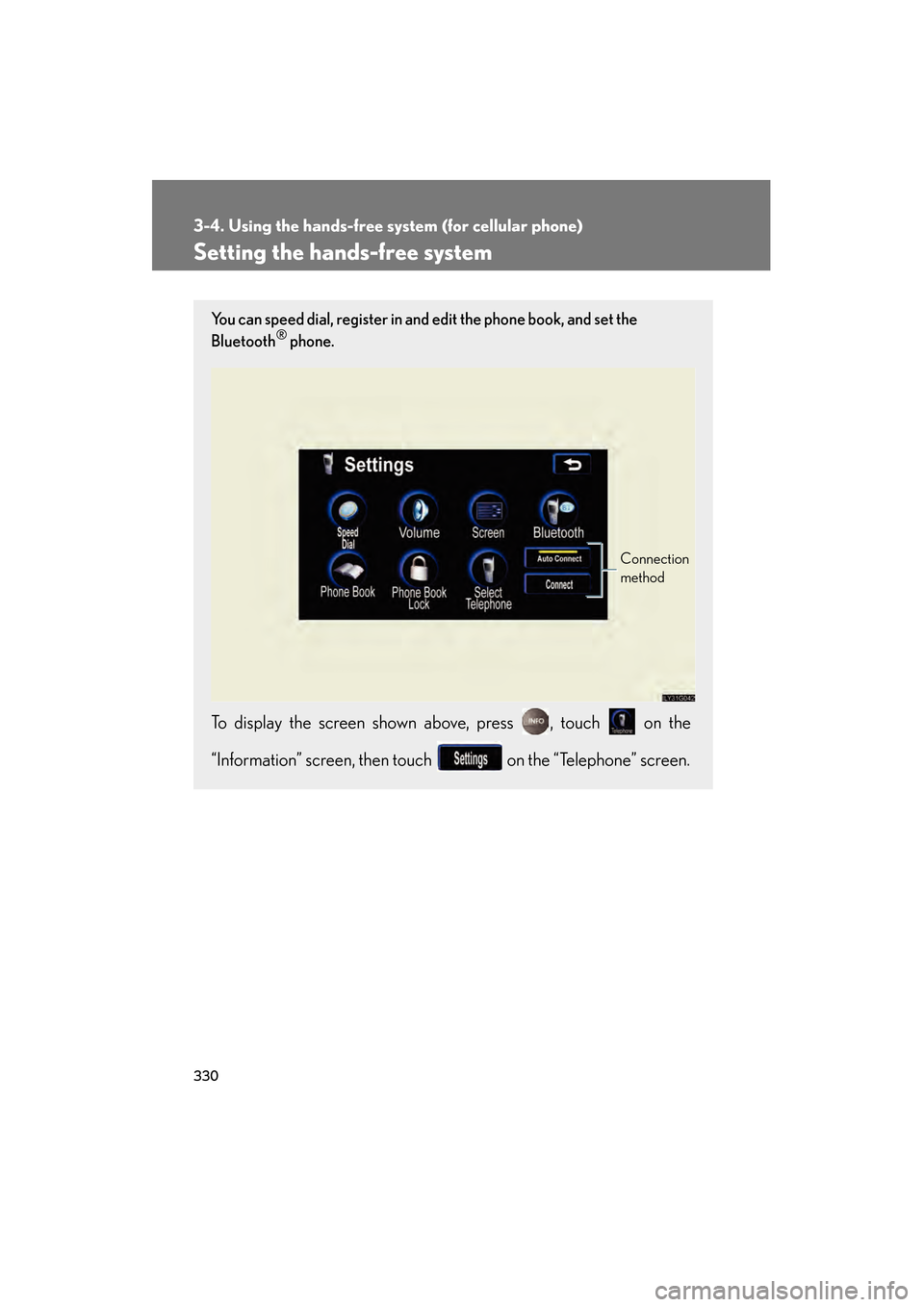
Setting the hands-free system
You can speed dial, register in an d edit the phone book, and set the
Bluetooth® phone.
To display the screen shown above, press , touch on the
“Information” screen, then touch on the “Telephone” screen.
Connection
method
GS_U_G.book Page 330 Monday, April 27, 2009 10:50 AM
Page 334 of 622
333
3-4. Using the hands-free system (for cellular phone)
3
Interior features
GS_G_U (OM30B43U)
April 27, 2009 10:48 am
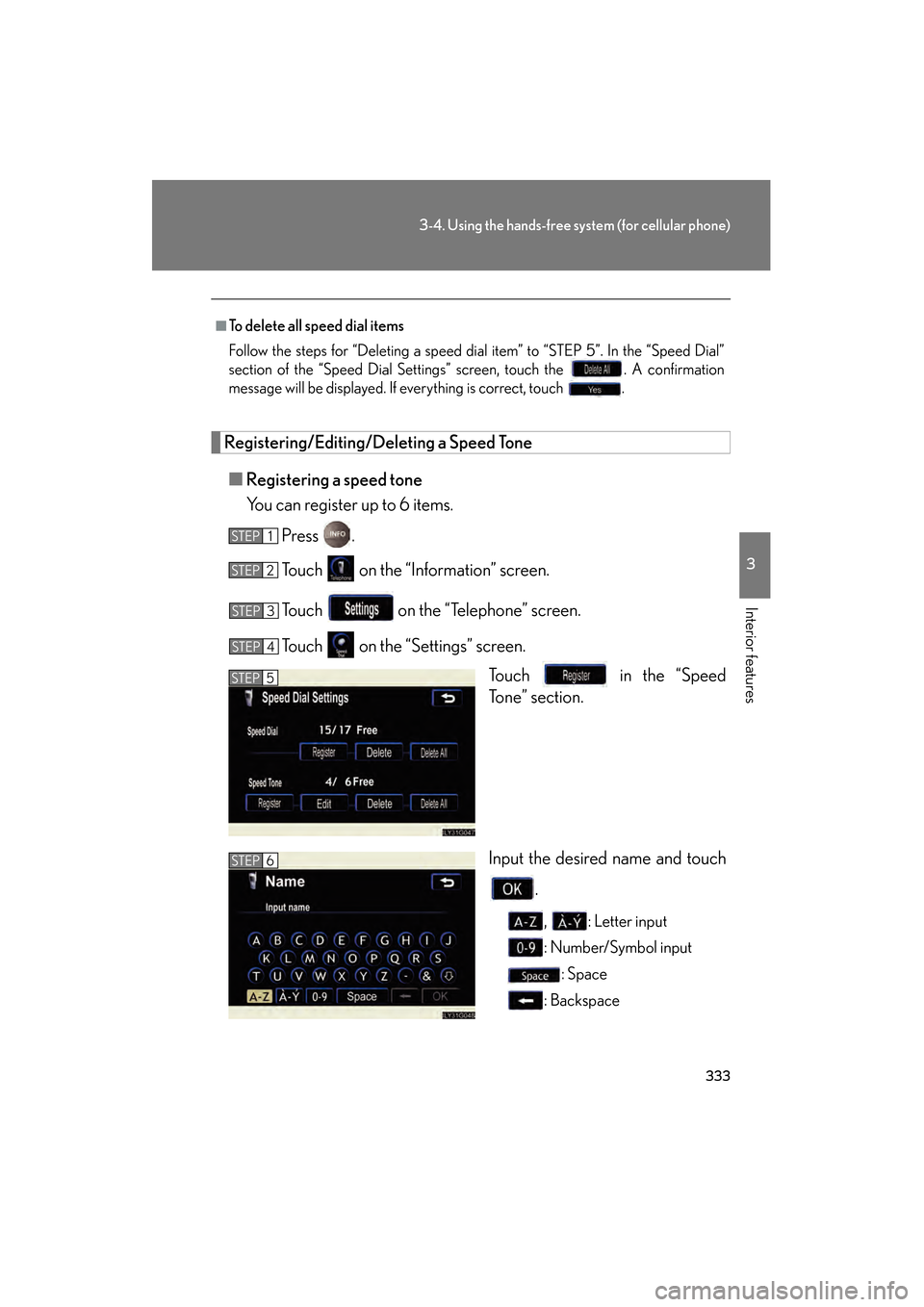
Registering/Editing/Deleting a Speed Tone■ Registering a speed tone
You can register up to 6 items.
Press .
Touch on the “Information” screen.
Touch on the “Telephone” screen.
Touch on the “S ettings” screen.
Touch in the “Speed
Tone” section.
Input the desired name and touch
.
, : Letter input
: Number/Symbol input: Space
: Backspace
■To delete all speed dial items
Follow the steps for “Deleting a speed dial item” to “STEP 5”. In the “Speed Dial”
section of the “Speed Dial Settings ” screen, touch the . A confirmation
message will be displayed. If everything is correct, touch .
STEP1
STEP2
STEP3
STEP4
STEP5
STEP6
GS_U_G.book Page 333 Monday, April 27, 2009 10:50 AM
Page 336 of 622
335
3-4. Using the hands-free system (for cellular phone)
3
Interior features
GS_G_U (OM30B43U)
April 27, 2009 10:48 am
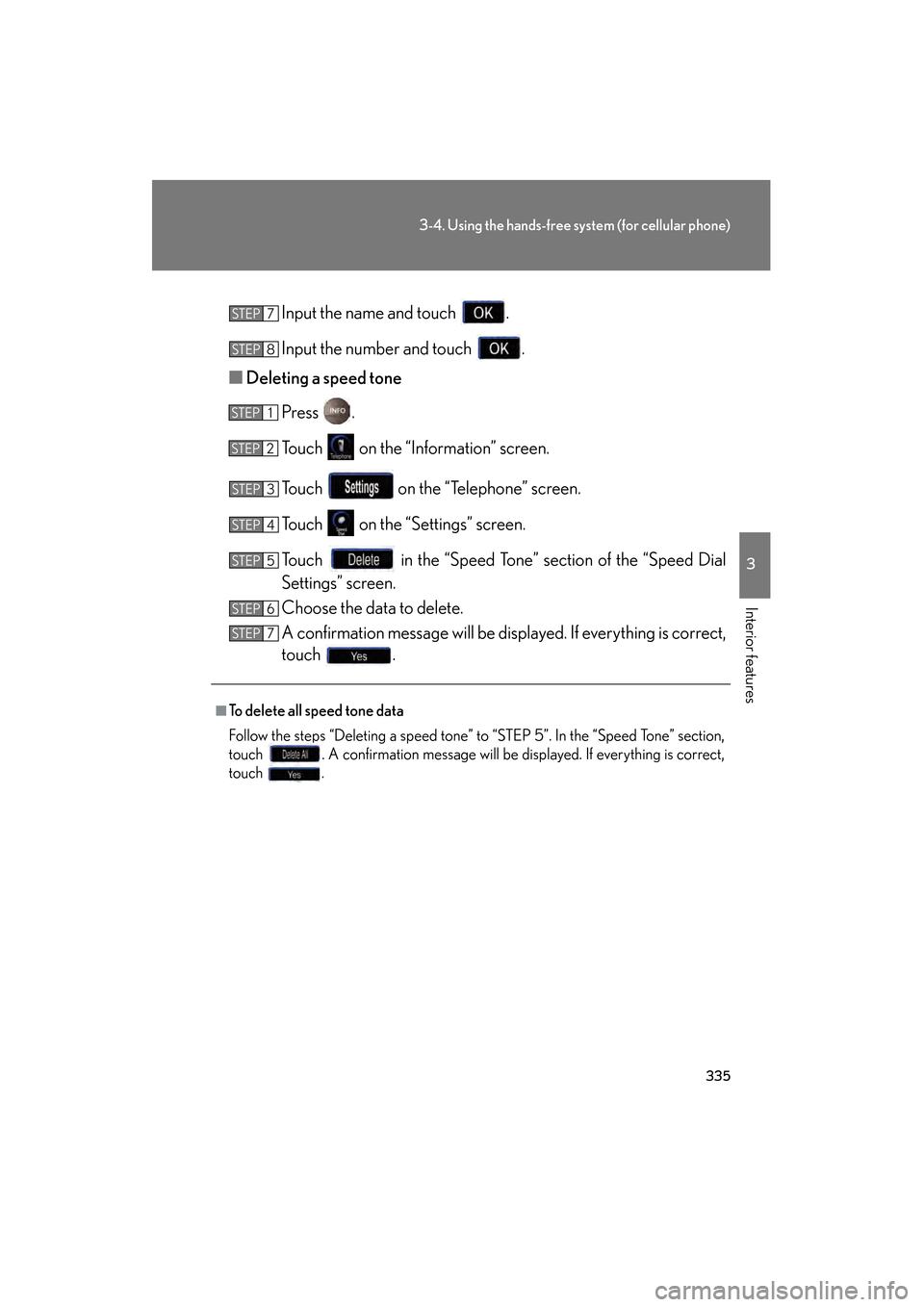
Input the name and touch .
Input the number and touch .
■ Deleting a speed tone
Press .
Touch on the “Information” screen.
Touch on the “Telephone” screen.
Touch on the “S ettings” screen.
Touch in the “Speed Tone” section of the “Speed Dial
Settings” screen.
Choose the data to delete.
A confirmation message will be disp layed. If everything is correct,
touch .
■To delete all speed tone data
Follow the steps “Deleting a speed tone” to “STEP 5”. In the “Speed Tone” section,
touch . A confirmation message will be displayed. If everything is correct,
touch .
STEP7
STEP8
STEP1
STEP2
STEP3
STEP4
STEP5
STEP6
STEP7
GS_U_G.book Page 335 Monday, April 27, 2009 10:50 AM
Page 338 of 622
337
3-4. Using the hands-free system (for cellular phone)
3
Interior features
GS_G_U (OM30B43U)
April 27, 2009 10:48 am
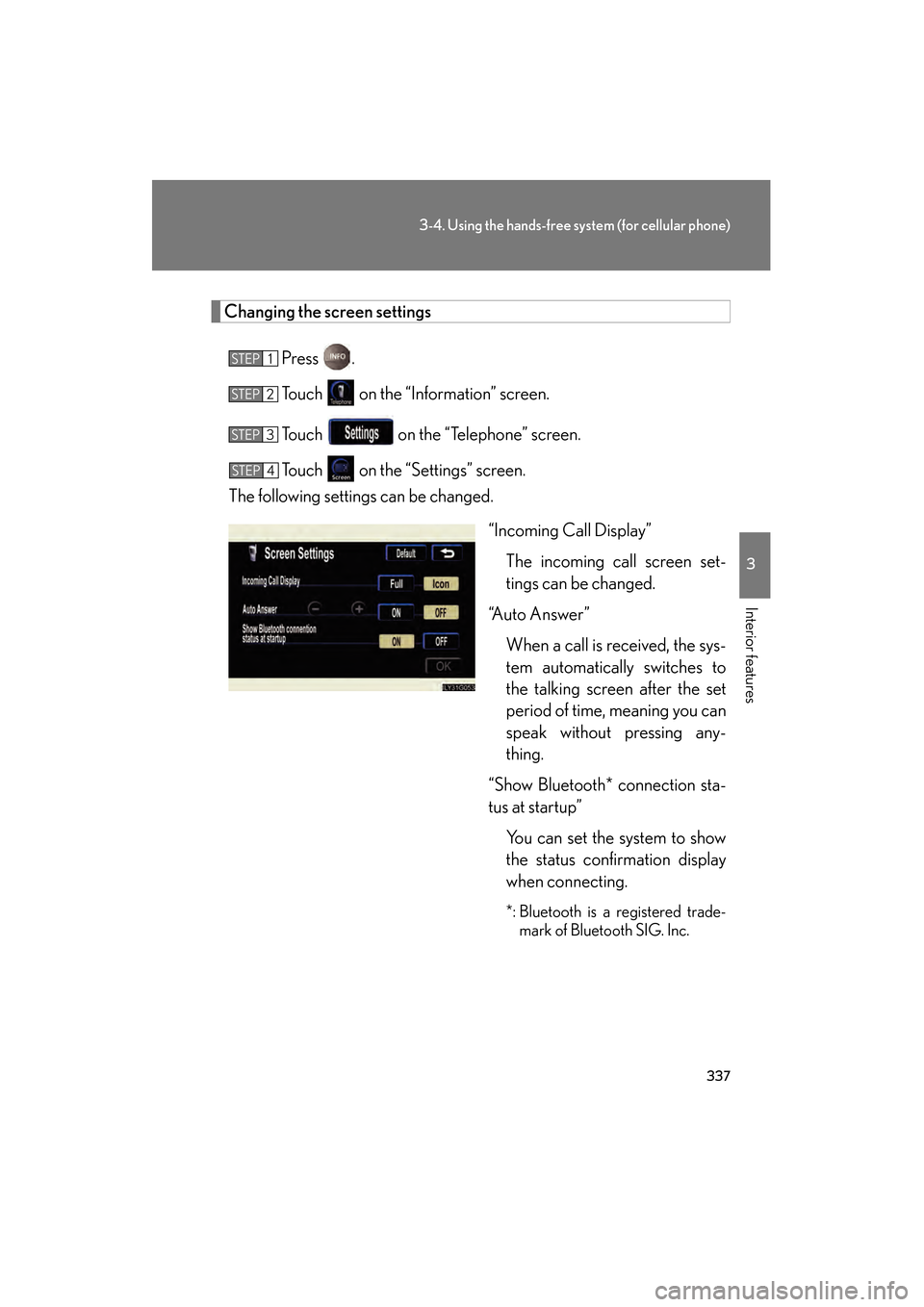
Changing the screen settingsPress .
Touch on the “Information” screen.
Touch on the “Telephone” screen.
Touch on the “S ettings” screen.
The following settings can be changed.
“Incoming Call Display”The incoming call screen set-
tings can be changed.
“Auto Answer” When a call is received, the sys-
tem automatically switches to
the talking screen after the set
period of time, meaning you can
speak without pressing any-
thing.
“Show Bluetooth* connection sta-
tus at startup” You can set the system to show
the status confirmation display
when connecting.
*: Bluetooth is a registered trade-mark of Bluetooth SIG. Inc.
STEP1
STEP2
STEP3
STEP4
GS_U_G.book Page 337 Monday, April 27, 2009 10:50 AM
Page 339 of 622
338
3-4. Using the hands-free system (for cellular phone)
GS_G_U (OM30B43U)
April 27, 2009 10:48 am
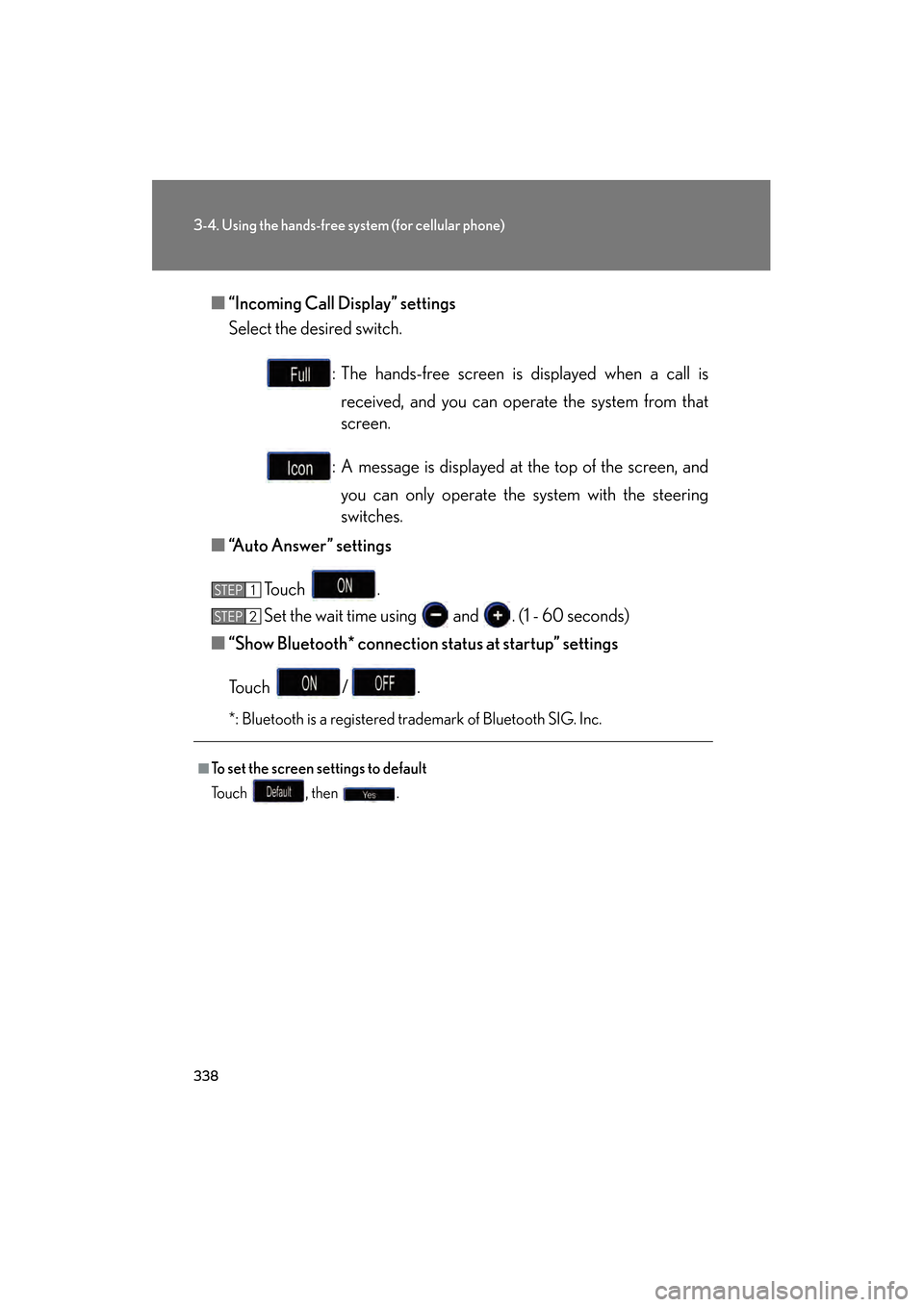
■“Incoming Call Display” settings
Select the desired switch.
: The hands-free screen is displayed when a call isreceived, and you can oper ate the system from that
screen.
: A message is displayed at the top of the screen, and you can only operate th e system with the steering
switches.
■ “Auto Answer” settings
To u c h .
Set the wait time using and . (1 - 60 seconds)
■ “Show Bluetooth* connection status at startup” settings
To u c h / .
*: Bluetooth is a registered trademark of Bluetooth SIG. Inc.
■To set the screen settings to default
To u c h , t h e n .
STEP1
STEP6STEP2
GS_U_G.book Page 338 Monday, April 27, 2009 10:50 AM
Page 341 of 622
340
3-4. Using the hands-free system (for cellular phone)
GS_G_U (OM30B43U)
April 27, 2009 10:48 am
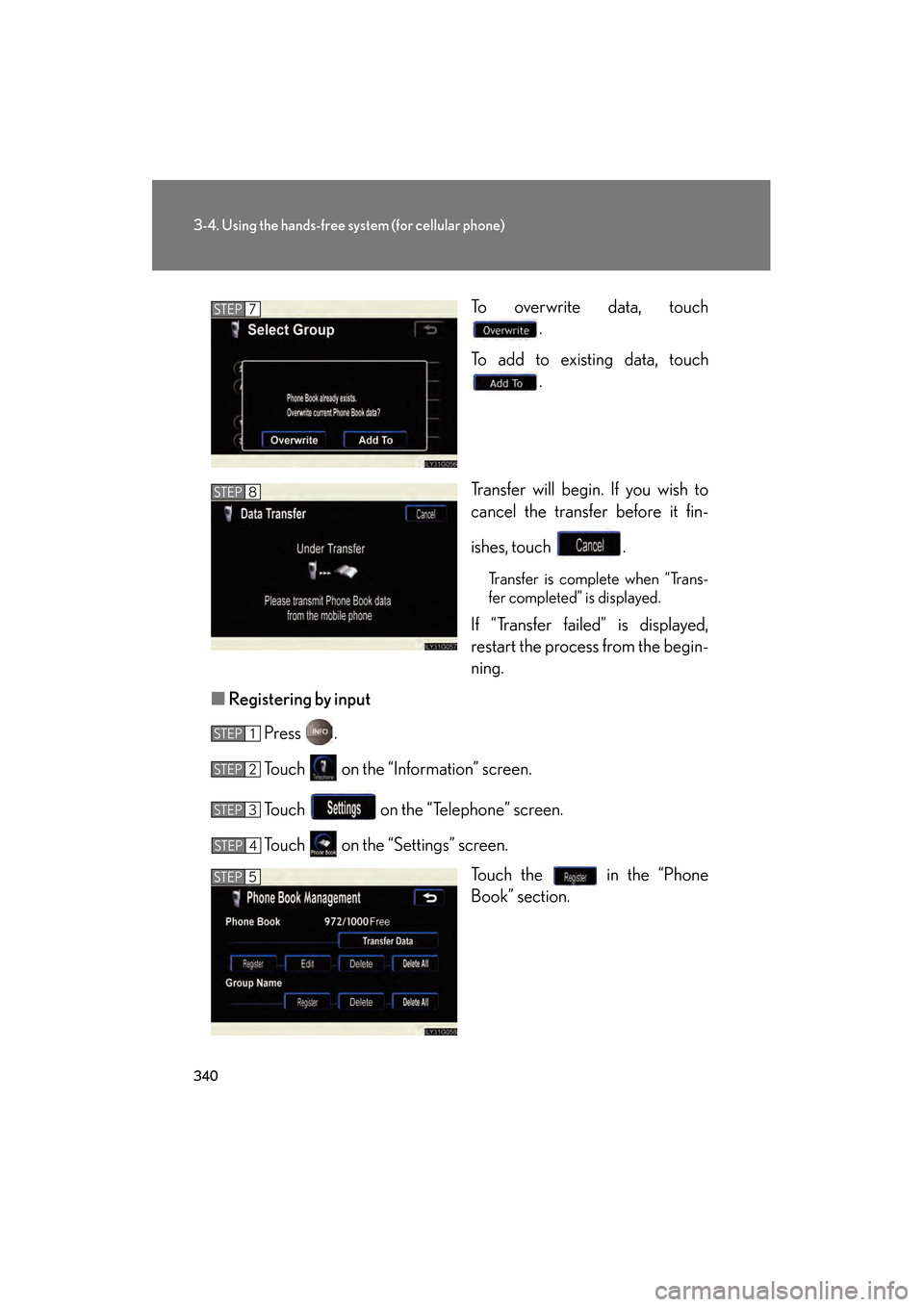
To overwrite data, touch.
To add to existing data, touch .
Transfer will begin. If you wish to
cancel the transfer before it fin-
ishes, touch .
Transfer is complete when “Trans-
fer completed” is displayed.
If “Transfer failed” is displayed,
restart the process from the begin-
ning.
■ Registering by input
Press .
Touch on the “Information” screen.
Touch on the “Telephone” screen.
Touch on the “Settings” screen. Touch the in the “Phone
Book” section.
STEP7
STEP8
STEP1
STEP2
STEP3
STEP4
STEP5
GS_U_G.book Page 340 Monday, April 27, 2009 10:50 AM
Page 346 of 622
345
3-4. Using the hands-free system (for cellular phone)
3
Interior features
GS_G_U (OM30B43U)
April 27, 2009 10:48 am
Changing the phone book group name settings■ Registering a group name
Press .
Touch on the “Information” screen.
Touch on the “Telephone” screen.
Touch on the “S ettings” screen.
Touch the switch in the “Group Name” section of the
“Phone Book Management” screen.
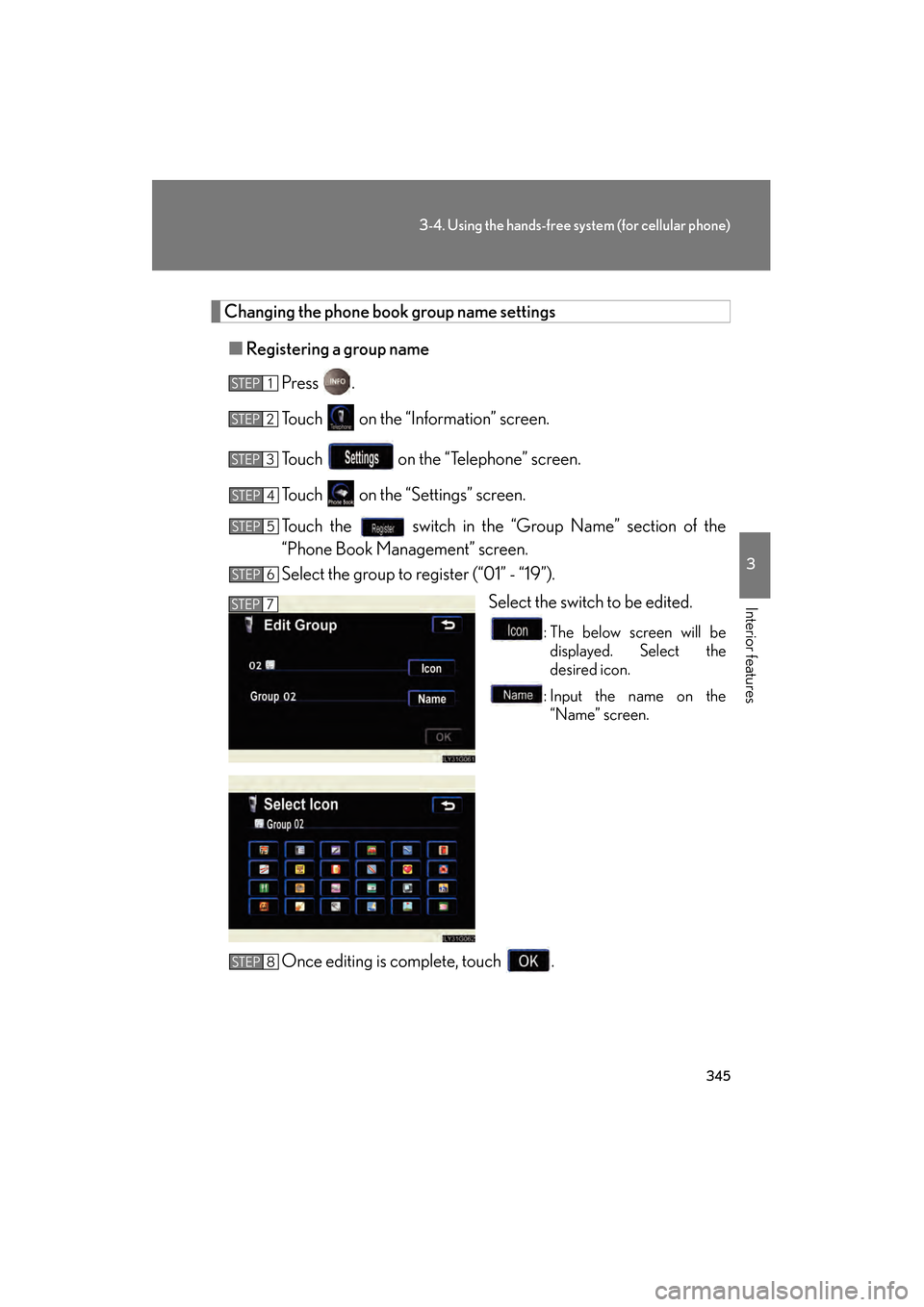
Select the group to register (“01” - “19”). Select the switch to be edited.
: The below screen will bedisplayed. Select the
desired icon.
: Input the name on the “Name” screen.
Once editing is complete, touch .
STEP1
STEP2
STEP3
STEP4
STEP5
STEP6
STEP7
STEP8
GS_U_G.book Page 345 Monday, April 27, 2009 10:50 AM
Page 347 of 622
346
3-4. Using the hands-free system (for cellular phone)
GS_G_U (OM30B43U)
April 27, 2009 10:48 am
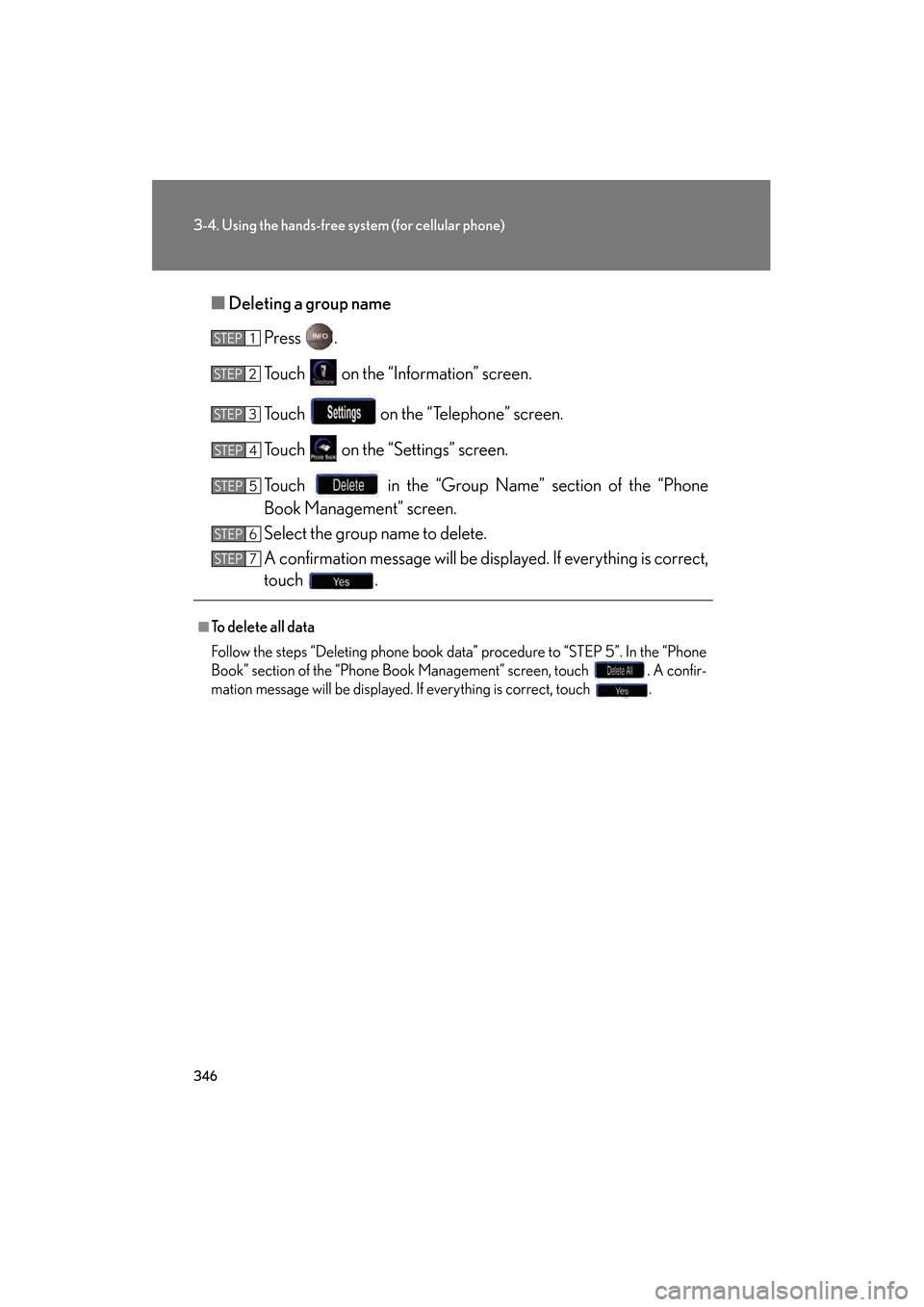
■Deleting a group name
Press .
Touch on the “Information” screen.
Touch on the “Telephone” screen.
Touch on the “Settings” screen.
Touch in the “Group Name” section of the “Phone
Book Management” screen.
Select the group name to delete.
A confirmation message will be disp layed. If everything is correct,
touch .
■To delete all data
Follow the steps “Deleting phone book data” procedure to “STEP 5”. In the “Phone
Book” section of the “Phone Book Management” screen, touch . A confir-
mation message will be displayed. If everything is correct, touch .
STEP1
STEP2
STEP3
STEP4
STEP5
STEP6
STEP7
GS_U_G.book Page 346 Monday, April 27, 2009 10:50 AM
Page 352 of 622
351
3-4. Using the hands-free system (for cellular phone)
3
Interior features
GS_G_U (OM30B43U)
April 27, 2009 10:48 am
■If the “Phone Book Lock” is set
If the security code is input and the “Phone Book Lock” set, the following functions
are locked.
●Display of the phone book screen and transferring, registering, editing, deleting
the phone book data.
●Display of speed dial screen , registering, deleting the speed dial and speed dial-
ing.
●Display of the other party’s name for calls being received or made.
●Displayed of dialed numbers screen and received calls screen, deleting dialed
numbers and received numbers.
●Display of phone information screen.
●Changing the security code.
The speed dial screen is not displayed while driving.
■When changing the security code
●Be sure to choose a number difficult for strangers to guess.
●Do not forget the security code. Even your Lexus dealer will be unable to dis-
able the security. If you do forget the code, initialize all personal data. ( →P. 2 3 3 )
GS_U_G.book Page 351 Monday, April 27, 2009 10:50 AM