Start Lexus GS350 2011 Manual PDF
[x] Cancel search | Manufacturer: LEXUS, Model Year: 2011, Model line: GS350, Model: Lexus GS350 2011Pages: 654, PDF Size: 11.03 MB
Page 295 of 654
294
3-3. Using the audio system
GS_G_U (OM30C11U)
October 28, 2011 5:15 pm
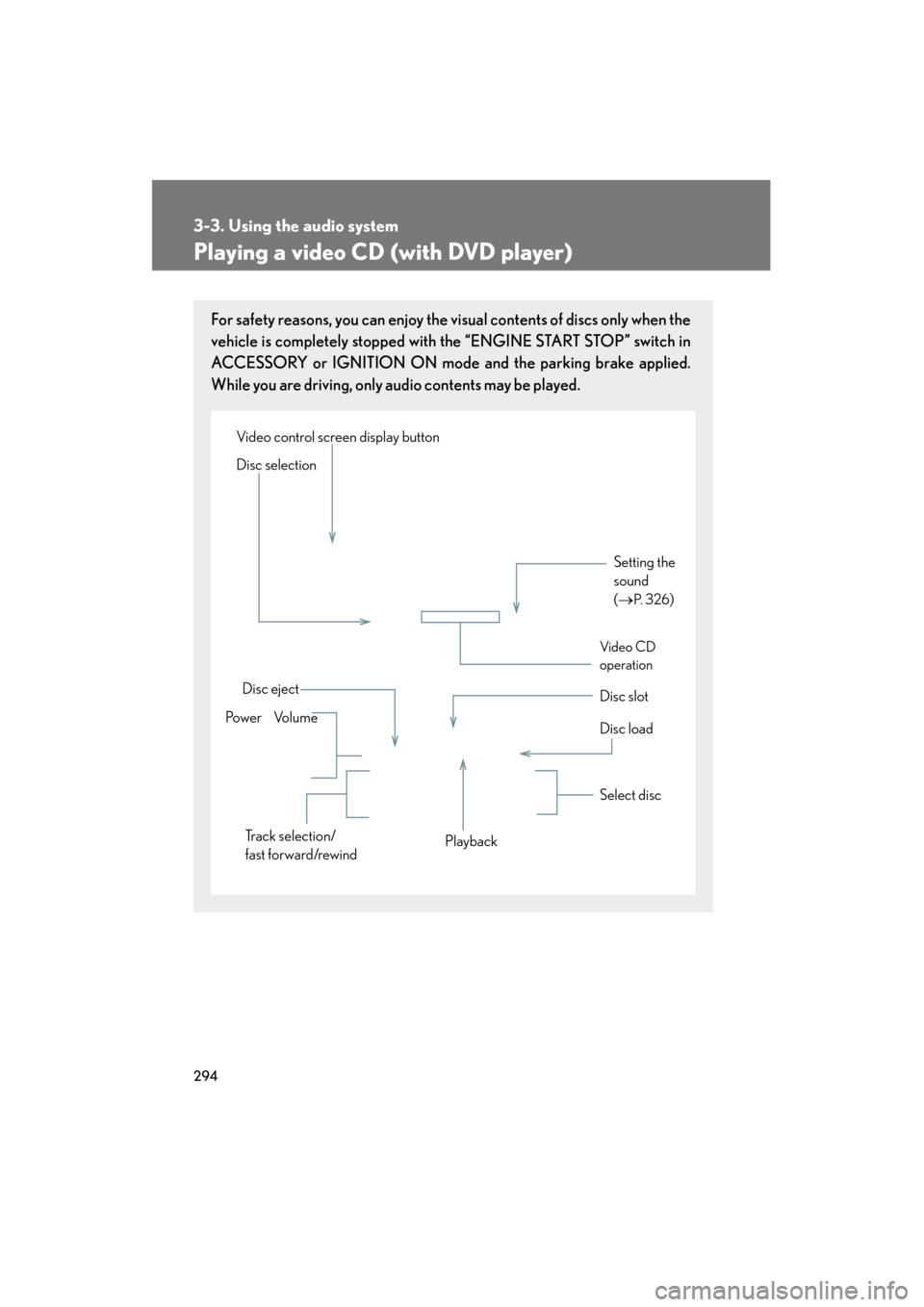
Playing a video CD (with DVD player)
For safety reasons, you can enjoy the visual contents of discs only when the
vehicle is completely stopped with the “ENGINE START STOP” switch in
ACCESSORY or IGNITION ON mode and the parking brake applied.
While you are driving, only audio contents may be played.
Setting the
sound
(→
P. 3 2 6)
Disc slot
Disc eject
Disc load
Video control screen display button
Po w e r Vo l u m e Select disc
Track selection/
fast forward/rewind Playback
Disc selection
Vid e o CD
operation
Page 296 of 654
295
3-3. Using the audio system
3
Interior features
GS_G_U (OM30C11U)
October 28, 2011 5:15 pm
Loading, ejecting and selecting discs→ P. 2 7 0
Fast forwarding/rewinding a video CD
Touch and hold or on the control icon screen or press and hold
∧ or ∨ on until a beep is heard.
Slow playback
Touch and then touch on the control icon screen. Video is played
slowly while you are touching .
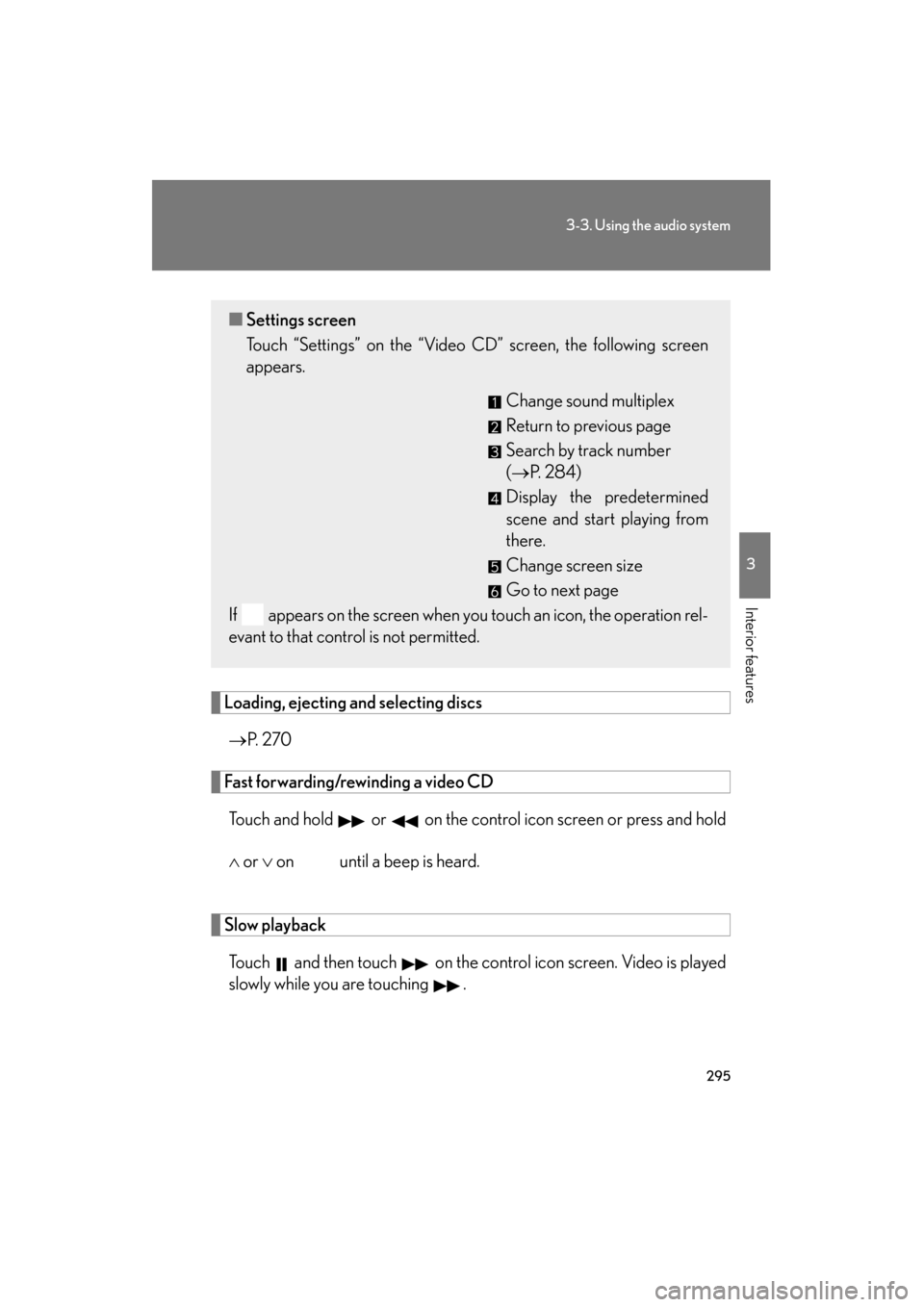
■ Settings screen
Touch “Settings” on the “Video CD” screen, the following screen
appears.
Change sound multiplex
Return to previous page
Search by track number
(→P. 2 8 4 )
Display the predetermined
scene and start playing from
there.
Change screen size
Go to next page
If appears on the screen when you touch an icon, the operation rel-
evant to that control is not permitted.
Page 305 of 654
304
3-3. Using the audio system
GS_G_U (OM30C11U)
October 28, 2011 5:15 pm
●MP3 and WMA playback
When a disc containing MP3 or WMA files is inserted, all files on the disc are first
checked. Once the file check is finished, the first MP3 or WMA file is played. To
make the file check finish more quickly, we recommend you do not write in any
files other than MP3 or WMA files or create any unnecessary folders.
Discs that contain a mixture of music data and MP3 or WMA format data cannot
be played.
●Extensions
If the file extensions .mp3 and .wma are used for files other than MP3 and WMA
files, they will be mistakenly recognized and played as MP3 and WMA files. This
may result in large amounts of interference and damage to the speakers.
●Playback
• To play MP3 files with steady sound quality, we recommend a fixed bit rate of128 kbps and a sampling frequency of 44.1 kHz.
• CD-R or CD-RW playback may not be possible in some instances, depend-
ing on the characteristics of the disc.
• There is a wide variety of freeware and other encoding software for MP3 and WMA files on the market, and depending on the status of the encoding and
the file format, poor sound quality or noise at the start of playback may result.
In some cases, playback may not be possible at all.
• When files other than MP3 or WMA files are recorded on a disc, it may take
more time to recognize the disc and in some cases, playback may not be pos-
sible at all.
• Microsoft, Windows, and Windows Media are the registered trademarks of Microsoft Corporation in the U.S. and other countries.
Page 311 of 654
310
3-3. Using the audio system
GS_G_U (OM30C11U)
October 28, 2011 5:15 pm
Connecting Bluetooth® audio player
To use the Bluetooth
® audio system, you need to enter your portable
player into the system. Once registered, you can enjoy your music on the
vehicle’s audio system. ( →P. 243)
For the operation procedure for the portable player, consult your player’s
accompanying instruction manual.
■ When the connection method is set to “From Vehicle”
When auto connection is on
When the portable player is on standby for the connection, it will be
automatically connected whenever the “ENGINE START STOP”
switch is in either ACCESSORY or IGNITION ON mode.
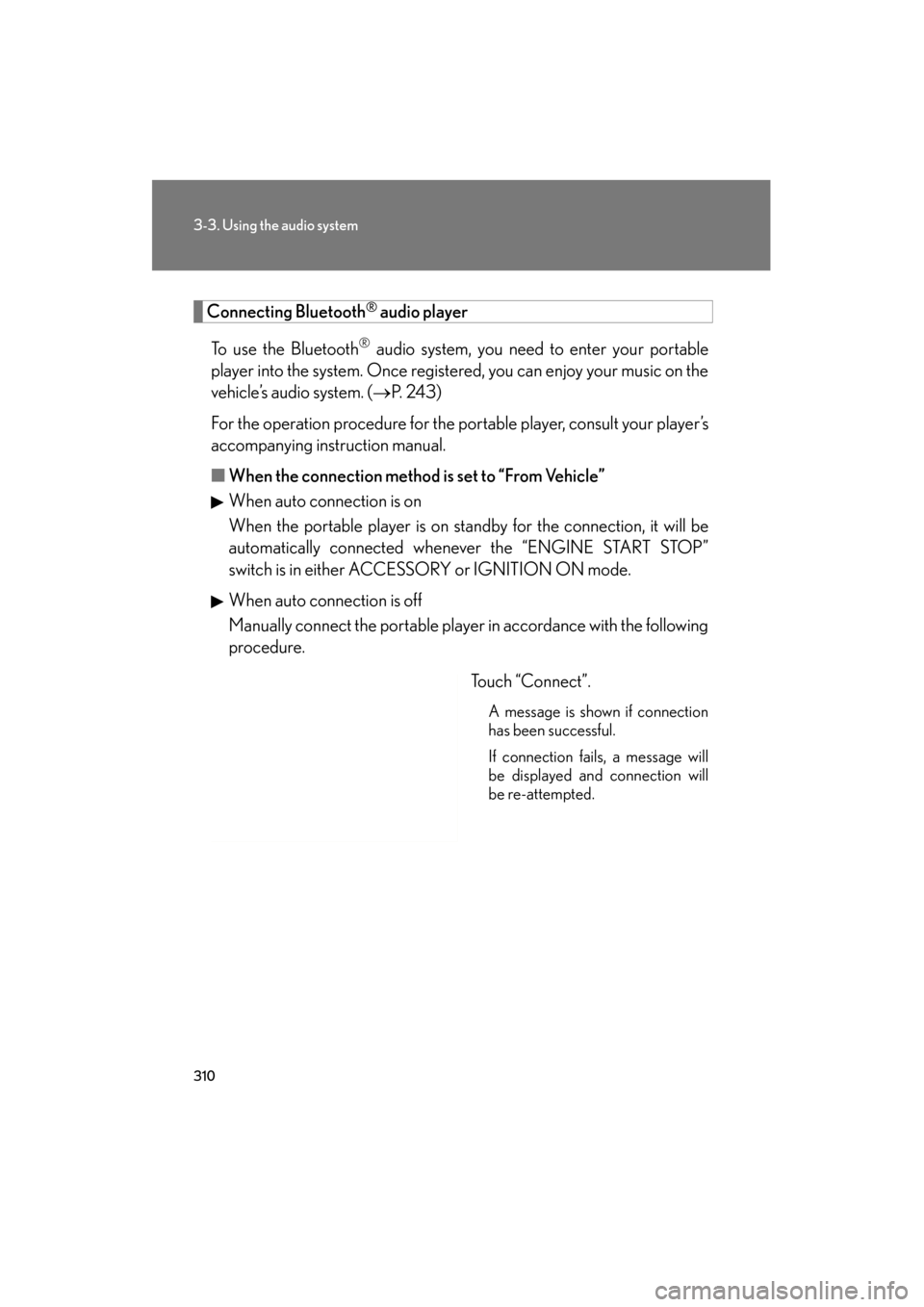
When auto connection is off
Manually connect the portable player in accordance with the following
procedure.
Touch “Connect”.
A message is shown if connection
has been successful.
If connection fails, a message will
be displayed and connection will
be re-attempted.
Page 315 of 654
314
3-3. Using the audio system
GS_G_U (OM30C11U)
October 28, 2011 5:15 pm
■Compatible models
Portable players must correspond to the following specifications:
●Bluetooth® specification
Ve r. 1 .1 o r h i g h e r
(Recommended: Ver. 2.0+EDR or higher)
●Profile
• A2DP (Advanced Audio Distribution Profile) Ver. 1.0 or higher
• AVRCP (Audio/Video Remote Control Profile) Ver. 1.0 or higher
(Recommended: Ver. 1.3 or higher)
However, please note that some functions may be limited depending on the type of
portable player.
Please go to the website at http://www.lexus.com/
to find approved portable play-
ers for this system.
■Certification
→ P. 3 3 6
■Reconnecting the portable player
If the portable player is disconnected with a poor reception when the “ENGINE
START STOP” switch is in ACCESSORY or IGNITION ON mode, the system
automatically reconnects the portable player.
If you have switched off the portable player yourself, follow the instructions below to
reconnect:
●Select the portable player again
●Enter the portable player
■When transferring ownership of your vehicle
Be sure to remove the registered portable player from the system.
Page 325 of 654
324
3-3. Using the audio system
GS_G_U (OM30C11U)
October 28, 2011 5:15 pm
●MP3 and WMA playback
• When a device containing MP3 or WMA files is connected, all files in theUSB memory device are checked. Once the file check is finished, the first
MP3 or WMA file is played. To make the file check finish more quickly, we
recommend that you do not include any files other than MP3 or WMA files
or create any unnecessary folders.
• When the USB device is connected and the audio source is changed to USB memory mode, the USB device will start playing the first file in the first folder.
If the same device is removed and reinserted (and the contents have not been
changed), the USB device will resume play from the same point in which it
was last used.
●Extensions
If the file extensions .mp3 and .wma are used for files other than MP3 and
WMA files, they will be mistakenly recognized and played as MP3 and WMA
files. This may result in large amounts of interference and damage to the speak-
ers.
●Playback
• To play MP3 files with steady sound quality, we recommend a fixed bit rate of
at least 128 kbps and a sampling frequency of 44.1 kHz.
• There is a wide variety of freeware and other encoding software for MP3 and WMA files on the market, and depending on the status of the encoding and
the file format, poor sound quality or noise at the start of playback may result.
In some cases, playback may not be possible at all.
• Microsoft, Windows, and Windows Media are registered trademarks of
Microsoft Corporation in the U.S.A. and other countries.
Page 341 of 654
340
3-4. Using the hands-free system (for cellular phone)
GS_G_U (OM30C11U)
October 28, 2011 5:15 pm
Bluetooth® phone connection
There are two connection methods available — automatic and manual. Automatic When you register your phone,
auto connection will be activated.
Always set it to this mode and
leave the Bluetooth
® phone on the
place where connection can be
established.
When the “ENGINE START
STOP” switch is turned to
ACCESSORY or IGNITION ON
mode, the system will search for a
nearby cellular phone you have
registered. Next, the system auto-
matically connects with the most
recent of the phones connected to
in the past. Then, the connection
result is displayed.
Page 343 of 654
342
3-4. Using the hands-free system (for cellular phone)
GS_G_U (OM30C11U)
October 28, 2011 5:15 pm
■Reconnecting to the Bluetooth® phone
If the system cannot connect due to poor signal strength with the “ENGINE START
STOP” switch in ACCESSORY or IGNITION ON mode, the system will automat-
ically attempt to reconnect.
If the phone is turned off, the system will not attempt to reconnect. In this case, it
must be connected manually, or the phone must be re-selected or re-entered.
■Connecting the phone while Bluetooth® audio is playing
●Bluetooth® audio will stop temporarily.
●It may take time to connect.
■Help icon
When “?” is displayed on the screen, an explanation of the function can be dis-
played.
To display the explanation of the function, touch “?” and choose the desired func-
tion.
Page 360 of 654
359
3-4. Using the hands-free system (for cellular phone)
3
Interior features
GS_G_U (OM30C11U)
October 28, 2011 5:15 pm
■When another Bluetooth® device is connected while registering or selecting a
phone
When another Bluetooth
® device is connected, a confirmation message will be dis-
played. If you want to disconnect it, touch “Yes”.
■When Bluetooth® audio is connected while registering a phone
When you register your phone, Bluetooth
® audio will disconnect. It will reconnect
automatically when you finish registration. It will not be reconnected depending on
the phone you are using.
■Connecting the phone while Bluetooth® audio is playing
Bluetooth
® audio will disconnect. It will reconnect automatically when you finish
registration. It will not be reconnected depending on the phone you are using.
■Setting the “Handsfree Power”
The state changes between “On” and “Off” every time you select “Handsfree
Power” on the “Connect Phone” screen. When “Handsfree Power” is “On”, the
Bluetooth
® phone is automatically connected when you turn the “ENGINE START
STOP” switch is in ACCESSORY or IGNITION ON mode.
■Editing the “Device Name”
If you change a device name, the name registered in your cellular phone is not
changed.
■About “Device Address”
This address is specific to the system and cannot be changed. If you have registered
two Bluetooth
® phones with the same device name and you cannot distinguish one
from the other, refer to this address.
■When you delete a Bluetooth® phone
The phonebook data will be deleted at the same time.
■Connecting the phone by voice recognition
“Connect Phone” includes “Select Phone”, “Add New Phone” and “Handsfree
Power Off (On)” can be operated by voice recognition. ( →P. 3 4 7 )
Page 379 of 654
378
3-4. Using the hands-free system (for cellular phone)
GS_G_U (OM30C11U)
October 28, 2011 5:15 pm
■Changing the handsfree power
The Bluetooth
phone is automatically connected when you turn the
“ENGINE START STOP” switch to ACCESSORY or IGNITION ON
mode. You can change this state to “On” or “Off”.
Display the “Bluetooth
* Information” screen. (→P. 3 7 7 )
Touch “Handsfree Power” on the “Bluetooth
* Information”
screen.
Touch “On” or “Off”, and then
“Save”.
*: Bluetooth is a registered trademark of Bluetooth SIG. Inc.
■Editing the device name
Display the “Bluetooth
* Information” screen. (→P. 3 7 7 )
Touch “Edit” of “Device Name” on the “Bluetooth
* Information”
screen.
Input the device name, and touch “OK”.
Touch “Save” on the “Bluetooth
* Information” screen.
*: Bluetooth is a registered trademark of Bluetooth SIG. Inc.
STEP1
STEP2
STEP3
STEP1
STEP2
STEP3
STEP4