steering Lexus GS350 2013 Workshop Manual
[x] Cancel search | Manufacturer: LEXUS, Model Year: 2013, Model line: GS350, Model: Lexus GS350 2013Pages: 830, PDF Size: 9.71 MB
Page 370 of 830
GS350_U (OM30C34U)
3695-3. Using the audio system
5
Interior featuresPress to operate the voice
command system. (→P. 3 3 4 /
“Navigation System Owner’s Man-
ual”)
Ti t l ePa g e
Using the radioP. 3 9 0
Using the CD/DVD playerP. 4 1 2
Playing an audio CD and MP3/WMA discsP. 4 1 4
Playing DVD videoP. 4 2 0
CD/DVD player and DVD video disc informationP. 4 3 2
Listening to Bluetooth® audioP. 4 4 4
Listening to a USB memoryP. 4 5 4
Listening to an iPodP. 4 6 4
Optimal use of the audio/video systemP. 4 74
Using the AUX portP. 4 76
Using the steering wheel audio switchesP. 4 8 2
Using the voice command system
Page 483 of 830
482
GS350_U (OM30C34U)
5-3. Using the audio system
Using the steering wheel audio switches
Radio mode: Selects a radio sta-tion
Audio CD mode: Selects a track
MP3/WMA disc mode: Selects a file and
folder
DVD mode: Selects a chapter
Bluetooth
® audio mode: Selects a track and
album
iPod mode: Selects a track
USB memory mode: Selects a file and
folder
Vo l u m e
Turns the power on, selects audio
source
Some audio features can be controll ed using the switches on the steer-
ing wheel.
1
2
3
Page 485 of 830
484
GS350_U (OM30C34U)
5-3. Using the audio system
Press to select the audio CD, MP3/WMA disc, DVD, Blue-
tooth
® audio, iPod, or USB memory mode.
Press or to select.
To return to the beginning of the current track, file or chapter, press the
switch once quickly.
Press to select Bluetooth® audio or USB memory mode.
Press and hold or until a beep is heard to select.
Press to select the MP3/W MA disc or USB memory mode.
Press and hold or until a beep is heard to select.
Selecting a track/file or chapter
Selecting an album
Selecting a folder
CAUTION
■To reduce the risk of an accident
Exercise care when operating the audio switches on the steering wheel.
1
2
1
2
1
2
Page 488 of 830
GS350_U (OM30C34U)
4875-4. Using the hands-free phone system (for cellular phone)
5
Interior features
Adjusting the volume
Press to increase the volume
and to decrease the volume.
Hold the switch in that position to con-
tinue increasing or decreasing the vol-
ume.
Back switch
Press .
To return to the previous screen.
You can check indicators such as signal strength and battery charge on
the “Phone” screen. Connection status
Battery charge
Call area
Signal strength
Steering switch
1
2
Status display
1
2
3
4
IndicatorsConditions
Connection statusGood
No
connection
Battery chargeFullEmpty
Call area“Rm”: Roaming area
Signal strengthExcellentPo o r
Page 494 of 830
493
GS350_U (OM30C34U)5-4. Using the hands-free phone system (for cellular phone)
5
Interior features
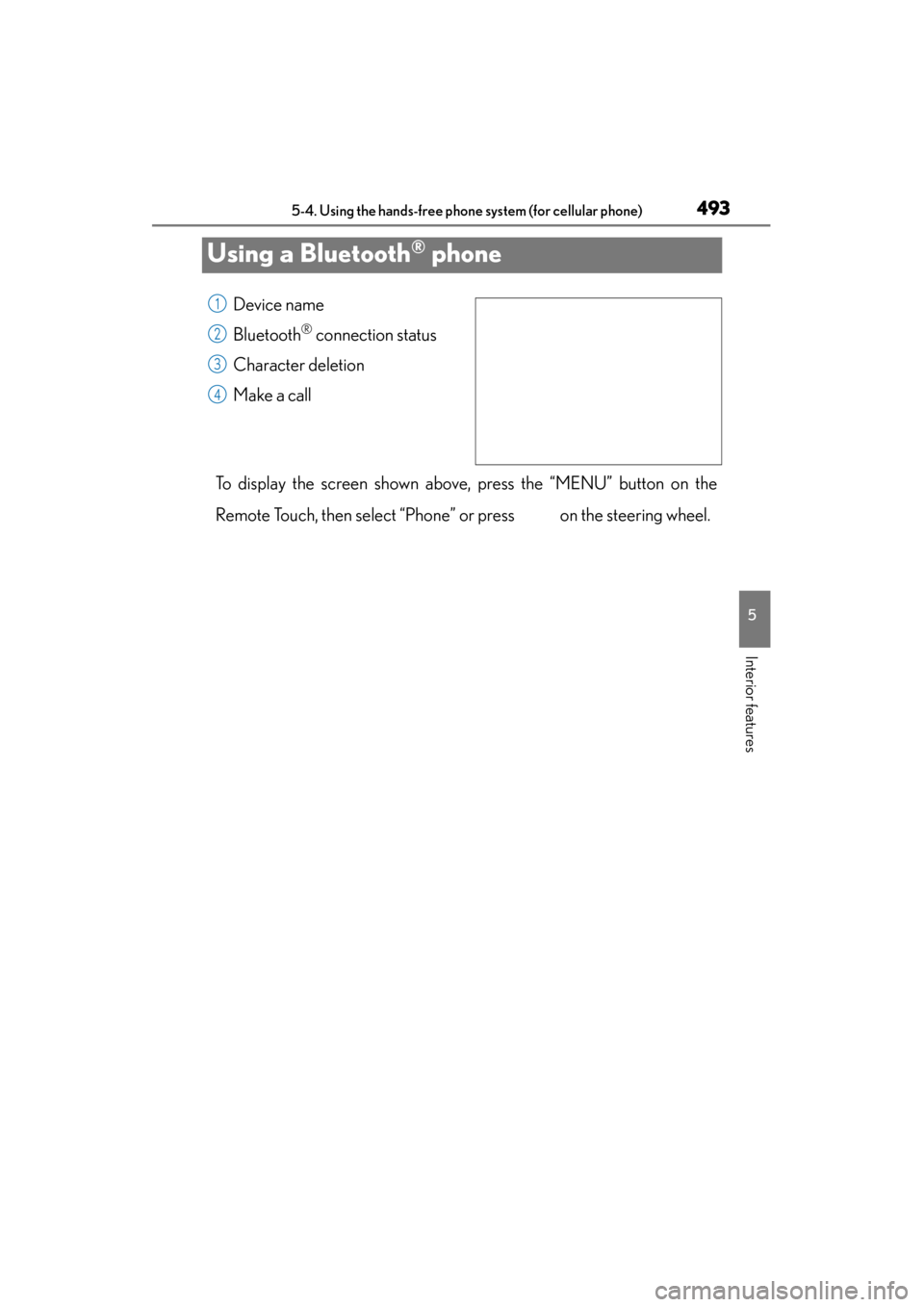
Using a Bluetooth® phone
Device name
Bluetooth
® connection status
Character deletion
Make a call
To display the screen shown above, press the “MENU” button on the
Remote Touch, then select “Phone” or press on the steering wheel.
1
2
3
4
Page 499 of 830
498
GS350_U (OM30C34U)
5-4. Using the hands-free phone system (for cellular phone)
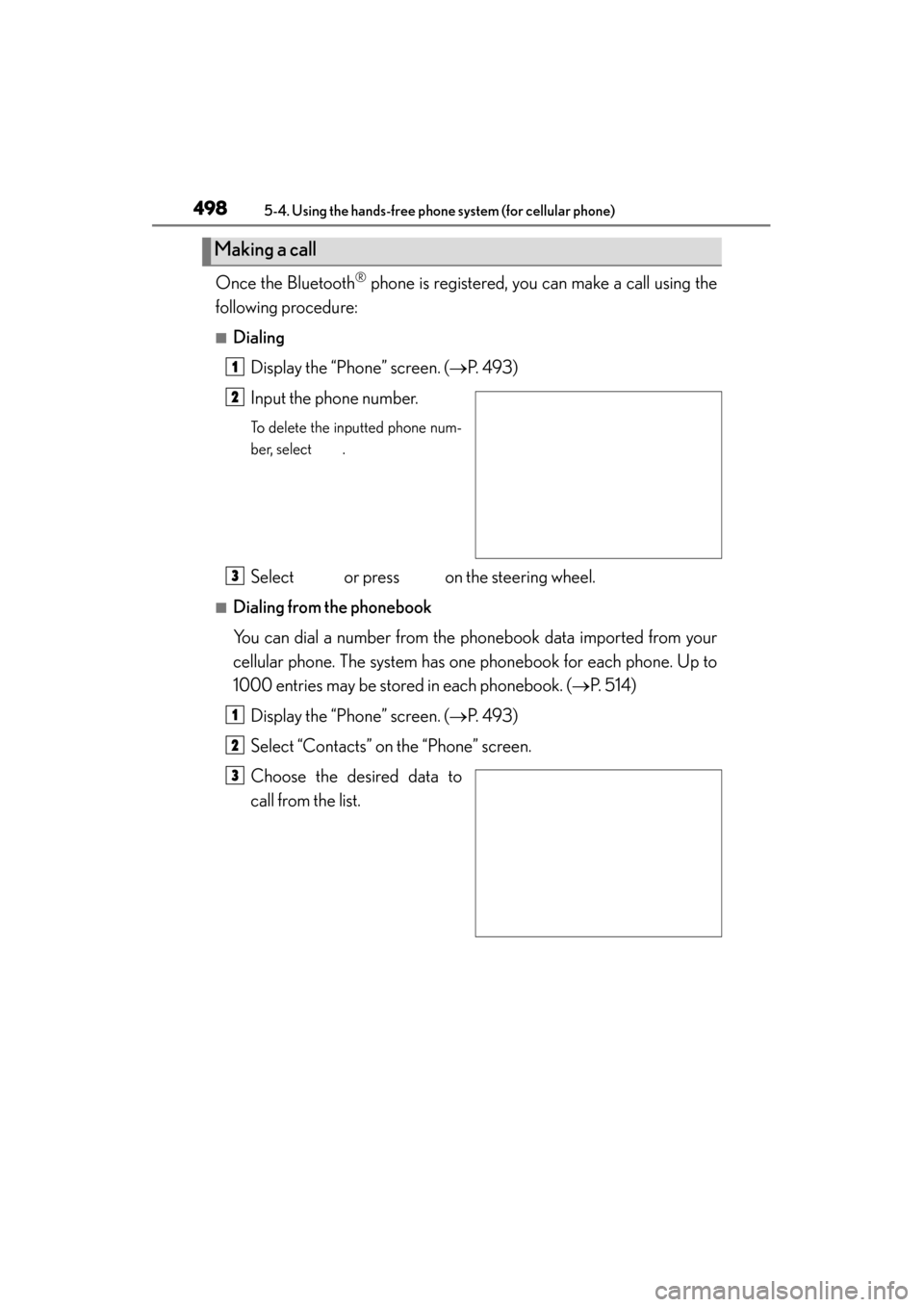
Once the Bluetooth® phone is registered, you can make a call using the
following procedure:
■Dialing
Display the “Phone” screen. ( →P. 493)
Input the phone number.
To delete the inputted phone num-
ber, select .
Select or press on the steering wheel.
■Dialing from the phonebook
You can dial a number from the phonebook data imported from your
cellular phone. The system has one phonebook for each phone. Up to
1000 entries may be stored in each phonebook. ( →P. 5 1 4 )
Display the “Phone” screen. ( →P. 493)
Select “Contacts” on the “Phone” screen.
Choose the desired data to
call from the list.
Making a call
1
2
3
1
2
3
Page 500 of 830
GS350_U (OM30C34U)
4995-4. Using the hands-free phone system (for cellular phone)
5
Interior features
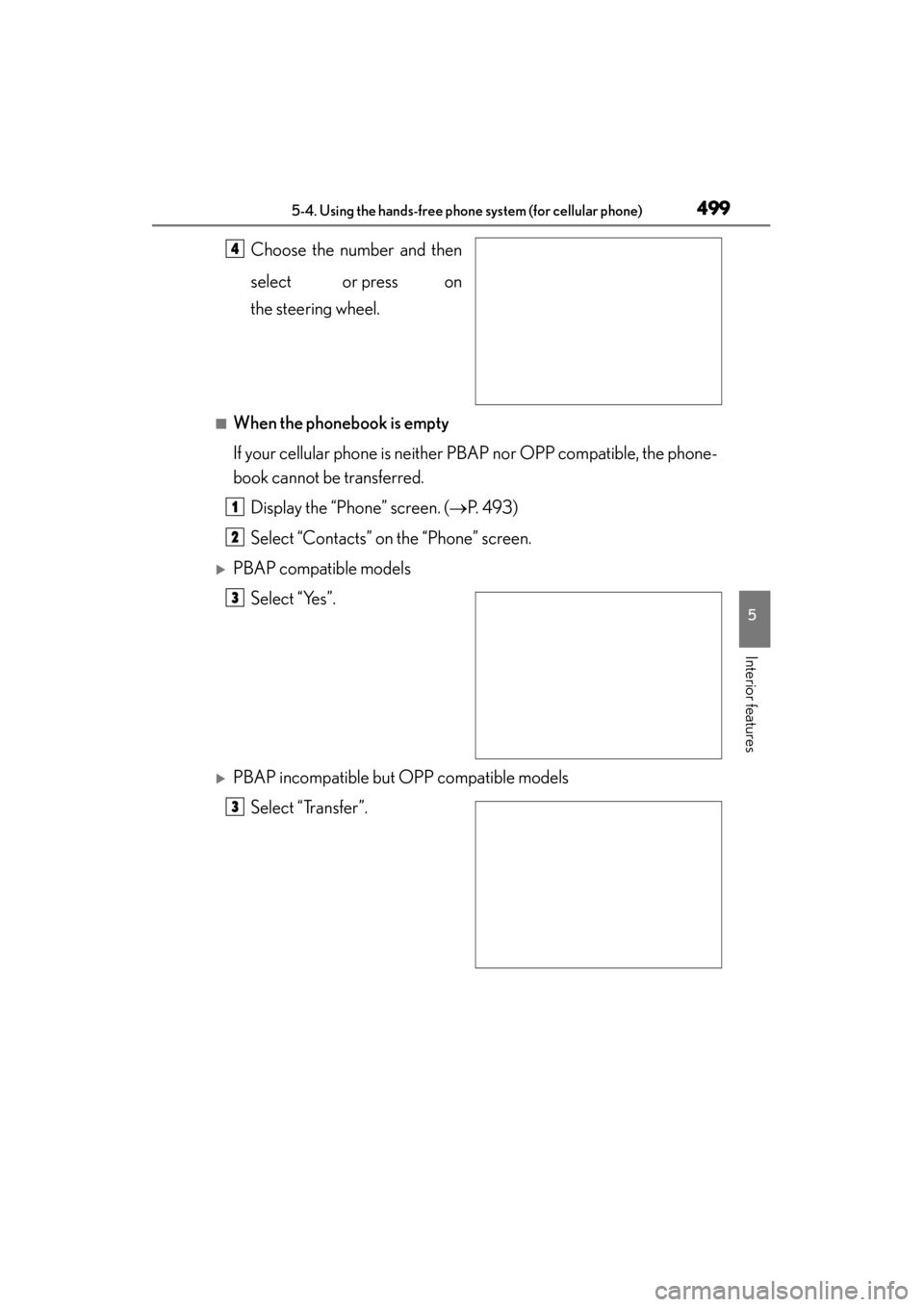
Choose the number and then
select or press on
the steering wheel.
■When the phonebook is empty
If your cellular phone is neither PBAP nor OPP compatible, the phone-
book cannot be transferred.Display the “Phone” screen. ( →P. 493)
Select “Contacts” on the “Phone” screen.
XPBAP compatible models Select “Yes”.
XPBAP incompatible but OPP compatible modelsSelect “Transfer”.
4
1
2
3
3
Page 502 of 830
GS350_U (OM30C34U)
5015-4. Using the hands-free phone system (for cellular phone)
5
Interior features
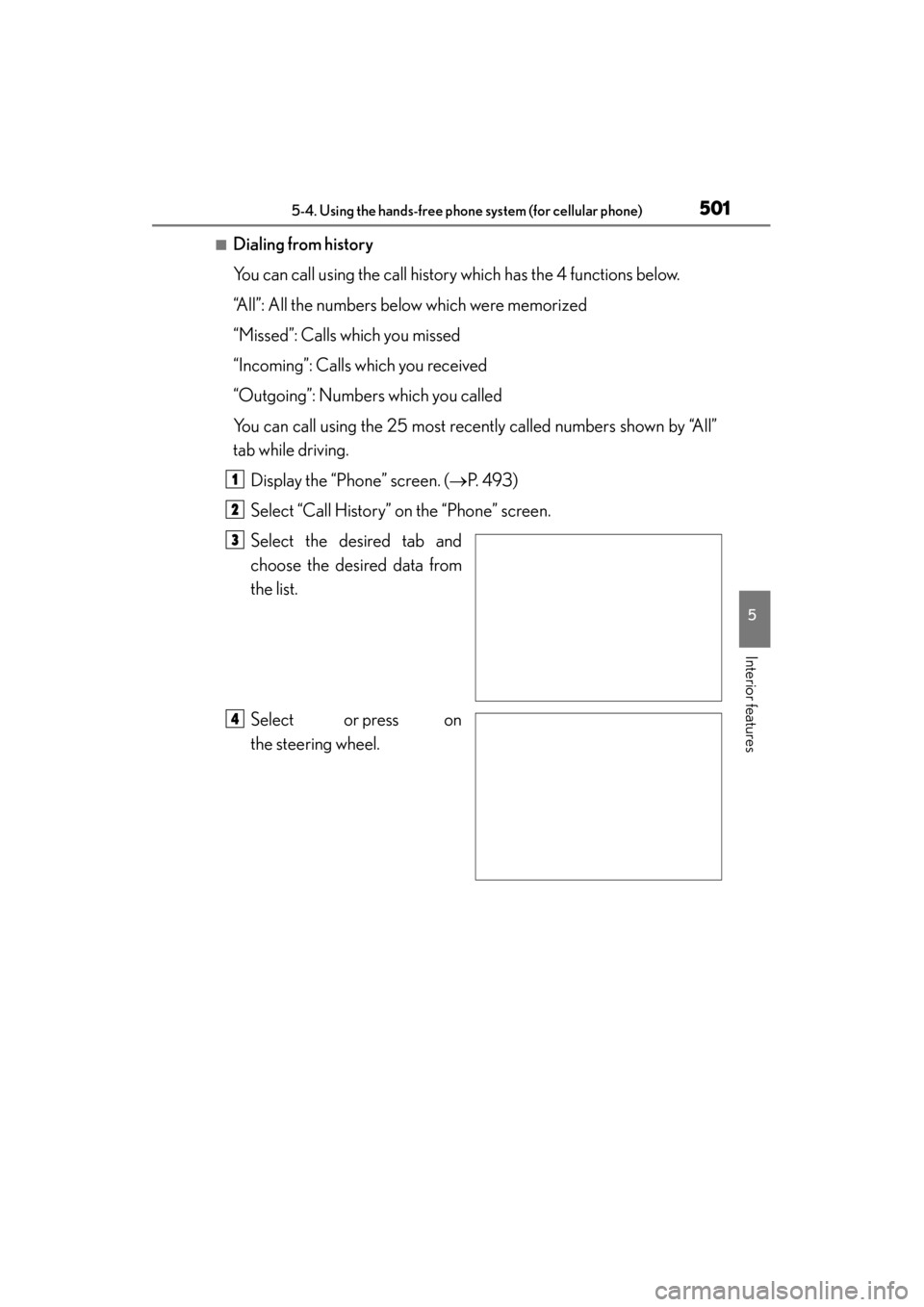
■Dialing from history
You can call using the call history which has the 4 functions below.
“All”: All the numbers below which were memorized
“Missed”: Calls which you missed
“Incoming”: Calls which you received
“Outgoing”: Numbers which you called
You can call using the 25 most recently called numbers shown by “All”
tab while driving.Display the “Phone” screen. ( →P. 493)
Select “Call History” on the “Phone” screen.
Select the desired tab and
choose the desired data from
the list.
Select or press on
the steering wheel.
1
2
3
4
Page 503 of 830
502
GS350_U (OM30C34U)
5-4. Using the hands-free phone system (for cellular phone)
■Calling using voice recognition
You can call by giving a voice command. (
→P. 3 3 4 )
Press .
The “Call
explained here. Other operating procedures are also similar.
●Calling by name
You can call by giving a name registered in the phonebook.
(→ P. 5 1 4 )
Press .
Following the system guid-
ance, wait for the beep and
then after saying “Call” say the
desired name, or the name and
type of phone.
Following the system guidance, wait for the beep and then say “Dial”.
(You can also call by pressing on the steering wheel.)
1
2
3
Page 504 of 830
GS350_U (OM30C34U)
5035-4. Using the hands-free phone system (for cellular phone)
5
Interior features
●Calling by dial number
You can call by giving a phone number
Press .
Following the system guid-
ance, wait for the beep and
then after saying “Dial” say the
phone number.
Following the system guidance, wait for the beep and then say “Dial”.
(You can also call by pressing on the steering wheel.)
■Calling using SMS/MMS message
You can call using the SMS (Short Message Service)/MMS (Multime-
dia Messaging Service) message sender’s phone number.Display the “Phone” screen. ( →P. 493)
Select “Messages”.
When “Message Transfer” is set to
“Off”, a confirmation screen will be
displayed. Select “Yes”.
Select the “SMS/MMS” tab and then select the desired received
message from the list.
The tab display may vary depending on the type of cellular phone.
Select or press on the steering wheel.
■Calling using POI (vehicles with the navigation system)
You can make a call using a Point Of Interest.
1
2
3
1
2
3
4