change time Lexus GS450h 2009 User Guide
[x] Cancel search | Manufacturer: LEXUS, Model Year: 2009, Model line: GS450h, Model: Lexus GS450h 2009Pages: 622
Page 265 of 622
264
3-3. Using the audio system
GS_HV_U (OM30B44U)
April 27, 2009 10:09 am
The type of program changes each time the button is pressed.
●ROCK
● EASYLIS (Easy listening)
● CLS/JAZZ (Classical music and Jazz)
● R & B (Rhythm and Blues)
● INFORM (Information)
● RELIGION
● MISC (Miscellaneous)
● ALARM (Emergency messages)
If the system receives no RDS stations, “NO PTY” appears on the display.
When a program is set, “TYPE SEEK” appears.
Touch on the screen or press ∧ or ∨ on .
The radio seeks or scans the station by the relevant program type.
If no radio station of that type is found, “NOTHING” appears on the
screen.
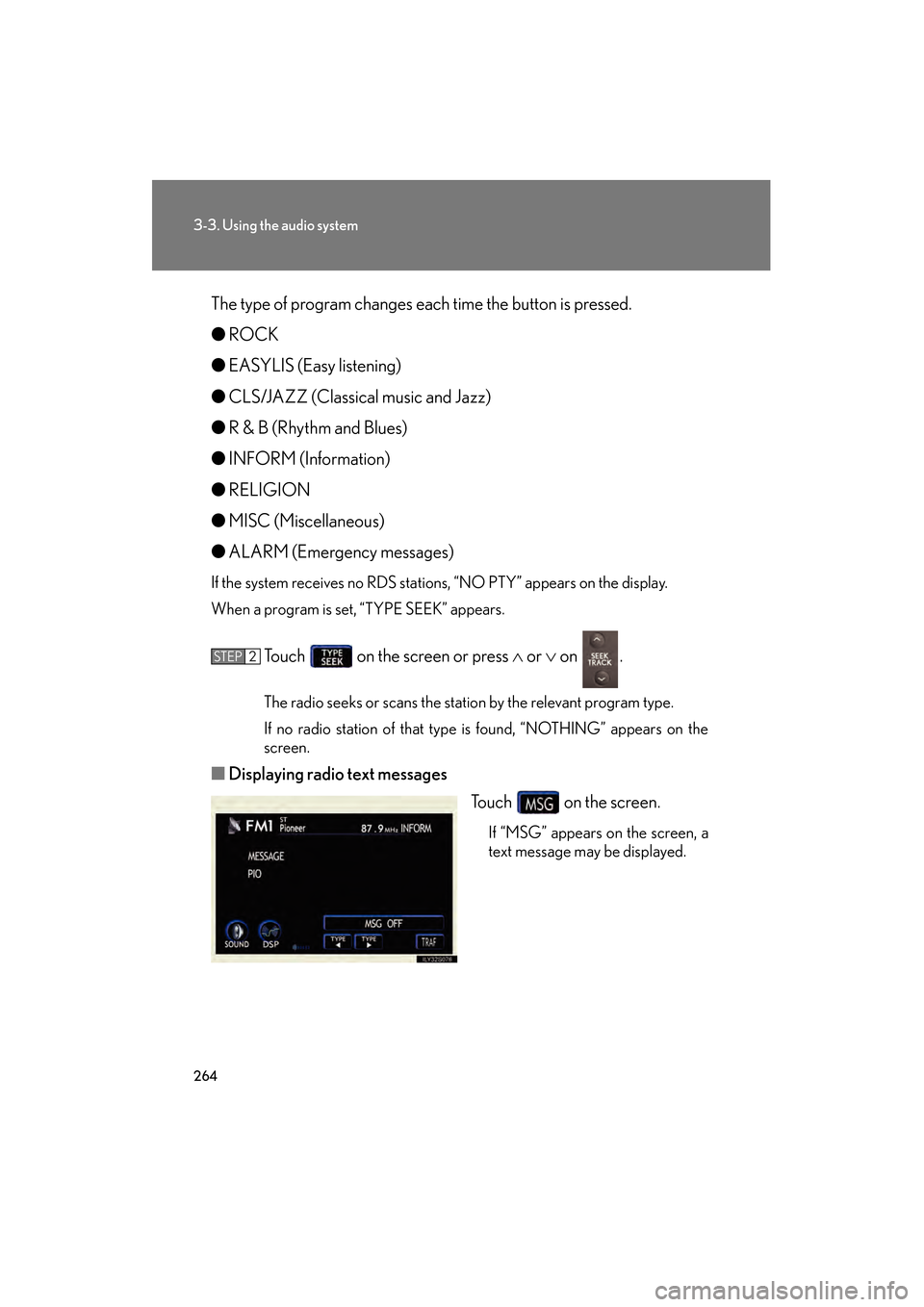
■ Displaying radio text messages
Touch on the screen.
If “MSG” appears on the screen, a
text message may be displayed.
STEP2
GS450h_HV_U.book Page 264 Monday, April 27, 2009 10:10 AM
Page 266 of 622
265
3-3. Using the audio system
3
Interior features
GS_HV_U (OM30B44U)
April 27, 2009 10:09 am
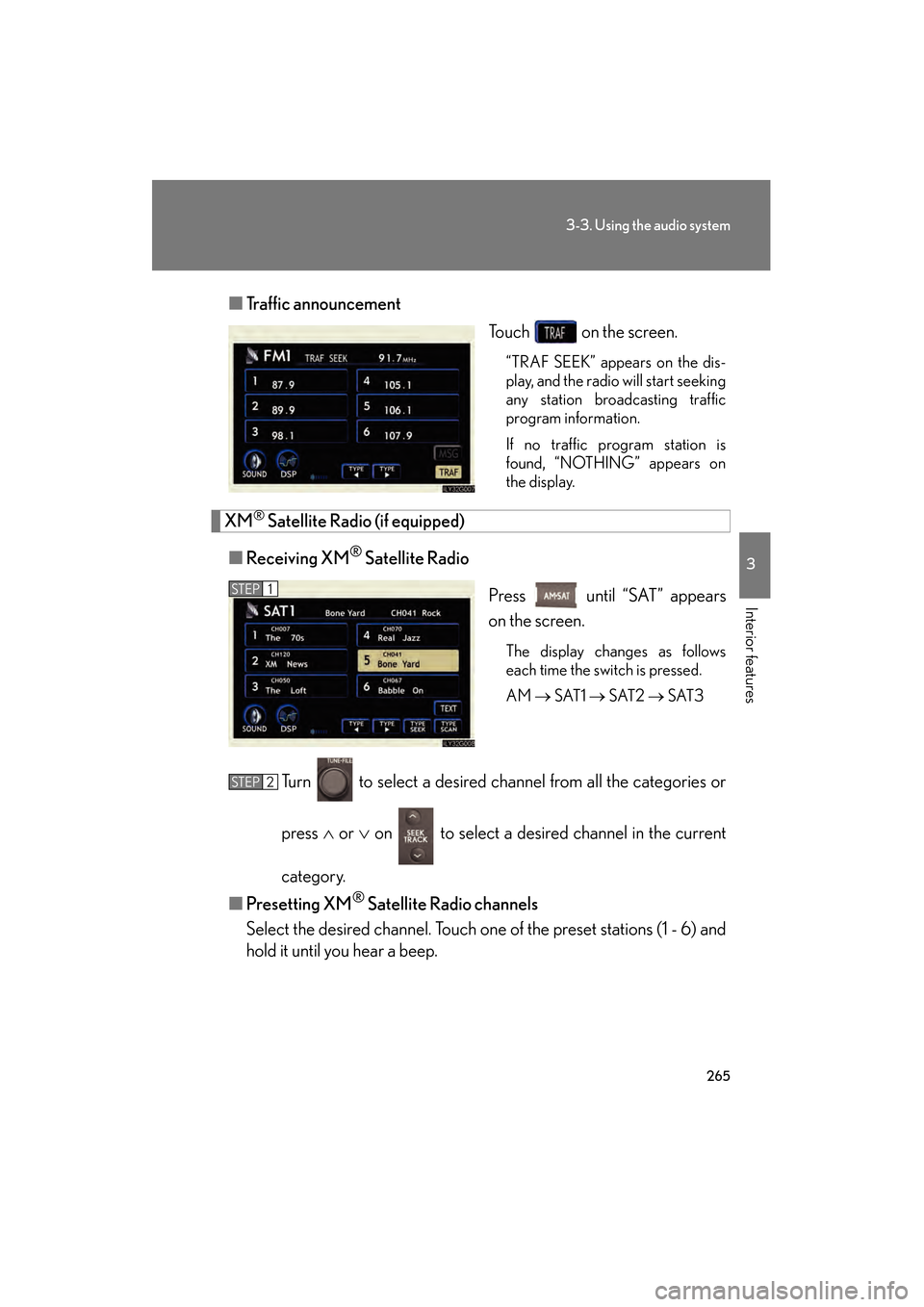
■Traffic announcement
Touch on the screen.
“TRAF SEEK” appears on the dis-
play, and the radio will start seeking
any station broadcasting traffic
program information.
If no traffic program station is
found, “NOTHING” appears on
the display.
XM® Satellite Radio (if equipped)
■ Receiving XM
® Satellite Radio
Press until “SAT” appears
on the screen.
The display changes as follows
each time the switch is pressed.
AM → SAT1 → SAT2 → SAT3
Turn to select a desired channel from all the categories or
press ∧ or ∨ on to select a desired channel in the current
category.
■ Presetting XM
® Satellite Radio channels
Select the desired channel. Touch one of the preset stations (1 - 6) and
hold it until you hear a beep.
STEP1
STEP2
GS450h_HV_U.book Page 265 Monday, April 27, 2009 10:10 AM
Page 268 of 622
267
3-3. Using the audio system
3
Interior features
GS_HV_U (OM30B44U)
May 7, 2009 6:25 pm
■When the 12 volt battery is disconnected
All preset stations are erased.
■Reception sensitivity
●Maintaining perfect radio reception at all times is difficult due to the continually
changing position of the antenna, differences in signal strength and surrounding
objects, such as trains, transmitters, etc.
●The radio antenna is mounted inside the rear window. To maintain clear radio
reception, do not attach metallic window tinting or other metallic objects to the
antenna wire mounted inside the rear window.
■Receiving XM® Satellite Radio
The optional Lexus genuine satellite radio tuner and antenna allows you to receive
and play XM
® Satellite Radio broadcasts. (Subscription is required. Not available
in Hawaii and Alaska.)
*
●XM® subscriptions
For detailed information about XM® Satellite Radio or to subscribe, visit XM®
on the web at www.xmradio.com or call 1-877-515-3987.
●Radio ID
You will need the radio ID when activating XM
® service or reporting a prob-
lem. Select “CH000” using the dial, and the receiver’s 8-character ID
number will appear.
●Satellite tuner
The tuner supports only Audio Services (Music and Talk) and the accompany-
ing Text Information of XM
® Satellite Radio.
*: Terms and services provided by XM® Satellite Radio are subject to change with-
out notice.
sec_03_03.fm Page 267 Thursday, May 7, 2009 6:45 PM
Page 270 of 622
269
3-3. Using the audio system
3
Interior features
GS_HV_U (OM30B44U)
May 7, 2009 6:25 pm
Contact the XM® Listener Care Center at 1-877-515-3987 during the following
hours
*.
Monday - Saturday: 6 a.m. - 2 a.m. Eastern Time
Sunday: 8 a.m. - 8 p.m. Eastern Time
*: Subject to change without notice.
■Certifications for the radio tuner
This equipment has been tested and found to comply with the limits for a class B
digital device, pursuant to Part 15 of the FCC Rules. These limits are designed to
provide reasonable protection against harmful interference in a residential installa-
tion. This equipment generates, uses and can radiate radio frequency energy and, if
not installed and used in accordance with the instructions, may cause harmful inter-
ference to radio communications. However, there is no guarantee that interference
will not occur in a particular installation.
If this equipment does cause harmful interference to radio or television reception,
which can be determined by turning the equipment off and on, the user is encour-
aged to try to correct the interference by trying one or more of the following:
●Reorienting or relocating the receiving antenna.
●Increasing the separation between the equipment and receiver.
●Connecting the equipment into an outlet on a circuit different from that to which
the receiver is connected.
●Consulting the dealer or an experienced radio/TV technician for help.
-----
There is no song/program title or artist name/feature
associated with the channel at that time. No action
needed.
---
The channel you selected is no longer available. Wait
for about 2 seconds until the radio returns to the previ-
ous channel or “CH001”. If it does not change auto-
matically, select another channel.
sec_03_03.fm Page 269 Thursday, May 7, 2009 6:45 PM
Page 282 of 622
281
3-3. Using the audio system
3
Interior features
GS_HV_U (OM30B44U)
April 27, 2009 10:09 am
Selecting and scanning files■ Selecting one file at a time
Tu r n o r p r e s s ∧ or ∨ on to select the desired file.
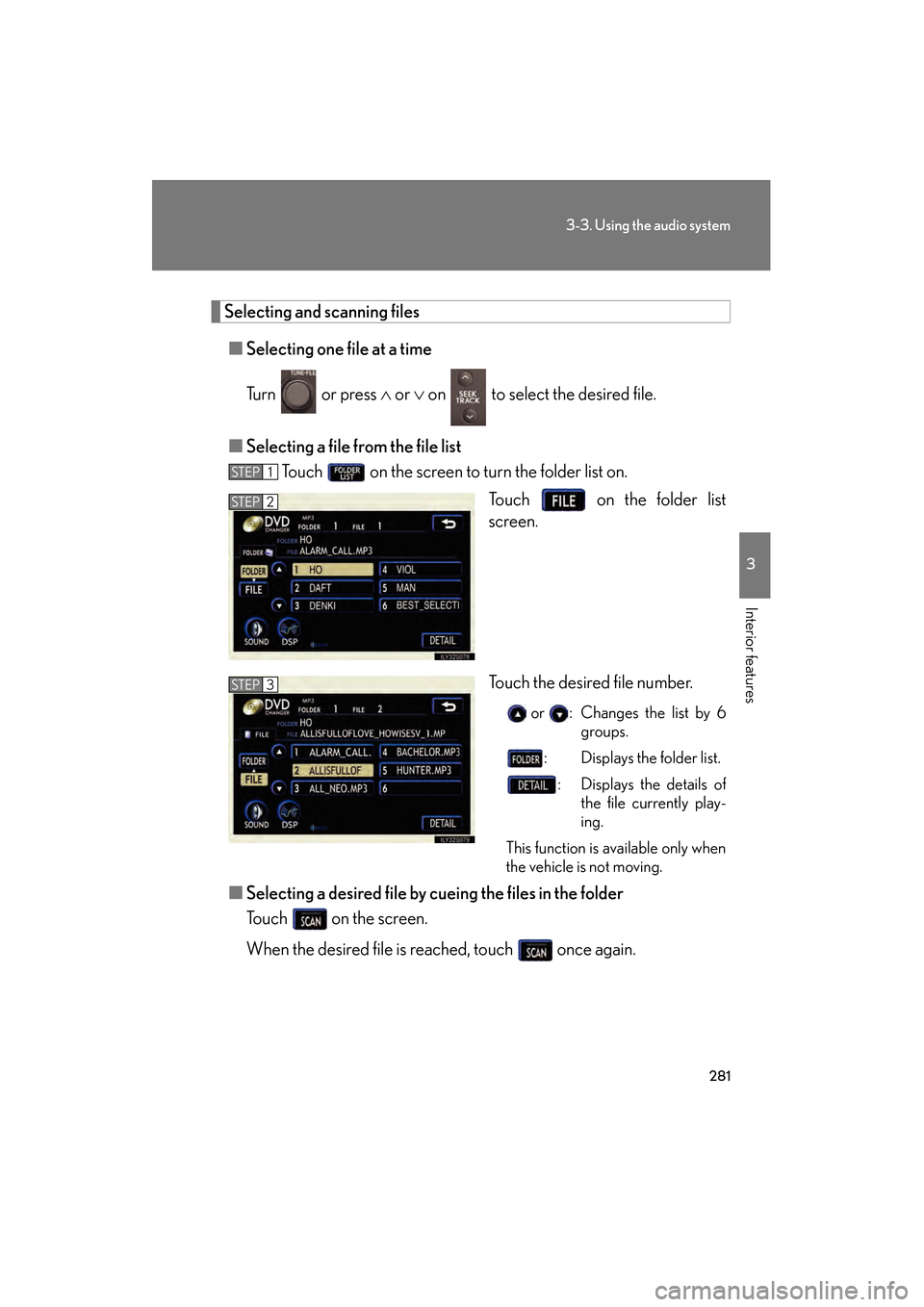
■ Selecting a file from the file list
Touch on the screen to turn the folder list on.
Touch on the folder list
screen.
Touch the desired file number.
or : Changes the list by 6groups.
: Displays the folder list.
: Displays the details of the file currently play-
ing.
This function is available only when
the vehicle is not moving.
■ Selecting a desired file by cu eing the files in the folder
Touch on the screen.
When the desired file is reached, touch once again.
STEP1
STEP2
STEP3
GS450h_HV_U.book Page 281 Monday, April 27, 2009 10:10 AM
Page 294 of 622
293
3-3. Using the audio system
3
Interior features
GS_HV_U (OM30B44U)
April 27, 2009 10:09 am
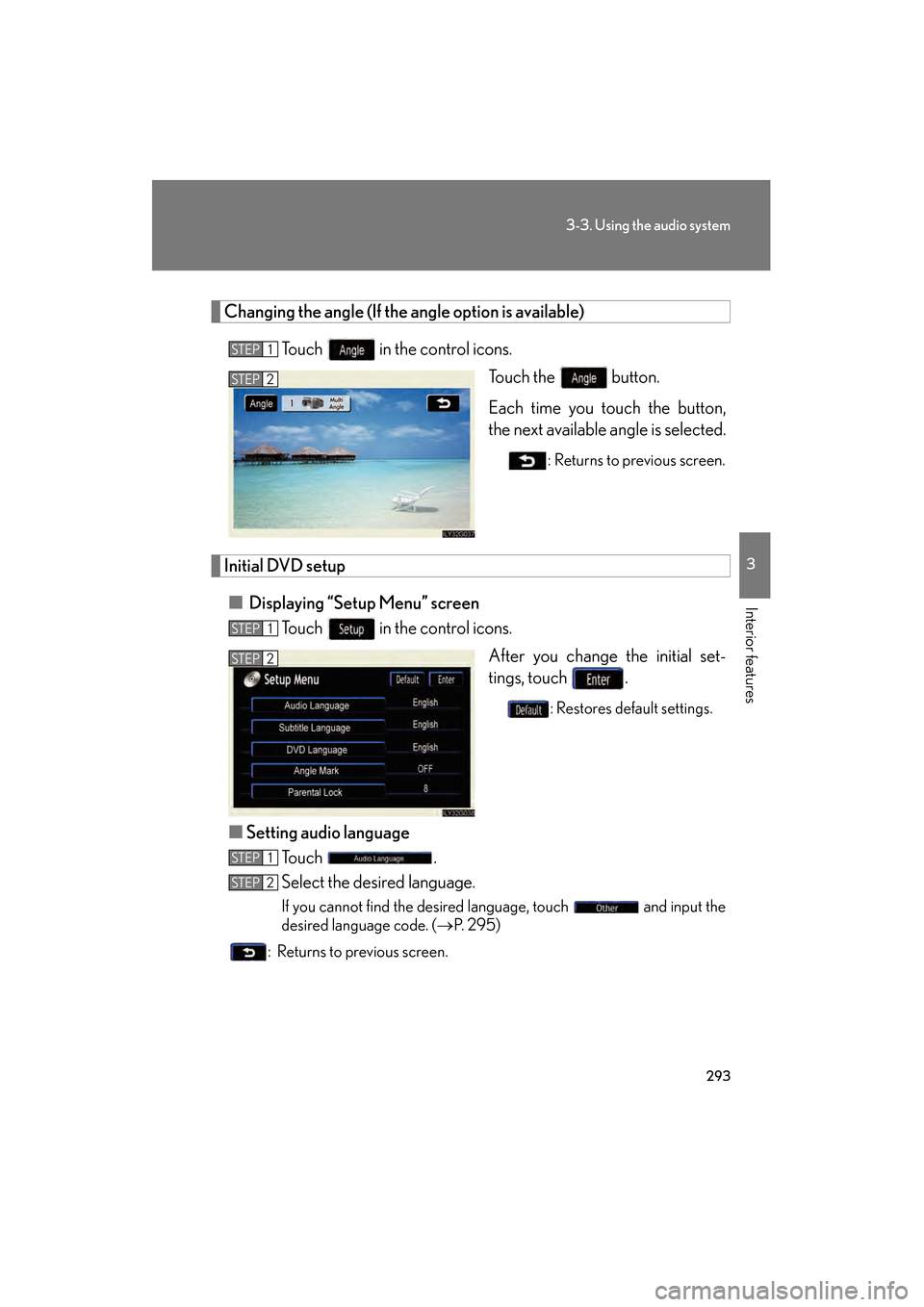
Changing the angle (If the angle option is available)
Touch in the control icons. Touch the button.
Each time you touch the button,
the next available angle is selected.
: Returns to previous screen.
Initial DVD setup
■ Displaying “Setup Menu” screen
Touch in the control icons.
After you change the initial set-
tings, touch .
: Restores default settings.
■Setting audio language
To u c h .
Select the desired language.
If you cannot find the desired language, touch and input the
desired language code. ( →P. 2 9 5 )
: Returns to previous screen.
STEP1
STEP2
STEP1
STEP2
STEP1
STEP2
GS450h_HV_U.book Page 293 Monday, April 27, 2009 10:10 AM
Page 318 of 622

317
3-3. Using the audio system
3
Interior features
GS_HV_U (OM30B44U)
April 27, 2009 10:09 am
■Changing the listening po sition (with CD player)
The speaker balance can be changed to produce the best sound for
each listening position.
To u c h .
The listening position changes as follows each time the switch is
touched.
■ Turning the surround ON or OFF (with DVD player)
Touch or .
DisplayListening position
Position best suited to the driver’s seat
Position best suited to the driver’s and front passen-
ger’s seat
Position best suited to the rear seats
Position best suited to all seats
GS450h_HV_U.book Page 317 Monday, April 27, 2009 10:10 AM
Page 321 of 622
320
3-3. Using the audio system
GS_HV_U (OM30B44U)
April 27, 2009 10:09 am
Using the steering switches
Turning on the powerPress when the audio system is off.
The audio system can be turned off by holding the switch down for 1 second
or more.
Changing the audio sourcePress when the audio system is on. The audio source changes as fol-
lows each time the button is pressed. If a cassette tape or disc is not
inserted, that mode will be skipped. FM1 → FM2 → cassette player → CD/DVD player
→ AUX → AM → SAT1 → SAT2 → SAT3
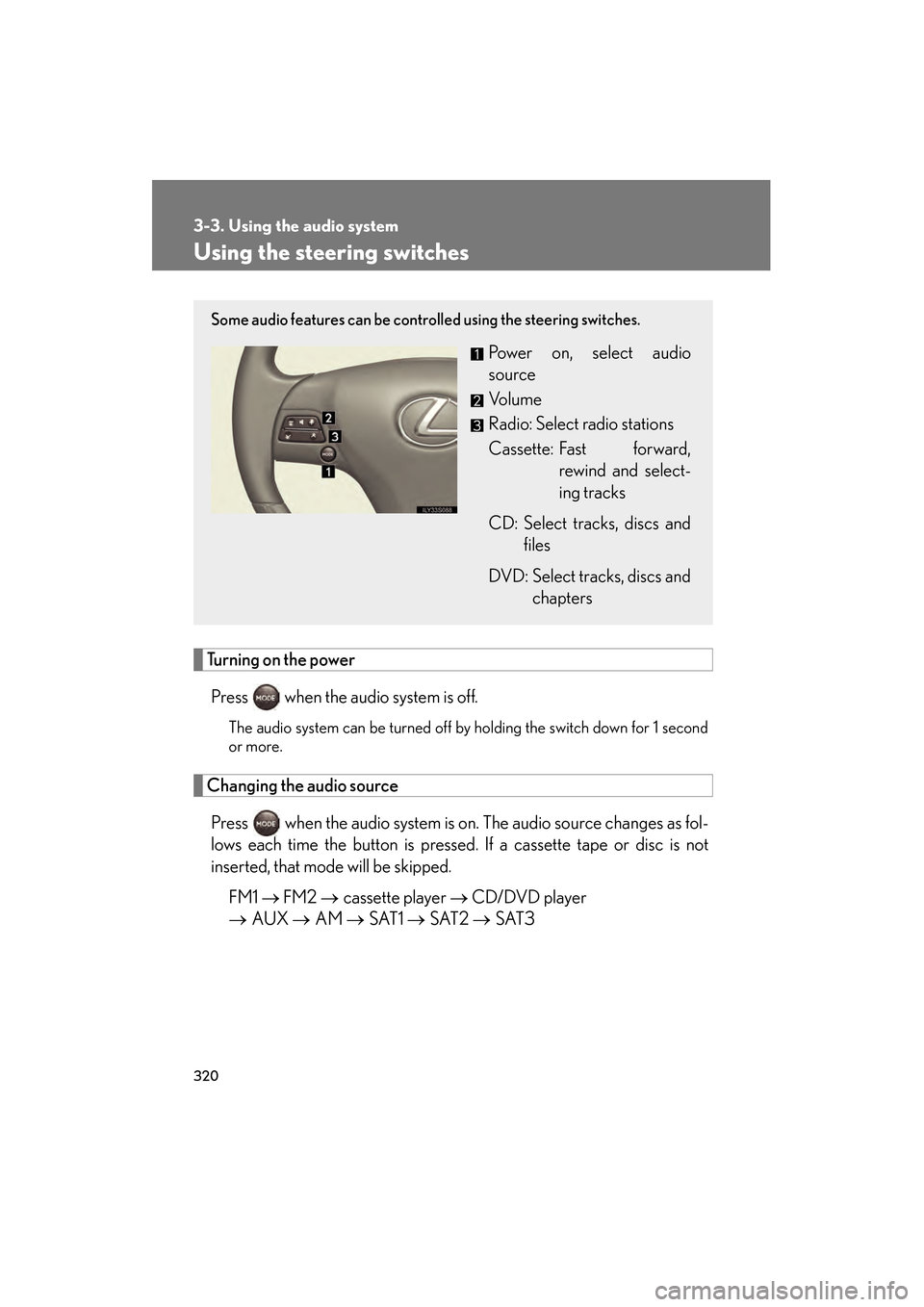
Some audio features can be controlled using the steering switches.
Power on, select audio
source
Vo l u m e
Radio: Select radio stations
Cassette: Fast forward,
rewind and select-
ing tracks
CD: Select tracks, discs and files
DVD: Select tracks, discs and chapters
GS450h_HV_U.book Page 320 Monday, April 27, 2009 10:10 AM
Page 327 of 622
326
3-4. Using the hands-free system (for cellular phone)
GS_HV_U (OM30B44U)
April 27, 2009 10:09 am
■Battery charge/Signal status
This display may not correspond exactly with the mobile phone itself.
■About Bluetooth®
■Compatible models
Compatible with HFP (Hands Free Profile) Ver. 1.0 and OPP (Object Push Profile)
Ver. 1.1.
If your cellular phone does not support HFP, you cannot enter the Bluetooth
®
phone, and take OPP service individually.
■Certification for the hands-free system
This device complies with Part 15 of the FCC Rules and RSS-210. Operation is sub-
ject to the following two conditions: (1) This device may not cause harmful interfer-
ence, and (2) This device must accept any interference received, including
interference that may cause undesired operation.
FCC WARNING:
Changes or modifications not expressly approved by the party responsible for
compliance could void the user’s authority to operate the equipment.
Radio Frequency Exposure. This device is approved for Mobile Application only
and, to comply with applicable FCC radio frequency exposure regulations, must be
used with a distance of at least 7.9 in. (20 cm) between the antenna and the body of
any person at all time during use. Bluetooth is a registered trademark of
Bluetooth SIG. Inc.
FCC ID: HYQBT0501A
IC ID: 1551A-BT0501A
GS450h_HV_U.book Page 326 Monday, April 27, 2009 10:10 AM
Page 351 of 622
350
3-4. Using the hands-free system (for cellular phone)
GS_HV_U (OM30B44U)
April 27, 2009 10:09 am
Changing the screen settings
Press .
Touch on the “Information” screen.
Touch on the “Telephone” screen.
Touch on the “Settings” screen.
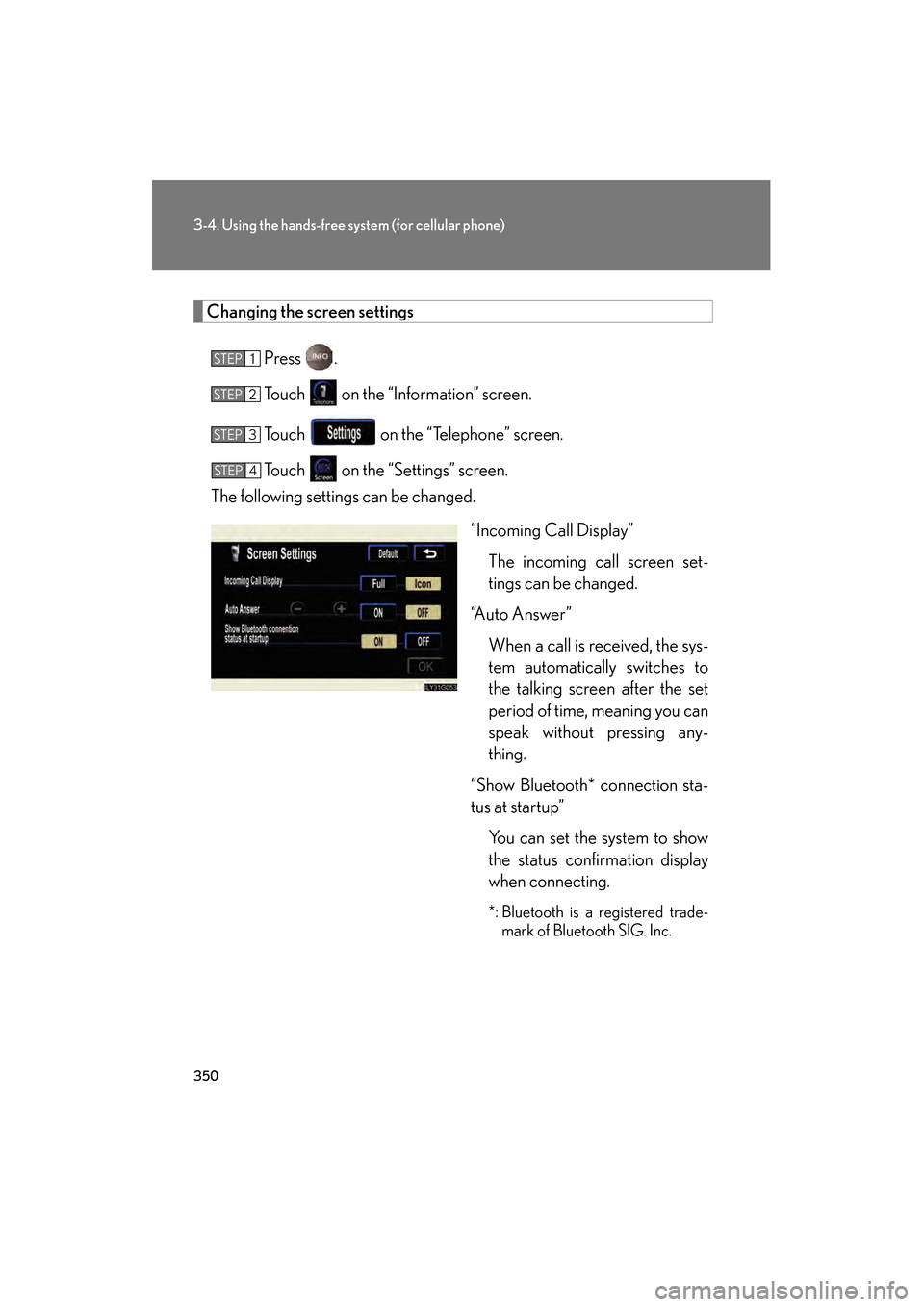
The following settings can be changed.
“Incoming Call Display”The incoming call screen set-
tings can be changed.
“Auto Answer”
When a call is received, the sys-
tem automatically switches to
the talking screen after the set
period of time, meaning you can
speak without pressing any-
thing.
“Show Bluetooth* connection sta-
tus at startup” You can set the system to show
the status confirmation display
when connecting.
*: Bluetooth is a registered trade-mark of Bluetooth SIG. Inc.
STEP1
STEP2
STEP3
STEP4
GS450h_HV_U.book Page 350 Monday, April 27, 2009 10:10 AM