parking Lexus GS450h 2013 Service Manual
[x] Cancel search | Manufacturer: LEXUS, Model Year: 2013, Model line: GS450h, Model: Lexus GS450h 2013Pages: 862, PDF Size: 19.06 MB
Page 276 of 862

GS450h_U (OM30D01U)
2754-5. Using the driving support systems
4
Driving
■Screen description
The rear view monitor system screen will be displayed if the shift lever is
shifted to R while the power switch is in ON mode.Vehicle width extension guide line
The line indicates a guide path when the vehicle is being backed straight up.
The displayed width is wider than the actual vehicle width.
Vehicle center guide lines
These lines indicate the estimated vehicle center on the ground.
Distance guide line
The line shows points approximately 1.5 ft. (0.5 m) (red) from the center of the
edge of the bumper.
Distance guide line
The line shows distance behind the vehicle, a point approximately 3 ft. (1 m)
(blue) from the edge of the bumper.
Intuitive parking assist display (if equipped)
If an obstacle is detected while the Intuitive parking assist-sensor is on, a dis-
play is shown in the top right corner of the screen.
Using the rear view monitor system
1
2
3
4
5
GS450h_U.book Page 275 Monday, January 23, 2012 10:20 AM
Page 278 of 862
GS450h_U (OM30D01U)
2774-5. Using the driving support systems
4
Driving
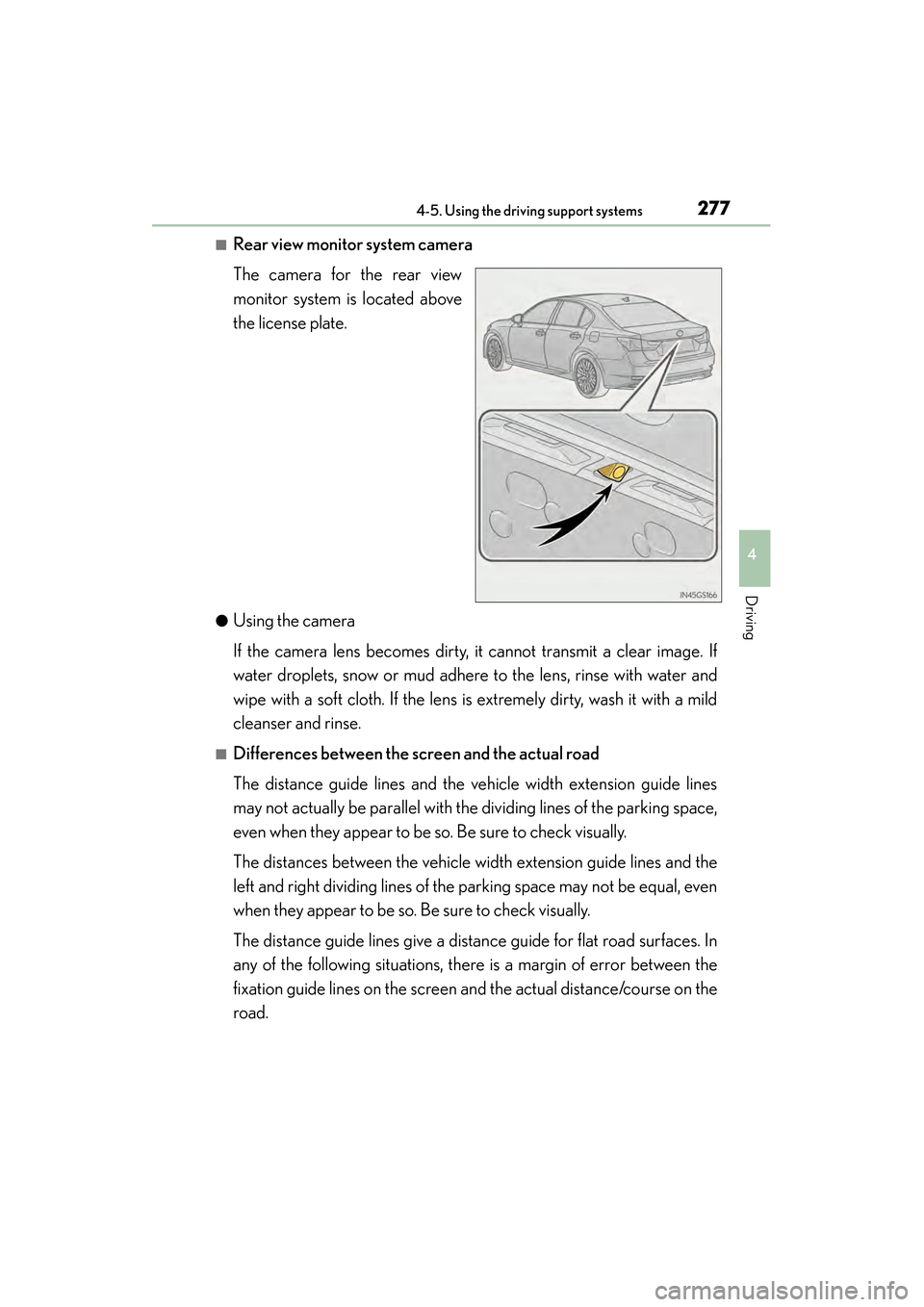
■Rear view monitor system camera
The camera for the rear view
monitor system is located above
the license plate.
●Using the camera
If the camera lens becomes dirty, it cannot transmit a clear image. If
water droplets, snow or mud adhere to the lens, rinse with water and
wipe with a soft cloth. If the lens is extremely dirty, wash it with a mild
cleanser and rinse.
■Differences between the screen and the actual road
The distance guide lines and the vehicle width extension guide lines
may not actually be parallel with the dividing lines of the parking space,
even when they appear to be so. Be sure to check visually.
The distances between the vehicle width extension guide lines and the
left and right dividing lines of the parking space may not be equal, even
when they appear to be so. Be sure to check visually.
The distance guide lines give a distance guide for flat road surfaces. In
any of the following situations, there is a margin of error between the
fixation guide lines on the screen and the actual distance/course on the
road.
GS450h_U.book Page 277 Monday, January 23, 2012 10:20 AM
Page 280 of 862
GS450h_U (OM30D01U)
2794-5. Using the driving support systems
4
Driving
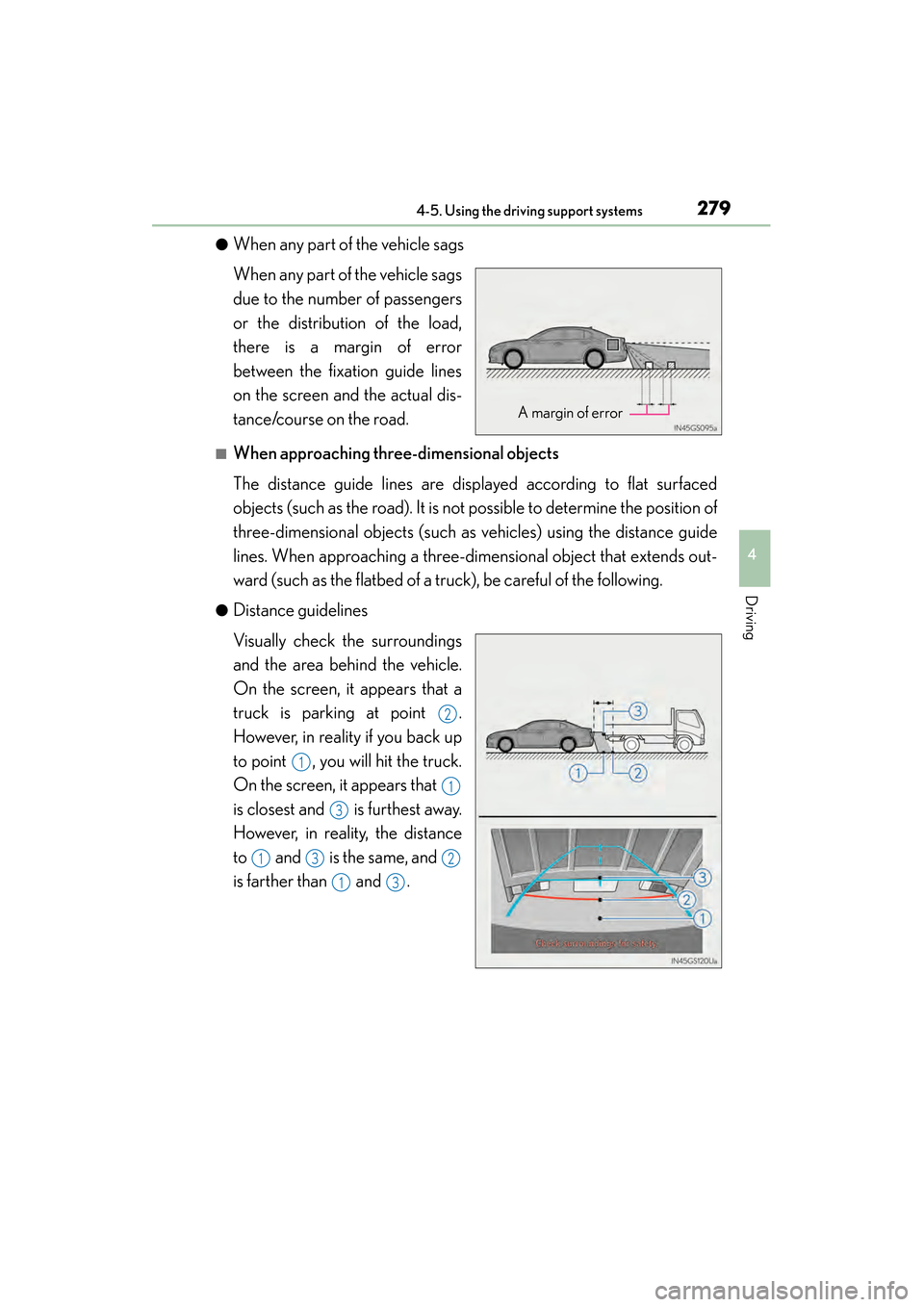
●When any part of the vehicle sags
When any part of the vehicle sags
due to the number of passengers
or the distribution of the load,
there is a margin of error
between the fixation guide lines
on the screen and the actual dis-
tance/course on the road.
■When approaching three-dimensional objects
The distance guide lines are displayed according to flat surfaced
objects (such as the road). It is not possible to determine the position of
three-dimensional objects (such as vehicles) using the distance guide
lines. When approaching a three-dimensional object that extends out-
ward (such as the flatbed of a truck), be careful of the following.
●Distance guidelines
Visually check the surroundings
and the area behind the vehicle.
On the screen, it appears that a
truck is parking at point .
However, in reality if you back up
to point , you will hit the truck.
On the screen, it appears that
is closest and is furthest away.
However, in reality, the distance
to and is the same, and
is farther than and .
A margin of error
2
1
1
3
132
13
GS450h_U.book Page 279 Monday, January 23, 2012 10:20 AM
Page 284 of 862
GS450h_U (OM30D01U)
2834-5. Using the driving support systems
4
Driving
CAUTION
■When using the rear view monitor system
When backing up, be sure to check visually behind and all around the vehicle
before proceeding.
Observe the following precautions to avoid an accident that could result in death
or serious injuries.
●The rear view monitor system is a supplemental device intended to assist the
driver when backing up. Never depend on the rear view monitor system entirely
when backing up. Always make sure your intended path is clear.
Use caution, just as you would when backing up any vehicle.
●Never back up while looking only at the screen.
The image shown on the screen may differ from the actual state, and you could
collide with another vehicle or obstacles if backing up looking only at the screen,
possibly causing an accident. When backing up, be sure to check in front of and
behind the vehicle, both directly and with mirrors.
●Be sure to back up slowly, depressing the brake pedal to control vehicle speed.
●The instructions given are only guidelines.
When and how much to turn the steering wheel will vary according to traffic con-
ditions, road surface conditions, vehicle condition, etc. when parking. It is neces-
sary to be fully aware of this before using the rear view monitor system.
●When parking, be sure to check that the parking space will accommodate your
vehicle before maneuvering into it.
●Do not use system in the following cases:
• On icy or slick road surfaces, or in snow
• When using tire chains or the compact spare tire
• When the trunk lid is not closed completely
• On roads that are not flat or straight, such as curves or slopes.
●In low temperatures, the screen may darken or the image may become faint. The
image could distort when the vehicle is moving, or you may become unable to
see the image on the screen. Be sure to check direct visually and with mirror all
around the vehicle before proceeding.
●If the tire sizes are changed, the position of the fixation guide lines displayed on
the screen may change.
●The camera uses a special lens. The distances between objects and pedestrians
that appear in the image displayed on the screen will differ from the actual dis-
tances. (→P. 277)
GS450h_U.book Page 283 Monday, January 23, 2012 10:20 AM
Page 321 of 862
320
GS450h_U (OM30D01U)
4-6. Driving tips
Perform the following according to the driving conditions:
●Do not try to forcibly open a window or move a wiper that is frozen.
Pour warm water over the frozen area to melt the ice. Wipe away the
water immediately to prevent it from freezing.
●To ensure proper operation of the climate control system fan, remove
any snow that has accumulated on the air inlet vents in front of the wind-
shield.
●Check for and remove any excess ice or snow that may have accumu-
lated on the exterior lights, vehicle’s roof, chassis, around the tires or on
the brakes.
●Remove any snow or mud from the bottom of your shoes before getting
in the vehicle.
Accelerate the vehicle slowly, keep a safe distance between you and the
vehicle ahead, and drive at a reduced speed suitable to road conditions.
Park the vehicle and move the shift lever to P without setting the parking
brake. The parking brake may freeze up, preventing it from being
released. If necessary, block the wheels to prevent inadvertent sliding or
creeping.
Before driving the vehicle
When driving the vehicle
When parking the vehicle
GS450h_U.book Page 320 Monday, January 23, 2012 10:20 AM
Page 351 of 862
3505-1. Remote Touch screen
GS450h_U (OM30D01U)
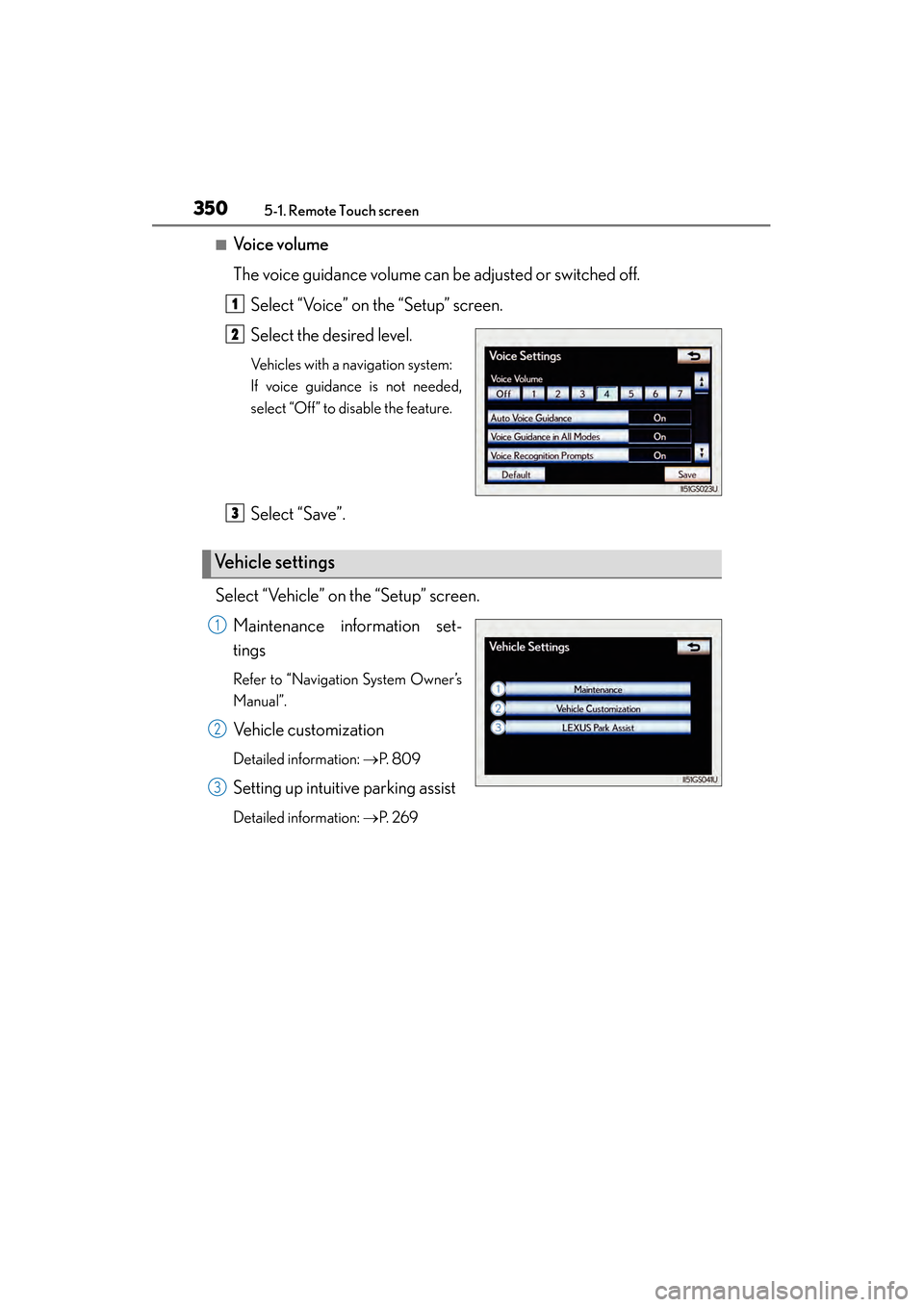
■Voice volume
The voice guidance volume can be adjusted or switched off.Select “Voice” on the “Setup” screen.
Select the desired level.
Vehicles with a navigation system:
If voice guidance is not needed,
select “Off” to disable the feature.
Select “Save”.
Select “Vehicle” on the “Setup” screen. Maintenance information set-
tings
Refer to “Navigation System Owner’s
Manual”.
Vehicle customization
Detailed information: →P. 8 0 9
Setting up intuitive parking assist
Detailed information: →P. 2 6 9
1
2
Ve h i c l e s e t t i n g s
3
1
2
3
GS450h_U.book Page 350 Monday, January 23, 2012 10:20 AM
Page 442 of 862
441
GS450h_U (OM30D01U)5-3. Using the audio system
5
Interior features
Playing DVD video
For safety reasons, you can enjoy the visual contents of discs only when
the vehicle is completely stopped with the power switch in ACCES-
SORY or ON mode and the parking brake applied. While driving in
DVD video mode, only the DVD’s audio can be heard.
When a DVD video disc is inserted while driving, the audio contents of
the main feature will automatically be played. However, some discs may
not be played from the main story.
Press the “MEDIA” button if a disc ha s already been loaded in the disc
slot.
Select the “DISC” tab or press the “M EDIA” button repeatedly until the
“DISC” tab is selected.
GS450h_U.book Page 441 Monday, January 23, 2012 10:20 AM
Page 443 of 862
442
GS450h_U (OM30D01U)
5-3. Using the audio system
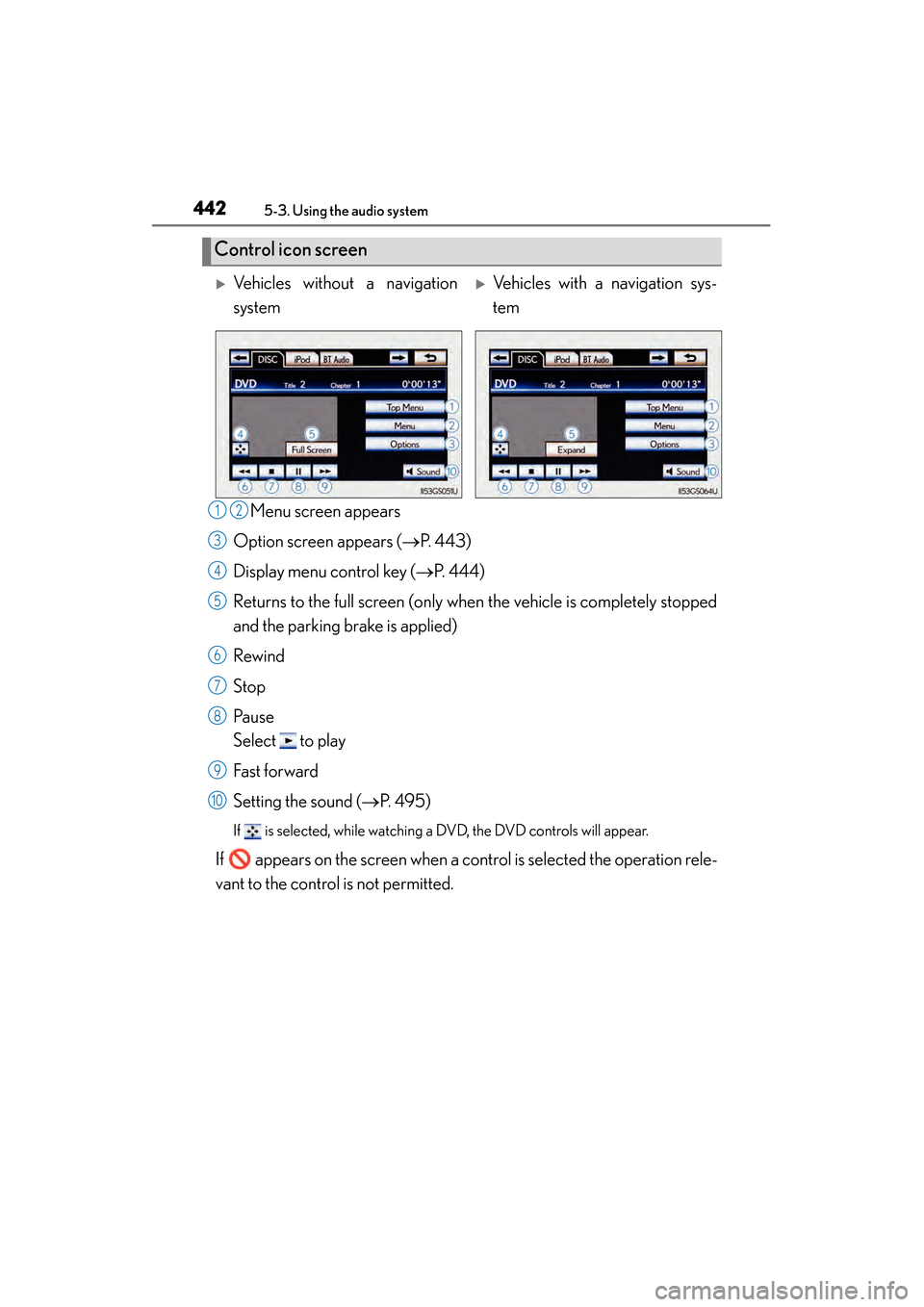
Menu screen appears
Option screen appears ( →P. 443)
Display menu control key ( →P. 444)
Returns to the full screen (only when the vehicle is completely stopped
and the parking brake is applied)
Rewind
Stop
Pa u s e
Select to play
Fast f or ward
Setting the sound ( →P. 495)
If is selected, while watching a DVD, the DVD controls will appear.
If appears on the screen when a control is selected the operation rele-
vant to the control is not permitted.
Control icon screen
XVehicles without a navigation
systemXVehicles with a navigation sys-
tem
12
3
4
5
6
7
8
9
10
GS450h_U.book Page 442 Monday, January 23, 2012 10:20 AM
Page 444 of 862
GS450h_U (OM30D01U)
4435-3. Using the audio system
5
Interior features
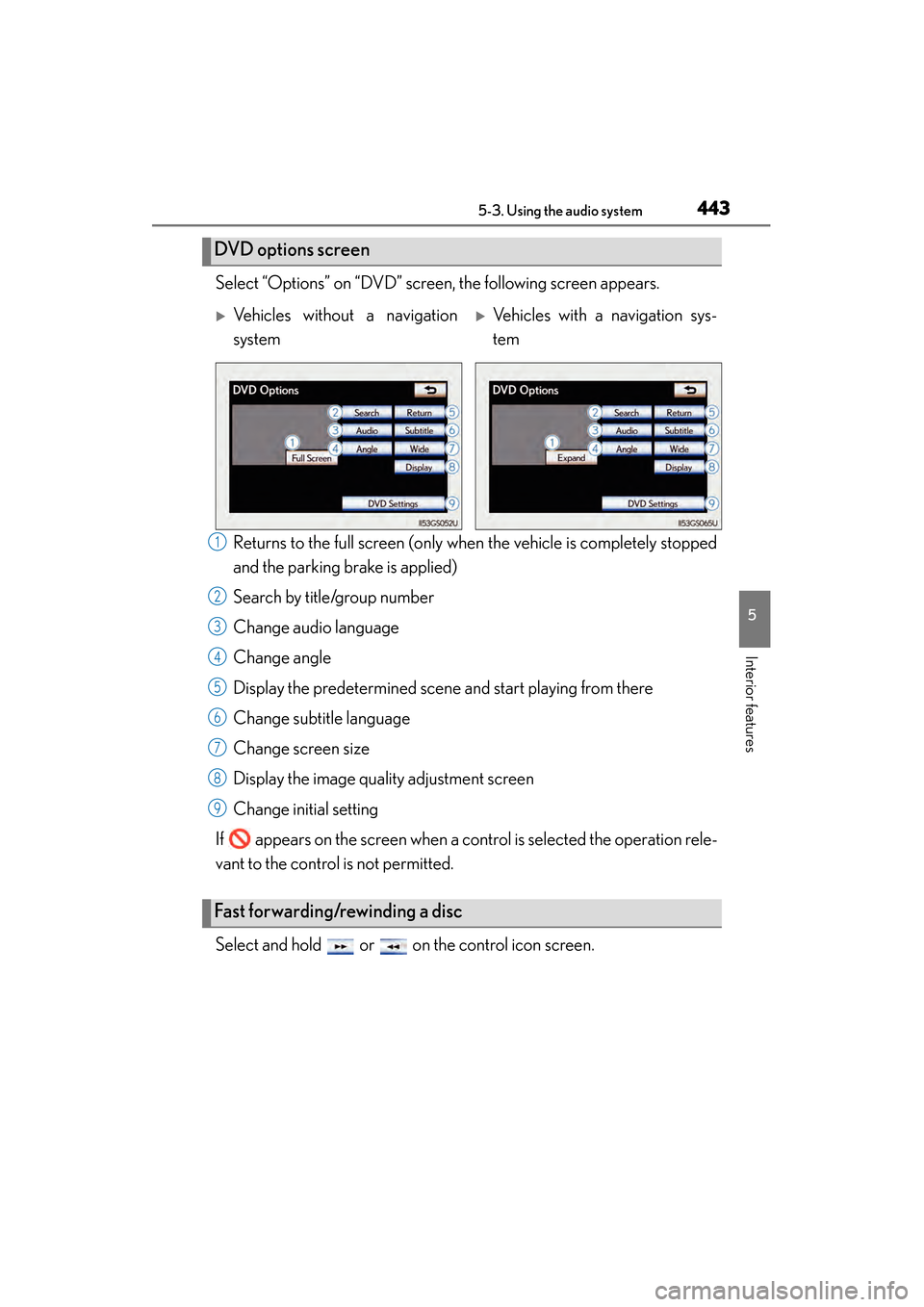
Select “Options” on “DVD” screen, the following screen appears.Returns to the full screen (only when the vehicle is completely stopped
and the parking brake is applied)
Search by title/group number
Change audio language
Change angle
Display the predetermined scene and start playing from there
Change subtitle language
Change screen size
Display the image quality adjustment screen
Change initial setting
If appears on the screen when a control is selected the operation rele-
vant to the control is not permitted.
Select and hold or on the control icon screen.
DVD options screen
XVehicles without a navigation
systemXVehicles with a navigation sys-
tem
Fast forwarding/rewinding a disc
1
2
3
4
5
6
7
8
9
GS450h_U.book Page 443 Monday, January 23, 2012 10:20 AM
Page 629 of 862
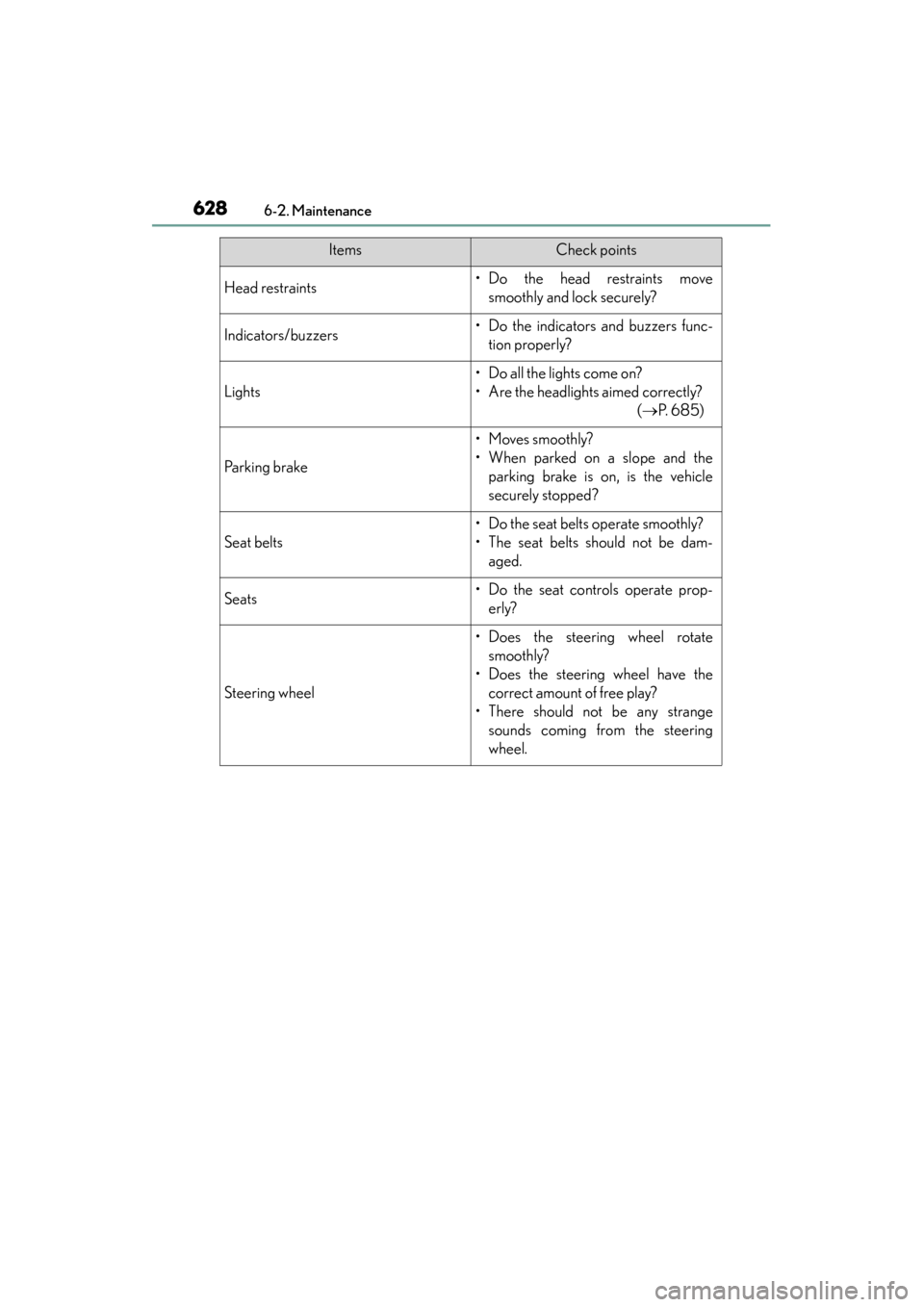
628
GS450h_U (OM30D01U)
6-2. Maintenance
Head restraints• Do the head restraints movesmoothly and lock securely?
Indicators/buzzers• Do the indicators and buzzers func-tion properly?
Lights
• Do all the lights come on?
• Are the headlights aimed correctly? ( →P. 6 8 5 )
Parking brake
• Moves smoothly?
• When parked on a slope and the
parking brake is on, is the vehicle
securely stopped?
Seat belts
• Do the seat belts operate smoothly?
• The seat belts should not be dam-aged.
Seats• Do the seat controls operate prop-erly?
Steering wheel
• Does the steering wheel rotatesmoothly?
• Does the steering wheel have the correct amount of free play?
• There should not be any strange sounds coming from the steering
wheel.
ItemsCheck points
GS450h_U.book Page 628 Monday, January 23, 2012 10:20 AM