audio Lexus GS450h 2013 Manual PDF
[x] Cancel search | Manufacturer: LEXUS, Model Year: 2013, Model line: GS450h, Model: Lexus GS450h 2013Pages: 862, PDF Size: 19.06 MB
Page 438 of 862
GS450h_U (OM30D01U)
4375-3. Using the audio system
5
Interior features
■Selecting a folder
Select “
<” or “>” on the screen to select the next/previous folder.
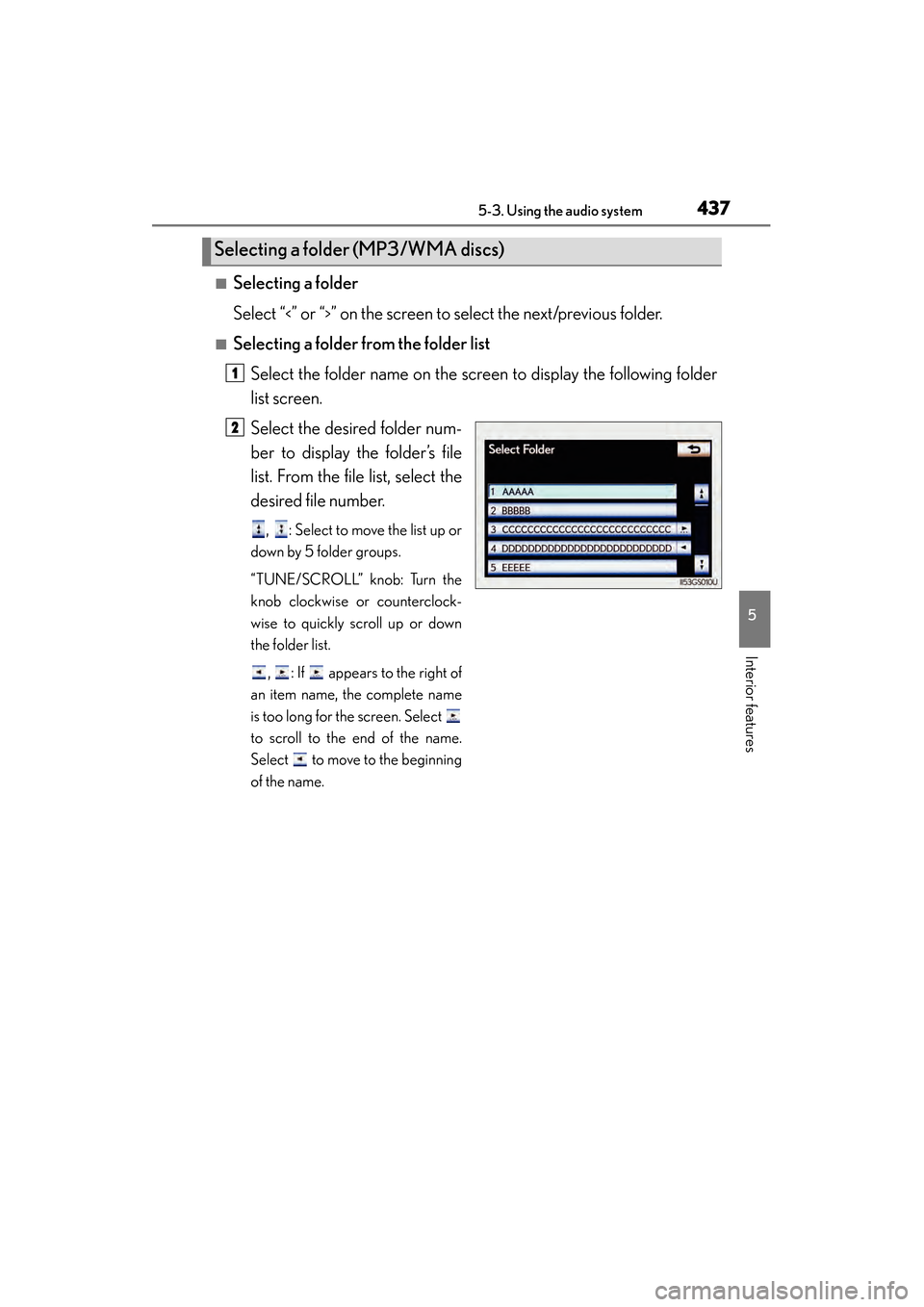
■Selecting a folder from the folder listSelect the folder name on the screen to display the following folder
list screen.
Select the desired folder num-
ber to display the folder’s file
list. From the file list, select the
desired file number.
, : Select to move the list up or
down by 5 folder groups.
“TUNE/SCROLL” knob: Turn the
knob clockwise or counterclock-
wise to quickly scroll up or down
the folder list.
, : If appears to the right of
an item name, the complete name
is too long for the screen. Select
to scroll to the end of the name.
Select to move to the beginning
of the name.
Selecting a folder (MP3/WMA discs)
1
2
GS450h_U.book Page 437 Monday, January 23, 2012 10:20 AM
Page 439 of 862
438
GS450h_U (OM30D01U)
5-3. Using the audio system
■Selecting a file
Select “<” or “>” on the screen to select the next/previous file.
Press “<” or “>” on the “PRST•TRACK” button or turn the “TUNE/
SCROLL” knob to select the desired file number.
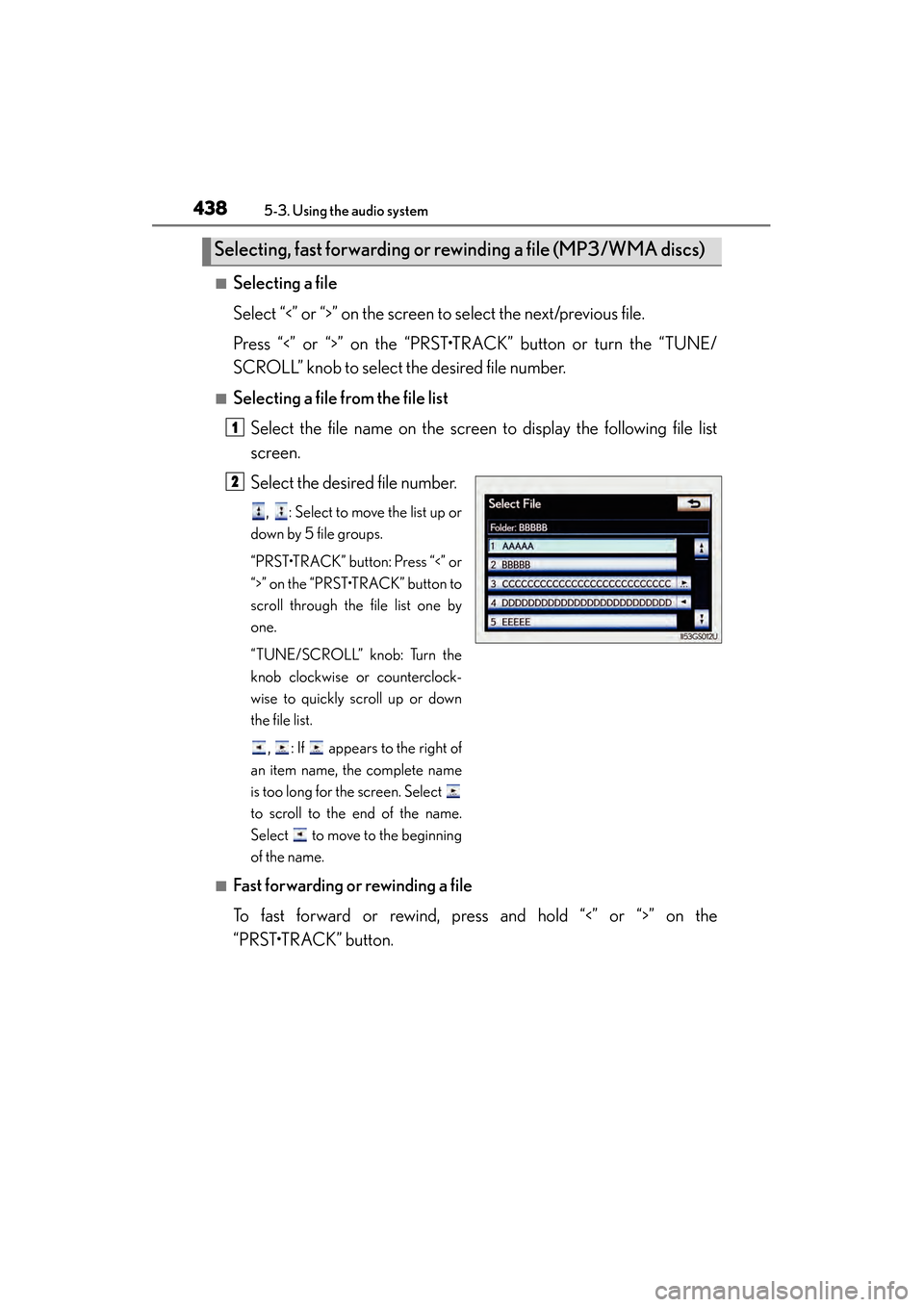
■Selecting a file from the file listSelect the file name on the screen to display the following file list
screen.
Select the desired file number.
, : Select to move the list up or
down by 5 file groups.
“PRST•TRACK” button: Press “<” or
“>” on the “PRST•TRACK” button to
scroll through the file list one by
one.
“TUNE/SCROLL” knob: Turn the
knob clockwise or counterclock-
wise to quickly scroll up or down
the file list.
, : If appears to the right of
an item name, the complete name
is too long for the screen. Select
to scroll to the end of the name.
Select to move to the beginning
of the name.
■Fast forwarding or rewinding a file
To fast forward or rewind, press and hold “<” or “>” on the
“PRST•TRACK” button.
Selecting, fast forwarding or rewinding a file (MP3/WMA discs)
1
2
GS450h_U.book Page 438 Monday, January 23, 2012 10:20 AM
Page 440 of 862

GS450h_U (OM30D01U)
4395-3. Using the audio system
5
Interior features
■Audio CD
Select “RAND” on the screen.
“RAND” appears on the screen.
To cancel, select “RAND” again.
■MP3/WMA disc
●Playing files from a particular folder in random order
Each time “RAND” is selected, the mode changes as follows:
random (1 folder random) → folder random (1 disc random) → off
●Playing all the files on a disc in random order
Select “RAND” repeatedly until “FLD.RAND” appears on the
screen.
To cancel, select “RAND” again.
When a file is skipped or the system is inoperative, select “RAND” to reset.
Random playback
GS450h_U.book Page 439 Monday, January 23, 2012 10:20 AM
Page 441 of 862
440
GS450h_U (OM30D01U)
5-3. Using the audio system
■Audio CD
Select “RPT” on the screen.
“RPT” appears on the screen.
To cancel, select “RPT” again.
■MP3/WMA disc
●Repeating a file
Select “RPT” on the screen.
Each time is “RPT” selected, the mode changes as follows:• When “RAND” is off file repeat → folder repeat → off
• When “RAND” is on file → repeat off
●Repeating all of the files in a folder
Select “RPT” repeatedly until “FLD.RPT” appears on the screen.
To cancel, select “RPT” again.
■If you select
The display returns to the previous screen.
■Displaying the title and artist name (Audio CD)
If a CD-TEXT disc is inserted, the title of the disc and track will be displayed. Up to
32 characters can be displayed.
■Error messages
→P. 4 5 3
Repeating a track
GS450h_U.book Page 440 Monday, January 23, 2012 10:20 AM
Page 442 of 862
441
GS450h_U (OM30D01U)5-3. Using the audio system
5
Interior features
Playing DVD video
For safety reasons, you can enjoy the visual contents of discs only when
the vehicle is completely stopped with the power switch in ACCES-
SORY or ON mode and the parking brake applied. While driving in
DVD video mode, only the DVD’s audio can be heard.
When a DVD video disc is inserted while driving, the audio contents of
the main feature will automatically be played. However, some discs may
not be played from the main story.
Press the “MEDIA” button if a disc ha s already been loaded in the disc
slot.
Select the “DISC” tab or press the “M EDIA” button repeatedly until the
“DISC” tab is selected.
GS450h_U.book Page 441 Monday, January 23, 2012 10:20 AM
Page 443 of 862
442
GS450h_U (OM30D01U)
5-3. Using the audio system
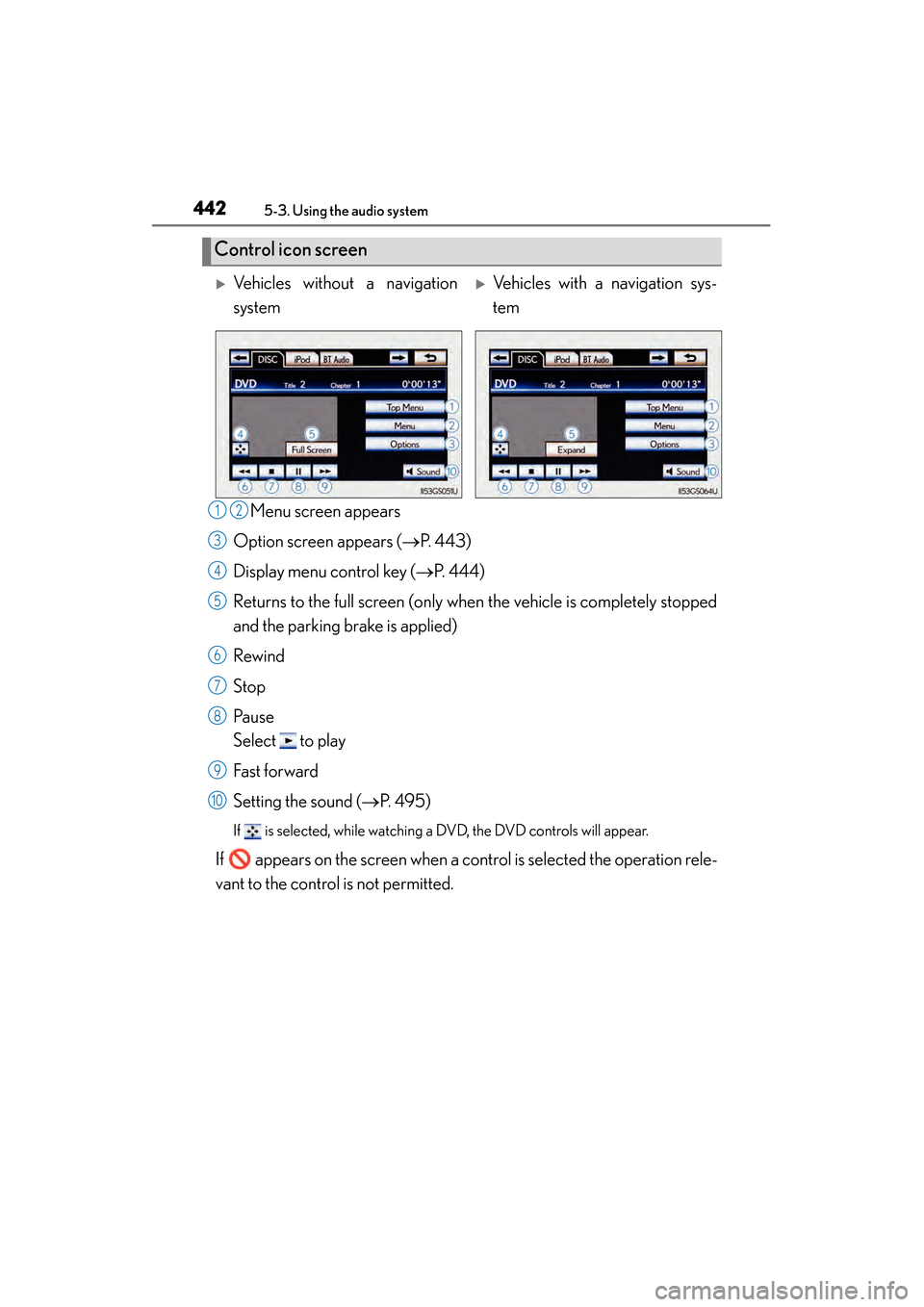
Menu screen appears
Option screen appears ( →P. 443)
Display menu control key ( →P. 444)
Returns to the full screen (only when the vehicle is completely stopped
and the parking brake is applied)
Rewind
Stop
Pa u s e
Select to play
Fast f or ward
Setting the sound ( →P. 495)
If is selected, while watching a DVD, the DVD controls will appear.
If appears on the screen when a control is selected the operation rele-
vant to the control is not permitted.
Control icon screen
XVehicles without a navigation
systemXVehicles with a navigation sys-
tem
12
3
4
5
6
7
8
9
10
GS450h_U.book Page 442 Monday, January 23, 2012 10:20 AM
Page 444 of 862
GS450h_U (OM30D01U)
4435-3. Using the audio system
5
Interior features
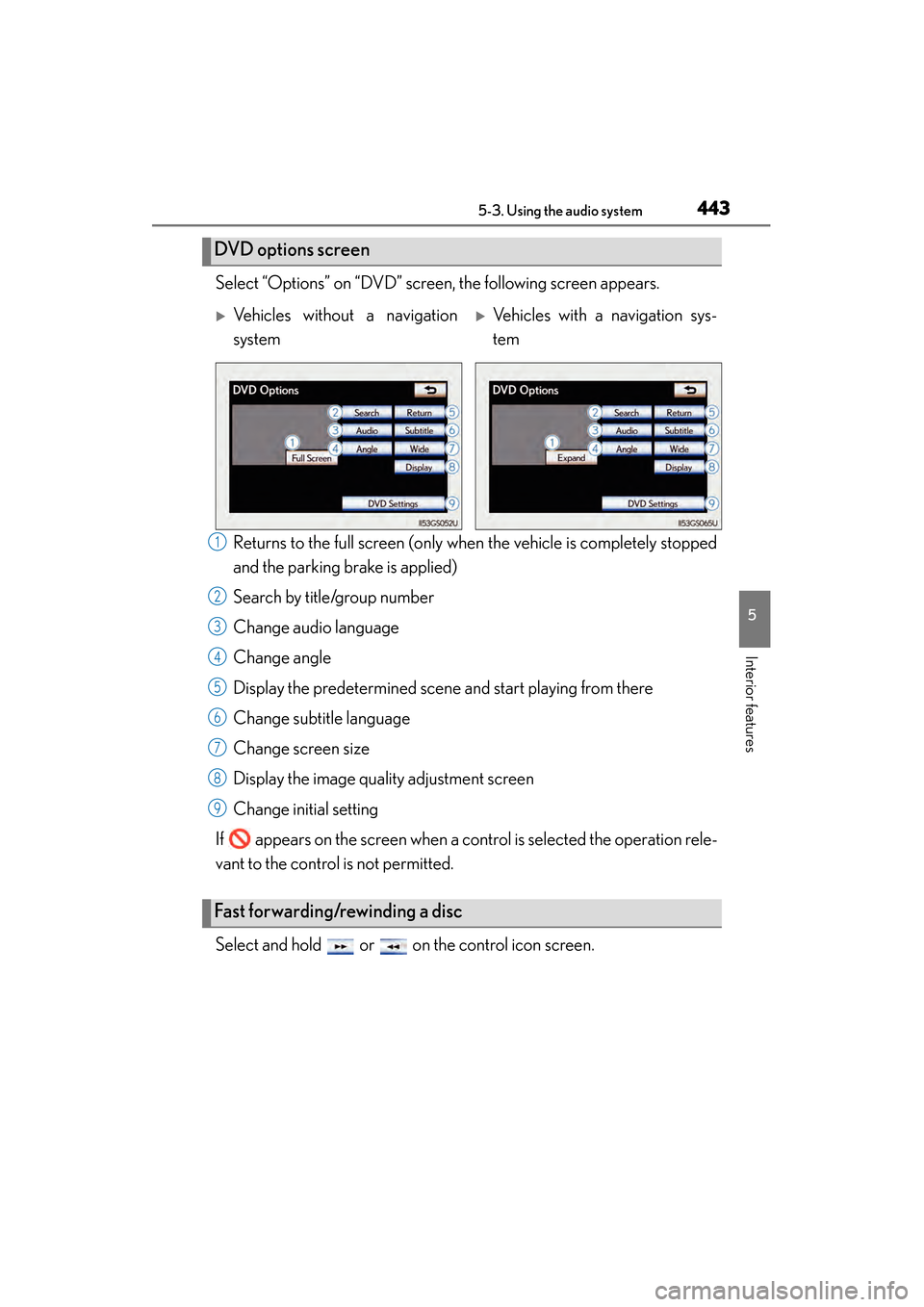
Select “Options” on “DVD” screen, the following screen appears.Returns to the full screen (only when the vehicle is completely stopped
and the parking brake is applied)
Search by title/group number
Change audio language
Change angle
Display the predetermined scene and start playing from there
Change subtitle language
Change screen size
Display the image quality adjustment screen
Change initial setting
If appears on the screen when a control is selected the operation rele-
vant to the control is not permitted.
Select and hold or on the control icon screen.
DVD options screen
XVehicles without a navigation
systemXVehicles with a navigation sys-
tem
Fast forwarding/rewinding a disc
1
2
3
4
5
6
7
8
9
GS450h_U.book Page 443 Monday, January 23, 2012 10:20 AM
Page 445 of 862
444
GS450h_U (OM30D01U)
5-3. Using the audio system
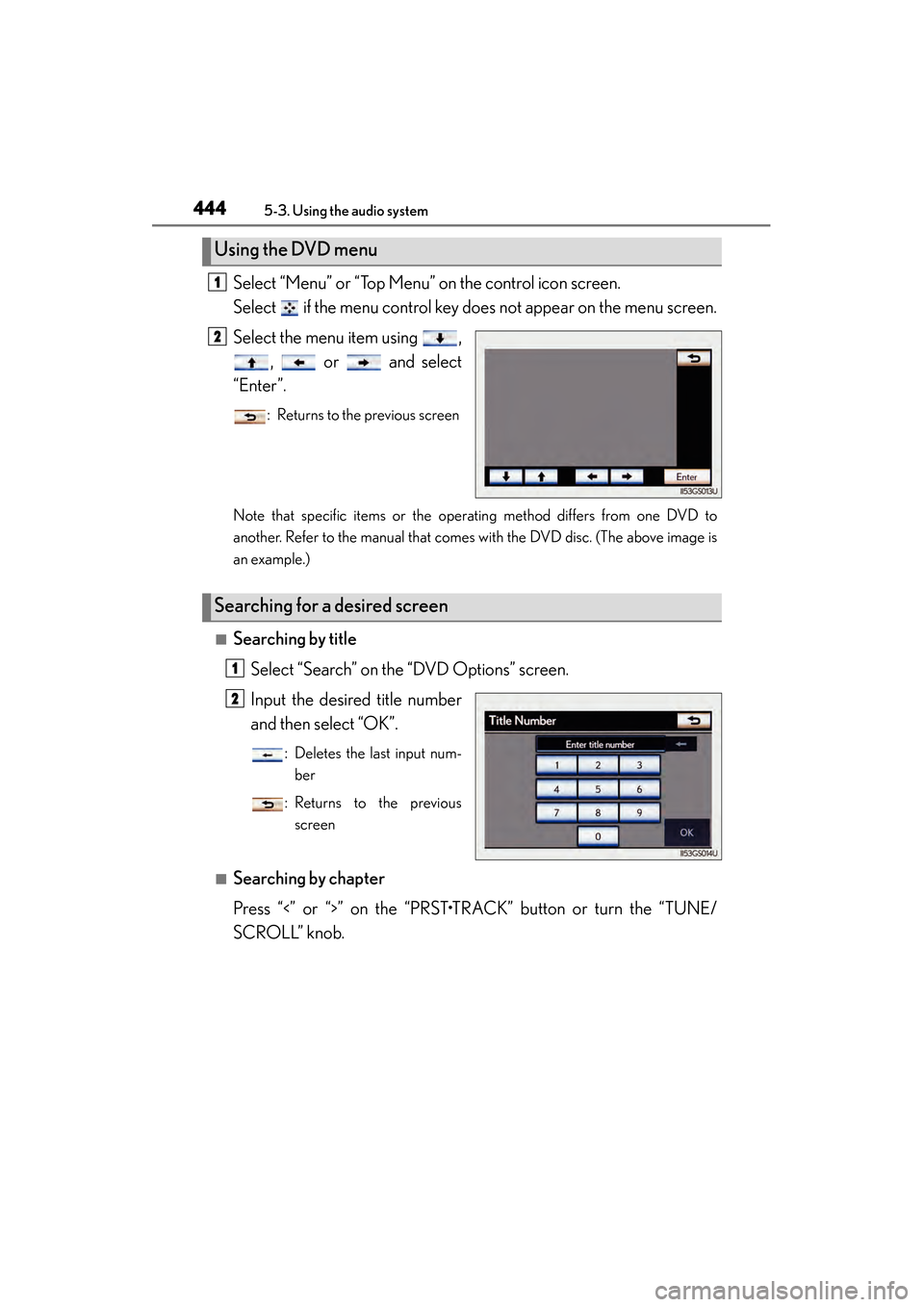
Select “Menu” or “Top Menu” on the control icon screen.
Select if the menu control key does not appear on the menu screen.
Select the menu item using ,, or and select
“Enter”.
: Returns to the previous screen
Note that specific items or the operating method differs from one DVD to
another. Refer to the manual that comes with the DVD disc. (The above image is
an example.)
■Searching by title Select “Search” on the “DVD Options” screen.
Input the desired title number
and then select “OK”.
: Deletes the last input num-ber
: Returns to the previous screen
■Searching by chapter
Press “<” or “>” on the “PRST•TRACK” button or turn the “TUNE/
SCROLL” knob.
Using the DVD menu
1
2
Searching for a desired screen
1
2
GS450h_U.book Page 444 Monday, January 23, 2012 10:20 AM
Page 446 of 862
GS450h_U (OM30D01U)
4455-3. Using the audio system
5
Interior features
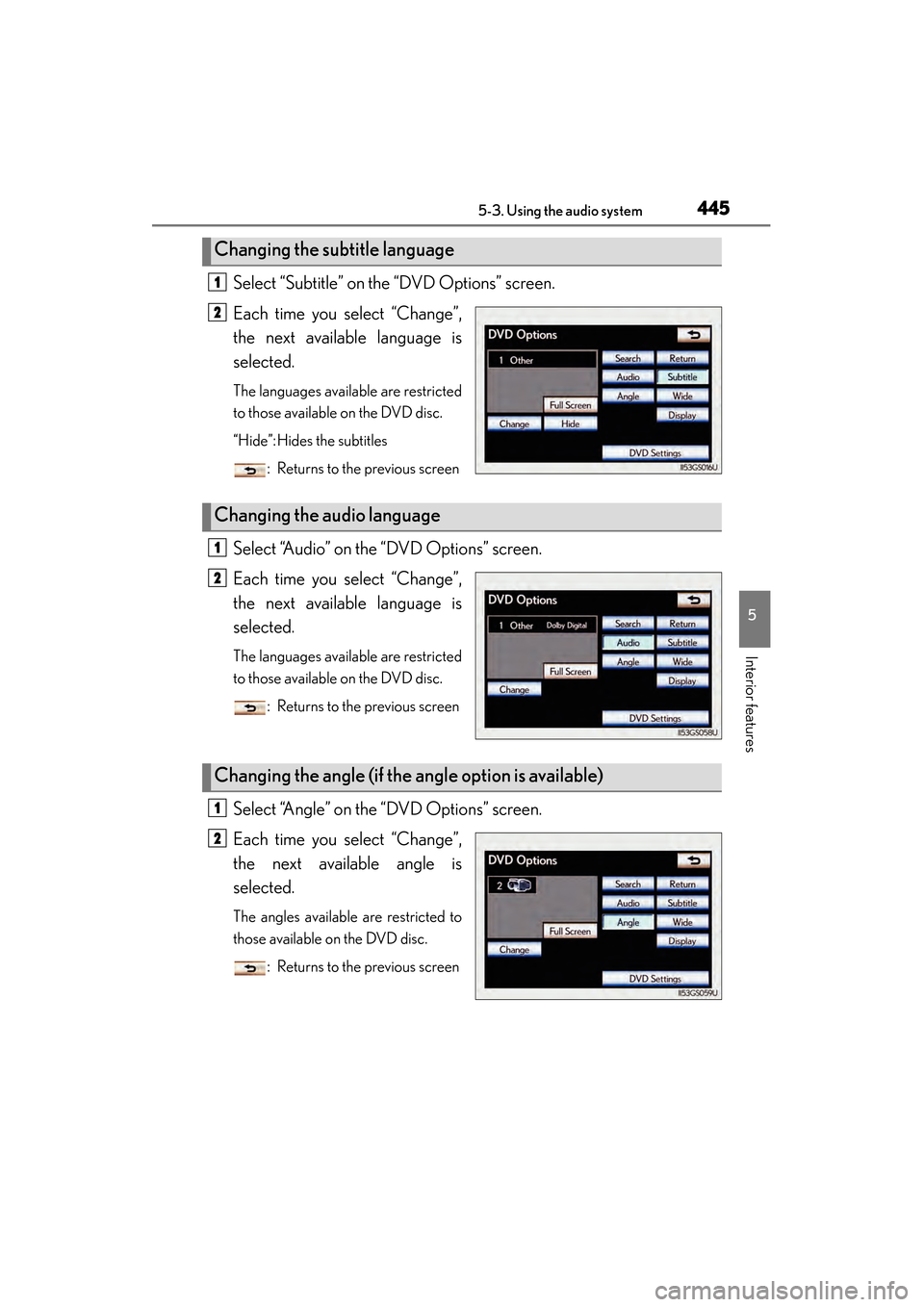
Select “Subtitle” on the “DVD Options” screen.
Each time you select “Change”,
the next available language is
selected.
The languages available are restricted
to those available on the DVD disc.
“Hide”: Hides the subtitles: Returns to the previous screen
Select “Audio” on the “DVD Options” screen.
Each time you select “Change”,
the next available language is
selected.
The languages available are restricted
to those available on the DVD disc.: Returns to the previous screen
Select “Angle” on the “DVD Options” screen.
Each time you select “Change”,
the next available angle is
selected.
The angles available are restricted to
those available on the DVD disc.: Returns to the previous screen
Changing the subtitle language
1
2
Changing the audio language
1
2
Changing the angle (if the angle option is available)
1
2
GS450h_U.book Page 445 Monday, January 23, 2012 10:20 AM
Page 447 of 862
446
GS450h_U (OM30D01U)
5-3. Using the audio system
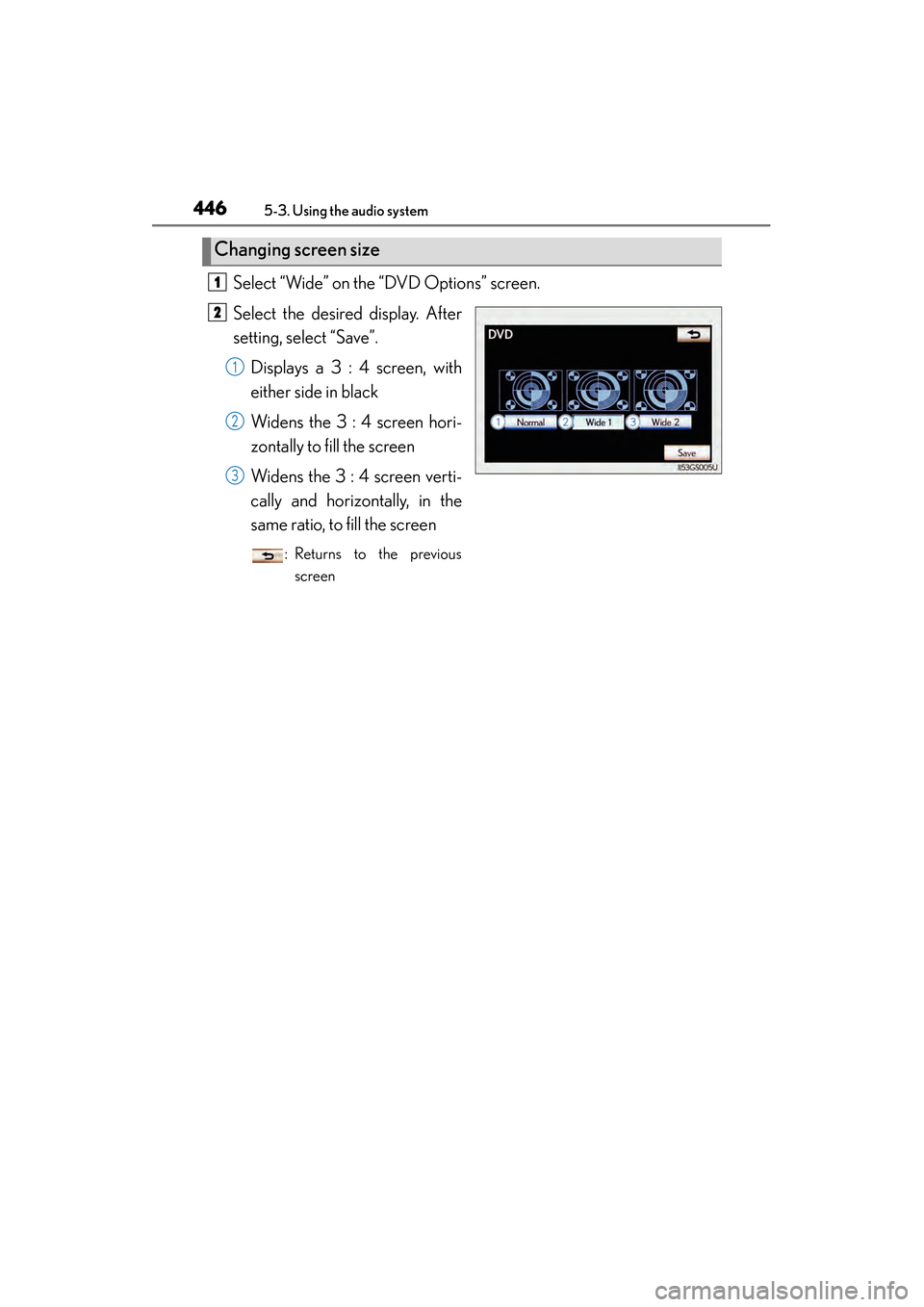
Select “Wide” on the “DVD Options” screen.
Select the desired display. After
setting, select “Save”.Displays a 3 : 4 screen, with
either side in black
Widens the 3 : 4 screen hori-
zontally to fill the screen
Widens the 3 : 4 screen verti-
cally and horizontally, in the
same ratio, to fill the screen
: Returns to the previousscreen
Changing screen size
1
2
1
2
3
GS450h_U.book Page 446 Monday, January 23, 2012 10:20 AM