audio Lexus GS450h 2014 User Guide
[x] Cancel search | Manufacturer: LEXUS, Model Year: 2014, Model line: GS450h, Model: Lexus GS450h 2014Pages: 890, PDF Size: 40.62 MB
Page 349 of 890
348
GS450h_OM_OM30D52U_(U)
5-1. Remote Touch screen Remote Touch............................. 350
Remote Touch screen............... 352
Set up screen .............................. 358
Voice command system .......... 375
Mobile Assistant ........................ 386
5-2. Using the air conditioning system and defogger
Front automatic air conditioning system ........ 388
Rear air conditioning system ......................................... 404
Rear window and outside rear view mirror defoggers.......... 409
Windshield wiper de-icer ........ 410 5-3. Using the audio system
Audio system type ........................ 411
Using the radio............................ 434
Using the CD/DVD player.... 457
Playing an audio CD and MP3/WMA discs ......... 459
Playing DVD video.................... 465
CD/DVD player and DVD video disc information............477
Listening to Bluetooth
® audio ...................489
Listening to a USB memory ........................ 499
Listening to an iPod ...................509
Optimal use of the audio/video system.......... 519
Using the AUX port ...................521
Using the rear seat audio controls........................... 523
Using the steering wheel audio switches .......................... 527
GS450h_OM_OM30D52U_(U).book Page 348 Monday, July 29, 2013 12:07 PM
Page 353 of 890
352
GS450h_OM_OM30D52U_(U)
5-1. Remote Touch screen
Remote Touch screen
By using the Remote Touch, you can control the audio system and air
conditioning system, and adjust the screen display etc.
Vehicles with a navigation system: Different information can be dis-
played on the left and right of the screen. The 8-inch display area on the
left of the screen is called the “Mai n Display”, and the area to the right is
called the “Side Display”. For detail s, refer to the “Navigation System
Owner’s Manual”.
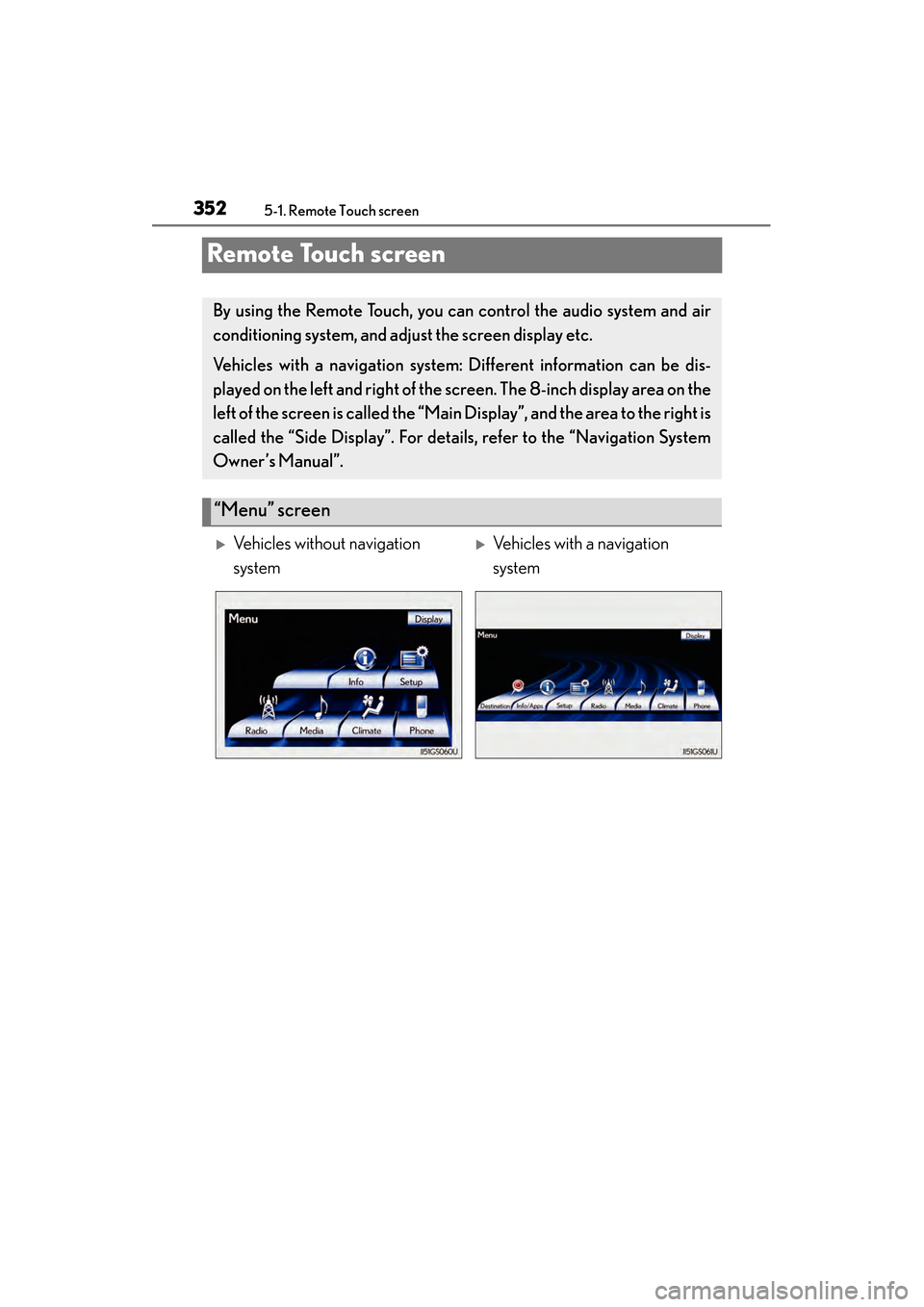
“Menu” screen
XVehicles without navigation
systemXVehicles with a navigation
system
GS450h_OM_OM30D52U_(U).book Page 352 Monday, July 29, 2013 12:07 PM
Page 355 of 890
3545-1. Remote Touch screen
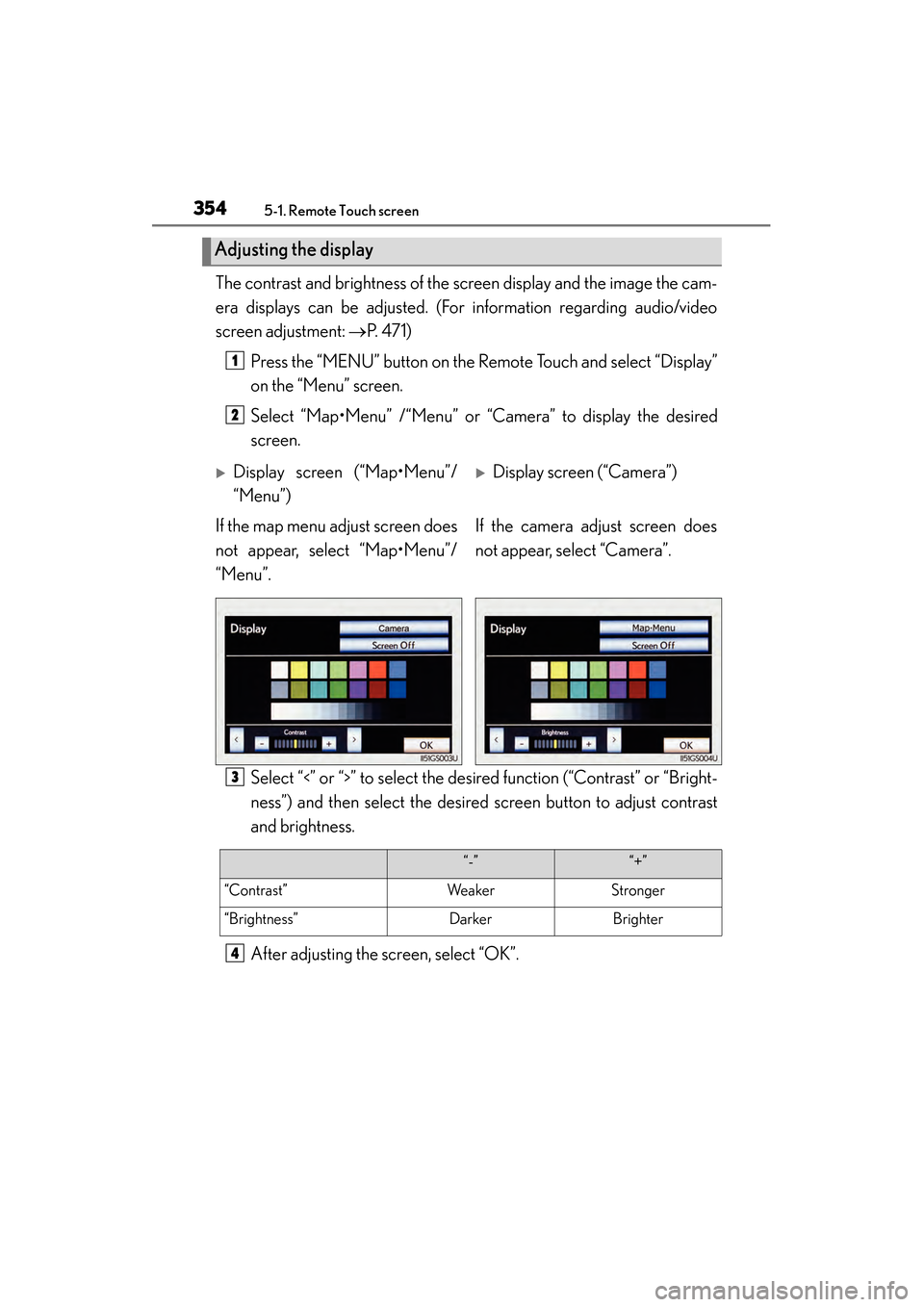
GS450h_OM_OM30D52U_(U)The contrast and brightness of the screen display and the image the cam-
era displays can be adjusted. (For information regarding audio/video
screen adjustment:
→P. 4 7 1 )
Press the “MENU” button on the Remote Touch and select “Display”
on the “Menu” screen.
Select “Map•Menu” /“Menu” or “Camera” to display the desired
screen.
Select “<” or “>” to select the desired function (“Contrast” or “Bright-
ness”) and then select the desired screen button to adjust contrast
and brightness.
After adjusting the screen, select “OK”.
Adjusting the display
1
2
XDisplay screen (“Map•Menu”/
“Menu”)XDisplay screen (“Camera”)
If the map menu adjust screen does
not appear, select “Map•Menu”/
“Menu”. If the camera adjust screen does
not appear, select “Camera”.
3
“-”“+”
“Contrast”WeakerStronger
“Brightness”DarkerBrighter
4
GS450h_OM_OM30D52U_(U).book Page 354 Monday, July 29, 2013 12:07 PM
Page 356 of 890
GS450h_OM_OM30D52U_(U)
3555-1. Remote Touch screen
5
Interior features
■When using the Remote Touch screen
●If the screen is cold, the display may be dark, or the system may seem to be operat-
ing slightly slower than normal.
●When the screen is viewed through polarized sunglasses, a rainbow pattern may
appear on the screen due to optical characteristics of the screen. If this is disturb-
ing, please operate the screen without polarized sunglasses.
●Dimmed screen buttons cannot be operated.
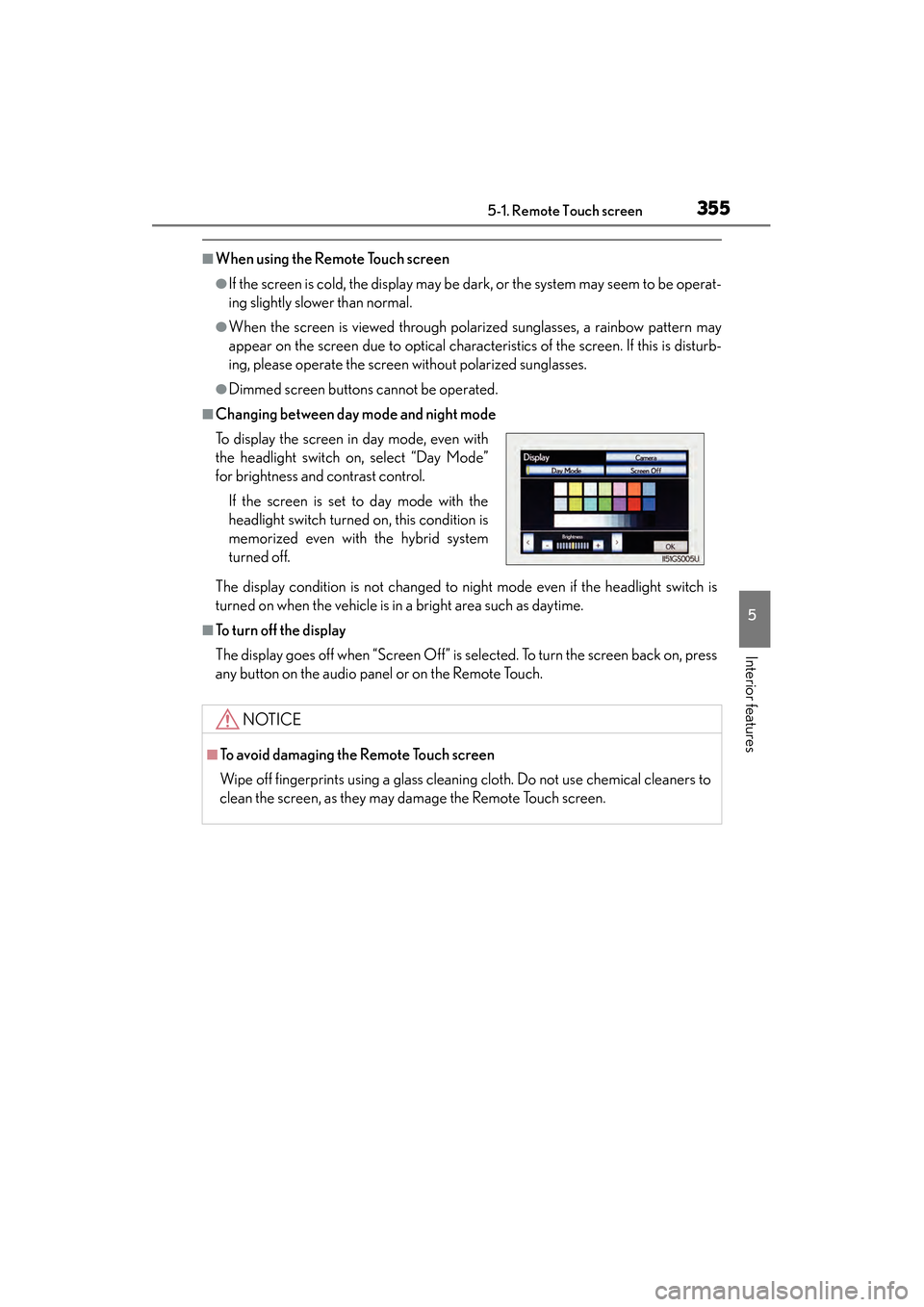
■Changing between day mode and night mode
The display condition is not changed to night mode even if the headlight switch is
turned on when the vehicle is in a bright area such as daytime.
■To t u r n o f f t h e d i s p l a y
The display goes off when “Screen Off” is selected. To turn the screen back on, press
any button on the audio panel or on the Remote Touch. To display the screen in day mode, even with
the headlight switch on, select “Day Mode”
for brightness and contrast control.
If the screen is set to day mode with the
headlight switch turned on, this condition is
memorized even with the hybrid system
turned off.
NOTICE
■To avoid damaging the Remote Touch screen
Wipe off fingerprints using a glass cleaning cloth. Do not use chemical cleaners to
clean the screen, as they may damage the Remote Touch screen.
GS450h_OM_OM30D52U_(U).book Page 355 Monday, July 29, 2013 12:07 PM
Page 370 of 890
GS450h_OM_OM30D52U_(U)
3695-1. Remote Touch screen
5
Interior features
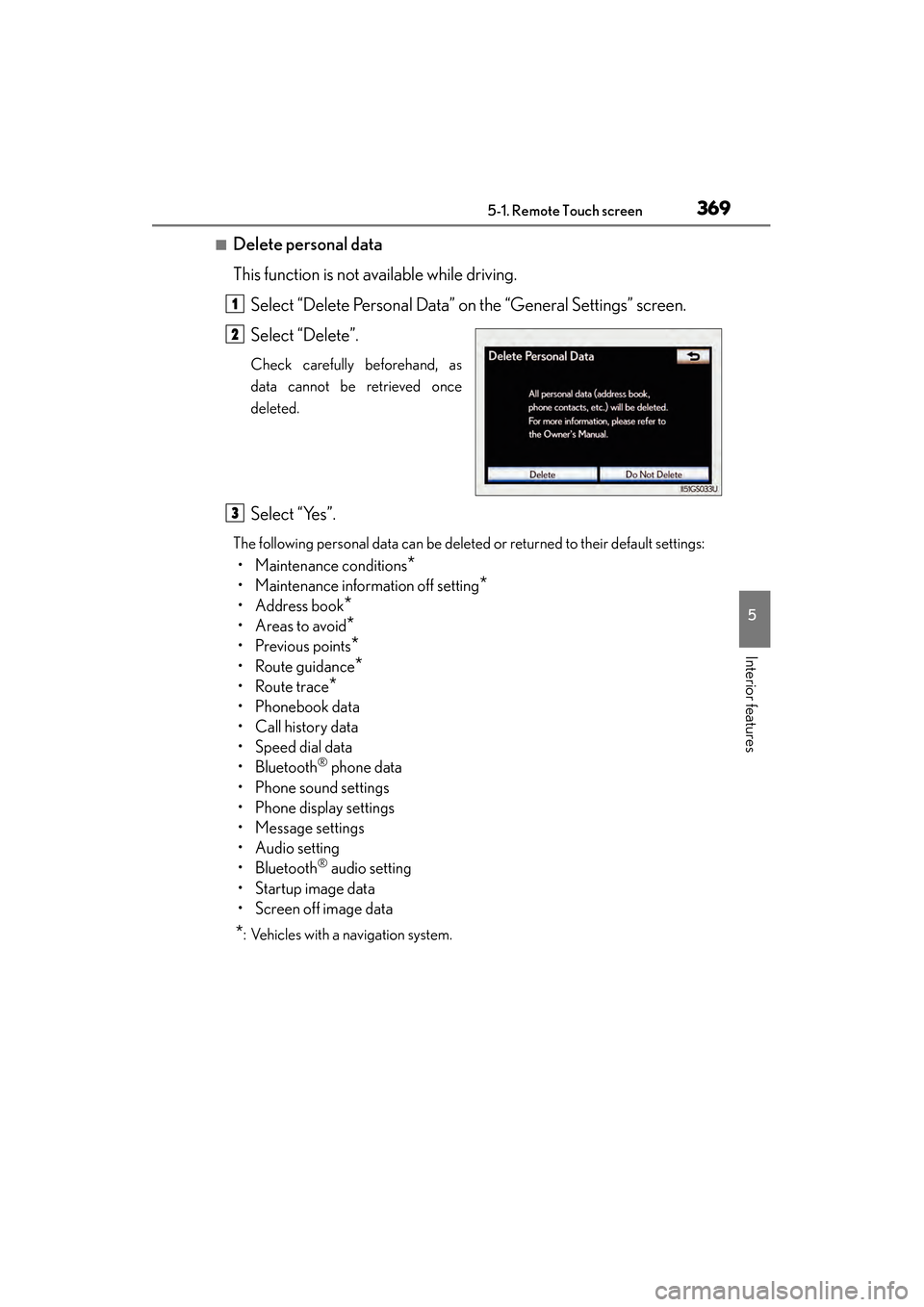
■Delete personal data
This function is not available while driving.Select “Delete Personal Data” on the “General Settings” screen.
Select “Delete”.
Check carefully beforehand, as
data cannot be retrieved once
deleted.
Select “Yes”.
The following personal data can be deleted or returned to their default settings:
• Maintenance conditions*
• Maintenance information off setting*
• Address book*
•Areas to avoid*
•Previous points*
• Route guidance*
•Route trace*
• Phonebook data
•Call history data
• Speed dial data
•Bluetooth
® phone data
• Phone sound settings
• Phone display settings
• Message settings
• Audio setting
•Bluetooth
® audio setting
•Startup image data
• Screen off image data
*: Vehicles with a navigation system.
1
2
3
GS450h_OM_OM30D52U_(U).book Page 369 Monday, July 29, 2013 12:07 PM
Page 372 of 890
GS450h_OM_OM30D52U_(U)
3715-1. Remote Touch screen
5
Interior features
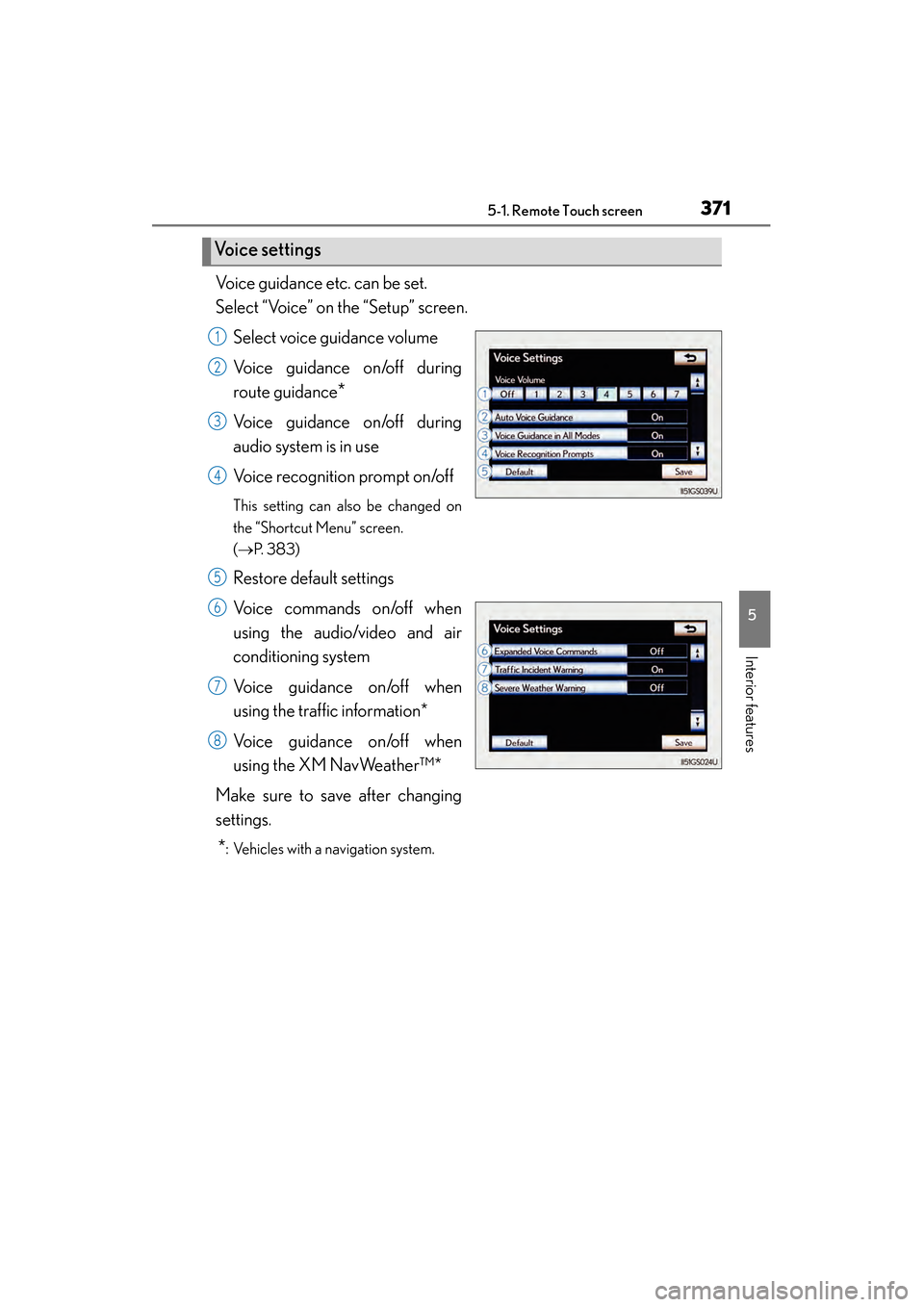
Voice guidance etc. can be set.
Select “Voice” on the “Setup” screen.Select voice guidance volume
Voice guidance on/off during
route guidance
*
Voice guidance on/off during
audio system is in use
Voice recognition prompt on/off
This setting can also be changed on
the “Shortcut Menu” screen.
(→ P. 3 8 3 )
Restore default settings
Voice commands on/off when
using the audio/video and air
conditioning system
Voice guidance on/off when
using the traffic information*
Voice guidance on/off when
using the XM NavWeather™*
Make sure to save after changing
settings.
*: Vehicles with a navigation system.
Vo i c e s e t t i n g s
1
2
3
4
5
6
7
8
GS450h_OM_OM30D52U_(U).book Page 371 Monday, July 29, 2013 12:07 PM
Page 375 of 890
3745-1. Remote Touch screen
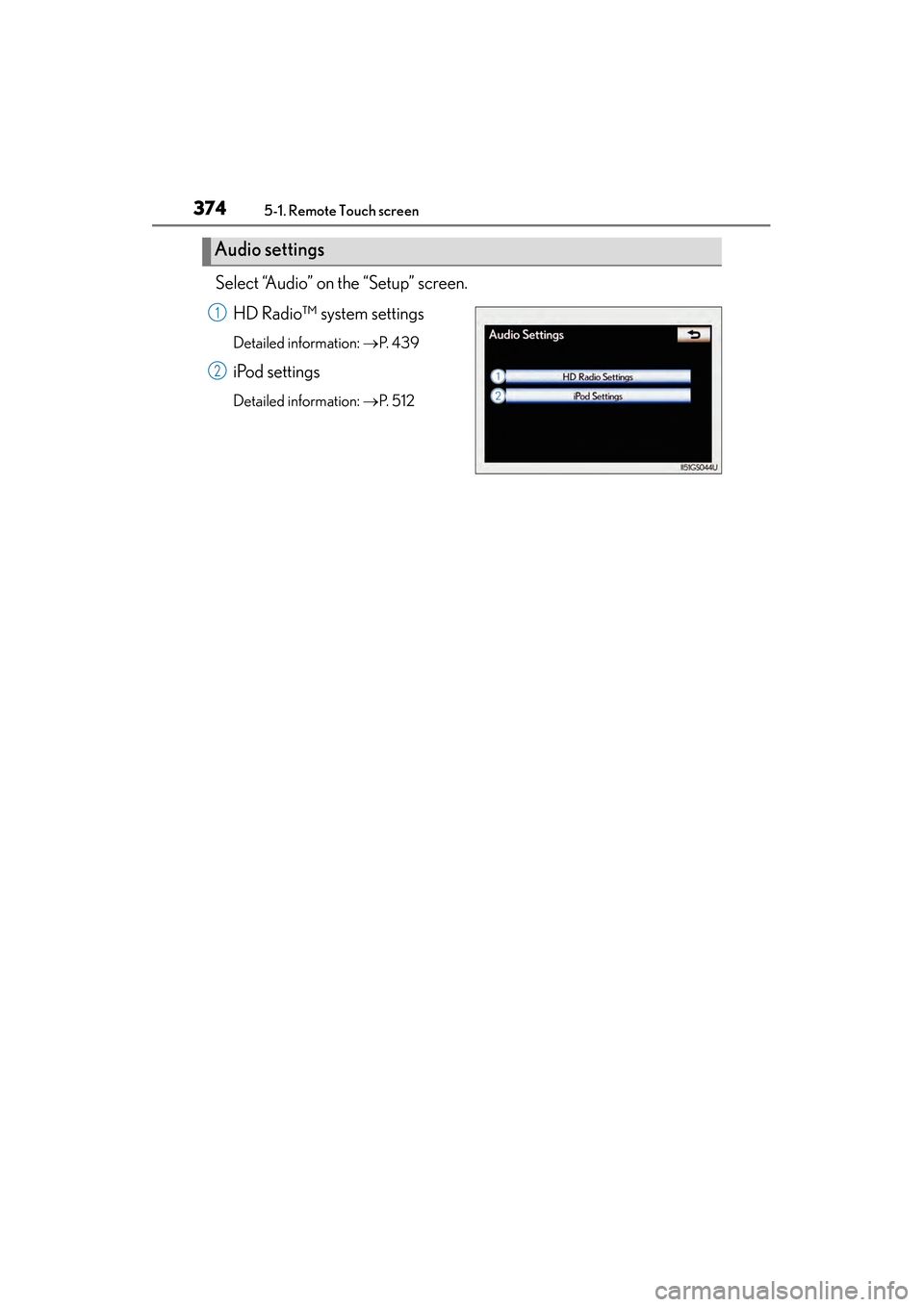
GS450h_OM_OM30D52U_(U)Select “Audio” on the “Setup” screen.
HD Radio™ system settings
Detailed information: →P. 4 3 9
iPod settings
Detailed information: →P. 5 1 2
Audio settings
1
2
GS450h_OM_OM30D52U_(U).book Page 374 Monday, July 29, 2013 12:07 PM
Page 376 of 890
375
GS450h_OM_OM30D52U_(U)5-1. Remote Touch screen
5
Interior features
Voice command system
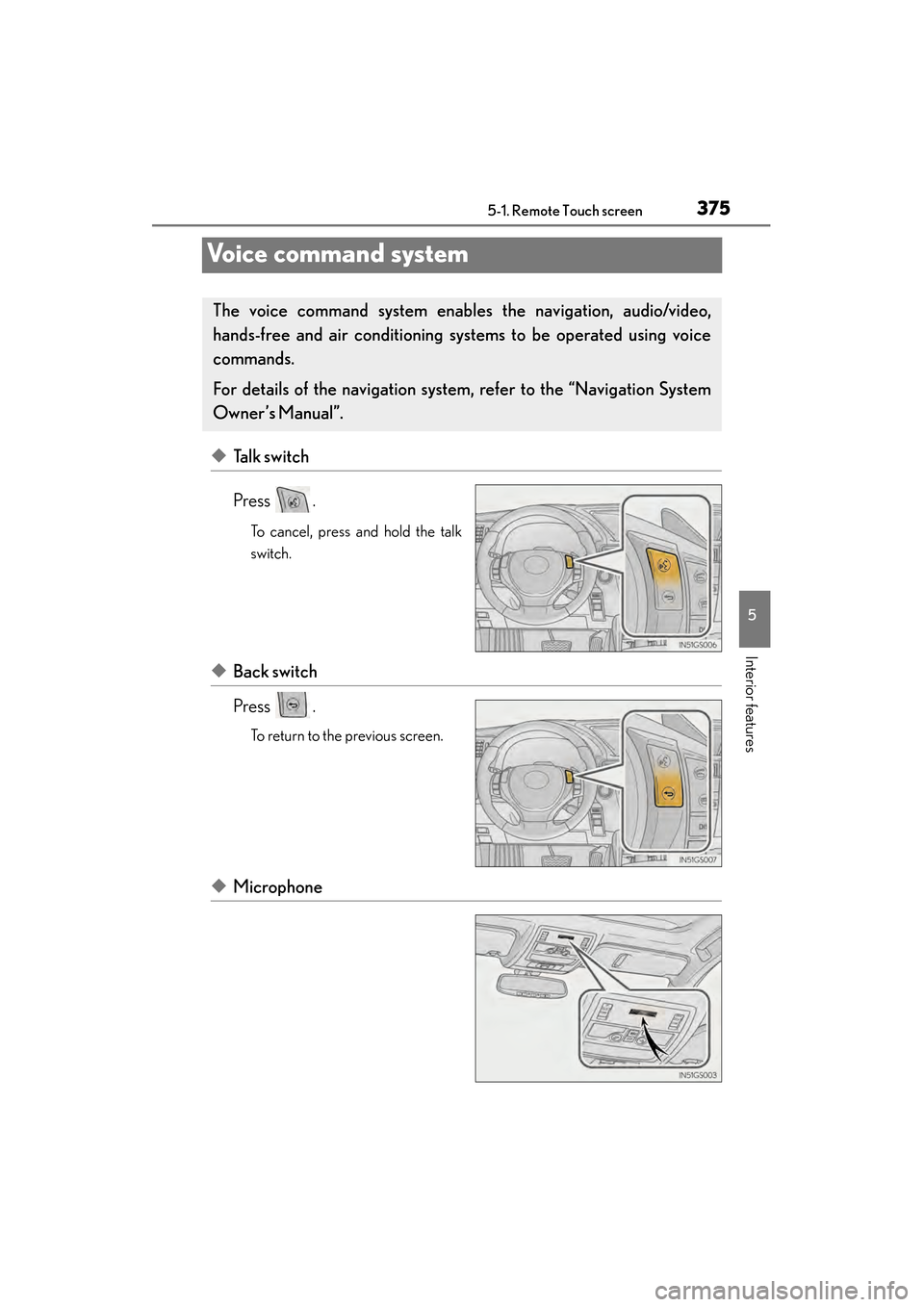
◆Talk switch
Press .
To cancel, press and hold the talk
switch.
◆Back switch
Press .
To return to the previous screen.
◆Microphone
The voice command sys tem enables the navigation, audio/video,
hands-free and air conditioning sys tems to be operated using voice
commands.
For details of the navigation system , refer to the “Navigation System
Owner’s Manual”.
GS450h_OM_OM30D52U_(U).book Page 375 Monday, July 29, 2013 12:07 PM
Page 380 of 890
GS450h_OM_OM30D52U_(U)
3795-1. Remote Touch screen
5
Interior features
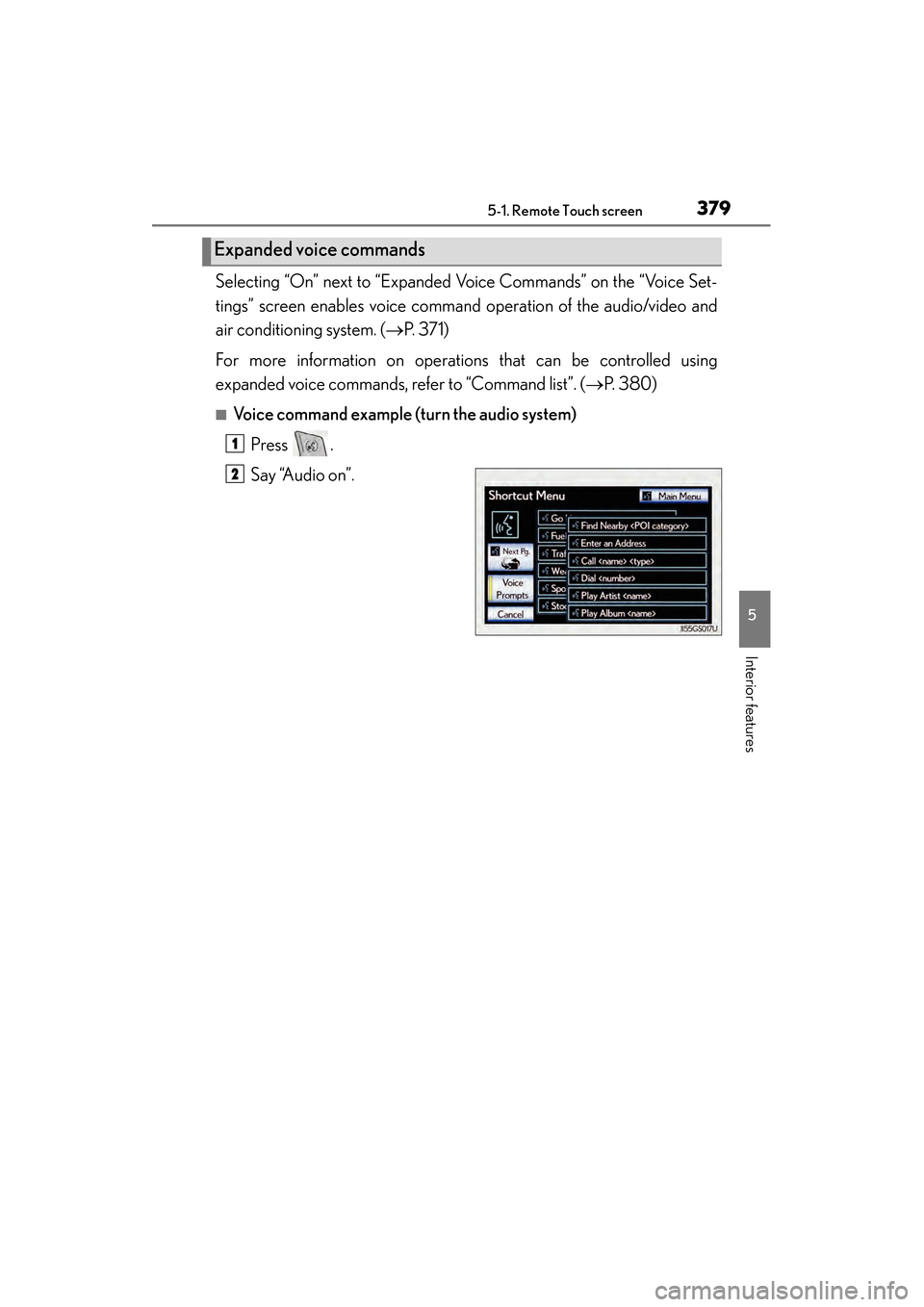
Selecting “On” next to “Expanded Voice Commands” on the “Voice Set-
tings” screen enables voice command operation of the audio/video and
air conditioning system. ( →P. 3 7 1 )
For more information on operations that can be controlled using
expanded voice commands, refer to “Command list”. ( →P. 380)
■Voice command example (t urn the audio system)
Press .
Say “Audio on”.
Expanded voice commands
1
2
GS450h_OM_OM30D52U_(U).book Page 379 Monday, July 29, 2013 12:07 PM
Page 383 of 890
3825-1. Remote Touch screen
GS450h_OM_OM30D52U_(U)
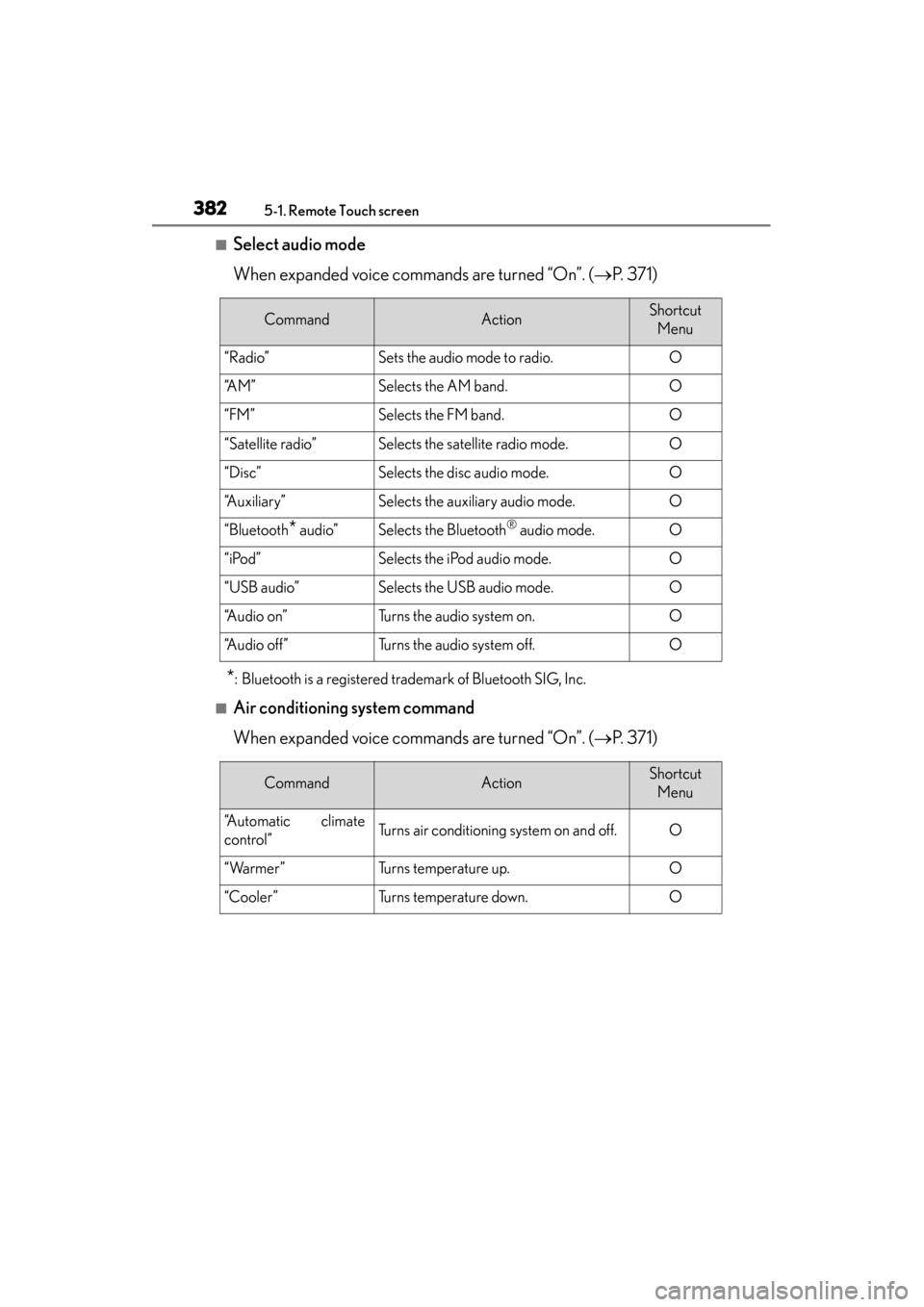
■Select audio mode
When expanded voice commands are turned “On”. (→P. 3 7 1 )
*: Bluetooth is a registered trademark of Bluetooth SIG, Inc.
■Air conditioning system command
When expanded voice commands are turned “On”. ( →P. 3 7 1 )
CommandActionShortcut
Menu
“Radio”Sets the audio mode to radio.O
“A M ”Selects the AM band.O
“FM”Selects the FM band.O
“Satellite radio”Selects the satellite radio mode.O
“Disc”Selects the disc audio mode.O
“Auxiliary”Selects the auxiliary audio mode.O
“Bluetooth* audio”Selects the Bluetooth® audio mode.O
“iPod”Selects the iPod audio mode.O
“USB audio”Selects the USB audio mode.O
“A u d i o o n ”Turns the audio system on.O
“Audio off”Turns the audio system off.O
CommandActionShortcut Menu
“Automatic climate
control”Turns air conditioning system on and off.O
“Warmer”Turns temperature up.O
“Cooler”Turns temperature down.O
GS450h_OM_OM30D52U_(U).book Page 382 Monday, July 29, 2013 12:07 PM