ad blue Lexus GS450h 2014 Service Manual
[x] Cancel search | Manufacturer: LEXUS, Model Year: 2014, Model line: GS450h, Model: Lexus GS450h 2014Pages: 890, PDF Size: 40.62 MB
Page 552 of 890
GS450h_OM_OM30D52U_(U)
5515-4. Using the hands-free phone system (for cellular phone)
5
Interior features
■Call history list
●If you make a call to or receive a call from a number registered in the phone book,
the name is displayed in the call history.
●If you make multiple calls to the same number, only the last call made is displayed in
the call history.
●Number-withheld calls are also memorized in the system.
■When driving
The functions “Dialing”, “Dialing from the phonebook”, and “Dialing from history”
(except for call using the 25 most recently called numbers shown by “All” tab) are
unavailable.
■When calling by registered name in the phonebook
●When “Call
book’s voice command recognition cannot be used. Check the Bluetooth® con-
nection and if the contacts have been transferred to the system.
●Short or abbreviated names in the phonebook may not be recognized. Change
names in the phonebook to full names.
●Sometimes a voice recognition result confirmation screen will be displayed. After
confirming the result, say “Yes” or “No”.
●When the system recognizes multiple names from the phonebook, a name candi-
date list will be displayed on the screen. If the desired name is not displayed on the
top of the screen, say the number of the name from the candidate list (number 1 and
number 2) to select a name from the candidate list.
●When a contact has multiple phone numbers registered in the phonebook, a candi-
date list will be displayed. If the desired phone number is not displayed on the top of
the screen, say the number of the desired phone number from the candidate list
(number 1 and number 2) to select a phone number from the candidate list.
GS450h_OM_OM30D52U_(U).book Page 551 Monday, July 29, 2013 12:07 PM
Page 557 of 890
556
GS450h_OM_OM30D52U_(U)
5-4. Using the hands-free phone system (for cellular phone)
■Call waiting
When a connected call is interrupted by the third party, the incoming
call message will be displayed.
●To talk with the other party: Select or press on the steer-
ing wheel.
●To refuse the call: Select or press on the steering wheel.
Everytime you select or press on the steering wheel after a
call is interrupted, you will be switched to the other party.
If your cellular phone is not accepted in HFP Ver. 1.5, this function can-
not be used.
■Incoming call
●The ring tone that has been set in the “Phone Sound Settings” screen sounds when
there is an incoming call. ( →P. 5 6 1 )
●Depending on the type of Bluetooth® phone, both the system and Bluetooth®
phone may sound simultaneously when there is an incoming call.
■Transferring calls
●It is not possible to transfer from hands-free to a cellular phone while driving.
●If you transfer from a cellular phone to hands-free, the hands-free screen will be
displayed, and you can operate the system using the screen.
●Transfer method and operation may vary according to the cellular phone used.
●For operation of the cellular phone in use, see the phone’s manual.
■Repeated tone symbols
When the “p” pause tone is used, after waiting 2 seconds the tone data up until the
next pause tone will be automatically sent. When the “w” pause tone is used, the tone
data up until the next pause tone will be automatically sent after user operation.
■While driving
Key input is unavailable.
■Voice recognition during a call
“Send Tones” can be operated by voice recognition. ( →P. 3 7 5 )
■Interrupt call operation
Interrupt call operation may differ from depending on your phone company and the
cellular phone.
GS450h_OM_OM30D52U_(U).book Page 556 Monday, July 29, 2013 12:07 PM
Page 558 of 890
GS450h_OM_OM30D52U_(U)
5575-4. Using the hands-free phone system (for cellular phone)
5
Interior features
Received messages can be forwarded from the connected Bluetooth®
phone, enabling checking and replying (Quick reply).
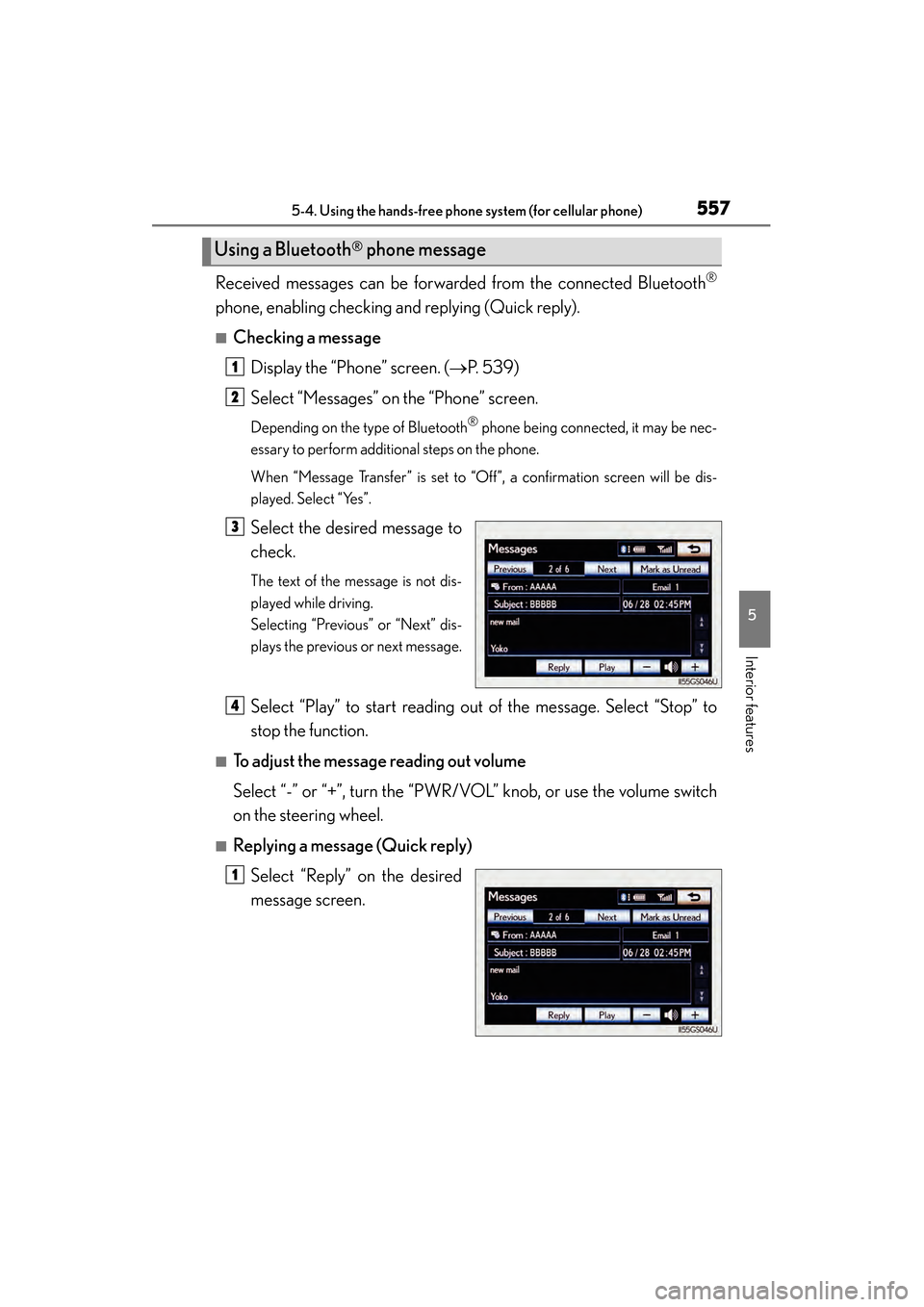
■Checking a messageDisplay the “Phone” screen. ( →P. 5 3 9 )
Select “Messages” on the “Phone” screen.
Depending on the type of Bluetooth® phone being connected, it may be nec-
essary to perform additional steps on the phone.
When “Message Transfer” is set to “Off”, a confirmation screen will be dis-
played. Select “Yes”.
Select the desired message to
check.
The text of the message is not dis-
played while driving.
Selecting “Previous” or “Next” dis-
plays the previous or next message.
Select “Play” to start reading out of the message. Select “Stop” to
stop the function.
■To adjust the message reading out volume
Select “-” or “+”, turn the “PWR/VOL” knob, or use the volume switch
on the steering wheel.
■Replying a message (Quick reply)
Select “Reply” on the desired
message screen.
Using a Bluetooth® phone message
1
2
3
4
1
GS450h_OM_OM30D52U_(U).book Page 557 Monday, July 29, 2013 12:07 PM
Page 559 of 890
558
GS450h_OM_OM30D52U_(U)
5-4. Using the hands-free phone system (for cellular phone)
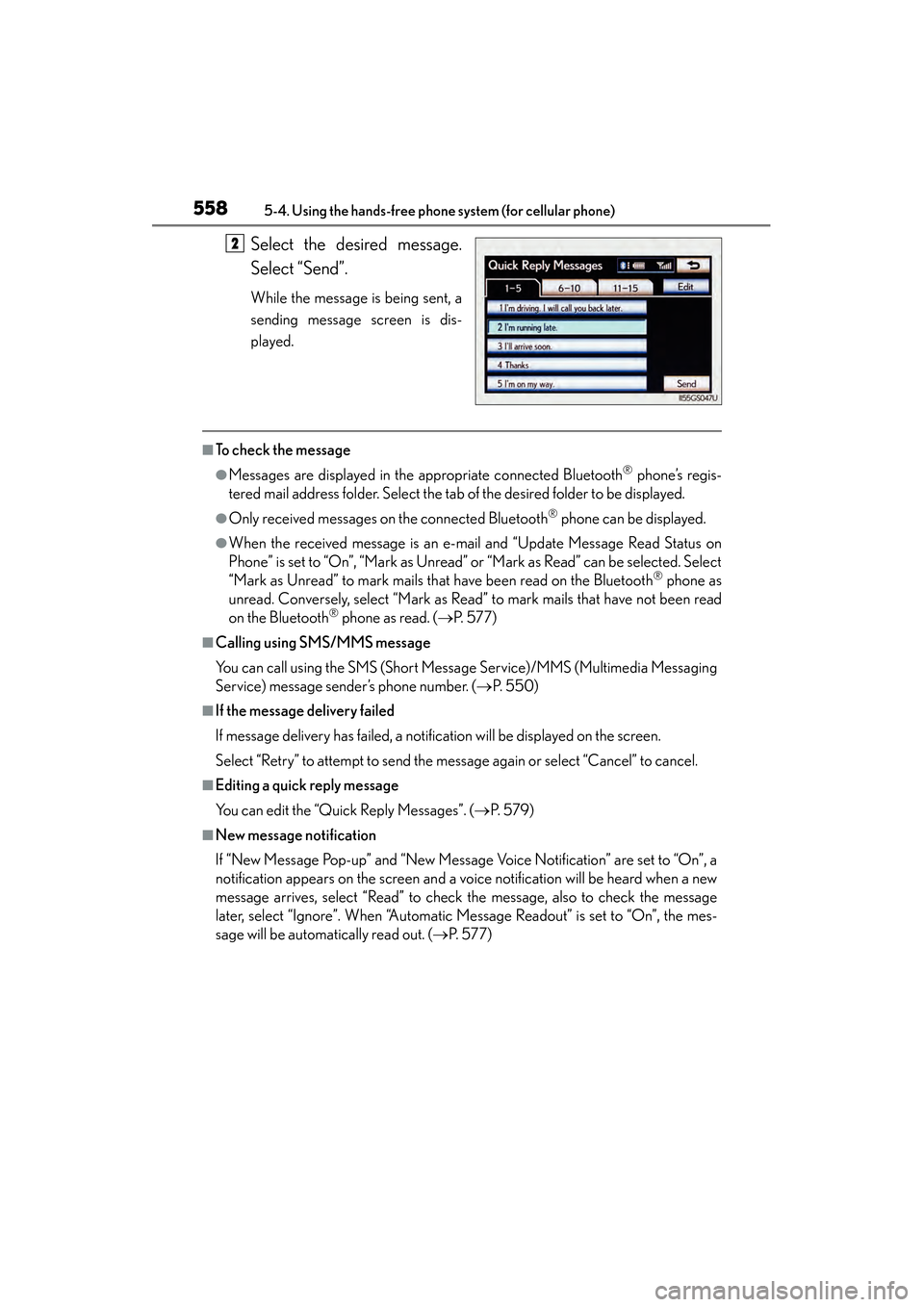
Select the desired message.
Select “Send”.
While the message is being sent, a
sending message screen is dis-
played.
■To check the message
●Messages are displayed in the appropriate connected Bluetooth® phone’s regis-
tered mail address folder. Select the tab of the desired folder to be displayed.
●Only received messages on the connected Bluetooth® phone can be displayed.
●When the received message is an e-mail and “Update Message Read Status on
Phone” is set to “On”, “Mark as Unread” or “Mark as Read” can be selected. Select
“Mark as Unread” to mark mails that have been read on the Bluetooth
® phone as
unread. Conversely, select “Mark as Read” to mark mails that have not been read
on the Bluetooth
® phone as read. ( →P. 577)
■Calling using SMS/MMS message
You can call using the SMS (Short Message Service)/MMS (Multimedia Messaging
Service) message sender’s phone number. ( →P. 5 5 0 )
■If the message delivery failed
If message delivery has failed, a notification will be displayed on the screen.
Select “Retry” to attempt to send the message again or select “Cancel” to cancel.
■Editing a quick reply message
You can edit the “Quick Reply Messages”. ( →P. 5 7 9 )
■New message notification
If “New Message Pop-up” and “New Message Voice Notification” are set to “On”, a
notification appears on the screen and a voice notification will be heard when a new
message arrives, select “Read” to check the message, also to check the message
later, select “Ignore”. When “Automatic Message Readout” is set to “On”, the mes-
sage will be automatically read out. ( →P. 5 7 7 )
2
GS450h_OM_OM30D52U_(U).book Page 558 Monday, July 29, 2013 12:07 PM
Page 563 of 890
562
GS450h_OM_OM30D52U_(U)
5-4. Using the hands-free phone system (for cellular phone)
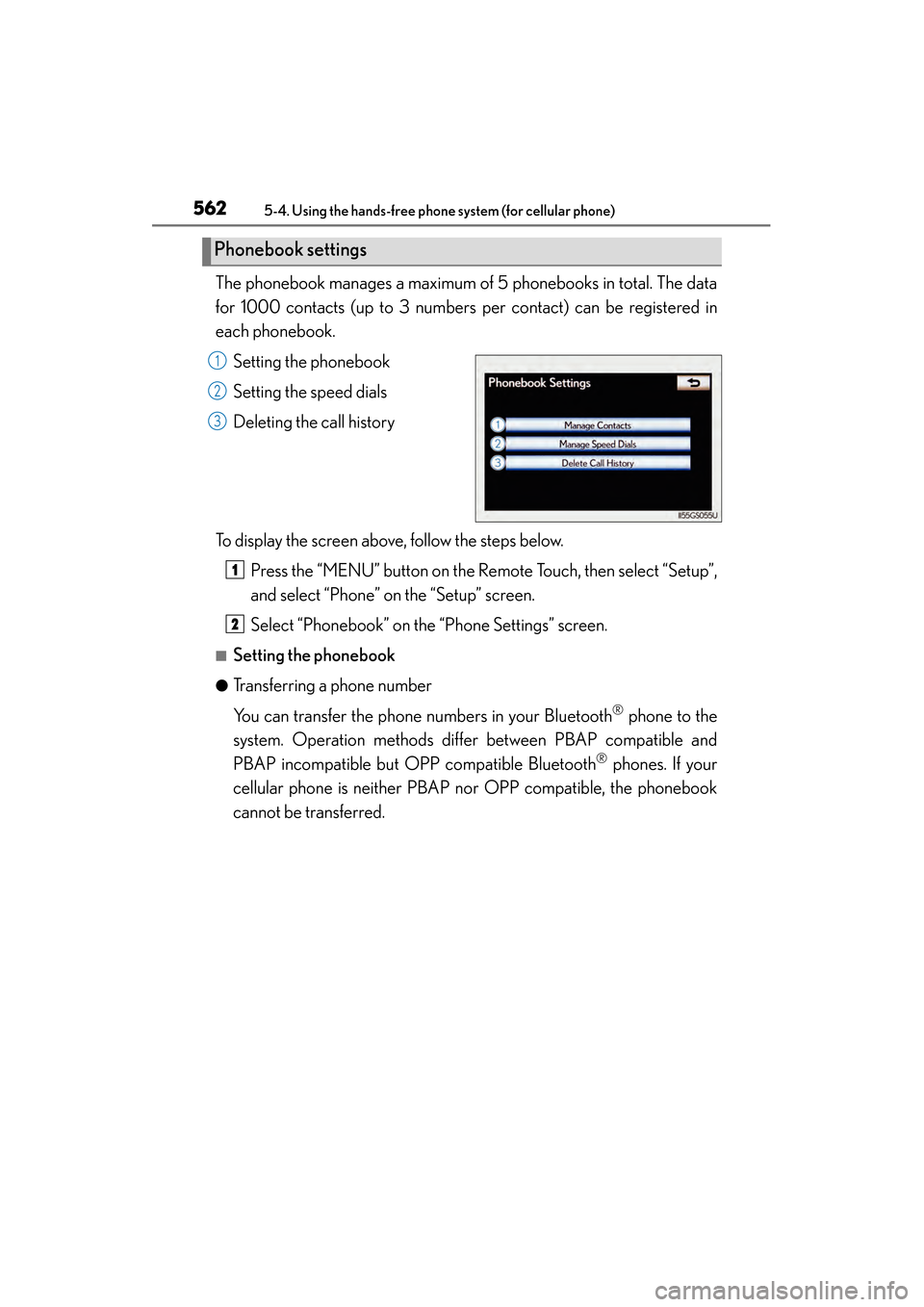
The phonebook manages a maximum of 5 phonebooks in total. The data
for 1000 contacts (up to 3 numbers per contact) can be registered in
each phonebook.Setting the phonebook
Setting the speed dials
Deleting the call history
To display the screen above, follow the steps below. Press the “MENU” button on the Remote Touch, then select “Setup”,
and select “Phone” on the “Setup” screen.
Select “Phonebook” on the “Phone Settings” screen.
■Setting the phonebook
●Transferring a phone number
You can transfer the phone numbers in your Bluetooth
® phone to the
system. Operation methods differ between PBAP compatible and
PBAP incompatible but OPP compatible Bluetooth
® phones. If your
cellular phone is neither PBAP nor OPP compatible, the phonebook
cannot be transferred.
Phonebook settings
1
2
3
1
2
GS450h_OM_OM30D52U_(U).book Page 562 Monday, July 29, 2013 12:07 PM
Page 564 of 890
GS450h_OM_OM30D52U_(U)
5635-4. Using the hands-free phone system (for cellular phone)
5
Interior features
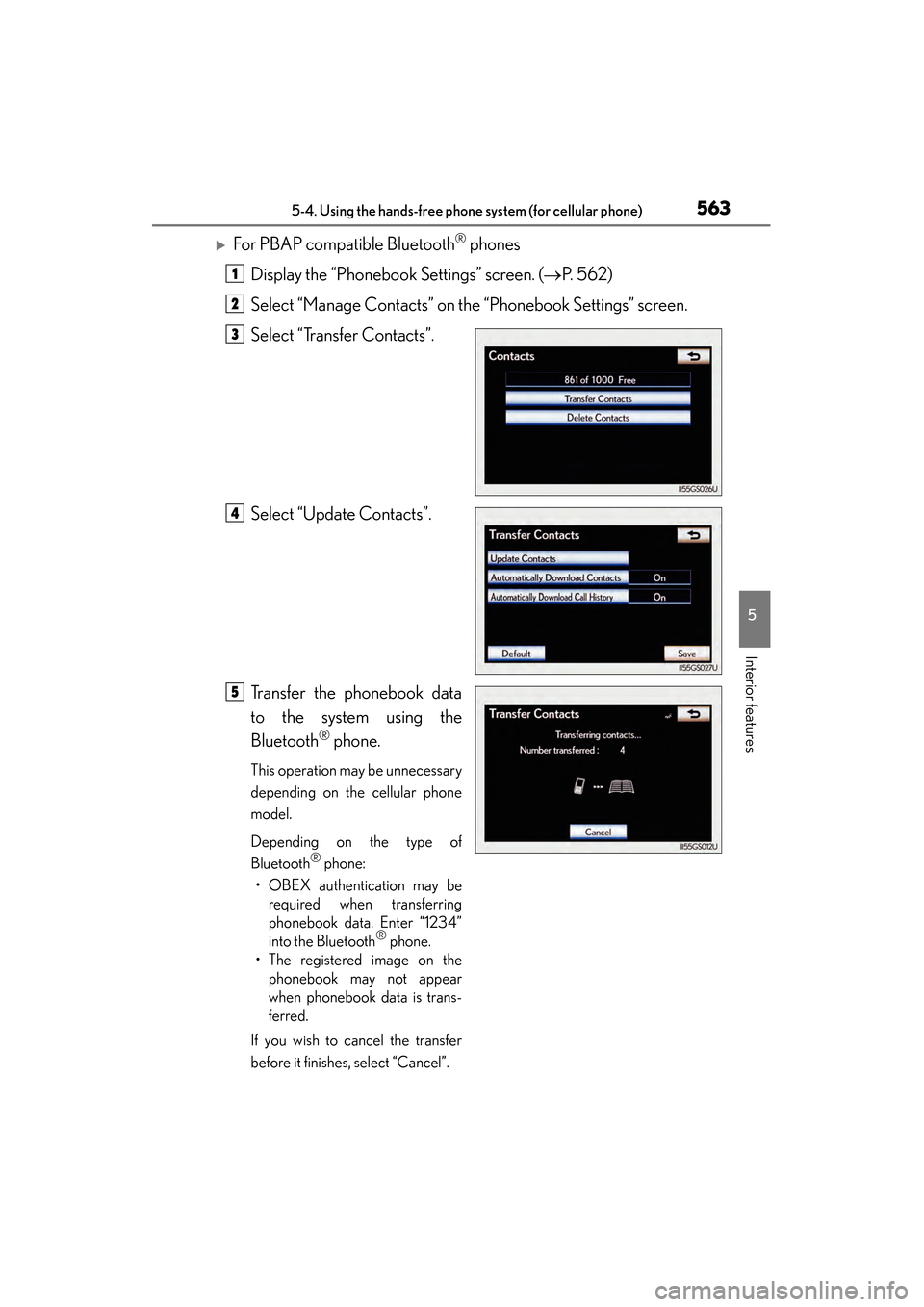
XFor PBAP compatible Bluetooth® phones
Display the “Phonebook Settings” screen. ( →P. 562)
Select “Manage Contacts” on the “Phonebook Settings” screen.
Select “Transfer Contacts”.
Select “Update Contacts”.
Transfer the phonebook data
to the system using the
Bluetooth
® phone.
This operation may be unnecessary
depending on the cellular phone
model.
Depending on the type of
Bluetooth
® phone:
• OBEX authentication may be required when transferring
phonebook data. Enter “1234”
into the Bluetooth
® phone.
• The registered image on the phonebook may not appear
when phonebook data is trans-
ferred.
If you wish to cancel the transfer
before it finishes, select “Cancel”.
1
2
3
4
5
GS450h_OM_OM30D52U_(U).book Page 563 Monday, July 29, 2013 12:07 PM
Page 565 of 890
564
GS450h_OM_OM30D52U_(U)
5-4. Using the hands-free phone system (for cellular phone)
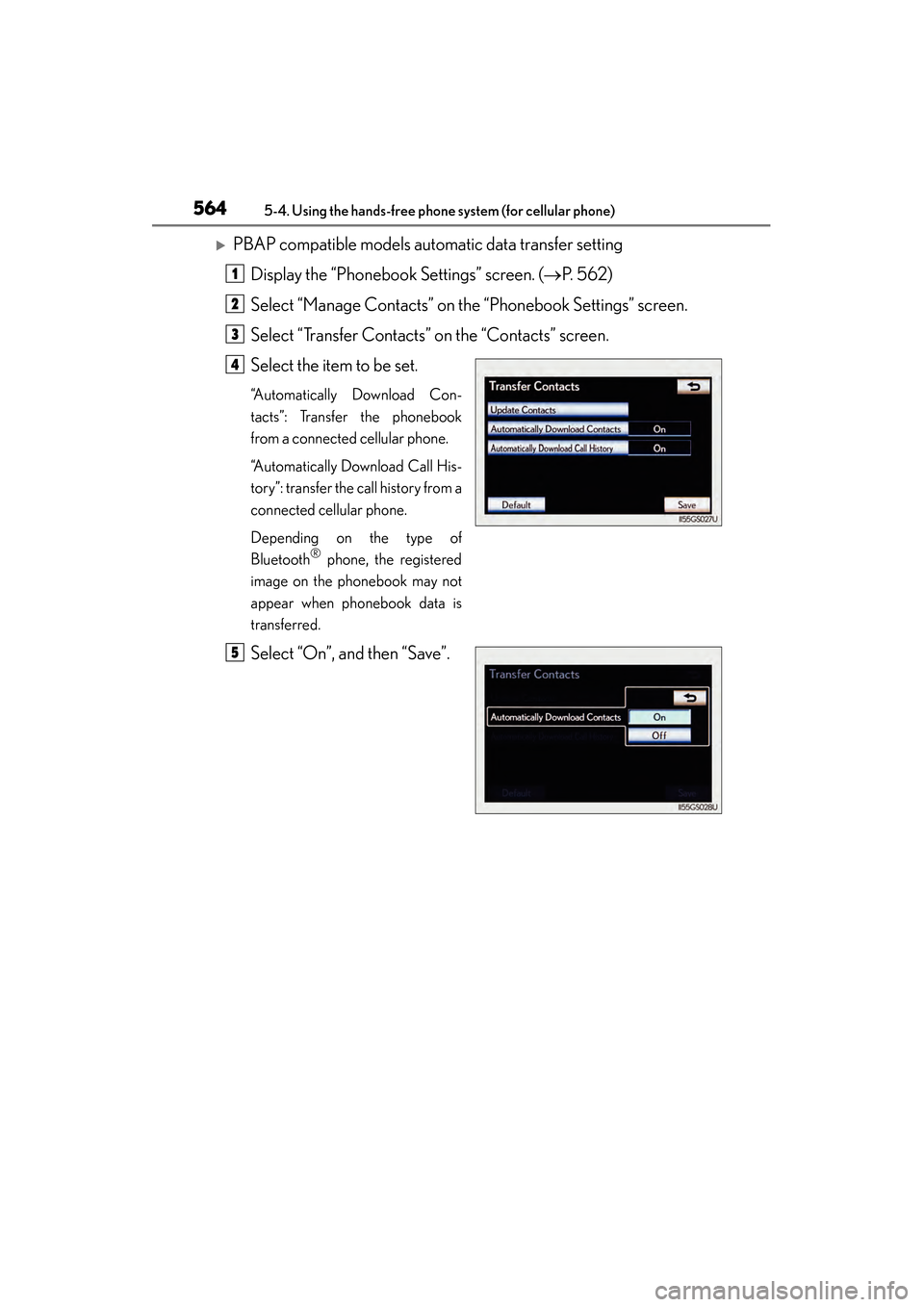
XPBAP compatible models automatic data transfer settingDisplay the “Phonebook Settings” screen. ( →P. 562)
Select “Manage Contacts” on the “Phonebook Settings” screen.
Select “Transfer Contacts” on the “Contacts” screen.
Select the item to be set.
“Automatically Download Con-
tacts”: Transfer the phonebook
from a connected cellular phone.
“Automatically Download Call His-
tory”: transfer the call history from a
connected cellular phone.
Depending on the type of
Bluetooth
® phone, the registered
image on the phonebook may not
appear when phonebook data is
transferred.
Select “On”, and then “Save”.
1
2
3
4
5
GS450h_OM_OM30D52U_(U).book Page 564 Monday, July 29, 2013 12:07 PM
Page 566 of 890
GS450h_OM_OM30D52U_(U)
5655-4. Using the hands-free phone system (for cellular phone)
5
Interior features
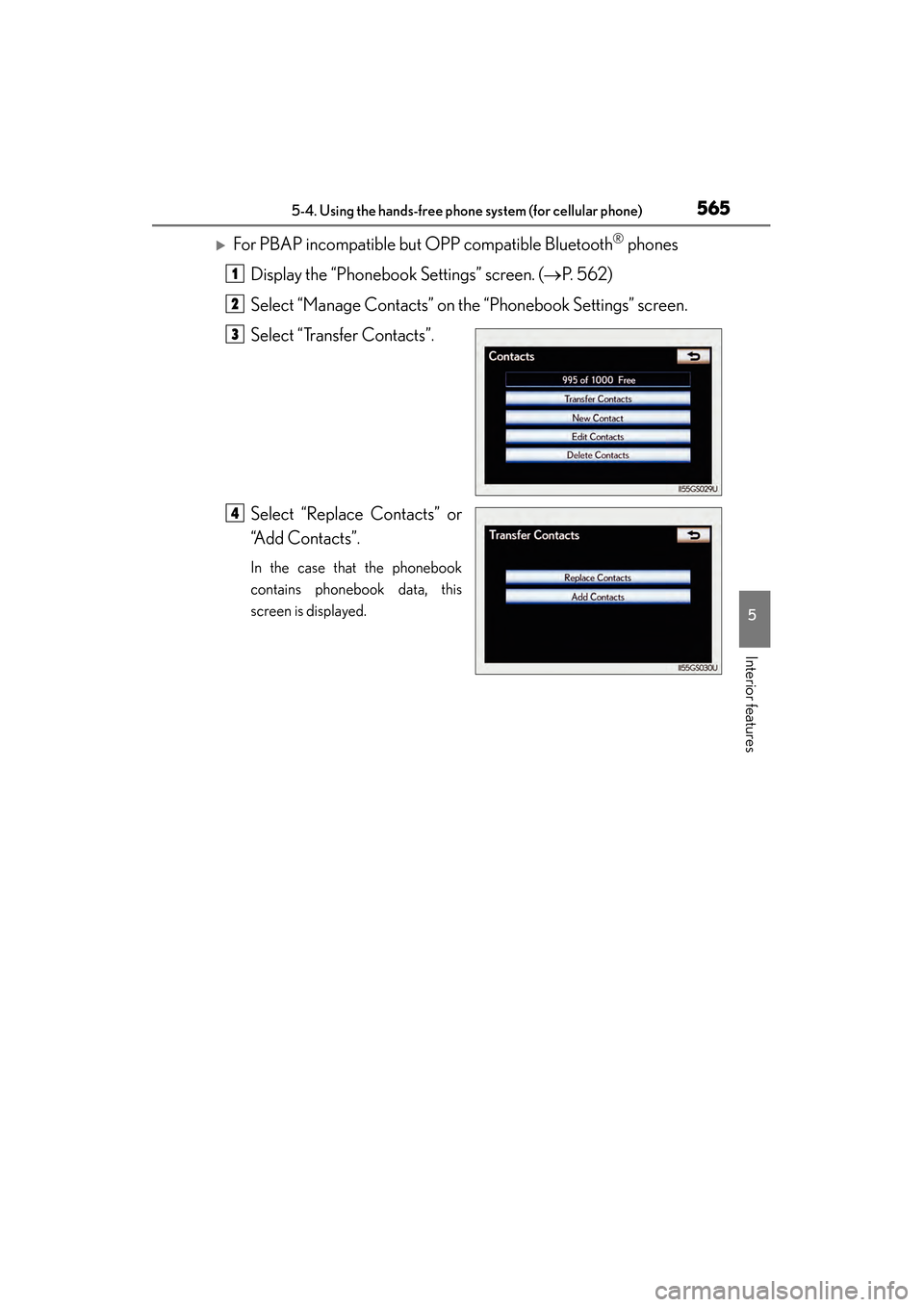
XFor PBAP incompatible but OPP compatible Bluetooth® phones
Display the “Phonebook Settings” screen. ( →P. 562)
Select “Manage Contacts” on the “Phonebook Settings” screen.
Select “Transfer Contacts”.
Select “Replace Contacts” or
“Add Contacts”.
In the case that the phonebook
contains phonebook data, this
screen is displayed.
1
2
3
4
GS450h_OM_OM30D52U_(U).book Page 565 Monday, July 29, 2013 12:07 PM
Page 567 of 890
566
GS450h_OM_OM30D52U_(U)
5-4. Using the hands-free phone system (for cellular phone)
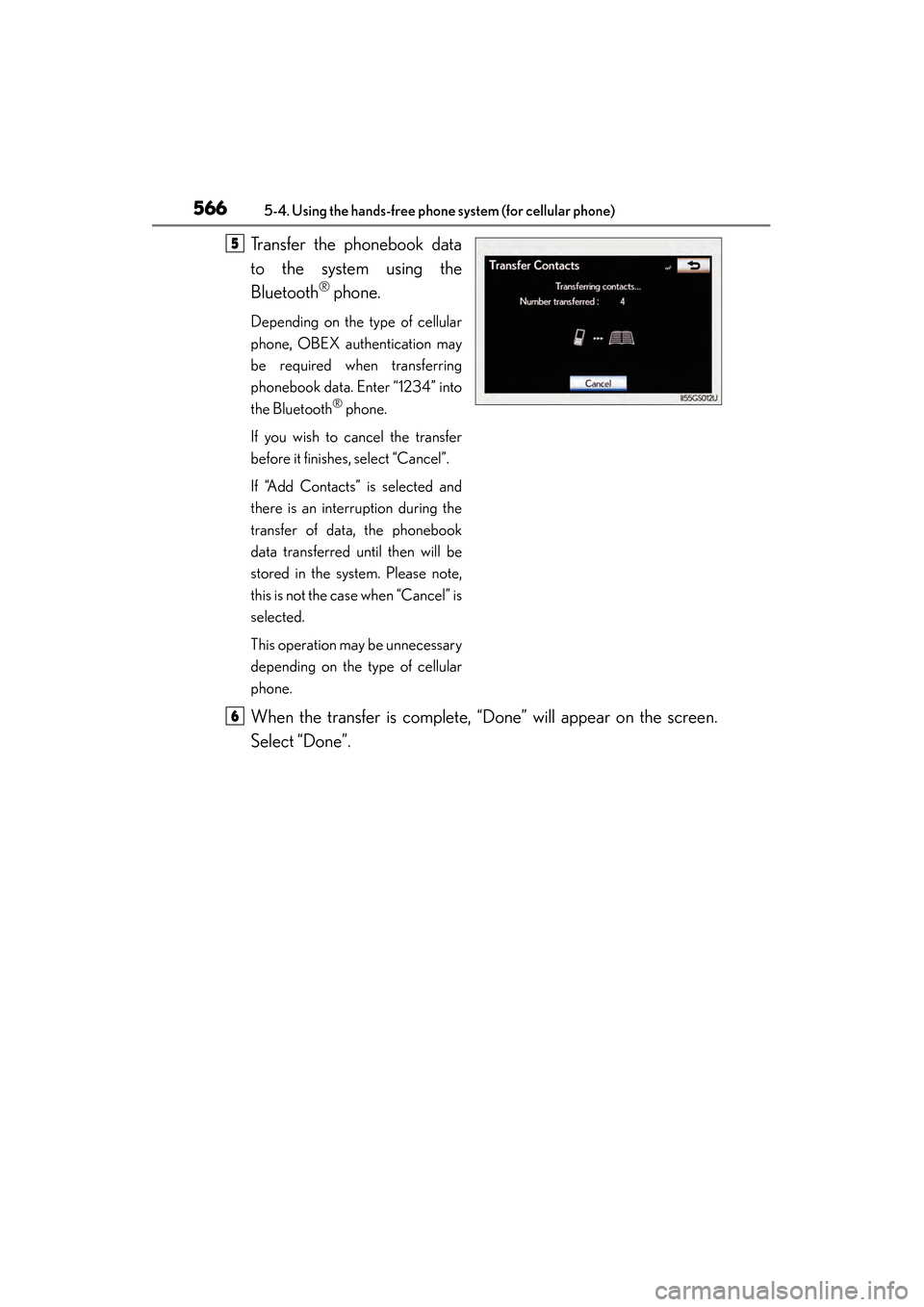
Transfer the phonebook data
to the system using the
Bluetooth
® phone.
Depending on the type of cellular
phone, OBEX authentication may
be required when transferring
phonebook data. Enter “1234” into
the Bluetooth
® phone.
If you wish to cancel the transfer
before it finishes, select “Cancel”.
If “Add Contacts” is selected and
there is an interruption during the
transfer of data, the phonebook
data transferred until then will be
stored in the system. Please note,
this is not the case when “Cancel” is
selected.
This operation may be unnecessary
depending on the type of cellular
phone.
When the transfer is complete, “Done” will appear on the screen.
Select “Done”.
5
6
GS450h_OM_OM30D52U_(U).book Page 566 Monday, July 29, 2013 12:07 PM
Page 568 of 890
GS450h_OM_OM30D52U_(U)
5675-4. Using the hands-free phone system (for cellular phone)
5
Interior features
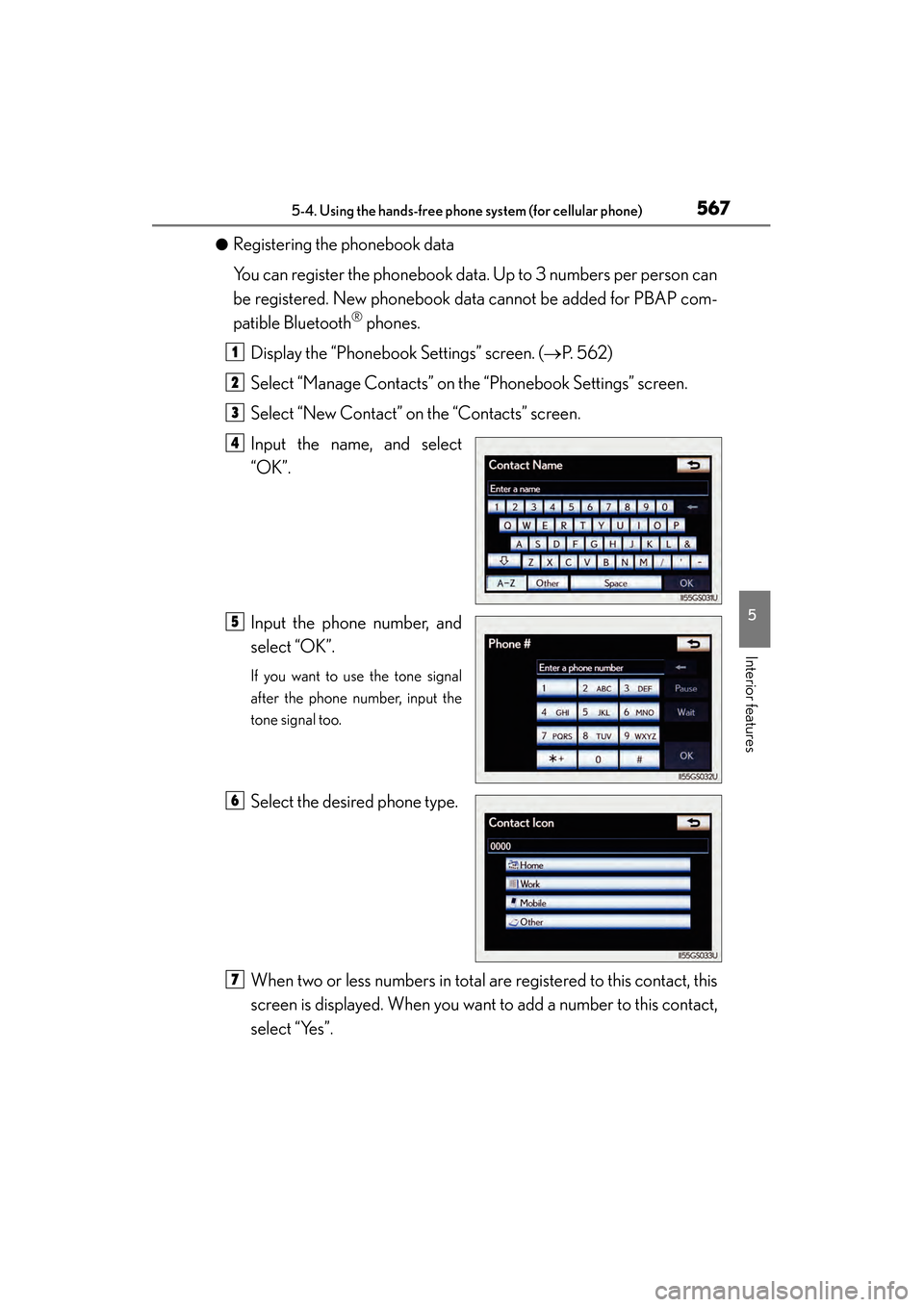
●Registering the phonebook data
You can register the phonebook data. Up to 3 numbers per person can
be registered. New phonebook data cannot be added for PBAP com-
patible Bluetooth
® phones.
Display the “Phonebook Settings” screen. ( →P. 562)
Select “Manage Contacts” on the “Phonebook Settings” screen.
Select “New Contact” on the “Contacts” screen.
Input the name, and select
“OK”.
Input the phone number, and
select “OK”.
If you want to use the tone signal
after the phone number, input the
tone signal too.
Select the desired phone type.
When two or less numbers in total are registered to this contact, this
screen is displayed. When you want to add a number to this contact,
select “Yes”.
1
2
3
4
5
6
7
GS450h_OM_OM30D52U_(U).book Page 567 Monday, July 29, 2013 12:07 PM