radio Lexus GX460 2013 User Guide
[x] Cancel search | Manufacturer: LEXUS, Model Year: 2013, Model line: GX460, Model: Lexus GX460 2013Pages: 846, PDF Size: 19.76 MB
Page 141 of 846
140
1-7. Safety information
GX460_OM_OM60J63U_(U)
CAUTION
■Modification and disposal of SRS airbag system components
Do not dispose of your vehicle or perform any of the following modifications with-
out consulting your Lexus dealer. The SRS airbag may malfunction or deploy
(inflate) accidentally, causing death or serious injury.
●Installation, removal, disassembly and repair of the SRS airbags
●Repairs, modifications, removal or replacement of the steering wheel, instrument
panel, dashboard, seats or seat upholstery, front, center and rear pillars or roof
side rail
●Repairs or modifications of the front fender, front bumper, or side of the occupant
compartment
●Installation of snow plows, winches, etc. to the front grille (bull bars or kangaroo
bar etc.)
●Modifications to the vehicle’s suspension system
●Installation of electronic devices such as mobile two-way radios and CD players
●Modifications to your vehicle for a person with a physical disability
GX460_OM_OM60J63U_(U).book Page 140 Thursday, March 29, 2012 9:10 AM
Page 266 of 846
265
2-4. Using other driving systems
2
When driving
GX460_OM_OM60J63U_(U)
■Certification
For vehicles sold in the U.S.A.
FCC ID: HYQDNMWR004
This device complies with Part 15 of the FCC Rules. Operation is subject to the fol-
lowing two conditions: (1) this device may not cause harmful interference, and (2)
this device must accept any interference received, including interference that may
cause undesired operation.
FCC WARNING
Changes or modifications not expressly approved by the party responsible for
compliance could void the user’s authority to operate the equipment.
Radio frequency radiation exposure Information:
This equipment complies with FCC radiation exposure limits set forth for an uncon-
trolled environment.
This equipment should be installed and operated with minimum distance of 20 cm
between the radiator (antenna) and your body.
This transmitter must not be co-located or operating in conjunction with any other
antenna or transmitter.
For vehicles sold in Canada
Operation is subject to the following two conditions: (1) this device may not cause
interference, and (2) this device must accept any interference, including interfer-
ence that may cause undesired operation of the device.
GX460_OM_OM60J63U_(U).book Page 265 Thursday, March 29, 2012 9:10 AM
Page 278 of 846
277
2-4. Using other driving systems
2
When driving
GX460_OM_OM60J63U_(U)
■Sensor detection information
●Certain vehicle conditions and the surrounding environment may affect the
ability of a sensor to correctly detect an obstacle. Particular instances where this
may occur are listed below.
• There is dirt, snow or ice on a sensor.
•A sensor is frozen.
• A sensor is covered in any way.
• The vehicle is leaning considerably to one side.
• On an extremely bumpy road, on an incline, on gravel, or on grass.
• The vicinity of the vehicle is noisy due to vehicle horns, motorcycle engines,air brakes of large vehicles, or other loud noises producing ultrasonic waves.
• There is another vehicle equipped with parking assist sensors in the vicinity.
• A sensor is coated with a sheet of spray or heavy rain.
• The vehicle is equipped with a fender pole or radio antenna.
• Towing eyelets are installed.
• A bumper or sensor receives a strong impact.
• The vehicle is approaching a tall or right-angled curb.
• In harsh sunlight or intense cold weather.
• A non-genuine Lexus suspension (lowered suspension etc.) is installed.
In addition to the examples above, there are instances in which, because of their
shape, signs and other objects may be judged by a sensor to be closer than they
are.
●The shape of the obstacle may prevent a sensor from detecting it. Pay particular
attention to the following obstacles:
• Wires, fences, ropes, etc.
• Cotton, snow and other materials that absorb sound waves
• Sharply-angled objects
•Low obstacles
• Tall obstacles with upper sections projecting outwards in the direction of your vehicle
GX460_OM_OM60J63U_(U).book Page 277 Thursday, March 29, 2012 9:10 AM
Page 354 of 846
353
2-4. Using other driving systems
2
When driving
GX460_OM_OM60J63U_(U)
■Certification
For vehicles sold in the U.S.A.
FCC ID: HYQDNMWR004
This device complies with Part 15 of the FCC Rules. Operation is subject to the fol-
lowing two conditions: (1) this device may not cause harmful interference, and (2)
this device must accept any interference received, including interference that may
cause undesired operation.
FCC WARNING
Changes or modifications not expressly approved by the party responsible for
compliance could void the user’s authority to operate the equipment.
Radio frequency radiation exposure Information:
This equipment complies with FCC radiation exposure limits set forth for an uncon-
trolled environment.
This equipment should be installed and operated with minimum distance of 20 cm
between the radiator (antenna) and your body.
This transmitter must not be co-located or operating in conjunction with any other
antenna or transmitter.
For vehicles sold in Canada
Operation is subject to the following two conditions: (1) this device may not cause
interference, and (2) this device must accept any interference, including interfer-
ence that may cause undesired operation of the device.
GX460_OM_OM60J63U_(U).book Page 353 Thursday, March 29, 2012 9:10 AM
Page 397 of 846
396
GX460_OM_OM60J63U_(U)
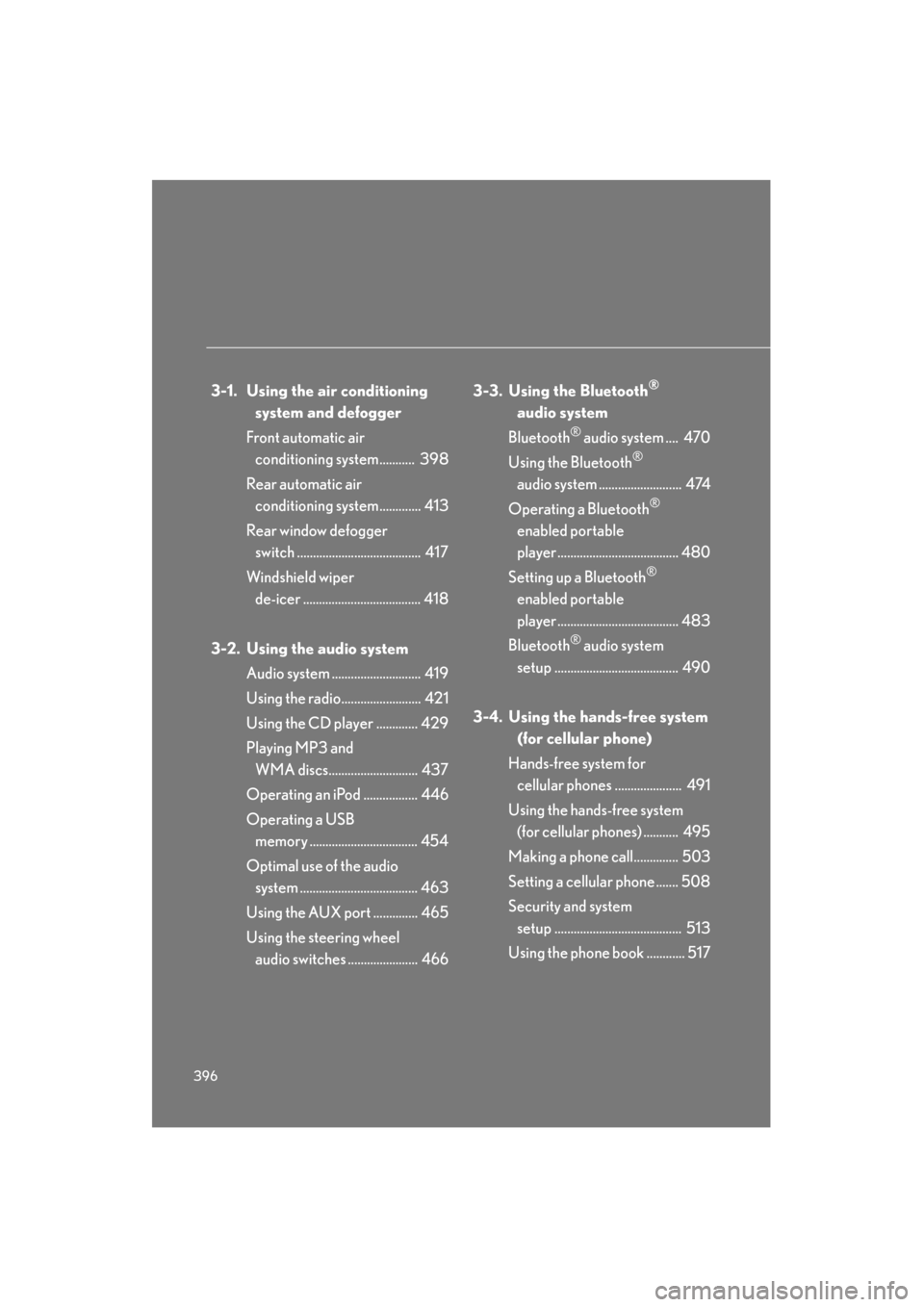
3-1. Using the air conditioning system and defogger
Front automatic air conditioning system........... 398
Rear automatic air conditioning system............. 413
Rear window defogger switch ....................................... 417
Windshield wiper de-icer ..................................... 418
3-2. Using the audio system Audio system ............................ 419
Using the radio......................... 421
Using the CD player ............. 429
Playing MP3 and WMA discs............................ 437
Operating an iPod ................. 446
Operating a USB memory .................................. 454
Optimal use of the audio system ..................................... 463
Using the AUX port .............. 465
Using the steering wheel audio switches ...................... 466 3-3. Using the Bluetooth®
audio system
Bluetooth
® audio system .... 470
Using the Bluetooth
®
audio system .......................... 474
Operating a Bluetooth
®
enabled portable
player ...................................... 480
Setting up a Bluetooth
®
enabled portable
player ...................................... 483
Bluetooth
® audio system
setup ....................................... 490
3-4. Using the hands-free system (for cellular phone)
Hands-free system for cellular phones ..................... 491
Using the hands-free system (for cellular phones) ........... 495
Making a phone call.............. 503
Setting a cellular phone ....... 508
Security and system setup ........................................ 513
Using the phone book ............ 517
GX460_OM_OM60J63U_(U).book Page 396 Thursday, March 29, 2012 9:10 AM
Page 420 of 846
419
3
Interior features
GX460_OM_OM60J63U_(U)
3-2. Using the audio system
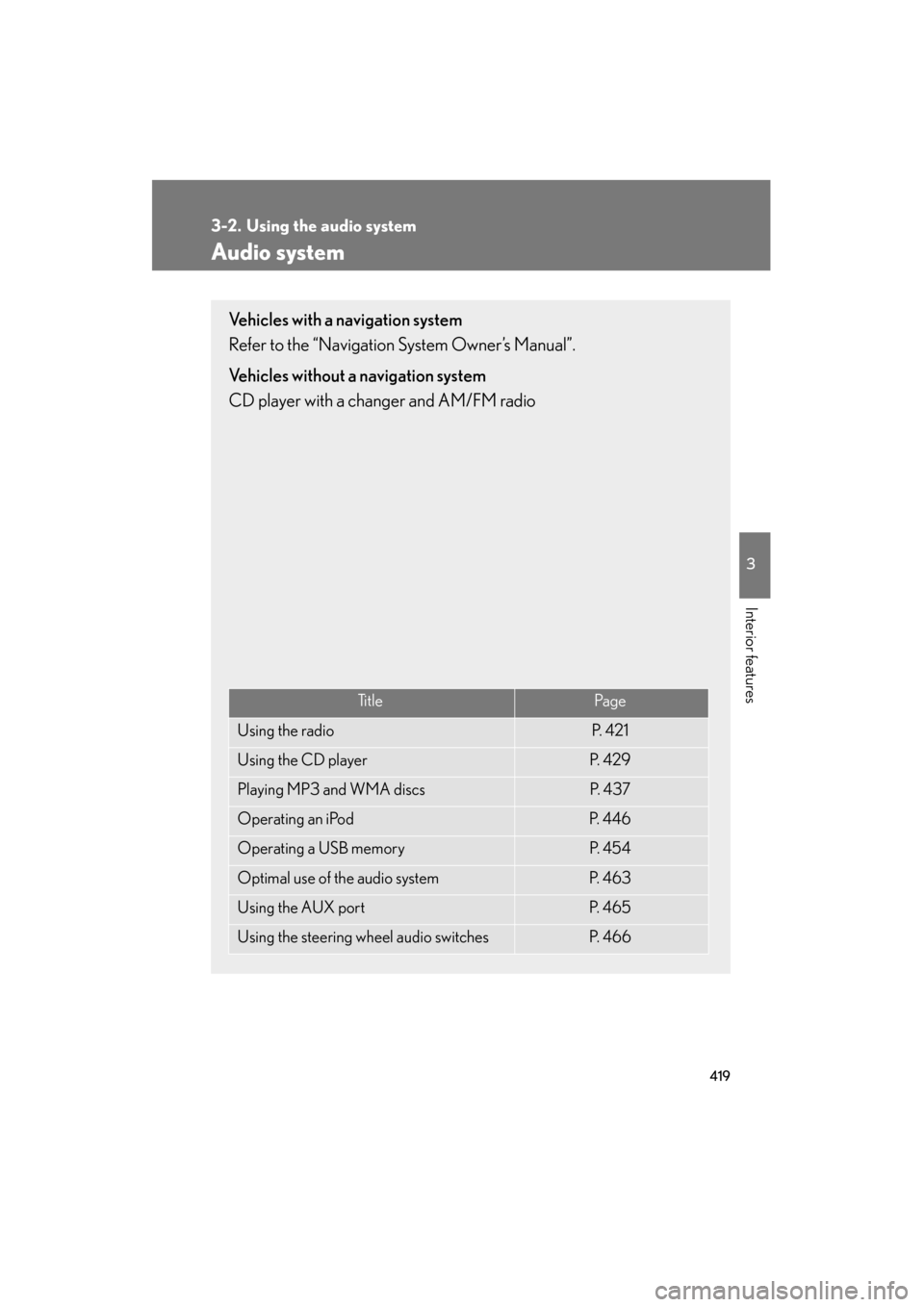
Audio system
Vehicles with a navigation system
Refer to the “Navigation System Owner’s Manual”.
Vehicles without a navigation system
CD player with a changer and AM/FM radio
Ti t l ePa g e
Using the radioP. 4 2 1
Using the CD playerP. 4 2 9
Playing MP3 and WMA discsP. 4 3 7
Operating an iPodP. 4 4 6
Operating a USB memoryP. 4 5 4
Optimal use of the audio systemP. 4 6 3
Using the AUX portP. 4 6 5
Using the steering wheel audio switchesP. 4 6 6
GX460_OM_OM60J63U_(U).book Page 419 Thursday, March 29, 2012 9:10 AM
Page 422 of 846
421
3-2. Using the audio system
3
Interior features
GX460_OM_OM60J63U_(U)
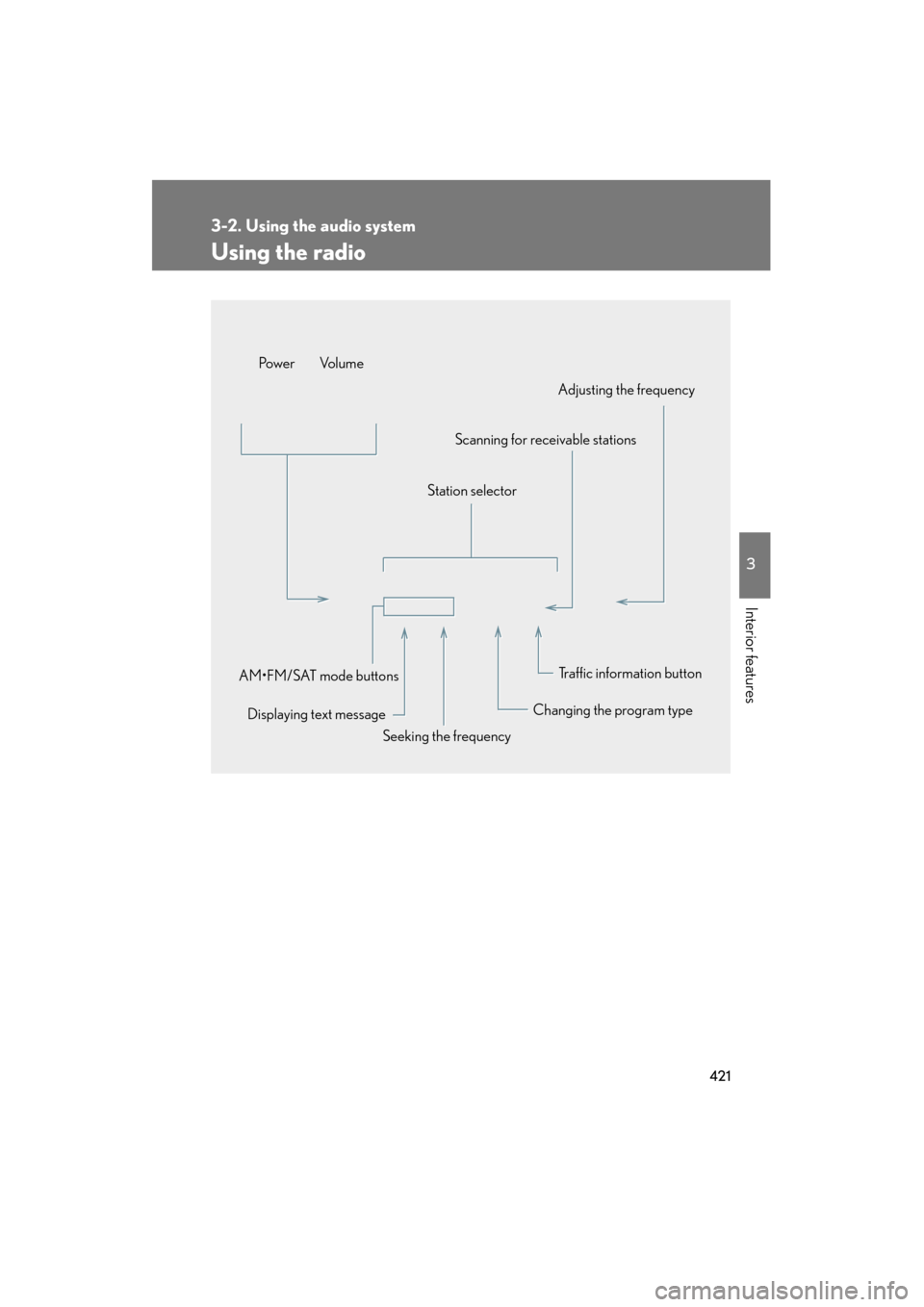
Using the radio
Traffic information button
Station selector
Changing the program type
Seeking the frequency
Displaying text message
AM•FM/SAT mode buttons Po w e r Vo l u m e
Scanning for receivable stationsAdjusting the frequency
GX460_OM_OM60J63U_(U).book Page 421 Thursday, March 29, 2012 9:10 AM
Page 423 of 846
422
3-2. Using the audio system
GX460_OM_OM60J63U_(U)
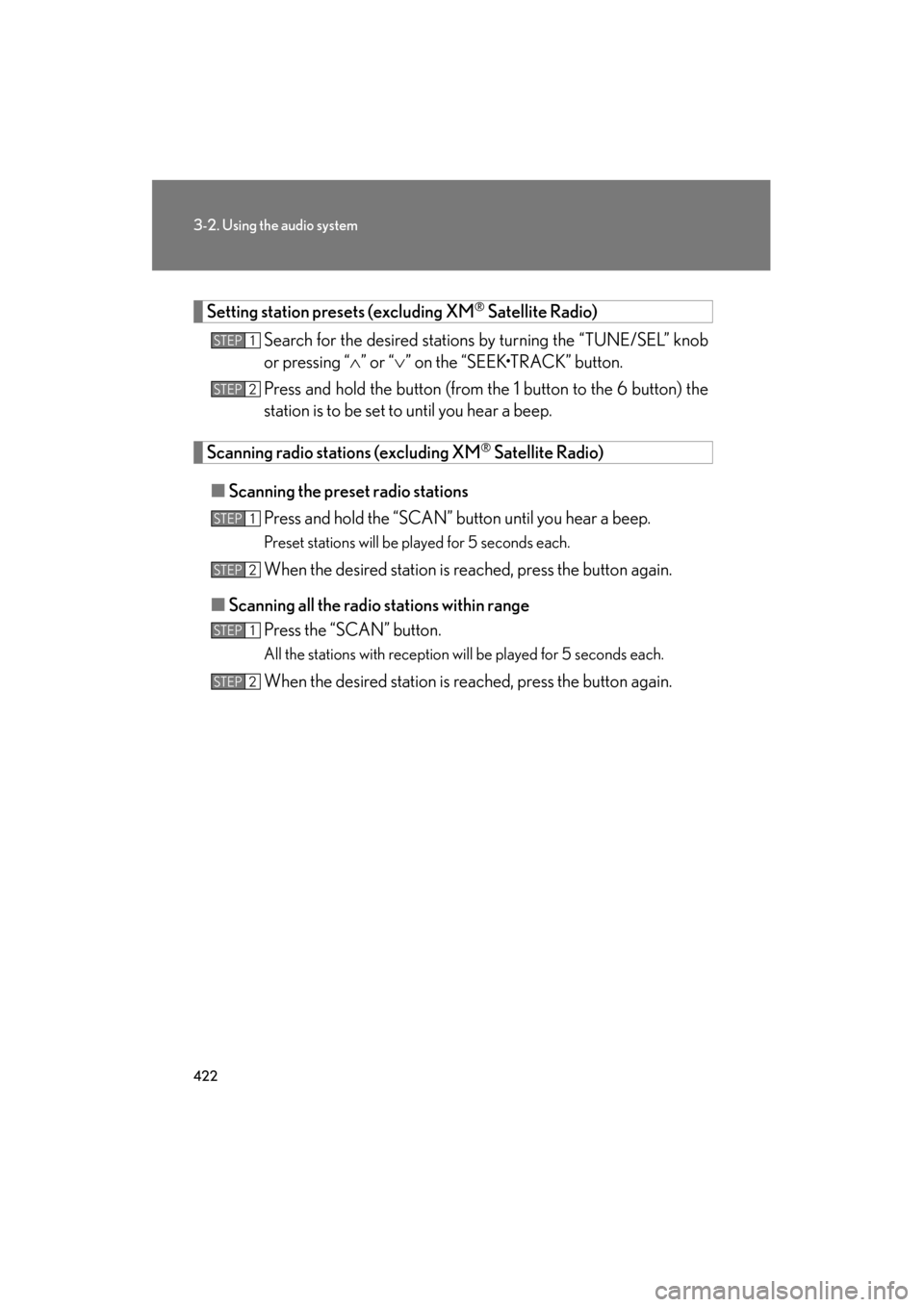
Setting station presets (excluding XM® Satellite Radio)
Search for the desired stations by turning the “TUNE/SEL” knob
or pressing “ ∧” or “ ∨” on the “SEEK•TRACK” button.
Press and hold the button (from the 1 button to the 6 button) the
station is to be set to until you hear a beep.
Scanning radio stations (excluding XM® Satellite Radio)
■ Scanning the preset radio stations
Press and hold the “SCAN” button until you hear a beep.
Preset stations will be played for 5 seconds each.
When the desired station is reached, press the button again.
■ Scanning all the radio st ations within range
Press the “SCAN” button.
All the stations with reception will be played for 5 seconds each.
When the desired station is reached, press the button again.
STEP1
STEP2
STEP1
STEP2
STEP1
STEP2
GX460_OM_OM60J63U_(U).book Page 422 Thursday, March 29, 2012 9:10 AM
Page 424 of 846
423
3-2. Using the audio system
3
Interior features
GX460_OM_OM60J63U_(U)
RDS (Radio Data System)This feature allows your radio to receive station identification information
and program information (classical, jazz, etc.) from radio stations which
broadcast this information.
■ Receiving RDS broadcasts
Press “ ∧” or “ ∨” on the “TYPE•DISC” button during FM recep-
tion.
The type of program changes each time the button is pressed.
● “ROCK”
● “EASYLIS” (Easy listening)
● “CLS/JAZZ” (Classical music and Jazz)
● “R & B” (Rhythm and Blues)
● “INFORM” (Information)
● “RELIGION”
● “MISC” (Miscellaneous)
● “ALERT” (Emergency messages)
If the system receives no RDS stations, “NO PTY” appears on the dis-
play.
Press the “SCAN” button, or “ ∧” or “∨ ” on the “SEEK•TRACK”
button.
The radio seeks or scans for stations of the relevant program type.
STEP1
STEP2
GX460_OM_OM60J63U_(U).book Page 423 Thursday, March 29, 2012 9:10 AM
Page 425 of 846
424
3-2. Using the audio system
GX460_OM_OM60J63U_(U)■
Displaying radio station names
Press the “TEXT” button.
■ Displaying radio text messages
Press the “TEXT” button twice.
A text message is displayed when “MSG” is shown on the screen.
If the text continues past the end of the display, is displayed. Press and
hold the “TEXT” button until you hear a beep.
XM® Satellite Radio (if equipped)
■ Receiving XM
® Satellite Radio
Press the “SAT” button.
The display changes as follows each time the button is pressed:
“SAT1” → “SAT2” → “SAT3”
Turn the “TUNE/SEL” knob to select the desired channel in all the
categories or press “ ∧” or “∨ ” on the “SEEK•TRACK” button to
select the desired channel in the current category.
STEP1
STEP2
GX460_OM_OM60J63U_(U).book Page 424 Thursday, March 29, 2012 9:10 AM