phone Lexus IS F 2011 User Guide
[x] Cancel search | Manufacturer: LEXUS, Model Year: 2011, Model line: IS F, Model: Lexus IS F 2011Pages: 529, PDF Size: 13.89 MB
Page 307 of 529
291
3-3. Using the Bluetooth® audio system
3
Interior features
IS F_EE
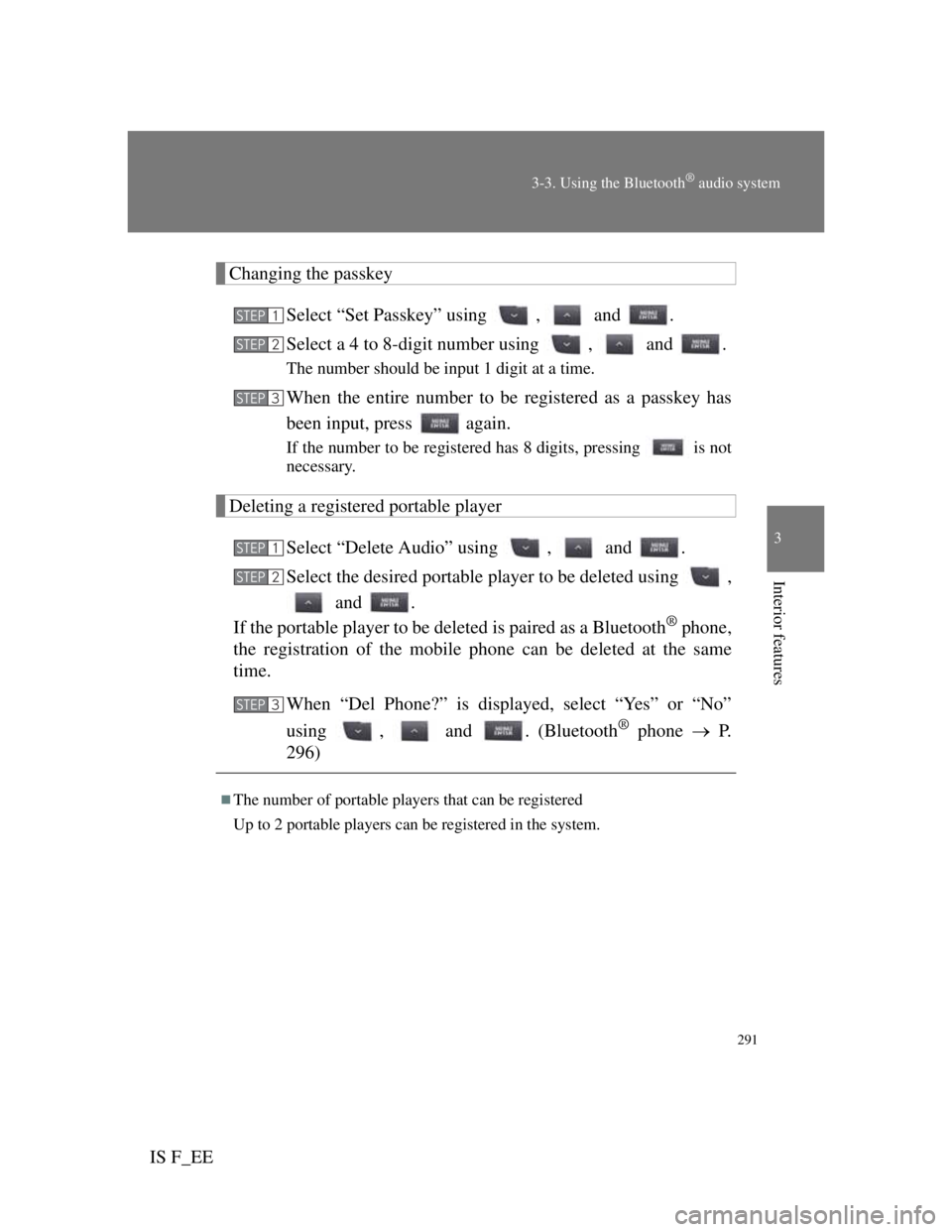
Changing the passkey
Select “Set Passkey” using , and .
Select a 4 to 8-digit number using , and .
The number should be input 1 digit at a time.
When the entire number to be registered as a passkey has
been input, press again.
If the number to be registered has 8 digits, pressing is not
necessary.
Deleting a registered portable player
Select “Delete Audio” using , and .
Select the desired portable player to be deleted using ,
and .
If the portable player to be deleted is paired as a Bluetooth
® phone,
the registration of the mobile phone can be deleted at the same
time.
When “Del Phone?” is displayed, select “Yes” or “No”
using , and . (Bluetooth
® phone P.
296)
The number of portable players that can be registered
Up to 2 portable players can be registered in the system.
STEP1
STEP2
STEP3
STEP1
STEP2
STEP3
Page 309 of 529

293
3
Interior features
IS F_EE
3-4. Using the hands-free phone system (for mobile phones)
Hands-free system for mobile phones
The hands-free system is a function that allows you to use your mobile
phone without touching it.
This system supports Bluetooth
® mobile phones. Bluetooth® is a
wireless data system that allows the mobile phone to wirelessly con-
nect to the hands-free system and make/receive calls.
Vehicles with a navigation system
Owners of models equipped with a navigation system should
refer to the “Navigation System Owner's Manual”.
Vehicles without a navigation system
Hands-free system quick guide
Setting a mobile phone. (P. 302)
Adding an entry to the phonebook. (Up to 20 names can
be stored) (P. 317)
Dialing by inputting a name. (P. 307)
STEP1
STEP2
STEP3
Page 310 of 529

294
3-4. Using the hands-free phone system (for mobile phones)
IS F_EE
TitlePage
Using the hands-free system
Using the hands-free phone system for
the first time
P. 3 0 0
Making a phone call
Making a phone call
• Dialing by inputting a name
• Speed dialing
•Redial
• Call back
Receiving a phone call
• Answering a phone call
• Refusing a phone call
Transferring a phone call
Using the call history memory
• Dialing
• Storing data in the phone book
• Deleting
P. 3 0 6
Setting a mobile phone
Functions and operation proceduresP. 3 1 0
Security and system setup
Security setting items and operation
procedures
System setup items and operation
procedures
P. 3 1 3
Page 311 of 529
295
3-4. Using the hands-free phone system (for mobile phones)
3
Interior features
IS F_EE
TitlePage
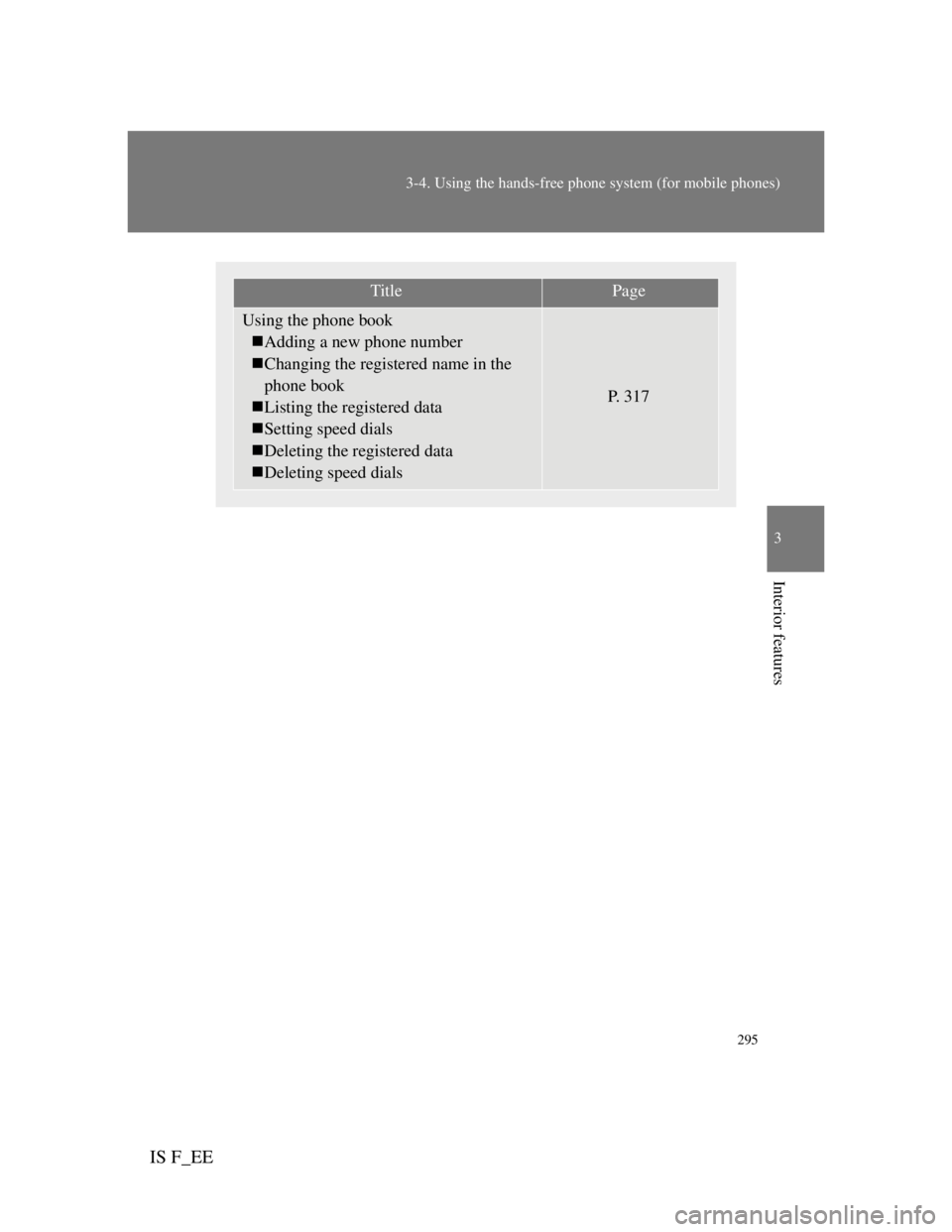
Using the phone book
Adding a new phone number
Changing the registered name in the
phone book
Listing the registered data
Setting speed dials
Deleting the registered data
Deleting speed dials
P. 3 1 7
Page 312 of 529

296
3-4. Using the hands-free phone system (for mobile phones)
IS F_EE
Conditions under which the system will not operate
If using a mobile phone that does not support Bluetooth®
If the mobile phone is switched off
If you are outside service range
If the mobile phone is not connected
If the mobile phone's battery is low
If the mobile phone is behind the seat or in the glove box or console box
If metal is covering or touching the phone
When using the hands-free system
The audio system and voice guidance are muted when making a call.
If both parties speak at the same time, it may be difficult to hear.
If the incoming call volume is overly loud, an echo may be heard.
Try to face toward the microphone as much as possible when speaking.
In the following circumstances, it may be difficult to hear the other
party:
• When driving on unpaved roads
• When driving at high speeds
• When a window is open
• When the air conditioning is blowing directly on the microphone
• When the air conditioning is set to high
Page 313 of 529
297
3-4. Using the hands-free phone system (for mobile phones)
3
Interior features
IS F_EE
When transferring ownership of the vehicle
Be sure to initialize the system to prevent personal data from being improp-
erly accessed. (P. 315)
About Bluetooth®
Compatible models
Compatible with HFP (Hands Free Profile) Ver. 1.0 or higher (Conformed:
Ver. 1.5) and OPP (Object Push Profile) Ver. 1.1.
If your mobile phone does not support HFP, you cannot enter the Blue-
tooth
® phone. If your mobile phone supports OPP alone, you cannot use the
Bluetooth® phone.
Bluetooth is a registered trademark of
Bluetooth SIG. Inc.
Page 314 of 529
298
3-4. Using the hands-free phone system (for mobile phones)
IS F_EE
Certification for the hands-free system
Page 315 of 529
299
3-4. Using the hands-free phone system (for mobile phones)
3
Interior features
IS F_EE
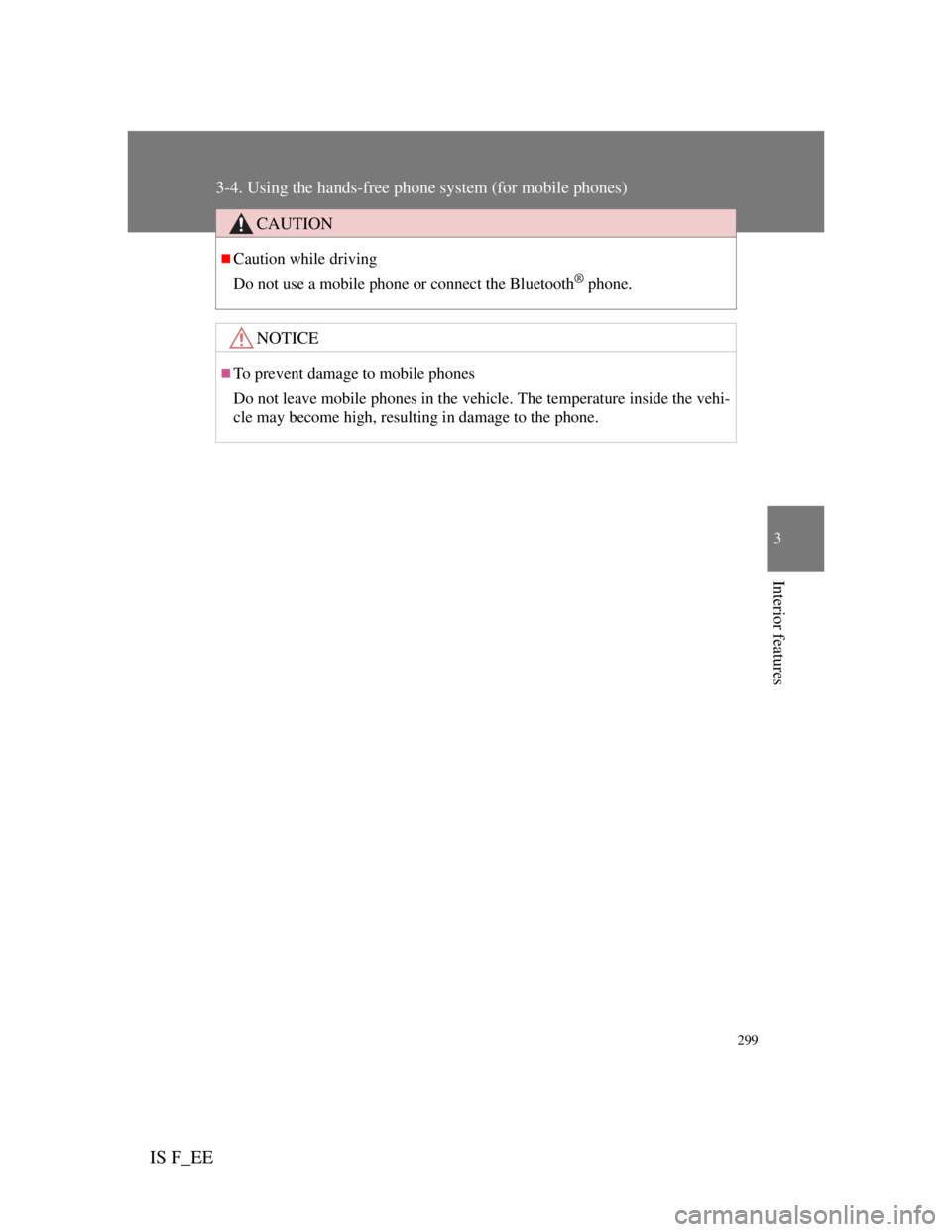
CAUTION
Caution while driving
Do not use a mobile phone or connect the Bluetooth
® phone.
NOTICE
To prevent damage to mobile phones
Do not leave mobile phones in the vehicle. The temperature inside the vehi-
cle may become high, resulting in damage to the phone.
Page 316 of 529
300
3-4. Using the hands-free phone system (for mobile phones)
IS F_EE
Using the hands-free system (for mobile phones)
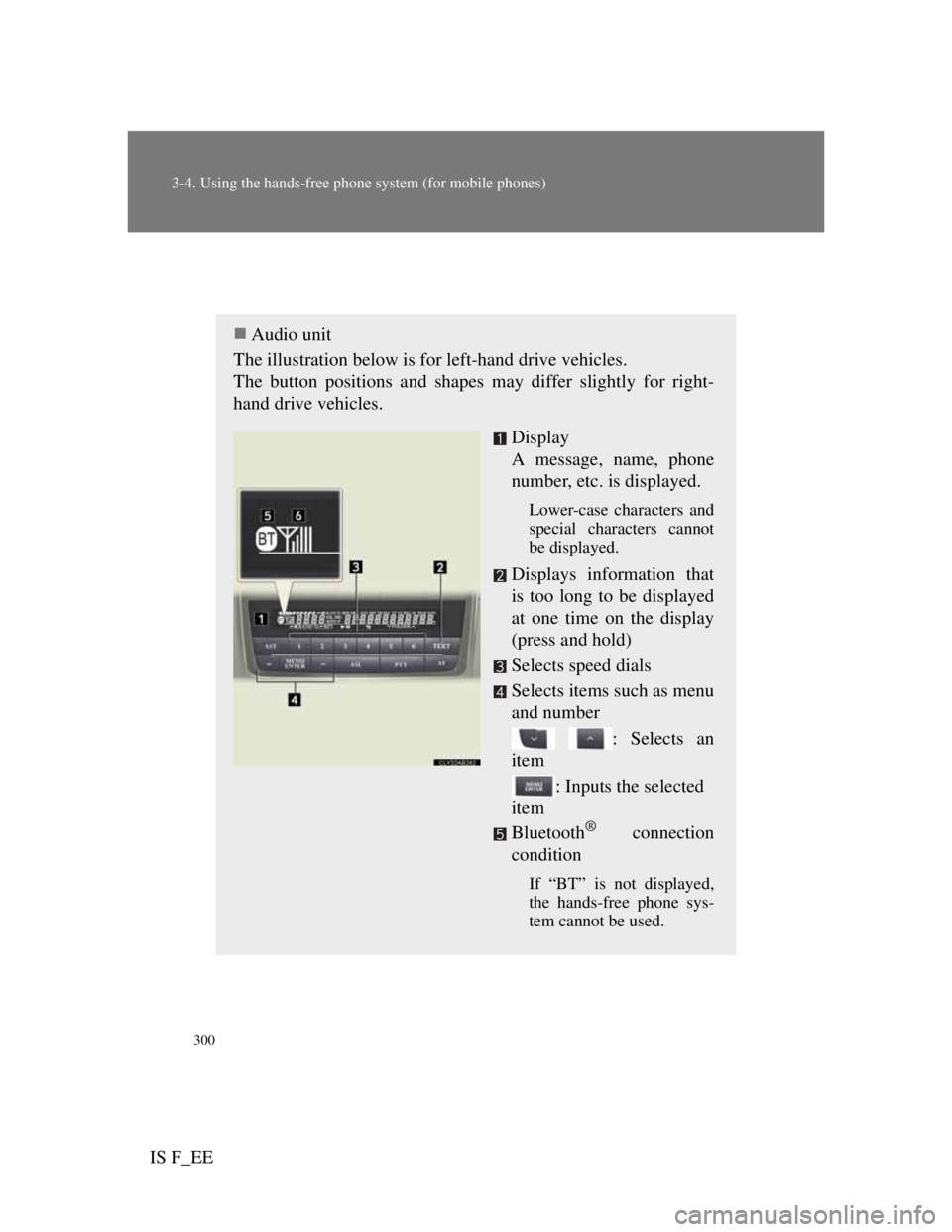
Audio unit
The illustration below is for left-hand drive vehicles.
The button positions and shapes may differ slightly for right-
hand drive vehicles.
Display
A message, name, phone
number, etc. is displayed.
Lower-case characters and
special characters cannot
be displayed.
Displays information that
is too long to be displayed
at one time on the display
(press and hold)
Selects speed dials
Selects items such as menu
and number
: Selects an
item
: Inputs the selected
item
Bluetooth
® connection
condition
If “BT” is not displayed,
the hands-free phone sys-
tem cannot be used.
Page 317 of 529

301
3-4. Using the hands-free phone system (for mobile phones)
3
Interior features
IS F_EE
Steering wheel switches
Vo l u m e
During an incoming call:
Adjusts the ring tone vol-
ume
During an ongoing call:
Adjusts the receiver vol-
ume
The voice guidance volume
cannot be adjusted using this
button.
Off-hook switch
Turns the hands-free sys-
tem on/starts a call
On-hook switch
Turns the hands-free sys-
tem off/ends a call/refuses
a call
Ta l k s w i t c h
Turns the voice command
system on (press)/turns the
voice command system off
(press and hold)
Microphone