ratio Lexus IS200d 2011 s Owners Manual
[x] Cancel search | Manufacturer: LEXUS, Model Year: 2011, Model line: IS200d, Model: Lexus IS200d 2011Pages: 609, PDF Size: 14.63 MB
Page 330 of 609

313
3-3. Using the Bluetooth® audio system
3
Interior features
IS250/220d/200d_EE
Using the Bluetooth® audio system
Audio unit
The illustration below is for left-hand drive vehicles.
The button positions and shapes may differ slightly for right-
hand drive vehicles.
Display
A message, name, num-
ber, etc. is displayed.
Lower-case characters and
special characters cannot
be displayed.
Displays information that
is too long to be displayed
at one time on the display
(press and hold)
Selects items such as menu
and number
: Selects an
item
: Inputs the selected
item
Bluetooth
® connection
condition
If “BT” is not displayed,
the Bluetooth® audio sys-
Page 331 of 609

314
3-3. Using the Bluetooth® audio system
IS250/220d/200d_EE
Using the Bluetooth® audio system for the first time
Before using the Bluetooth
® audio system, it is necessary to regis-
ter a Bluetooth® enabled portable player in the system. Follow the
procedure below to register (pair) a portable player:
Press and select “BT•A MENU” using ,
and .
Select “BT•A Setup” using , and .
Select “Pair Audio” using , and .
Select “Record Name” using , and , and
say the name to be registered after the beep.
The name to be registered will be repeated aloud.
Select “Confirm” using , and .
A passkey will be displayed.
Input the passkey into the audio player.
Refer to the manual that comes with the portable player for the
operation of the portable player.
If the portable player has a Bluetooth® phone, the phone can be
registered at the same time.
When “Pair Phone?” is displayed, select “Yes” or “No”
using , and . (Bluetooth
® phone P.
326)
STEP1
STEP2
STEP3
STEP4
STEP5
STEP6
STEP7
Page 332 of 609

315
3-3. Using the Bluetooth® audio system
3
Interior features
IS250/220d/200d_EE
Menu list of the Bluetooth® audio system
First menuSecond
menuThird menuOperation detail
“Setup”
“BT•A
Setup”
“Pair Audio”Registering a portable player
“Select Audio”Selecting a portable player to
be used
“Change Name”Changing the registered
name of a portable player
“List Audios”Listing the registered porta-
ble players
“Set Passkey”Changing the passkey
“Delete Audio”Deleting a registered porta-
ble player
“System
Setup”
“Guidance Vol”Setting voice guidance vol-
ume
“Device Name”Displaying the Bluetooth®
device address and name
“Initialize”Initializing the system
Operations that cannot be performed while driving
Operating the system with , and
Registering a portable player to the system
Changing the passkey
P. 3 2 1
Page 333 of 609

316
3-3. Using the Bluetooth® audio system
IS250/220d/200d_EE
Operating a Bluetooth® enabled portable player
The illustration below is for left-hand drive vehicles.
The button positions and shapes may differ slightly for right-hand
drive vehicles.
Repeat play
Playback Playback/Pause
Album selec-
Track selec- Random play-
Power Vol-Displays text message
BT•A menu
Page 336 of 609

319
3-3. Using the Bluetooth® audio system
3
Interior features
IS250/220d/200d_EE
Setting up a Bluetooth® enabled portable player
Registering a portable player in the Bluetooth® audio system allows
the system to function. The following functions can be used for regis-
tered portable players:
Functions and operation procedures
To enter the menu for each function, follow the steps below.
Press to select “BT•A MENU” or press the off-
hook switch and select “Setup” using , and
.
Select “BT•A Setup” using , and .
Select one of the following items using , and
:
Registering a portable player
“Pair Audio”
Selecting a portable player to be used
“Select Audio”
Changing the registered name of a portable player
“Change Name”
Listing the registered portable players
“List Audios”
Changing the passkey
“Set Passkey”
Deleting a registered portable player
STEP1
STEP2
STEP3
Page 338 of 609

321
3-3. Using the Bluetooth® audio system
3
Interior features
IS250/220d/200d_EE
Changing the passkey
Select “Set Passkey” using , and .
Select a 4 to 8-digit number using , and .
The number should be input 1 digit at a time.
When the entire number to be registered as a passkey has
been input, press again.
If the number to be registered has 8 digits, pressing is not
necessary.
Deleting a registered portable player
Select “Delete Audio” using , and .
Select the desired portable player to be deleted using ,
and .
If the portable player to be deleted is paired as a Bluetooth
® phone,
the registration of the mobile phone can be deleted at the same
time.
When “Del Phone?” is displayed, select “Yes” or “No”
using , and . (Bluetooth
® phone P.
326)
The number of portable players that can be registered
Up to 2 portable players can be registered in the system.
STEP1
STEP2
STEP3
STEP1
STEP2
STEP3
Page 339 of 609

322
3-3. Using the Bluetooth® audio system
IS250/220d/200d_EE
Bluetooth® audio system setup
System setup items and operation procedures
To enter the menu of each setting, follow the steps below.
Press to select “BT•A MENU” or press the off-
hook switch and select “Setup” using , and
.
Select “System Setup” using , and .
Select one of the following items using , and
:
Setting voice guidance volume
“Guidance Vol” (P. 344)
Displaying the Bluetooth
® device address and name
“Device Name” (P. 345)
Initializing the system
STEP1
STEP2
STEP3
Page 341 of 609
324
3-4. Using the hands-free phone system (for mobile phones)
IS250/220d/200d_EE
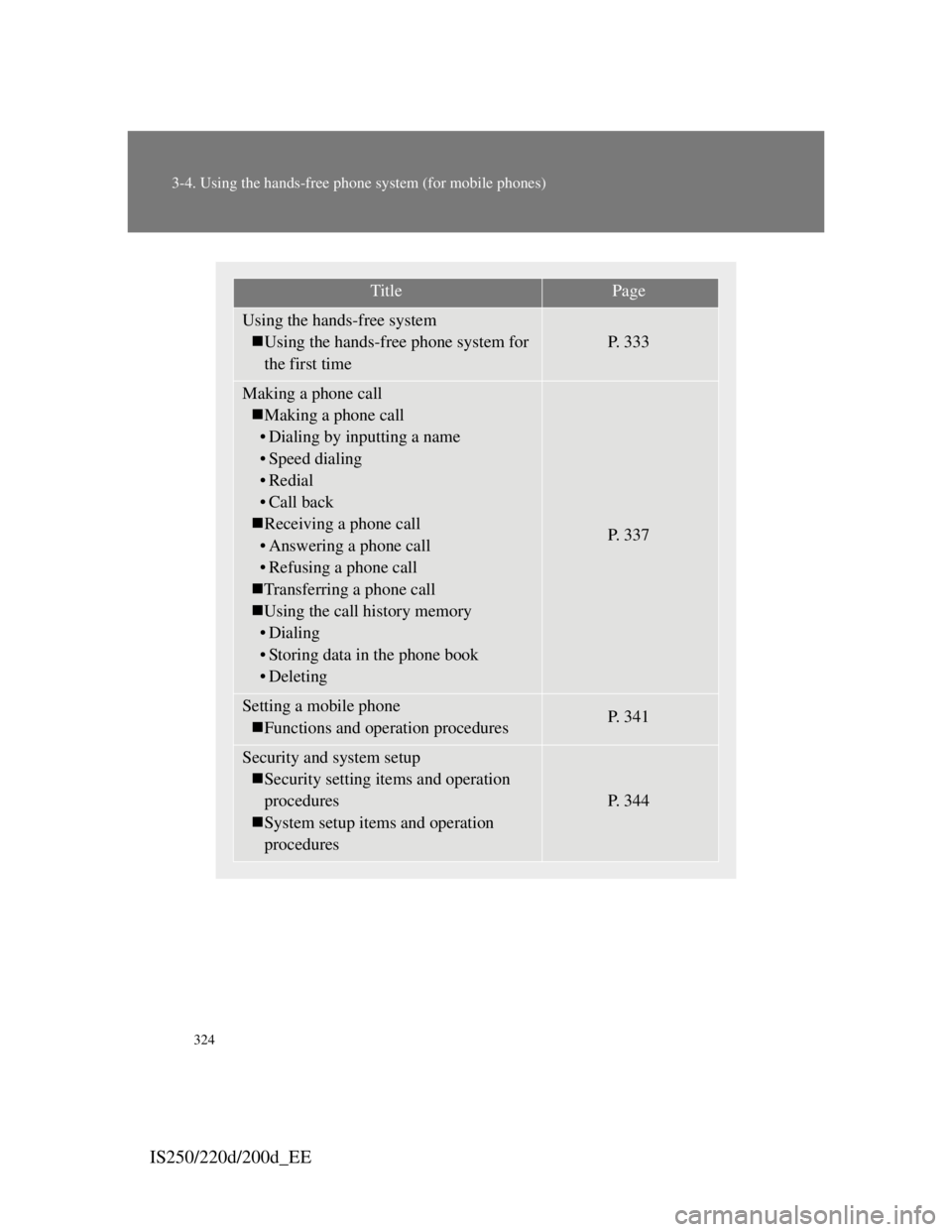
TitlePage
Using the hands-free system
Using the hands-free phone system for
the first time
P. 3 3 3
Making a phone call
Making a phone call
• Dialing by inputting a name
• Speed dialing
•Redial
• Call back
Receiving a phone call
• Answering a phone call
• Refusing a phone call
Transferring a phone call
Using the call history memory
• Dialing
• Storing data in the phone book
• Deleting
P. 3 3 7
Setting a mobile phone
Functions and operation proceduresP. 3 4 1
Security and system setup
Security setting items and operation
procedures
System setup items and operation
procedures
P. 3 4 4
Page 348 of 609
331
3-4. Using the hands-free phone system (for mobile phones)
3
Interior features
IS250/220d/200d_EE
Using the hands-free system (for mobile phones)
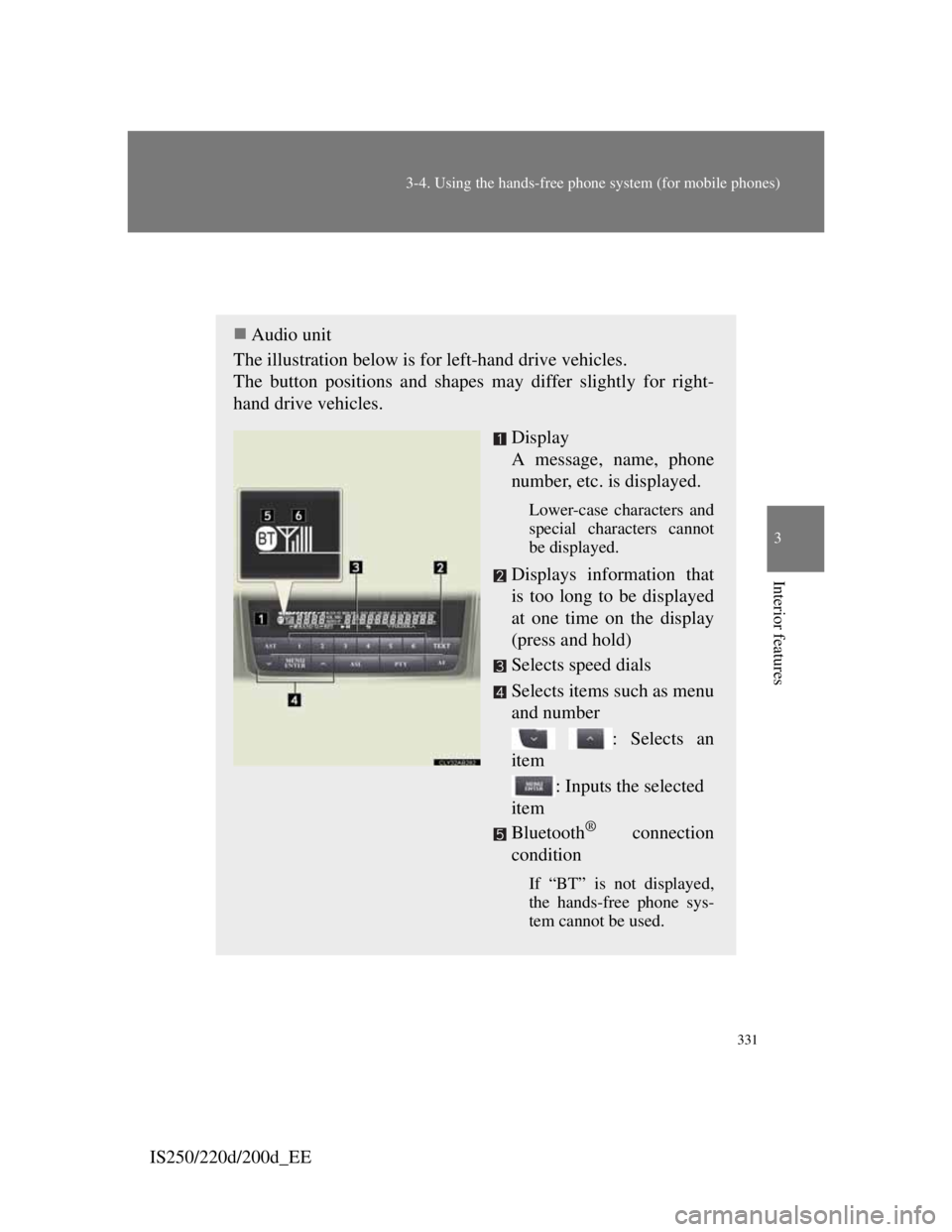
Audio unit
The illustration below is for left-hand drive vehicles.
The button positions and shapes may differ slightly for right-
hand drive vehicles.
Display
A message, name, phone
number, etc. is displayed.
Lower-case characters and
special characters cannot
be displayed.
Displays information that
is too long to be displayed
at one time on the display
(press and hold)
Selects speed dials
Selects items such as menu
and number
: Selects an
item
: Inputs the selected
item
Bluetooth
® connection
condition
If “BT” is not displayed,
the hands-free phone sys-
tem cannot be used.
Page 350 of 609

333
3-4. Using the hands-free phone system (for mobile phones)
3
Interior features
IS250/220d/200d_EE
Using the hands-free phone system for the first time
Before using the hands-free phone system, it is necessary to regis-
ter a mobile phone in the system. The system will enter phone reg-
istration mode automatically when starting the system with no
mobile phone registered. Follow the procedure below to register
(pair) a mobile phone:
Press the off-hook switch or the talk switch, and select “Pair
Phone” using , and .
Select “Record Name” using , and , and
say the name to be registered after the beep.
The name to be registered will be repeated aloud.
Select “Confirm” using , and .
A passkey will be displayed.
Input the passkey into the mobile phone.
Refer to the manual that comes with the mobile phone for the
operation of the phone.
If the mobile phone has a Bluetooth® audio player, the audio
player can be registered at the same time.
When “Pair Audio?” is displayed, select “Yes” or “No”
using , and . (Bluetooth
® audio player
P. 309)
STEP1
STEP2
STEP3
STEP4
STEP5