air conditioning Lexus IS200t 2017 s User Guide
[x] Cancel search | Manufacturer: LEXUS, Model Year: 2017, Model line: IS200t, Model: Lexus IS200t 2017Pages: 676, PDF Size: 149.78 MB
Page 307 of 676
3074-5. Using the driving support systems
4
Driving
IS200t_EE(OM53D77E)
WARNING
●The shape of the obstacle may prevent a sensor from detecting it. Pay particular
attention to the following obstacles:
• Wires, fences, ropes, etc.
• Cotton, snow and other materials that absorb sound waves
• Sharply-angled objects
• Low obstacles
• Tall obstacles with upper sections projecting outwards in the direction of your vehicle
• People, animals and other moving objects
• People wearing certain types of clothing
●The following situations may occur during use.
• Depending on the shape of the obstacle and other factors, the detection distance may shorten, or detection may be impossible.
• Obstacles may not be detected if they are too close to the sensor.
• There will be a short delay between obstacle detection and display. Even at slow speeds, there is a possibility that the obstacle will come within the sensor’s detec-
tion areas before the display is shown and the buzzer sounds.
• Thin posts or objects lower than the sensor may not be detected when approached, even if they have been detected once.
• It might be difficult to hear beeps due to the volume of audio system or air flow
noise of the air conditioning system.
NOTICE
■When using Lexus parking assist-sensor
In the following situations, the system may not function correctly due to a sensor mal-
function, etc. Have the vehicle checked by any authorized Lexus retailer or Lexus
authorized repairer, or any reliable repairer.
●The Lexus parking assist-sensor operation display flashes, and a buzzer sounds when
no obstacles are detected.
●If the area around a sensor collides with something, or is subjected to strong impact.
●If the bumper collides with something.
●If the display shows continuously without beeping, except when the buzzer mute
switch has been turned on.
●If a display error occurs, first check the sensor.
If the error occurs even if there is no ice, snow or mud on the sensor, it is likely that the
sensor is malfunctioning.
■Notes when washing the vehicle
Do not apply intensive bursts of water or steam to the sensor area.
Doing so may result in the sensor malfunctioning.
Page 338 of 676
3384-5. Using the driving support systems
IS200t_EE(OM53D77E)
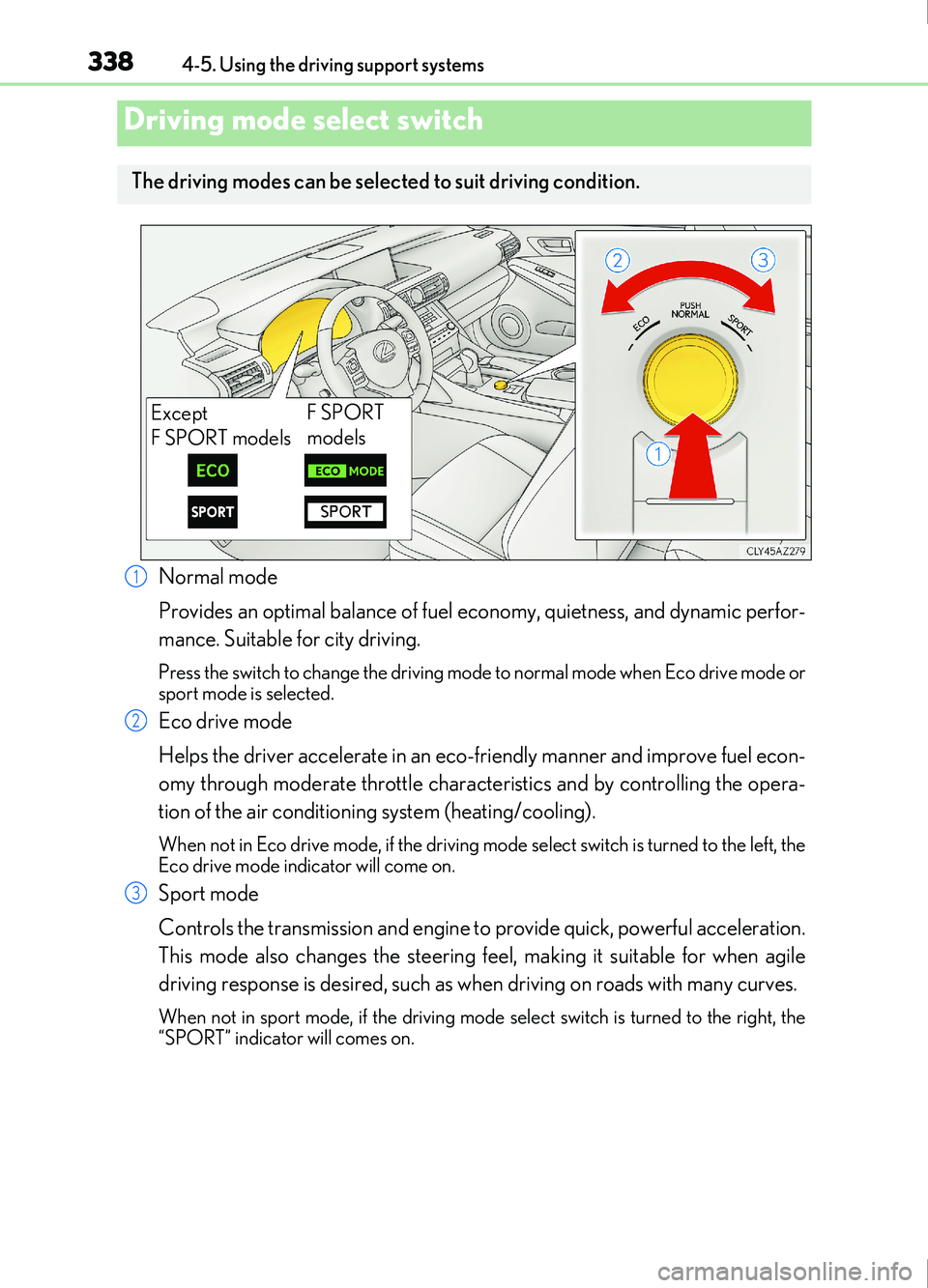
Normal mode
Provides an optimal balance of fuel economy, quietness, and dynamic perfor-
mance. Suitable for city driving.
Press the switch to change the driving mode to normal mode when Eco drive mode or
sport mode is selected.
Eco drive mode
Helps the driver accelerate in an eco-friendly manner and improve fuel econ-
omy through moderate throttle characteristics and by controlling the opera-
tion of the air conditioning system (heating/cooling).
When not in Eco drive mode, if the driving mode select switch is turned to the left, the
Eco drive mode indicator will come on.
Sport mode
Controls the transmission and engine to provide quick, powerful acceleration.
This mode also changes the steering feel, making it suitable for when agile
driving response is desired, such as when driving on roads with many curves.
When not in sport mode, if the driving mode se lect switch is turned to the right, the
“SPORT” indicator will comes on.
Driving mode select switch
The driving modes can be select ed to suit driving condition.
Except
F SPORT modelsF SPORT
models
1
2
3
Page 339 of 676
3394-5. Using the driving support systems
4
Driving
IS200t_EE(OM53D77E)
■Operation of the air conditioning system in Eco drive mode
Eco drive mode controls the heating/cooling operations and fan speed of the air condi-
tioning system to enhance fuel efficiency ( P. 450). To improve air conditioning perfor-
mance, adjust the fan speed or turn off Eco drive mode.
■Sport mode automatic deactivation
Sport mode is automatically deactivated if the engine switch is turned off after driving in
sport mode.
■Driving mode pop-up display (vehicles with a 10.3-inch display)
When the driving mode is changed, the selected dr iving mode will be temporarily dis-
played on the side display. ( P. 448)
Page 353 of 676

3535-1. Basic Operations
5
Lexus Display Audio system
IS200t_EE(OM53D77E)
■“MENU” screen
To display the “MENU” screen, press the “MENU” button on the controller unit.
ButtonFunction
“Audio”Display the audio top screen
( P. 378, 380, 386, 390, 395, 404)
“Climate”Display the air conditioning control screen ( P. 450)
“Telephone”Display the phone top screen ( P. 405)
“Car” Display the fuel consumption screen ( P. 115)
“Info”Display the “Information” screen ( P. 433)
“Setup”Display the “Setup” screen ( P. 362)
“Display”Display the display settings screen ( P. 367)
Page 426 of 676
4265-11. Bluetooth®
IS200t_EE(OM53D77E)
■When using the Bluetooth® audio system
●In the following situations, the system may not function.
• If the portable audio player is turned off
• If the portable audio player is not connected
• If the portable audio player’s battery is low
●There may be a delay if a cellular phone connection is made during Bluetooth® audio
play.
●Depending on the type of portable audio player that is connected to the system, opera-
tion may differ slightly and certain functions may not be available.
■When using the hands-free system
●The audio system is muted when making a call.
●If both parties speak at the same time, it may be difficult to hear.
●If the received call volume is over ly loud, an echo may be heard.
If the Bluetooth® phone is too close to the system, quality of the sound may deteriorate
and connection status may deteriorate.
●In the following situations, it may be difficult to hear the other party:
• When driving on unpaved roads
• When driving at high speeds
•If a window is open
• If the air conditioning is blowing directly on the microphone
• If there is interference from the network of the cellular phone
●Depending on the type of phone, ce rtain functions may not be available.
■Conditions under which the system will not operate
●If using a cellular phone that does not support Bluetooth®
●If the cellular phone is turned off
●If you are outside of cellular phone service coverage
●If the cellular phone is not connected
●If the cellular phone’s battery is low
●When outgoing calls are controlled, due to heavy traffic on phone lines, etc.
●When the cellular phone itself cannot be used
●When transferring phonebook data from the cellular phone
Bluetooth®
Page 443 of 676

443
6Interior features
IS200t_EE(OM53D77E)
6-1. Basic operation of the Remote Touch screen
Remote Touch ............................. 444
10.3-inch display ........................448
6-2. Using the air conditioning system
Automatic air conditioning system ......................................... 450
Heated steering wheel/ seat heaters/
seat ventilators .........................463
6-3. Using the interior lights Interior lights list..........................465• Interior lights ..........................466
• Personal lights ....................... 466
6-4. Using the storage features List of storage features ............468• Glove box ...............................469
• Console box...........................469
•Cup holders/Bottle holders ........................470
Trunk features.............................. 472 6-5. Using the other interior
features
Other interior features ............ 475 • Sun visors ................................ 475
• Vanity mirrors ....................... 475
• Clock ........................................ 475
• Power outlet........................... 476
• Armrest.....................................477
• Rear sunshade .......................477
• Assist grips ............................. 479
• Coat hooks ............................. 479
ERA-GLONASS ......................480
Page 447 of 676
4476-1. Basic operation of the Remote Touch screen
6
Interior features
RX350/RX200t_EE_OM48E36E
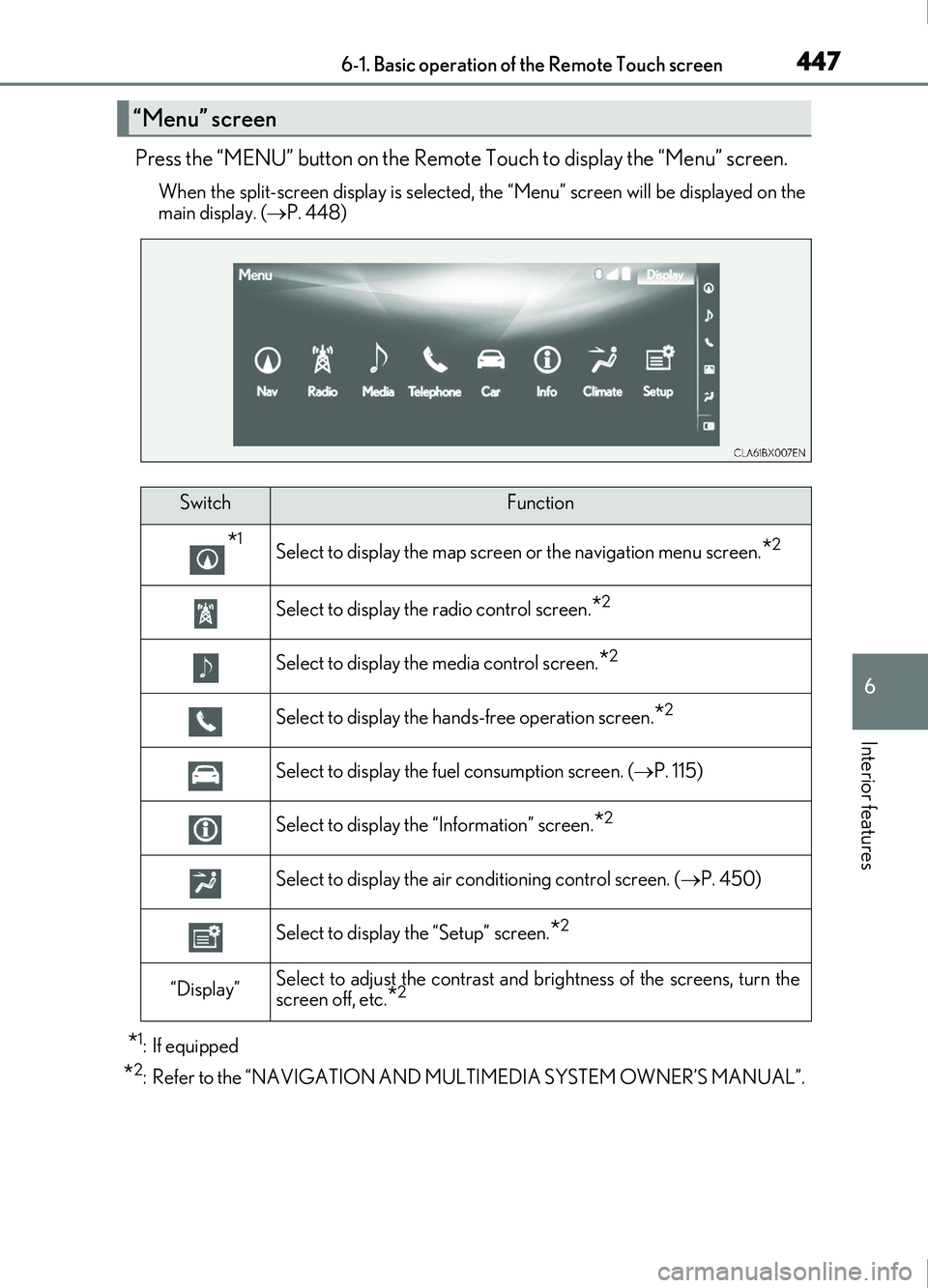
Press the “MENU” button on the Remote Touch to display the “Menu” screen.
When the split-screen display is selected, the “Menu” screen will be displayed on the
main display. ( P. 448)
*1: If equipped
*2: Refer to the “NAVIGATION AND MULTIMEDIA SYSTEM OWNER’S MANUAL”.
“Menu” screen
SwitchFunction
*1Select to display the map screen or the navigation menu screen.*2
Select to display the radio control screen.*2
Select to display the media control screen.*2
Select to display the hand s-free operation screen.*2
Select to display the fuel consumption screen. ( P. 115)
Select to display the “Information” screen.*2
Select to display the air conditioning control screen. ( P. 450)
Select to display the “Setup” screen.*2
“Display”Select to adjust the contrast and brightness of the screens, turn the
screen off, etc.*2
Page 448 of 676
4486-1. Basic operation of the Remote Touch screen
RX350/RX200t_EE_OM48E36E
■Full screen display
The following functions can be displayed full screen:•Initial screen
•“Menu” screen ( P. 447)
•Map screen
*
•Audio screen*
• Fuel consumption screen ( P. 115)
• Air conditioning control screen ( P. 450)
*: Refer to the “NAVIGATION AND MULTIMEDIA SYSTEM OWNER’S MAN-
UAL”.
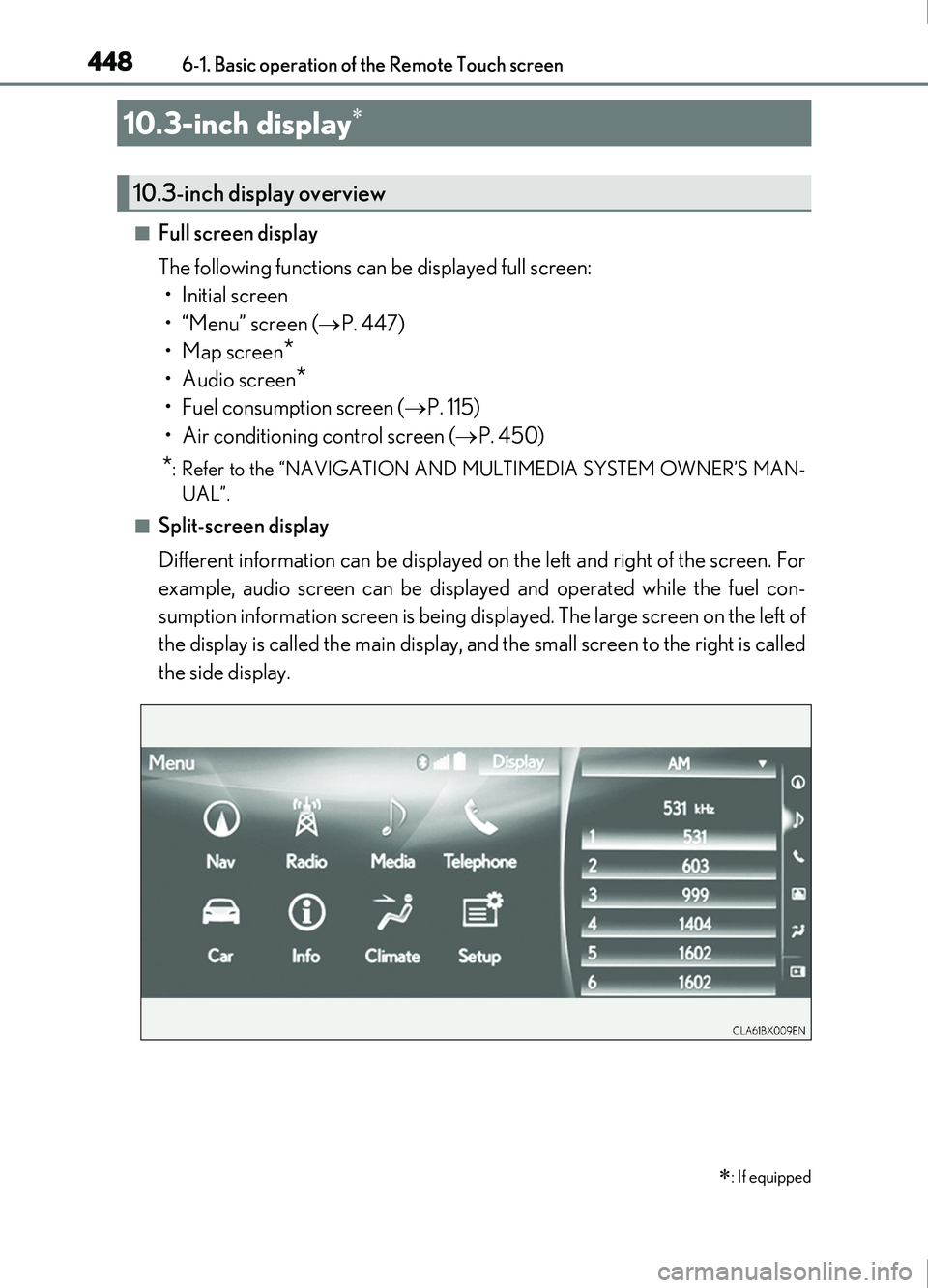
■Split-screen display
Different information can be displayed on the left and right of the screen. For
example, audio screen can be displayed and operated while the fuel con-
sumption information screen is being displayed. The large screen on the left of
the display is called the main display, and the small screen to the right is called
the side display.
10.3-inch display
: If equipped
10.3-inch display overview
Page 449 of 676
4496-1. Basic operation of the Remote Touch screen
6
Interior features
RX350/RX200t_EE_OM48E36E
■Selecting the operation screen
When selecting the main display, move the Remote Touch knob to the left.
When selecting the side display, move the Remote Touch knob to the right.
■ Main display
For details about the functions and operation of the main display, refer to the
respective section and “NAVIGATION AND MULTIMEDIA SYSTEM
OWNER’S MANUAL”.
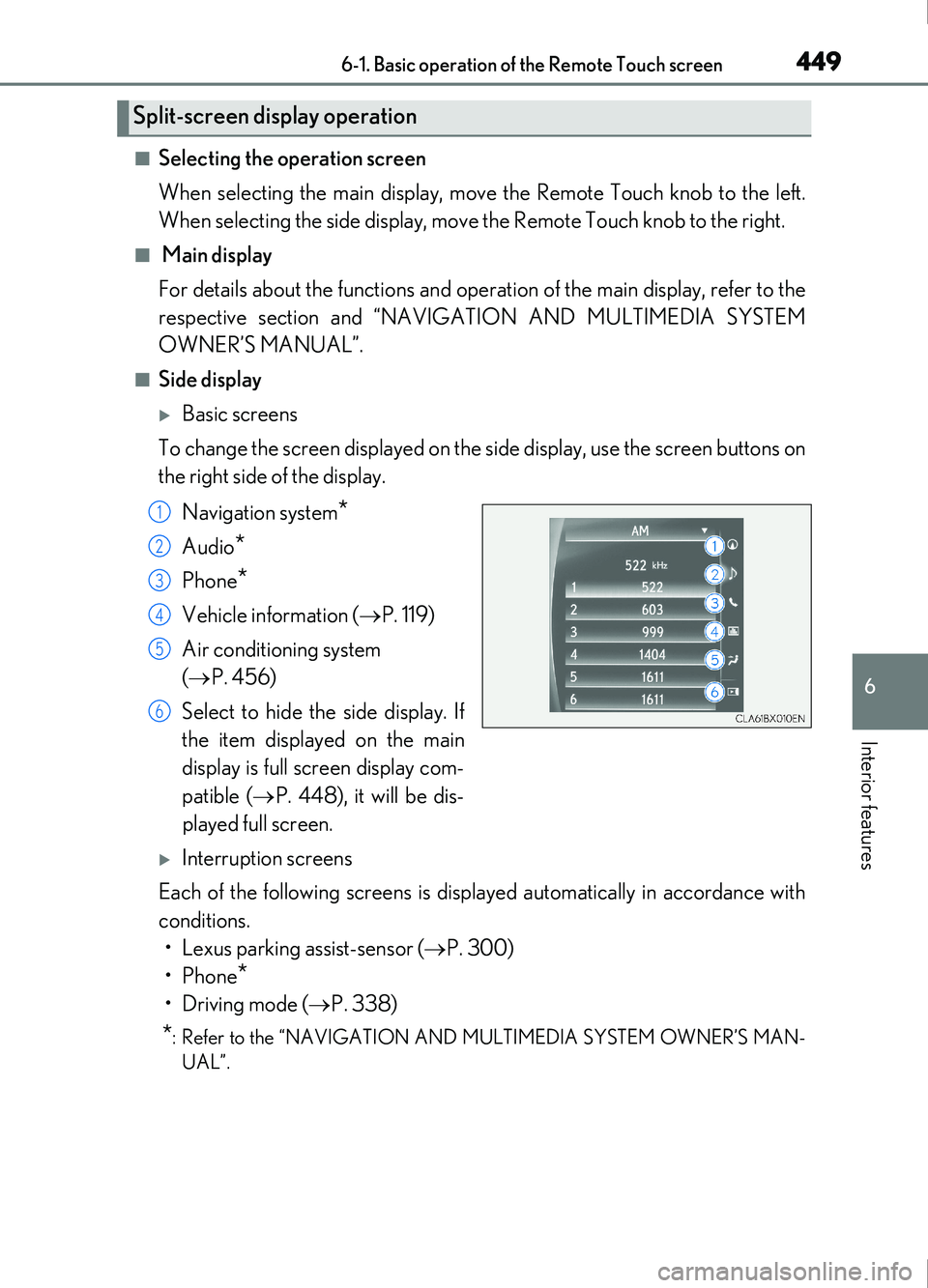
■Side display
Basic screens
To change the screen displayed on the side display, use the screen buttons on
the right side of the display.
Navigation system
*
Audio*
Phone*
Vehicle information ( P. 119)
Air conditioning system
( P. 456)
Select to hide the side display. If
the item displayed on the main
display is full screen display com-
patible ( P. 448), it will be dis-
played full screen.
Interruption screens
Each of the following screens is displayed automatically in accordance with
conditions. • Lexus parking assist-sensor ( P. 300)
•Phone
*
•Driving mode ( P. 338)
*: Refer to the “NAVIGATION AND MULTIMEDIA SYSTEM OWNER’S MAN-
UAL”.
Split-screen display operation
1
2
3
4
5
6
Page 450 of 676

450
IS200t_EE(OM53D77E)6-2. Using the air conditioning system
Automatic air conditioning system
Air outlets and fan speed are automatically adjusted according to the tem-
perature setting.
Vehicles with a Lexus Display Audio system: Press the “MENU” button on the
Lexus Display Audio controller, then sele
ct “Climate” to display the air condi-
tioning operation screen.
For details on the Lexus Display Audio controller, refer to “Lexus Display
Audio controller” on P. 354.
Vehicles with a 10.3-inch display: Pr ess the “MENU” button on the Remote
Touch, then select to display the ai r conditioning control screen. The air
conditioning system can be displayed and operated on the side display.
( P. 449)
The illustrations below are for left-hand drive vehicles.
The button positions and shapes will di ffer for right-hand drive vehicles.
Also, the display and button positions will differ depending on the type of the
system.