phone Lexus IS200t 2017 s User Guide
[x] Cancel search | Manufacturer: LEXUS, Model Year: 2017, Model line: IS200t, Model: Lexus IS200t 2017Pages: 676, PDF Size: 149.78 MB
Page 365 of 676

3655-2. Setup
5
Lexus Display Audio system
IS200t_EE(OM53D77E)
■USB memory
When saving the images to a USB memory device, name the folder that the images are
saved to “Image”.
●Compatible device formats
The following device format can be used: • The image’s file format must be JPEG
• USB communication format: USB2.0 FS (480 Mbps)
• File system format: FAT16/32 (Windows)
• Correspondence class: Mass storage class
●JPEG file compatibility
Compatible image size: Maximum 10 MB
Go to “Delete personal data”: “MENU” button “Setup” “General”
“Delete personal data”
Select “Delete”.
Check carefully beforehand, as data cannot be retrieved once deleted.
The following personal data will be deleted or changed to its default settings.
• Phonebook data
•Voice tag
• Call history data
•Favorite data
• Bluetooth
® devices data
• Phone sound settings
• Detailed Bluetooth
® settings
• Audio/video setting
• Customized image data
•FM info setting
• Software update history
• Software update detail information
• Phone display setting
• Contact/call history setting
• Messaging setting
NOTICE
■To prevent damage to the USB memory device or its terminals
P. 394
Deleting personal data
1
2
Page 387 of 676
3875-6. Using an external device
5
Lexus Display Audio system
IS200t_EE(OM53D77E)
■About iPod
●“Made for iPod” and “Made for iPhone” mean that an electronic accessory has been
designed to connect specifically to an iPod, or iPhone, respectively, and has been certi-
fied by the developer to meet Apple performance standards.
●Apple is not responsible for the operation of this device or its compliance with safety
and regulatory standards. Please note that th e use of this accessory with iPod or iPhone
may affect wireless performance.
●iPhone, iPod, iPod classic, iPod nano and iPod touch are trademarks of Apple Inc., reg-
istered in the U.S. and other countries.
■iPod cover art
●Depending on the iPod and songs in the iPod, iPod cover art may be displayed.
●This function can be changed to on/off. ( P. 374)
●It may take time to display iPod cover art, and the iPod may not be operated while the
cover art display is in process.
■iPod functions
●When an iPod is connected and the audio sour ce is changed to iPod mode, the iPod will
resume play from the same poin t in which it was last used.
●Depending on the iPod that is connected to the system, certain functions may not be
available. If a function is unavailable due to a malfunction (as opposed to a system spec-
ification), disconnecting the device and reconnecting it may resolve the problem.
●Depending on the iPod, while connected to the system, the iPod cannot be operated
with its own controls. It is necessary to use the controls of the vehicle’s audio system
instead.
●When the battery level of an iPod is very low, the iPod may not operate. If so, charge the
iPod before use.
●Compatible models ( P. 389)
Page 389 of 676
3895-6. Using an external device
5
Lexus Display Audio system
IS200t_EE(OM53D77E)
■iPod problems
To resolve most problems encountered when using your iPod, disconnect your iPod from
the vehicle iPod connection and reset it. For instructions on how to reset your iPod, refer
to your iPod Owner’s Manual.
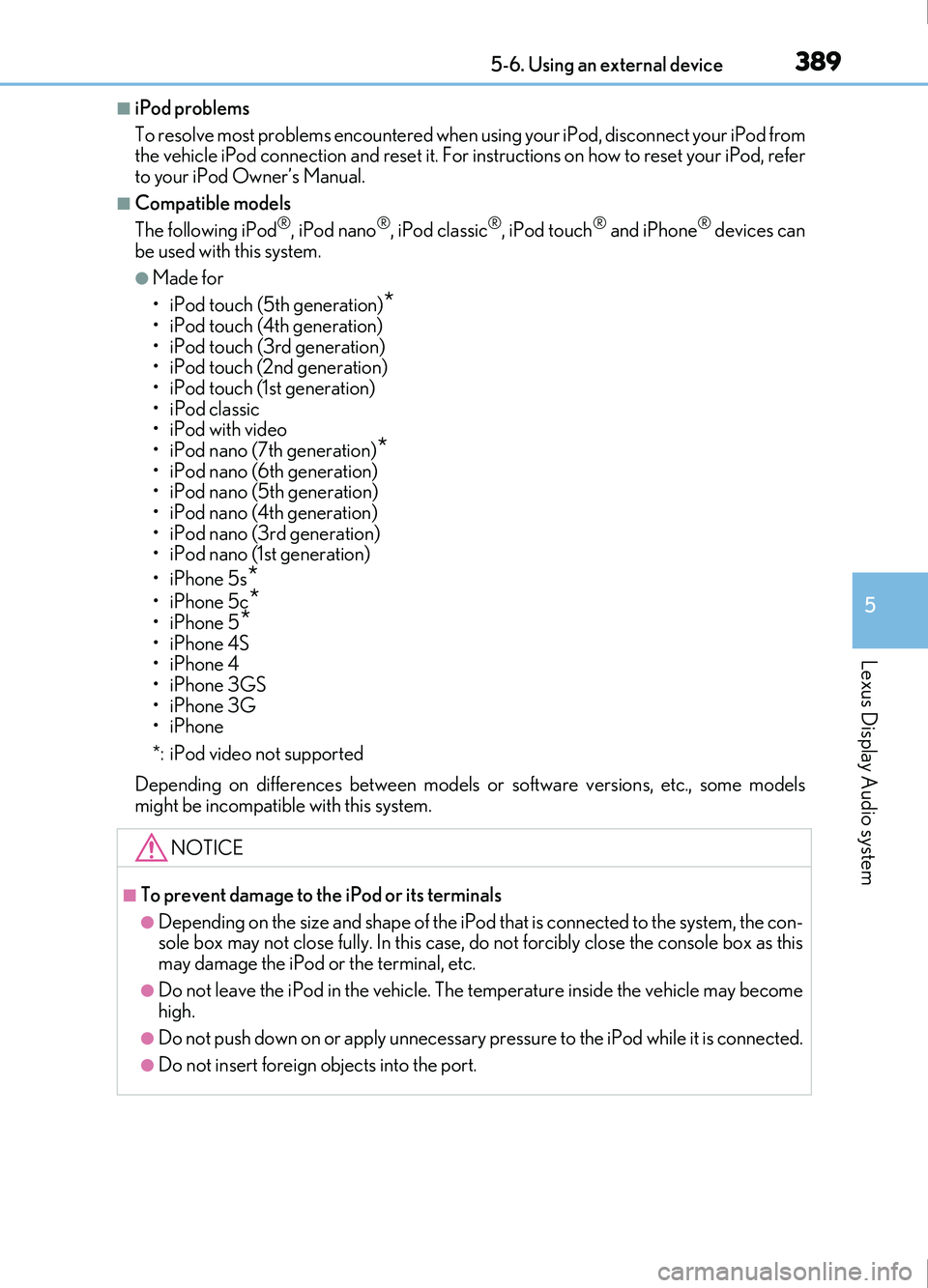
■Compatible models
The following iPod®, iPod nano®, iPod classic®, iPod touch® and iPhone® devices can
be used with this system.
●Made for
• iPod touch (5th generation)
*
• iPod touch (4th generation)
• iPod touch (3rd generation)
• iPod touch (2nd generation)
•iPod touch (1st generation)
• iPod classic
•iPod with video
• iPod nano (7th generation)
*• iPod nano (6th generation)
• iPod nano (5th generation)
• iPod nano (4th generation)
• iPod nano (3rd generation)
• iPod nano (1st generation)
•iPhone 5s
*
•iPhone 5c*•iPhone 5*
•iPhone 4S
•iPhone 4
•iPhone 3GS
•iPhone 3G
•iPhone
*: iPod video not supported
Depending on differences between models or software versions, etc., some models
might be incompatible with this system.
NOTICE
■To prevent damage to the iPod or its terminals
●Depending on the size and shape of the iPod that is connected to the system, the con-
sole box may not close fully. In this case, do not forcibly close the console box as this
may damage the iPod or the terminal, etc.
●Do not leave the iPod in the vehicle. The temperature inside the vehicle may become
high.
●Do not push down on or apply unnecessary pr essure to the iPod while it is connected.
●Do not insert foreign objects into the port.
Page 396 of 676
396
IS200t_EE(OM53D77E)5-7. Connecting Bluetooth
®
Steps for using Bluetooth® devices
The following can be performed using Bluetooth® wireless communication:
■A portable audio player can be op
erated and listened to via the Lexus
Display Audio system
■Hands-free phone calls can be made via a cellular phone
In order to use wireless communication, register and connect a Bluetooth
®
device by performing the following procedures.
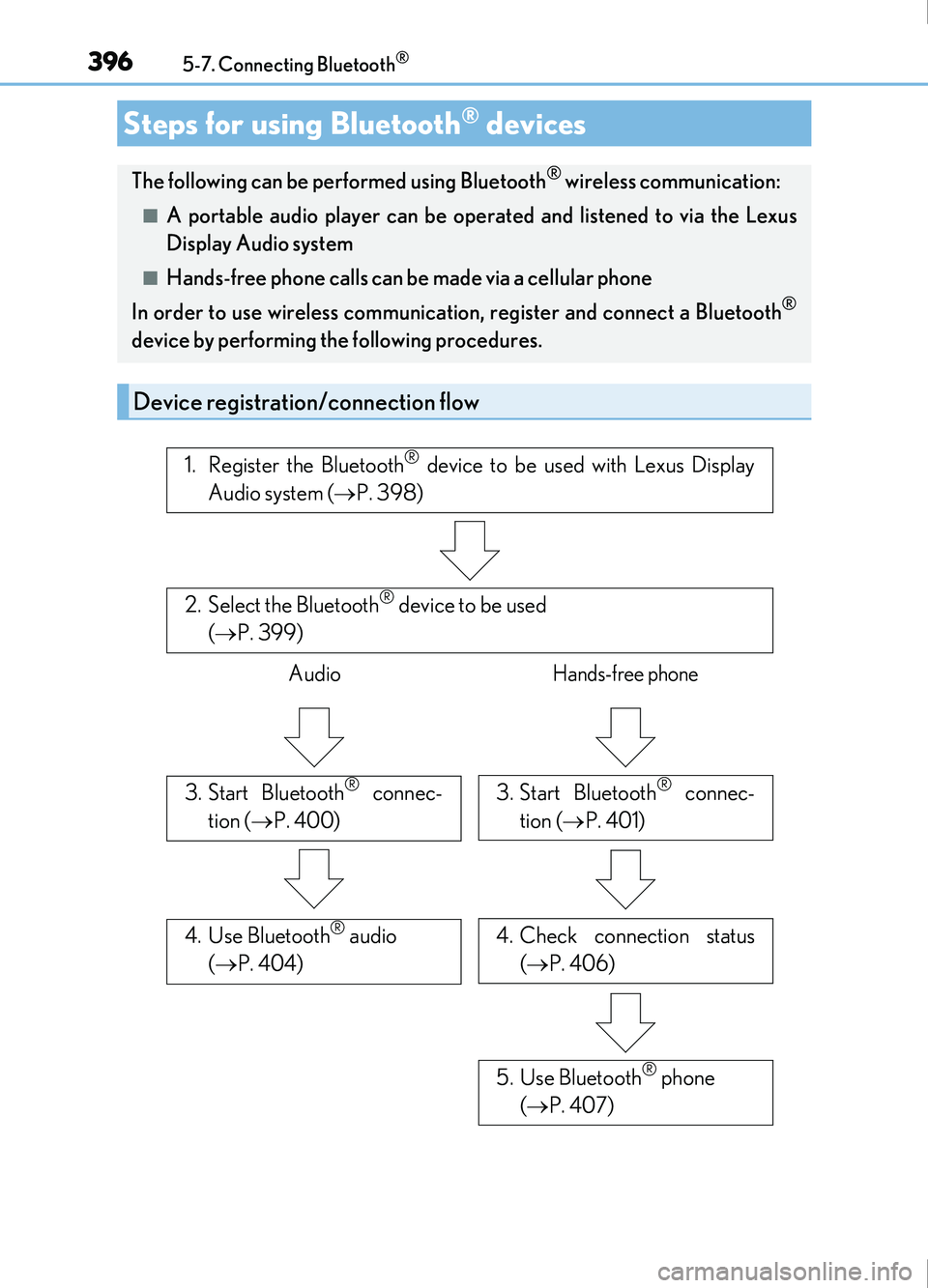
Device registration/connection flow
1. Register the Bluetooth® device to be used with Lexus Display
Audio system ( P. 398)
2. Select the Bluetooth® device to be used
( P. 399)
AudioHands-free phone
3. Start Bluetooth® connec-
tion ( P. 400)3. Start Bluetooth® connec-
tion ( P. 401)
4. Use Bluetooth® audio
( P. 404)4. Check connection status
( P. 406)
5. Use Bluetooth® phone
( P. 407)
Page 397 of 676
3975-7. Connecting Bluetooth®
5
Lexus Display Audio system
IS200t_EE(OM53D77E)
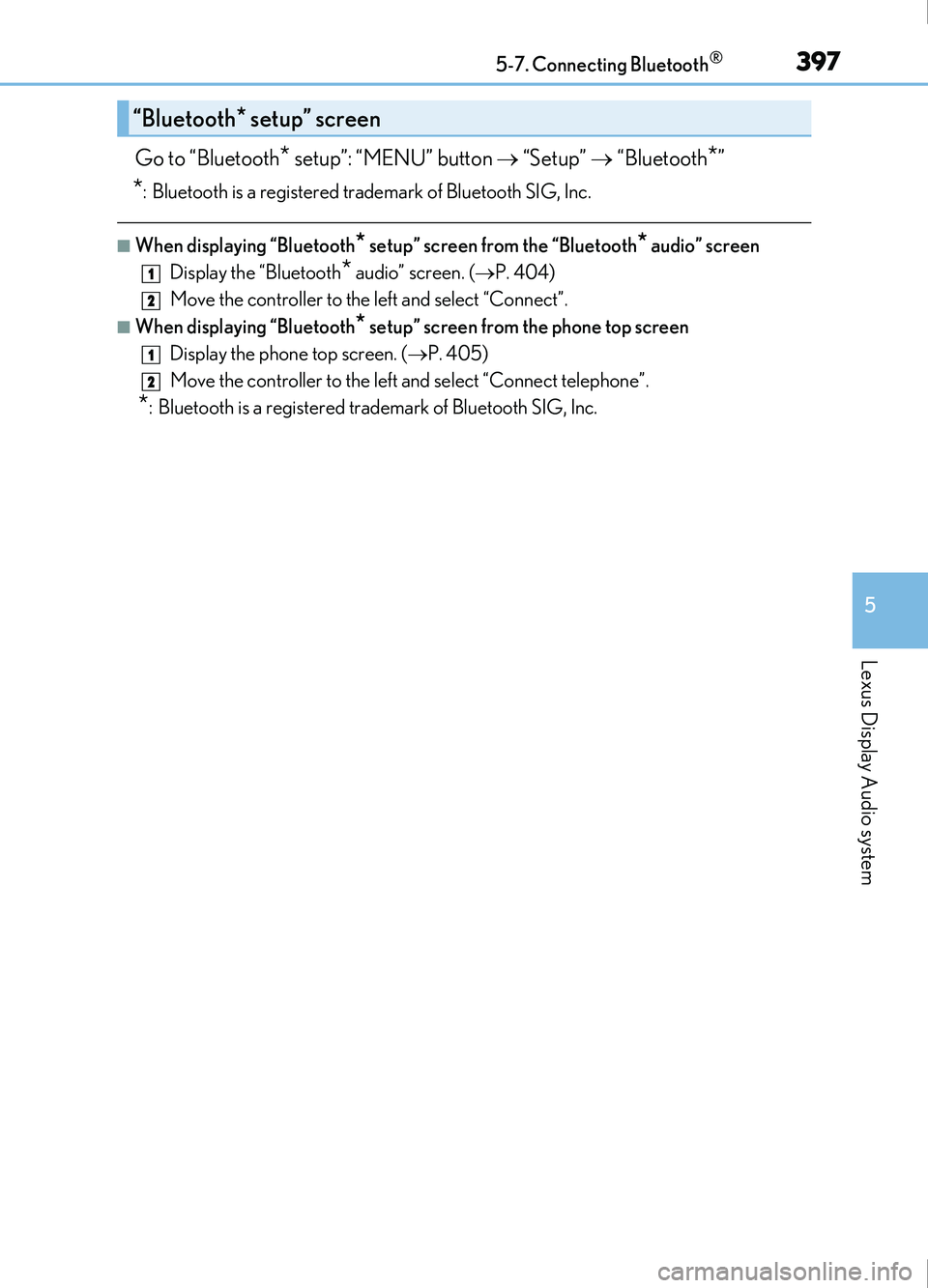
Go to “Bluetooth* setup”: “MENU” button “Setup” “Bluetooth*”
*: Bluetooth is a registered trademark of Bluetooth SIG, Inc.
■When displaying “Bluetooth* setup” screen from the “Bluetooth* audio” screen
Display the “Bluetooth
* audio” screen. ( P. 404)
Move the controller to the left and select “Connect”.
■When displaying “Bluetooth* setup” screen from the phone top screen
Display the phone top screen. ( P. 405)
Move the controller to the left and select “Connect telephone”.
*: Bluetooth is a registered trademark of Bluetooth SIG, Inc.
“Bluetooth* setup” screen
1
2
1
2
Page 398 of 676
3985-7. Connecting Bluetooth®
IS200t_EE(OM53D77E)
Turn the Bluetooth® connection setting of your device set to on.
Go to “Bluetooth
* setup”: “MENU” button “Setup” “Bluetooth*”
Move the controller to the left and then select “Add device”
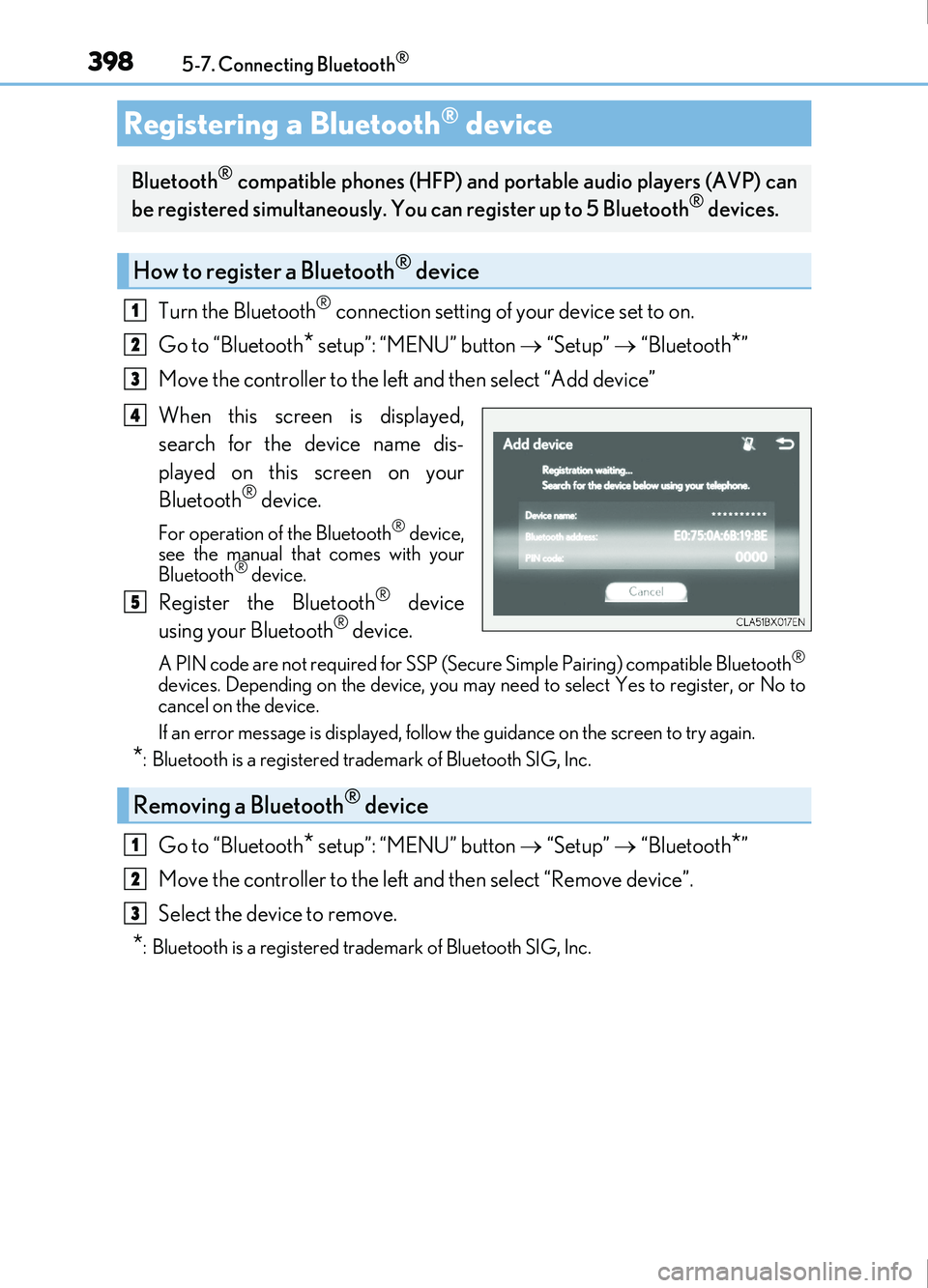
When this screen is displayed,
search for the device name dis-
played on this screen on your
Bluetooth
® device.
For operation of the Bluetooth® device,
see the manual that comes with your
Bluetooth
® device.
Register the Bluetooth® device
using your Bluetooth® device.
A PIN code are not required for SSP (Secur e Simple Pairing) compatible Bluetooth®
devices. Depending on the device, you may ne ed to select Yes to register, or No to
cancel on the device.
If an error message is displayed, follow the guidance on the screen to try again.
*: Bluetooth is a registered trademark of Bluetooth SIG, Inc.
Go to “Bluetooth* setup”: “MENU” button “Setup” “Bluetooth*”
Move the controller to the left and then select “Remove device”.
Select the device to remove.
*: Bluetooth is a registered trademark of Bluetooth SIG, Inc.
Registering a Bluetooth® device
Bluetooth® compatible phones (HFP) and po rtable audio players (AVP) can
be registered simultaneously. You can register up to 5 Bluetooth® devices.
How to register a Bluetooth® device
1
2
3
4
5
Removing a Bluetooth® device
1
2
3
Page 399 of 676
3995-7. Connecting Bluetooth®
5
Lexus Display Audio system
IS200t_EE(OM53D77E)
Go to “Bluetooth* setup”: “MENU” button “Setup” “Bluetooth*”
Select the device to connect.
Select “Connect all”, “Connect as a telephone” or “Connect as audio player”.
“Connect all” means connect both the phone and audio functions of one device.
If the desired Bluetooth
® device is not displayed, register the device.
( P. 398)
*: Bluetooth is a registered trademark of Bluetooth SIG, Inc.
Selecting a Bluetooth® device
If multiple Bluetooth® devices are registered, follow the procedure below to
select the Bluetooth® device to be used. You may only use one device at a
time.
How to select a Bluetooth® device
1
2
3
Page 401 of 676
4015-7. Connecting Bluetooth®
5
Lexus Display Audio system
IS200t_EE(OM53D77E)
When you register a phone, auto connection will be activated. It is recom-
mended to have the system set to this mode and leave the Bluetooth® phone in a
place where a good connection can be established.
When the engine switch is turned to ACCESSORY or IGNITION ON mode,
the system will search for a nearby cellular phone you have registered.
The system automatically connects with the most recent phone that was con-
nected. The connected result is displayed.
When auto connection has failed or “Bluetooth
* power” is turned off, you must
connect the Bluetooth® device manually.
Go to “Bluetooth
* setup”: “MENU” button “Setup” “Bluetooth*”
Select the device to connect.
Select “Connect all”, “Connect as a telephone” or “Connect as audio player”.
If the desired Bluetooth
® device is not displayed, register the device.
( P. 398)
*: Bluetooth is a registered trademark of Bluetooth SIG, Inc.
■Reconnecting a Bluetooth® phone
If the system cannot connect due to poor signal strength with the engine switch in
ACCESSORY or IGNITION ON mode, the system will automatically attempt to recon-
nect.
■Connecting a phone while Bluetooth® audio is playing
●Bluetooth® audio will stop temporarily.
●It may take time to connect.
Connecting a Bluetooth® phone
There are two connecting methods available: automatic and manual.
Auto connection
Manual connection
1
2
3
Page 403 of 676
4035-7. Connecting Bluetooth®
5
Lexus Display Audio system
IS200t_EE(OM53D77E)
Go to “Bluetooth* setup”: “MENU” button “Setup” “Bluetooth*”
Move the controller to the left and then select “System settings”.
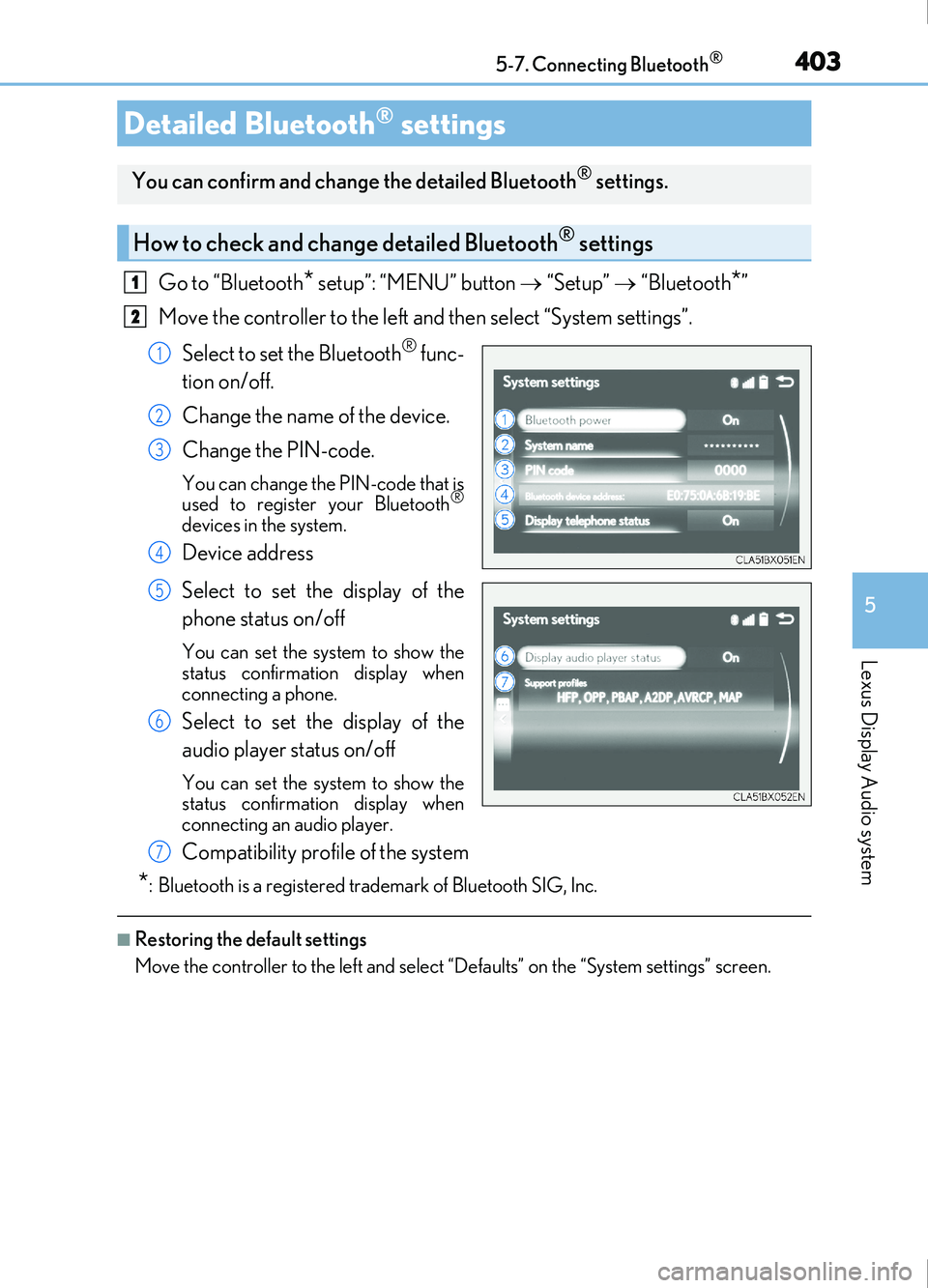
Select to set the Bluetooth
® func-
tion on/off.
Change the name of the device.
Change the PIN-code.
You can change the PIN-code that is
used to register your Bluetooth®
devices in the system.
Device address
Select to set the display of the
phone status on/off
You can set the system to show the
status confirmation display when
connecting a phone.
Select to set the display of the
audio player status on/off
You can set the system to show the
status confirmation display when
connecting an audio player.
Compatibility profile of the system
*: Bluetooth is a registered trademark of Bluetooth SIG, Inc.
■Restoring the default settings
Move the controller to the left and select “Defaults” on the “System settings” screen.
Detailed Bluetooth® settings
You can confirm and change the detailed Bluetooth® settings.
How to check and change detailed Bluetooth® settings
1
2
1
2
3
4
5
6
7
Page 405 of 676
405
5
Lexus Display Audio system
IS200t_EE(OM53D77E)5-9. Bluetooth
® Phone
Before making a phone call, check the connection status, battery charge, call
area and signal strength. (
P. 406)
If a Bluetooth
® device cannot be connected, check the connection status. If the
device is not connected, either register or reconnect it. (
P. 398, 401)
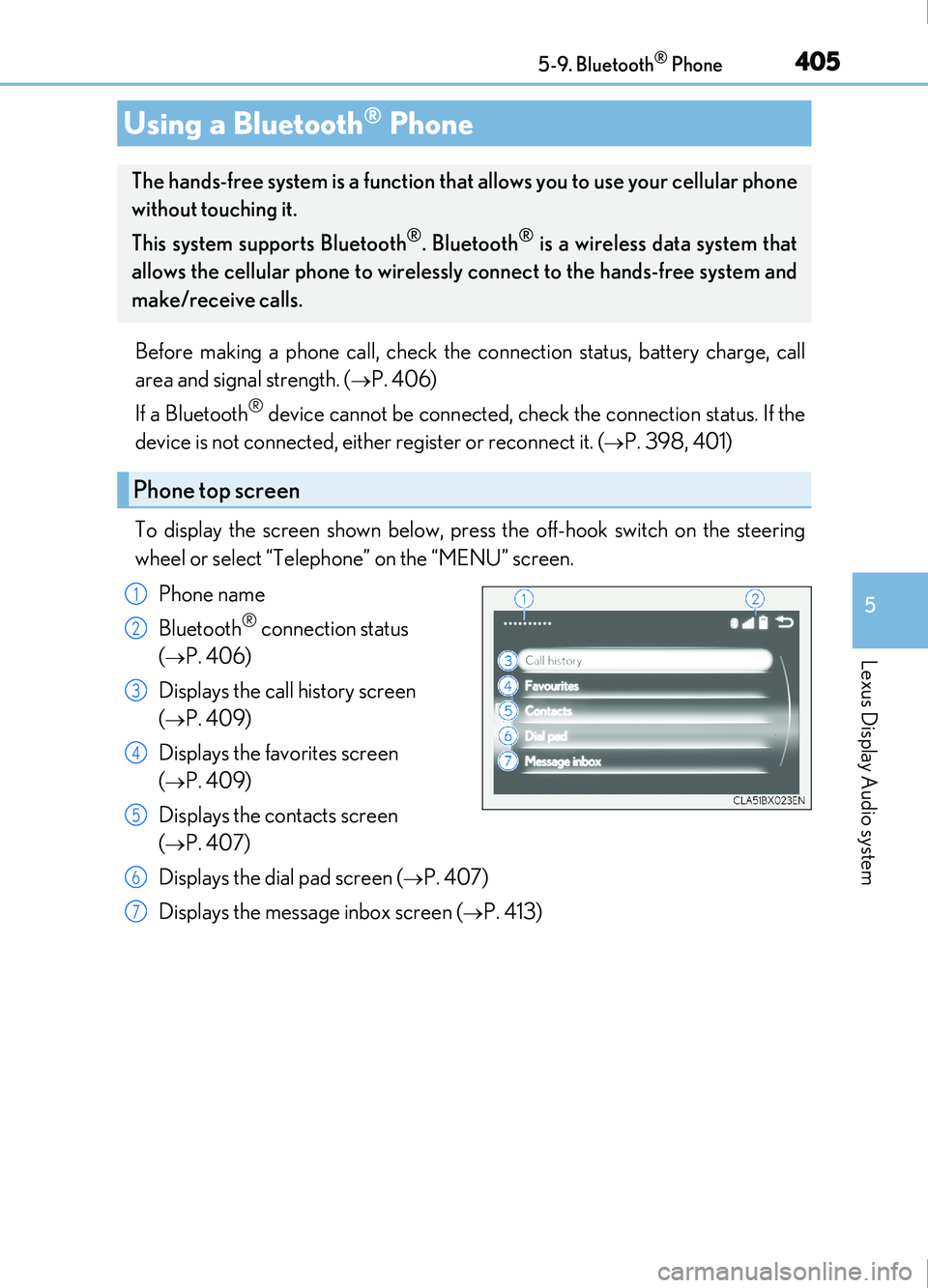
To display the screen shown below, press the off-hook switch on the steering
wheel or select “Telephone” on the “MENU” screen. Phone name
Bluetooth
® connection status
(
P. 406)
Displays the call history screen
(
P. 409)
Displays the favorites screen
(
P. 409)
Displays the contacts screen
(
P. 407)
Displays the dial pad screen (
P. 407)
Displays the message inbox screen (
P. 413)
Using a Bluetooth® Phone
The hands-free system is a function that allows you to use your cellular phone
without touching it.
This system supports Bluetooth
®. Bluetooth® is a wireless data system that
allows the cellular phone to wirelessly connect to the hands-free system and
make/receive calls.
Phone top screen
1
2
3
4
5
6
7