radio Lexus IS200t 2017 s User Guide
[x] Cancel search | Manufacturer: LEXUS, Model Year: 2017, Model line: IS200t, Model: Lexus IS200t 2017Pages: 676, PDF Size: 149.78 MB
Page 256 of 676
2564-5. Using the driving support systems
IS200t_EE(OM53D77E)• When there is a metal object (manhole cover, steel plate, etc.), steps, or a protrusion
on the road surface or roadside
• When rapidly closing on an electric toll gate barrier, parking area barrier, or other barrier that opens and closes
• When using an automatic car wash
• When the vehicle is hit by water, snow, dust, etc. from a vehicle ahead
• When driving through steam or smoke
• When there are patterns or paint on the road or a wall that may be mistaken for a
vehicle or pedestrian
*4
• When driving near an object that reflects radio waves, such as a large truck orguardrail
• When driving near a TV tower, broadcasting station, electric power plant, or other location where strong radio waves or electrical noise may be present
*4: Depending on the region in which the vehicle was sold, the pedestrian detection
function may not be available.
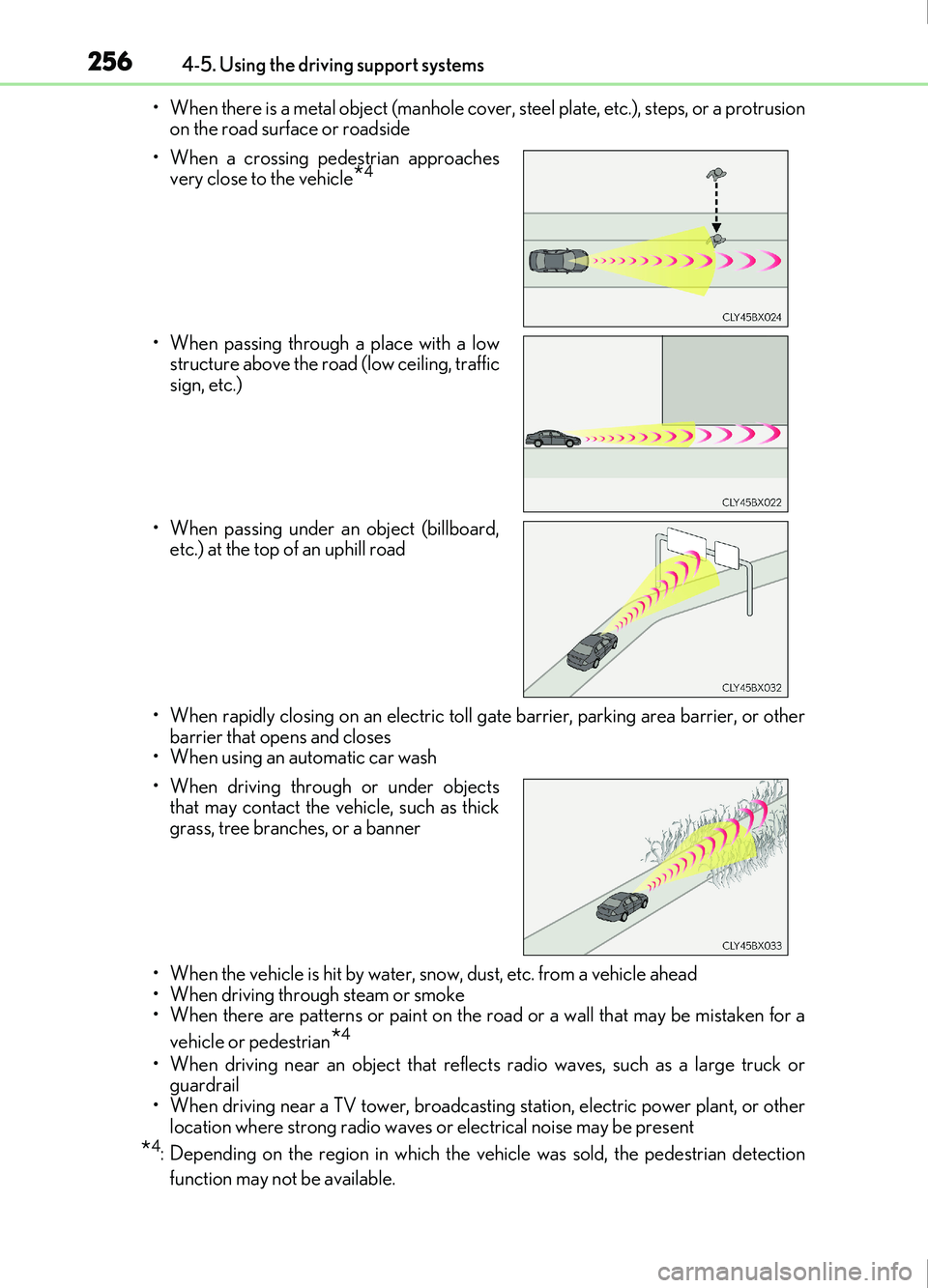
• When a crossing pedestrian approaches
very close to the vehicle
*4
• When passing through a place with a lowstructure above the road (low ceiling, traffic
sign, etc.)
• When passing under an object (billboard,
etc.) at the top of an uphill road
• When driving through or under objects that may contact the vehicle, such as thick
grass, tree branches, or a banner
Page 350 of 676

350
IS200t_EE(OM53D77E)
5-1. Basic OperationsLexus Display Audio system .......................................... 352
Steering wheel audio switches.......................................358
USB/AUX ports ........................ 359
5-2. Setup Setup menu .................................. 362
General settings......................... 363
Voice settings.............................. 366
Display settings ........................... 367
5-3. Using the audio system Selecting the audio source .... 369
Optimal use of the audio system .......................................... 370
Audio settings ...............................371
Audio menu screen operation .................................... 375
5-4. Using the radio Radio operation.......................... 378
5-5. Playing an audio CD and MP3/WMA/AAC discs
CD player operation ............... 380
Page 352 of 676
352
IS200t_EE(OM53D77E)5-1. Basic Operations
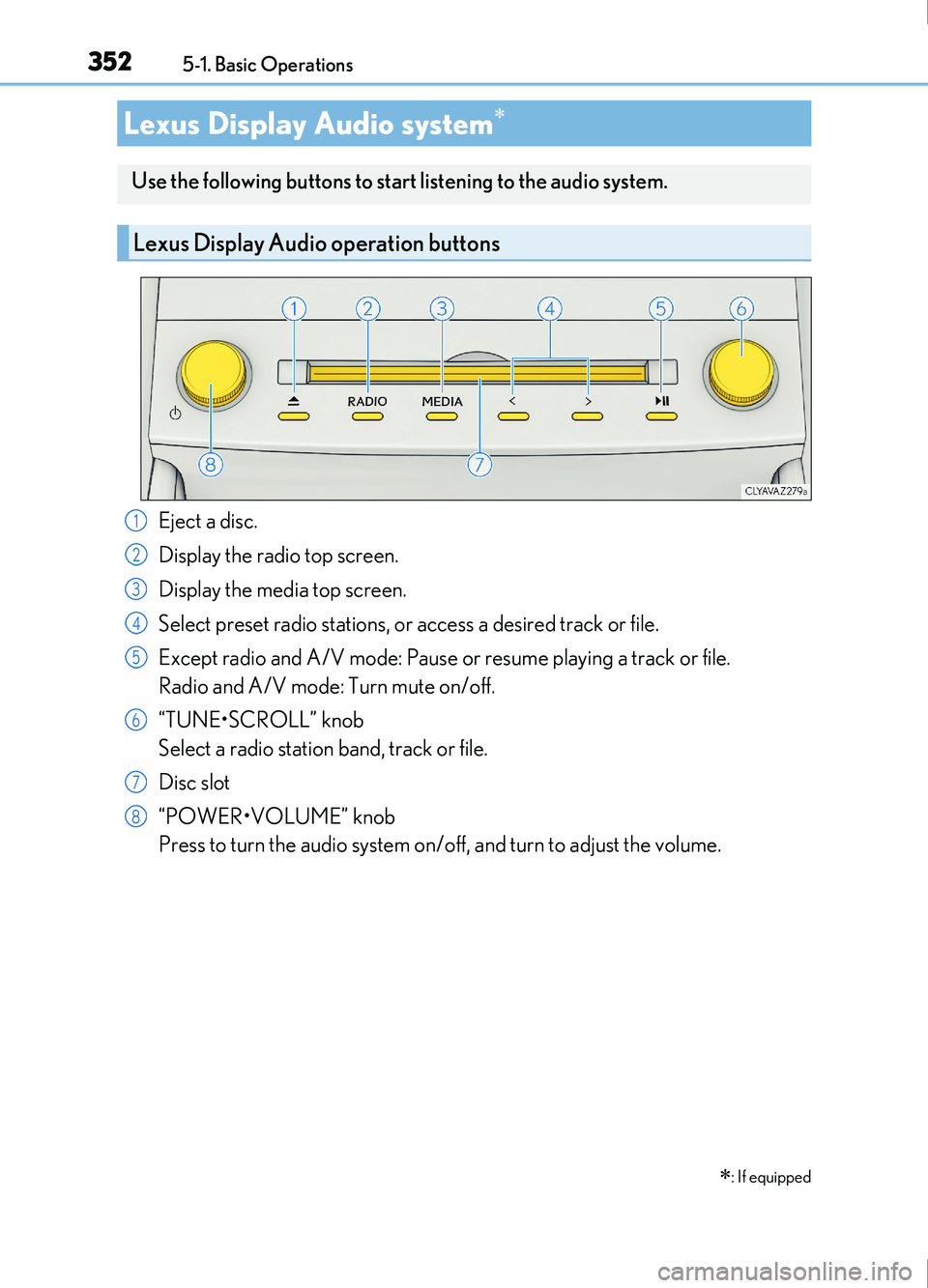
Eject a disc.
Display the radio top screen.
Display the media top screen.
Select preset radio stations, or access a desired track or file.
Except radio and A/V mode: Pause or resume playing a track or file.
Radio and A/V mode: Turn mute on/off.
“TUNE•SCROLL” knob
Select a radio station band, track or file.
Disc slot
“POWER•VOLUME” knob
Press to turn the audio system on/off, and turn to adjust the volume.
Lexus Display Audio system
: If equipped
Use the following buttons to start listening to the audio system.
Lexus Display Audio operation buttons
1
42
3
54
75
6
7
8
Page 358 of 676

3585-1. Basic Operations
IS200t_EE(OM53D77E)
Volume switch• Increases/decreases volume
• Press and hold: Continuously increases/decreases volume
Radio mode: • Press (except manual mode): Select a radio station
• Press (manual mode): Seek up/ down
• Press and hold (manual mode): Continuously seek up/down
CD, MP3/WMA/AAC disc, Bluetooth
®, iPod or USB mode:
• Press: Select a track/file/song/video
• Press and hold: Select a folder/album (MP3/WMA/AAC disc or USB)
“MODE” switch • Turns the power on, selects audio source
• Press and hold this switch to mute or pause the current operation. To can- cel the mute or pause, press and hold.
Steering wheel audio switches
Some audio features can be controlled using the switches on the steering
wheel.
Operation may differ depending on the type of audio system or 10.3-inch dis-
play. For details, refer to the manual provided with the audio system or 10.3-
inch display.
Depending on the type of audio source, certain functions may not be avail-
able.
Operating the audio system us ing the steering wheel switches
1
2
WARNING
■To reduce the risk of an accident
Exercise care when operating the audio switches on the steering wheel.
3
Page 362 of 676
362
IS200t_EE(OM53D77E)5-2. Setup
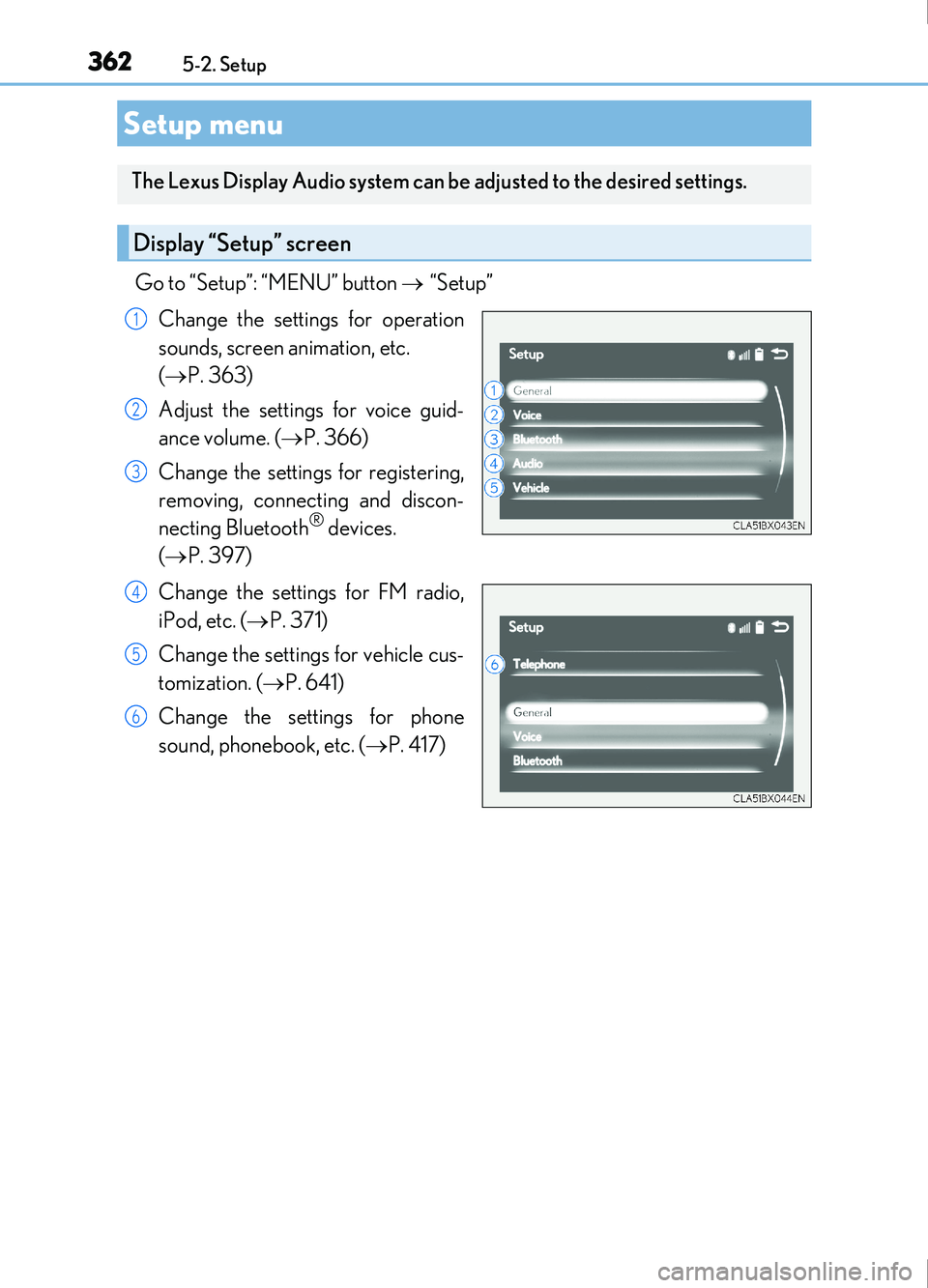
Go to “Setup”: “MENU” button
“Setup”
Change the settings for operation
sounds, screen animation, etc.
( P. 363)
Adjust the settings for voice guid-
ance volume. ( P. 366)
Change the settings for registering,
removing, connecting and discon-
necting Bluetooth
® devices.
( P. 397)
Change the settings for FM radio,
iPod, etc. ( P. 371)
Change the settings for vehicle cus-
tomization. ( P. 641)
Change the settings for phone
sound, phonebook, etc. ( P. 417)
Setup menu
The Lexus Display Audio system can be adjusted to the desired settings.
Display “Setup” screen
1
2
3
4
5
6
Page 369 of 676
369
5
Lexus Display Audio system
IS200t_EE(OM53D77E)5-3. Using the audio system
Press the “AUDIO” button to display the “Source” screen.
If the “Source” screen is not displayed, press the button again.
Select the desired audio source.
The audio source can be selected by pressing the “RADIO” or “MEDIA” button.
Press the “MODE” switch when the audio
system is turned on. The audio source
changes each time the “MODE” switch is pressed.
■Rearranging the list
The listing order of the source list can be rearranged.
Move the controller to the left while on the “Source” screen.
Select “Audio source select”.
Select an item you wish to move and then select where to move the item to.
Selecting the audio source
Switching between audio sources, such as the radio and CD, is explained in
this section.
Changing audio source
Using the steering wheel switches to change audio sources
1
2
1
2
3
Page 371 of 676

3715-3. Using the audio system
5
Lexus Display Audio system
IS200t_EE(OM53D77E)
Go to “Audio settings”: “MENU” button “Setup” “Audio”
Change sound settings ( P. 370)
Change FM radio settings
( P. 372)
Change DAB settings (if equipped)
( P. 372)
Change iPod settings ( P. 373)
Change USB settings ( P. 373)
Change external video settings
( P. 374)
Change the cover art settings
( P. 374)
Audio settings
Screen for audio settings
1
2
3
4
5
6
7
Page 372 of 676
3725-3. Using the audio system
IS200t_EE(OM53D77E)
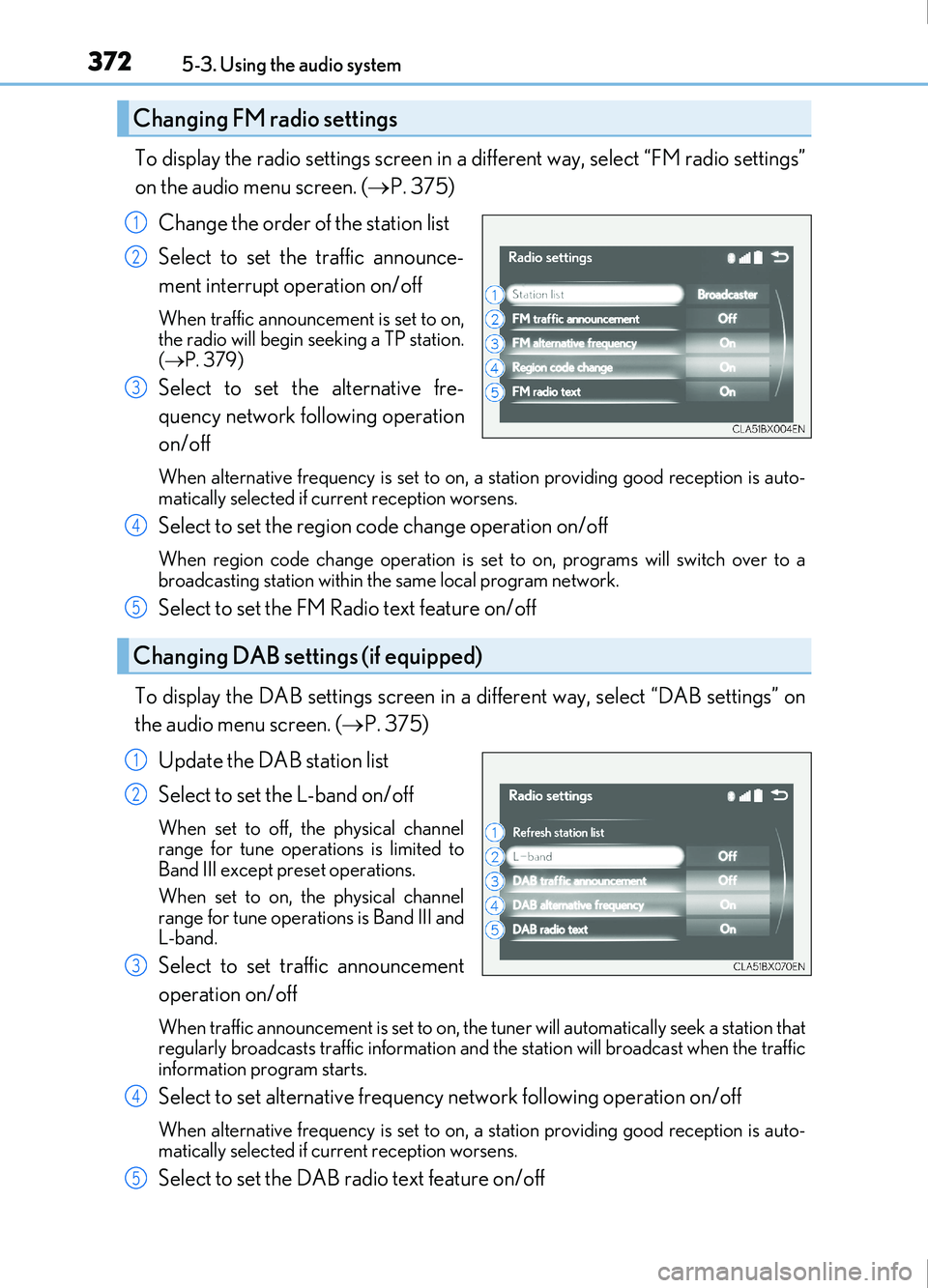
To display the radio settings screen in a different way, select “FM radio settings”
on the audio menu screen. (P. 375)
Change the order of the station list
Select to set the traffic announce-
ment interrupt operation on/off
When traffic announcement is set to on,
the radio will begin seeking a TP station.
( P. 379)
Select to set the alternative fre-
quency network following operation
on/off
When alternative frequency is set to on, a station providing good reception is auto-
matically selected if current reception worsens.
Select to set the region code change operation on/off
When region code change operation is se t to on, programs will switch over to a
broadcasting station within th e same local program network.
Select to set the FM Radio text feature on/off
To display the DAB settings screen in a different way, select “DAB settings” on
the audio menu screen. ( P. 375)
Update the DAB station list
Select to set the L-band on/off
When set to off, the physical channel
range for tune operations is limited to
Band III except preset operations.
When set to on, the physical channel
range for tune operations is Band III and
L-band.
Select to set traffic announcement
operation on/off
When traffic announcement is set to on, the tuner will automatically seek a station that
regularly broadcasts traffic information and the station will broadcast when the traffic
information program starts.
Select to set alternative frequency network following operation on/off
When alternative frequency is set to on, a station providing good reception is auto-
matically selected if current reception worsens.
Select to set the DAB radio text feature on/off
Changing FM radio settings
1
2
3
Changing DAB settings (if equipped)
4
5
1
2
3
4
5
Page 375 of 676
3755-3. Using the audio system
5
Lexus Display Audio system
IS200t_EE(OM53D77E)
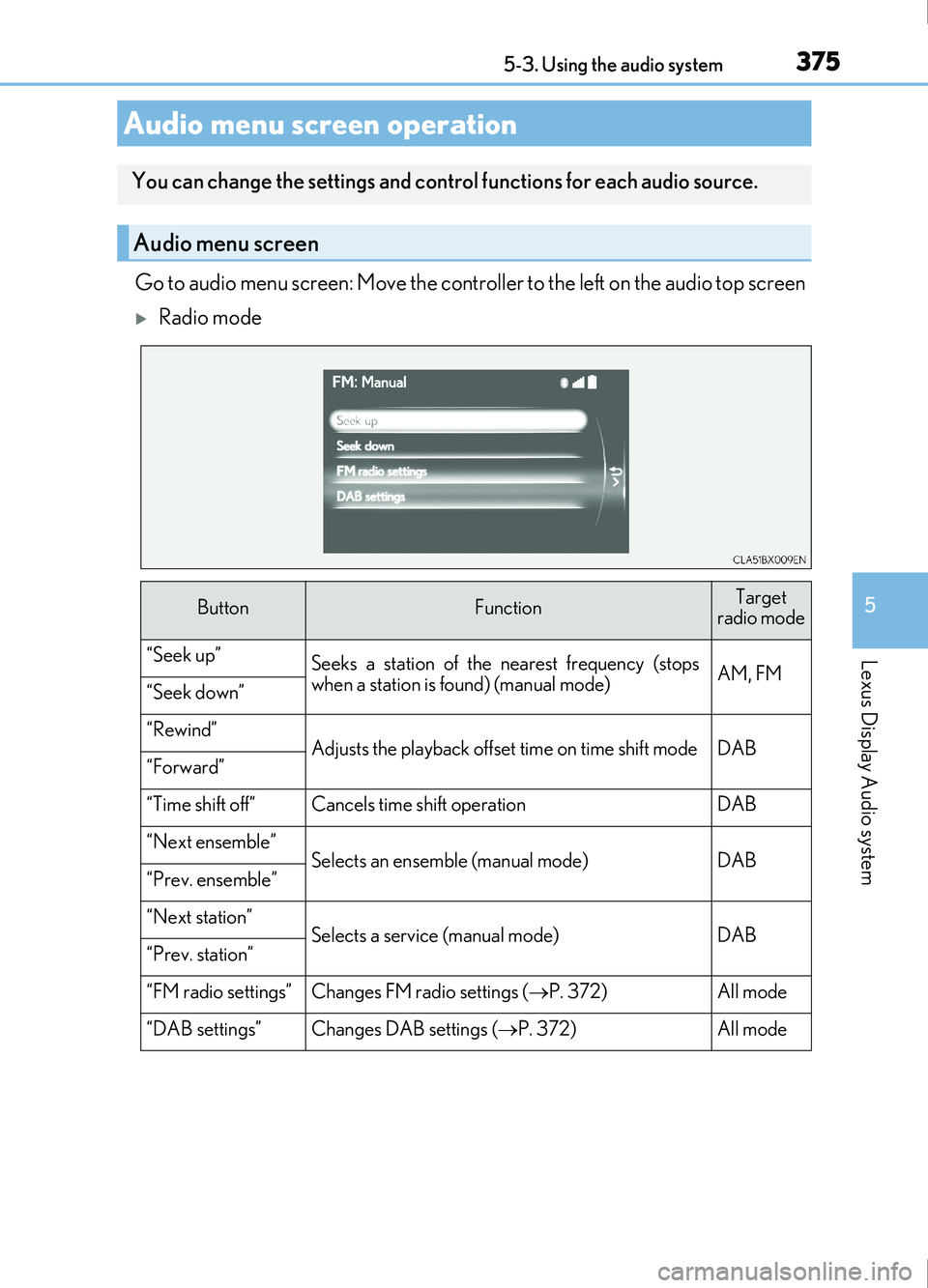
Go to audio menu screen: Move the controller to the left on the audio top screen
Radio mode
Audio menu screen operation
You can change the settings and control functions for each audio source.
Audio menu screen
ButtonFunctionTarget
radio mode
“Seek up”Seeks a station of the nearest frequency (stops
when a station is found) (manual mode)AM, FM“Seek down”
“Rewind”Adjusts the playback offset time on time shift modeDAB“Forward”
“Time shift off”Cancels time shift operationDAB
“Next ensemble”Selects an ensemble (manual mode)DAB“Prev. ensemble”
“Next station”Selects a service (manual mode)DAB“Prev. station”
“FM radio settings”Changes FM radio settings ( P. 372)All mode
“DAB settings”Changes DAB settings ( P. 372)All mode
Page 378 of 676
378
IS200t_EE(OM53D77E)5-4. Using the radio
Pressing the “RADIO” button displays the radio top screen from any screen of
the selected source.
■Menu screen
P. 375
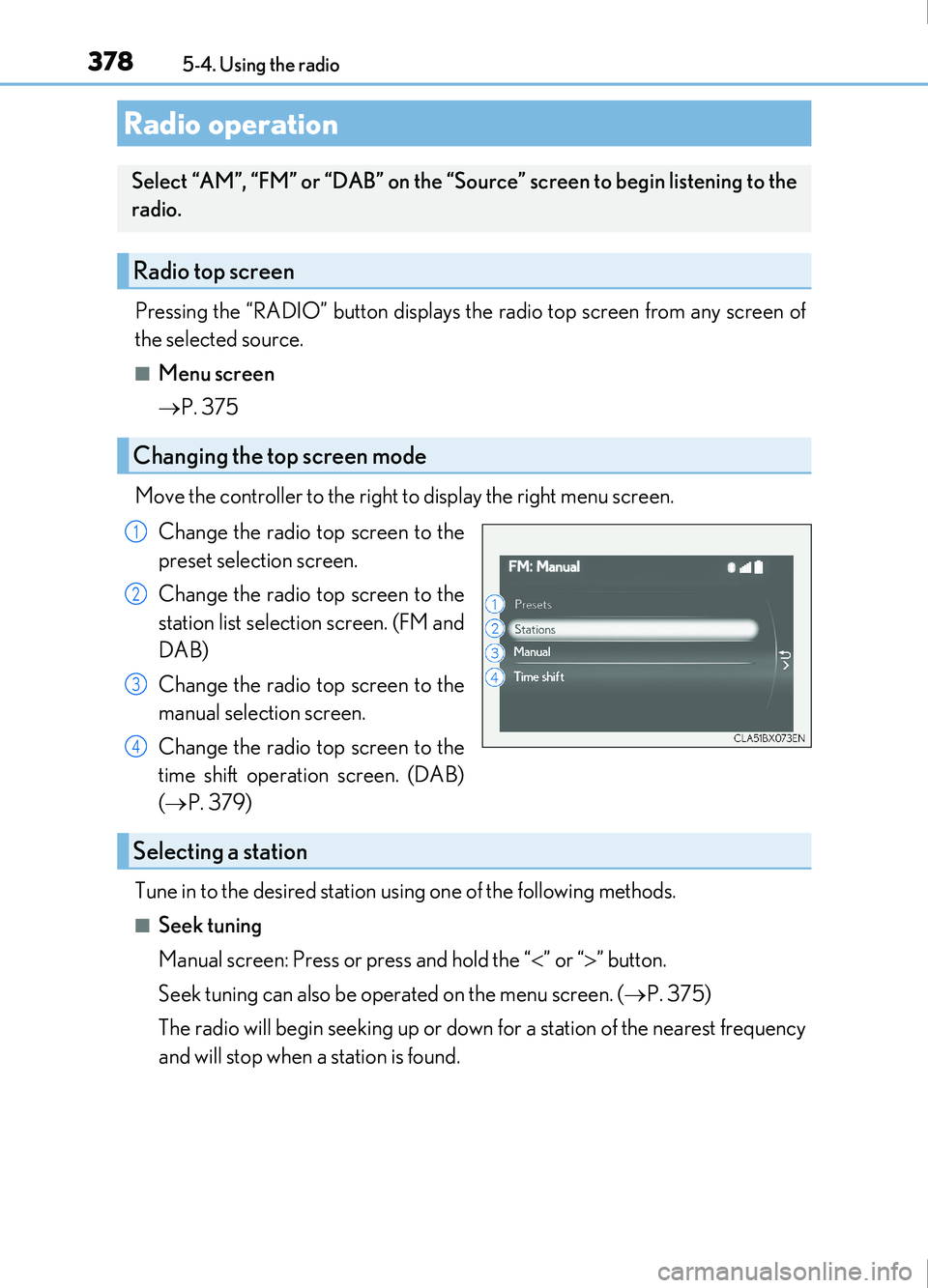
Move the controller to the right to display the right menu screen. Change the radio top screen to the
preset selection screen.
Change the radio top screen to the
station list selection screen. (FM and
DAB)
Change the radio top screen to the
manual selection screen.
Change the radio top screen to the
time shift operation screen. (DAB)
( P. 379)
Tune in to the desired station using one of the following methods.
■Seek tuning
Manual screen: Press or press and hold the “ ” or “ ” button.
Seek tuning can also be operated on the menu screen. ( P. 375)
The radio will begin seeking up or down for a station of the nearest frequency
and will stop when a station is found.
Radio operation
Select “AM”, “FM” or “DAB” on the “Source” screen to begin listening to the
radio.
Radio top screen
Changing the top screen mode
1
2
3
4
Selecting a station