air Lexus IS220d 2011 Owners Manual
[x] Cancel search | Manufacturer: LEXUS, Model Year: 2011, Model line: IS220d, Model: Lexus IS220d 2011Pages: 609, PDF Size: 14.63 MB
Page 286 of 609

271
3-2. Using the audio system
3
Interior features
IS250/220d/200d_EESpecifying program type
Press
.
Each time is pressed, the program type changes in the order of
“NEWS”“SPORTS”“TALK”“POP”“CLASSICS”.
Traffic information
Press .
TP mode: The system automatically switches to traffic informa-
tion when a broadcast with a traffic information signal
is received.
The station returns to the previous one when the traffic
information ends.
TA mode: Traffic information can be heard only when a signal is
received. The system switches to the mute mode when
a signal is not received. In the CD or MP3/WMA
mode, the system automatically switches to traffic
information when a signal is received.
The audio system returns to mute, CD or MP3/WMA
mode when the traffic information ends.
The audio system mode changes as follows each time is
pressed.
FM modes: “TP”“TA”off
Modes other than the radio modes: “TA”off
Emergency broadcast reception mode
“ALARM” appears in the display in the event that an emergency
broadcast is received, and the emergency broadcast is aired.
Page 292 of 609

277
3-2. Using the audio system
3
Interior features
IS250/220d/200d_EE
When “LOAD”, “ERROR” or “WAIT” is shown on the display
“LOAD”: This indicates that the CD player has completed loading the CD.
“ERROR”:This indicates a trouble either in the CD or inside the player. The
CD may be dirty, damaged, or inserted up-side down.
“WAIT”: Operation is stopped due to a high temperature inside the player.
Wait for a while and then press . Contact any authorized
Lexus dealer or repairer, or another duly qualified and equipped
professional, if the CD still cannot be played back.
Discs that can be used
Discs with the marks shown below can be used.
Playback may not be possible depending on recording format or disc fea-
tures, or due to scratches, dirt or deterioration.
CDs with copy-protection features may not play correctly.
CD player protection feature
To protect the internal components, playback is automatically stopped when
a problem is detected.
If CDs are left inside the CD player or in the ejected position for extended
periods
CDs may be damaged and may not play properly.
Lens cleaners
Do not use lens cleaners. Doing so may damage the CD player.
Page 297 of 609

282
3-2. Using the audio system
IS250/220d/200d_EE
Switching the display
Press .
Each time is pressed, the display changes in the order of
Folder no./File no./Elapsed timeFolder nameFile nameAlbum
title (MP3 only)Track titleArtist name.
Display
Up to 12 characters can be displayed at a time.
If there are 13 characters or more, pressing and holding until you
hear a beep will display the remaining characters.
A maximum of 24 characters can be displayed.
If is pressed until you hear a beep again or has not been pressed for 6
seconds or more, the display will return to the first 12 characters.
Depending on the contents recorded, the characters may not be displayed
properly or may not be displayed at all.
Canceling random and repeat playback
Press (RAND) or (RPT) again.
When “LOAD”, “ERROR”, “WAIT” or “NO MUSIC” is shown on the dis-
play
“LOAD”: This indicates that the CD player has completed loading the CD.
“ERROR”:This indicates a trouble either in the CD or inside the player. The
CD may be dirty, damaged, or inserted up-side down.
“WAIT”: Operation is stopped due to a high temperature inside the player.
Wait for a while and then press . Contact any authorized
Lexus dealer or repairer, or another duly qualified and equipped
professional, if the CD still cannot be played back.
“NO MUSIC”: This indicates that the MP3/WMA file is not included in the
CD.
Page 331 of 609
314
3-3. Using the Bluetooth® audio system
IS250/220d/200d_EE
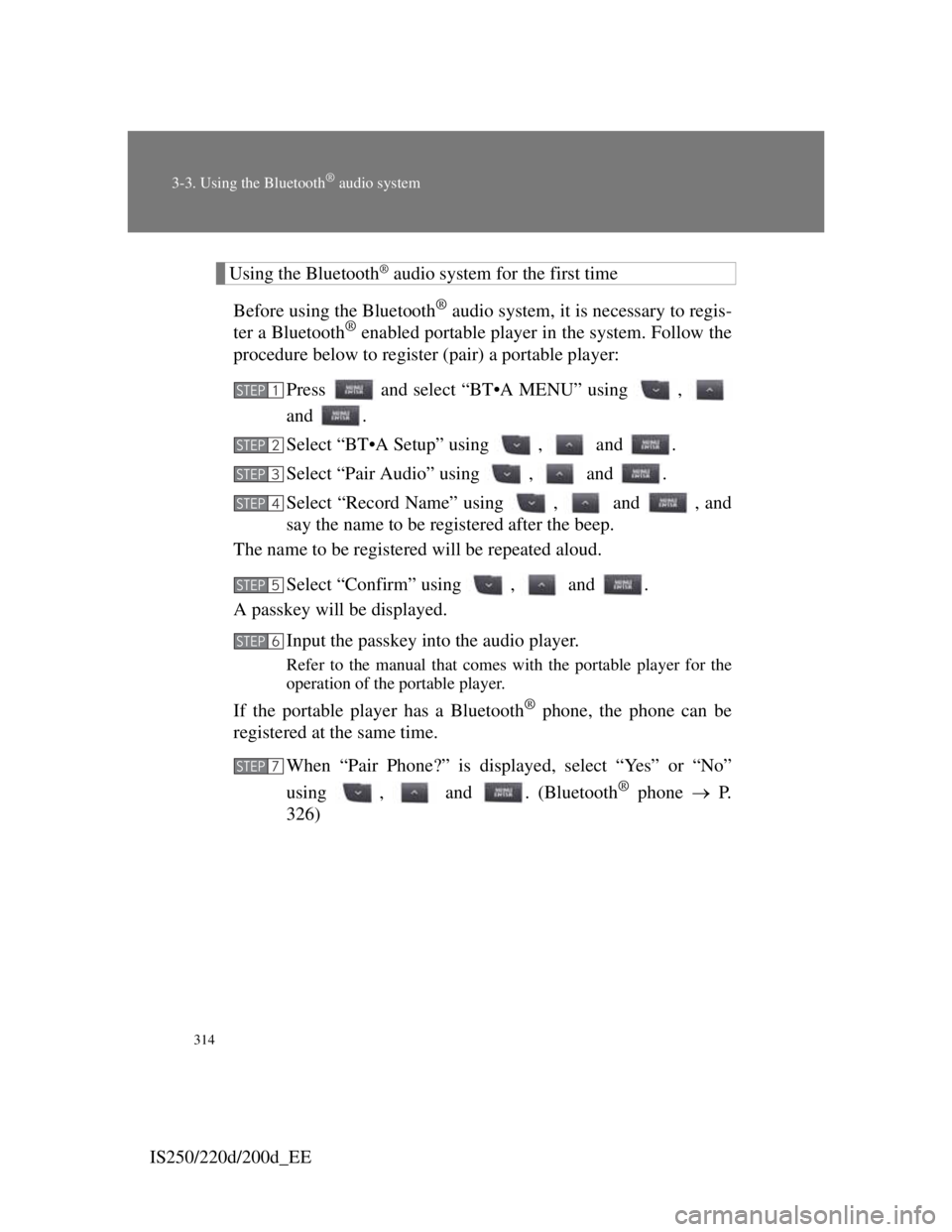
Using the Bluetooth® audio system for the first time
Before using the Bluetooth
® audio system, it is necessary to regis-
ter a Bluetooth® enabled portable player in the system. Follow the
procedure below to register (pair) a portable player:
Press and select “BT•A MENU” using ,
and .
Select “BT•A Setup” using , and .
Select “Pair Audio” using , and .
Select “Record Name” using , and , and
say the name to be registered after the beep.
The name to be registered will be repeated aloud.
Select “Confirm” using , and .
A passkey will be displayed.
Input the passkey into the audio player.
Refer to the manual that comes with the portable player for the
operation of the portable player.
If the portable player has a Bluetooth® phone, the phone can be
registered at the same time.
When “Pair Phone?” is displayed, select “Yes” or “No”
using , and . (Bluetooth
® phone P.
326)
STEP1
STEP2
STEP3
STEP4
STEP5
STEP6
STEP7
Page 332 of 609
315
3-3. Using the Bluetooth® audio system
3
Interior features
IS250/220d/200d_EE
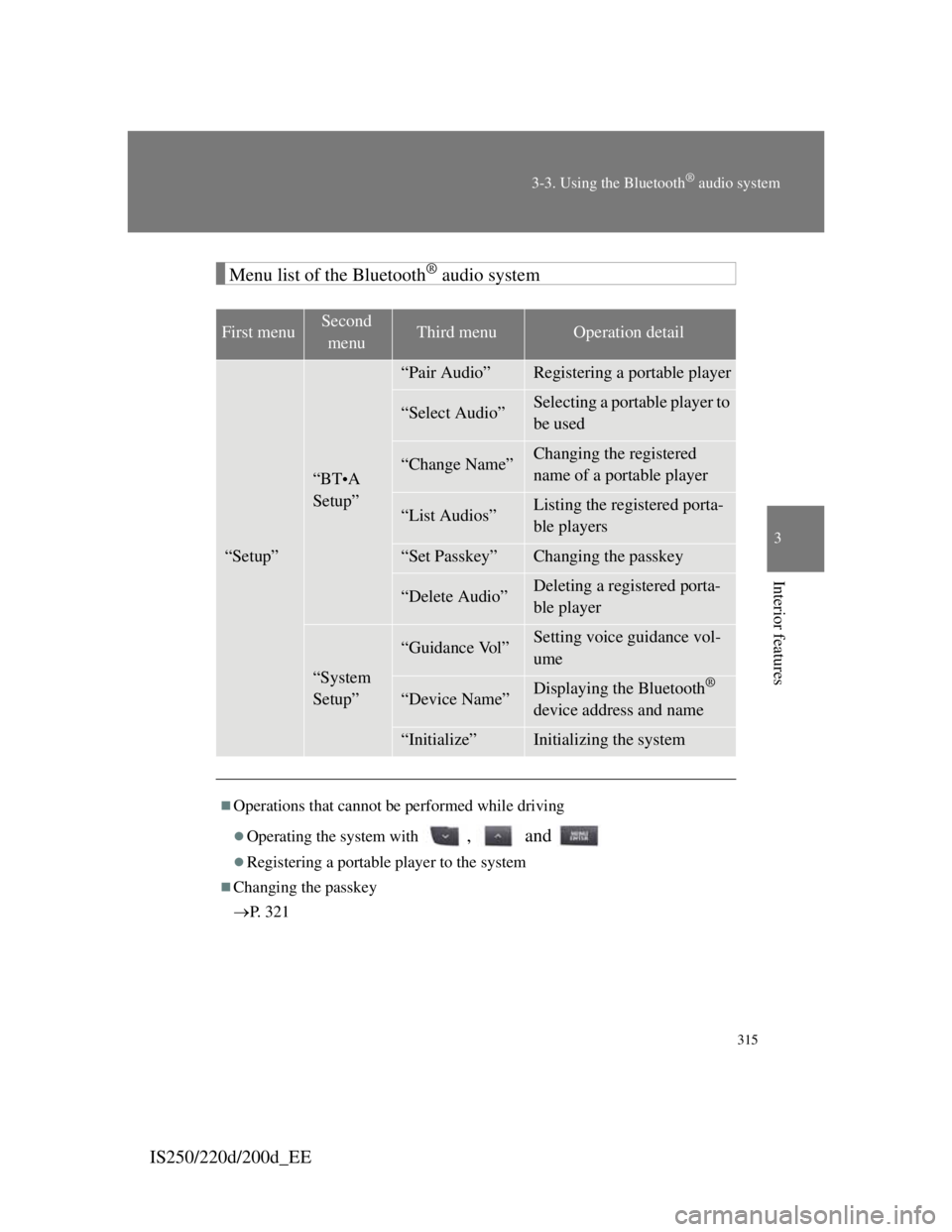
Menu list of the Bluetooth® audio system
First menuSecond
menuThird menuOperation detail
“Setup”
“BT•A
Setup”
“Pair Audio”Registering a portable player
“Select Audio”Selecting a portable player to
be used
“Change Name”Changing the registered
name of a portable player
“List Audios”Listing the registered porta-
ble players
“Set Passkey”Changing the passkey
“Delete Audio”Deleting a registered porta-
ble player
“System
Setup”
“Guidance Vol”Setting voice guidance vol-
ume
“Device Name”Displaying the Bluetooth®
device address and name
“Initialize”Initializing the system
Operations that cannot be performed while driving
Operating the system with , and
Registering a portable player to the system
Changing the passkey
P. 3 2 1
Page 336 of 609
319
3-3. Using the Bluetooth® audio system
3
Interior features
IS250/220d/200d_EE
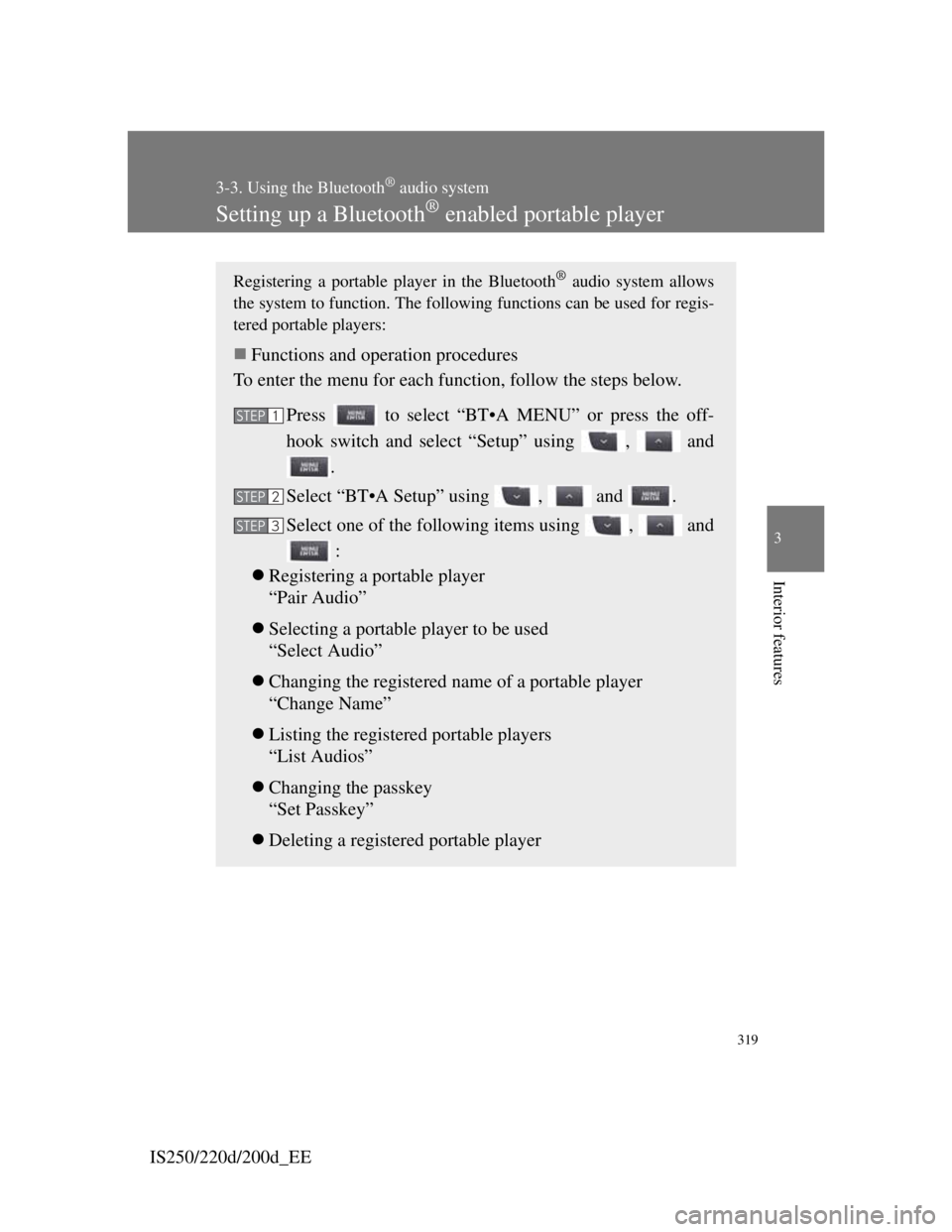
Setting up a Bluetooth® enabled portable player
Registering a portable player in the Bluetooth® audio system allows
the system to function. The following functions can be used for regis-
tered portable players:
Functions and operation procedures
To enter the menu for each function, follow the steps below.
Press to select “BT•A MENU” or press the off-
hook switch and select “Setup” using , and
.
Select “BT•A Setup” using , and .
Select one of the following items using , and
:
Registering a portable player
“Pair Audio”
Selecting a portable player to be used
“Select Audio”
Changing the registered name of a portable player
“Change Name”
Listing the registered portable players
“List Audios”
Changing the passkey
“Set Passkey”
Deleting a registered portable player
STEP1
STEP2
STEP3
Page 337 of 609

320
3-3. Using the Bluetooth® audio system
IS250/220d/200d_EE
Registering a portable player
Select “Pair Audio” using , and , and perform
the procedure for registering a portable player. (P. 314)
Selecting a portable player to be used
Select “Select Audio” using , and .
Select the portable player to be used using , and
.
Select “From Car” or “From Audio” using ,
and .
If “From Car” is selected, the portable player will be automati-
cally connected whenever the “ENGINE START STOP” switch
is in either ACCESSORY or IGNITION ON mode.
Changing the registered name of a portable player
Select “Change Name” using , and .
Select the desired portable player name to be changed using
, and .
Select “Record Name” using , and , and
say the new name after the beep.
The name to be registered will be repeated aloud.
Select “Confirm” using , and .
Listing the registered portable players
Select “List Audios” using , and . The list of reg-
istered portable players will be read aloud.
When listing is complete, the system returns to “BT•A Setup”.
STEP1
STEP2
STEP3
STEP1
STEP2
STEP3
STEP4
Page 338 of 609

321
3-3. Using the Bluetooth® audio system
3
Interior features
IS250/220d/200d_EE
Changing the passkey
Select “Set Passkey” using , and .
Select a 4 to 8-digit number using , and .
The number should be input 1 digit at a time.
When the entire number to be registered as a passkey has
been input, press again.
If the number to be registered has 8 digits, pressing is not
necessary.
Deleting a registered portable player
Select “Delete Audio” using , and .
Select the desired portable player to be deleted using ,
and .
If the portable player to be deleted is paired as a Bluetooth
® phone,
the registration of the mobile phone can be deleted at the same
time.
When “Del Phone?” is displayed, select “Yes” or “No”
using , and . (Bluetooth
® phone P.
326)
The number of portable players that can be registered
Up to 2 portable players can be registered in the system.
STEP1
STEP2
STEP3
STEP1
STEP2
STEP3
Page 343 of 609

326
3-4. Using the hands-free phone system (for mobile phones)
IS250/220d/200d_EE
Conditions under which the system will not operate
If using a mobile phone that does not support Bluetooth®
If the mobile phone is switched off
If you are outside service range
If the mobile phone is not connected
If the mobile phone's battery is low
If the mobile phone is behind the seat or in the glove box or console box
If metal is covering or touching the phone
When using the hands-free system
The audio system and voice guidance are muted when making a call.
If both parties speak at the same time, it may be difficult to hear.
If the incoming call volume is overly loud, an echo may be heard.
Try to face toward the microphone as much as possible when speaking.
In the following circumstances, it may be difficult to hear the other
party:
• When driving on unpaved roads
• When driving at high speeds
• When a window is open
• When the air conditioning is blowing directly on the microphone
• When the air conditioning is set to high
Page 350 of 609

333
3-4. Using the hands-free phone system (for mobile phones)
3
Interior features
IS250/220d/200d_EE
Using the hands-free phone system for the first time
Before using the hands-free phone system, it is necessary to regis-
ter a mobile phone in the system. The system will enter phone reg-
istration mode automatically when starting the system with no
mobile phone registered. Follow the procedure below to register
(pair) a mobile phone:
Press the off-hook switch or the talk switch, and select “Pair
Phone” using , and .
Select “Record Name” using , and , and
say the name to be registered after the beep.
The name to be registered will be repeated aloud.
Select “Confirm” using , and .
A passkey will be displayed.
Input the passkey into the mobile phone.
Refer to the manual that comes with the mobile phone for the
operation of the phone.
If the mobile phone has a Bluetooth® audio player, the audio
player can be registered at the same time.
When “Pair Audio?” is displayed, select “Yes” or “No”
using , and . (Bluetooth
® audio player
P. 309)
STEP1
STEP2
STEP3
STEP4
STEP5