audio Lexus IS250 2014 Manual PDF
[x] Cancel search | Manufacturer: LEXUS, Model Year: 2014, Model line: IS250, Model: Lexus IS250 2014Pages: 588, PDF Size: 98.77 MB
Page 341 of 588
3415-7. Connecting Bluetooth®
5
Lexus Display Audio system
IS250_EE(OM53C51E)
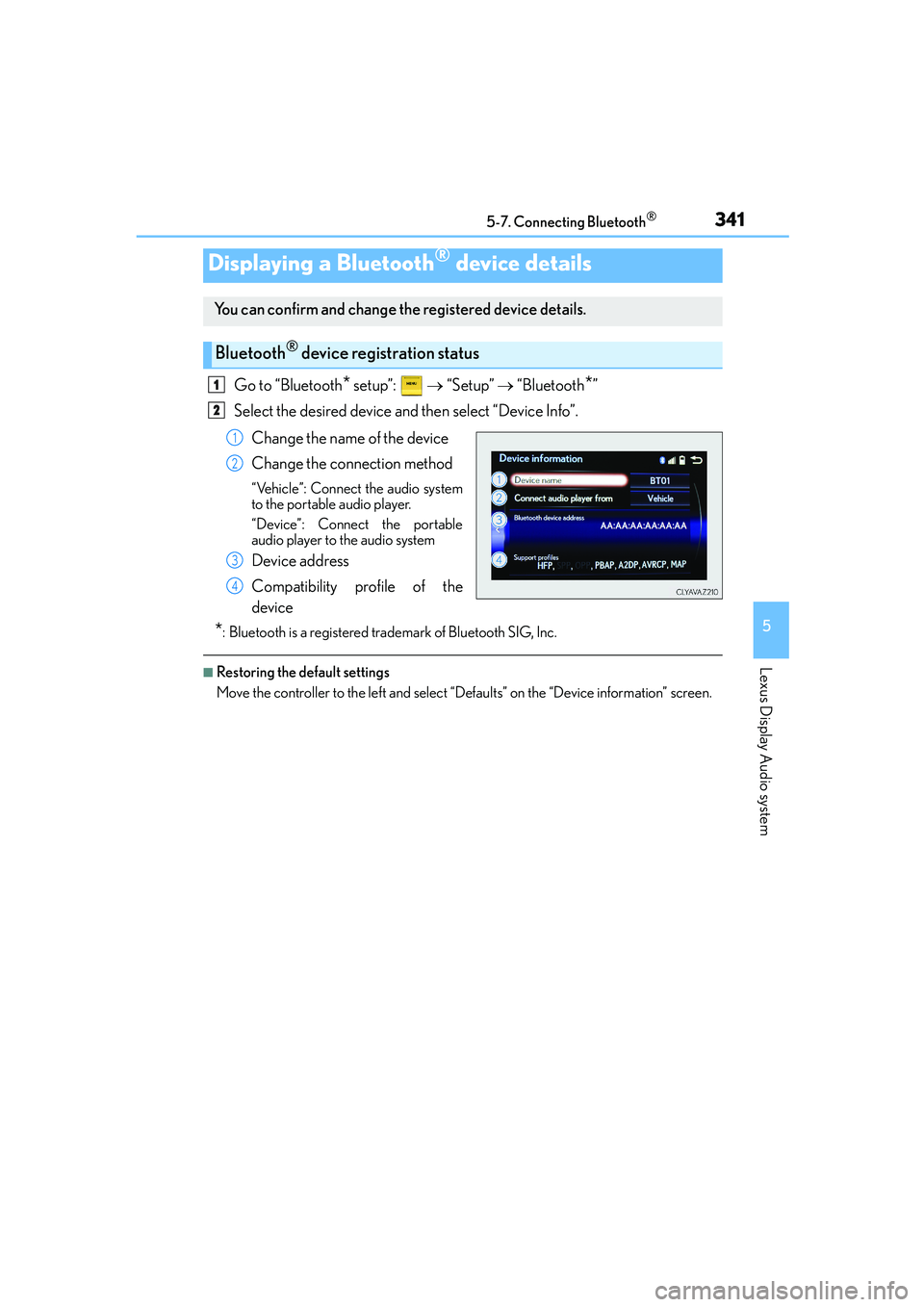
Go to “Bluetooth* setup”: → “Setup” → “Bluetooth*”
Select the desired device and then select “Device Info”.
Change the name of the device
Change the connection method
“Vehicle”: Connect the audio system
to the portable audio player.
“Device”: Connect the portable
audio player to the audio system
Device address
Compatibility profile of the
device
*: Bluetooth is a registered trademark of Bluetooth SIG, Inc.
■Restoring the default settings
Move the controller to the left and select “Defaults” on the “Device information” screen.
Displaying a Bluetooth® device details
You can confirm and change the registered device details.
Bluetooth® device registration status
1
2
1
2
3
4
Page 342 of 588
3425-7. Connecting Bluetooth®
IS250_EE(OM53C51E)
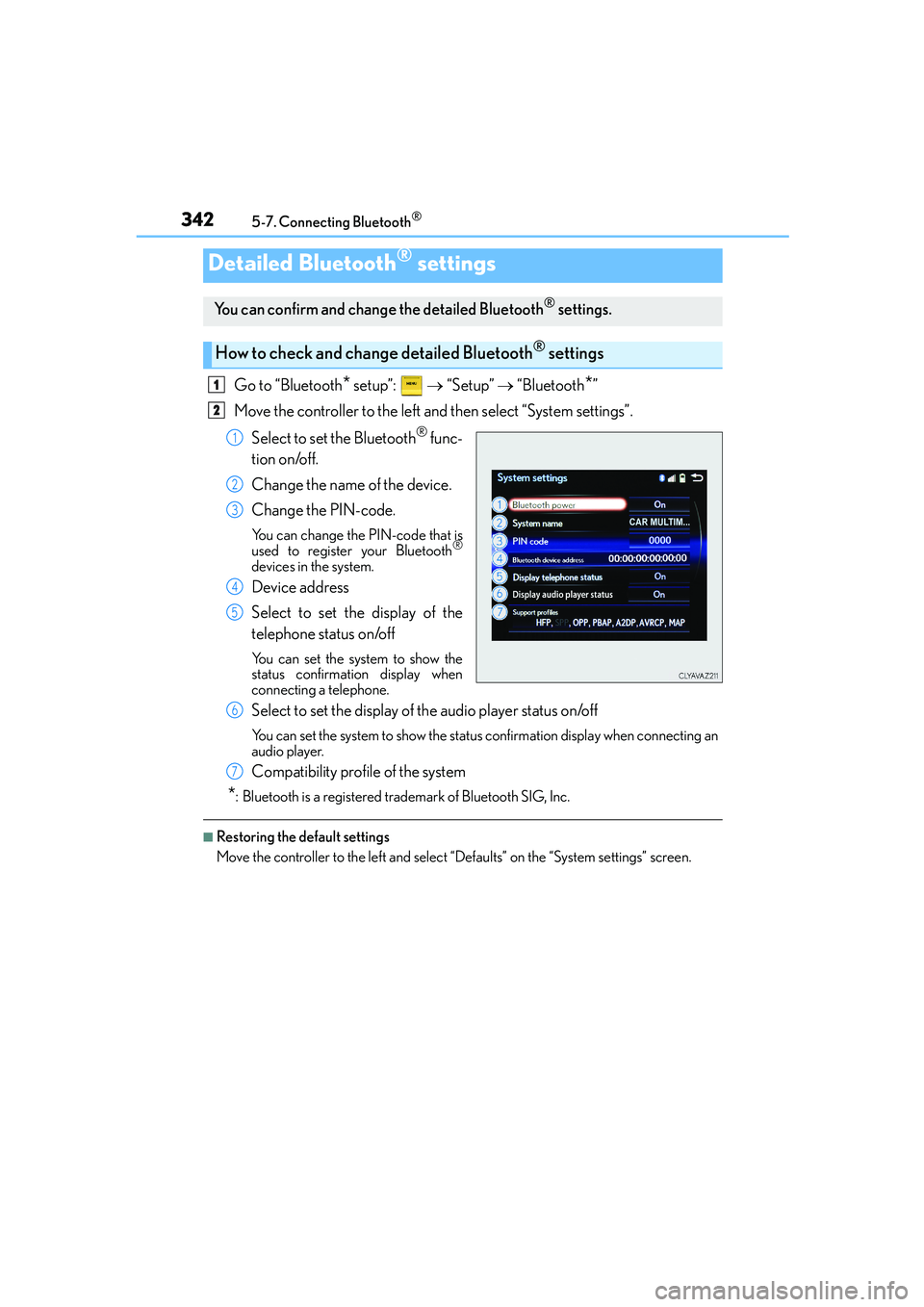
Go to “Bluetooth* setup”: → “Setup” → “Bluetooth*”
Move the controller to the left and then select “System settings”.
Select to set the Bluetooth
® func-
tion on/off.
Change the name of the device.
Change the PIN-code.
You can change the PIN-code that is
used to register your Bluetooth®
devices in the system.
Device address
Select to set the display of the
telephone status on/off
You can set the system to show the
status confirmation display when
connecting a telephone.
Select to set the display of the audio player status on/off
You can set the system to show the status confirmation display when connecting an
audio player.
Compatibility profile of the system
*: Bluetooth is a registered trademark of Bluetooth SIG, Inc.
■Restoring the default settings
Move the controller to the left and select “Defaults” on the “System settings” screen.
Detailed Bluetooth® settings
You can confirm and change the detailed Bluetooth® settings.
How to check and change detailed Bluetooth® settings
1
2
1
2
3
4
5
6
7
Page 343 of 588
343
5
Lexus Display Audio system
IS250_EE(OM53C51E)5-8. Bluetooth
® Audio
When a Bluetooth® device cannot be connected, check the connection status
on the “Bluetooth
* audio” screen. If the device is not connected, either register
or reconnect the device. (→P. 338, 339)
*: Bluetooth is a registered trademark of Bluetooth SIG, Inc.
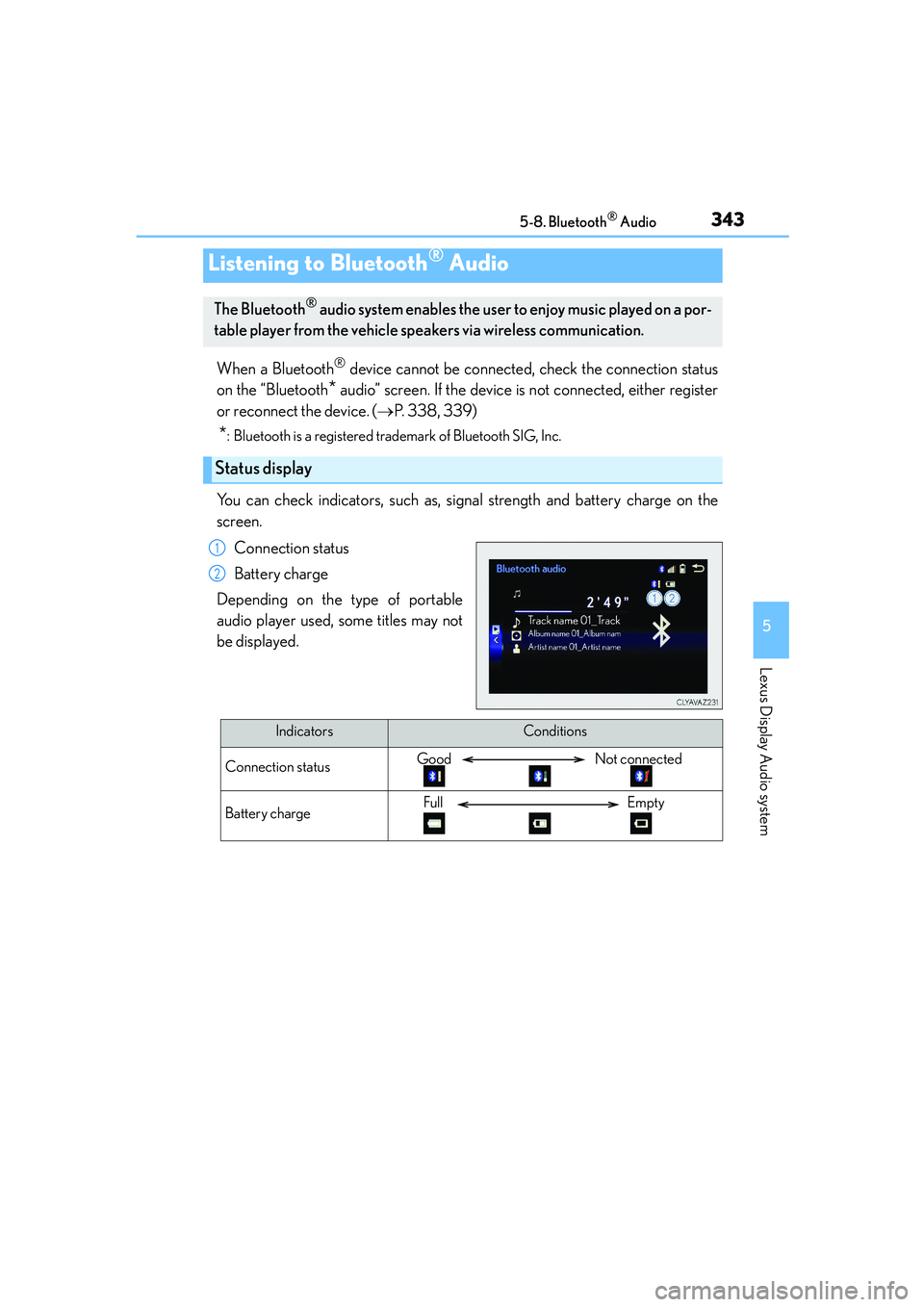
You can check indicators, such as, signal strength and battery charge on the
screen.
Connection status
Battery charge
Depending on the type of portable
audio player used, some titles may not
be displayed.
Listening to Bluetooth® Audio
The Bluetooth® audio system enables the user to enjoy music played on a por-
table player from the vehicle speakers via wireless communication.
Status display
1
2
IndicatorsConditions
Connection statusGood Not connected
Battery chargeFull Empty
Page 344 of 588
3445-8. Bluetooth® Audio
IS250_EE(OM53C51E)
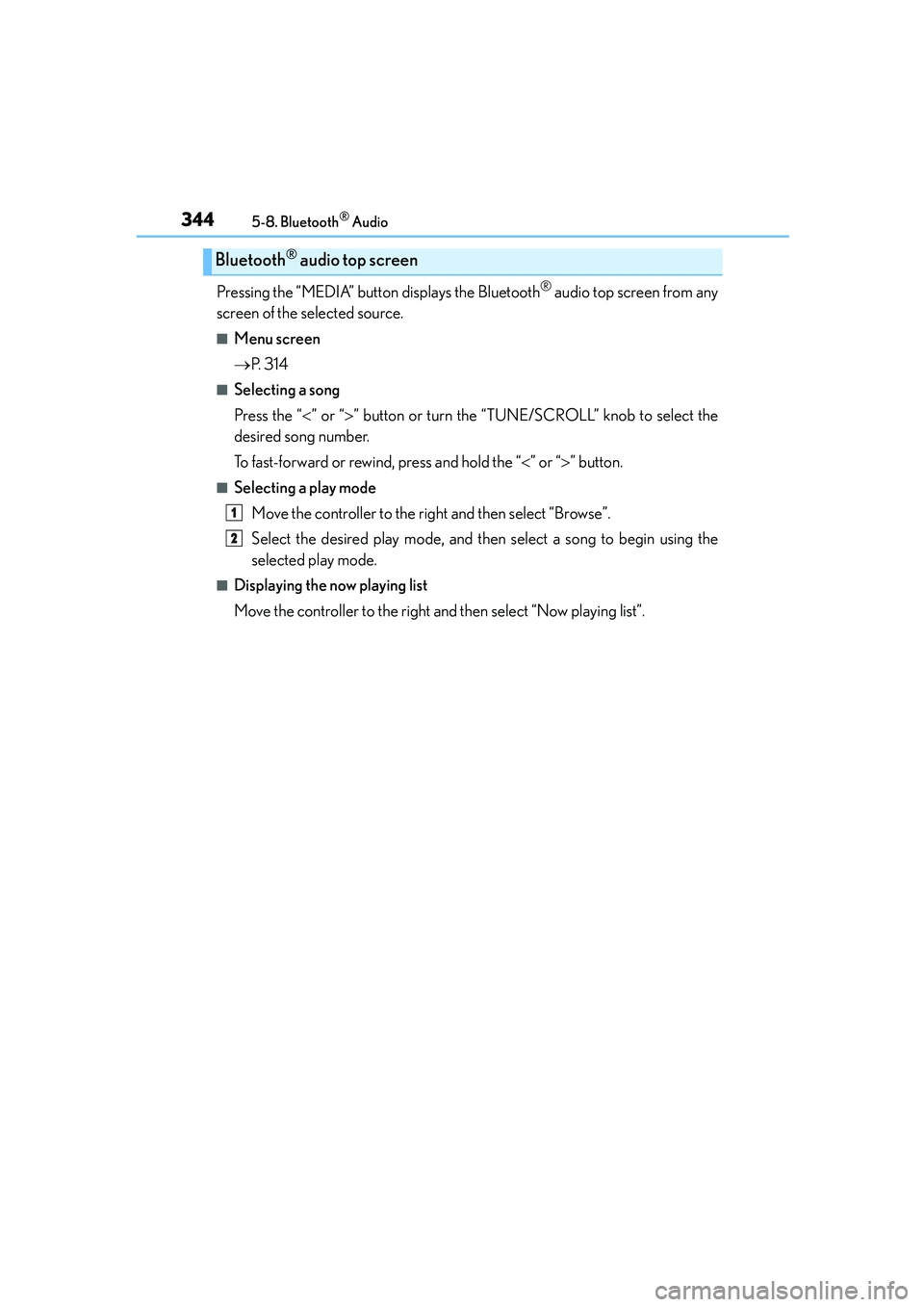
Pressing the “MEDIA” button displays the Bluetooth® audio top screen from any
screen of the selected source.
■Menu screen
→P. 3 1 4
■Selecting a song
Press the “<” or “>” button or turn the “TUNE/SCROLL” knob to select the
desired song number.
To fast-forward or rewind, press and hold the “<” or “>” button.
■Selecting a play mode
Move the controller to the right and then select “Browse”.
Select the desired play mode, and then select a song to begin using the
selected play mode.
■Displaying the now playing list
Move the controller to the right and then select “Now playing list”.
Bluetooth® audio top screen
1
2
Page 345 of 588
345
5
Lexus Display Audio system
IS250_EE(OM53C51E)5-9. Bluetooth
® Phone
Before making a phone call, check the connection status, battery charge, call
area and signal strength. (
→P. 3 4 6 )
If a Bluetooth
® device cannot be connected, check the connection status. If the
device is not connected, either register or reconnect it. (
→P. 3 3 8 , 3 4 0 )
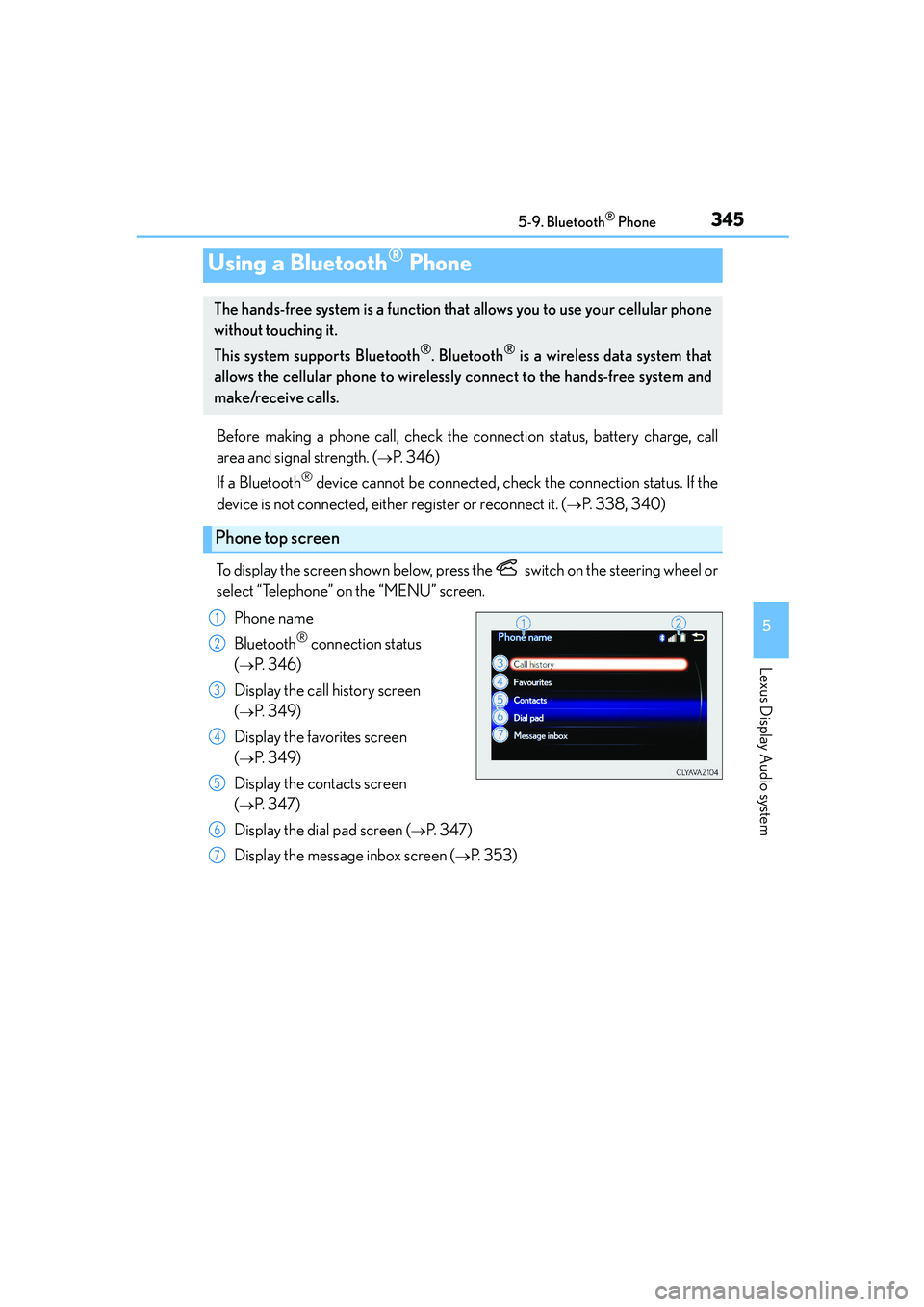
To display the screen shown below, press the switch on the steering wheel or
select “Telephone” on the “MENU” screen.
Phone name
Bluetooth
® connection status
(
→P. 3 4 6 )
Display the call history screen
(
→P. 3 4 9 )
Display the favorites screen
(
→P. 3 4 9 )
Display the contacts screen
(
→P. 3 4 7 )
Display the dial pad screen (
→P. 3 4 7 )
Display the message inbox screen (
→P. 3 5 3 )
Using a Bluetooth® Phone
The hands-free system is a function that allows you to use your cellular phone
without touching it.
This system supports Bluetooth
®. Bluetooth® is a wireless data system that
allows the cellular phone to wirelessly connect to the hands-free system and
make/receive calls.
Phone top screen
1
2
3
4
5
6
7
Page 347 of 588
3475-9. Bluetooth® Phone
5
Lexus Display Audio system
IS250_EE(OM53C51E)
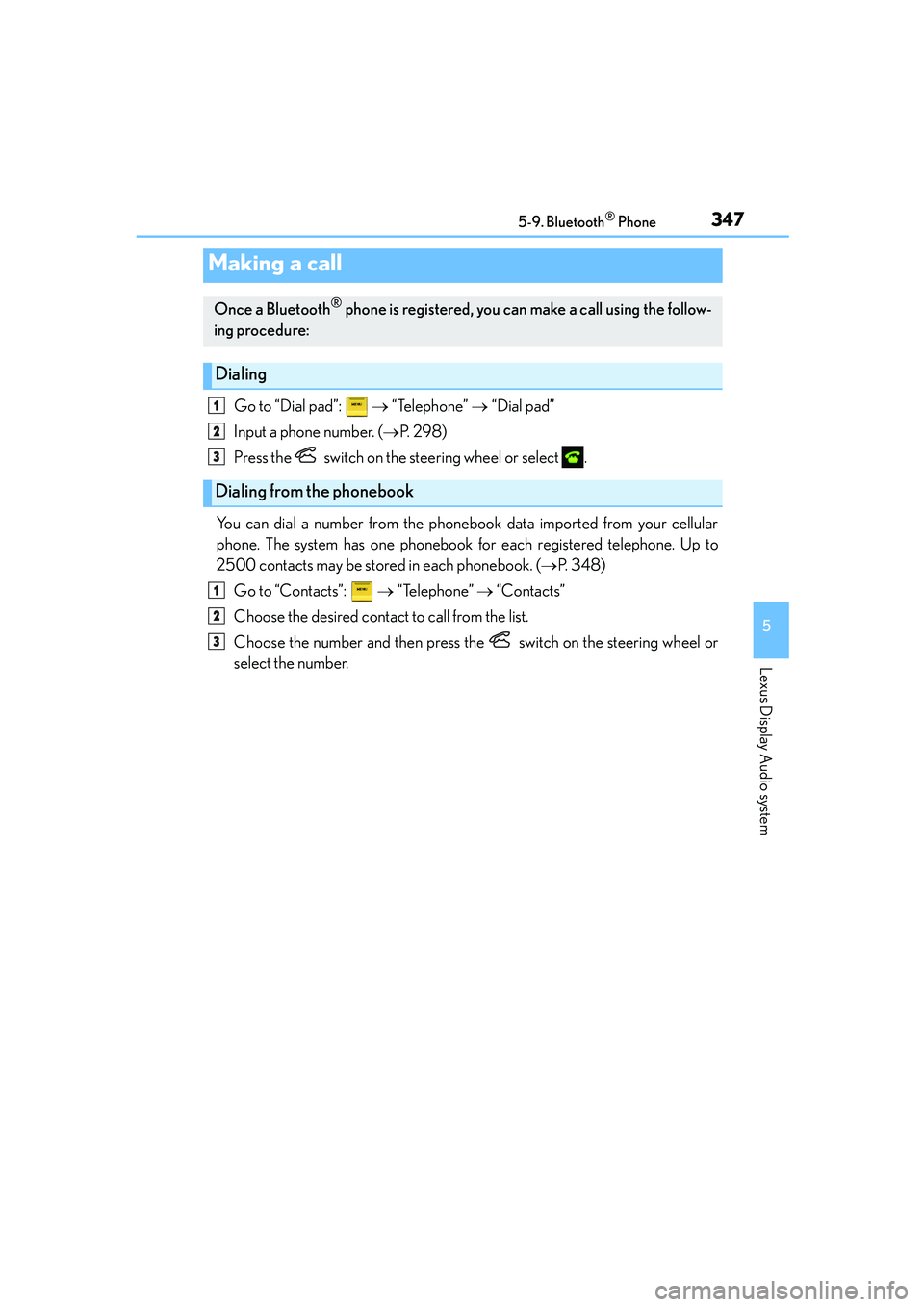
Go to “Dial pad”: → “Telephone” → “Dial pad”
Input a phone number. (→P. 2 9 8 )
Press the switch on the steering wheel or select .
You can dial a number from the phonebook data imported from your cellular
phone. The system has one phonebook for each registered telephone. Up to
2500 contacts may be stored in each phonebook. (→P. 3 4 8 )
Go to “Contacts”: → “Telephone” → “Contacts”
Choose the desired contact to call from the list.
Choose the number and then press the switch on the steering wheel or
select the number.
Making a call
Once a Bluetooth® phone is registered, you can make a call using the follow-
ing procedure:
Dialing
Dialing from the phonebook
1
2
3
1
2
3
Page 349 of 588

3495-9. Bluetooth® Phone
5
Lexus Display Audio system
IS250_EE(OM53C51E)
You can make a call using numbers registered in the favorites.
Go to “Favourites”: → “Telephone” → “Favourites”
Choose the desired contact to call from the list.
Choose the number and then press the switch on the steering wheel or
press the controller.
You can make a call using the call history.
Go to “Call history”: → “Telephone” → “Call history”
Select the desired entry from the list.
Press the switch on the steering wheel or select .
■Call history list
●If you make a call to or receive a call from a number registered in the phonebook, the
name is displayed in the call history.
●If you make multiple calls to the same number, only the last call made is displayed in the
call history.
■International calls
Depending on the mobile phone in use, you may not be able to make international calls.
■Calling by using the latest call history entry
Press the
switch on the steering wheel to display the phone top screen.
Press the
switch on the steering wheel to display the “Call history” screen.
Press the
switch on the steering wheel to select the latest call history entry.
Dialing from favorites
Dialing from history
1
2
3
1
2
3
1
2
3
Page 351 of 588

3515-9. Bluetooth® Phone
5
Lexus Display Audio system
IS250_EE(OM53C51E)
Select “Transmit volume”. To restore default volume, move the controller to the
left on the “Transmit volume” screen and then select “Default”.
Move the controller to the left and then select “In-call volume”. You can also
adjust the volume using the steering switches or volume knob.
Select “Mute”.
When using phone services such as an answering service or a bank, you can
store phone numbers and code numbers in the contacts using “p” or “w” symbols
(eg. 056133 w 0123p#1).
XContact including a phone number only
Move the controller to the left and then select “0-9”.
Input the number.
XPhone number containing a “p” symbol
When the “p” symbol is dialed in an outgoing call, there will be a pause for 2
seconds before the following digits are dialed automatically.
Speaking on the phone
The following screen is displayed when speaking on the phone.
To adjust the call volume
To adjust in call volume
To prevent the other party from hearing your voice
Inputting tones
1
2
Page 353 of 588

3535-9. Bluetooth® Phone
5
Lexus Display Audio system
IS250_EE(OM53C51E)
Go to “Message inbox”: → “Telephone” → “Message inbox”
Select a message.
Moving the controller to the left while on the “Message inbox” screen displays the set-
ting screen. (→P. 3 6 2 )
Move the controller to the right while on the “Message inbox” screen and then select
an account to display a message list for the selected account.
Selecting “Next” or “Previous” displays the next or previous message.
If a message is too long, select “Read more” to display the full text.
■Option menu
Move the controller to the left while on the message screen.
Select a prepared message and
send a return message.
Call a sender.
If more than one phone number is
registered for a sender, a phone
number selection screen will be dis-
played.
Call a phone number written in a
message.
Select “Mark unread” to mark mail that has been read as unread. Select
“Mark read” to mark mail that has not been read as read.
Using a Bluetooth® phone messages
Once a MAP-profile compatible Bluetooth® phone is registered, you can
check the E-mail/SMS/MMS and reply to a message using the following pro-
cedures:
Checking messages
Message screen
1
2
1
2
3
4
Page 355 of 588

3555-9. Bluetooth® Phone
5
Lexus Display Audio system
IS250_EE(OM53C51E)
This function is available when the “E-mail notification popup” or “SMS/MMS
notification popup” are set to on. (→P. 3 6 2 )
X“Incoming E-mail display” or “Incoming SMS/MMS display” are set to “Drop-
Down”
When E-mail/SMS/MMS are received, the incoming message is displayed
on the upper side of the screen with a sound.
X“Incoming E-mail display” or “Incoming SMS/MMS display” are set to “Full
Screen”
When E-mail/SMS/MMS are received, the incoming message screen is dis-
played with a sound and it can be operated on the screen.
Check the message.
Refuse to check the message.
Call to receive the message
sender’s phone number.
Receiving a message popup function
1
2
3