ipod Lexus IS250 2014 Owner's Manual
[x] Cancel search | Manufacturer: LEXUS, Model Year: 2014, Model line: IS250, Model: Lexus IS250 2014Pages: 588, PDF Size: 98.77 MB
Page 4 of 588
TABLE OF CONTENTS4
IS250_EE(OM53C51E)
5-1. Basic Operations
Lexus Display Audio
System.......................................... 294
Steering wheel audio
switches...................................... 300
USB/AUX ports .......................... 301
5-2. Setup
Setup menu...................................302
General settings ........................ 303
Voice settings.............................. 306
Display settings ........................... 307
5-3. Using the audio system
Selecting the audio
source ......................................... 308
Optimal use of the audio
system ......................................... 309
Audio settings............................... 310
Audio menu screen
operation ..................................... 314
5-4. Using the radio
Radio operation ........................... 3175-5. Playing an audio CD and
MP3/WMA/AAC discs
CD player operation ................. 319
5-6. Using an external device
Listening to an iPod ................... 326
Using USB memory
device...........................................329
Using the AUX port..................334
5-7. Connecting Bluetooth
®
Steps for using Bluetooth®
devices......................................... 335
Registering a Bluetooth
®
device........................................... 337
Selecting a Bluetooth
®
device.......................................... 338
Connecting a Bluetooth
®
audio player ...............................339
Connecting a Bluetooth
®
phone .......................................... 340
Displaying a Bluetooth
®
device details ............................. 341
Detailed Bluetooth
®
settings......................................... 342
5-8. Bluetooth
® Audio
Listening to Bluetooth
®
Audio............................................343
5Lexus Display Audio system
Page 293 of 588
293
5
Lexus Display
Audio system
IS250_EE(OM53C51E)
5-6. Using an external device
Listening to an iPod ................... 326
Using USB memory
device ...........................................329
Using the AUX port..................334
5-7. Connecting Bluetooth
®
Steps for using Bluetooth®
devices.........................................335
Registering a Bluetooth
®
device ........................................... 337
Selecting a Bluetooth
®
device .......................................... 338
Connecting a Bluetooth
®
audio player ...............................339
Connecting a Bluetooth
®
phone .......................................... 340
Displaying a Bluetooth
®
device details ............................. 341
Detailed Bluetooth
®
settings......................................... 342
5-8. Bluetooth
® Audio
Listening to Bluetooth
®
Audio............................................3435-9. Bluetooth
® Phone
Using a Bluetooth
®
Phone........................................... 345
Making a call................................ 347
Receiving a call ...........................350
Speaking on the phone .............351
Using a Bluetooth
® phone
messages.................................... 353
Using the steering wheel
switches....................................... 356
Bluetooth
® phone
settings ........................................ 357
5-10. Phonebook
Contact settings ......................... 359
Messaging setting...................... 362
5-11. Bluetooth
®
Bluetooth®.................................. 363
5-12. Other function
“Information” screen .................368
MirrorLink................................ 369
USB photo ...................................... 371
Speech command system ...... 373
Page 300 of 588

3005-1. Basic Operations
IS250_EE(OM53C51E)
Volume switch
• Increases/decreases volume
• Press and hold: Continuously
increases/decreases volume
Radio mode:
• Press (except manual mode):
Select a radio station
• Press (manual mode): Seek up/
down
• Press and hold (manual mode): Continuously seek up/down
CD, MP3/WMA/AAC disc, Bluetooth
®, iPod or USB mode:
• Press: Select a track/file/song/video
• Press and hold: Select a folder/album (MP3/WMA/AAC disc or USB)
“MODE” switch
• Turns the power on, selects audio source
• Press and hold this switch to mute or pause the current operation. To can-
cel the mute or pause, press and hold.
Steering wheel audio switches
Some audio features can be controlled using the switches on the steering
wheel.
Operation may differ depending on the type of audio system or navigation
system. For details, refer to the manual provided with the audio system or nav-
igation system.
Operating the audio system using the steering wheel switches
1
2
CAUTION
■To reduce the risk of an accident
Exercise care when operating the audio switches on the steering wheel.
3
Page 301 of 588
3015-1. Basic Operations
5
Lexus Display Audio system
IS250_EE(OM53C51E)
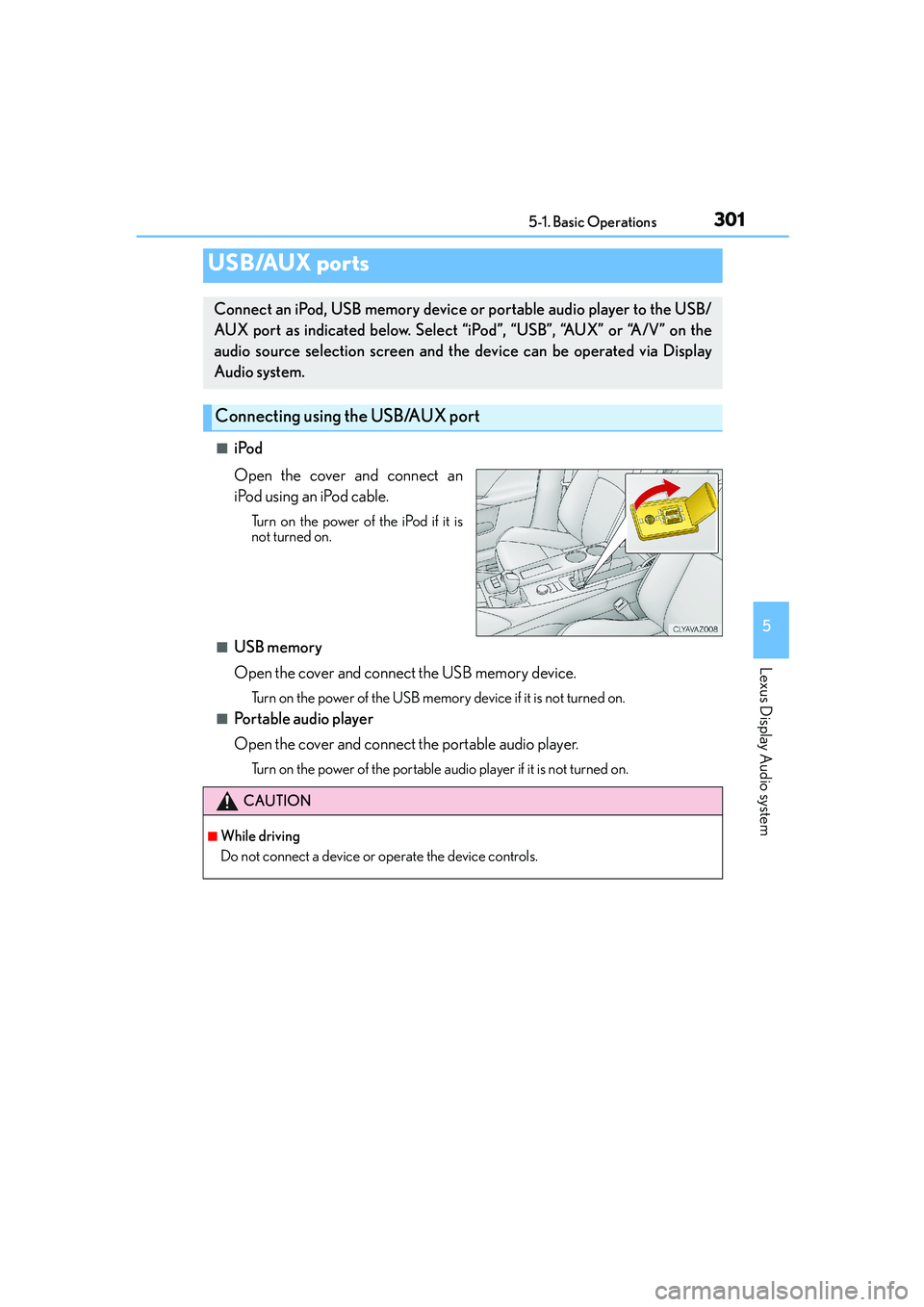
■iPod
Open the cover and connect an
iPod using an iPod cable.
Turn on the power of the iPod if it is
not turned on.
■USB memory
Open the cover and connect the USB memory device.
Turn on the power of the USB memory device if it is not turned on.
■Portable audio player
Open the cover and connect the portable audio player.
Turn on the power of the portable audio player if it is not turned on.
USB/AUX ports
Connect an iPod, USB memory device or portable audio player to the USB/
AUX port as indicated below. Select “iPod”, “USB”, “AUX” or “A/V” on the
audio source selection screen and the device can be operated via Display
Audio system.
Connecting using the USB/AUX port
CAUTION
■While driving
Do not connect a device or operate the device controls.
Page 302 of 588
302
IS250_EE(OM53C51E)5-2. Setup
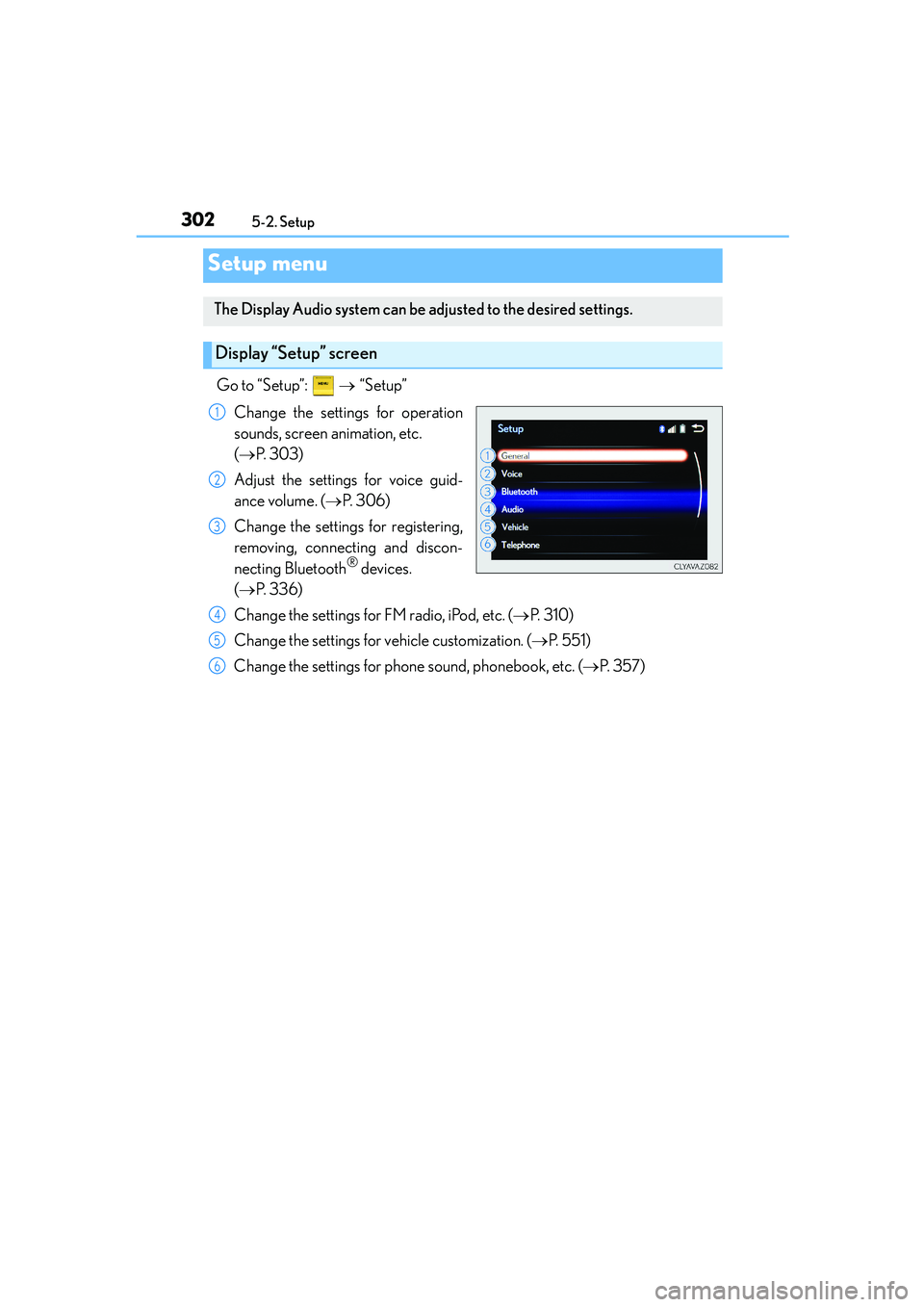
Go to “Setup”: → “Setup”
Change the settings for operation
sounds, screen animation, etc.
(→P. 303)
Adjust the settings for voice guid-
ance volume. (→P. 3 0 6 )
Change the settings for registering,
removing, connecting and discon-
necting Bluetooth
® devices.
(→P. 3 3 6 )
Change the settings for FM radio, iPod, etc. (→P. 3 1 0 )
Change the settings for vehicle customization. (→P. 5 5 1 )
Change the settings for phone sound, phonebook, etc. (→P. 3 5 7 )
Setup menu
The Display Audio system can be adjusted to the desired settings.
Display “Setup” screen
1
2
3
4
5
6
Page 305 of 588
3055-2. Setup
5
Lexus Display Audio system
IS250_EE(OM53C51E)
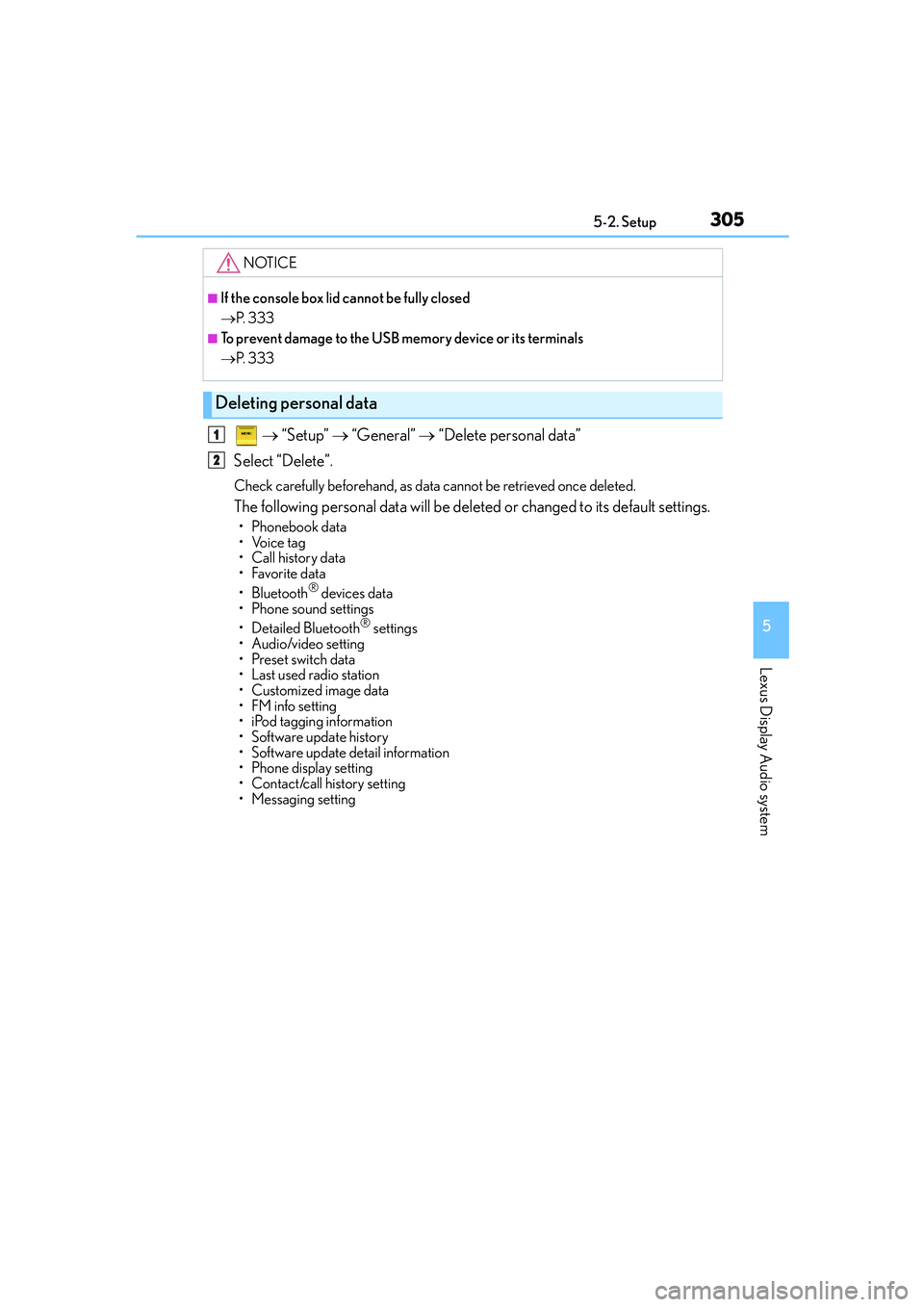
→ “Setup” → “General” → “Delete personal data”
Select “Delete”.
Check carefully beforehand, as data cannot be retrieved once deleted.
The following personal data will be deleted or changed to its default settings.
•Phonebook data
•Voice tag
• Call history data
•Favorite data
• Bluetooth
® devices data
• Phone sound settings
• Detailed Bluetooth
® settings
• Audio/video setting
• Preset switch data
• Last used radio station
• Customized image data
•FM info setting
• iPod tagging information
• Software update history
• Software update detail information
• Phone display setting
• Contact/call history setting
• Messaging setting
NOTICE
■If the console box lid cannot be fully closed
→P. 3 3 3
■To prevent damage to the USB memory device or its terminals
→P. 3 3 3
Deleting personal data
1
2
Page 310 of 588
3105-3. Using the audio system
IS250_EE(OM53C51E)
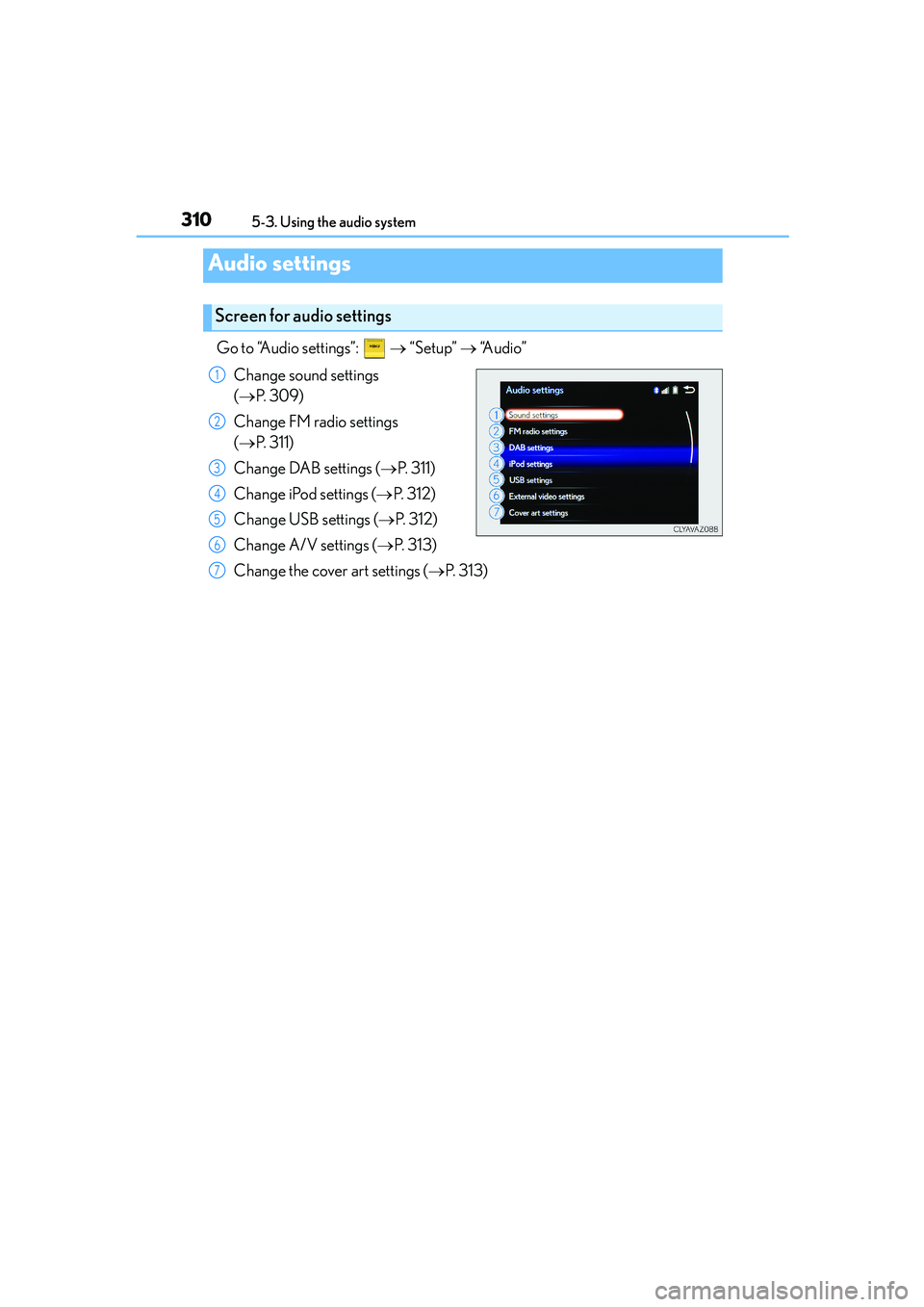
Go to “Audio settings”: → “Setup” → “Audio”
Change sound settings
(→P. 3 0 9 )
Change FM radio settings
(→P. 311)
Change DAB settings (→P. 311)
Change iPod settings (→P. 3 1 2 )
Change USB settings (→P. 3 1 2 )
Change A/V settings (→P. 3 1 3 )
Change the cover art settings (→P. 313)
Audio settings
Screen for audio settings
1
2
3
4
5
6
7
Page 312 of 588

3125-3. Using the audio system
IS250_EE(OM53C51E)
Change the screen size (video
mode)
Change the cover art settings
(→P. 313)
Adjust the screen quality (video
mode) (→P. 3 0 7 )
Change video sound input port
Change the screen size (video
mode)
Change the cover art settings
(→P. 313)
Adjust the screen quality (video
mode) (→P. 3 0 7 )
Changing iPod settings
1
2
3
4
Changing USB settings
1
2
3
Page 313 of 588

3135-3. Using the audio system
5
Lexus Display Audio system
IS250_EE(OM53C51E)
Change the screen size
Change the video signal
Adjust the screen quality (→P. 3 0 7 )
Select to set the cover art display of
DISC mode on/off.
Select to set the cover art display of
USB mode on/off.
Change the priority of the cover art
display for USB mode.
Select to set the cover art display of
iPod mode on/off.
Change the priority of the cover art display for iPod mode.
Changing A/V settings
1
2
3
Changing the cover art settings
1
2
3
4
5
Page 315 of 588

3155-3. Using the audio system
5
Lexus Display Audio system
IS250_EE(OM53C51E)
XCD, MP3/WMA/AAC disc, USB, Bluetooth® or iPod
Play or pause a track/file/song
Select a track/file/song
Select a folder/album (MP3/
WMA/AAC disc or USB)
Select and hold: Fast-forward or
reverse a track/file/song
Select a repeat mode. (→P. 3 1 6 )
Select a random/shuffle play
mode. (→P. 316)
Select the full screen mode. (USB
video or iPod video mode)
Change USB settings (USB)
(→P. 3 1 2 )
Change iPod settings (iPod)
(→P. 3 1 2 )
Connect a Bluetooth
® device (Bluetooth®) (→P. 3 3 8 )
Change the cover art settings (→P. 313) (CD or MP3/WMA/AAC disc)
XAUX or A/V
Select the full screen mode (A/V)
Change A/V settings (A/V)
(→P. 313)
1
2
3
4
5
6
7
8
9
10
11
1
2