ad blue Lexus IS300h 2013 Navigation manual
[x] Cancel search | Manufacturer: LEXUS, Model Year: 2013, Model line: IS300h, Model: Lexus IS300h 2013Pages: 415, PDF Size: 42.75 MB
Page 324 of 415
322
IS300h/250_Navi_EE
1. TELEPHONE OPERATION (HANDS-FREE SYSTEM FOR CELLULAR
PHONES)
1. QUICK REFERENCE
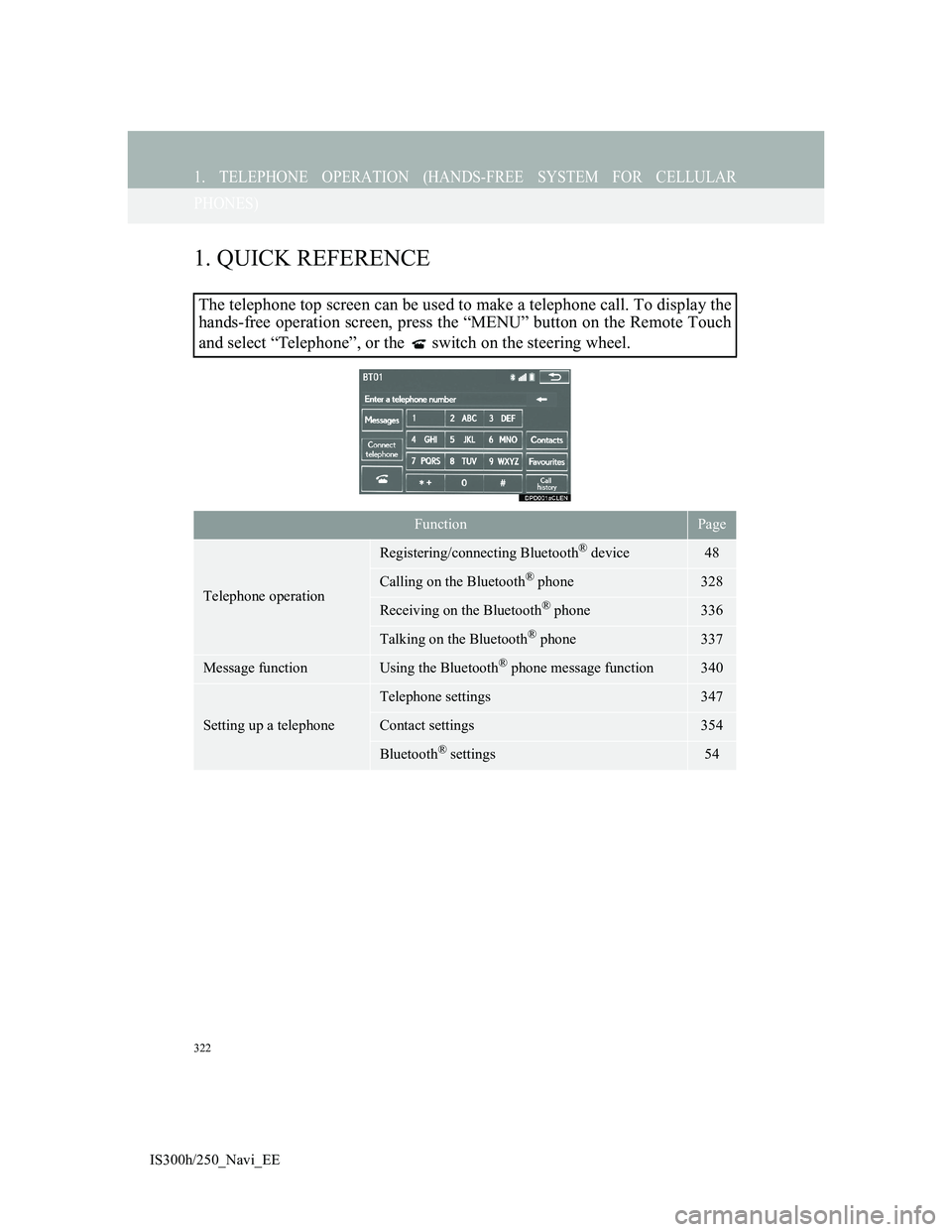
The telephone top screen can be used to make a telephone call. To display the
hands-free operation screen, press the “MENU” button on the Remote Touch
and select “Telephone”, or the switch on the steering wheel.
FunctionPage
Telephone operation
Registering/connecting Bluetooth® device48
Calling on the Bluetooth® phone328
Receiving on the Bluetooth® phone336
Talking on the Bluetooth® phone337
Message functionUsing the Bluetooth® phone message function340
Setting up a telephone
Telephone settings347
Contact settings354
Bluetooth® settings54
Page 325 of 415
323
1. TELEPHONE OPERATION (HANDS-FREE SYSTEM FOR CELLULAR
IS300h/250_Navi_EE
7
TELEPHONE
2. SOME BASICS
The hands-free system enables calls
to be made and received without
having to take your hands off the
steering wheel.
This system supports Bluetooth
®.
Bluetooth
® is a wireless data system
that enables cellular phones to be
used without being connected by a
cable or placed in a cradle.
The operating procedure of the tele-
phone is explained here.
CAUTION
Use a cellular phone or connect the
Bluetooth® phone only when safe and
legal to do so.
Your audio unit is fitted with Blue-
tooth
® antennas. People with
implanted pacemakers or cardiac
defibrillators should maintain a rea-
sonable distance between themselves
and the Bluetooth
® antennas. The
radio waves may affect the operation
of such devices.
Before using Bluetooth
® devices,
users of any electrical medical device
other than implanted pacemakers and
implanted cardiac defibrillators
should consult the manufacturer of
the device for information about its
operation under the influence of radio
waves. Radio waves could have unex-
pected effects on the operation of
such medical devices.
NOTICE
Do not leave your cellular phone in
the vehicle. The temperature inside
may rise to a level that could damage
the telephone.
INFORMATION
If your cellular phone does not sup-
port Bluetooth®, this system cannot
function.
In the following conditions, the sys-
tem may not function:
• The cellular phone is turned off.
• The current position is outside the
communication area.
• The cellular phone is not connected.
• The cellular phone has a low battery.
When using Bluetooth
® audio and
hands-free at the same time, the fol-
lowing problems may occur:
• The Bluetooth
® connection may be
cut.
• Noise may be heard on the
Bluetooth
® audio playback.
Page 326 of 415
324
1. TELEPHONE OPERATION (HANDS-FREE SYSTEM FOR CELLULAR PHONES)
IS300h/250_Navi_EE
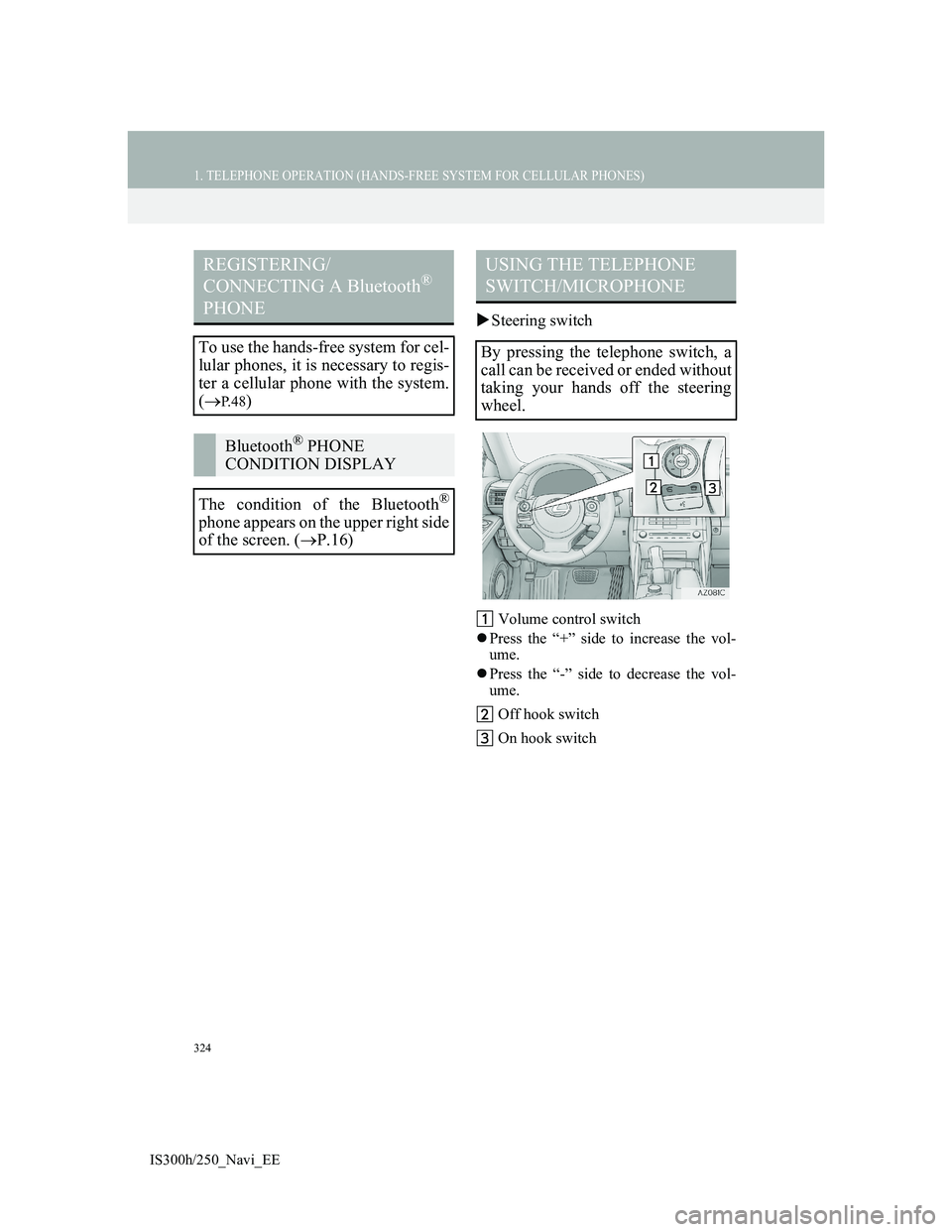
Steering switch
Volume control switch
Press the “+” side to increase the vol-
ume.
Press the “-” side to decrease the vol-
ume.
Off hook switch
On hook switch
REGISTERING/
CONNECTING A Bluetooth®
PHONE
To use the hands-free system for cel-
lular phones, it is necessary to regis-
ter a cellular phone with the system.
(
P. 4 8)
Bluetooth® PHONE
CONDITION DISPLAY
The condition of the Bluetooth
®
phone appears on the upper right side
of the screen. (P.16)
USING THE TELEPHONE
SWITCH/MICROPHONE
By pressing the telephone switch, a
call can be received or ended without
taking your hands off the steering
wheel.
Page 330 of 415
328
1. TELEPHONE OPERATION (HANDS-FREE SYSTEM FOR CELLULAR
IS300h/250_Navi_EE
3. CALLING ON THE Bluetooth® PHONE
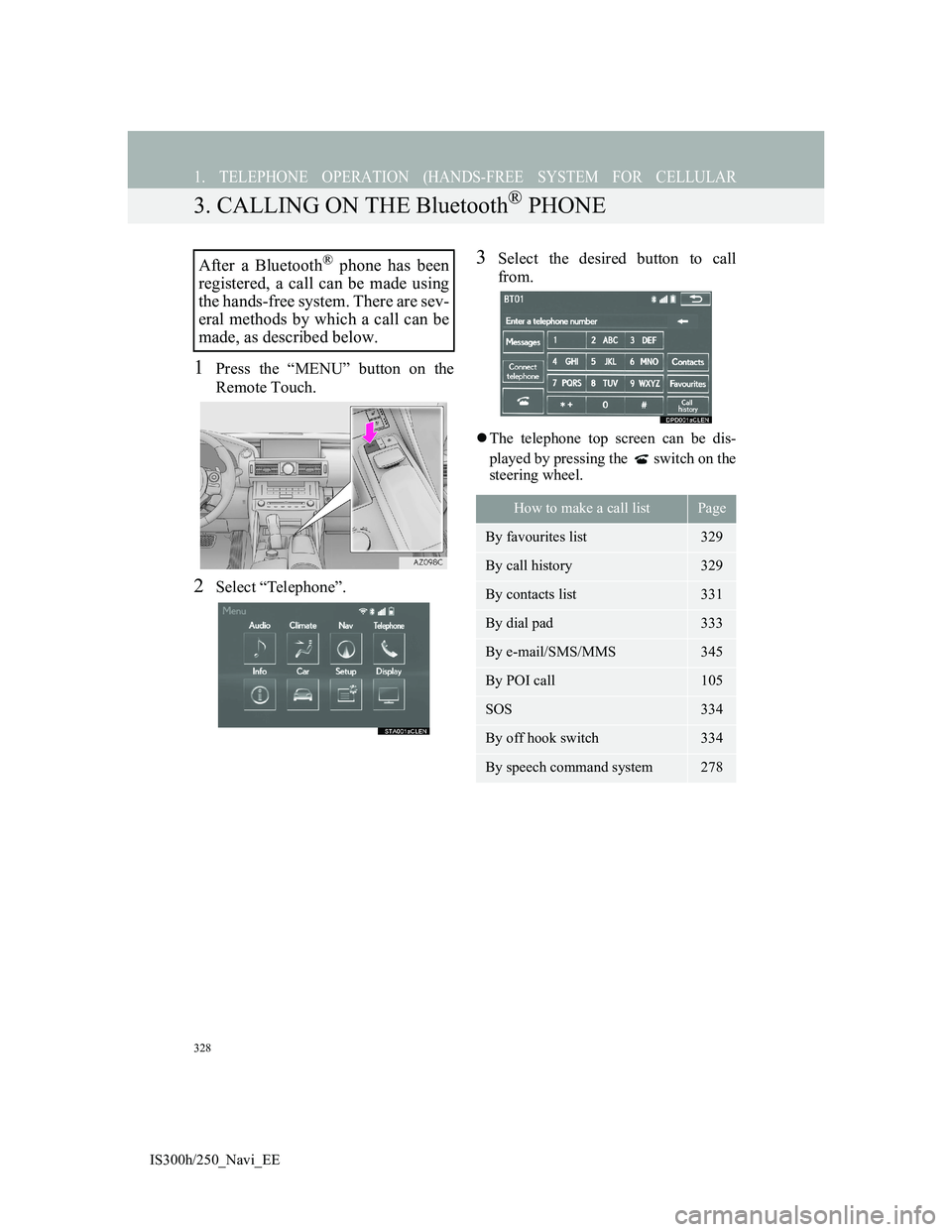
1Press the “MENU” button on the
Remote Touch.
2Select “Telephone”.
3Select the desired button to call
from.
The telephone top screen can be dis-
played by pressing the switch on the
steering wheel.
After a Bluetooth® phone has been
registered, a call can be made using
the hands-free system. There are sev-
eral methods by which a call can be
made, as described below.
How to make a call listPage
By favourites list329
By call history329
By contacts list331
By dial pad333
By e-mail/SMS/MMS345
By POI call105
SOS334
By off hook switch334
By speech command system278
Page 333 of 415
331
1. TELEPHONE OPERATION (HANDS-FREE SYSTEM FOR CELLULAR PHONES)
7
TELEPHONE
IS300h/250_Navi_EE
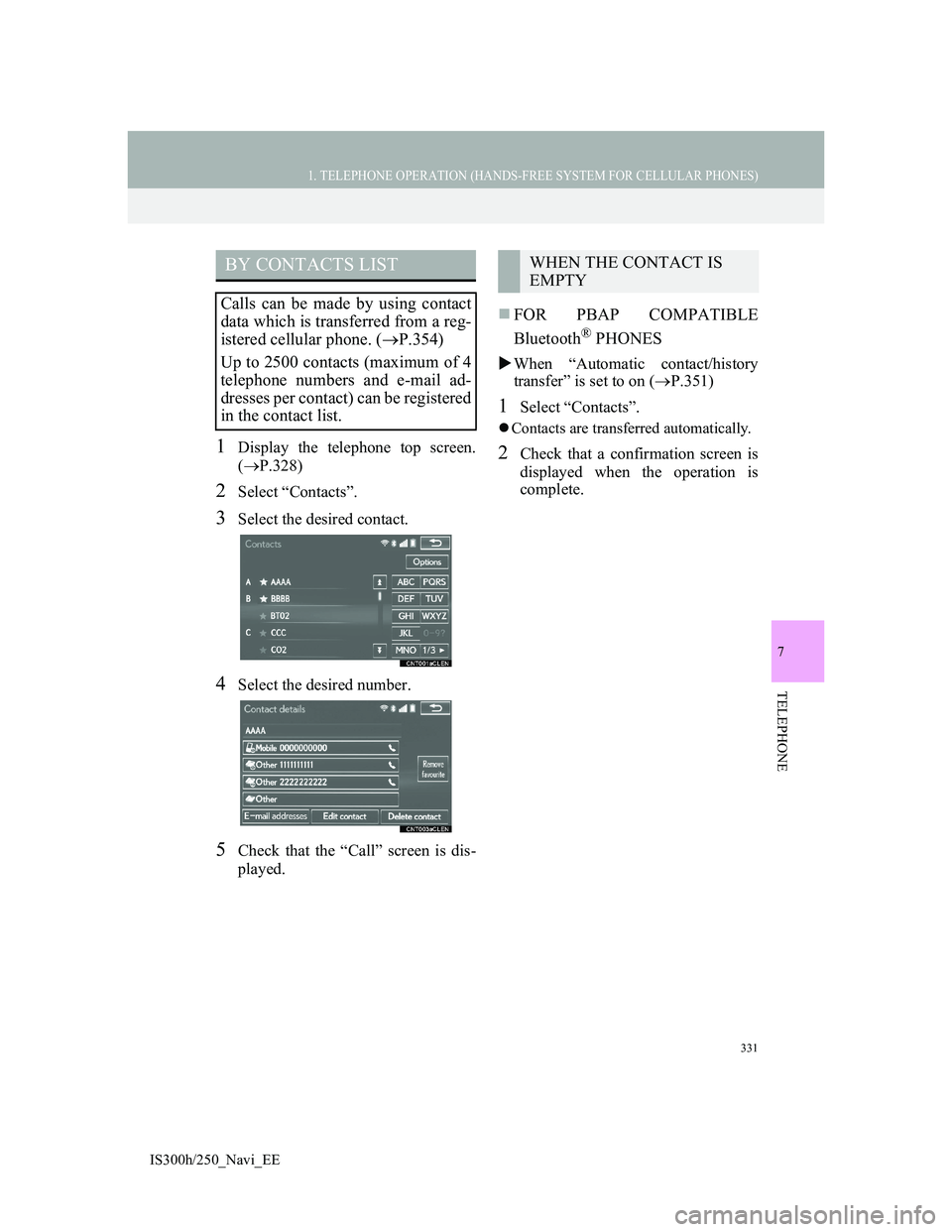
1Display the telephone top screen.
(P.328)
2Select “Contacts”.
3Select the desired contact.
4Select the desired number.
5Check that the “Call” screen is dis-
played.
FOR PBAP COMPATIBLE
Bluetooth
® PHONES
When “Automatic contact/history
transfer” is set to on (P.351)
1Select “Contacts”.
Contacts are transferred automatically.
2Check that a confirmation screen is
displayed when the operation is
complete.
BY CONTACTS LIST
Calls can be made by using contact
data which is transferred from a reg-
istered cellular phone. (P.354)
Up to 2500 contacts (maximum of 4
telephone numbers and e-mail ad-
dresses per contact) can be registered
in the contact list.
WHEN THE CONTACT IS
EMPTY
Page 334 of 415
332
1. TELEPHONE OPERATION (HANDS-FREE SYSTEM FOR CELLULAR PHONES)
IS300h/250_Navi_EE
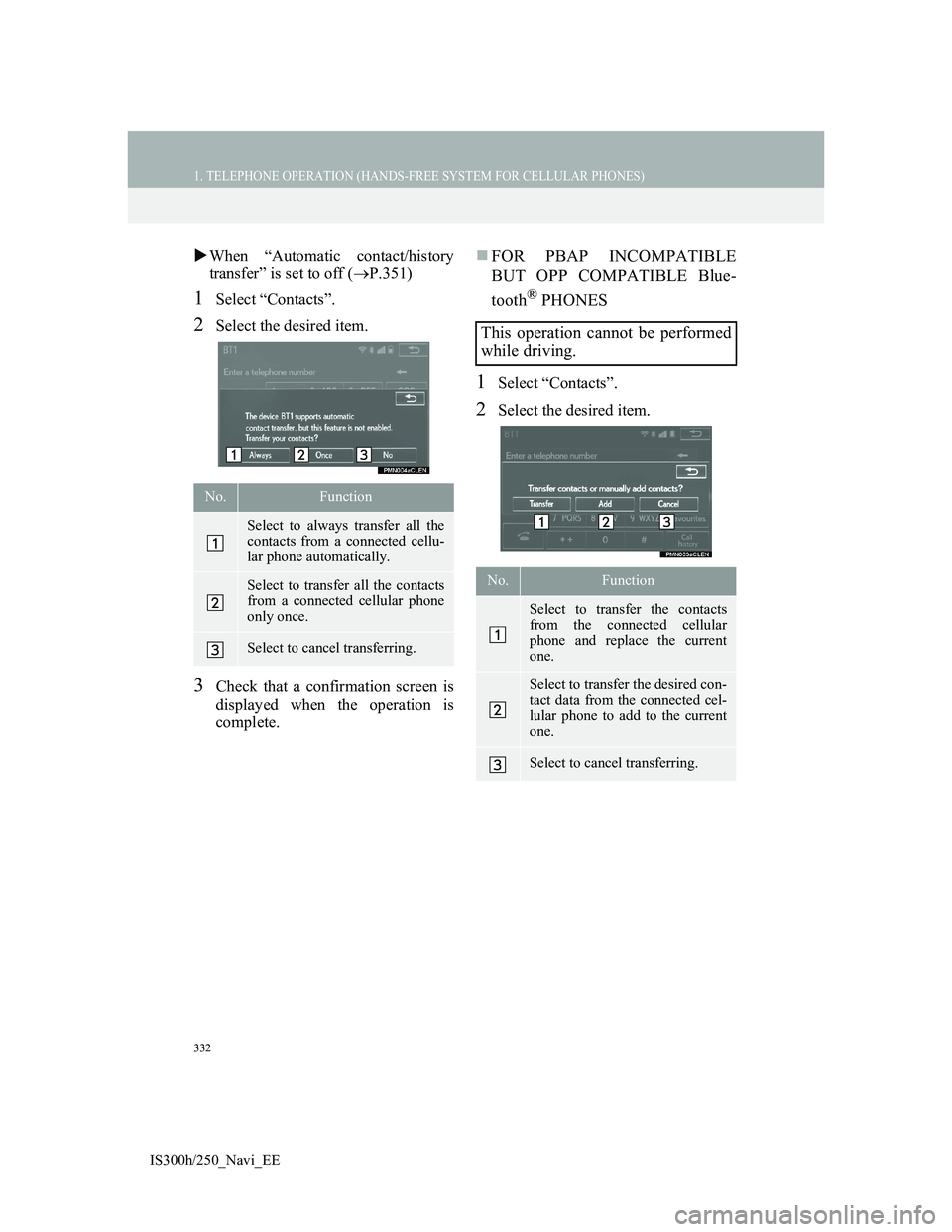
When “Automatic contact/history
transfer” is set to off (P.351)
1Select “Contacts”.
2Select the desired item.
3Check that a confirmation screen is
displayed when the operation is
complete.
FOR PBAP INCOMPATIBLE
BUT OPP COMPATIBLE Blue-
tooth
® PHONES
1Select “Contacts”.
2Select the desired item.
No.Function
Select to always transfer all the
contacts from a connected cellu-
lar phone automatically.
Select to transfer all the contacts
from a connected cellular phone
only once.
Select to cancel transferring.
This operation cannot be performed
while driving.
No.Function
Select to transfer the contacts
from the connected cellular
phone and replace the current
one.
Select to transfer the desired con-
tact data from the connected cel-
lular phone to add to the current
one.
Select to cancel transferring.
Page 335 of 415
333
1. TELEPHONE OPERATION (HANDS-FREE SYSTEM FOR CELLULAR PHONES)
7
TELEPHONE
IS300h/250_Navi_EE
3Transfer the contact data to the sys-
tem using a Bluetooth
® phone.
When “Transfer” is selected
4Follow the steps in “TRANSFER
CONTACTS FROM TELE-
PHONE” from “STEP 2”. (P.356)
When “Add” is selected
4Follow the steps in “REGISTER-
ING A NEW CONTACT TO THE
CONTACTS LIST” from “STEP 2”.
(P.358)
1Display the telephone top screen.
(P.328)
2Enter the telephone number.
3Select or press the switch
on the steering wheel.
4Check that the “Call” screen is dis-
played.
INFORMATION
If your cellular phone is neither
PBAP nor OPP compatible, the con-
tacts cannot be transferred.
Depending on the type of Bluetooth
®
phone:
• It may be necessary to perform addi-
tional steps on the telephone when
transferring contact data.
• The registered image in the contact
list may not transfer depending on
the type of Bluetooth
® phone con-
nected.
BY DIAL PAD
INFORMATION
Depending on the type of Bluetooth®
phone being connected, it may be
necessary to perform additional steps
on the telephone.
Page 338 of 415
336
1. TELEPHONE OPERATION (HANDS-FREE SYSTEM FOR CELLULAR
IS300h/250_Navi_EE
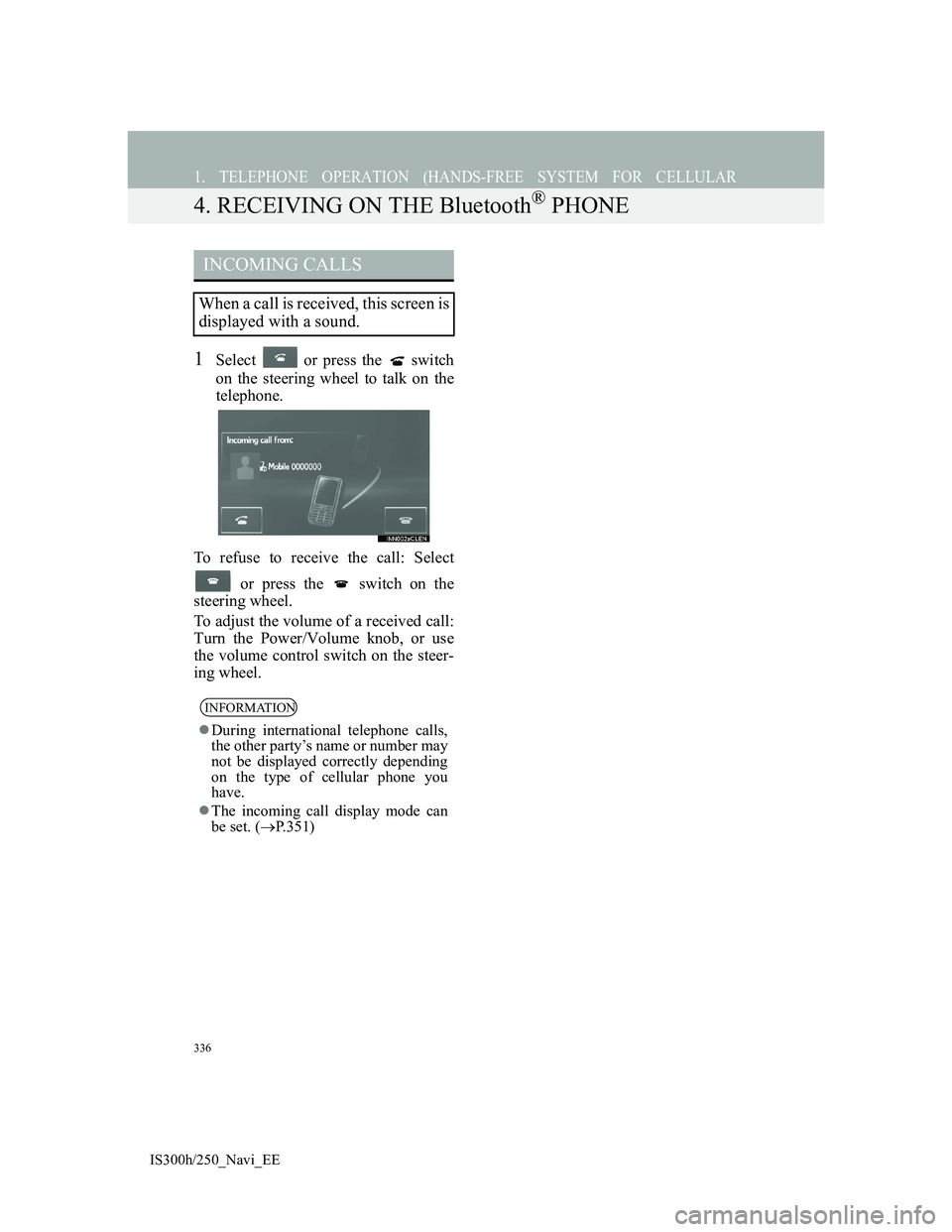
4. RECEIVING ON THE Bluetooth® PHONE
1Select or press the switch
on the steering wheel to talk on the
telephone.
To refuse to receive the call: Select
or press the switch on the
steering wheel.
To adjust the volume of a received call:
Turn the Power/Volume knob, or use
the volume control switch on the steer-
ing wheel.
INCOMING CALLS
When a call is received, this screen is
displayed with a sound.
INFORMATION
During international telephone calls,
the other party’s name or number may
not be displayed correctly depending
on the type of cellular phone you
have.
The incoming call display mode can
be set. (P.351)
Page 339 of 415
337
1. TELEPHONE OPERATION (HANDS-FREE SYSTEM FOR CELLULAR
IS300h/250_Navi_EE
7
TELEPHONE
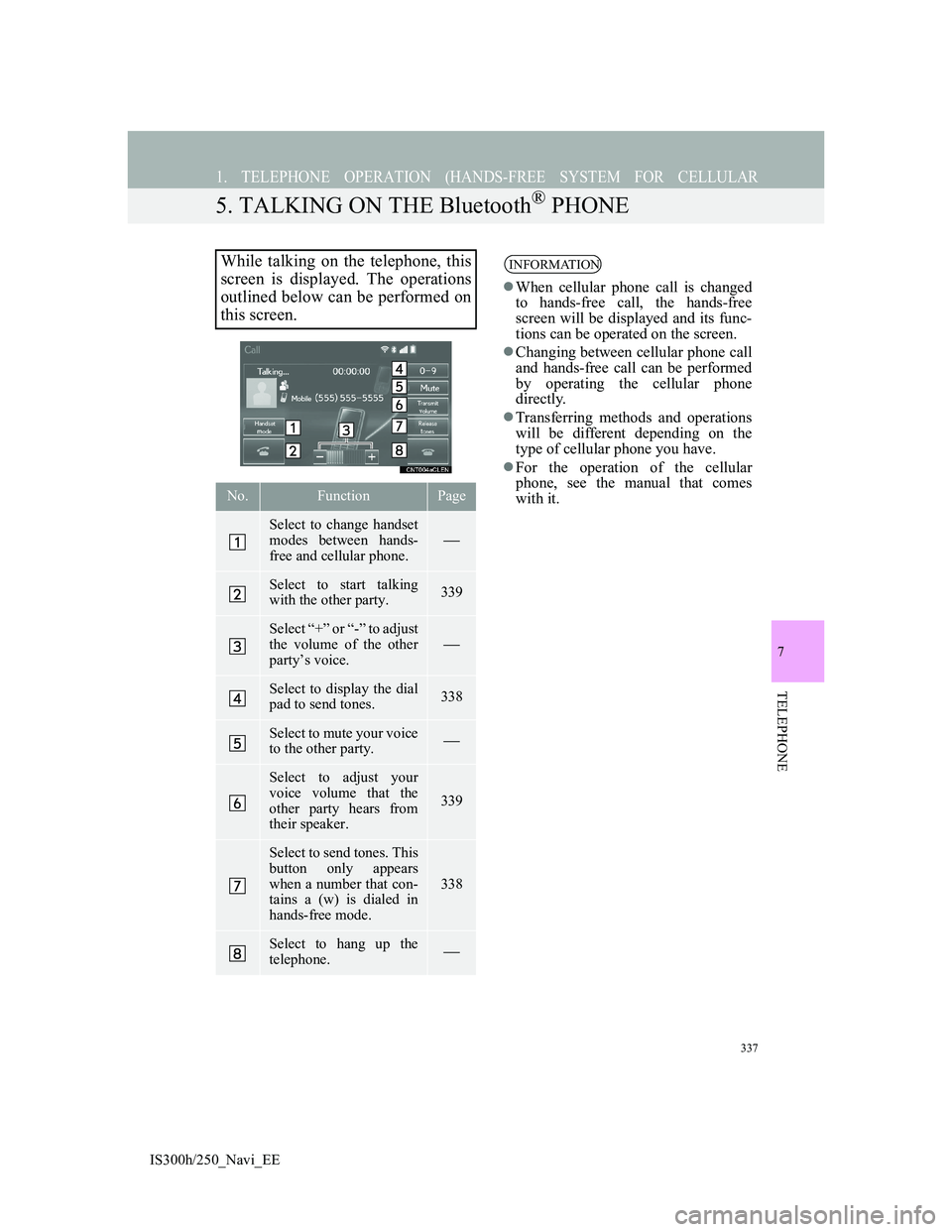
5. TALKING ON THE Bluetooth® PHONE
While talking on the telephone, this
screen is displayed. The operations
outlined below can be performed on
this screen.
No.FunctionPage
Select to change handset
modes between hands-
free and cellular phone.
Select to start talking
with the other party.339
Select “+” or “-” to adjust
the volume of the other
party’s voice.
Select to display the dial
pad to send tones.338
Select to mute your voice
to the other party.
Select to adjust your
voice volume that the
other party hears from
their speaker.
339
Select to send tones. This
button only appears
when a number that con-
tains a (w) is dialed in
hands-free mode.
338
Select to hang up the
telephone.
INFORMATION
When cellular phone call is changed
to hands-free call, the hands-free
screen will be displayed and its func-
tions can be operated on the screen.
Changing between cellular phone call
and hands-free call can be performed
by operating the cellular phone
directly.
Transferring methods and operations
will be different depending on the
type of cellular phone you have.
For the operation of the cellular
phone, see the manual that comes
with it.
Page 341 of 415
339
1. TELEPHONE OPERATION (HANDS-FREE SYSTEM FOR CELLULAR PHONES)
7
TELEPHONE
IS300h/250_Navi_EE
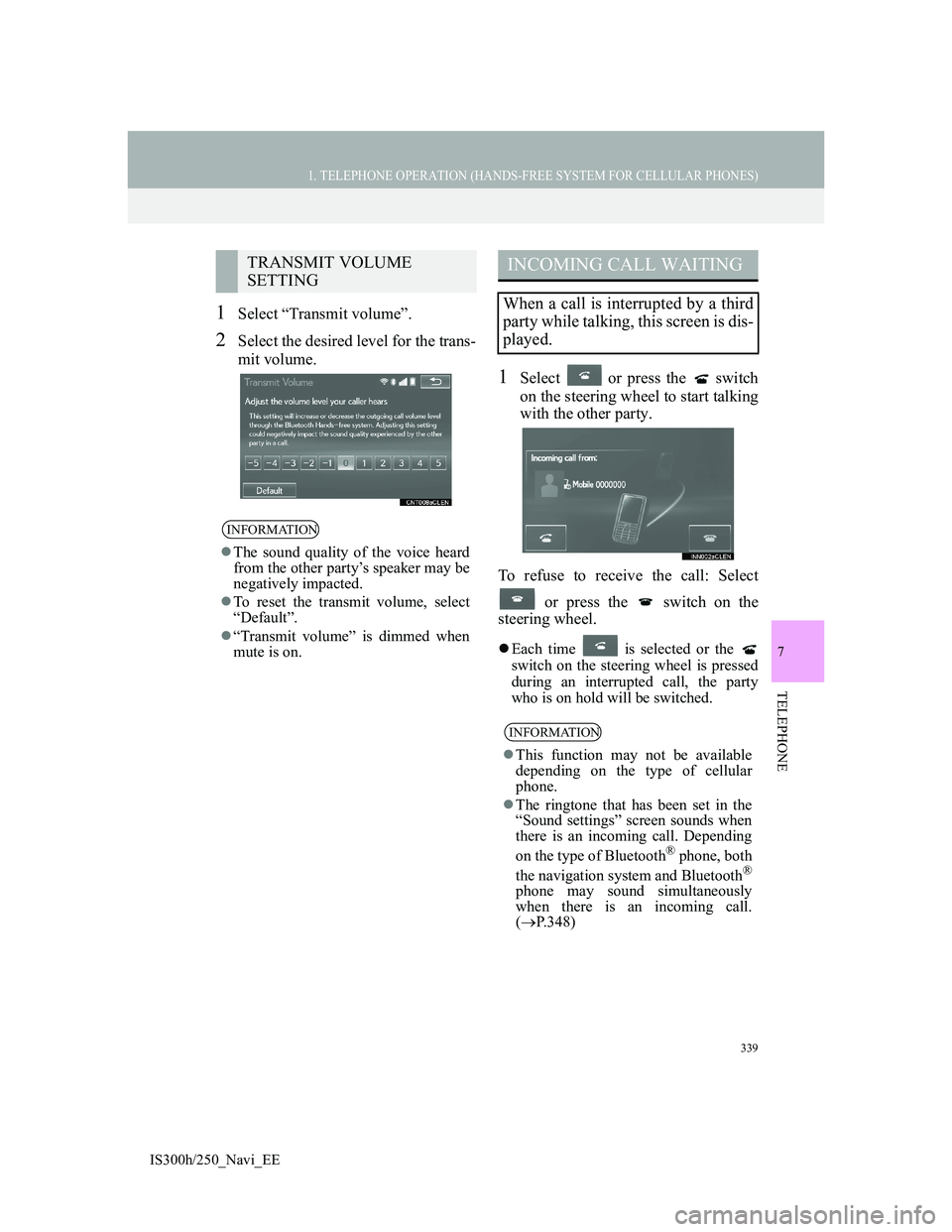
1Select “Transmit volume”.
2Select the desired level for the trans-
mit volume.
1Select or press the switch
on the steering wheel to start talking
with the other party.
To refuse to receive the call: Select
or press the switch on the
steering wheel.
Each time is selected or the
switch on the steering wheel is pressed
during an interrupted call, the party
who is on hold will be switched.
TRANSMIT VOLUME
SETTING
INFORMATION
The sound quality of the voice heard
from the other party’s speaker may be
negatively impacted.
To reset the transmit volume, select
“Default”.
“Transmit volume” is dimmed when
mute is on.
INCOMING CALL WAITING
When a call is interrupted by a third
party while talking, this screen is dis-
played.
INFORMATION
This function may not be available
depending on the type of cellular
phone.
The ringtone that has been set in the
“Sound settings” screen sounds when
there is an incoming call. Depending
on the type of Bluetooth
® phone, both
the navigation system and Bluetooth®
phone may sound simultaneously
when there is an incoming call.
(P.348)