ad blue Lexus IS300h 2013 Navigation manual
[x] Cancel search | Manufacturer: LEXUS, Model Year: 2013, Model line: IS300h, Model: Lexus IS300h 2013Pages: 415, PDF Size: 42.75 MB
Page 268 of 415
268
6. TIPS FOR OPERATING THE AUDIO/VISUAL SYSTEM
IS300h/250_Navi_EE
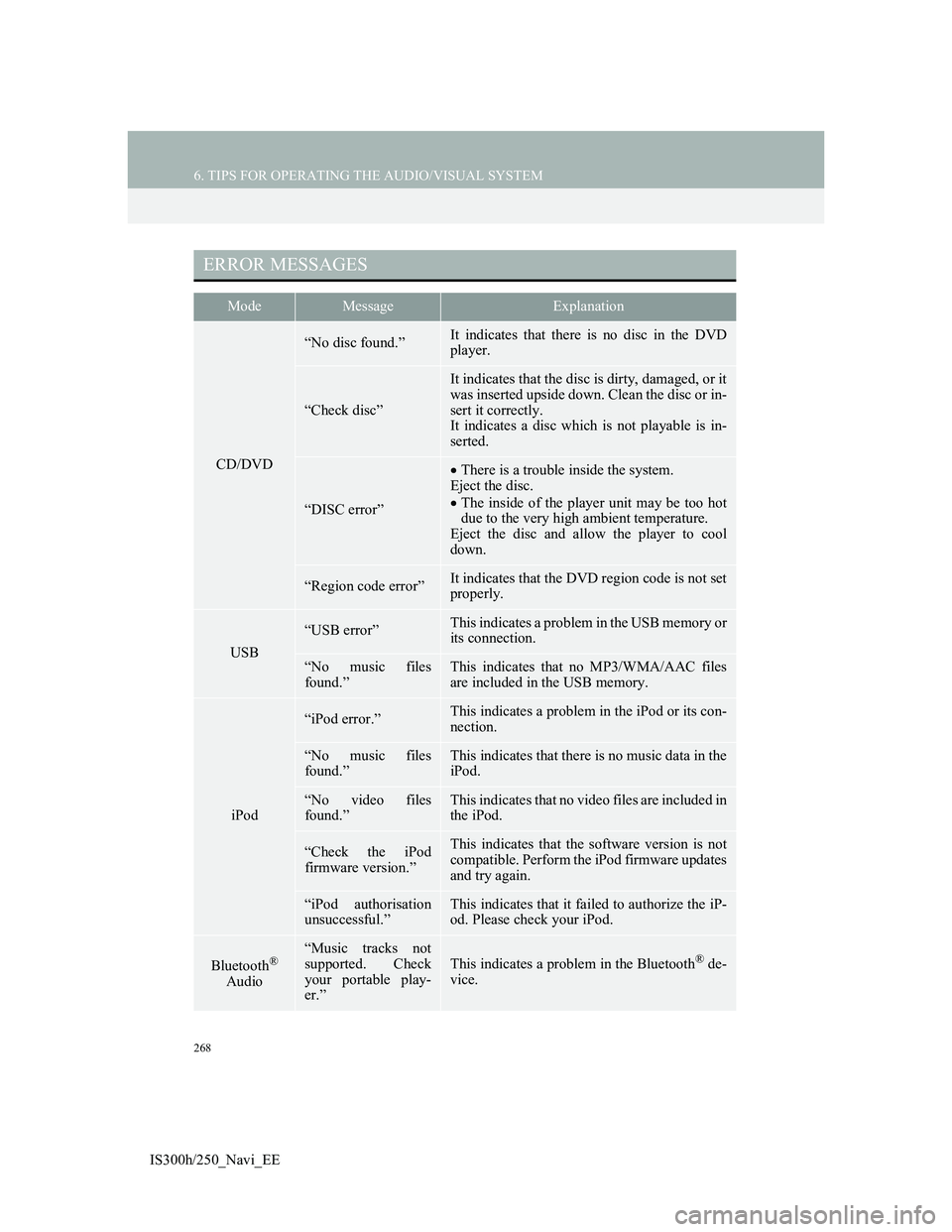
ERROR MESSAGES
ModeMessageExplanation
CD/DVD
“No disc found.”It indicates that there is no disc in the DVD
player.
“Check disc”
It indicates that the disc is dirty, damaged, or it
was inserted upside down. Clean the disc or in-
sert it correctly.
It indicates a disc which is not playable is in-
serted.
“DISC error”
There is a trouble inside the system.
Eject the disc.
The inside of the player unit may be too hot
due to the very high ambient temperature.
Eject the disc and allow the player to cool
down.
“Region code error”It indicates that the DVD region code is not set
properly.
USB
“USB error”This indicates a problem in the USB memory or
its connection.
“No music files
found.”This indicates that no MP3/WMA/AAC files
are included in the USB memory.
iPod
“iPod error.”This indicates a problem in the iPod or its con-
nection.
“No music files
found.”This indicates that there is no music data in the
iPod.
“No video files
found.”This indicates that no video files are included in
the iPod.
“Check the iPod
firmware version.”This indicates that the software version is not
compatible. Perform the iPod firmware updates
and try again.
“iPod authorisation
unsuccessful.”This indicates that it failed to authorize the iP-
od. Please check your iPod.
Bluetooth®
Audio
“Music tracks not
supported. Check
your portable play-
er.”
This indicates a problem in the Bluetooth® de-
vice.
Page 278 of 415
278
1. SPEECH COMMAND SYSTEM OPERATION
IS300h/250_Navi_EE
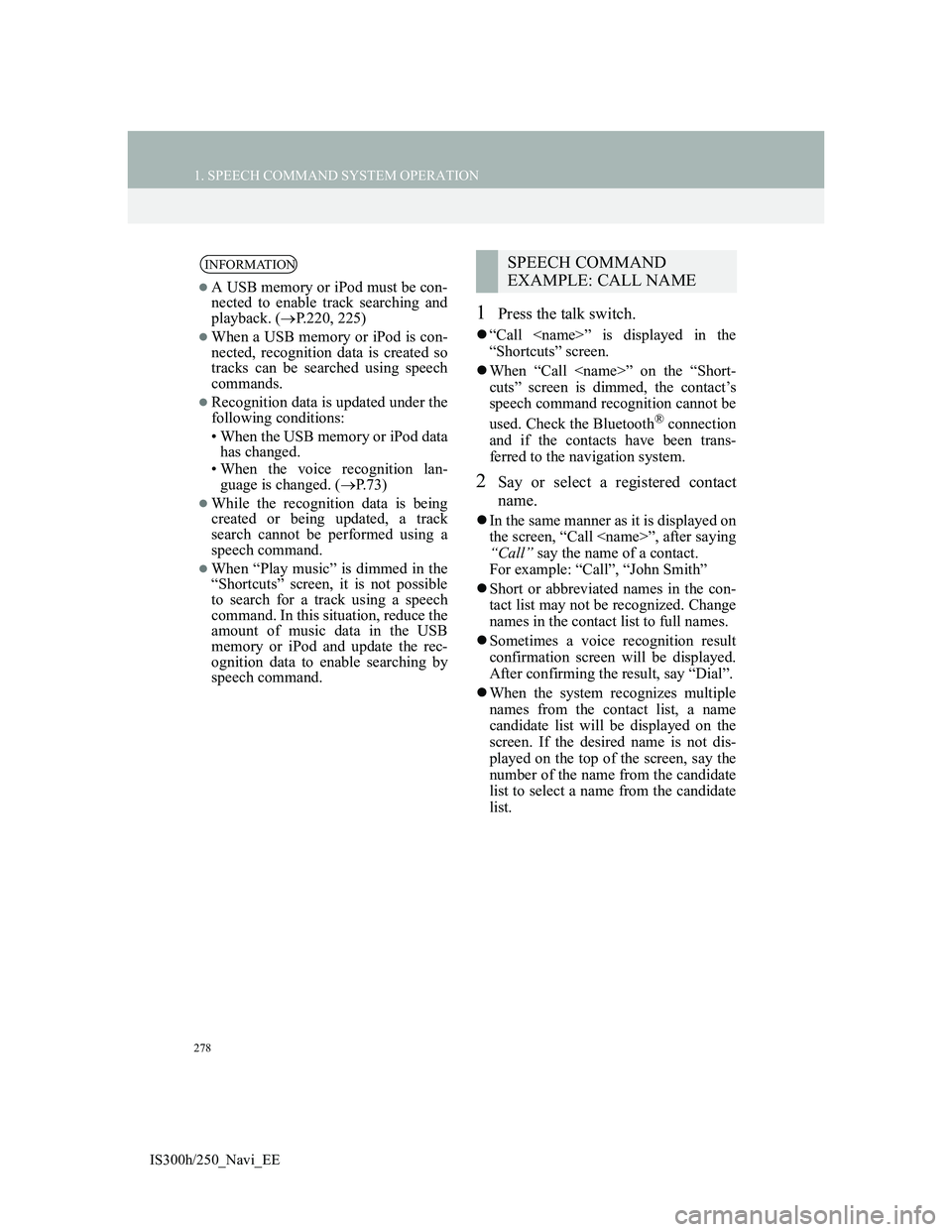
1Press the talk switch.
“Call
“Shortcuts” screen.
When “Call
cuts” screen is dimmed, the contact’s
speech command recognition cannot be
used. Check the Bluetooth
® connection
and if the contacts have been trans-
ferred to the navigation system.
2Say or select a registered contact
name.
In the same manner as it is displayed on
the screen, “Call
“Call” say the name of a contact.
For example: “Call”, “John Smith”
Short or abbreviated names in the con-
tact list may not be recognized. Change
names in the contact list to full names.
Sometimes a voice recognition result
confirmation screen will be displayed.
After confirming the result, say “Dial”.
When the system recognizes multiple
names from the contact list, a name
candidate list will be displayed on the
screen. If the desired name is not dis-
played on the top of the screen, say the
number of the name from the candidate
list to select a name from the candidate
list.
INFORMATION
A USB memory or iPod must be con-
nected to enable track searching and
playback. (P.220, 225)
When a USB memory or iPod is con-
nected, recognition data is created so
tracks can be searched using speech
commands.
Recognition data is updated under the
following conditions:
• When the USB memory or iPod data
has changed.
• When the voice recognition lan-
guage is changed. (P.73)
While the recognition data is being
created or being updated, a track
search cannot be performed using a
speech command.
When “Play music” is dimmed in the
“Shortcuts” screen, it is not possible
to search for a track using a speech
command. In this situation, reduce the
amount of music data in the USB
memory or iPod and update the rec-
ognition data to enable searching by
speech command.
SPEECH COMMAND
EXAMPLE: CALL NAME
Page 279 of 415
279
1. SPEECH COMMAND SYSTEM OPERATION
5
SPEECH COMMAND SYSTEM
IS300h/250_Navi_EE
When a contact has multiple telephone
numbers registered in the contact list, a
candidate list will be displayed. If the
desired telephone number is not dis-
played on the top of the screen, say the
number of the desired telephone num-
ber from the candidate list to select a
telephone number from the candidate
list.
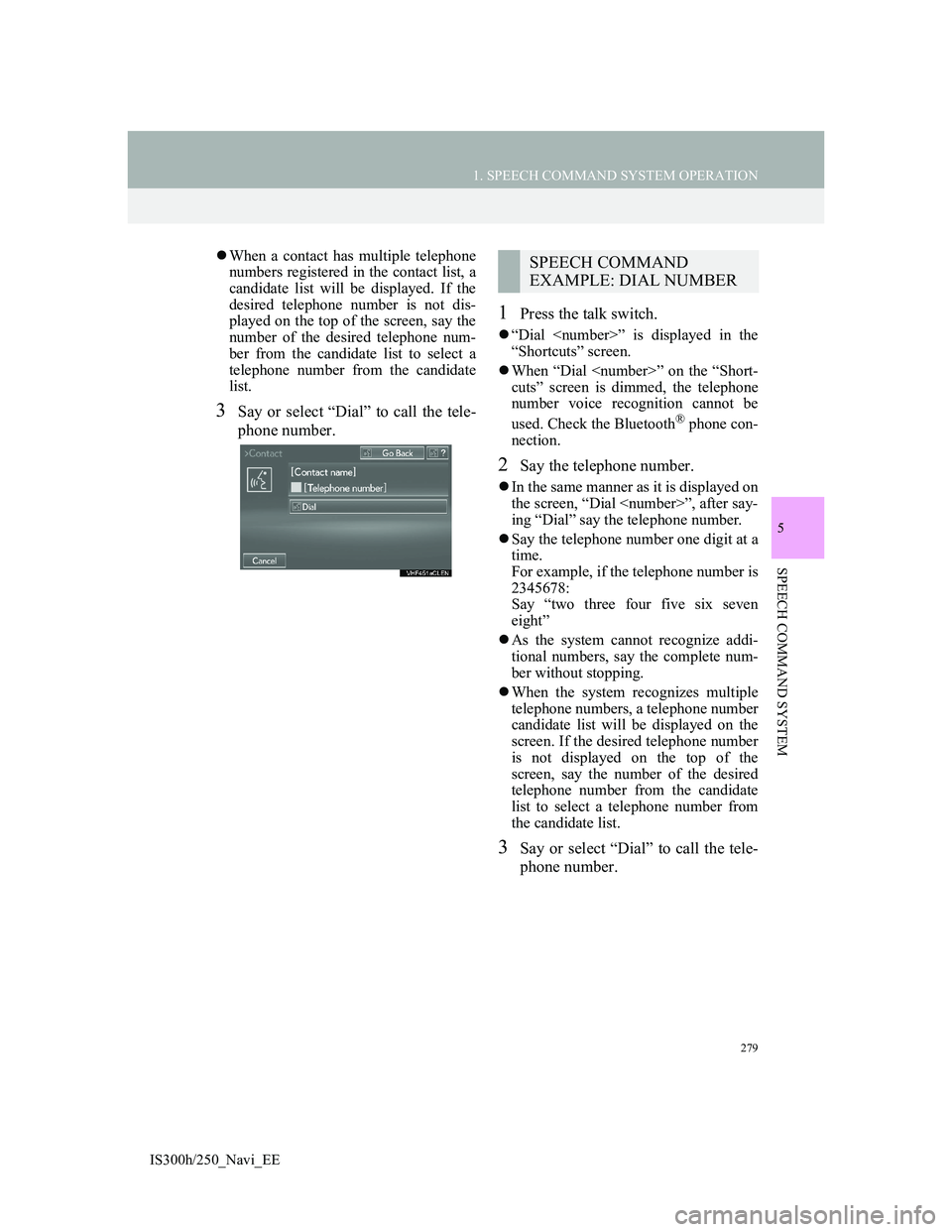
3Say or select “Dial” to call the tele-
phone number.
1Press the talk switch.
“Dial
“Shortcuts” screen.
When “Dial
cuts” screen is dimmed, the telephone
number voice recognition cannot be
used. Check the Bluetooth
® phone con-
nection.
2Say the telephone number.
In the same manner as it is displayed on
the screen, “Dial
ing “Dial” say the telephone number.
Say the telephone number one digit at a
time.
For example, if the telephone number is
2345678:
Say “two three four five six seven
eight”
As the system cannot recognize addi-
tional numbers, say the complete num-
ber without stopping.
When the system recognizes multiple
telephone numbers, a telephone number
candidate list will be displayed on the
screen. If the desired telephone number
is not displayed on the top of the
screen, say the number of the desired
telephone number from the candidate
list to select a telephone number from
the candidate list.
3Say or select “Dial” to call the tele-
phone number.
SPEECH COMMAND
EXAMPLE: DIAL NUMBER
Page 290 of 415

290
1. LEXUS PARKING ASSIST MONITOR
IS300h/250_Navi_EE
2. PERPENDICULAR PARKING (ESTIMATED COURSE LINE DISPLAY MODE)
SCREEN DESCRIPTION
No.DisplayFunction
Vehicle width exten-
sion guide line
Displays a guide path when the vehicle is being
backed straight up.
The displayed width is wider than the actual vehi-
cle width.
These guide lines align with the estimated course
lines when the vehicle is going straight ahead.
Estimated course linesShow an estimated course when the steering wheel is
turned.
Distance guide lines
Show distance behind the vehicle when the steering
wheel is turned.
The guide lines move in conjunction with the esti-
mated course lines.
The guide lines display points approximately 1.5
ft. (0.5 m) (red) and approximately 3 ft. (1 m) (yel-
low) from the centre of the edge of the bumper.
Distance guide line
Shows distance behind the vehicle.
Displays a point approximately 1.5 ft. (0.5 m)
(blue) from the edge of the bumper.
Page 295 of 415

295
1. LEXUS PARKING ASSIST MONITOR
IS300h/250_Navi_EE
6
PERIPHERAL MONITORING SYS-
4. PARALLEL PARKING
VEHICLE MOVEMENT PROCEDURE
Keeping parallel with the road, stop the vehicle
leaving a gap of approximately 3 ft. (1 m) be-
tween your vehicle and the parked vehicle.
[PARKING] : STEP 1
Back up until the black and yellow vertical pole
just overlaps the rear end of the parked vehicle.
Then stop the vehicle. [PARKING] : STEP 4
Leaving the vehicle stopped, move the steering
wheel until the blue outline meets the desired
parking space, and back up while keeping the
steering wheel in that position. [PARKING] :
STEP 5
A curved blue line is displayed. Keep the steer-
ing wheel in the same position and back up until
the curved blue line meets the right corner of the
parking space. [PARKING] : STEP 7
When it meets the right corner of the parking
space, turn the steering wheel in the opposite di-
rection as far as it will go. [PARKING] : STEP 8
Keeping the steering wheel in that position,
check your surroundings visually and using mir-
rors, and back up using the distance guide lines
etc. as a reference. [PARKING] : STEP 9
When the vehicle is approximately in the de-
sired parking location, parallel parking assist is
complete. [PARKING] : STEP 10
CAUTION
Do not use the system if the display is incorrect due to an uneven (curvy/hilly) road
or a non-straight road.
Make sure to operate the steering wheel only when the vehicle is stopped.
Approx. 3 ft. (1 m)
Page 297 of 415

297
1. LEXUS PARKING ASSIST MONITOR
6
PERIPHERAL MONITORING SYS-
IS300h/250_Navi_EE
2Shift the shift lever to the “R” posi-
tion.
3Make sure the monitor displays the
part behind the rear tyres of the
parked vehicle, and select .
If the area is not displayed, move the
vehicle to forward.
4With the steering wheel straight,
back up slowly to a position at which
the black and yellow vertical pole
just overlaps the rear end of the
parked vehicle. Then stop the vehi-
cle.
Black and yellow vertical pole
Back the vehicle up to here
5Turn the steering wheel with the ve-
hicle stopped until the blue outline
meets the desired parking space.
If the extended line from the blue out-
line is displayed, the parallel parking
assist is operational.
Blue outline
Black and yellow vertical pole
Extended line
Page 298 of 415

298
1. LEXUS PARKING ASSIST MONITOR
IS300h/250_Navi_EETurn the steering wheel right
Black and yellow vertical pole
Blue outline
CAUTION
Be sure to check that there are no
obstacles inside the blue outline.
If there are any obstacles inside the
blue outline, do not use the parallel
parking assist.
When positioning the blue outline
over the parking space, be sure to
position it so that the extended blue
line may not cross the tyre of the
vehicle parked in front of the empty
space.
If the extended line of the blue outline
is crossing the parked vehicle, your
vehicle may be too close. Check that
there is a gap of approximately 3 ft. (1
m) between your vehicle and the
parked vehicle.
Extended line overlapping wheel
Page 299 of 415

299
1. LEXUS PARKING ASSIST MONITOR
6
PERIPHERAL MONITORING SYS-
IS300h/250_Navi_EE
6Keep the steering wheel in its current
position and backing up.
The parallel parking assist will be can-
celed if the steering wheel is moved
while backing up. Shift the shift lever
out of the “R” position, and restart from
the procedure 1.
7A curved blue line will appear on the
screen. Keep the steering wheel in its
current position and back up slowly.
Stop when the curved blue line
meets the corner of the desired park-
ing space.
Curved blue line
CAUTION
When backing up, be careful not to
hit any obstacles with your vehicle.
Back the vehicle up slowly.
Page 300 of 415

300
1. LEXUS PARKING ASSIST MONITOR
IS300h/250_Navi_EEBack up keeping the steering wheel in
its current position
Curved blue line
Curved blue line meets the corner here
If you back up too quickly, you may
lose synchronization with the parallel
parking assist.
8Leaving the vehicle stopped, turn the
steering wheel all the way to the left.
Be sure to turn the steering wheel only
when the vehicle is stopped.
9When the screen changes, keep the
steering wheel in its current position
and back up.
10When the vehicle is parallel with the
road or the shoulder, straighten the
steering wheel.
Check your surroundings visually
and with the mirrors, then back up
using the distance guide lines as a
reference, and stop.
When the vehicle is approximately in
the desired parking location, the paral-
lel parking assist is complete.
CAUTION
When backing up, be careful not to
hit any obstacles with your vehicle.
Back the vehicle up slowly.
INFORMATION
There is a possibility that parallel
parking guidance may not be given
when backing up at a very slow
speed.
If the trunk is opened during parallel
parking guidance, parallel parking
assist will be interrupted and can-
celed. Stop the vehicle, shift the shift
lever out of the “R” position, and
restart the operation from the proce-
dure 1.
Page 323 of 415
7
321
1
3
5
6
8
4
7
2
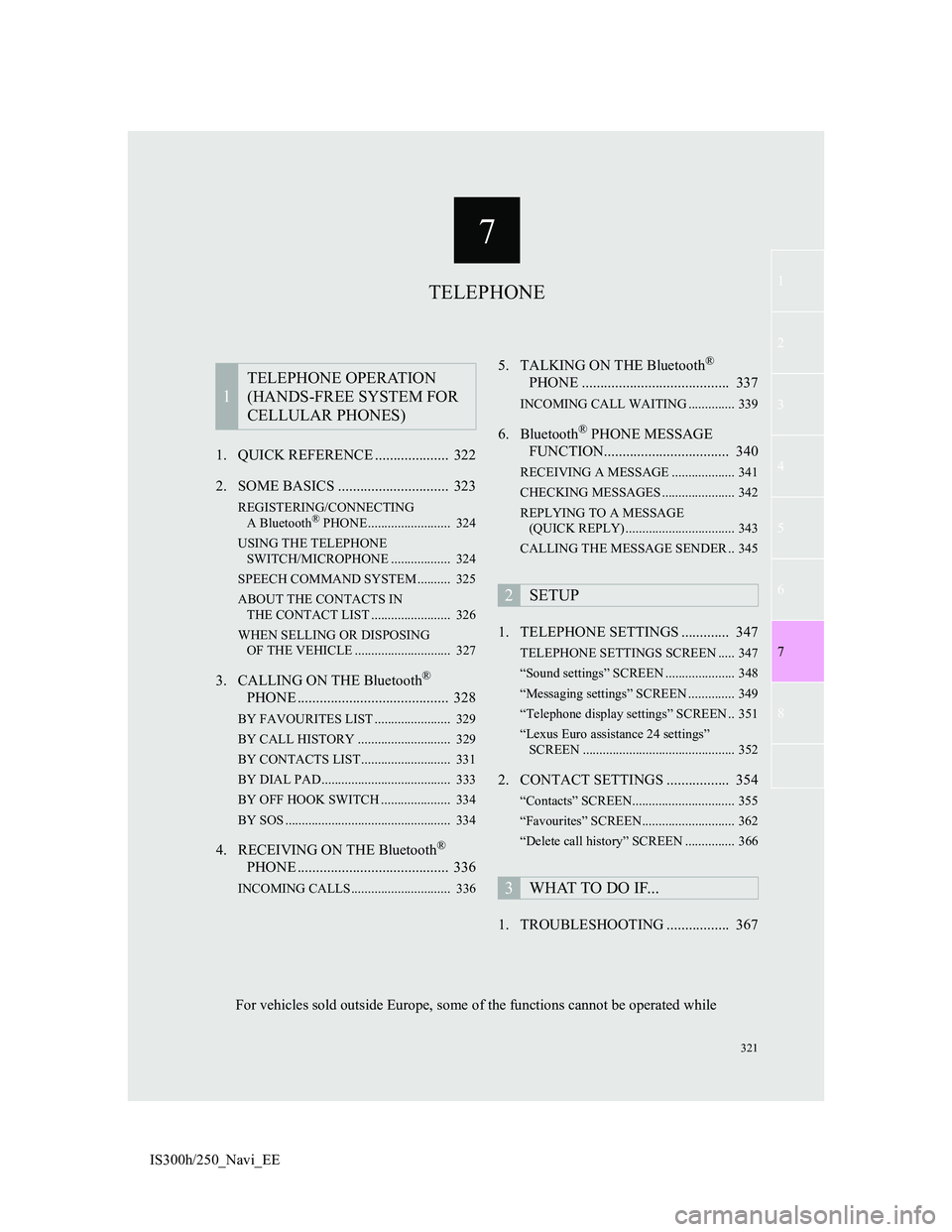
IS300h/250_Navi_EE1. QUICK REFERENCE .................... 322
2. SOME BASICS .............................. 323
REGISTERING/CONNECTING
A Bluetooth® PHONE ......................... 324
USING THE TELEPHONE
SWITCH/MICROPHONE .................. 324
SPEECH COMMAND SYSTEM .......... 325
ABOUT THE CONTACTS IN
THE CONTACT LIST ........................ 326
WHEN SELLING OR DISPOSING
OF THE VEHICLE ............................. 327
3. CALLING ON THE Bluetooth®
PHONE ......................................... 328
BY FAVOURITES LIST ....................... 329
BY CALL HISTORY ............................ 329
BY CONTACTS LIST ........................... 331
BY DIAL PAD ....................................... 333
BY OFF HOOK SWITCH ..................... 334
BY SOS .................................................. 334
4. RECEIVING ON THE Bluetooth®
PHONE ......................................... 336
INCOMING CALLS .............................. 336
5. TALKING ON THE Bluetooth®
PHONE ........................................ 337
INCOMING CALL WAITING .............. 339
6. Bluetooth® PHONE MESSAGE
FUNCTION.................................. 340
RECEIVING A MESSAGE ................... 341
CHECKING MESSAGES ...................... 342
REPLYING TO A MESSAGE
(QUICK REPLY) ................................. 343
CALLING THE MESSAGE SENDER .. 345
1. TELEPHONE SETTINGS ............. 347
TELEPHONE SETTINGS SCREEN ..... 347
“Sound settings” SCREEN ..................... 348
“Messaging settings” SCREEN .............. 349
“Telephone display settings” SCREEN .. 351
“Lexus Euro assistance 24 settings”
SCREEN .............................................. 352
2. CONTACT SETTINGS ................. 354
“Contacts” SCREEN............................... 355
“Favourites” SCREEN............................ 362
“Delete call history” SCREEN ............... 366
1. TROUBLESHOOTING ................. 367
1
TELEPHONE OPERATION
(HANDS-FREE SYSTEM FOR
CELLULAR PHONES)
2SETUP
3WHAT TO DO IF...
TELEPHONE
For vehicles sold outside Europe, some of the functions cannot be operated while