EV mode Lexus IS300h 2013 Owners Manual
[x] Cancel search | Manufacturer: LEXUS, Model Year: 2013, Model line: IS300h, Model: Lexus IS300h 2013Pages: 628, PDF Size: 20.23 MB
Page 342 of 628
3295-2. Setup
5
Lexus Display Audio system
IS300h_EE(OM53B95E)
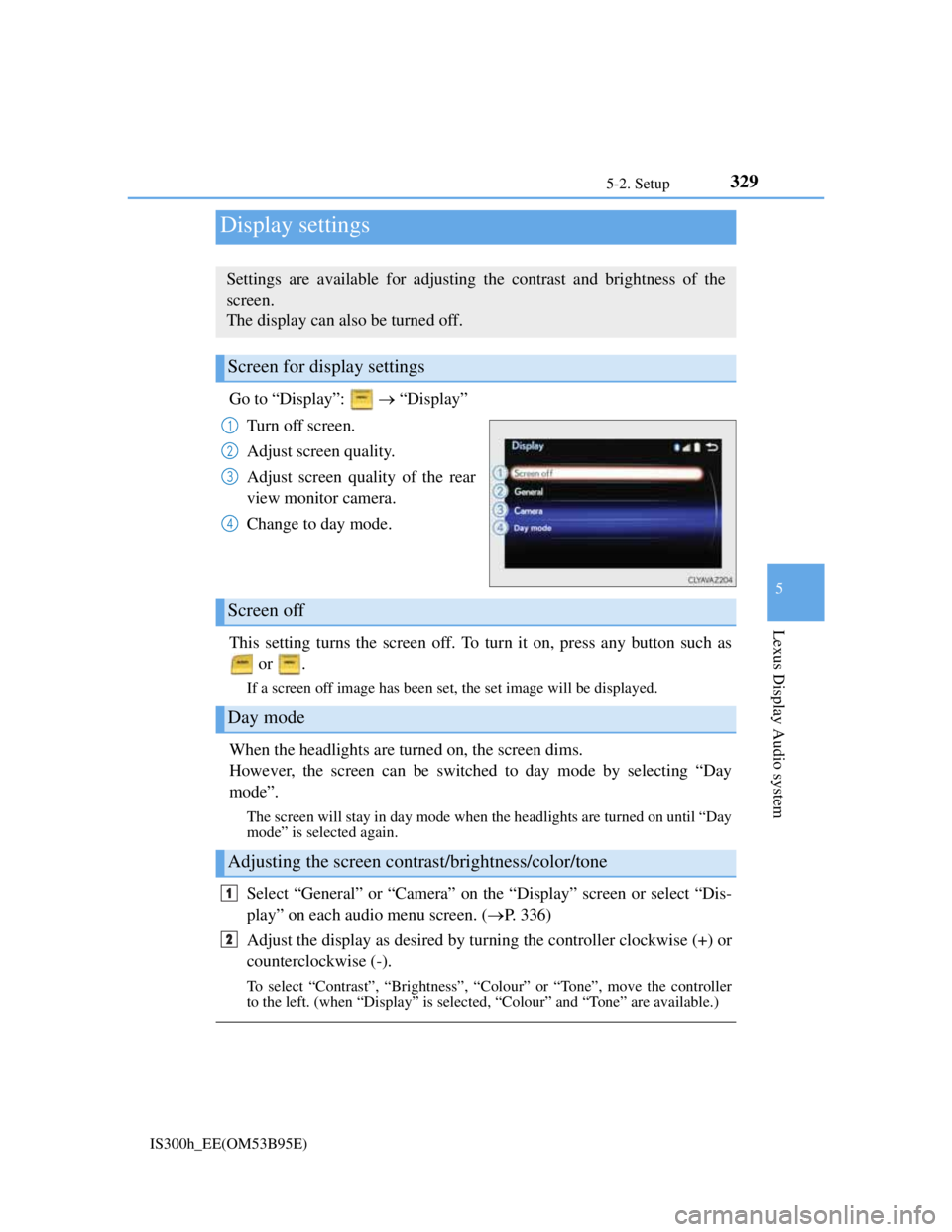
Go to “Display”: “Display”
Turn off screen.
Adjust screen quality.
Adjust screen quality of the rear
view monitor camera.
Change to day mode.
This setting turns the screen off. To turn it on, press any button such as
or .
If a screen off image has been set, the set image will be displayed.
When the headlights are turned on, the screen dims.
However, the screen can be switched to day mode by selecting “Day
mode”.
The screen will stay in day mode when the headlights are turned on until “Day
mode” is selected again.
Select “General” or “Camera” on the “Display” screen or select “Dis-
play” on each audio menu screen. (P. 336)
Adjust the display as desired by turning the controller clockwise (+) or
counterclockwise (-).
To select “Contrast”, “Brightness”, “Colour” or “Tone”, move the controller
to the left. (when “Display” is selected, “Colour” and “Tone” are available.)
Display settings
Settings are available for adjusting the contrast and brightness of the
screen.
The display can also be turned off.
Screen for display settings
1
2
3
4
Screen off
Day mode
Adjusting the screen contrast/brightness/color/tone
1
2
Page 344 of 628
330
IS300h_EE(OM53B95E)5-3. Using the audio system
Press the button to display the “Source” screen.
If the “Source” screen is not displayed, press the button again.
Select the desired audio source.
The audio source can be selected by pressing the “RADIO” or “MEDIA” but-
ton.
Press the “MODE” switch when the audio system is turned on. The audio
source changes each time the “MODE” switch is pressed.
Rearranging the list
The listing order of the source list can be rearranged.
Move the controller to the left while on the “Source” screen.
Select “Audio source select”.
Select an item you wish to move and then select where to move the item to.
Selecting the audio source
Switching between audio sources such as radio and CD are explained in
this section.
Changing audio source
Using the steering wheel switches to change audio sources
1
2
1
2
3
Page 345 of 628
3315-3. Using the audio system
5
Lexus Display Audio system
IS300h_EE(OM53B95E)
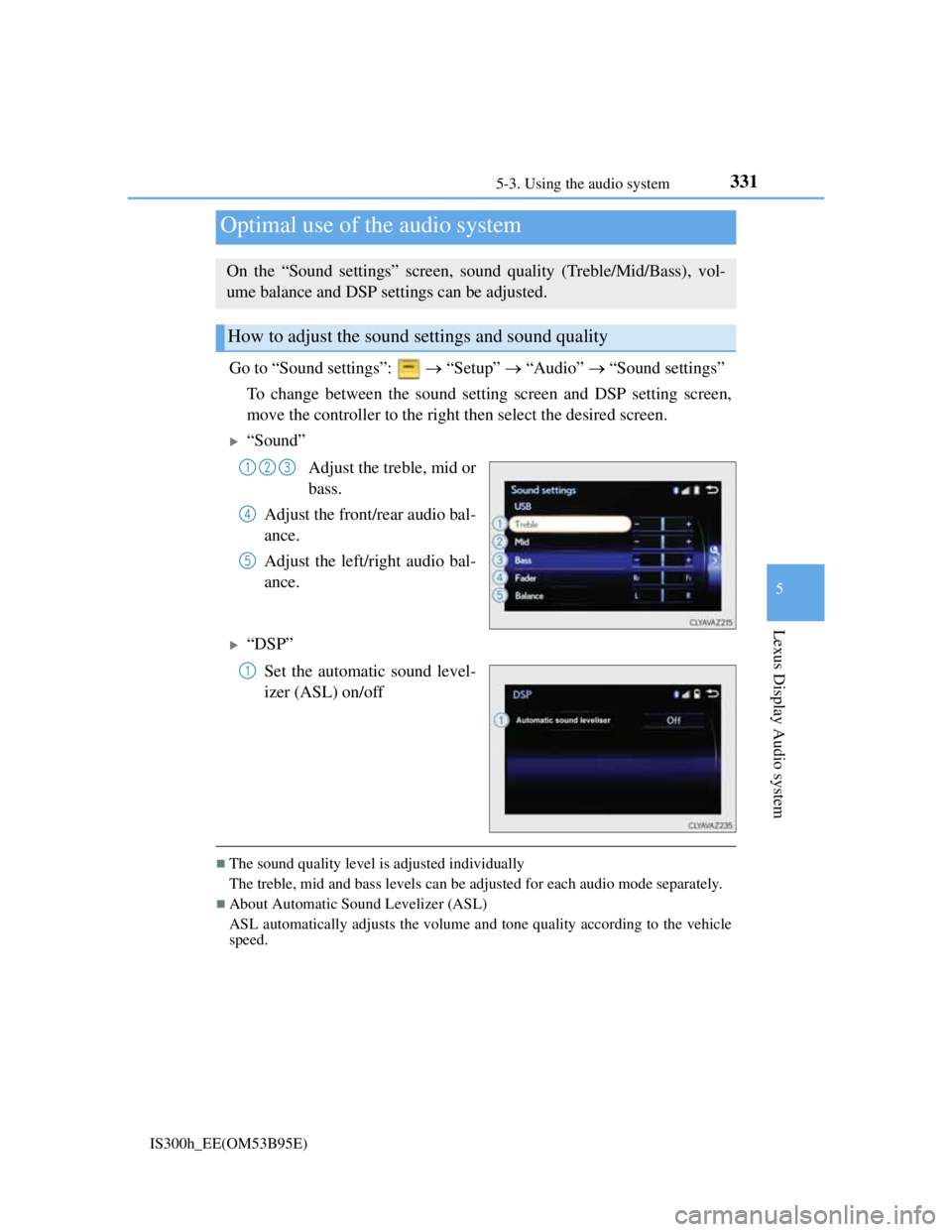
Go to “Sound settings”: “Setup” “Audio” “Sound settings”
To change between the sound setting screen and DSP setting screen,
move the controller to the right then select the desired screen.
“Sound”
Adjust the treble, mid or
bass.
Adjust the front/rear audio bal-
ance.
Adjust the left/right audio bal-
ance.
“DSP”
Set the automatic sound level-
izer (ASL) on/off
The sound quality level is adjusted individually
The treble, mid and bass levels can be adjusted for each audio mode separately.
About Automatic Sound Levelizer (ASL)
ASL automatically adjusts the volume and tone quality according to the vehicle
speed.
Optimal use of the audio system
On the “Sound settings” screen, sound quality (Treble/Mid/Bass), vol-
ume balance and DSP settings can be adjusted.
How to adjust the sound settings and sound quality
123
4
5
1
Page 348 of 628
3345-3. Using the audio system
IS300h_EE(OM53B95E)
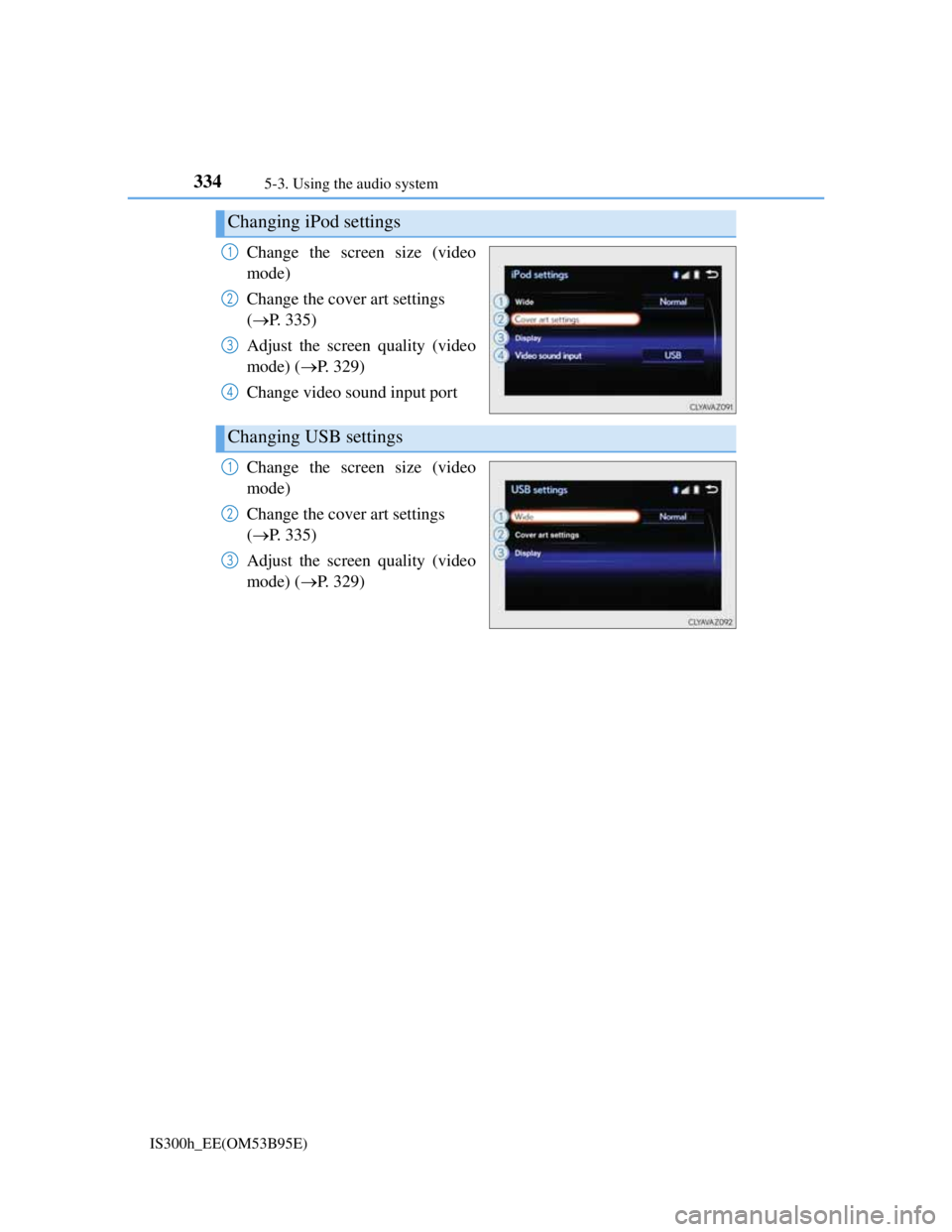
Change the screen size (video
mode)
Change the cover art settings
(P. 335)
Adjust the screen quality (video
mode) (P. 329)
Change video sound input port
Change the screen size (video
mode)
Change the cover art settings
(P. 335)
Adjust the screen quality (video
mode) (P. 329)
Changing iPod settings
1
2
3
4
Changing USB settings
1
2
3
Page 349 of 628
3355-3. Using the audio system
5
Lexus Display Audio system
IS300h_EE(OM53B95E)
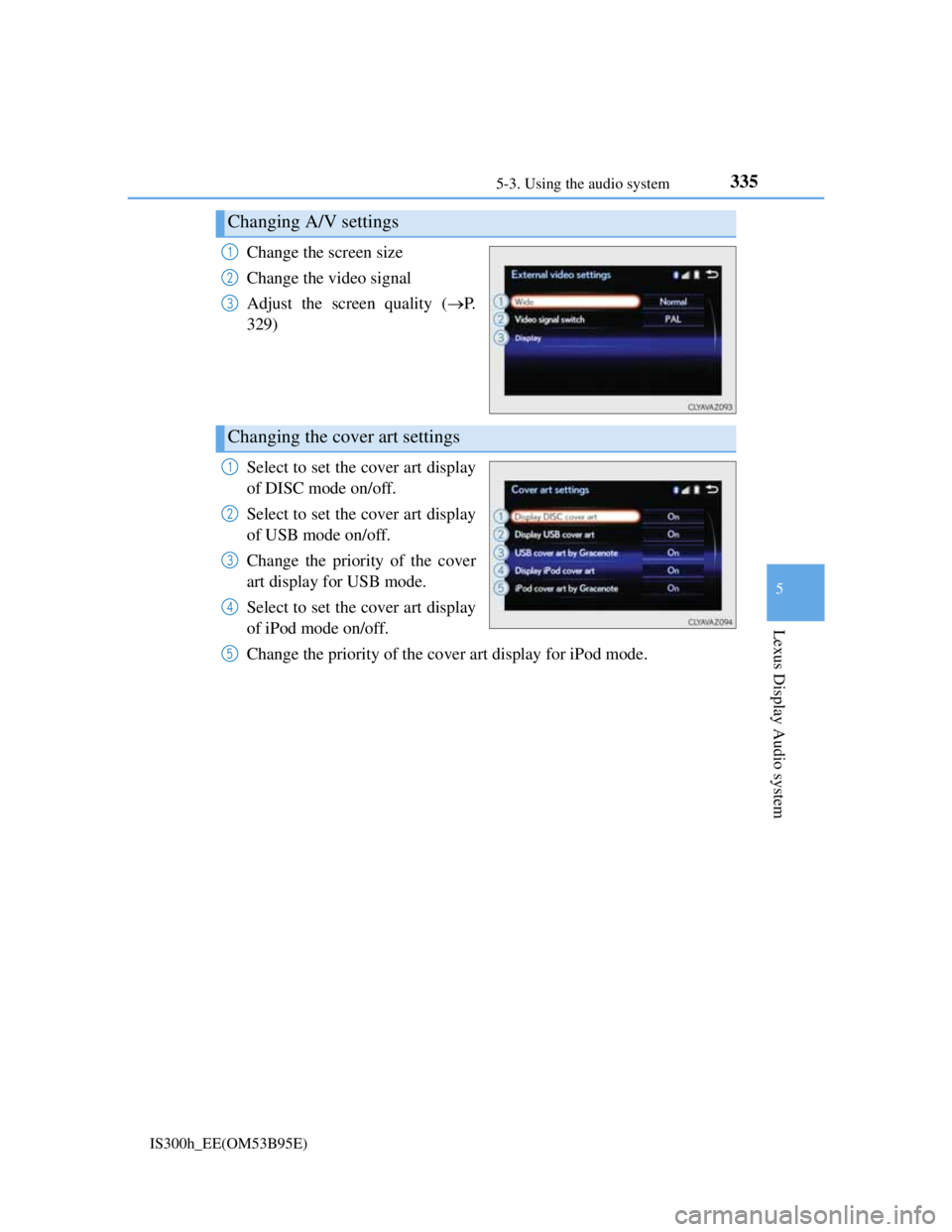
Change the screen size
Change the video signal
Adjust the screen quality (P.
329)
Select to set the cover art display
of DISC mode on/off.
Select to set the cover art display
of USB mode on/off.
Change the priority of the cover
art display for USB mode.
Select to set the cover art display
of iPod mode on/off.
Change the priority of the cover art display for iPod mode.
Changing A/V settings
1
2
3
Changing the cover art settings
1
2
3
4
5
Page 350 of 628
3365-3. Using the audio system
IS300h_EE(OM53B95E)
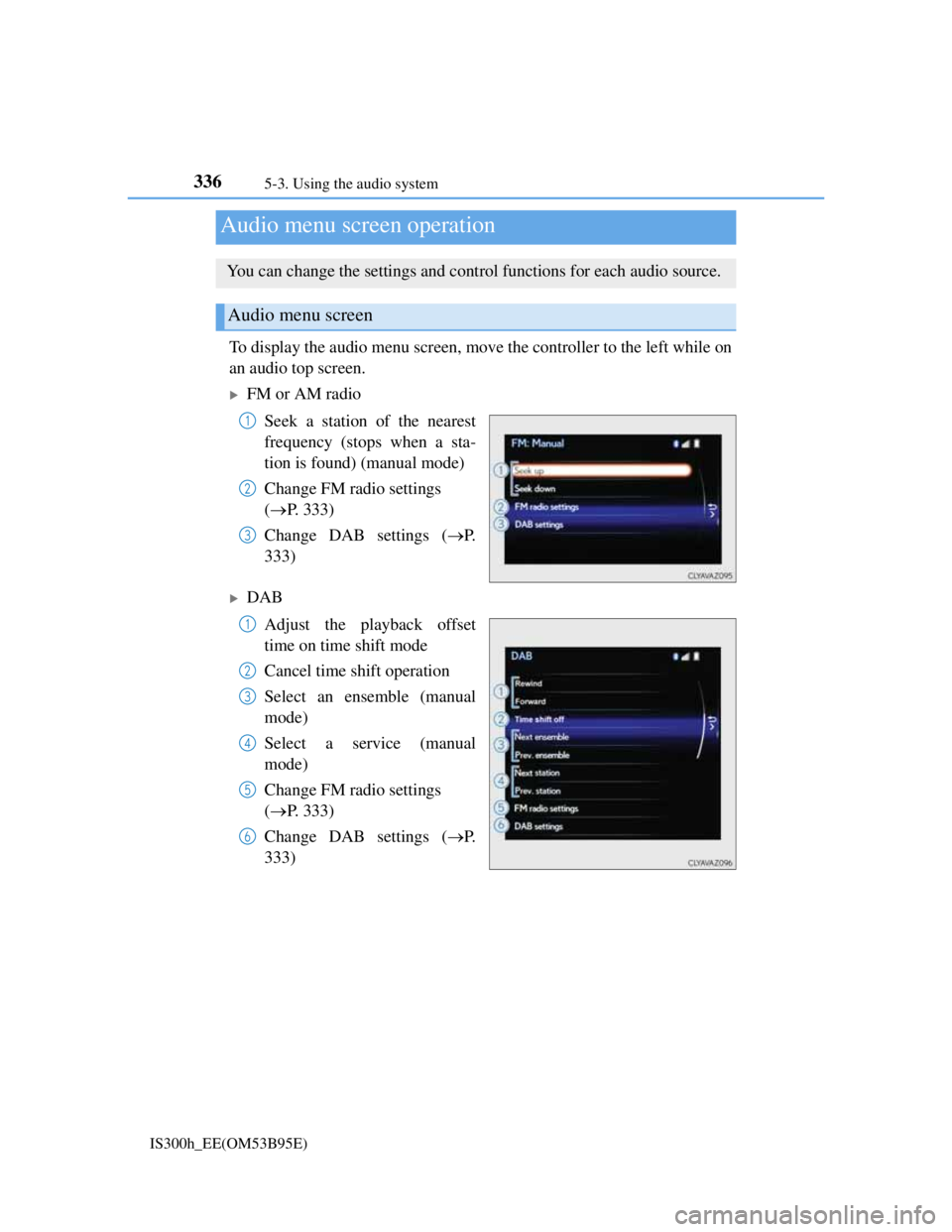
To display the audio menu screen, move the controller to the left while on
an audio top screen.
FM or AM radio
Seek a station of the nearest
frequency (stops when a sta-
tion is found) (manual mode)
Change FM radio settings
(P. 333)
Change DAB settings (P.
333)
DAB
Adjust the playback offset
time on time shift mode
Cancel time shift operation
Select an ensemble (manual
mode)
Select a service (manual
mode)
Change FM radio settings
(P. 333)
Change DAB settings (P.
333)
Audio menu screen operation
You can change the settings and control functions for each audio source.
Audio menu screen
1
2
3
1
2
3
4
5
6
Page 351 of 628
3375-3. Using the audio system
5
Lexus Display Audio system
IS300h_EE(OM53B95E)
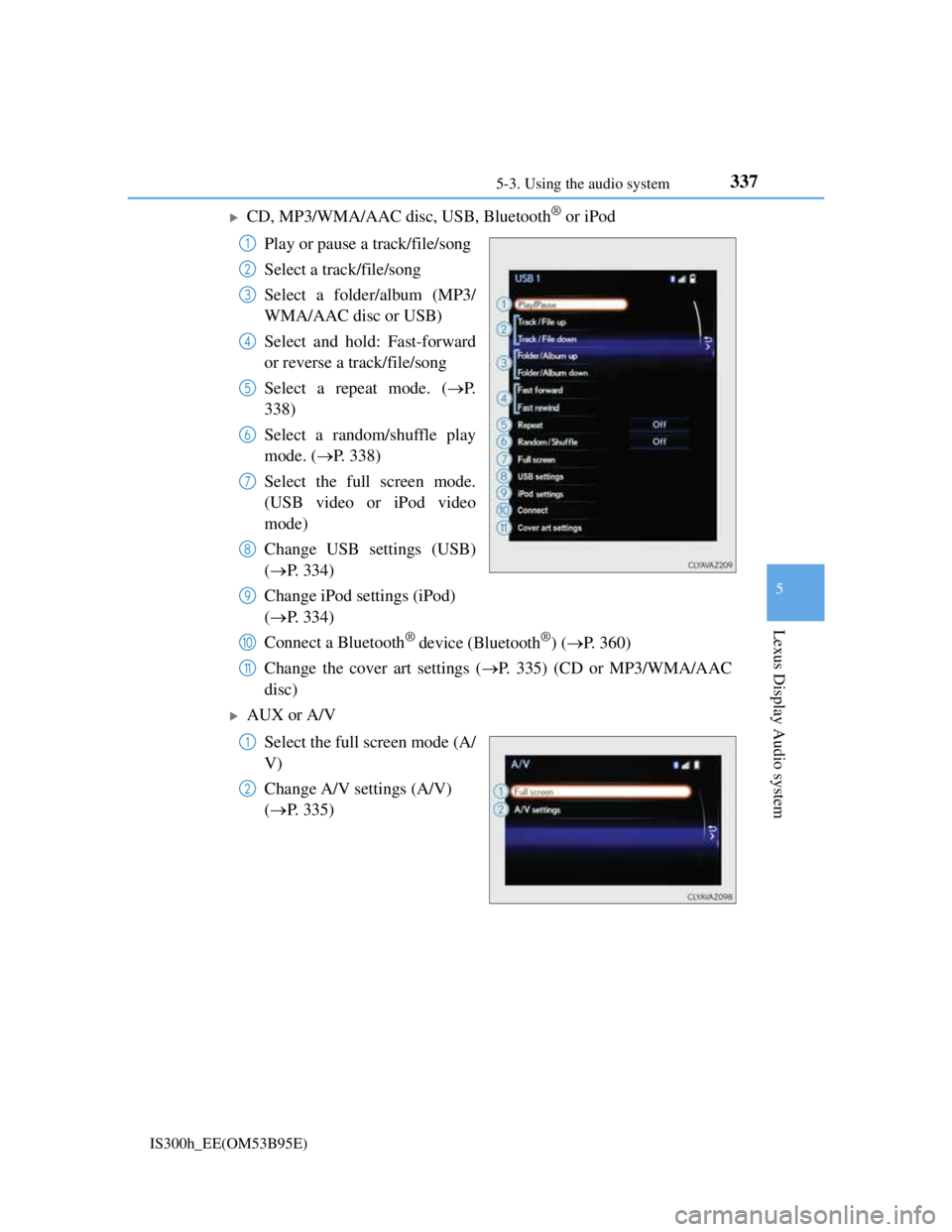
CD, MP3/WMA/AAC disc, USB, Bluetooth® or iPod
Play or pause a track/file/song
Select a track/file/song
Select a folder/album (MP3/
WMA/AAC disc or USB)
Select and hold: Fast-forward
or reverse a track/file/song
Select a repeat mode. (P.
338)
Select a random/shuffle play
mode. (P. 338)
Select the full screen mode.
(USB video or iPod video
mode)
Change USB settings (USB)
(P. 334)
Change iPod settings (iPod)
(P. 334)
Connect a Bluetooth
® device (Bluetooth®) (P. 360)
Change the cover art settings (P. 335) (CD or MP3/WMA/AAC
disc)
AUX or A/V
Select the full screen mode (A/
V)
Change A/V settings (A/V)
(P. 335)
1
2
3
4
5
6
7
8
9
10
11
1
2
Page 352 of 628
3385-3. Using the audio system
IS300h_EE(OM53B95E)
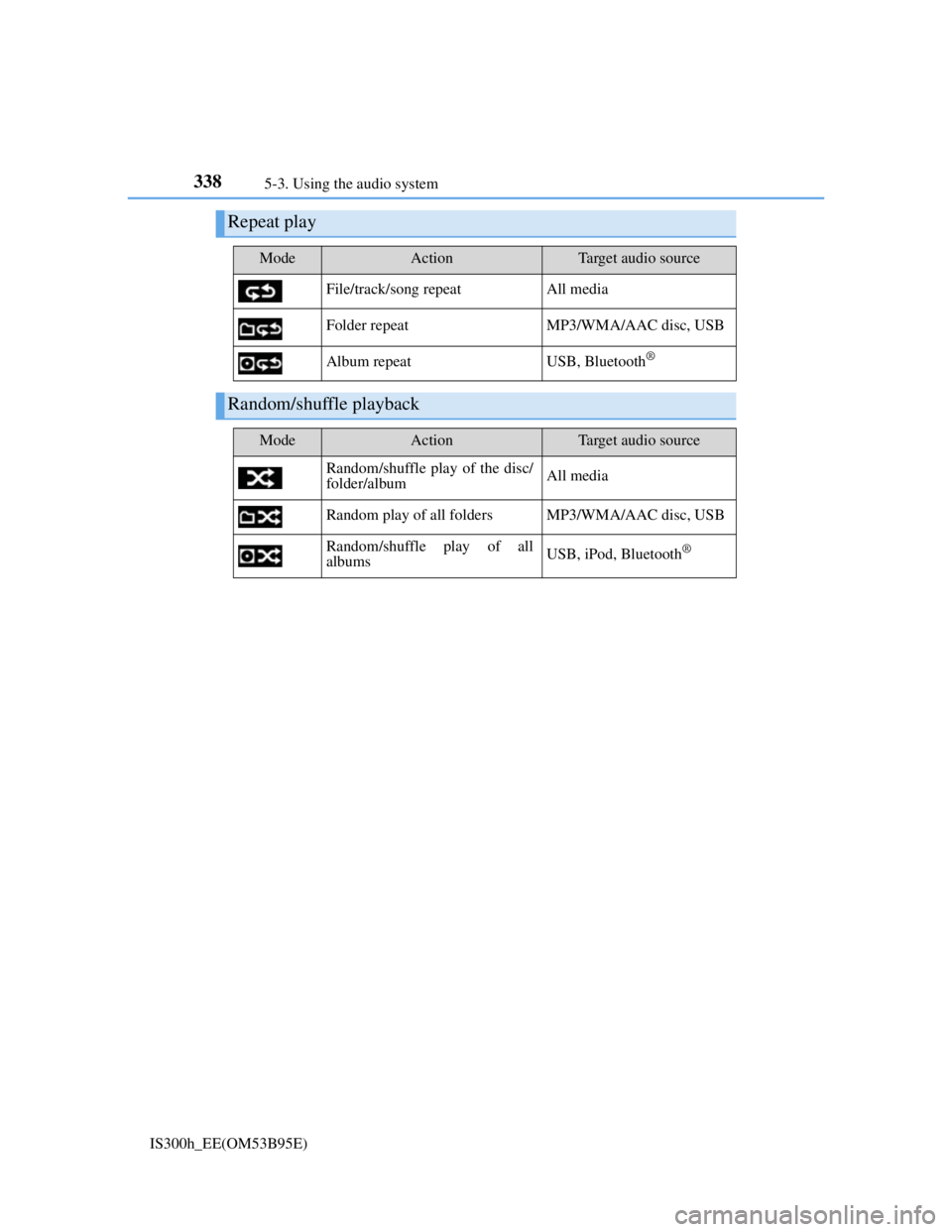
Repeat play
ModeActionTarget audio source
File/track/song repeat All media
Folder repeat MP3/WMA/AAC disc, USB
Album repeat USB, Bluetooth
®
Random/shuffle playback
ModeActionTarget audio source
Random/shuffle play of the disc/
folder/albumAll media
Random play of all folders MP3/WMA/AAC disc, USB
Random/shuffle play of all
albumsUSB, iPod, Bluetooth
®
Page 353 of 628
339
5
Lexus Display Audio system
IS300h_EE(OM53B95E)5-4. Using the radio
Pressing the “RADIO” button displays the radio top screen from any
screen of the selected source.
Menu screen
P. 3 3 6
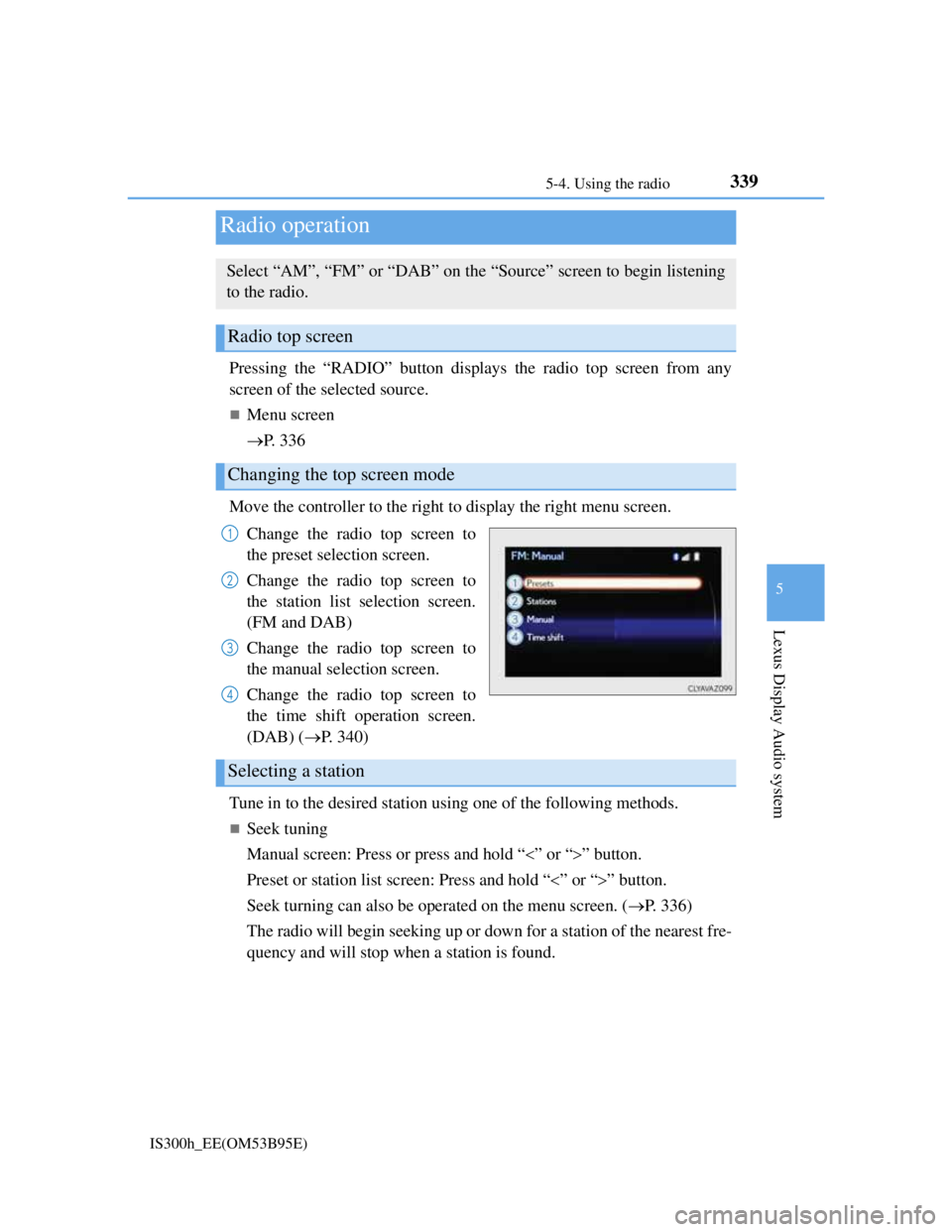
Move the controller to the right to display the right menu screen.
Change the radio top screen to
the preset selection screen.
Change the radio top screen to
the station list selection screen.
(FM and DAB)
Change the radio top screen to
the manual selection screen.
Change the radio top screen to
the time shift operation screen.
(DAB) (P. 340)
Tune in to the desired station using one of the following methods.
Seek tuning
Manual screen: Press or press and hold “” or “” button.
Preset or station list screen: Press and hold “” or “” button.
Seek turning can also be operated on the menu screen. (P. 336)
The radio will begin seeking up or down for a station of the nearest fre-
quency and will stop when a station is found.
Radio operation
Select “AM”, “FM” or “DAB” on the “Source” screen to begin listening
to the radio.
Radio top screen
Changing the top screen mode
1
2
3
4
Selecting a station
Page 354 of 628
3405-4. Using the radio
IS300h_EE(OM53B95E)
Manual tuning (manual screen)
Turn the right side knob (left-hand drive vehicle) or left side knob
(right-hand drive vehicle) on the audio panel or turn the controller.
Station list (preset or station list screen)
Select the desired station by pressing “<” or “>”, turn the right side
knob (left-hand drive vehicle) or left side knob (right-hand drive vehi-
cle) on the audio panel or controller.
Radio stations can be preset.
Search for desired stations.
Turn the controller to select one of the preset stations and then press
the controller until you hear a beep while on the preset selection
screen.
The broadcast you are currently listening to can be re-listened to at any
time.
Move the controller to the right and then select “Time shift”.
Turn the right side knob (left-hand drive vehicle) or left side knob
(right-hand drive vehicle) on the audio panel to set the desired offset.
An offset playback time can also be set on the menu screen. (P. 3 3 6 )
To cancel the time shift operation while in time shift mode, move the control-
ler to the left and select “Time shift off”. If the time shift display is left show-
ing “-0' 00”” for 6 seconds without any operation, the time shift operation will
be canceled.
Reception sensitivity
Maintaining perfect radio reception at all times is difficult due to the continu-
ally changing position of the antenna, differences in signal strength and sur-
rounding objects, such as trains, transmitters, etc.
The radio antenna is mounted inside the rear window. To maintain clear radio
reception, do not attach metallic window tinting or other metallic objects to the
antenna wire mounted inside the rear window.
Traffic announcement operation
When traffic announcement is set to on, “TP” will appear on the screen and the
radio will begin seeking a TP station. If the radio seeks out a TP station, the pro-
gram name will appear on the screen. If a traffic announcement station is
received, the radio will be switched to the traffic information program automati-
cally. When the program ends, the initial operation will resume.
Setting station presets (preset screen)
Time shift operation (DAB)
1
2
1
2