change Lexus IS300h 2015 Manual PDF
[x] Cancel search | Manufacturer: LEXUS, Model Year: 2015, Model line: IS300h, Model: Lexus IS300h 2015Pages: 628, PDF Size: 137.89 MB
Page 367 of 628
3675-6. Using an external device
5
Lexus Display Audio system
IS300h_EE(OM53D56E)
●File names
The only files that can be recognized as MP3/WMA/AAC and played are those with
the extension .mp3, .wma or .m4a.
●ID3, WMA and AAC tags
ID3 tags can be added to MP3 files, making it possible to record the track title, artist
name, etc.
The system is compatible with ID3 Ver. 1.0, 1.1, and Ver. 2.2, 2.3 ID3 tags. (The number
of characters is based on ID3 Ver. 1.0 and 1.1.)
WMA tags can be added to WMA files, making it possible to record the track title and
artist name in the same way as with ID3 tags.
AAC tags can be added to AAC files, making it possible to record the track title and
artist name in the same way as with ID3 tags.
●MP3, WMA and AAC playback
• When a device containing MP3, WMA or AA C files is connected, all files in the
USB memory device are checked. Once the file check is finished, the first MP3,
WMA or AAC file is played. To make the file check finish more quickly, we recom-
mend that you do not include any files other than MP3, WMA or AAC files or cre-
ate any unnecessary folders.
• When a USB memory device is connected and the audio source is changed to USB memory mode, the USB memory device will st art playing the first file in the first
folder. If the same device is removed and reconnected (and the contents have not
been changed), the USB memo ry device will resume play from the same point in
which it was last used.
●Extensions
If the file extensions .mp3, .wma and .m4a are used for files other than MP3, WMA
and AAC files, they will be skipped (not played).
●Playback
• To play MP3 files with steady sound quality, we recommend a fixed bit rate of at least
128 kbps and a sampling frequency of 44.1 kHz.
• There is a wide variety of freeware and other encoding software for MP3, WMA and AAC files on the market, and depending on the status of the encoding and the
file format, poor sound quality or noise at the start of playback may result. In some
cases, playback may not be possible at all.
• Microsoft, Windows, and Windows Media are the registered trademarks of
Microsoft Corporation in the U.S.A. and other countries.
Page 376 of 628
3765-7. Connecting Bluetooth®
IS300h_EE(OM53D56E)
Go to “Bluetooth* setup”: → “Setup” → “Bluetooth*”
Select the desired device and then select “Device info”.
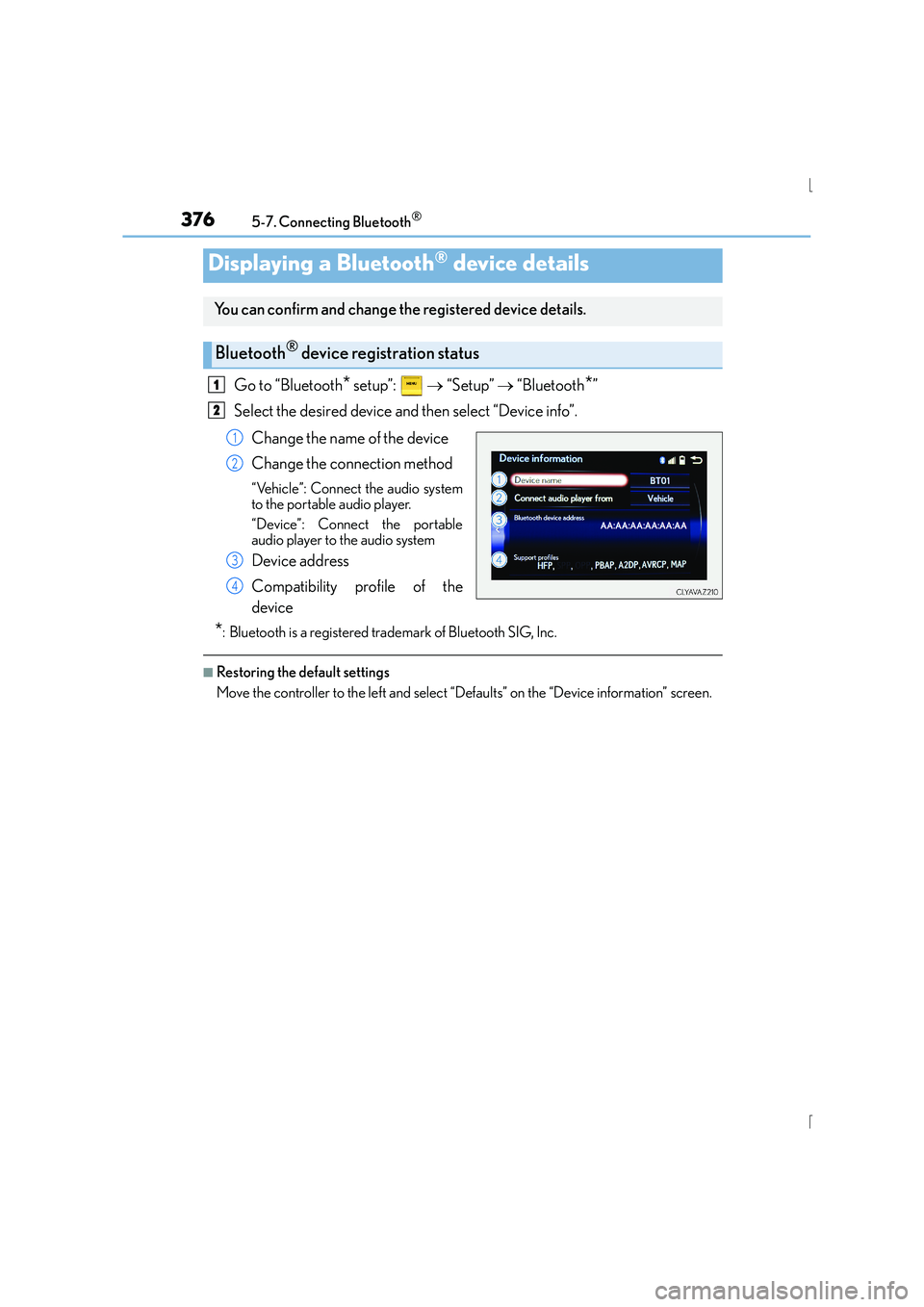
Change the name of the device
Change the connection method
“Vehicle”: Connect the audio system
to the portable audio player.
“Device”: Connect the portable
audio player to the audio system
Device address
Compatibility profile of the
device
*: Bluetooth is a registered trademark of Bluetooth SIG, Inc.
■Restoring the default settings
Move the controller to the left and select “D efaults” on the “Device information” screen.
Displaying a Bluetooth® device details
You can confirm and change the registered device details.
Bluetooth® device registration status
1
2
1
2
3
4
Page 377 of 628
3775-7. Connecting Bluetooth®
5
Lexus Display Audio system
IS300h_EE(OM53D56E)
Go to “Bluetooth* setup”: → “Setup” → “Bluetooth*”
Move the controller to the left and then select “System settings”.
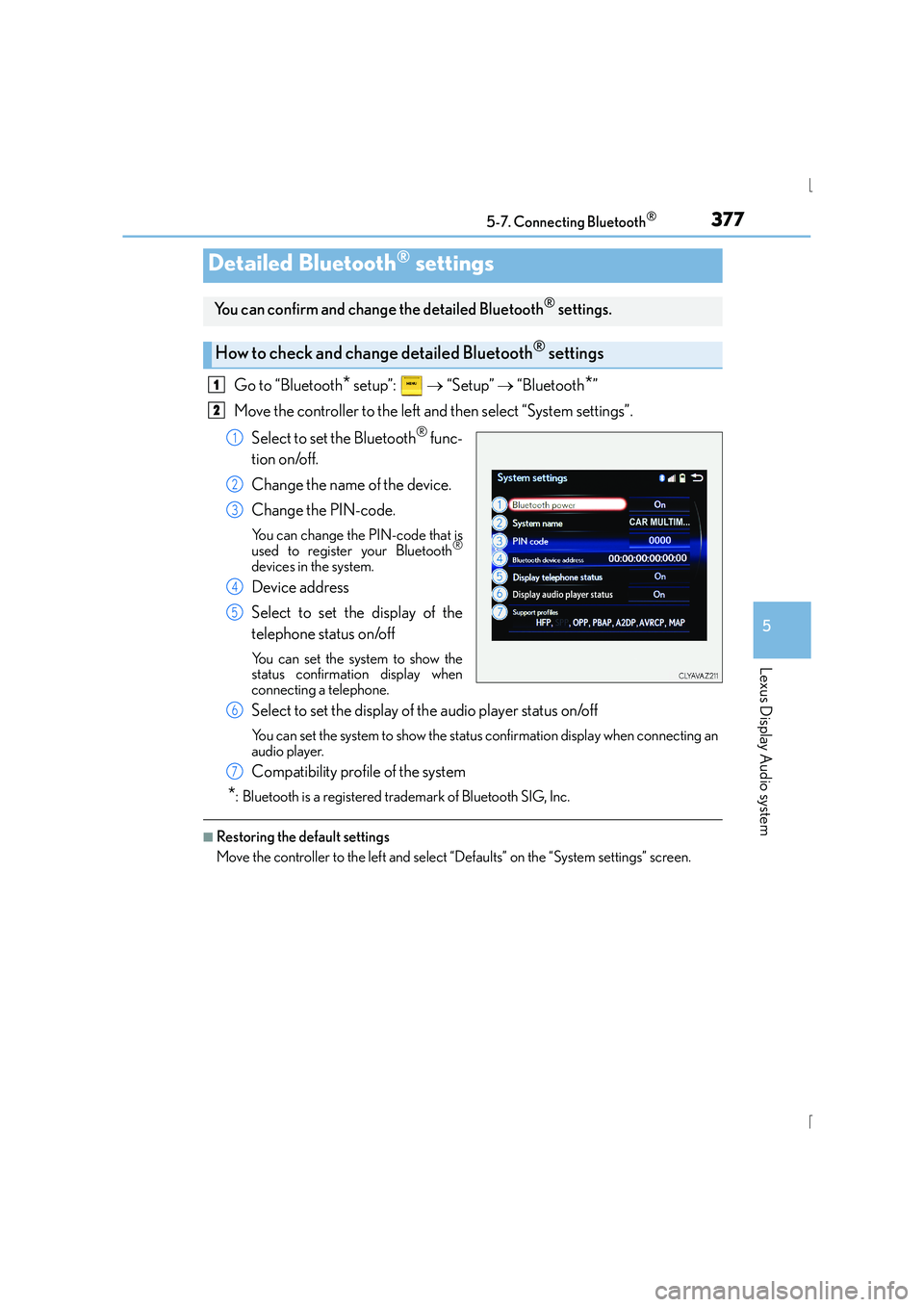
Select to set the Bluetooth
® func-
tion on/off.
Change the name of the device.
Change the PIN-code.
You can change the PIN-code that is
used to register your Bluetooth®
devices in the system.
Device address
Select to set the display of the
telephone status on/off
You can set the system to show the
status confirmation display when
connecting a telephone.
Select to set the display of the audio player status on/off
You can set the system to show the status confirmation display when connecting an
audio player.
Compatibility profile of the system
*: Bluetooth is a registered trademark of Bluetooth SIG, Inc.
■Restoring the default settings
Move the controller to the left and select “Defaults” on the “System settings” screen.
Detailed Bluetooth® settings
You can confirm and change the detailed Bluetooth® settings.
How to check and change detailed Bluetooth® settings
1
2
1
2
3
4
5
6
7
Page 387 of 628
3875-9. Bluetooth® Phone
5
Lexus Display Audio system
IS300h_EE(OM53D56E)
XPhone number containing a “w” symbol
When the “w” symbol is dialed in an outgoing call, you need to go to the
“Release tones” screen to dial the following digits. Move the controller to the
left and then select “Release tones”.
Select “Handset mode” to change from a hands-free call to a cellular phone call
or vice versa.
Press the switch on the steering wheel or select .
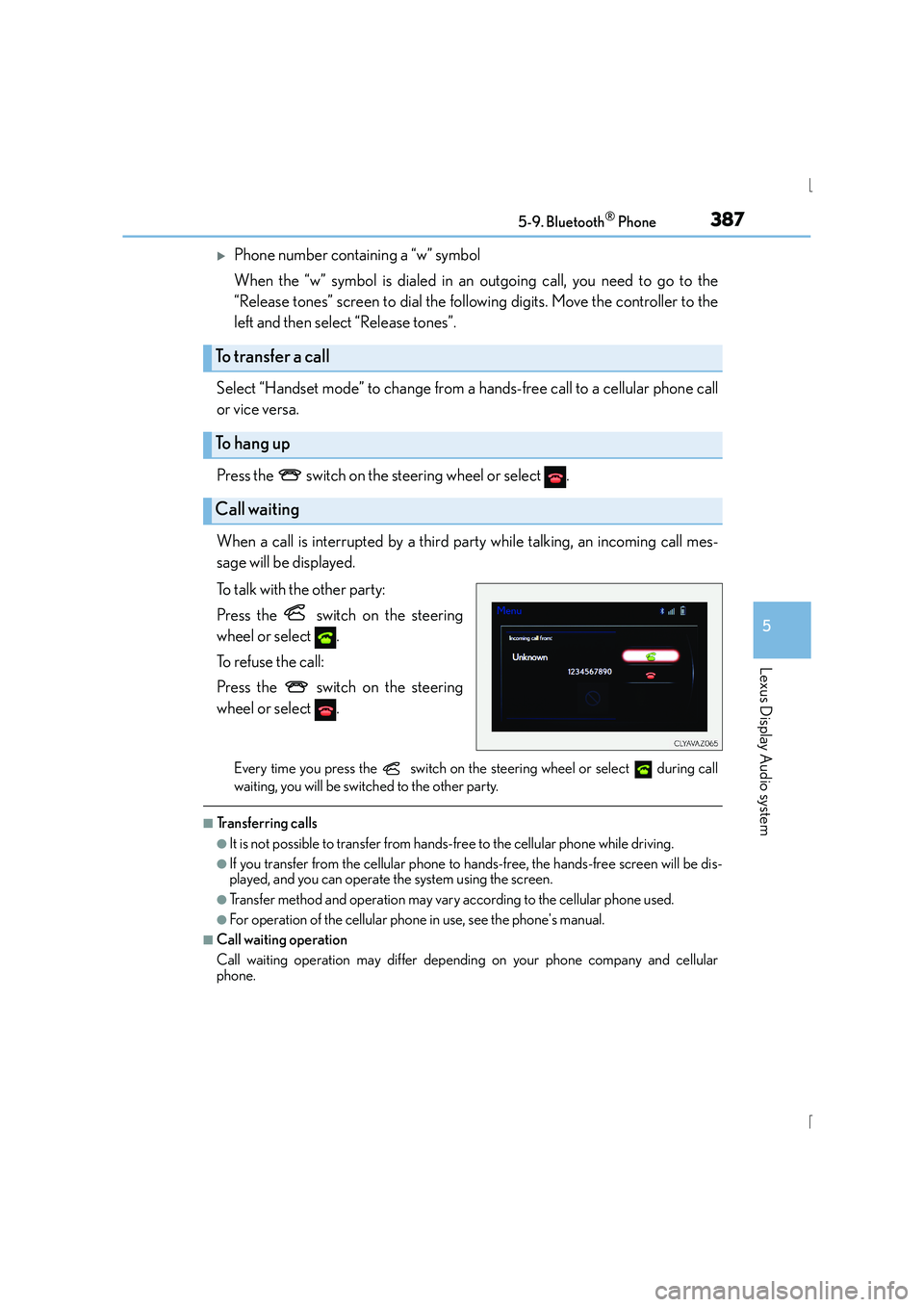
When a call is interrupted by a third party while talking, an incoming call mes-
sage will be displayed.
To talk with the other party:
Press the switch on the steering
wheel or select .
To refuse the call:
Press the switch on the steering
wheel or select .
Every time you press the switch on the steering wheel or select during call
waiting, you will be switched to the other party.
■Tr a n s f e r r i n g c a l l s
●It is not possible to transfer from hand s-free to the cellular phone while driving.
●If you transfer from the cellular phone to ha nds-free, the hands-free screen will be dis-
played, and you can operate the system using the screen.
●Transfer method and operation may vary according to the cellular phone used.
●For operation of the cellular phone in use, see the phone's manual.
■Call waiting operation
Call waiting operation may differ depending on your phone company and cellular
phone.
To transfer a call
To h a n g u p
Call waiting
Page 392 of 628
3925-9. Bluetooth® Phone
IS300h_EE(OM53D56E)
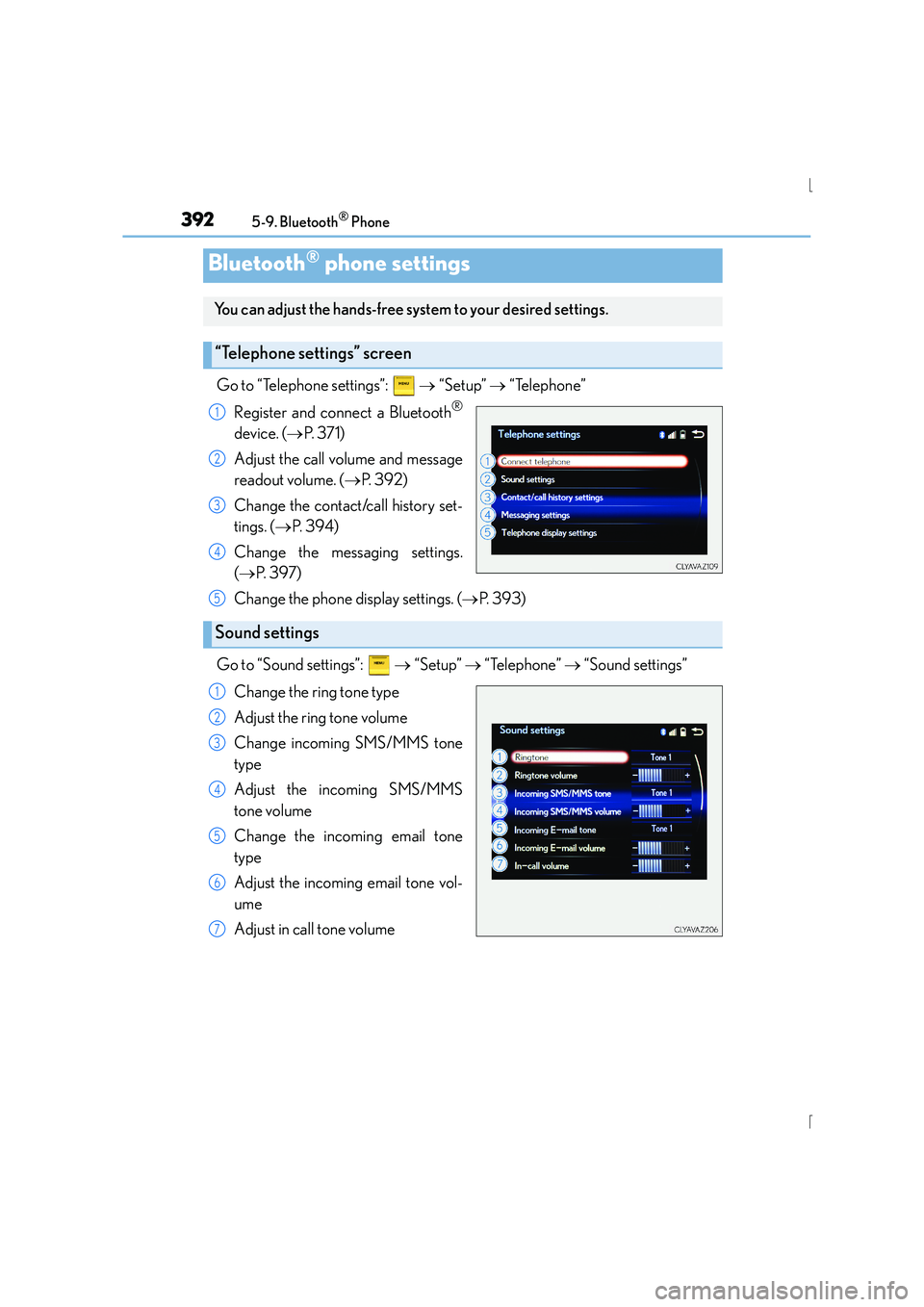
Go to “Telephone settings”: → “Setup” → “Telephone”
Register and connect a Bluetooth
®
device. ( →P. 3 7 1 )
Adjust the call volume and message
readout volume. ( →P. 3 9 2 )
Change the contact/call history set-
tings. ( →P. 3 9 4 )
Change the mess aging settings.
( → P. 3 9 7 )
Change the phone display settings. ( →P. 393)
Go to “Sound settings”: → “Setup” → “Telephone” → “Sound settings”
Change the ring tone type
Adjust the ring tone volume
Change incoming SMS/MMS tone
type
Adjust the incoming SMS/MMS
tone volume
Change the incoming email tone
type
Adjust the incoming email tone vol-
ume
Adjust in call tone volume
Bluetooth® phone settings
You can adjust the hands-free system to your desired settings.
“Telephone settings” screen
1
2
3
4
Sound settings
5
1
2
3
4
5
6
7
Page 393 of 628
3935-9. Bluetooth® Phone
5
Lexus Display Audio system
IS300h_EE(OM53D56E)
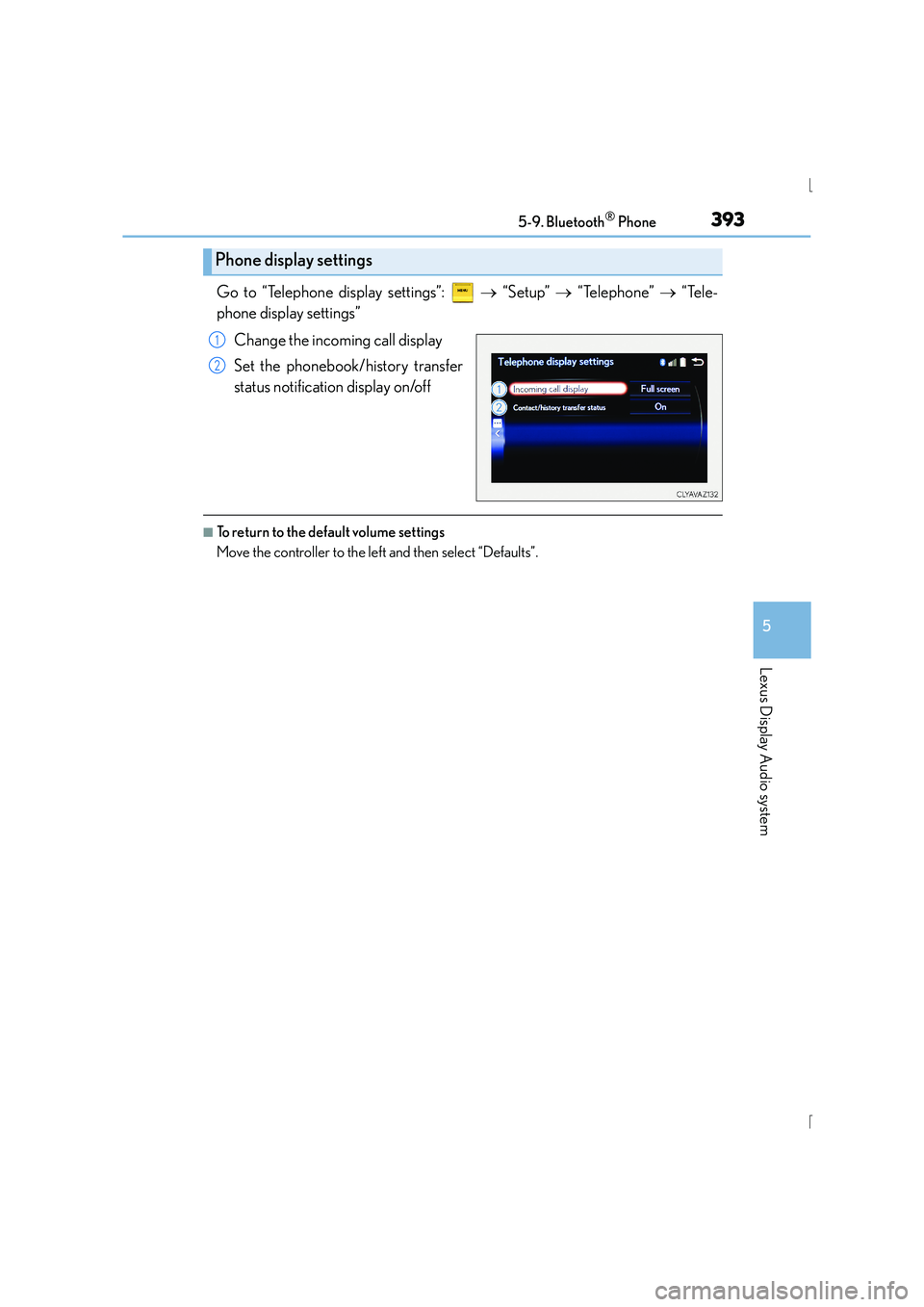
Go to “Telephone display settings”: → “Setup” → “Telephone” → “Tele-
phone display settings”
Change the incoming call display
Set the phonebook/history transfer
status notification display on/off
■To return to the default volume settings
Move the controller to the left and then select “Defaults”.
Phone display settings
1
2
Page 394 of 628
394
IS300h_EE(OM53D56E)5-10. Phonebook
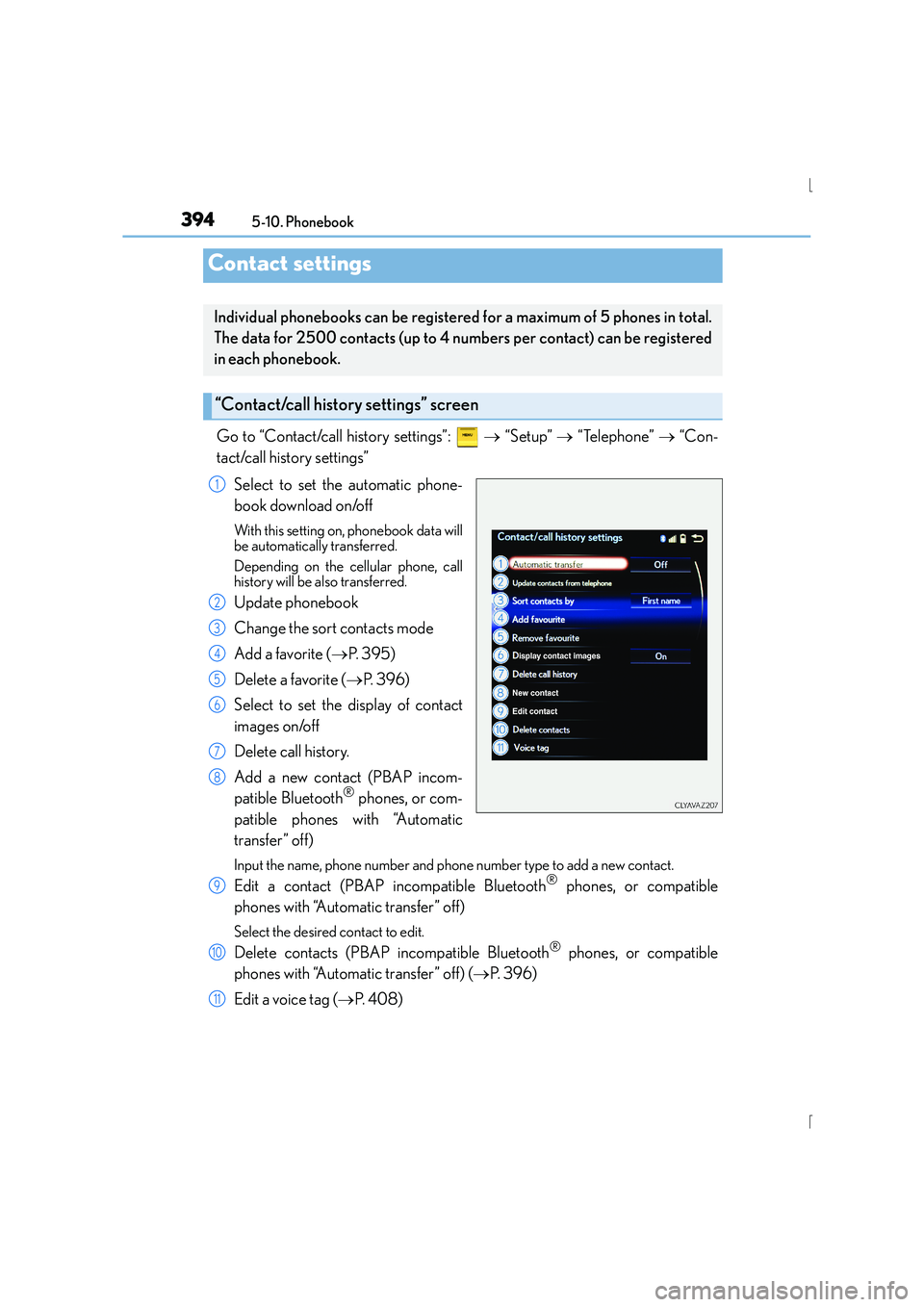
Go to “Contact/call history settings”:
→ “Setup” → “Telephone” → “Con-
tact/call history settings”
Select to set the automatic phone-
book download on/off
With this setting on, phonebook data will
be automatically transferred.
Depending on the cellular phone, call
history will be also transferred.
Update phonebook
Change the sort contacts mode
Add a favorite ( →P. 3 9 5 )
Delete a favorite ( →P. 396)
Select to set the display of contact
images on/off
Delete call history.
Add a new contact (PBAP incom-
patible Bluetooth
® phones, or com-
patible phones with “Automatic
transfer” off)
Input the name, phone number and phone number type to add a new contact.
Edit a contact (PBAP incompatible Bluetooth® phones, or compatible
phones with “Automatic transfer” off)
Select the desired contact to edit.
Delete contacts (PBAP incompatible Bluetooth® phones, or compatible
phones with “Automatic transfer” off) ( →P. 3 9 6 )
Edit a voice tag ( →P. 4 0 8 )
Contact settings
Individual phonebooks can be registered for a maximum of 5 phones in total.
The data for 2500 contacts (up to 4 nu mbers per contact) can be registered
in each phonebook.
“Contact/call history settings” screen
1
2
3
4
5
6
7
8
9
10
11
Page 397 of 628
3975-10. Phonebook
5
Lexus Display Audio system
IS300h_EE(OM53D56E)
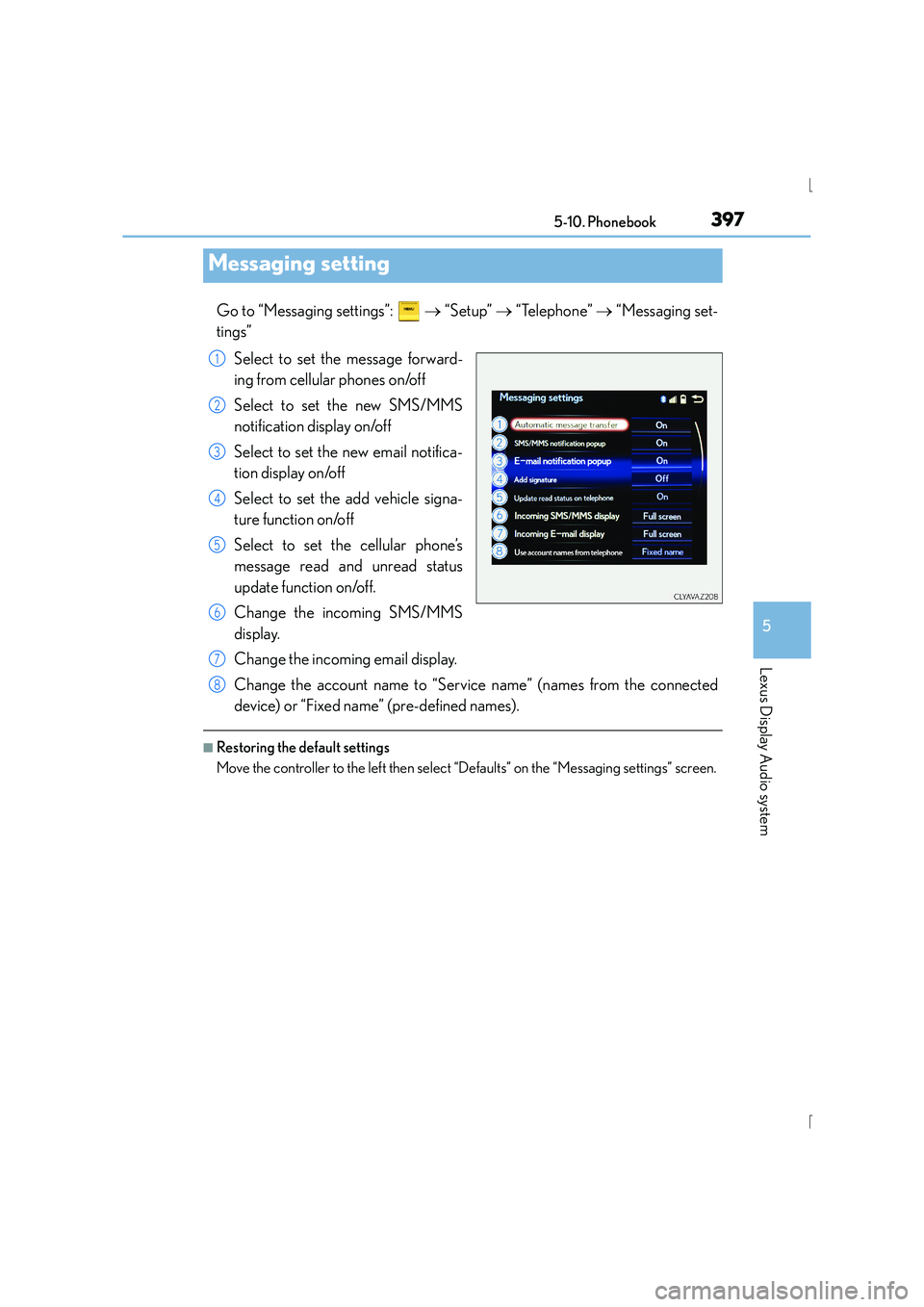
Go to “Messaging settings”: → “Setup” → “Telephone” → “Messaging set-
tings”
Select to set the message forward-
ing from cellular phones on/off
Select to set the new SMS/MMS
notification display on/off
Select to set the new email notifica-
tion display on/off
Select to set the add vehicle signa-
ture function on/off
Select to set the cellular phone’s
message read and unread status
update function on/off.
Change the incoming SMS/MMS
display.
Change the incoming email display.
Change the account name to “Service name” (names from the connected
device) or “Fixed name” (pre-defined names).
■Restoring the default settings
Move the controller to the left then select “Defaults” on the “Messaging settings” screen.
Messaging setting
1
2
3
4
5
6
7
8
Page 404 of 628
4045-12. Other function
IS300h_EE(OM53D56E)
→P. 335
Go to “MirrorLink
*”: → “Info” → “MirrorLink*”
Select the desired application on the application list screen.
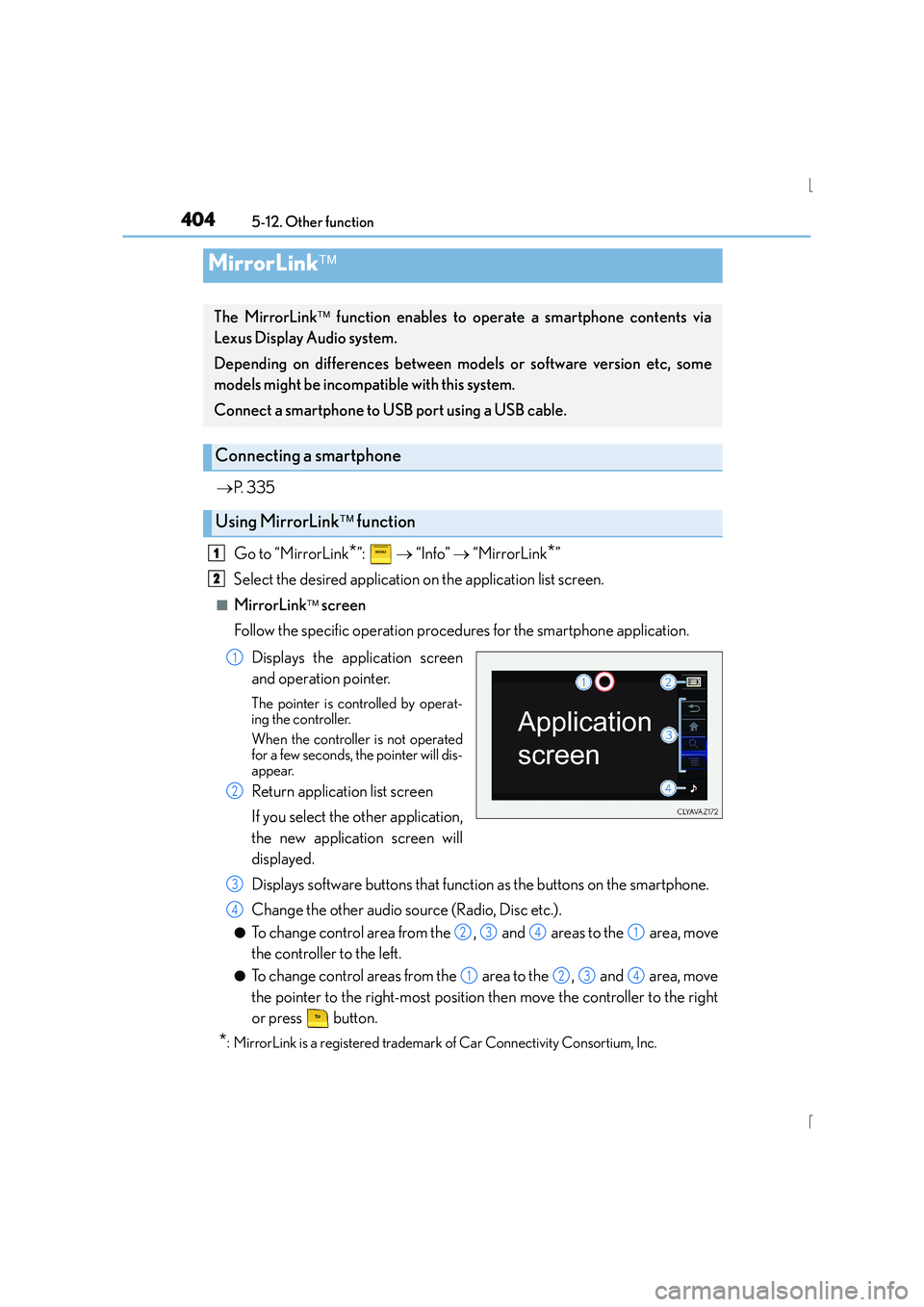
■MirrorLink screen
Follow the specific operation procedures for the smartphone application.
Displays the application screen
and operation pointer.
The pointer is controlled by operat-
ing the controller.
When the controller is not operated
for a few seconds, the pointer will dis-
appear.
Return application list screen
If you select the other application,
the new application screen will
displayed.
Displays software buttons that function as the buttons on the smartphone.
Change the other audio source (Radio, Disc etc.).
●To change control area from the , and areas to the area, move
the controller to the left.
●To change control areas from the area to the , and area, move
the pointer to the right-most position then move the controller to the right
or press button.
*: MirrorLink is a registered trademark of Car Connectivity Consortium, Inc.
MirrorLink
The MirrorLink function enables to operate a smartphone contents via
Lexus Display Audio system.
Depending on differences between models or software version etc, some
models might be incompatible with this system.
Connect a smartphone to USB port using a USB cable.
Connecting a smartphone
Using MirrorLink function
1
2
1
2
3
4
2341
1234
Page 405 of 628
4055-12. Other function
5
Lexus Display Audio system
IS300h_EE(OM53D56E)
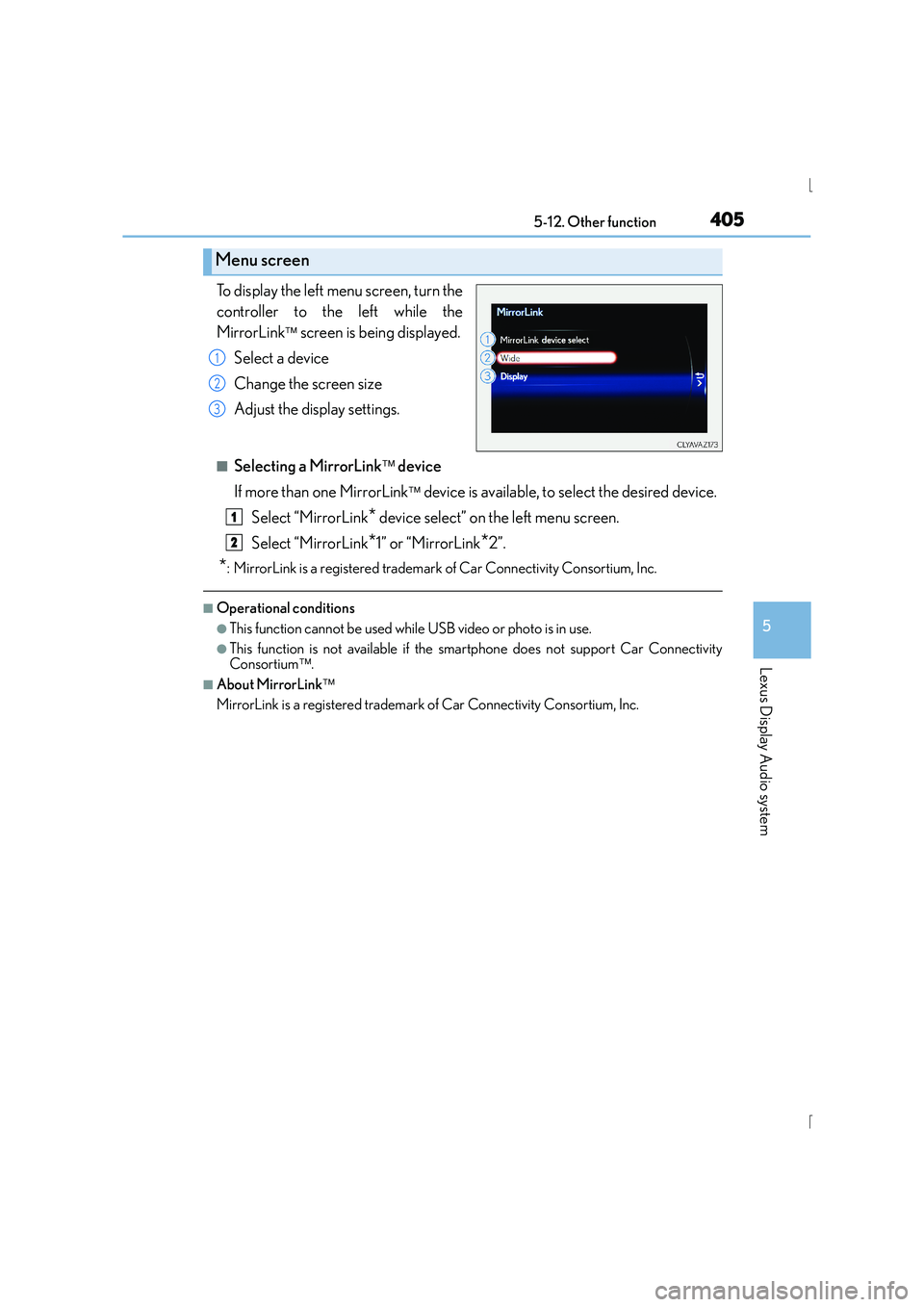
To display the left menu screen, turn the
controller to the left while the
MirrorLink
screen is being displayed.
Select a device
Change the screen size
Adjust the display settings.
■Selecting a MirrorLink device
If more than one MirrorLink
device is available, to select the desired device.
Select “MirrorLink
* device select” on the left menu screen.
Select “MirrorLink
*1” or “MirrorLink*2”.
*: MirrorLink is a registered trademark of Car Connectivity Consortium, Inc.
■Operational conditions
●This function cannot be used while USB video or photo is in use.
●This function is not available if the smartphone does not support Car Connectivity
Consortium.
■About MirrorLink
MirrorLink is a registered trademark of Car Connectivity Consortium, Inc.
Menu screen
1
2
3
1
2