audio Lexus IS350 2020 / LEXUS 2020 IS300,IS350 (OM53F29U) Manual Online
[x] Cancel search | Manufacturer: LEXUS, Model Year: 2020, Model line: IS350, Model: Lexus IS350 2020Pages: 660, PDF Size: 10.84 MB
Page 369 of 660

3695-7. Connecting Bluetooth®
5
Lexus Display Audio system
IS350 AWD/IS350/IS300 AWD/IS300_U
Go to “Bluetooth* Setup”: “MENU” button “Setup” “Bluetooth*”
Move the controller to the left an d then select “System Settings”.
Select “System Information”.
Change the system name
Change the PIN-code
You can change the PIN-code that is
used to register your Bluetooth®
devices in the system.
Device address
Select to set the display of the
phone status on/off
You can set the system to show the
status confirmation display when
connecting a phone.
Select to set the display of the
audio player status on/off
You can set the system to show the
status confirmation display when
connecting an audio player.
Compatibility profile of the sys-
tem
*: Bluetooth is a registered trademark ofBluetooth SIG, Inc.
■Restoring the default settings
Move the controller to the left and select “D efault” on the “System Information” screen.
Editing the system information
1
2
3
1
2
3
4
5
6
Page 370 of 660

370
IS350 AWD/IS350/IS300 AWD/IS300_U5-8. Bluetooth
® Audio
When a Bluetooth® device cannot be connected, check the connection status
on the “Bluetooth
* Audio” screen. If the device is not connected, either register
or reconnect the device. ( P. 362, 364)
*: Bluetooth is a registered trademark of Bluetooth SIG, Inc.
Pressing the “MEDIA” button displays the Bluetooth® audio top screen from any
screen of the selected source.
■Menu screen
P. 335
■Selecting a song
Press the “ PRST” or “TRACK ” button or turn the “TUNE•SCROLL” knob
to select the desired song number.
To fast-forward or reverse, press and hold the “ PRST” or “TRACK ” button.
■Selecting a play mode
Move the controller to the ri ght and then select “Browse”.
Select the desired play mode, and then select a song to begin using the
selected play mode.
■Displaying the now playing list
Move the controller to the right an d then select “Now Playing List”.
Listening to Bluetooth® Audio
The Bluetooth® audio system enables the user to enjoy music played on a por-
table player from the vehicle spea kers via wireless communication.
Bluetooth® audio top screen
1
2
Page 371 of 660
371
5
Lexus Display Audio system
IS350 AWD/IS350/IS300 AWD/IS300_U5-9. Bluetooth
® Phone
Before making a phone call, check the connection status, battery charge, call
area and signal strength. (
P. 373)
If a Bluetooth
® device cannot be connected, chec k the connection status. If the
device is not connected, either register or reconnect it. (
P. 362, 365)
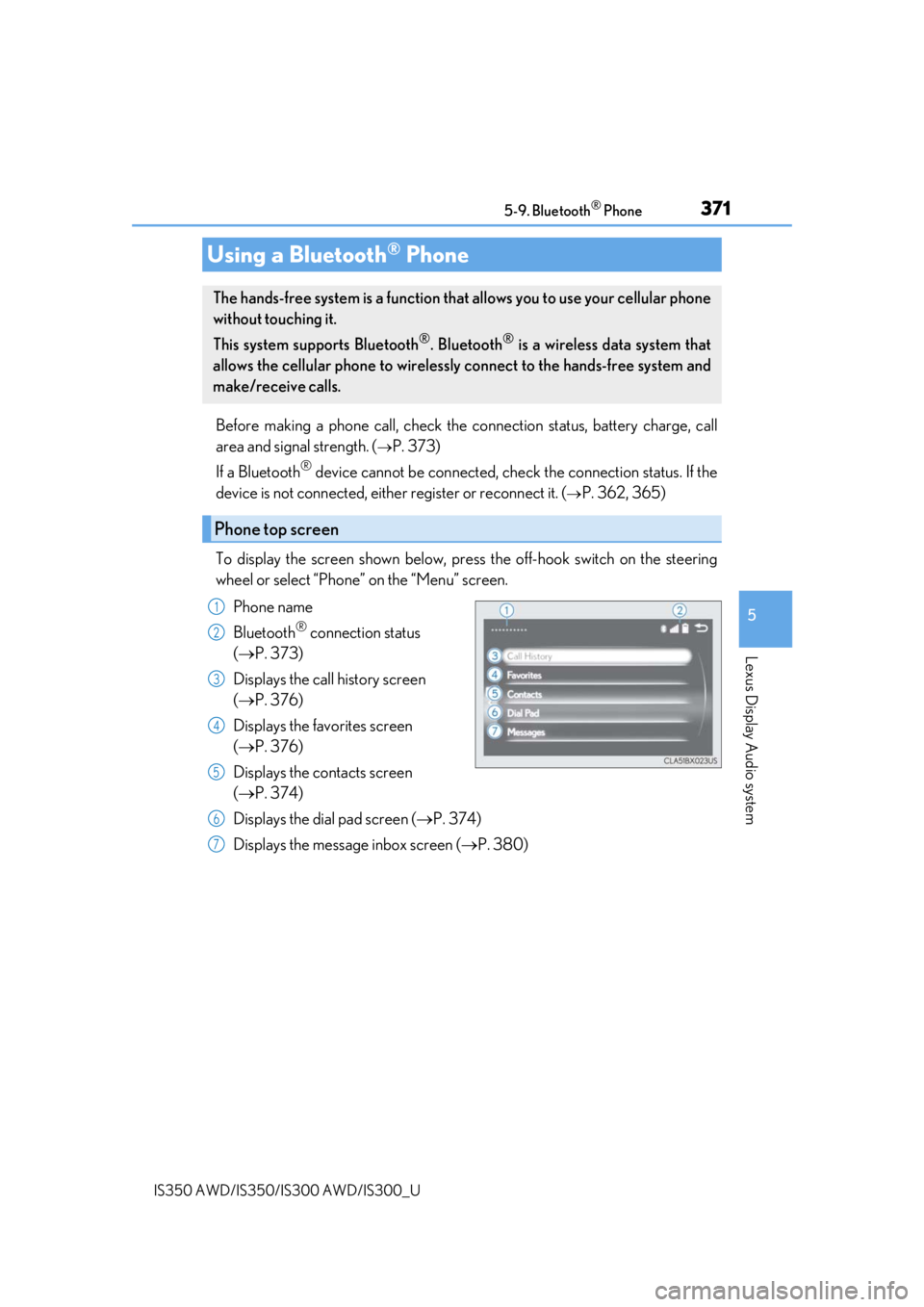
To display the screen shown below, press the off-hook switch on the steering
wheel or select “Phone” on the “Menu” screen. Phone name
Bluetooth
® connection status
( P. 373)
Displays the call history screen
( P. 376)
Displays the favorites screen
( P. 376)
Displays the contacts screen
( P. 374)
Displays the dial pad screen ( P. 374)
Displays the message inbox screen ( P. 380)
Using a Bluetooth® Phone
The hands-free system is a function that allows you to use your cellular phone
without touching it.
This system supports Bluetooth
®. Bluetooth® is a wireless data system that
allows the cellular phone to wirelessly connect to the hands-free system and
make/receive calls.
Phone top screen
1
2
3
4
5
6
7
Page 373 of 660
 Manual Online 3735-9. Bluetooth® Phone
5
Lexus Display Audio system
IS350 AWD/IS350/IS300 AWD/IS300_U
You can check indicators such as signal strength and battery charge on a\
ny
screen.Connection status
Signal st")
3735-9. Bluetooth® Phone
5
Lexus Display Audio system
IS350 AWD/IS350/IS300 AWD/IS300_U
You can check indicators such as signal strength and battery charge on a\
ny
screen.Connection status
Signal strength
Battery charge
Status display
1
2
3
IndicatorsConditions
Connection status
GoodPoorNot connected
(Blue)(Gray)
Signal strength
ExcellentPoor
Battery charge
FullEmpty
Page 375 of 660
3755-9. Bluetooth® Phone
5
Lexus Display Audio system
IS350 AWD/IS350/IS300 AWD/IS300_U
You can transfer the phone numbers in a Bluetooth® phone to the system.
Operation methods differ between PBAP (Phone Book Access Profile) compat-
ible and PBAP incompatible Bluetooth
® phones. If the cellular phone does not
support either PBAP or OPP (Object Pu sh Profile) service, you cannot transfer
contacts.
Press the off-hook switch on the steering wheel.
If the phonebook is empty, a message will be displayed.
For a PBAP compatible Bluetooth® phone and “Automatic Transfer” is off
To enable automatic transfer of new contacts from a cellular phone every time
it is connected, select “Always”. ( P. 385)
Select “Once” if you want to transf er new contacts from a cellular phone.
For a PBAP incompatible and OPP compatible Bluetooth® phone
Select “Transfer” and operate your ce llular phone to transfer new contacts
from a cellular phone.
Select “Add” if you want to add a new contact manually.
When the phonebook is empty
1
2
2
Page 377 of 660

3775-9. Bluetooth® Phone
5
Lexus Display Audio system
IS350 AWD/IS350/IS300 AWD/IS300_U
Press the off-hook switch on the steer-
ing wheel or select .
Press the on-hook switch on the steering wheel or select .
■International calls
Depending on the cellular phone in use, re ceived international calls may not be dis-
played correctly.
Receiving a call
When a call is received, the following screen is displayed together with a
sound.
To answer the phone
To refuse a call
Page 379 of 660

3795-9. Bluetooth® Phone
5
Lexus Display Audio system
IS350 AWD/IS350/IS300 AWD/IS300_U
Phone number containing a “w” symbol
When the “w” symbol is dialed in an outgoing call, you need to go to the
“Release Tones” screen to dial the following digits. Move the controller to the
left and then select “Release Tones”.
Select “Handset Mode” to change from a hands-free call to a cellular phone call
or vice versa.
Press the on-hook switch on the steering wheel or select .
When a call is interrupted by a third pa rty while talking, an incoming call mes-
sage will be displayed.
To talk with the other party:
Press the off-hook sw itch on the steer-
ing wheel or select .
To refuse the call:
Press the on-hook switch on the steer-
ing wheel or select .
Every time you press the off-hook switch on the steering wheel or select during
call waiting, you will be sw itched to the other party.
■Transferring calls
●It is not possible to transfer from hand s-free to the cellular phone while driving.
●If you transfer from the cellular phone to ha nds-free, the hands-free screen will be dis-
played, and you can operate the system using the screen.
●Transfer method and operation may vary according to the cellular phone used.
●For operation of the cellular phone in use, see the phone’s manual.
■Call waiting operation
Call waiting operation may differ depending on your phone company and cellular
phone.
To transfer a call
To hang up
Call waiting
Page 381 of 660

3815-9. Bluetooth® Phone
5
Lexus Display Audio system
IS350 AWD/IS350/IS300 AWD/IS300_U
Move the controller to the left while on the message screen.
Select “Quick Message” to display the “Quick Message” screen.
Select the desired message and then select “Send”.
■Editing a quick message Move the controller to the left while on the message screen.
Select “Quick Message” and move the cursor to the desired message.
Move the controller to the left and select “Edit”.
To return to the default message after editing, select “Default”.
This function is available when the “E-mail Notification Popup” or\
“SMS/MMS
Notification Popup” are set to on. ( P. 384)
“Incoming E-mail Display” or “Inco ming SMS/MMS Display” are set to
“Drop-Down”
When E-mail/ SMS/MMS are received, the incoming message is displayed
on the upper side of the screen with a sound.
“Incoming E-mail Display” or “Incoming SMS/MMS Display” are set to “Full
Screen”
When E-mail/ SMS/MMS are received, th e incoming message screen is dis-
played with a sound and it can be operated on the screen.
Check the message
Refuse to check the message
Call to receive the message
sender’s phone number
Replying to a message
Receiving a message popup function
1
2
3
1
2
3
1
2
3
Page 383 of 660
3835-9. Bluetooth® Phone
5
Lexus Display Audio system
IS350 AWD/IS350/IS300 AWD/IS300_U
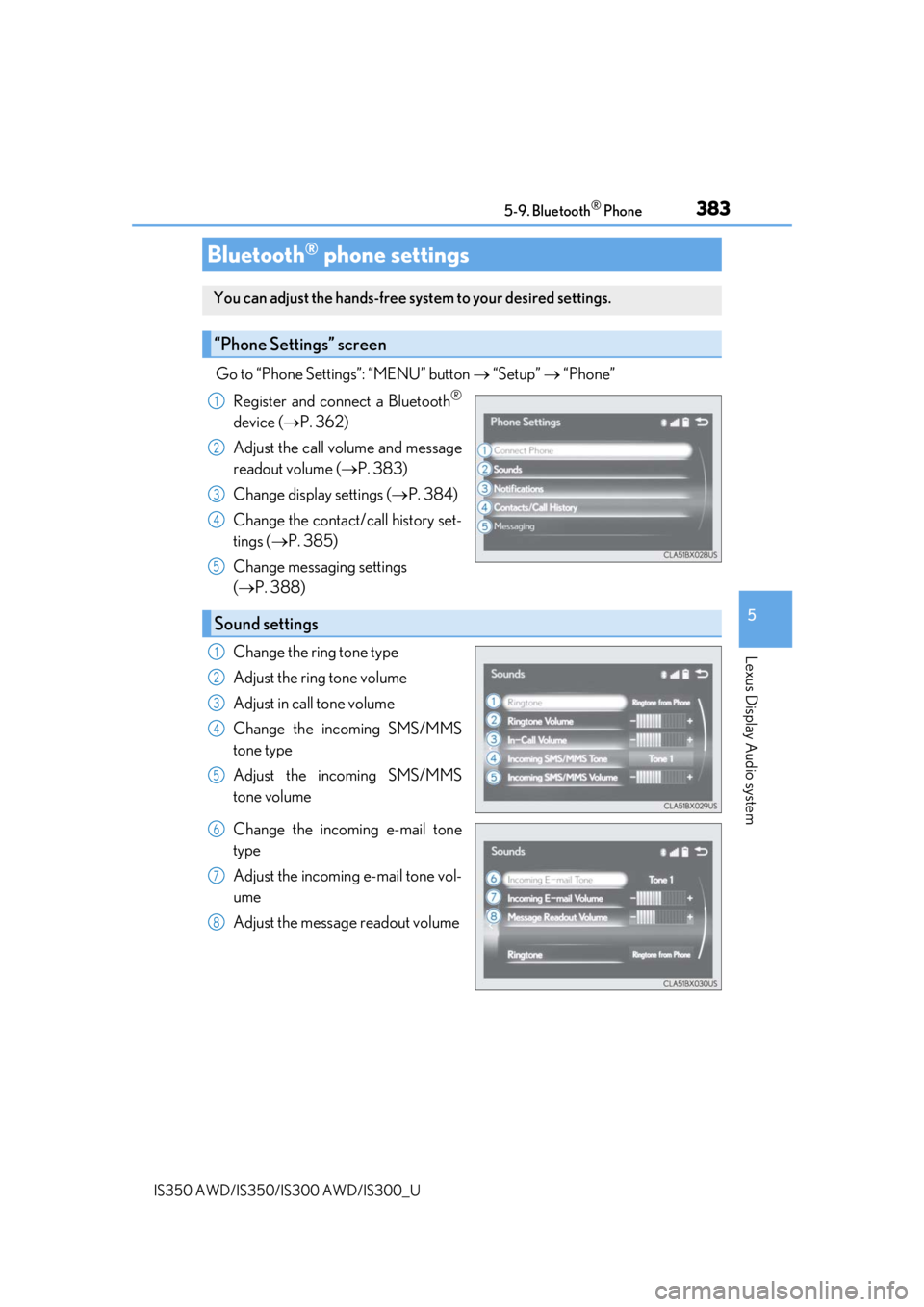
Go to “Phone Settings”: “MENU” button “Setup” “Phone”
Register and connect a Bluetooth
®
device ( P. 362)
Adjust the call volume and message
readout volume ( P. 383)
Change display settings ( P. 384)
Change the contact/call history set-
tings ( P. 385)
Change messaging settings
( P. 388)
Change the ring tone type
Adjust the ring tone volume
Adjust in call tone volume
Change the incoming SMS/MMS
tone type
Adjust the incoming SMS/MMS
tone volume
Change the incoming e-mail tone
type
Adjust the incoming e-mail tone vol-
ume
Adjust the message readout volume
Bluetooth® phone settings
You can adjust the hands-free sy stem to your desired settings.
“Phone Settings” screen
1
2
3
4
5
Sound settings
1
2
3
4
5
6
7
8
Page 385 of 660
385
5
Lexus Display Audio system
IS350 AWD/IS350/IS300 AWD/IS300_U5-10. Phonebook
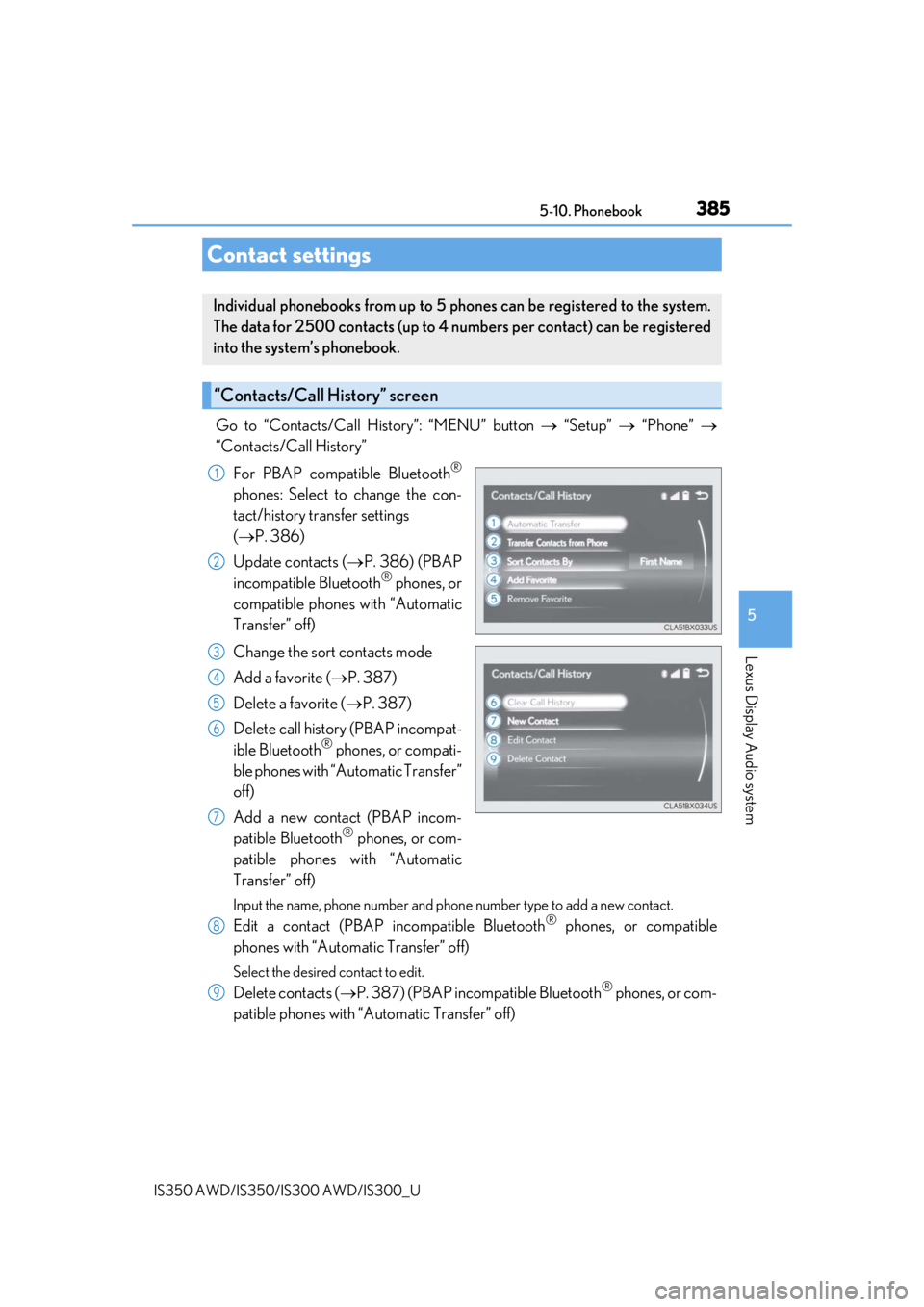
Go to “Contacts/Call History”: “MENU” button
“Setup” “Phone”
“Contacts/Call History”
For PBAP compatible Bluetooth
®
phones: Select to change the con-
tact/history transfer settings
( P. 386)
Update contacts ( P. 386) (PBAP
incompatible Bluetooth
® phones, or
compatible phones with “Automatic
Transfer” off)
Change the sort contacts mode
Add a favorite ( P. 387)
Delete a favorite ( P. 387)
Delete call history (PBAP incompat-
ible Bluetooth
® phones, or compati-
ble phones with “Automatic Transfer”
off)
Add a new contact (PBAP incom-
patible Bluetooth
® phones, or com-
patible phones with “Automatic
Transfer” off)
Input the name, phone number and phone number type to add a new contact.
Edit a contact (PBAP in compatible Bluetooth® phones, or compatible
phones with “Automatic Transfer” off)
Select the desired contact to edit.
Delete contacts ( P. 387) (PBAP incompatible Bluetooth® phones, or com-
patible phones with “Automatic Transfer” off)
Contact settings
Individual phonebooks from up to 5 ph ones can be registered to the system.
The data for 2500 contacts (up to 4 numbers per contact) can be registered
into the system’s phonebook.
“Contacts/Call History” screen
1
2
3
4
5
6
7
8
9