change time LEXUS LS500H 2018 Owner's Guide
[x] Cancel search | Manufacturer: LEXUS, Model Year: 2018, Model line: LS500H, Model: LEXUS LS500H 2018Pages: 528, PDF Size: 10.8 MB
Page 229 of 528
2294-5. Using the driving support systems
LS500h_OM_OM50F42U_(U) 4
Driving ●
If the front end of an approaching vehicle
is low (low-slung sports cars, etc.)●
If the ground clearance of an approach-
ing vehicle is extremely high●
If the shape of an approaching vehicle is
unusual (tractors, motorcycles with side-
cars, etc.)●
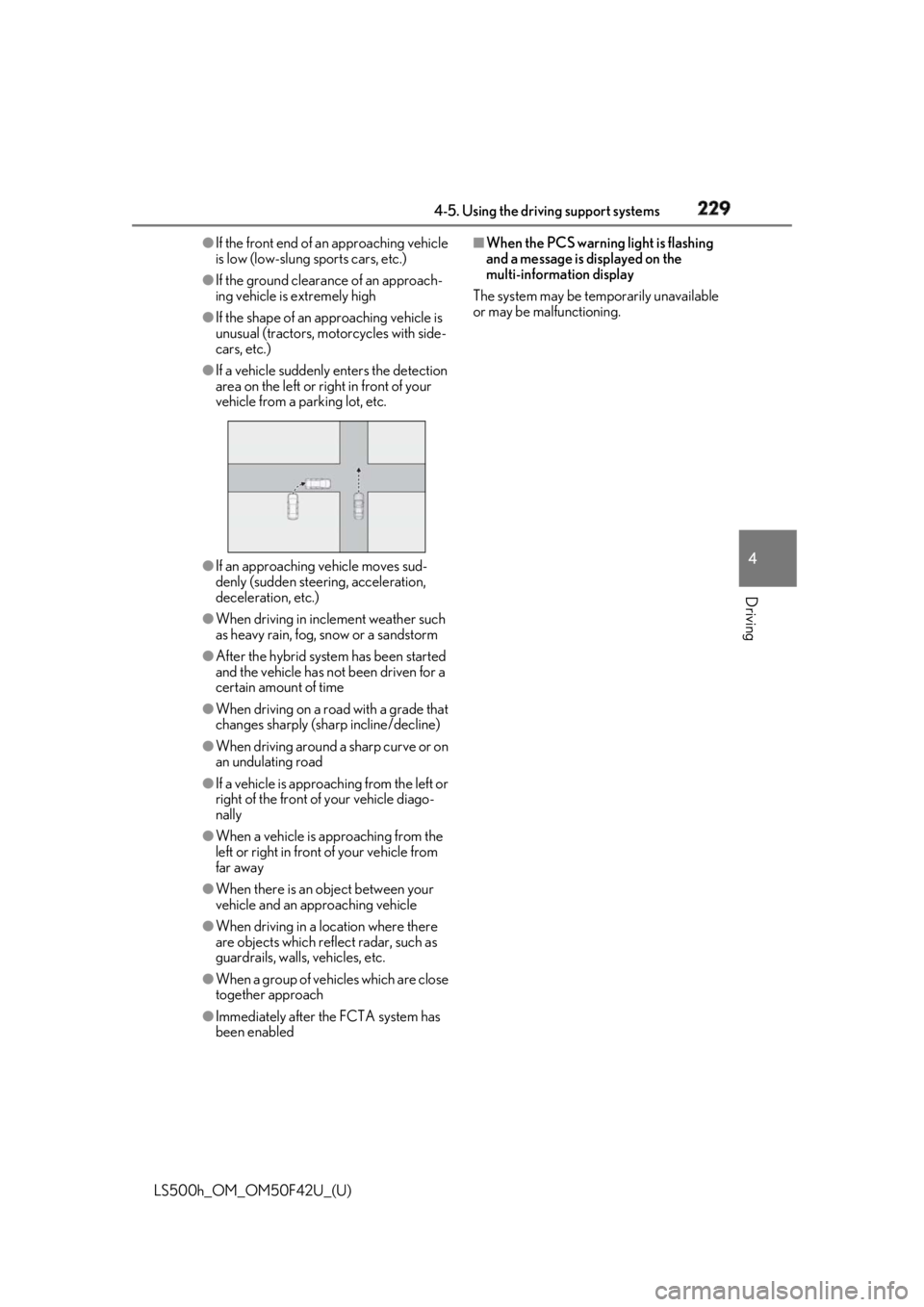
If a vehicle suddenly enters the detection
area on the left or ri ght in front of your
vehicle from a parking lot, etc.
●
If an approaching vehicle moves sud-
denly (sudden steering, acceleration,
deceleration, etc.)●
When driving in incl ement weather such
as heavy rain, fog, snow or a sandstorm●
After the hybrid syst em has been started
and the vehicle has not been driven for a
certain amount of time●
When driving on a road with a grade that
changes sharply (sharp incline/decline)●
When driving around a sharp curve or on
an undulating road●
If a vehicle is approaching from the left or
right of the front of your vehicle diago-
nally●
When a vehicle is approaching from the
left or right in front of your vehicle from
far away
●
When there is an object between your
vehicle and an approaching vehicle
●
When driving in a lo cation where there
are objects which reflect radar, such as
guardrails, walls, vehicles, etc.
●
When a group of vehicles which are close
together approach
●
Immediately after the FCTA system has
been enabled ■
When the PCS warning light is flashing
and a message is displayed on the
multi-information display
The system may be te mporarily unavailable
or may be malfunctioning.
Page 232 of 528
232 4-5. Using the driving support systems
LS500h_OM_OM50F42U_(U) ■
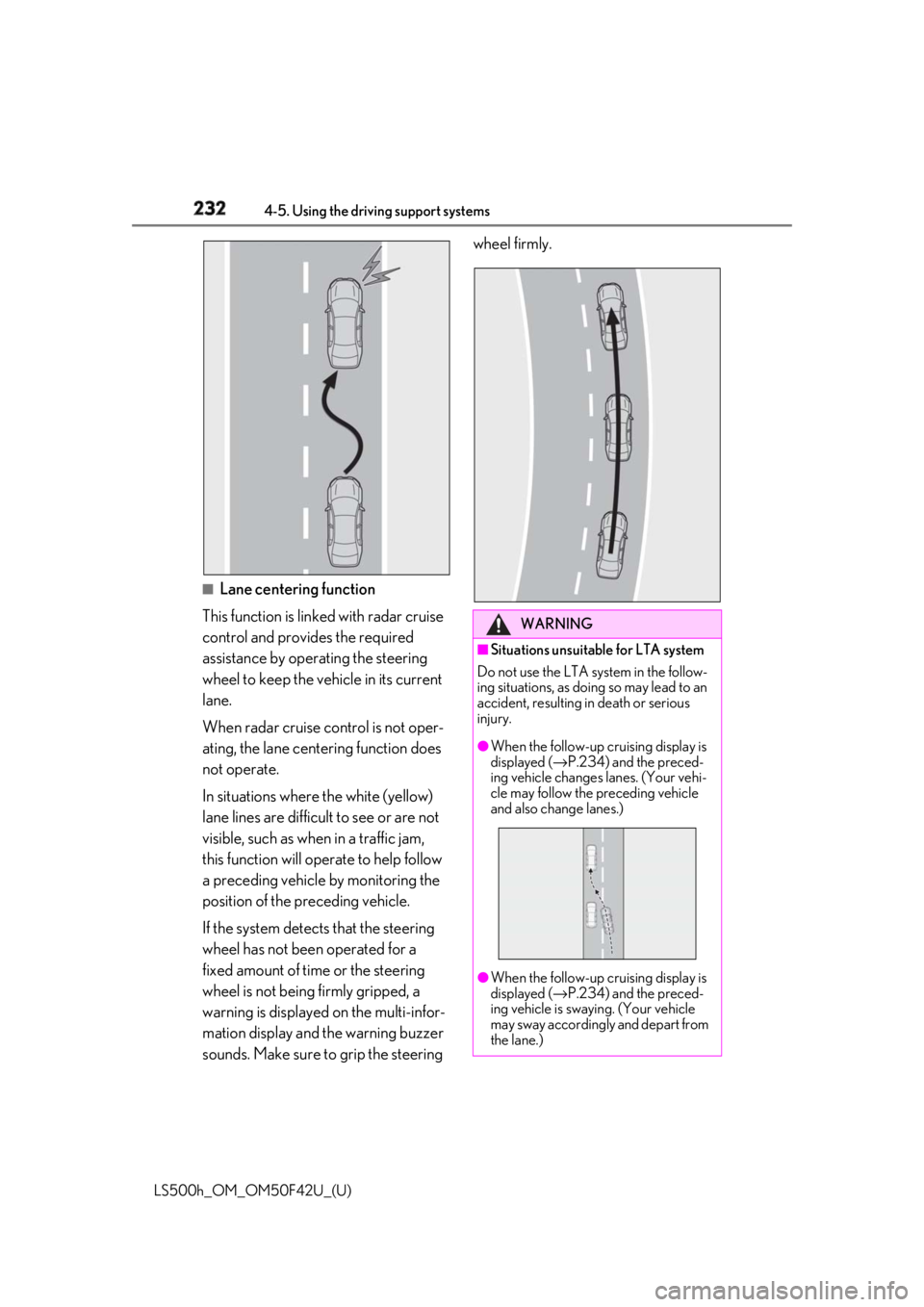
Lane centering function
This function is linked with radar cruise
control and provides the required
assistance by operating the steering
wheel to keep the vehicle in its current
lane.
When radar cruise control is not oper-
ating, the lane centering function does
not operate.
In situations where the white (yellow)
lane lines are difficult to see or are not
visible, such as when in a traffic jam,
this function will op erate to help follow
a preceding vehicle by monitoring the
position of the preceding vehicle.
If the system detects that the steering
wheel has not been operated for a
fixed amount of time or the steering
wheel is not being firmly gripped, a
warning is displayed on the multi-infor-
mation display and the warning buzzer
sounds. Make sure to grip the steering wheel firmly.
WARNING■
Situations unsuitable for LTA system
Do not use the LTA system in the follow-
ing situations, as doing so may lead to an
accident, resulting in death or serious
injury. ●
When the follow-up cruising display is
displayed ( → P.234) and the preced-
ing vehicle changes lanes. (Your vehi-
cle may follow the preceding vehicle
and also change lanes.)
●
When the follow-up cruising display is
displayed ( → P.234) and the preced-
ing vehicle is swaying. (Your vehicle
may sway accordingly and depart from
the lane.)
Page 239 of 528
2394-5. Using the driving support systems
LS500h_OM_OM50F42U_(U) 4
Driving
If a different warning message is displayed,
follow the instructions displayed on the
screen.
■
Customization
The following settings can be changed. For how to change settings, refer to
→ P.481“Front Camera
Unavailable” The operation condi-
tions of the camera
sensor (temperature,
etc.) are not met.
→ When the opera-
tion conditions of the
camera sensor (tem-
perature, etc.) are met,
the LTA system will
become available. Turn
the LTA system off, wait
for a little while, and
then turn the LTA sys-
tem back on.
“LTA Unavailable” The LTA system is tem-
porarily canceled due
to a malfunction in a
sensor other than the
camera sensor.
→ Turn the LTA system
off and follow the
appropriate trouble-
shooting procedures
for the warning mes-
sage. Afterward, drive
the vehicle for a short
time, and then turn the
LTA system back on.
“LTA Unavailable
at Current
Speed” The LTA system cannot
be used as the vehicle
speed is too high.
→ Slow down.Warning message Details/Actions Function Setting details
Lane departure
alert function Adjust alert sensitivity
Adjust alert type
Steering assist
function Turn steering wheel
assistance on and off
Vehicle sway
warning function Turn function on and
off
Adjust alert sensitivity
Lane centering
function Turn function on and
off
Page 246 of 528
246 4-5. Using the driving support systems
LS500h_OM_OM50F42U_(U) ■
Warning message
If the following warning message is dis-
played on the multi-information display and
the LKA indicator illumi nates in orange, fol-
low the appropriate troubleshooting proce-
dure.
If a different warning message is displayed,
follow the instructio ns displayed on the
screen.
■
Customization
The following settings can be changed.Warning message Details/Actions
“Lane Keeping
Assist Malfunc-
tion Visit Your
Dealer” The system may not be
operating properly.
→ Have the vehicle
inspected at your
Lexus dealer.
“Front Camera
Unavailable
Remove Debris
On Windshield” Dirt, rain, condensa-
tion, ice, snow, etc., are
present on the wind-
shield in front of the
camera sensor.
→ Turn the LKA sys-
tem off, remove any
dirt, rain, condensa-
tion, ice, snow, etc.,
from the windshield,
and then turn the LKA
system back on. “Front Camera
Unavailable” The operation condi-
tions of the camera
sensor (temperature,
etc.) are not met.
→ When the opera-
tion conditions of the
camera sensor (tem-
perature, etc.) are met,
the LKA system will
become available. Turn
the LKA system off,
wait for a little while,
and then turn the LKA
system back on.
“Lane Keeping
Assist Unavail-
able” The LKA system is
temporarily canceled
due to a malfunction in
a sensor other than the
camera sensor.
→ Turn the LKA sys-
tem off and follow the
appropriate trouble-
shooting procedures
for the warning mes-
sage. Afterward, drive
the vehicle for a short
time, and then turn the
LKA system back on.
Function Setting details
Lane departure
alert function Adjust alert sensitivity
Adjust alert type
Steering assist
function Turn steering wheel
assistance on and offWarning message Details/Actions
Page 249 of 528
2494-5. Using the driving support systems
LS500h_OM_OM50F42U_(U) 4
Driving *
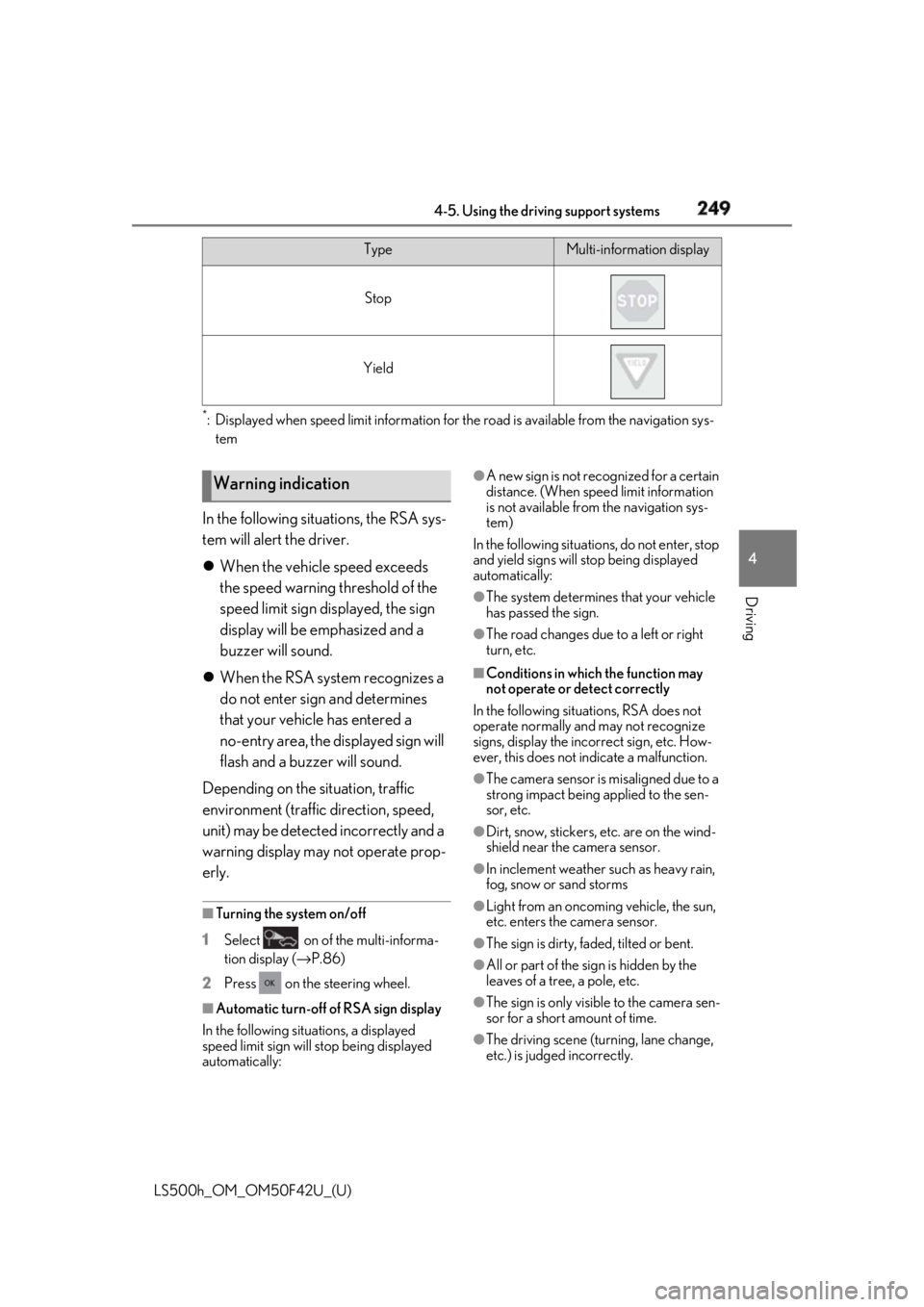
: Displayed when speed limit information for th e road is available from the navigation sys-
tem
In the following situations, the RSA sys-
tem will alert the driver.
When the vehicle speed exceeds
the speed warning threshold of the
speed limit sign displayed, the sign
display will be emphasized and a
buzzer will sound.
When the RSA system recognizes a
do not enter sign and determines
that your vehicle has entered a
no-entry area, the displayed sign will
flash and a buzzer will sound.
Depending on the situation, traffic
environment (traffic direction, speed,
unit) may be detected incorrectly and a
warning display may not operate prop-
erly. ■
Turning the system on/off
1 Select on of the multi-informa-
tion display ( → P.86)
2 Press on the steering wheel.
■
Automatic turn-off of RSA sign display
In the following situations, a displayed
speed limit sign will stop being displayed
automatically: ●
A new sign is not recognized for a certain
distance. (When speed limit information
is not available from the navigation sys-
tem)
In the following situations, do not enter, stop
and yield signs will stop being displayed
automatically: ●
The system determines that your vehicle
has passed the sign. ●
The road changes due to a left or right
turn, etc. ■
Conditions in which the function may
not operate or detect correctly
In the following situations, RSA does not
operate normally and may not recognize
signs, display the incorrect sign, etc. How-
ever, this does not indicate a malfunction. ●
The camera sensor is misaligned due to a
strong impact being applied to the sen-
sor, etc. ●
Dirt, snow, stickers, etc. are on the wind-
shield near the camera sensor. ●
In inclement weather such as heavy rain,
fog, snow or sand storms
●
Light from an oncoming vehicle, the sun,
etc. enters the camera sensor.
●
The sign is dirty, faded, tilted or bent.
●
All or part of the sign is hidden by the
leaves of a tree, a pole, etc.
●
The sign is only visible to the camera sen-
sor for a short amount of time.
●
The driving scene (turning, lane change,
etc.) is judged incorrectly.Stop
Yield Type Multi-information display
Warning indication
Page 253 of 528
2534-5. Using the driving support systems
LS500h_OM_OM50F42U_(U) 4
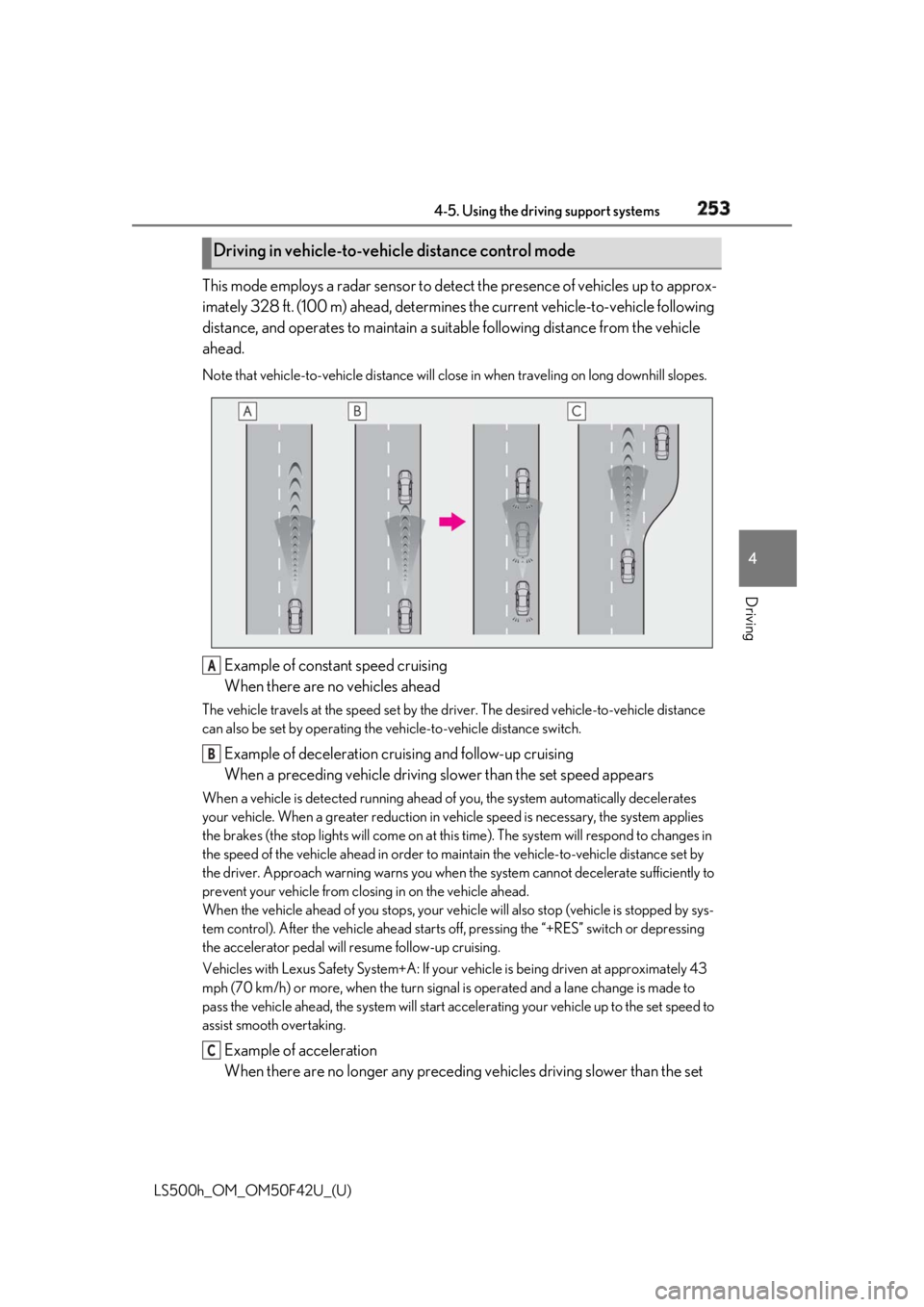
Driving This mode employs a radar sensor to detect the presence of vehicles up to approx-
imately 328 ft. (100 m) ahead, determines the current vehicle-to-vehicle following
distance, and operates to maintain a suit able following distance from the vehicle
ahead. Note that vehicle-to-vehicle di stance will close in when trav eling on long downhill slopes.
Example of constant speed cruising
When there are no vehicles aheadThe vehicle travels at the speed set by the driver. The desired vehicle-to-vehicle distance
can also be set by operating the ve hicle-to-vehicle distance switch.
Example of deceleration cruising and follow-up cruising
When a preceding vehicle driving slower than the set speed appearsWhen a vehicle is detected running ahead of you, the system automatically decelerates
your vehicle. When a greater reduction in vehicle speed is necessary, the system applies
the brakes (the stop lights will come on at this time). The sy stem will respond to changes in
the speed of the vehicle ahead in order to maintain the vehicle-to-vehicle distance set by
the driver. Approach warning warns you when th e system cannot decelera te sufficiently to
prevent your vehicle from closing in on the vehicle ahead.
When the vehicle ahead of you stops, your vehi cle will also stop (vehicle is stopped by sys-
tem control). After the vehicle ahead starts off, pressing the “+RES” switch or depressing
the accelerator pedal will resume follow-up cruising.
Vehicles with Lexus Safety System+A: If your vehicle is being driven at approximately 43
mph (70 km/h) or more, when the turn signal is operated and a lane change is made to
pass the vehicle ahead, the system will start acce lerating your vehicle up to the set speed to
assist smooth overtaking.
Example of acceleration
When there are no longer any preceding vehicles driving slower than the set Driving in vehicle-to-vehicle distance control mode
A
B
C
Page 255 of 528
2554-5. Using the driving support systems
LS500h_OM_OM50F42U_(U) 4
Driving increased or decreased as follows:
For the U.S. mainland, Hawaii Fine adjustment: By 1 mph (1.6 km/h) *1
or 1
km/h (0.6mph) *2
each time the switch is
pressed
Large adjustment: Increases or decreases
in 1mph (1.6 km/h) *1
or 1 km/h (0.6 mph) *2
increments for as long as the switch is held
For Canada, Guam and Puerto Rico Fine adjustment: By 1 mph (1.6 km/h) *1
or 1
km/h (0.6mph) *2
each time the switch is
pressed
Large adjustment: Increases or decreases
in 5 mph (8 km/h) *1
or 5 km/h (3.1 mph) *2
increments for as long as the switch is held
In the constant speed control mode
( → P.257), the set speed will be
increased or decreased as follows: Fine adjustment: By 1 mph (1.6 km/h) *1
or 1
km/h (0.6 mph) *2
each time the switch is
pressed
Large adjustment: The speed will continue
to change while the switch is held. *1
: When the set speed is shown in “MPH” *2
: When the set speed is shown in “km/h”
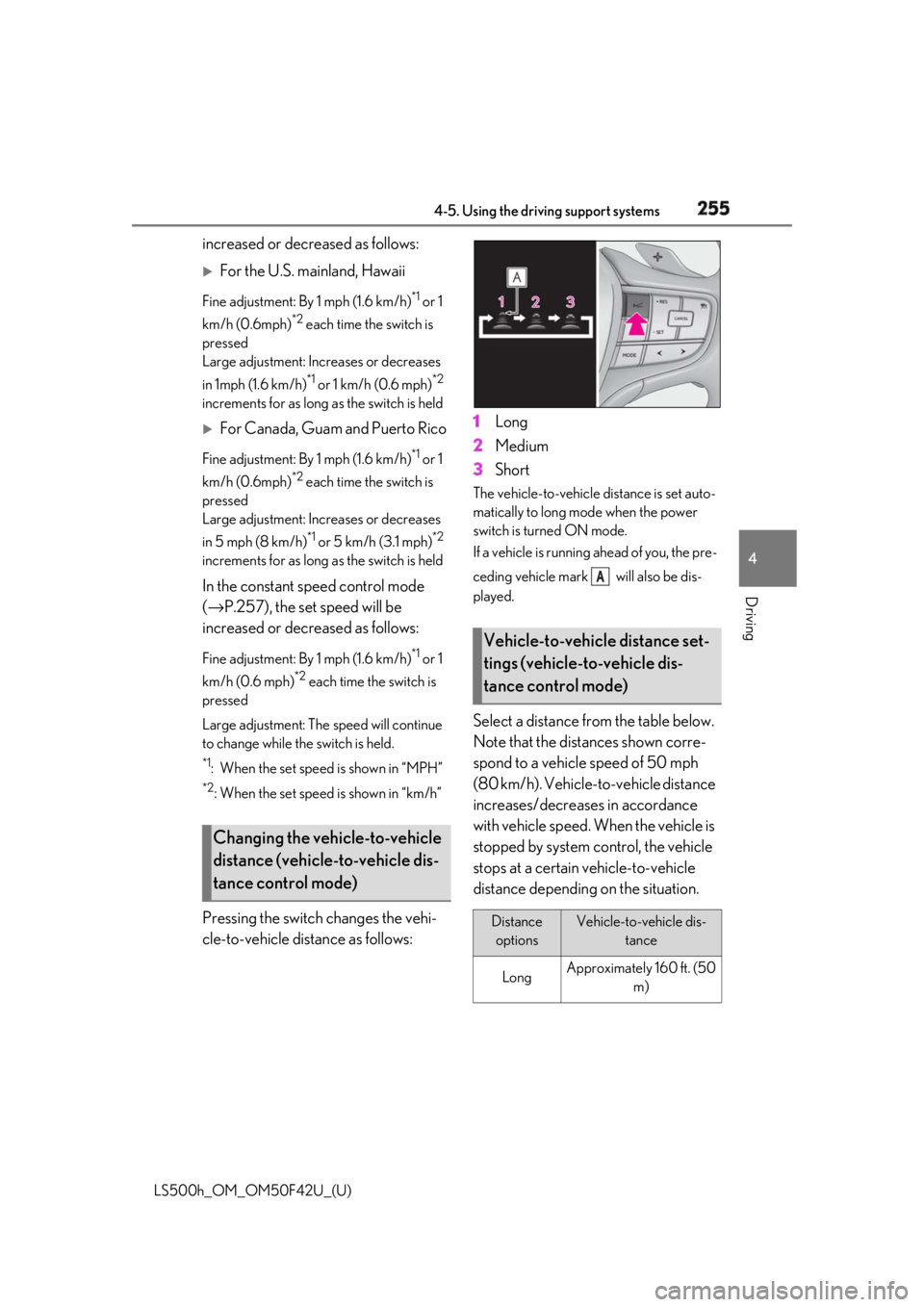
Pressing the switch changes the vehi-
cle-to-vehicle distance as follows: 1 Long
2 Medium
3 Short The vehicle-to-vehicle distance is set auto-
matically to long mode when the power
switch is turned ON mode.
If a vehicle is running ahead of you, the pre-
ceding vehicle mark will also be dis-
played.
Select a distance from the table below.
Note that the distances shown corre-
spond to a vehicle speed of 50 mph
(80 km/h). Vehicle-to-vehicle distance
increases/decreases in accordance
with vehicle speed. When the vehicle is
stopped by system control, the vehicle
stops at a certain vehicle-to-vehicle
distance depending on the situation.Changing the vehicle-to-vehicle
distance (vehicle-to-vehicle dis-
tance control mode) Vehicle-to-vehicle distance set-
tings (vehicle-to-vehicle dis-
tance control mode)
Distance
options Vehicle-to-vehicle dis-
tance
Long Approximately 160 ft. (50
m) A
Page 266 of 528
266 4-5. Using the driving support systems
LS500h_OM_OM50F42U_(U) ■
Adjusting the buzzer volume
The buzzer volume can be adjusted on
the multi-information display. The vol-
ume of buzzers for the intuitive parking
assist, RCTA function and RCD func-
tion will be adjusted simultaneously.
Use the meter control switches to
change settings. ( → P.87)
1 Press or to select .
2 Press or to select “PKSA”
and then press .
3 Press or to select and
then press .Each time the switch is pressed, the volume
level will change between 1, 2, and 3. ■
Muting a buzzer
A mute button will be displayed on the
multi-information display when an
object or pedestrian is detected. To
mute the buzzer, press .
The buzzers for the intuitive parking
assist, RCTA function and RCD func-
tion will be muted simultaneously.
Mute will be canceled automatically in
the following situations:
When the shift position is changed.
When the operating function is tem-
porarily canceled.
When the operating function is dis-
abled manually.
When the power switch is turned
off. ■
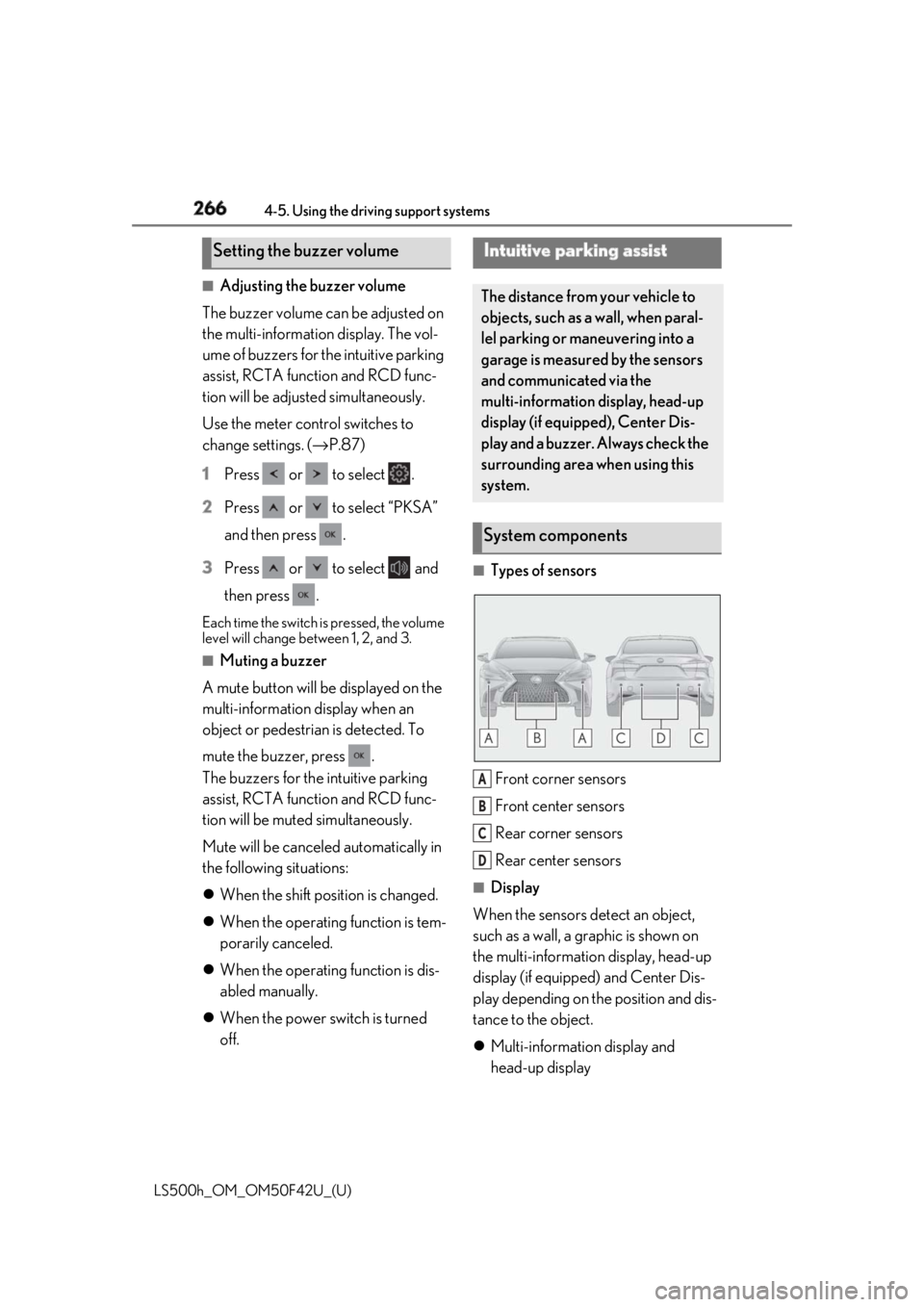
Types of sensors
Front corner sensors
Front center sensors
Rear corner sensors
Rear center sensors ■
Display
When the sensors detect an object,
such as a wall, a graphic is shown on
the multi-information display, head-up
display (if equipped) and Center Dis-
play depending on the position and dis-
tance to the object.
Multi-information display and
head-up displaySetting the buzzer volume Intuitive parking assist The distance from your vehicle to
objects, such as a wall, when paral-
lel parking or maneuvering into a
garage is measured by the sensors
and communicated via the
multi-information display, head-up
display (if equipped), Center Dis-
play and a buzzer. Always check the
surrounding area when using this
system.
System components
A
B
C
D
Page 273 of 528
2734-5. Using the driving support systems
LS500h_OM_OM50F42U_(U) 4
Driving
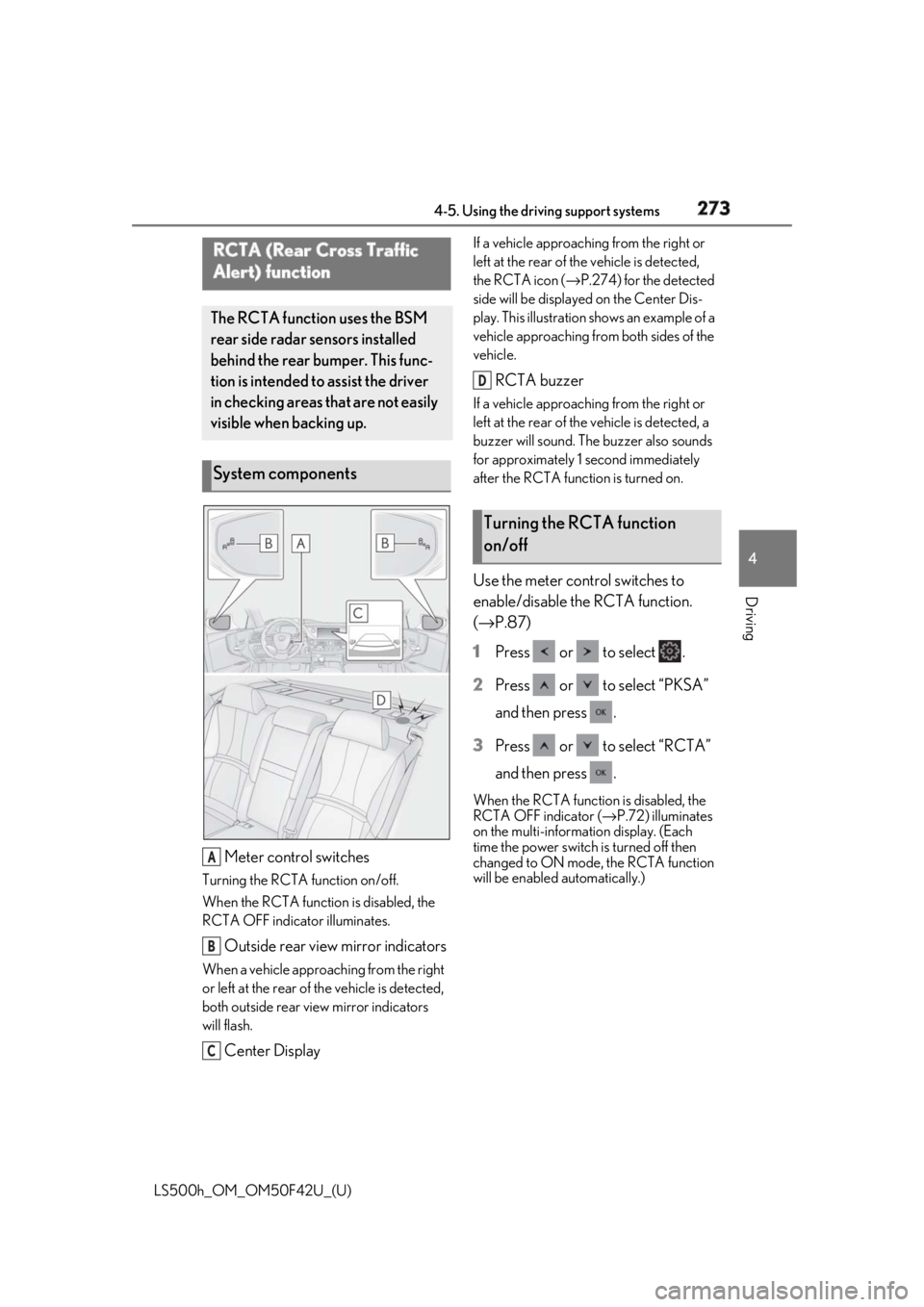
Meter control switchesTurning the RCTA function on/off.
When the RCTA function is disabled, the
RCTA OFF indicator illuminates.
Outside rear view mirror indicatorsWhen a vehicle approaching from the right
or left at the rear of the vehicle is detected,
both outside rear view mirror indicators
will flash.
Center Display If a vehicle approaching from the right or
left at the rear of th e vehicle is detected,
the RCTA icon ( → P.274) for the detected
side will be displayed on the Center Dis-
play. This illustration shows an example of a
vehicle approaching from both sides of the
vehicle.
RCTA buzzer If a vehicle approaching from the right or
left at the rear of th e vehicle is detected, a
buzzer will sound. The buzzer also sounds
for approximately 1 second immediately
after the RCTA function is turned on.
Use the meter control switches to
enable/disable the RCTA function.
( → P.87)
1 Press or to select .
2 Press or to select “PKSA”
and then press .
3 Press or to select “RCTA”
and then press . When the RCTA function is disabled, the
RCTA OFF indicator ( → P.72) illuminates
on the multi-informat ion display. (Each
time the power switch is turned off then
changed to ON mode, the RCTA function
will be enabled automatically.)RCTA (Rear Cross Traffic
Alert) function The RCTA function uses the BSM
rear side radar sensors installed
behind the rear bumper. This func-
tion is intended to assist the driver
in checking areas that are not easily
visible when backing up.
System components
A
B
C Turning the RCTA function
on/off D
Page 277 of 528
2774-5. Using the driving support systems
LS500h_OM_OM50F42U_(U) 4
Driving • When the distance between your vehicle
and metal objects, such as a guardrail,
wall, sign, or parked vehicle, which may
reflect electrical waves toward the rear of
the vehicle, is short
• When a towing eyelet is installed to the
rear of the vehicle *
: If equipped
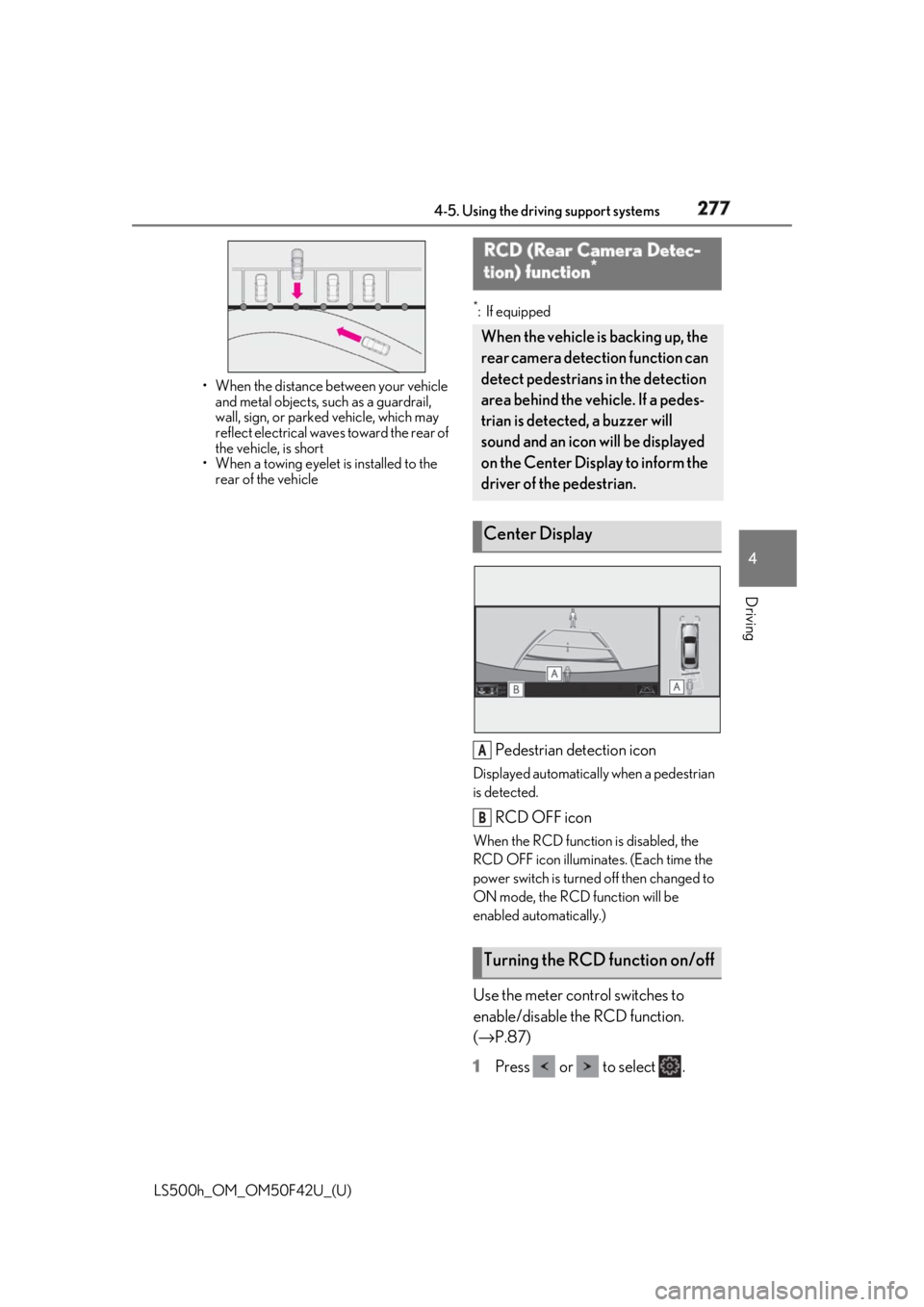
Pedestrian detection icon Displayed automatically when a pedestrian
is detected.
RCD OFF icon When the RCD function is disabled, the
RCD OFF icon illuminates. (Each time the
power switch is turned off then changed to
ON mode, the RCD function will be
enabled automatically.)
Use the meter control switches to
enable/disable the RCD function.
( → P.87)
1 Press or to select .RCD (Rear Camera Detec-
tion) function *
When the vehicle is backing up, the
rear camera detection function can
detect pedestrians in the detection
area behind the vehicle. If a pedes-
trian is detected, a buzzer will
sound and an icon will be displayed
on the Center Display to inform the
driver of the pedestrian.
Center Display
Turning the RCD function on/off A
B