lock LEXUS LX570 2015 Owners Manual
[x] Cancel search | Manufacturer: LEXUS, Model Year: 2015, Model line: LX570, Model: LEXUS LX570 2015Pages: 960, PDF Size: 11.33 MB
Page 547 of 960
5473-3. Using the audio system
3
Interior features
LX570_OM_OM60L96U_(U) Selecting, fast forwarding or rewinding a track
■ On the audio top screen
Turn the “TUNE•SCROLL” knob or press “ ” or “ ” on the
“PRST•TRACK” button to select the desired track number.
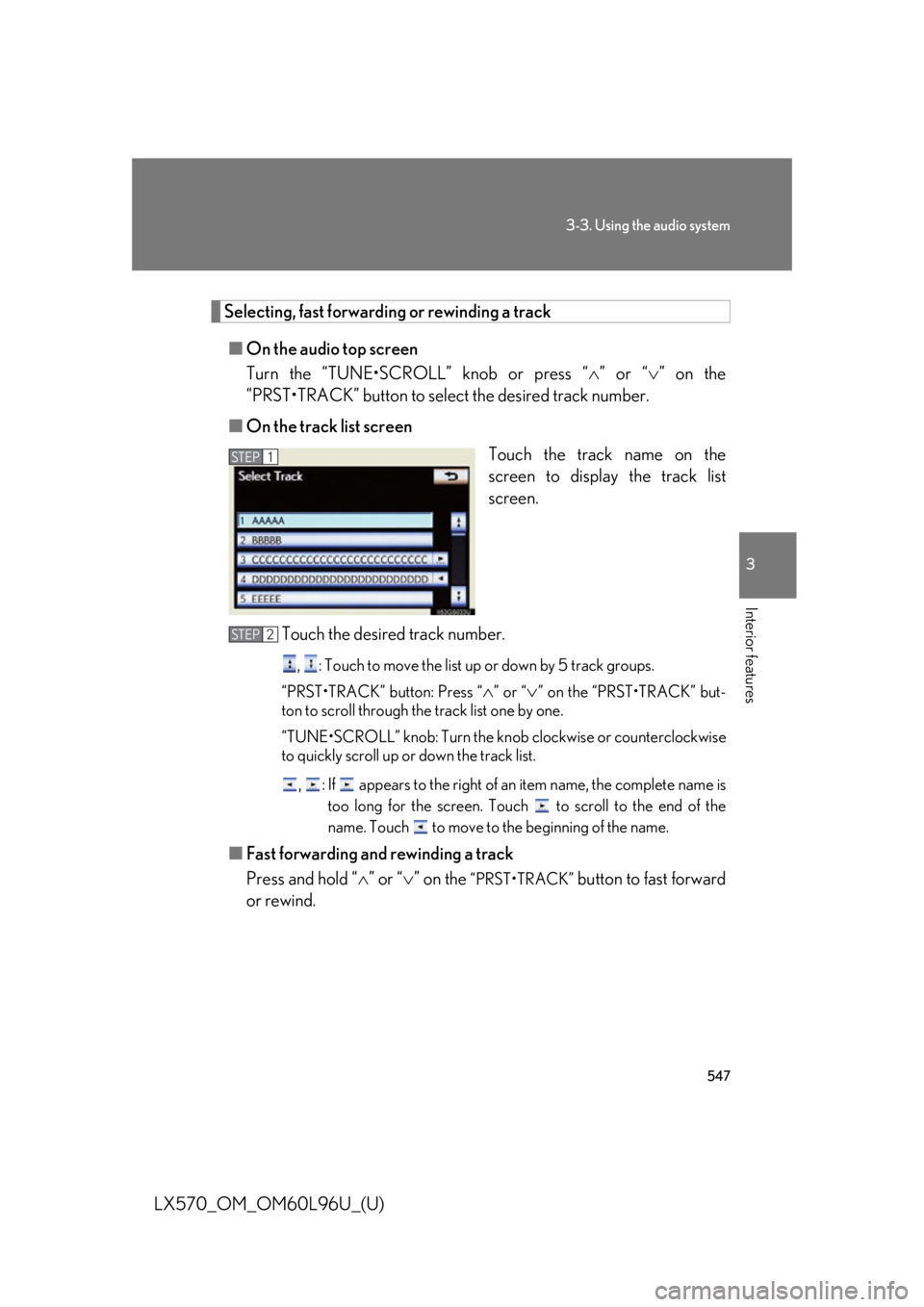
■ On the track list screen
Touch the track name on the
screen to display the track list
screen.
Touch the desired track number. ,
: Touch to move the list up or down by 5 track groups.
“PRST•TRACK” button: Press “
” or “
” on the “PRST•TRACK” but-
ton to scroll through the track list one by one.
“TUNE•SCROLL” knob: Turn the knob clockwise or counterclockwise
to quickly scroll up or down the track list.
, : If appears to the right of an item name, the complete name is
too long for the screen. Touch to scroll to the end of the
name. Touch to move to the beginning of the name.
■ Fast forwarding and rewinding a track
Press and hold “ ” or “ ” on the “PRST•TRACK”
button to fast forward
or rewind. STEP 1
STEP 2
Page 555 of 960

5553-3. Using the audio system
3
Interior features
LX570_OM_OM60L96U_(U) Touch the desired tab and select
the desired folder, artist or album. Character screen buttons, “ABC”,
“DEF” etc., allow a direct jump to
list entries that begin with the same
letter as the character button.
Each time the same character
screen button is touched, the list
starting with the subsequent char-
acter is displayed. ,
: Touch to move the list up
or down by 5 folder/artist/
album groups.
“TUNE
• SCROLL” knob: Turn the
knob clockwise or counterclock-
wise to quickly scroll up or down
the folder/artist/album list.
, : If appears to the right of
an item name, the com-
plete name is too long for
the screen. Touch to
scroll to the end of the
name. Touch to move to
the beginning of the name.STEP 2
Page 556 of 960
5563-3. Using the audio system
LX570_OM_OM60L96U_(U) Selecting, fast forwarding or rewinding a file/track
■ Selecting one file/track at a time
Turn the “TUNE•SCROLL” knob or press “ ” or “ ” on the
“PRST•TRACK” button to select the desired file/track.
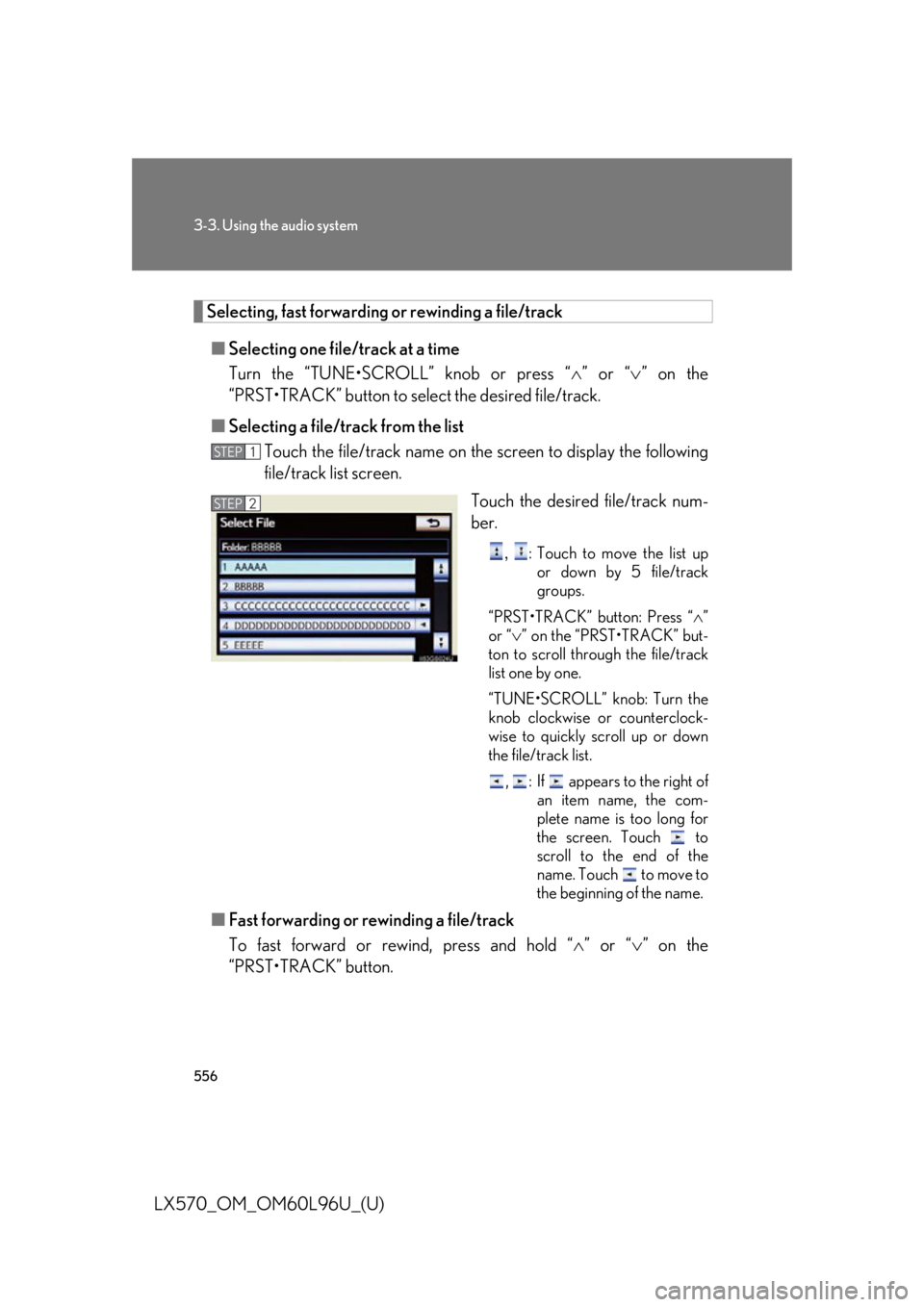
■ Selecting a file/track from the list
Touch the file/track name on th e screen to display the following
file/track list screen.
Touch the desired file/track num-
ber. ,
: Touch to move the list up
or down by 5 file/track
groups.
“PRST•TRACK” button: Press “ ”
or “ ” on the “PRST•TRACK” but-
ton to scroll through the file/track
list one by one.
“TUNE•SCROLL” knob: Turn the
knob clockwise or counterclock-
wise to quickly scroll up or down
the file/track list.
, : If appears to the right of
an item name, the com-
plete name is too long for
the screen. Touch to
scroll to the end of the
name. Touch to move to
the beginning of the name.
■ Fast forwarding or rewinding a file/track
To fast forward or rew ind, press and hold “ ” or “ ” on the
“PRST•TRACK” button. STEP 1
STEP 2
Page 566 of 960
5663-3. Using the audio system
LX570_OM_OM60L96U_(U) Selecting, fast forwarding or rewinding a track
■ Selecting one track at a time
Turn the “TUNE•SCROLL” knob or press “ ” or “ ” on the
“PRST•TRACK” button to select the desired track.
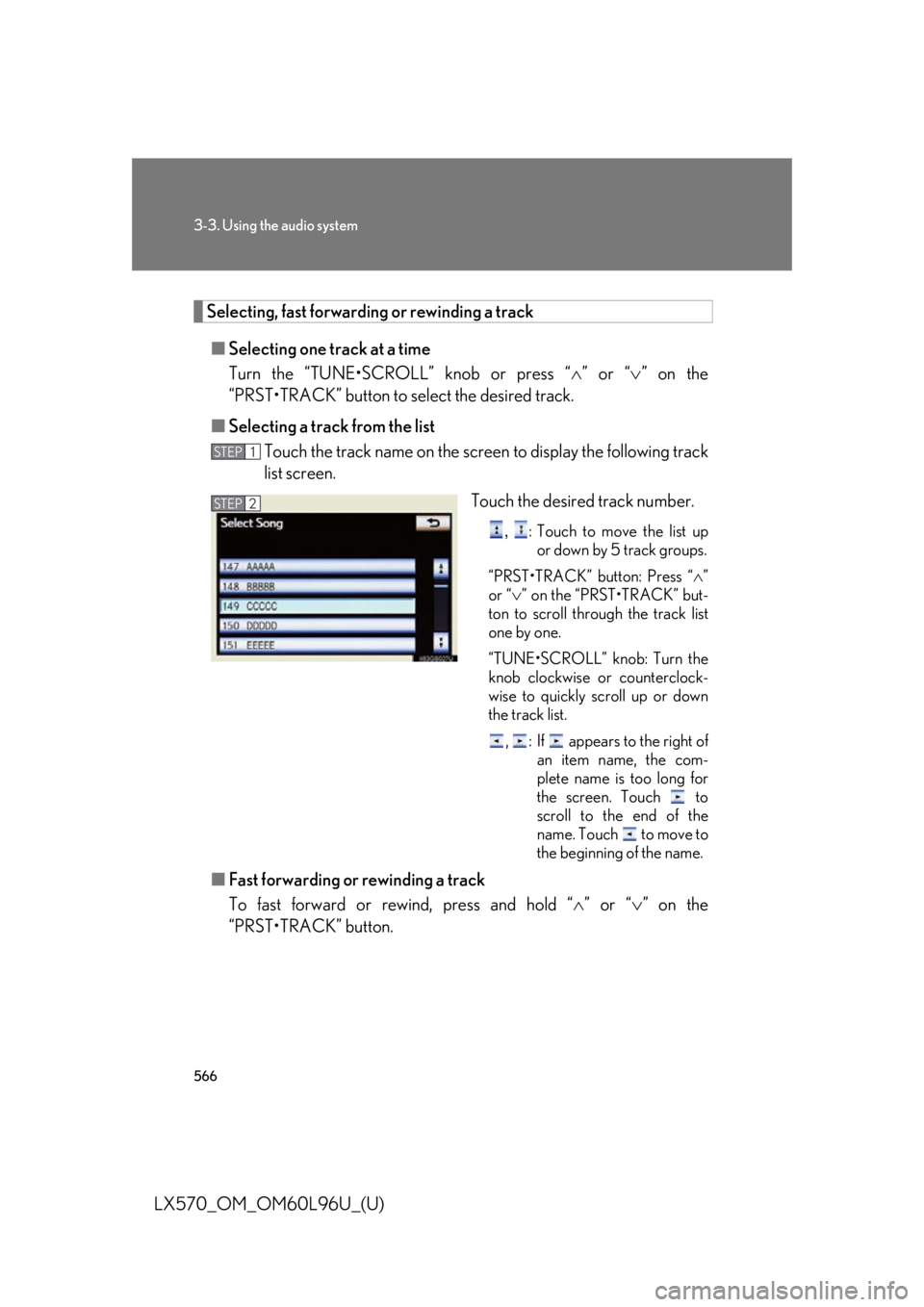
■ Selecting a track from the list
Touch the track name on the screen to display the following track
list screen.
Touch the desired track number. ,
: Touch to move the list up
or down by 5 track groups.
“PRST•TRACK” button: Press “ ”
or “ ” on the “PRST•TRACK” but-
ton to scroll through the track list
one by one.
“TUNE•SCROLL” knob: Turn the
knob clockwise or counterclock-
wise to quickly scroll up or down
the track list.
, : If appears to the right of
an item name, the com-
plete name is too long for
the screen. Touch to
scroll to the end of the
name. Touch to move to
the beginning of the name.
■ Fast forwarding or rewinding a track
To fast forward or rew ind, press and hold “ ” or “ ” on the
“PRST•TRACK” button. STEP 1
STEP 2
Page 581 of 960

5813-4. Using the rear se at entertainment system
3
Interior features
LX570_OM_OM60L96U_(U) Headphone jacks
To listen to the rear audio, open
the cover and use headphones.
To use the headphones
Connect them to the jack.
To adjust the volume
Turn the knob clockwise to
increase the volume. Turn the
knob counterclockwise to
decrease the volume.
Changing the source
Press the “SOURCE”, button to
display the audio source selection
screen.
Turning on the audio source
selection screen
Selecting an icon
Inputting the selected icon
Select an audio source.STEP 1
STEP 2
Page 583 of 960

5833-4. Using the rear se at entertainment system
3
Interior features
LX570_OM_OM60L96U_(U) Touch the “Rear” tab on the
screen.
Touch the desired button. The se lected button indicator is high-
lighted. “POWER”: Turns the rear screen on or off.
“Rear System Lock”: Locks the system so passengers in the rear seats
cannot operate the rear entertainment system.
“Speaker Output”: Enables the front speakers to output the front audio
system’s audio source.STEP 2
■
The rear seat entertainment system can be used when
The “ENGINE START STOP” switch is in ACCESSORY or IGNITION ON
mode. ■
When appears on the screen
It indicates that the selected icon cannot be used at this time. STEP 3
Page 607 of 960

6073-4. Using the rear se at entertainment system
3
Interior features
LX570_OM_OM60L96U_(U) ■ Parental lock
Select “Parental Lock”.
Enter the 4-digit personal code on the “Enter Key Code” screen. If you enter wrong nu mbers, select to delete the numbers.
Select a parental level (1 - 8). ( P. 532)
■ Setting sound dynamic range
The difference between the lowest vo lume and the highest volume can
be adjusted.
Select “Sound Dynamic Range”.
Select “MAX”, “STD” or “MIN”.
■ Entering a language code
If you select “Other” on the “Audio Language” screen, “Subtitle
Language” screen or “DVD Langu age” screen, you can select a
language by entering the 4-digit la nguage code if that language is
available.
Enter the 4-digit language code. ( P. 526)If you enter wrong nu mbers, select to delete the numbers.
Select “OK”. STEP 1
STEP 2
STEP 3
STEP 1
STEP 2
STEP 1
STEP 2
Page 691 of 960

6893-6. Using the interior lights
3
Interior features
LX570_OM_OM60L96U_(U) Luggage compartment light
Off
Door position■
Illuminated entry system
The lights automatically tu rn on/off according to “ENGINE START STOP” switch
mode, the presence of the electronic ke y, whether the doors are locked/unlocked,
and whether the doors are open/closed. ■
To prevent battery discharge
If the interior lights remain on when the “ENGINE START STOP” switch is turned
off, the lights will go off automatically after 20 minutes. ■
Customization
Settings (e.g. Time pe riod before the interior lights turn off.) can be changed.
(Customizable features P. 912) Luggage compartment light
Page 693 of 960

6913-7. Using the storage features
3
Interior features
LX570_OM_OM60L96U_(U) Glove box
Open (push button)
Unlock with the mechanical key
Lock with the mechanical key■
Glove box light
The glove box light turns on when the tail lights are on. ■
Removing the separate tray
CAUTION■
While driving
Keep the glove box closed.
Injuries may result in the event of sudden braking, sudden swerving or an accident.Pull out the separate tray. Glove box
Page 694 of 960
6923-7. Using the storage features
LX570_OM_OM60L96U_(U) Console box (if equipped)
Your vehicle is equipped with either a console box or cool box.
For vehicles with the co ol box, refer to page 699.
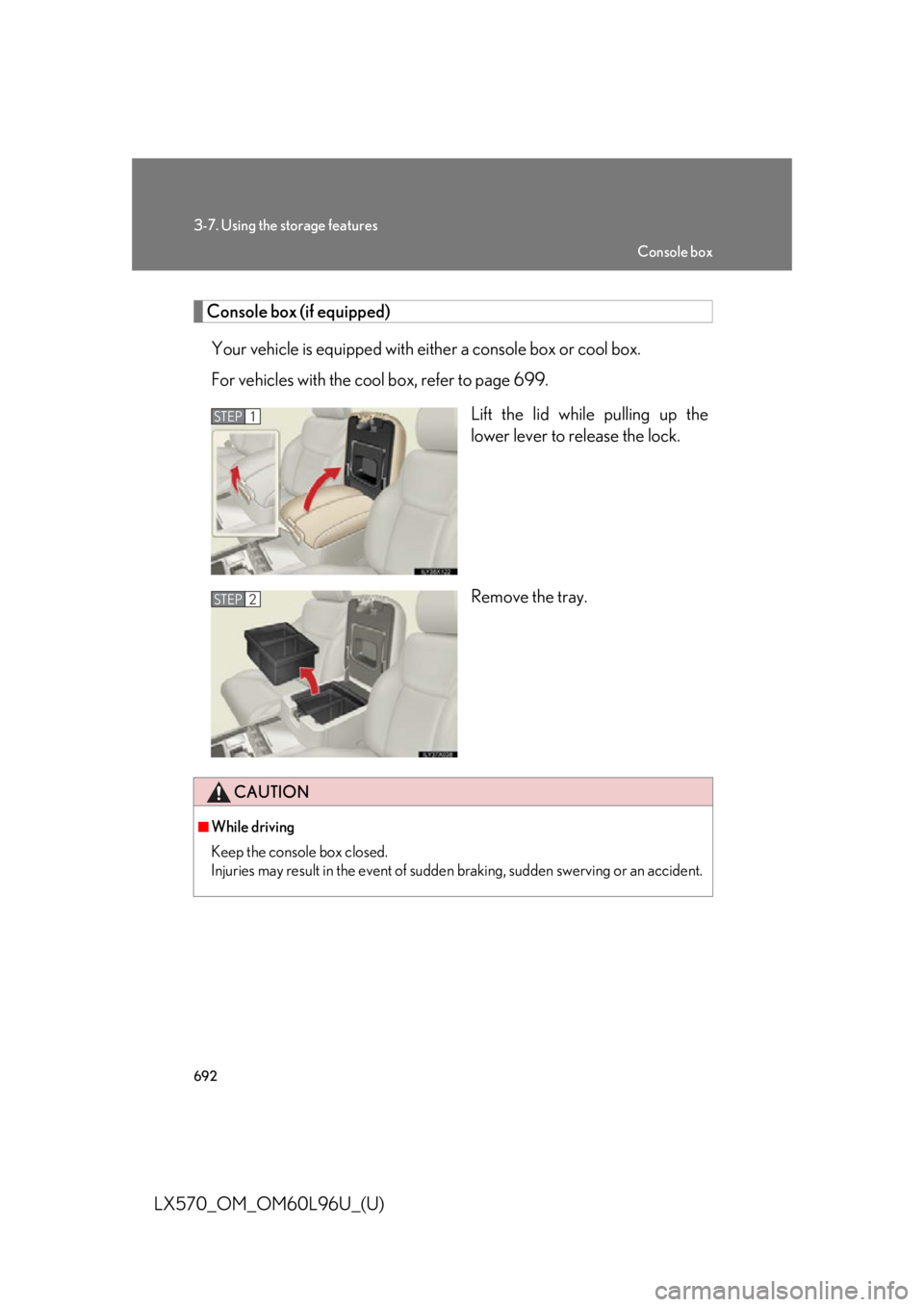
Lift the lid while pulling up the
lower lever to release the lock.
Remove the tray.STEP 1
STEP 2
CAUTION■
While driving
Keep the console box closed.
Injuries may result in the event of sudden braking, sudden swerving or an accident. Console box