check LEXUS LX570 2021 Workshop Manual
[x] Cancel search | Manufacturer: LEXUS, Model Year: 2021, Model line: LX570, Model: LEXUS LX570 2021Pages: 635, PDF Size: 10.47 MB
Page 318 of 635

318
LX570_OM_OM60T33U_(U)4-5. Using the driving support systems
■Sounds and vibrations caused
by the Crawl Control system
●A sound may be heard from the engine compartment when the engine is started or just
after the vehicle begins to move. This soun d does not indicate that a malfunction has
occurred in Crawl Control system.
●Either of the following conditions may occu r when the Crawl Control system is operat-
ing. None of these are indicators that a malfunction has occurred.
• Vibrations may be felt through the vehicle body and steering.
• A motor sound may be heard afte r the vehicle comes to a stop.
■When there is a malfunction in the system
Warning lights and/or warning messages will turn on. ( P. 524, 532)
WARNING
■When using Crawl Control and Turn Assist function
Do not rely solely on the Crawl Control and Turn Assist function. This function does not
extend the vehicle’s performance limitations . Always thoroughly check the road condi-
tions, and drive safely.
■These conditions may cause the system not to operate properly
When driving on the following surfaces, the sy stem may not be able to maintain a fixed
low speed, which may re sult in an accident:
●Extremely steep inclines.
●Extremely uneven surfaces.
●Snow-covered roads, or other slippery surfaces.
NOTICE
■When using Turn Assist function
The Turn Assist function is a function to assist turning performance when driving off
road. The function may be less ef fective on paved road surfaces.
Page 322 of 635

322
LX570_OM_OM60T33U_(U)4-5. Using the driving support systems
WARNING
■When using the Multi-terrain Select
Observe the following precautions to avoid an accident that could result in death or
serious injuries:
●There is a chance that the se
lected mode may not be the most appropriate in terms of
road conditions such as pitch, slipperiness, undulation, etc. (P. 320)
●Multi-terrain Select is not intended to expa nd the limits of the vehicle. Check the road
conditions thoroughly beforehand , and drive safely and carefully.
NOTICE
■Precaution for use
The Multi-terrain Select is intended for use during off-road driving. Do not use the sys-
tem at any other time.
Page 323 of 635

323
LX570_OM_OM60T33U_(U)4-5. Using the driving support systems
4
Driving
Multi-terrain Monitor
The following screens can be select
ed according to driving conditions.
• Screens that can be selected vary depend ing on conditions such as shift posi-
tion and vehicle speed. ( P. 329)
• Depending on the displayed screen, the display can be switched from normal to wide view display.
The Multi-terrain Monitor helps the driver to check the vehicle surroundings.
It assists in determining the conditions around the driver in a variety of situa-
tions, such as when judging conditions during off-road driving or checking for
obstacles when parking.
WARNING
■When using the Multi-terrain Monitor system
Observe the following precautions to avoid an accident that could result in death or
serious injuries.
●Never rely solely on the Multi-terrain Monitor. As with unequipped vehicles, drive
carefully while directly confirming the safety of your surroundings and the area to the
rear of the vehicle. Take particular care to avoid parked cars and other obstacles.
●Due to the characteristics of the camera lens, the actual position and distance of peo-
ple and other obstacles will differ from those shown on the Multi-terrain Monitor
screen. Directly confirm the safety of your surroundings before driving.
●Do not drive while only looking at the scre en. When driving, make sure to directly
confirm the safety of your surroundings, su ch as by visually checking the area and
using the vehicle’s mirrors.
●In low temperatures, the screen may darken or the images may become faint.
Images of moving objects in particular may distort or disappear from the screen.
Therefore, make sure to drive carefully while directly visually confirming the safety of
your surroundings.
Multi-terrain Monitor screens
Page 324 of 635
324
LX570_OM_OM60T33U_(U)4-5. Using the driving support systems
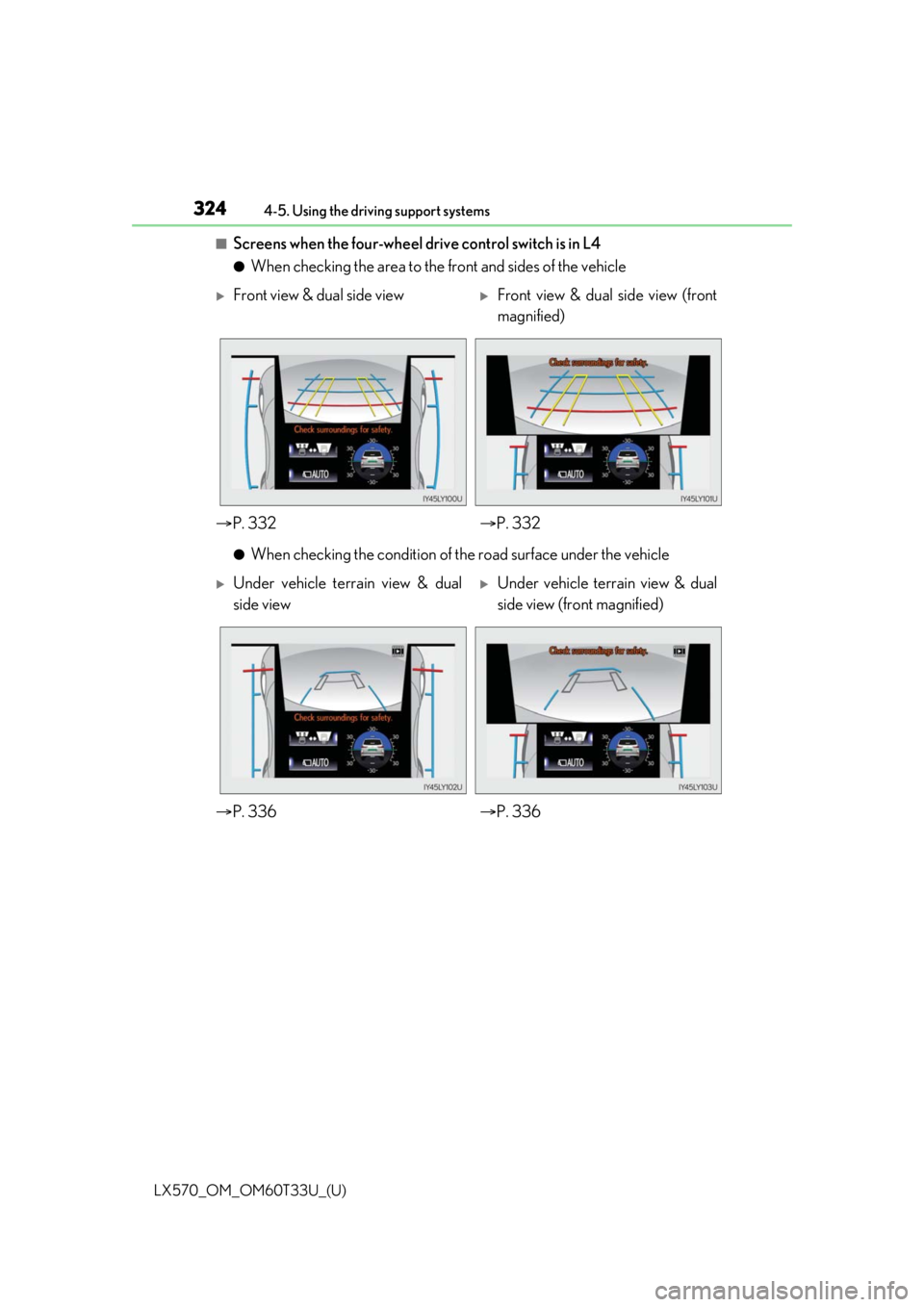
■Screens when the four-wheel drive control switch is in L4
●When checking the area to the front and sides of the vehicle
●When checking the condition of the road surface under the vehicle
Front view & dual side viewFront view & dual side view (front
magnified)
P. 332 P. 332
Under vehicle terrain view & dual
side viewUnder vehicle terrain view & dual
side view (front magnified)
P. 336 P. 336
Page 325 of 635
LX570_OM_OM60T33U_(U)
3254-5. Using the driving support systems
4
Driving
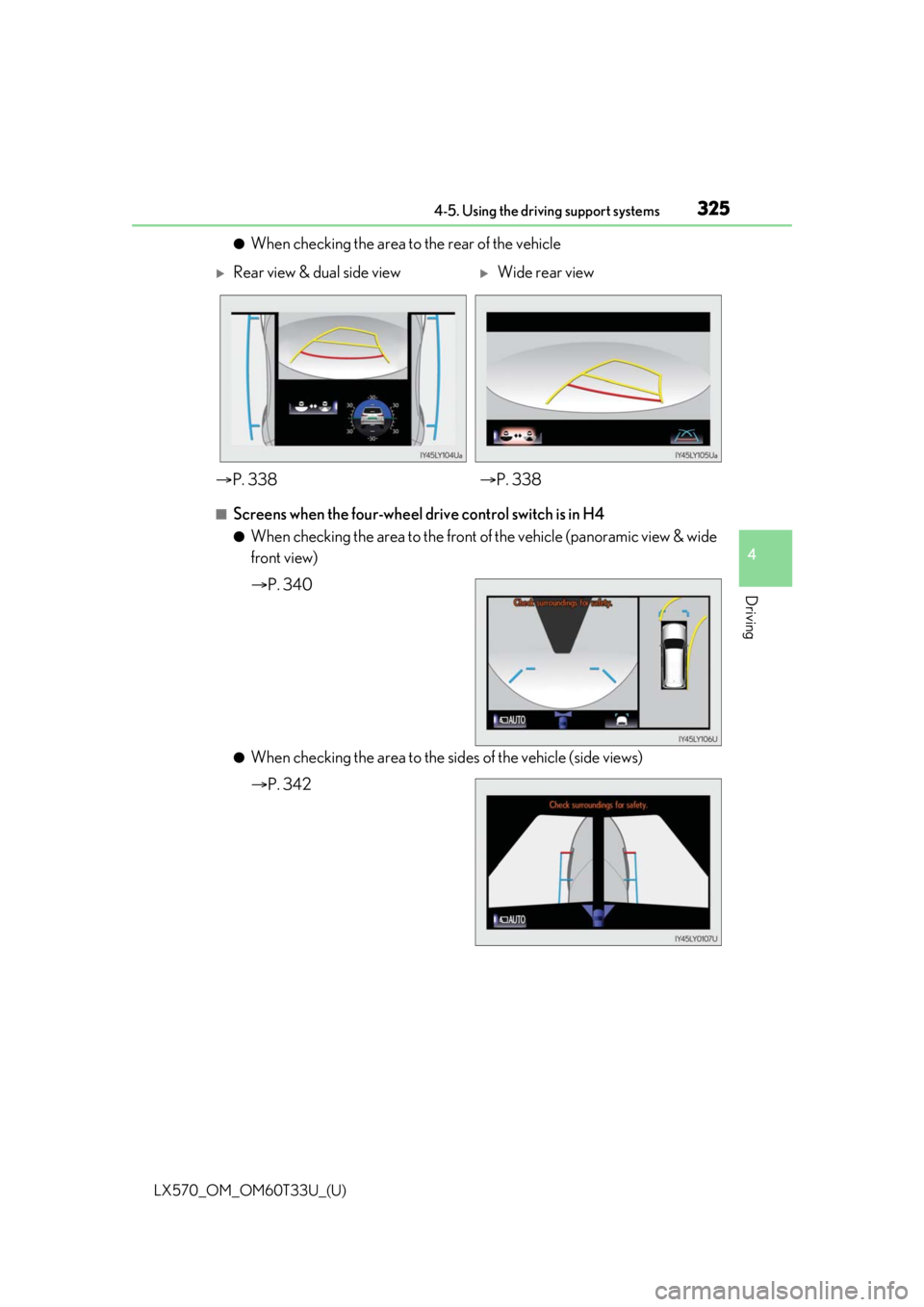
●When checking the area to the rear of the vehicle
■Screens when the four-wheel drive control switch is in H4
●When checking the area to the front of the vehicle (panoramic view & wide
front view)
P. 340
●When checking the area to the sides of the vehicle (side views)
P. 342
Rear view & dual side viewWide rear view
P. 338 P. 338
Page 326 of 635
326
LX570_OM_OM60T33U_(U)4-5. Using the driving support systems
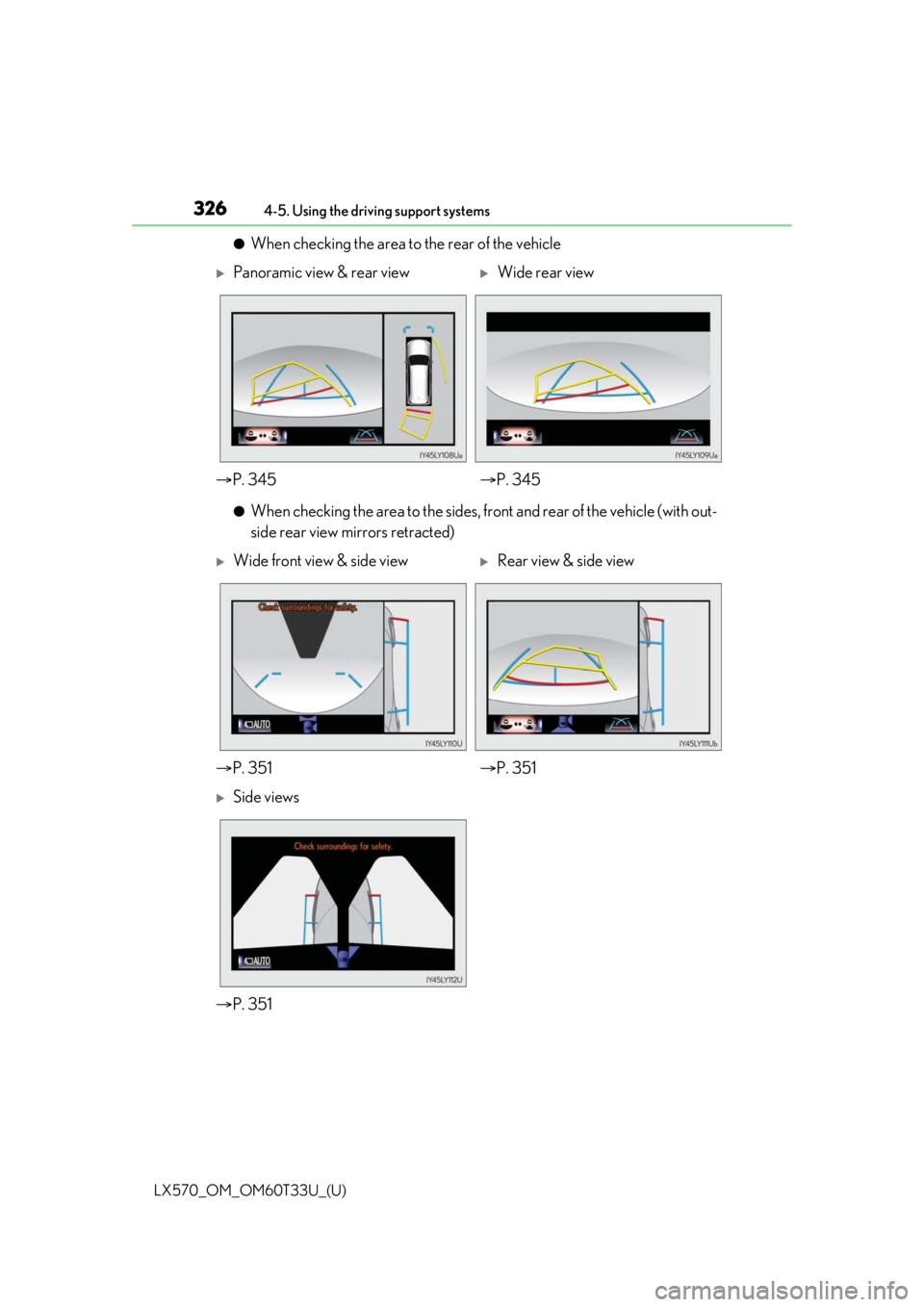
●When checking the area to the rear of the vehicle
●When checking the area to the sides,
front and rear of the vehicle (with out-
side rear view mirrors retracted)
Panoramic view & rear viewWide rear view
P. 345 P. 345
Wide front view & side viewRear view & side view
P. 351 P. 351
Side views
P. 351
Page 332 of 635

332
LX570_OM_OM60T33U_(U)4-5. Using the driving support systems
■Multi-terrain Monitor screen display
The amount of time that the Multi-terrain Mo
nitor screen is displayed changes as follows
according to the vehicle speed at the time the VIEW switch was pressed.
The Multi-terrain Monitor screen is displayed if the vehicle speed is approximately 7 mph
(12 km/h) or less when the camera switch is pressed.
If the vehicle speed exceeds approximately 7 mph (12 km/h), the Multi-terrain Monitor
display is canceled.
The various screens of the Multi-terrain Monitor display information to support
several different driving situations, such as when checking for obstacles when
moving forward or in reverse, or when judging road surface conditions during
off-road driving.
■Front view & dual side view
Front view & dual side view can be used to check the area around the front of
the vehicle. • In addition to an image of the front of the vehicle, guide lines are displayed
in a composite view to provide refere nce for when deciding a direction to
move forward in.
• If the VIEW switch is pressed while the screen is displayed, the screen switches from normal to magnified display. (Pressing the switch again
returns the screen to the normal display)
• If the steering wheel is turned 270 or more, guide lines and other features
to support turning are automatically displayed.
Screen display and functions
Page 334 of 635

334
LX570_OM_OM60T33U_(U)4-5. Using the driving support systems
●Front view rotating display function
This function operates when the four-w
heel drive control switch is in L4.
The front view image is automatically ad justed to be parallel and assist the
driver to check road surface conditio ns regardless of the vehicle inclina-
tion.
●Tilt meter
Tilt meter displays the vehicle
inclination to the front, rear, left
and right within a range of 0 to
approximately 30 .
Degree markers of incline to
the front and rear
Indicates the vehicle inclination in
degrees in the front and rear
directions.
Degree markers of incline to the left and right
Indicates the vehicle inclination in degr ees in the left and right directions.
Pointer
Indicates the degree of the vehicle inclination in comparison to a parallel line.
1
2
3
Page 338 of 635

338
LX570_OM_OM60T33U_(U)4-5. Using the driving support systems
■Rear view & dual side
view/wide rear view
Guide lines are displayed in a composite view on an image of the area to the
rear of the vehicle to use as a refere nce when deciding a course of movement
and assist the driver to check the safety of the area to the rear of the vehicle or
to park the vehicle.
●Screen description
The following 2 types of display mode can be selected according to condi-
tions.
Angle selection switch
Switches between rear view & dual side vi ew display and wide rear view display each
time the switch is selected.
Tilt meter/slip display
P. 334
Projected course lines (yellow)
Indicate the estimated course of the vehicle according to steering operations.
1.5 ft. (0.5 m) distance guide line (red)
3 ft. (1 m) distance guide line (yellow)
8 ft. (2.5 m) distan ce guide line (yellow)
, and indicate the estimated distance from the rear end of the vehicle.
Vehicle width extension guide line (blue)
Indicates the estimated vehicle width including the outside rear view mirrors.
Front tire contact line (blue)
Rear tire contact line (blue)
Items and indicate estimated tire positions on the image.
Rear view & dual side view displayWide rear view display
1
2
3
4
5
6
456
7
8
9
89
Page 340 of 635
340
LX570_OM_OM60T33U_(U)4-5. Using the driving support systems
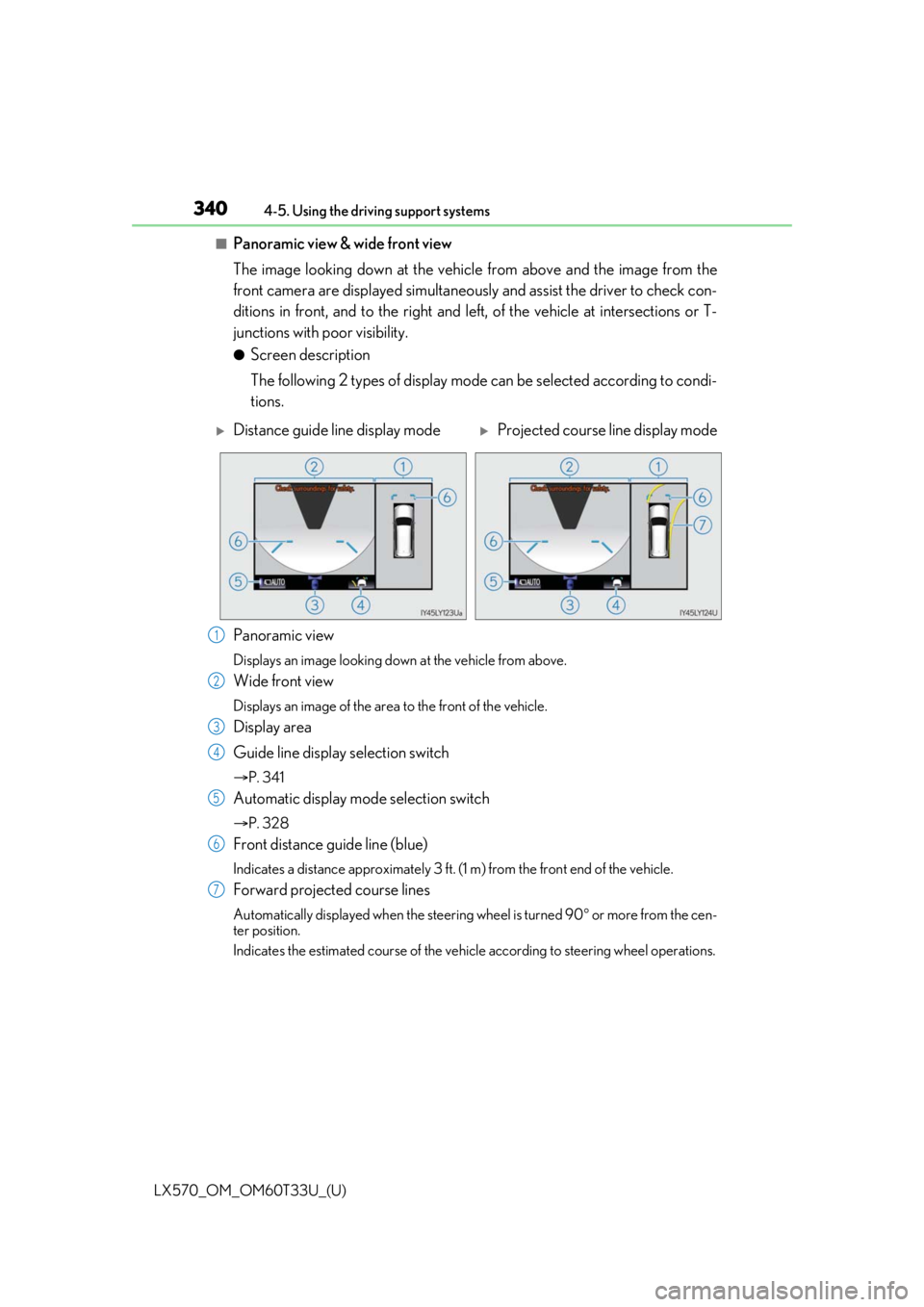
■Panoramic view & wide front view
The image looking down at the vehicl
e from above and the image from the
front camera are displayed si multaneously and assist the driver to check con-
ditions in front, and to the right and left, of the vehicle at intersections or T-
junctions with poor visibility.
●Screen description
The following 2 types of display mode can be selected according to condi-
tions.
Panoramic view
Displays an image looking down at the vehicle from above.
Wide front view
Displays an image of the area to the front of the vehicle.
Display area
Guide line display selection switch
P. 341
Automatic display mode selection switch
P. 328
Front distance guide line (blue)
Indicates a distance approximately 3 ft. (1 m) from the front end of the vehicle.
Forward projected course lines
Automatically displayed when the steering wheel is turned 90 or more from the cen-
ter position.
Indicates the estimated course of the vehicle according to steering wheel operations.
Distance guide line display modeProjected course line display mode
1
2
3
4
5
6
7