phone LEXUS RC F 2017 User Guide
[x] Cancel search | Manufacturer: LEXUS, Model Year: 2017, Model line: RC F, Model: LEXUS RC F 2017Pages: 724, PDF Size: 15.76 MB
Page 345 of 724

3455-1. Basic Operations
5
Lexus Display Audio system
Press and hold the off hook switch
until you hear the beeps that indicate
the system is listening.
The Mobile Assistant can be used
only when the neighboring screen is
displayed.
To cancel the Mobile Assistant, select
“Cancel”, or press and hold the off hook
switch.
To restart the Mobile Assistant for addi-
tional commands, press the off hook
switch. Mobile Assistant can only be
restarted after the sy stem responds to a
voice command. After some phone and
music commands, the Mobile Assistant
feature will automatically end to com-
plete the requested action.
Mobile Assistant
The Mobile Assistant feature will activate Apple’s Siri Eyes Free mode via
the steering wheel switches. To operate the Mobile Assistant, a compatible
cellular phone must be registered and connected to this system via
Bluetooth
. ( → P. 385)
1
2
Page 346 of 724

3465-1. Basic Operations
■Adjusting the volume
The volume of the Mobile Assistant can be adjusted using the
“PWR·VOL” knob or
steering wheel volume switch es. The Mobile Assistant and phone call volumes are syn-
chronized.
■Microphone
It is not necessary to speak directly into the microphone when using the Mobile Assis-
tant.
●Wait for the listening beeps before using the Mobile Assistant.
●The Mobile Assistant may not recognize commands in the following situations:
• When spoken too quickly.
• When spoken at a low or high volume.
• When the roof or windows are open.
• When passengers are talking while th e Mobile Assistant is being used.
• When the air conditioning syst em’s fan speed is set high.
• When the air conditioning vents are turned toward the microphone.
■Mobile Assistant precautions
●The available features and functions may vary based on the iOS version installed on the
connected device.
●Some Siri features are limited in Eyes Free mode. If you attempt to use an unavailable
function, Siri will inform you that the function is not available.
●If Siri is not enabled on the ce llular phone connected via Bluetooth, an error message
will be displayed on the screen.
●While a phone call is active, the Mobile Assistant cannot be used.
●If using the navigation feature of the cellular phone, ensure the active audio source is
Bluetooth audio or iPod in order to hear turn by turn direction prompts.
Page 349 of 724
349
5
Lexus Display Audio system
5-2. Setup
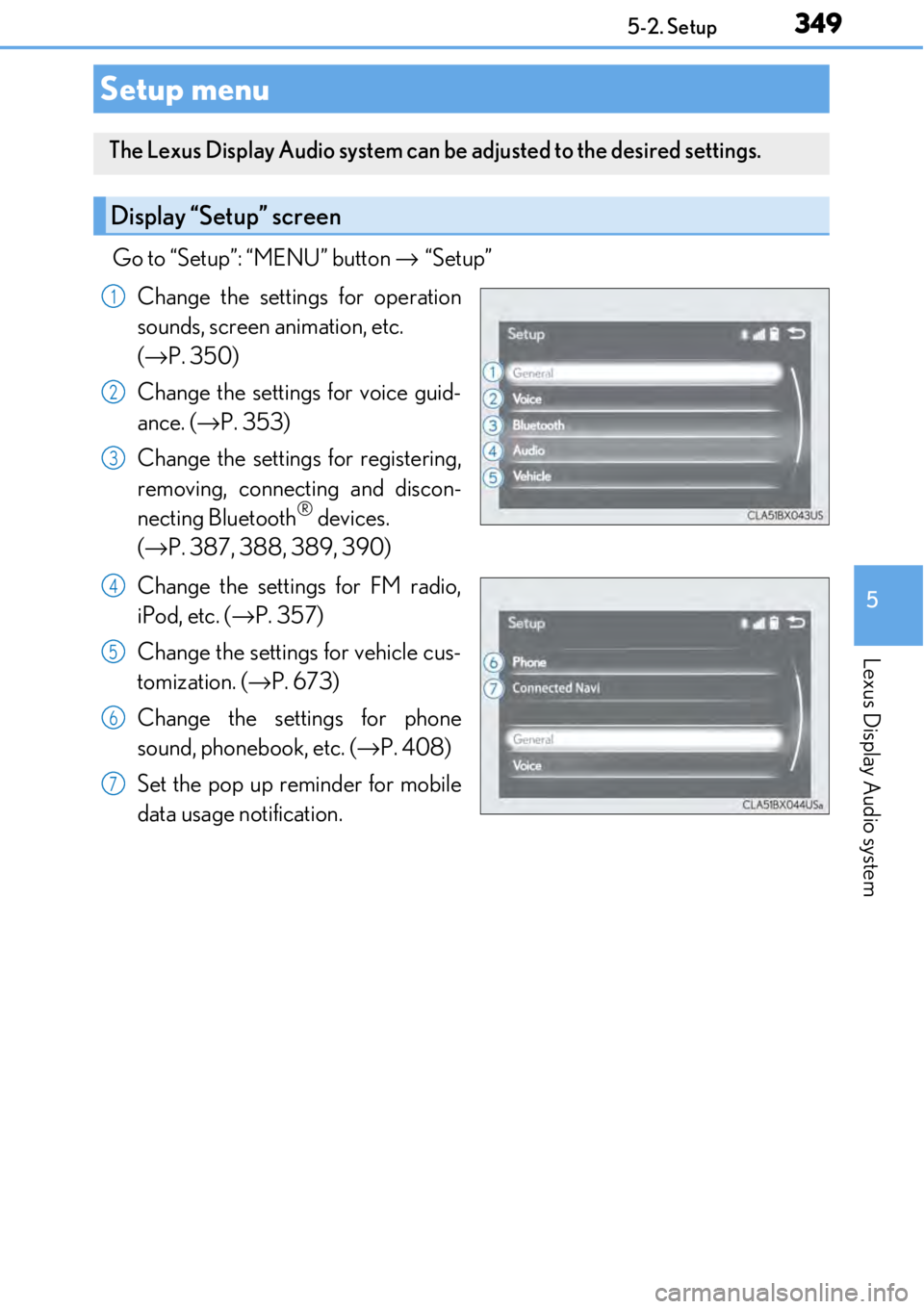
Go to “Setup”: “MENU” button → “Setup”
Change the settings for operation
sounds, screen animation, etc.
(→ P. 350)
Change the settings for voice guid-
ance. ( →P. 353)
Change the settings for registering,
removing, connecting and discon-
necting Bluetooth
® devices.
(→ P. 387, 388, 389, 390)
Change the settings for FM radio,
iPod, etc. ( →P. 357)
Change the settings for vehicle cus-
tomization. ( →P. 673)
Change the settings for phone
sound, phonebook, etc. ( →P. 408)
Set the pop up reminder for mobile
data usage notification.
Setup menu
The Lexus Display Audio system can be adjusted to the desired settings.
Display “Setup” screen
1
2
3
4
5
6
7
Page 350 of 724

3505-2. Setup
Go to “General Settings”: “MENU” button → “Setup” → “General”
General settings
Settings are available for adjusting th e operation sounds, screen animation,
etc.
Screen for general settings
ButtonFunction
“Language”Change language. The select able languages may differ
depending on the model or region.
“Units of Measurement”Change the distance unit.
“Beep”Set the beep sound on/off.
“Button Color”Change the button color.
“Customize Images”Change the startup image and screen off image.
( → P. 351)
“Animation”Set the animation effect on/off.
“Delete Personal Data”Delete personal data ( →P. 352)
“Software Update”Update program versions. For details, contact your Lexus
dealer.
“Gracenote® Database
Update”Update gracenote database versions. For details, contact
your Lexus dealer
“Software Information”Display the open source license.
“Auto Detect iPhone
App”Select to set a pop-up message displayed on an iPhone
connected via Bluetooth® on/off when an application on
the iPhone needs to be activated.
Page 352 of 724

3525-2. Setup
Go to “Delete Personal Data”: “MENU” button → “Setup” → “General” →
“Delete Personal Data”
Select “Delete”.
Check carefully beforeha nd, as data cannot be retrieved once deleted.
The following personal data will be dele ted or changed to its default settings.
• Phonebook data
• Call history data
•Favorite data
•Bluetooth
® devices data
• Phone sound settings
• Detailed Bluetooth
® settings
• Audio/video setting
• Customized image data
•FM info setting
• iPod tagging information
• Software update history
• Software update detail information
• Phone display setting
• Contact/call history setting
• Messaging setting
• Traffic information map
• Weather information
• Phonebook data for voice recognition
• Music data for voice recognition
NOTICE
■To prevent damage to the USB me mory device or its terminals
→ P. 383
Deleting personal data
1
2
Page 377 of 724

3775-6. Using an external device
5
Lexus Display Audio system
●“Made for iPod” and “Made for iPhone” mean that an electronic accessory has been
designed to connect specifically to an iPod, or iPhone, respectively, and has been certi-
fied by the developer to meet Apple performance standards.
●Apple is not responsible for the operation of this device or its compliance with safety
and regulatory standards. Please note that the use of this accessory with iPod or iPhone
may affect wireless performance.
●iPhone, iPod, iPod classic, iPod nano and iP od touch are trademarks of Apple Inc., reg-
istered in the U.S. and other countries.
■iPod cover art
●Depending on the iPod and songs in the iPod, iPod cover art may be displayed.
●This function can be changed to on/off. (→P. 359)
●It may take time to display iPod cover art, and the iPod may not be operated while the
cover art display is in process.
■iPod functions
●When an iPod is connected and the audio sour ce is changed to iPod mode, the iPod will
resume play from the same poin t in which it was last used.
●Depending on the iPod that is connected to the system, certain functions may not be
available. If a function is unavailable due to a malfunction (as opposed to a system spec-
ification), disconnecting th e device and reconnecting it may resolve the problem.
●Depending on the iPod, while connected to the system, the iPod cannot be operated
with its own controls. It is necessary to us e the controls of the vehicle’s audio system
instead.
●When the battery level of an iP od is very low, the iPod may not operate. If so, charge the
iPod before use.
●Compatible models ( →P. 379)
■iPod problems
To resolve most problems encountered when using your iPod, disconnect your iPod from
the vehicle iPod connection and reset it. For instructions on how to reset your iPod, refer
to your iPod Owner’s Manual.
Page 379 of 724
3795-6. Using an external device
5
Lexus Display Audio system
■Compatible models
The following iPod®, iPod nano®, iPod classic®, iPod touch® and iPhone® devices can
be used with this system.
●Made for
• iPod touch (5th generation)
*
• iPod touch (4th generation)
• iPod touch (3rd generation)
• iPod touch (2nd generation)
• iPod touch (1st generation)
• iPod classic
• iPod with video
• iPod nano (7th generation)
*
• iPod nano (6th generation)
• iPod nano (5th generation)
• iPod nano (4th generation)
• iPod nano (3rd generation)
• iPod nano (1st generation)
•iPhone 5s
*
•iPhone 5c*
•iPhone 5*
•iPhone 4S
•iPhone 4
•iPhone 3GS
•iPhone 3G
•iPhone
*: iPod video not supported
Depending on differences between models or software versions, etc., some models
might be incompatible with this system.
NOTICE
■To prevent damage to th e iPod or its terminals
●Depending on the size and shape of the iPod that is connected to the system, the con-
sole box may not close fully. In this case, do not forcibly close the console box as this
may damage the iPod or the terminal, etc.
●Do not leave the iPod in the vehicle. The temperature inside the vehicle may become
high.
●Do not push down on or apply unnecessary pressure to the iPod while it is connected.
●Do not insert foreign objects into the port.
Page 385 of 724
385
5
Lexus Display Audio system
5-7. Connecting Bluetooth®
Steps for using Bluetooth® devices
The following can be performed using Bluetooth® wireless communication:
■A portable audio player can be operated and listened to via the Lexus
Display Audio system
■Hands-free phone calls can be made via a cellular phone
In order to use wireless communication, register and connect a Bluetooth
®
device by performing the following procedures.
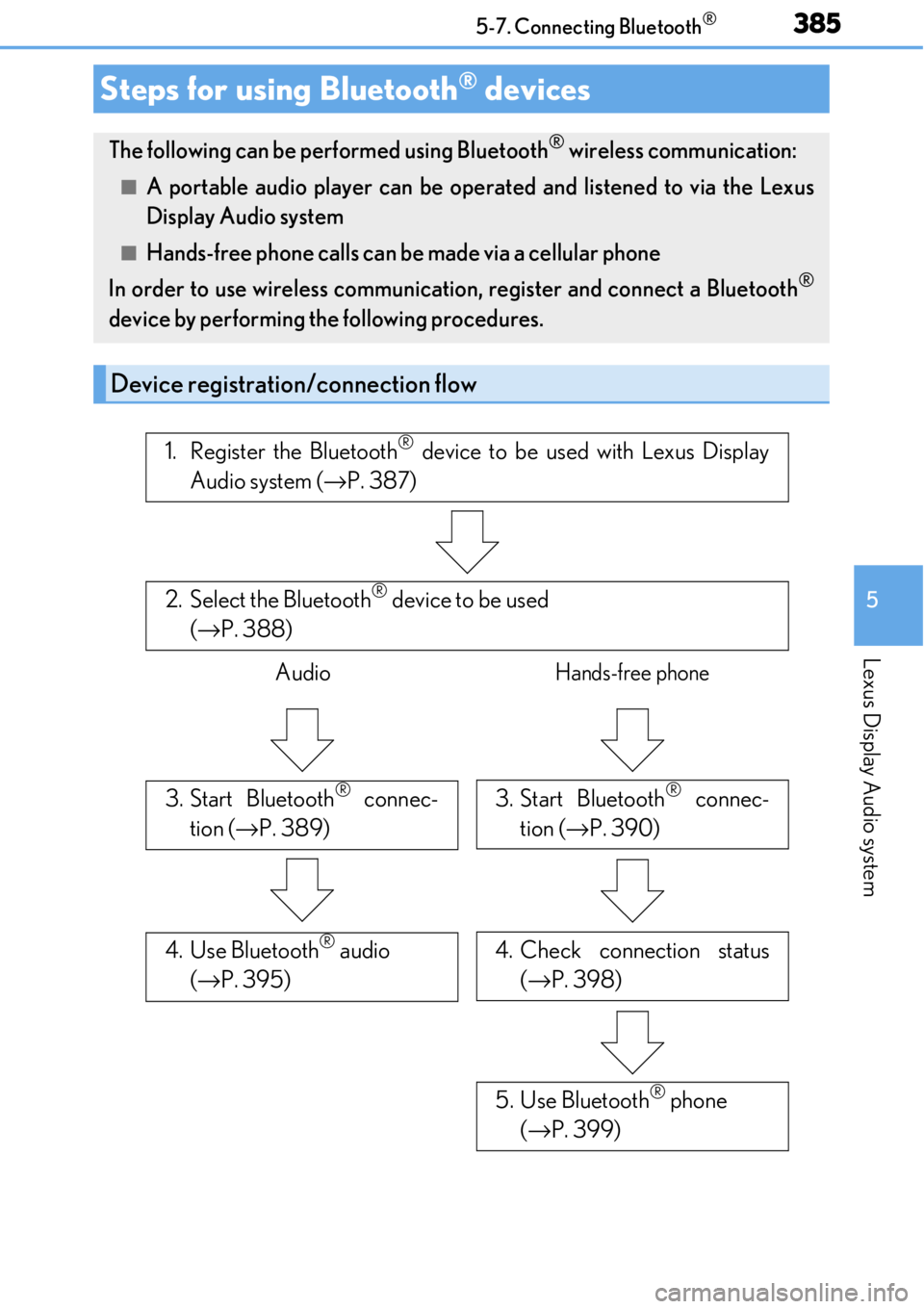
Device registration/connection flow
1. Register the Bluetooth® device to be used with Lexus Display
Audio system ( →P. 387)
2. Select the Bluetooth® device to be used
(→ P. 388)
AudioHands-free phone
3. Start Bluetooth® connec-
tion ( →P. 389)3. Start Bluetooth® connec-
tion ( →P. 390)
4. Use Bluetooth® audio
(→ P. 395)4. Check connection status
(→ P. 398)
5. Use Bluetooth® phone
(→ P. 399)
Page 386 of 724

3865-7. Connecting Bluetooth®
Go to “Bluetooth* Setup”: “MENU” button → “Setup” → “Bluetooth*”
*: Bluetooth is a registered tr ademark of Bluetooth SIG, Inc.
■When displaying “Bluetooth* Setup” screen from the “Bluetooth* Audio” screen
Display the “Bluetooth
* Audio” screen. ( →P. 395)
Move the controller to the left and select “Connect”.
■When displaying “Bluetooth* Setup” screen from the phone top screen
Display the phone top screen. ( →P. 397)
Move the controller to the left and select “Connect Phone”.
*: Bluetooth is a registered trad emark of Bluetooth SIG, Inc.
“Bluetooth* Setup” screen
1
2
1
2
Page 387 of 724
3875-7. Connecting Bluetooth®
5
Lexus Display Audio system
Turn the Bluetooth® connection setting of your device set to on.
Go to “Bluetooth
* Setup”: “MENU” button → “Setup” → “Bluetooth*”
Move the controller to the left and then select “Add Device”.
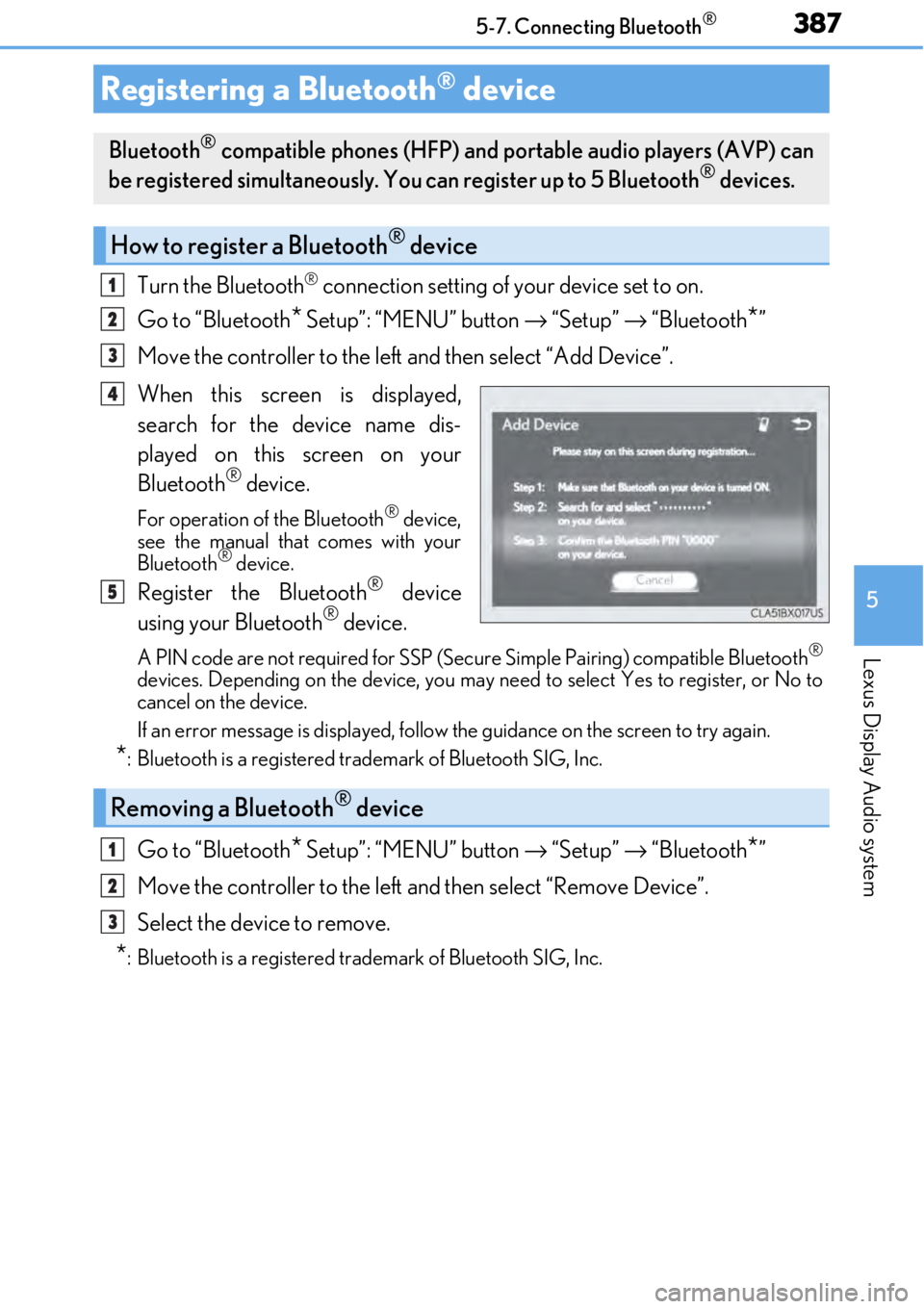
When this screen is displayed,
search for the device name dis-
played on this screen on your
Bluetooth
® device.
For operation of the Bluetooth® device,
see the manual that comes with your
Bluetooth
® device.
Register the Bluetooth® device
using your Bluetooth® device.
A PIN code are not required for SSP (Secur e Simple Pairing) compatible Bluetooth®
devices. Depending on the device, you may need to select Yes to register, or No to
cancel on the device.
If an error message is displayed, follow the guidance on the screen to try again.
*: Bluetooth is a registered trademark of Bluetooth SIG, Inc.
Go to “Bluetooth* Setup”: “MENU” button → “Setup” → “Bluetooth*”
Move the controller to the left and then select “Remove Device”.
Select the device to remove.
*: Bluetooth is a registered trademark of Bluetooth SIG, Inc.
Registering a Bluetooth® device
Bluetooth® compatible phones (HFP) and portable audio players (AVP) can
be registered simultaneously. You can register up to 5 Bluetooth® devices.
How to register a Bluetooth® device
1
2
3
4
5
Removing a Bluetooth® device
1
2
3